
In Data Studio, the owner of a report can make anyone it’s shared with the new owner, from Share → Make owner. But only to another account in the same Google Workspace organisation (or from one personal Gmail account to another), you can’t undo it, and the report’s data sources, their credentials and its schedules each have an owner of their own. That last part is where most handovers break.
This covers:
- the four owners behind every working report, and where to see each one;
- how to transfer ownership in Data Studio (formerly Looker Studio), and the limits that stop you;
- handing reports to a client on another domain;
- what happens when someone leaves, and the 20-day clock;
- offboarding a client in seven steps, what Pro changes, and what version history can restore.
How I checked this: everything here comes from Google’s Data Studio and Workspace documentation (read on 13 October 2026), Google’s developer docs, and sixteen threads on Google’s Data Studio forum. I haven’t run a cross-domain transfer, a Pro team workspace or an admin-console deletion for this post. Where the docs and the forum disagree, I say so. The steps are the same under the Looker Studio name.
The four owners behind every working report
The Share dialog shows one owner. A report keeps working only while four accounts are all still active, and they’re often four different people:
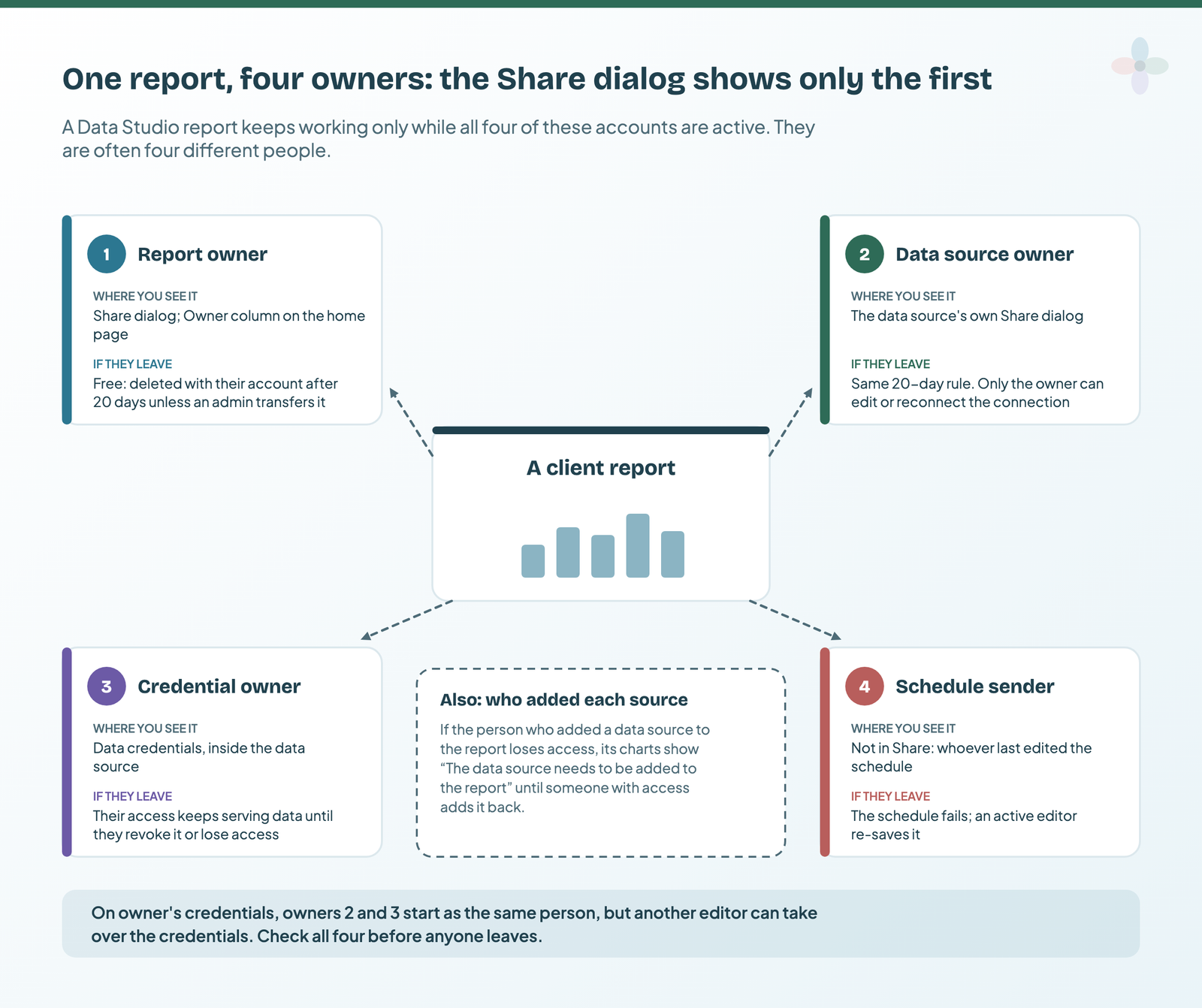
| Owner | What they control | Where to check | When they leave |
|---|---|---|---|
| Report owner | Everything, plus deleting the report and making someone else owner | Share dialog; Owner column on the Data Studio home page | Free version: the report is permanently deleted 20 days after their account is, unless an admin transfers it |
| Data source owner | The connection of a reusable source: only they can edit or reconnect it | The data source’s own Share dialog | The same 20-day rule, and nobody else can fix the connection |
| Credential owner | Whose access fetches the data, on owner’s credentials | Data credentials, inside the data source | Their credentials keep retrieving data even after they lose edit access, until they’re revoked |
| Schedule sender | The scheduled email: it runs on their credentials and permissions | Not in Share: it’s whoever last edited the schedule, including toggling it on or off | The schedule fails; an active editor re-saves it |
| Whoever added the source | The link between report and data source | Resource → Manage added data sources | Charts show “Failed To Get Data. The data source needs to be added to the report.” until someone adds it back |
The credential owner is the one people miss. Google’s docs say a data source on owner’s credentials has a credential owner who can be a different user from the data source owner: by default whoever created it, but any editor can take over with Data credentials → Make me the owner. If you need the embedded-versus-reusable distinction first, it’s in my post on data sources and datasets, and the credentials side of sharing is in my sharing and scheduling guide.
Who in your team should hold each of these is an operating-model question, and I’ve covered it in who should own which part of the reporting stack. This post is about the accounts themselves, and how to move them.
How to transfer ownership in Data Studio, and the limits that stop you
The steps from Google’s transfer ownership page:
- Share the asset with the new owner first, as Editor or Viewer. A reusable data source can only be shared when you edit it directly, not from inside a report.
- Open the report or data source and click Share.
- Click the role drop-down next to that person, then Make owner.
- Check the address, then click Yes. Google: “It may take a few minutes for the transfer to complete.”
- For a data source, the new owner claims it by reconnecting.
Step 4 matters more than it looks. Once the new owner is assigned, you can’t transfer ownership again, even back to yourself. You keep edit access unless they remove it, and they can make you owner again. One forum poster transferred a report to an account set up with a 2025 birth year and found the report no longer opened. The API won’t rescue you either: its permissions method says plainly that the “OWNER role cannot be updated.”
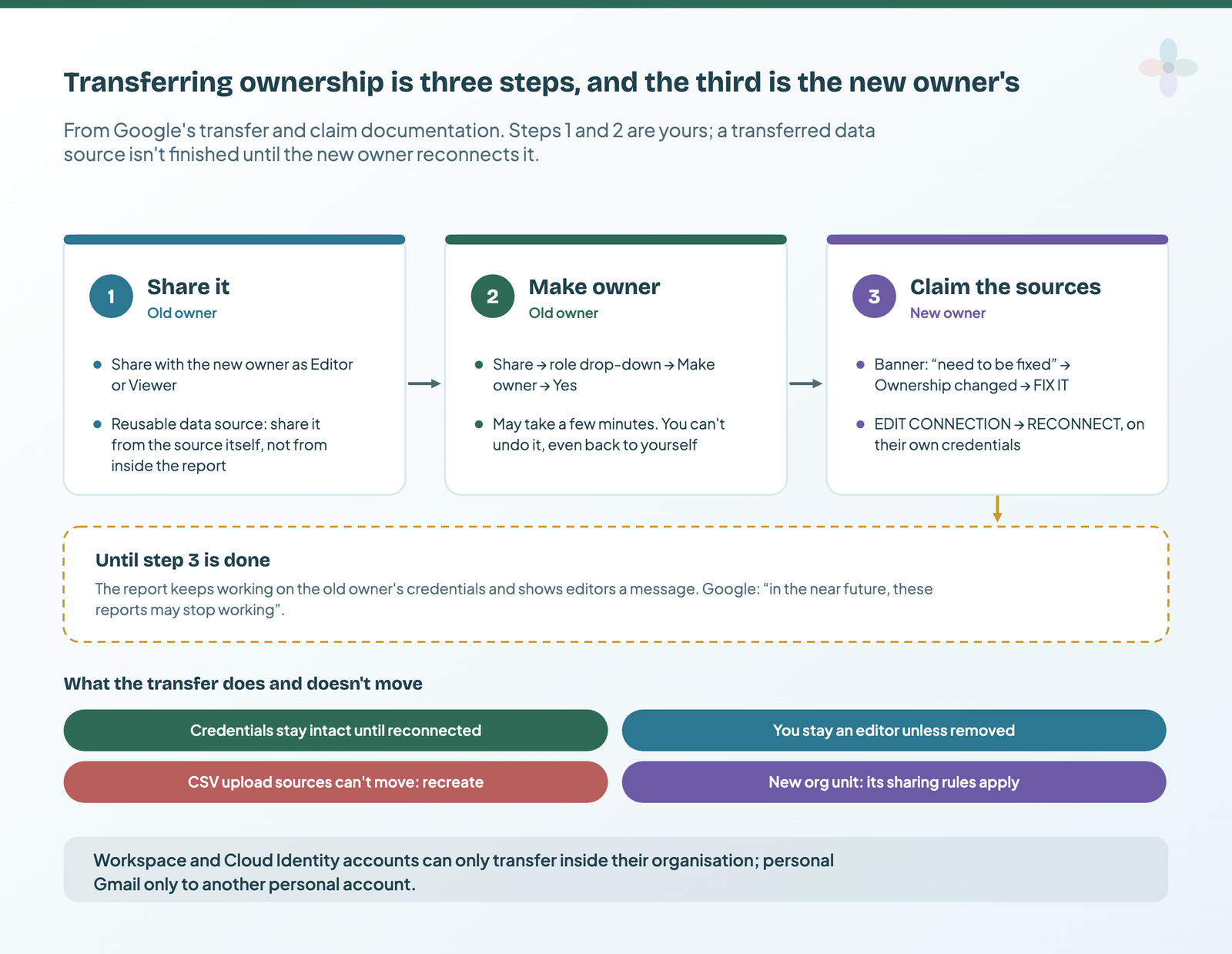
That claim step comes from Google’s claim page. The data credentials stay intact through the transfer, so sources on owner’s credentials keep feeding the report. The new owner sees a “need to be fixed” message, opens Resource → Manage added data sources, clicks FIX IT next to each source marked “Ownership changed”, then EDIT CONNECTION and RECONNECT. Until they do, editors see a warning, and Google says “in the near future, these reports may stop working until the data sources are claimed”.
Where a transfer works
| From | To | Transfer? | What to do instead |
|---|---|---|---|
| Personal Gmail | Another personal Gmail | Yes | — |
| Personal Gmail | A Workspace account | No | Add the Workspace account as editor; it copies the report |
| Workspace org A | Someone in org A | Yes | — |
| Workspace org A | Workspace org B (a client) | No | Copy and reconnect (next section) |
| Workspace account | Personal Gmail | No | Copy |
| A CSV upload data source | Anyone | No | The new owner uploads the file again |
| An embedded data source | — | Moves with the report | Google doesn’t say what happens to its credentials: check after the transfer |
If two domains sit in one organisation, Google’s docs don’t say how they count, so test one report before planning around it. And in Workspace, moving ownership to someone in another organisational unit changes the asset’s sharing permissions to theirs.
Handing reports to a client on another domain
Across organisations you don’t transfer: the client copies. Their account makes a copy of the report, owns the copy, and points it at data sources they own. Four of the forum threads I read ask some version of this, and every answer lands on the same route.
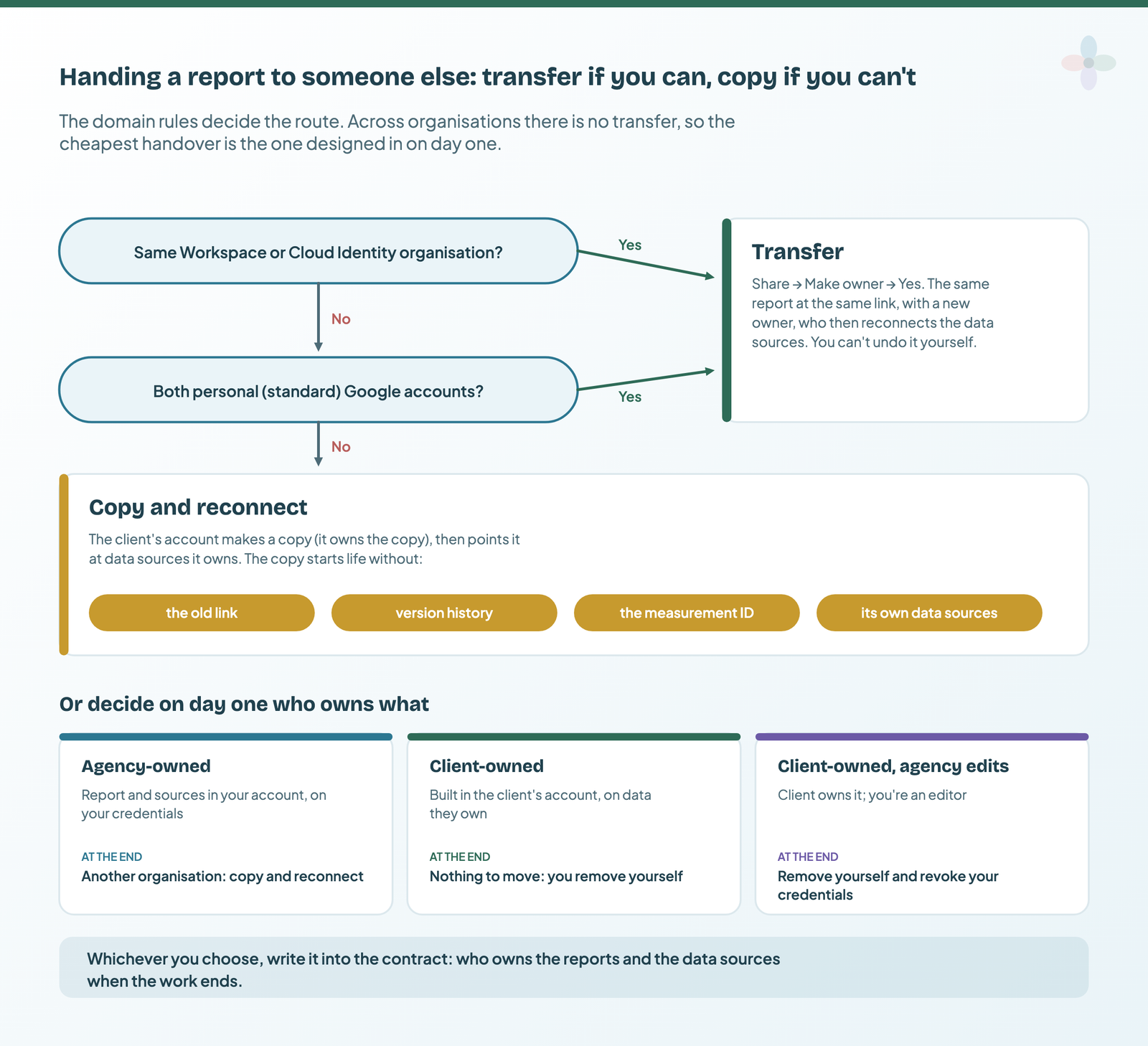
What a copy takes with it, and what it doesn’t, per Google’s copy page:
- Data sources aren’t copied. The copy uses the originals if the client has at least view access; otherwise they pick new ones, and unshared sources show as “Unknown”.
- Embedded sources on your credentials don’t come across. If the person copying isn’t the credential owner, those charts show an error.
- It’s a new report at a new link, with no version history and no measurement ID (my post on tracking report usage covers adding one back).
- Connector logins stay yours. Supermetrics’ own doc, for example, says a new report owner needs their own Supermetrics for Data Studio subscription and access to every source account.
So the cheapest handover is the one you design in on day one:
| Setup | Who owns the report | Whose credentials | At the end of the contract |
|---|---|---|---|
| Agency-owned | You | Yours | Client copies and reconnects; you revoke your credentials |
| Client-owned | The client, built in their account | Theirs | Nothing to move: you remove yourself |
| Client-owned, agency as editor | The client | Often yours, unless they take them over | Remove yourself, revoke your credentials, re-save any schedules you send |
Agency-owned is simpler across many clients; client-owned makes leaving painless. Pick one and write it into the contract. If you start each client from a template, have the client’s account make the copy, so the report is theirs from the first click. Copying and reusing a template walks through it.
When someone leaves: the 20-day clock
In the free version, a report belongs to a person, not the company. Google: “assets belonging to deleted users are permanently deleted after 20 days.” Deleting a Workspace user deletes the “reports and data sources the user owns” unless a super admin transfers them in the same step.
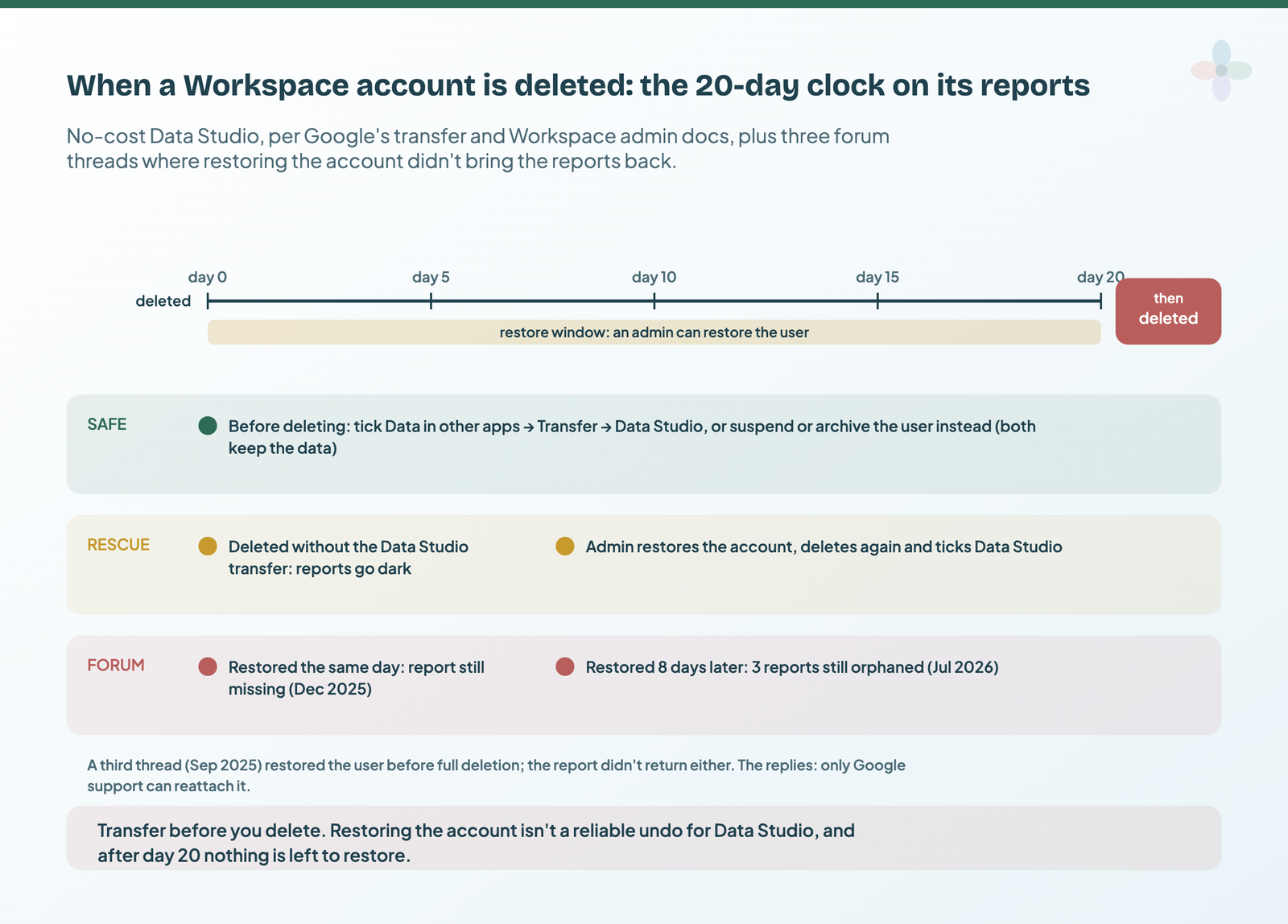
The safe route is to transfer before you delete. In the Admin console’s delete-user flow, under Data in other apps, choose Transfer, enter the new owner, tick Data Studio, and optionally Include assets that are not shared with anyone. Or suspend or archive the user instead: both keep their data.
If it’s already been deleted, Google’s rescue is: restore the account (possible for up to 20 days), start the deletion again, and do the transfer above. But of the six deleted-owner threads I read, three restored the account inside the window and still didn’t get the reports back: one the same day (December 2025), one before full deletion (September 2025), one eight days later with Drive transferred and Data Studio not ticked (July 2026). The replies in all three point to Google support, with the report IDs. Restoring isn’t a reliable undo.
For 300 reports, not three
Forum posters describe moving “over 500” reports after a domain rebrand and “around 300” broken after their creators left. For Workspace and Cloud Identity organisations, two APIs help, both inside one organisation only. The Admin SDK Data Transfer API lists Data Studio as application ID 810260081642, with no parameters: all files are transferred. And the Data Studio API finds what a leaver owns. This request is from Google’s guide with the owner swapped; I haven’t run it:
GET https://datastudio.googleapis.com/v1/assets:search?assetTypes=REPORT&owner=leaver@agency.exampleIt returns each asset’s title, owner, creator and last update, for assets the caller can see, once a Workspace admin has authorised the app with domain-wide delegation. Run it again with assetTypes=DATA_SOURCE for the sources. The checklist below includes an Apps Script version that writes the list into a Sheet, written from Google’s docs and not tested here.
Then fix the two owners an admin transfer doesn’t: re-save each schedule the leaver sent as an active editor (scheduling explains why), and have another editor take over their data credentials.
Offboarding a client: the handover in seven steps
Whichever side ends the relationship, a clean client offboarding is an inventory, a transfer or copy, a reconnect on the client’s side, then three revocations on yours.
- Inventory. In each report, Resource → Manage added data sources lists every source with its type, status and “Used in report” count. A data source’s More → Manage Added Reports shows the reports using it.
- Decide the route for each report: transfer (same organisation) or copy.
- Transfer, or let the client copy.
- The client reconnects every transferred source and swaps connector logins to theirs.
- Revoke your credentials. One source: Data Sources → More → Revoke data source. Everything you created but no longer own: Settings → Revoke Data Source → Revoke all. Until you do, your access keeps serving their data.
- Remove sharing. Share → Manage access, remove people, and set link sharing to Off. Trashing a shared report isn’t enough: people with access can still copy it until it’s permanently deleted. While the work is live, the gear in the Share dialog also lets owners disable download, print and copy for viewers.
- Schedules and measurement ID. Delete or hand over the schedules you send, and remove your measurement ID from anything you hand over.
What Data Studio Pro changes about ownership
Pro moves ownership from a person to the organisation. Google: no-cost content is owned by its creator, while Pro content “is owned by your organization” and keeps working when the creator leaves. Pro is $9 per user per project per month (checked 13 October 2026), and self-service Pro needs a Google Workspace or Cloud Identity organisation, which matters for the next table.
| Free | Pro | |
|---|---|---|
| Who owns it | The person who created it | The organisation’s Google Cloud project |
| Where it lives | Their account | Owned by me, a Sandbox or a team workspace (admins can turn off Owned by me) |
| Creator leaves or is removed from Pro | Lost after 20 days unless transferred | Team workspace content stays, and so does Sandbox content if admins have turned off Owned by me; their alerts stop, their schedules continue |
| Who can see it | Whoever it’s shared with | Team workspace members by role (Viewer, Contributor, Content manager, Manager); admins and project owners see the Sandbox |
| Personal-account reports | — | Can’t be transferred in: copy them into the Workspace account first |
Two catches. A user removed from Pro takes their “Owned by me” content back to their no-cost Owned by me, which is why Google recommends team workspaces. And moving an asset into another team workspace removes access for anyone who isn’t a member there, unless it’s shared with them directly.
Google has two different “trusted” features, and agencies mix them up:
| Workspace trusted domains | Pro trusted orgs | |
|---|---|---|
| What it does | Lets users share Data Studio assets with named external domains | Lets a self-service Pro subscription give licences to users in external Cloud organisations |
| Where | Admin console → Data Studio → Sharing settings | A support case with Cloud Customer Care (needs a support contract) |
| Needs Pro? | No | Yes, not on org-wide MAU subscriptions |
| Reversible? | Yes; changes can take up to 24 hours | No: it can’t be disabled once enabled |
Neither changes who owns anything. Whether Pro is worth it overall is a bigger question, and free vs Pro answers it.
Version history: what it can restore, and what it can’t
Data Studio version history restores a report in a click. Edit the report, then File → Version history → See version history, pick a version (the editor’s name sits under each timestamp) and click RESTORE THIS VERSION. Before a big change, name the current version: File → Version history → Name current version.
| Version history can | Version history can’t |
|---|---|
| Restore the report and its embedded data sources together | Restore a reusable data source with the report (it has its own history) |
| Bring back data sources you removed from the report | Bring back data sources that were permanently deleted |
| Show a reusable source’s history to its credential owner | Show it to anyone else, unless it uses viewer’s credentials |
| Be seen and used by anyone with edit access | Follow a report into a copy: copies start with no history |
| Keep named versions you can find again | Undo a credential change, or a deleted version |
Google gives no retention period, only that revisions “may occasionally be merged to save storage space”. So name versions before changes rather than counting on finding an old one.
For client reports, turn on File → Publishing settings. Viewers then see only the published version while you work on a draft, and restoring an old version only changes the draft. One exception from Google’s publishing page: field edits on reusable data sources, revoking credentials, and removing or trashing a source go straight to the published report. That’s worth knowing before step 5 of an offboarding.
Where to go next
- Agency reporting operations: who in the team should own which part of the reporting
- Sharing and scheduling Data Studio reports: credentials, and why a schedule stops when its sender leaves
- Data sources vs datasets: embedded vs reusable, and what a copy takes with it
- Copying and reusing a template: the copy route in detail
- Data Studio free vs Pro: whether organisation ownership is worth paying for
- Automated client reporting in Data Studio: the whole pipeline, free and Pro
Frequently asked questions
Can I transfer a Data Studio report to a client on a different domain?
No. Share it with them; they copy it into their own account and connect data sources they own. The copy has a new link and no version history.
Can I move reports from a personal Gmail account into Google Workspace or Pro?
Not by transfer: personal accounts can only transfer to other personal accounts. Add the Workspace account as an editor and copy the reports. The copies have new links.
The owner’s account was deleted. Can we get the reports back?
Within 20 days, an admin can restore the account and transfer Data Studio in the deletion flow. After 20 days they’re permanently deleted. Forum users report restores that didn’t bring reports back, so open a support case with the report IDs if that happens.
Can I undo a transfer?
Not yourself. You stay an editor unless the new owner removes you, and they can make you the owner again.
Why can’t I see “Restore this version”?
You need edit access. Forum users also report the button sometimes doesn’t appear; one workaround people share is hovering the area left of the report name.
Some links in this post are affiliate links: if you sign up through one, I may earn a commission at no extra cost to you. How I work with partners.