

There are six ways to get a Data Studio report in front of someone, and picking the wrong one is the usual reason a client emails back saying they can’t open it. The mechanics are easy. What decides whether it works is a setting most guides don’t mention: whose credentials the report runs on.
This covers all six methods, which to use when, and the four things that break sharing — including one that breaks it several weeks later, quietly.
Updated 14 October 2026: corrected what a free schedule can do for different recipients, and added Google’s scheduled-email quotas.
Six ways, and when each is right
| Situation | Use | Why |
|---|---|---|
| A colleague who’ll edit it | Invite as Editor | The only method that gives edit rights. Needs a Google account. |
| A named client who’ll come back to it | Invite as Viewer | Access follows the person, and you can revoke it. |
| A client who shouldn’t need an account | Unlisted link | Anyone with the link can view; it isn’t indexed or listed. |
| A monthly report nobody logs in to read | Scheduled email | It arrives. Link sharing relies on them remembering. |
| A fixed snapshot, or something for a deck | PDF download | Static, and it doesn’t move when the data does. |
| A dashboard inside your own site or intranet | Embed | Lives where people already are. |
Most reports end up using two: an invitation or link for the people who explore, and a scheduled email for the people who won’t.

Sharing by invitation
Open Share from the report, add email addresses, and pick a role.
- Viewer — can see the report, interact with controls, and export data from charts unless you disable it. Can’t change anything.
- Editor — can change the report, including deleting things. Editors need a Google account.
- Owner — one person, and it matters more than it looks. See the credentials section below.
Google documents a cap of 1,500 people and groups per report. If you’re anywhere near that you should be sharing by link anyway.
The gear icon in the share dialog holds the restriction settings, including disabling downloading, printing and copying for viewers. Worth knowing that this is a deterrent rather than security — a Workspace admin can override it, and anyone determined can screenshot. If data genuinely must not leave, don’t put it in a shared report.
Sharing by link
Under Link settings in the same dialog, a personal Google account gives you three options:
- Restricted — the default. Only people you’ve added can open it. A link on its own does nothing.
- Unlisted — anyone with the link can view. Not listed publicly and not intended to be indexed.
- Public — anyone can find and view it.
Workspace accounts get domain-scoped options on top of these — everyone at your organisation, view or edit.

Unlisted is the one most agencies actually want and the one most guides skip. It gets a client into the report without creating an account, without you managing a list of email addresses, and without publishing client numbers to the open web. Treat the link as the credential: anyone it’s forwarded to can open it.
Two link details worth knowing:
- Viewers don’t need a Google account for an unlisted or public link: Google’s sharing guide says no login is needed to view a report shared by link. They do need one to edit.
- “Link to your current report view” gives a URL carrying the filters and date range you currently have applied — so you can send someone the exact view you’re looking at rather than “open it and set it to last month, Ireland only”.
The setting that decides whether they see anything
This is the most important section on the page, and it’s the one the ranking guides mostly leave out.
Every data source runs on either owner’s credentials or viewer’s credentials, and it’s set on the data source, not the report.
| Owner’s credentials | Viewer’s credentials | |
|---|---|---|
| Who queries the data | You | Whoever is looking |
| Viewer needs access to the underlying data? | No | Yes |
| Right for | Client reports, anything shared by link | Internal reports where people should only see their own data |
| Failure mode | Everyone sees everything you can see | People without access see nothing, and it looks broken |
If your client says the report is empty, check this first. A source on viewer’s credentials shows nothing to anyone who can’t reach the underlying GA4 property, Ads account or spreadsheet — and it fails silently, with no message explaining why.
Viewer’s credentials also quietly break two rendering behaviours: hyperlinks and images stored in dimensions stop rendering. If your table of landing pages has clickable links in one report and plain text in another, this is usually why.
The default for most connectors is owner’s credentials, which is normally what you want. Deliberately switch to viewer’s when the point is that different people should see different things — and understand you’re taking on the support burden of everyone’s access.
There’s a second way to show different people different rows from one report, and it isn’t a Pro feature: filter by viewer email on the data source, so each signed-in viewer sees only the rows that carry their email address. Viewers need to be signed in to a Google account for it to work. I cover the setup in row-level security in Data Studio.
Scheduled email delivery
From the report, ⋮ → More share options → Schedule delivery. The dialog is titled Email delivery and has two tabs.
On the Settings tab you set recipients, pages, start date, repeat and time; the sender (you) and the time zone (your computer’s) are shown, not chosen. The repeat options are Daily, Weekly, Monthly, Every weekday, and Custom — and the weekly and monthly options anchor to the weekday of your start date, which is why they read as “Weekly on Thursday” and “Monthly on the 2nd Thursday”. Change the start date and those labels change with it.

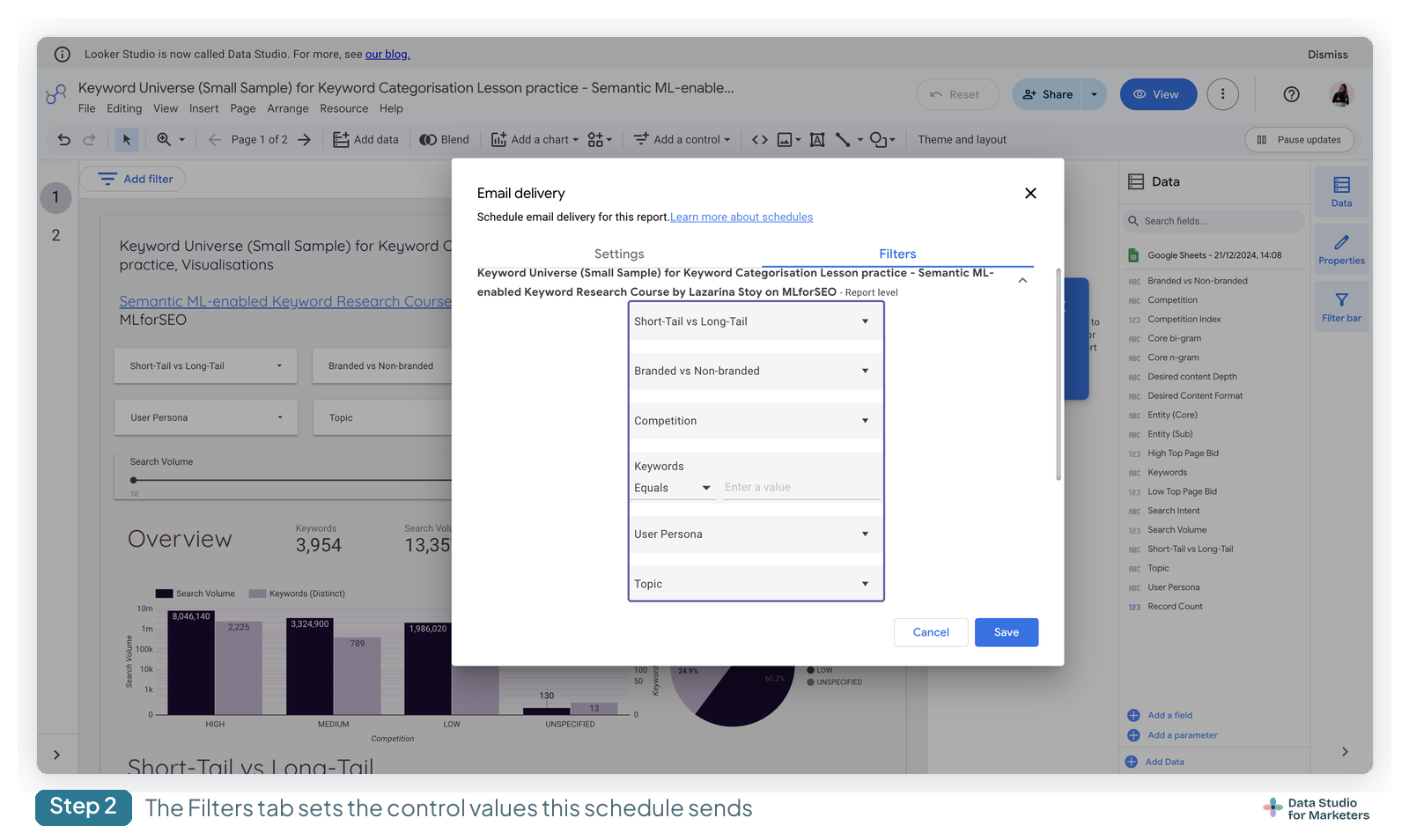
The Filters tab lets you change the values of the report’s filter controls and date range controls for this schedule: one region, say, or last month. You can’t add or remove controls there, or change filter properties. Changing the report’s default values later doesn’t flow into a schedule you’ve already saved, though removing a filter control removes it from every schedule.
On free Data Studio a report gets one schedule, so the Filters tab sets the view for that one send. It doesn’t let one report go out filtered differently to different people. If different clients need different data by email, there are two routes:
- One copy of the report per client, each with its own schedule and its own filter values. Free, but every copy has to be maintained.
- Data Studio Pro: several schedules on one report, or one schedule that filters what each recipient gets by their email address (more below).
I set out both in my guide to automated client reporting in Data Studio.
What changed, and why half the guides are wrong
In March 2025 Google removed several things from scheduled delivery for everyone who isn’t on Data Studio Pro:
- “Send now” — you can no longer trigger a scheduled report immediately to test it
- Custom subject lines
- Custom message bodies
- The preview image in the email
Plenty of currently-ranking posts still walk you through writing a custom subject line. On a free account those fields are simply not there — the dialog has sender, recipients, start date, repeat, time and time zone, and nothing else. If a guide shows you a screenshot with a message box, it’s out of date.
The practical consequence of losing “Send now” is that you can’t test a schedule without waiting for it. The workaround is to set the start date to today and the time to a few minutes ahead, let it fire, then edit it back to the real schedule.
The limits
From Google’s documentation, checked 13 October 2026, since these aren’t visible in the interface:
| Free | Pro | |
|---|---|---|
| Schedules per report | 1 | 200 |
| Most frequent delivery | Daily | Hourly |
| Recipients per schedule | 50 | |
| Pages in the email preview | 5 | |
| Other destinations | — | Google Chat, Slack |
| Scheduled-email quota (recipients per sender) | 200 a day, 800 a month · Workspace accounts 500 a day, 3,000 a month | None (reports left in Owned by me stay on the quota) |
One schedule per report on the free tier is the constraint that bites agencies: you can’t send Monday to the client and Friday to the internal team from the same report. The workaround is a second copy of the report, which then has to be maintained twice — or Pro.
The email quota counts recipients, per sender account, across every schedule you’ve saved, not per report. There’s no way to see how close you are, and once you’re over it, further scheduled emails from your account aren’t sent. So the copy-per-client setup shares one quota: every client copy saved under your account draws from the same daily and monthly limit. If emails stop arriving with no error, it’s one of the first things to rule out in why a scheduled report isn’t sending.
What Pro adds to scheduling
- More schedules, more often: up to 200 schedules on a report whose owner has Pro, and hourly delivery.
- Recipient-email filtering: the Filter the delivered report data by recipient’s email address option, so one schedule sends each recipient only the rows that match their address. Each data source needs an email address field set up first, and it works for email schedules only, not Chat or Slack.
- Send now, a custom subject and message, and the inline preview (what free lost in March 2025), plus pausing a schedule.
- Google Chat and Slack as destinations.
- Alerts: an email when a chart meets a condition you set, to recipients inside your organisation. More in how Data Studio alerts work.
Two catches. Pro features only apply to reports in a Team Workspace or Sandbox: a report left in Owned by me counts as a personal report, so no Send now, custom subject or inline preview, and it stays on the quota. And self-service Pro is sold to Google Workspace or Cloud Identity organisations, so it isn’t something you can add to a personal Gmail account. The full comparison is in Data Studio free vs Pro.
Why your schedule stopped working after a few weeks
This is the failure nobody connects, and it’s worth understanding before it happens to you.
A schedule runs under the credentials of whoever last saved it. Not the report owner — the last person to touch that schedule. If that person leaves, has their account deactivated, or loses access to the underlying data, the schedule fails.
It also explains the reverse problem: a colleague edits your schedule to add themselves as a recipient, and from that point the report is being generated with their data access rather than yours. If they can see less than you can, the emails quietly start containing less.
Two habits that prevent it: have schedules saved by someone whose account isn’t going anywhere, and when someone leaves, audit the scheduled reports along with everything else. If Data Studio Pro is in play, note that downgrading keeps only the oldest schedule active — the rest stop.
Download as PDF
⋮ → More share options → Download report. The options worth knowing:
- Password protection — for anything going to an external party by email.
- Ignore custom background colour — worth ticking. A dark theme that looks good on screen wastes an enormous amount of toner and usually looks wrong printed.
- Add a link back to the report — puts a clickable link in the PDF so whoever receives it can get to the live version. Small, and it converts more PDF readers into report users than anything else.
The gotcha: the export captures what’s rendered, not what’s in the data. A table showing 10 rows of 400 exports as 10 rows — the pagination doesn’t unroll. If you need the full table in the PDF, raise the row limit before exporting, and expect a large report to be slow or to time out. The same goes for filters and drill-downs: a PDF shows only the default view, which is why Chapter 23 of my ebook, Data Storytelling in Data Studio, treats that default view as the story.
Some PDF options — expanding tables to a much higher row count, and page numbers — are Pro features. If the free export truncates something important, that’s the specific wall you’ve hit.
Exporting the data instead of the picture
Sometimes the person doesn’t want the report, they want the numbers. Hover a chart in view mode and use the three-dot menu to export it as CSV, to Google Sheets, or as a PNG image.
This is the single most common request from anyone who does their own analysis, and it’s why a plain table is often a better choice than a prettier chart — tables export, chart types mostly don’t. If you’ve disabled downloading for viewers, this is also what you’ve taken away, so decide deliberately.
Embedding a report
Enable embedding in the file menu, then take either the embed code (an iframe, for a web page) or the embed URL (for tools that want a URL, like Notion or a Google Site).
Three things to know before you build a page around it:
- An embed can’t inherit your site’s login. Whoever loads the page must be able to open the report in their own right — so an embedded report on a members’ area still needs to be shared appropriately, usually unlisted.
- The Data Studio watermark stays. There’s no supported way to remove it.
- Links to specific pages within the report don’t survive embedding the way you’d expect — plan for the embed showing one page, and use in-report navigation rather than external links.
When sharing goes wrong — the checklist
In the order that resolves the most cases fastest:
- They see an empty report or “no data” → data credentials. Almost certainly set to viewer’s when it should be owner’s.
- They get a permission screen → link setting is Restricted and they aren’t on the list. Switch to Unlisted, or add them.
- They see the report but numbers look wrong → they’ve got a control set to something. Ask them to check the applied filters, or send them a link to your current view.
- Scheduled emails stopped arriving → whoever last saved the schedule has lost access or left. Re-save it as someone who hasn’t — or your account has hit its daily or monthly email quota (more causes and fixes).
- The PDF is missing rows → the export captured the rendered table. Raise the row limit and re-export.
- Everything looks right and they still can’t open it → check whether they’re signed into a different Google account in the same browser. This is embarrassingly common and costs a lot of email threads.
What to set up, depending on who you are
In-house, sharing with a manager or a team: invite people by name, keep data credentials on owner’s, and set up one scheduled email for whoever won’t open a link. That’s the whole job. Don’t over-engineer it.
At an agency, across a client roster: two things pay for themselves. Use unlisted links so clients never have to think about Google accounts, and give each client their own scheduled email: on free, that’s one copy of the report per client, each with its own schedule (they all share your account’s email quota); on Pro, several schedules on one report, or recipient-email filtering. I go through both in automated client reporting. Then make sure the schedules are saved under an account that will still exist next year — this is the one that quietly costs agencies a client conversation.
If the report contains anything commercially sensitive: named invitations only, owner’s credentials, downloads disabled — and accept that this is friction reduction rather than a security boundary. Anything that genuinely can’t leave shouldn’t be in a shared dashboard.
Frequently asked questions
How do I schedule a Data Studio report by email?
From the report, ⋮ → More share options → Schedule delivery. Set recipients, start date, repeat frequency and time (the time zone follows your computer’s), then Save. The Filters tab sets the control values for the send. Free reports get one schedule, so different filters per recipient need a copy per client or Pro.
Why can’t I write a custom subject line for my scheduled report?
Google removed custom subject lines, message bodies, the preview image and the “Send now” button for non-Pro users in March 2025. Guides showing those fields predate the change.
How do I test a scheduled report without waiting a day?
There’s no “Send now” any more on the free tier. Set the start date to today and the time to a few minutes from now, let it fire, then edit the schedule back to what you actually want.
Why did my scheduled emails stop arriving?
A schedule runs under the credentials of whoever last saved it. If that person left, was deactivated, or lost access to the underlying data, it fails. Re-save the schedule as someone with access.
My client says the report is empty. What’s wrong?
Almost always data credentials. If the data source uses viewer’s credentials, anyone without access to the underlying data sees nothing — with no error explaining why. Switch the data source to owner’s credentials.
Does someone need a Google account to view my report?
Not for an unlisted or public link. They do need one to be invited by name, and to edit.
What’s the difference between Restricted, Unlisted and Public?
Restricted means only people you’ve added can open it. Unlisted means anyone with the link can view but it isn’t listed publicly. Public means anyone can find and view it. Unlisted is usually the right choice for client reports.
How many people can I schedule a report to?
50 recipients per schedule. On a free account you get one schedule per report and daily is the most frequent option; Pro raises that to 200 schedules and hourly delivery. Separately, a personal account can send scheduled emails to 200 recipients a day and 800 a month (Workspace: 500 and 3,000); Pro has no quota.
Why is my table cut off in the PDF export?
The PDF captures what’s rendered on screen, so a paginated table exports only the visible rows. Raise the chart’s row limit before exporting.
Can I remove the Data Studio branding from an embedded report?
No. The watermark on embedded reports is permanent and there’s no supported way to remove it.
Can I stop viewers downloading the data?
Yes, via the gear icon in the share dialog. Treat it as a deterrent rather than security — a Workspace admin can override it, and it doesn’t stop screenshots.