
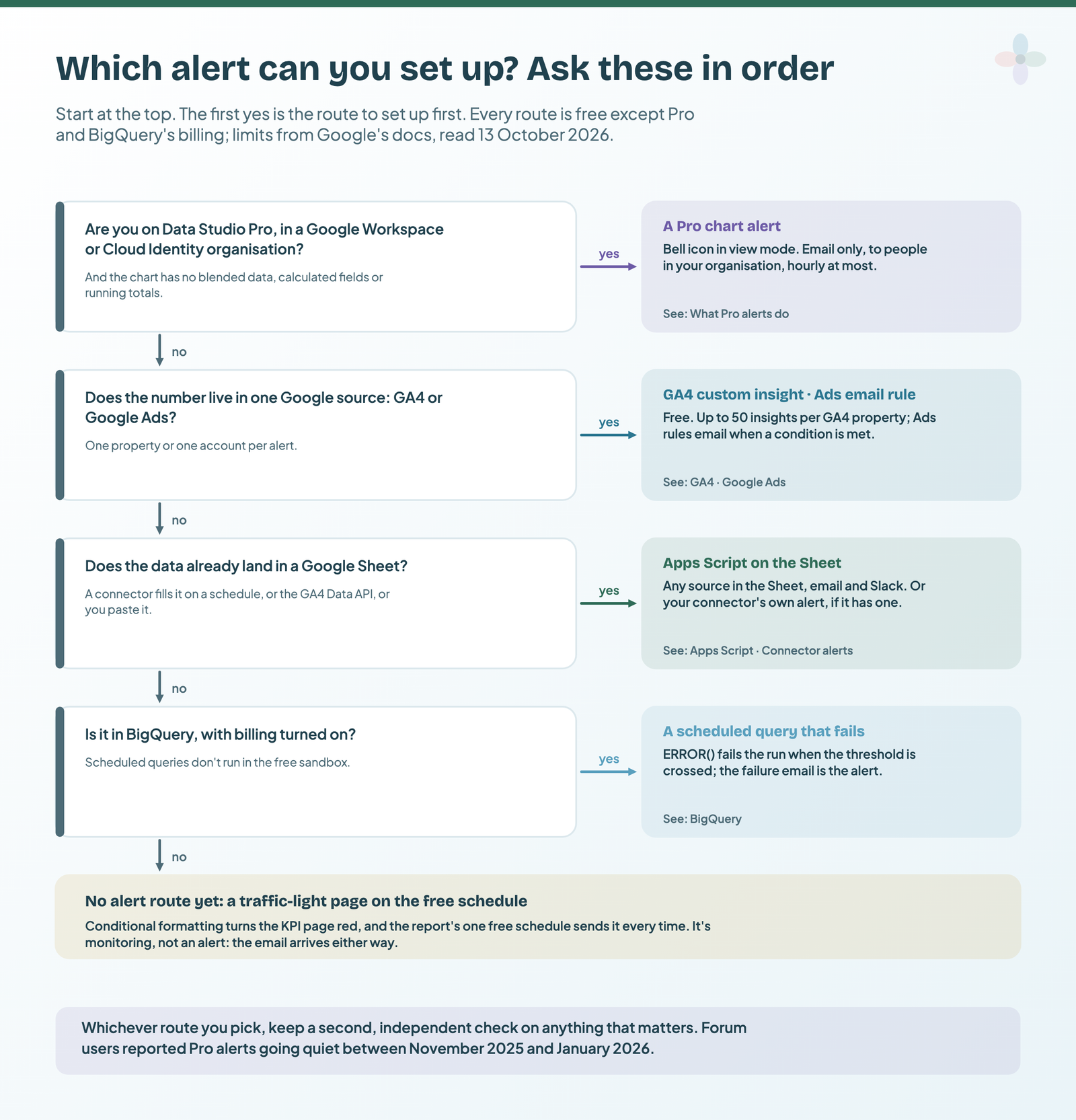
Data Studio can email you when a chart crosses a threshold, but only on Data Studio Pro, only to people in your own organisation, and only against the report’s default filters. On the free version there are no alerts at all, so the alert has to come from somewhere else: GA4, Google Ads, the Google Sheet behind your report, or BigQuery.
You want to hear about a broken tracking tag on Monday, not in Thursday’s client call. (Older answers call these Looker Studio alerts: Google renamed the product back to Data Studio in 2026.) This covers:
- nine routes side by side, and a decision tree
- what Pro alerts do, and the 11 changes that switch one off
- the free routes, including an Apps Script that checks the Sheet behind your report hourly
- connector vendors’ alerts, and a BigQuery query that fails on purpose
What’s here comes from Google’s documentation and release notes (read 13 October 2026), the vendors’ own docs and Google’s Data Studio forum. I haven’t run a Pro alert or a BigQuery scheduled query for this post, and I say so wherever it matters.
Nine ways to get a Data Studio alert, side by side
Pro alerts are the only native option. Each free route watches one source, except an Apps Script on a Sheet, which watches anything that lands in it. An alert here arrives only when a condition is met; a schedule that always sends is monitoring, listed as the nearest thing on free.
| Route | What it watches | Cost | Fastest check | Delivery | Recipients | Several sources? |
|---|---|---|---|---|---|---|
| Data Studio Pro chart alert | One chart, default filters | Pro licence for the creator | Hourly | Up to 50, in your organisation | No blends | |
| Traffic-light page + the free schedule | A page with conditional formatting | Free | Always sends | Your schedule’s list | Yes (not an alert) | |
| GA4 custom insight | One GA4 property | Free | Hourly (web data only) | Email, Insights dashboard | Addresses you type in | No |
| Google Ads email rule | One Google Ads account | Free | Daily in Google’s example (runs within about 2 h) | Set on the rule | No | |
| Search Console messages | Events, not thresholds | Free | When an event happens | Email, message panel | Each user’s settings | No |
| Sheets conditional notifications | Cells in a Sheet | Some work or school accounts | Can be delayed | Google accounts | External data doesn’t trigger it | |
| Apps Script on the Sheet | Anything in the Sheet | Free (quotas) | Every minute; hourly is plenty | Email, Slack | 100 a day on Gmail, 1,500 on Workspace | Yes |
| Connector vendor alerts | What the connector moves | Your connector plan | Varies | Varies | Varies | Depends |
| BigQuery scheduled query | Any table you can query | Billing on; 1 TiB a month free on-demand | Every 5 minutes | Email, Pub/Sub | Whoever scheduled it | Yes |
From each product’s own docs, read 13 October 2026. Data Studio Pro is $9 per user, per project, per month (Google’s price, checked 9 September 2026).
Pro decides the first branch; whether your data already sits in a Google Sheet decides most of the rest. (Is Pro worth it otherwise? See Data Studio free vs Pro.)
What Data Studio Pro alerts do
Chart alerts arrived on Pro in November 2023; hourly checks followed on 5 December 2025. Three conditions first:
- It’s Pro content. The report itself must be Pro, not just your account. Self-service Pro is for Google Workspace or Cloud Identity organisations, so not a personal Gmail account.
- You can view the chart’s data. You need at least the Viewer role on the report and on the chart’s data source.
- You’re in View mode. In Edit mode there’s no bell.
Then, following Google’s steps:
- Open the report in View mode and hover over the chart you want to watch.
- Click the Create & view alerts bell icon. The Create Alert dialog opens.
- Add a Name (and optional Description), set Access to all viewers of the report or you only, and add Recipients. As the creator you’re always on the list.
- Set the Alert rules: a field, a condition and a value. The conditions on offer depend on the field’s data type. Extra conditions combine with AND; there’s no OR.
- Set the Start time and Repeat (how often Data Studio checks). Custom allows schedules like every Tuesday and Thursday.
When the condition is met, everyone on the list gets an email from looker-studio-noreply@google.com with the condition, the time it was met, the value that triggered it and a link to the report. Recipients also get an unsubscribe link (the creator’s copy doesn’t have one).
| Pro alerts at a glance | From Google’s docs |
|---|---|
| How often | Hourly at most, or a custom schedule |
| Recipients | Up to 50 email addresses, all inside your organisation |
| Channel | Email only, from looker-studio-noreply@google.com |
| Time zone | Your operating system’s; it can’t be changed in Data Studio |
From Google’s Create alerts on a chart and the release notes, read 13 October 2026.
Recipients don’t need Pro licences, according to a Google staff answer on Google’s Data Studio forum in June 2024: only the creator does.
Where Pro alerts stop, and the 11 changes that switch one off
Google’s limits, before you build anything:
- No blended data sources, calculated fields or running totals. Alert on the underlying field. (Google doesn’t say whether data-source calculated fields count too.)
- Default filter values only. A viewer’s filter changes don’t apply.
- In-organisation recipients only. External aliases and trusted domains aren’t allowed.
- You can’t test an alert, and you can’t restore a deleted one. You can edit only your own.
- By default, alerts don’t work with data protected by IP-based VPC Service Controls access levels.
Then the part that catches teams out: any of 11 changes deactivates an alert at its next run, and the owner gets an email with the reason.
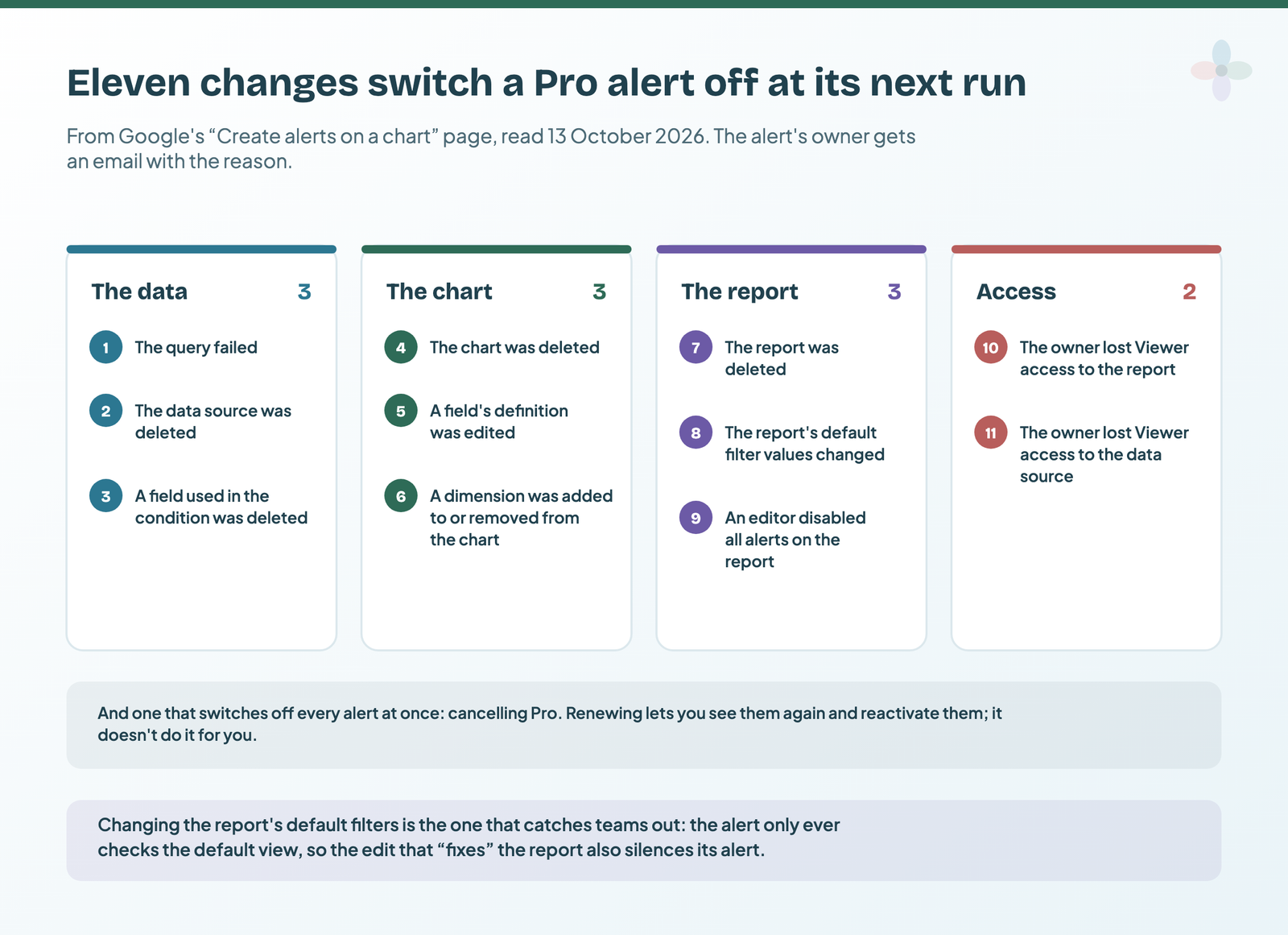
Cancelling Pro deactivates all of them; renewing lets you view and reactivate them. An editor can also switch alerts off for a whole report: Share → settings gear → Report access settings → Disable alerts creation & viewing for viewers. Turning that back on doesn’t reactivate the old alerts.
Sending a Pro alert to Slack
A Slack channel’s email address is outside your organisation, so Data Studio rejects it with “The highlighted email address is blocked by the administrator” (meaning outside your org, not an admin block). Google’s workaround: send the alert to an internal address and forward it with a Gmail filter to the channel’s email address, which is a paid Slack feature.
I’d also keep a second, independent alert on anything that matters. On Google’s forum, a Pro user reported chart alerts going quiet after 14 November 2025; two more confirmed in January 2026 that queries ran but no emails arrived, until the original poster saw them working again on 23 January. User reports, not a Google incident notice, but two months is a long silence. A data health page is the free safety net.
On the free version: a traffic-light page and a schedule
Free Data Studio has no conditional send: a scheduled email always arrives. Make it worth opening:
- Build one “KPI health” page: a scorecard or table per number that matters. (Scorecards cover the set-up.)
- Add conditional formatting: a rule that changes font or background colour when a value meets a condition (tables and scorecards; AND or OR). The mechanics are in making a colour carry a rule; a reference line does a similar job on a time series.
- Schedule that page. Free reports get one schedule each (multiple schedules are a Pro feature, and since March 2025 so are Send now and custom subject lines), so make the health page the one it sends. The steps are in how to share and schedule a report.
It’s monitoring, not an alert: the red still needs someone to open the email. Chapter 20 of my ebook, Data Storytelling in Data Studio, covers tying conditional formatting to a rule you’ve written down, so the red on that page means one thing.
GA4 custom insights: free alerts for one property
A GA4 custom insight is a rule GA4 checks for you; when it triggers, it shows on the Insights dashboard and can email whoever you list. You can have up to 50 per property, and you need the Editor or Administrator role to create them.
- On the Insights card, click View all insights, then Create.
- Under Start from scratch, click Create new.
- Pick an Evaluation frequency: Hourly, Daily, Weekly or Monthly. Hourly is only available for web data, not app events.
- Keep the segment at All Users or change it, then set the Metric, condition and value (Google’s example: 30-day active users, % decrease more than, 20). Or choose Has anomaly, and GA4 decides what’s unusual with no value to enter.
- Name it, type the email addresses to notify, and click Create.
My starting three for any client property (my recommendation, not a Google list):
| Rule | Frequency | Metric and condition | What it catches |
|---|---|---|---|
| Tracking break | Daily | Key events, % decrease more than 90 | A tag removed in a site release |
| Outage | Hourly | Sessions, % decrease more than 50 | The site, or its tracking, going down |
| Catch-all | Daily | Sessions, Has anomaly | Anything GA4 thinks is unusual |
Google’s help page describes email only, so Slack needs a forwarding filter. (Reporting side: connect GA4 to Data Studio.)
Google Ads: an email-only automated rule
Automated rules can change bids and budgets, but one rule type, Send email, changes nothing and just tells you. Google’s own example: a campaign with a $100 daily budget, and a rule at noon that emails you if it has already spent more than $50 that day.
- Click Campaigns, then the campaign whose spend you want to watch.
- Click the three-dot icon and select Create an automated rule.
- Under Type of rule, select Send email.
- Choose which ad groups it applies to.
- Under Condition, click +ADD, select Cost and set it to > $50.
- Set the frequency to Daily, 12:00 PM, using data from the Same day. Name it and save.
Rules usually run within 2 hours of their scheduled time, so a 9 a.m. rule may run up to 11. An email-only rule has nothing to undo; pause it to stop the emails. (Report side: connecting Google Ads to Data Studio.)
Search Console: the emails you already get, and what they don’t cover
Search Console emails site owners about important events, such as a new indexing issue or a change to your permission level. Preferences are per user, under User settings → Email preferences, where you can mute some messages or all of them.
The help pages describe events, not thresholds. For “clicks fell by half”, use a GA4 insight on organic sessions, or the next section’s script.
The free alert that works for any source: Apps Script on the Sheet behind your report
If a connector (or GA4’s Data API) already writes your numbers into a Google Sheet that Data Studio reads, a script can check that same Sheet every hour and send the alert. Apps Script is Google’s built-in scripting for Sheets (Extensions → Apps Script); a time-driven trigger runs a function on a timer, as often as every minute or as rarely as monthly.
Why not Sheets’ own Conditional notifications? They’re only on certain work or school accounts, and changes from external data (Google’s examples: Connected Sheets, IMPORTRANGE) don’t trigger them. Whether a connector add-on’s writes count as external isn’t stated; I wouldn’t bet an alert on it.
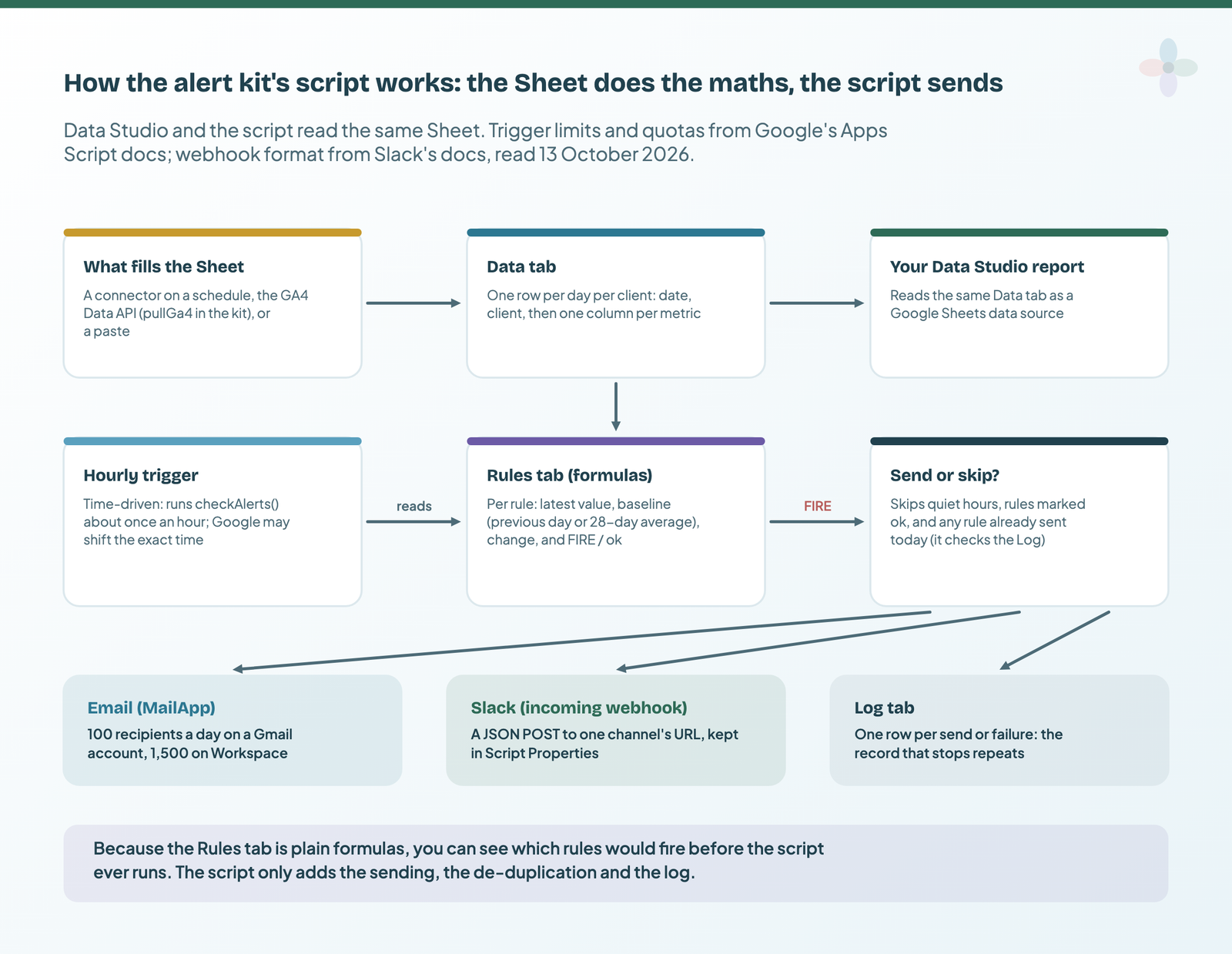
The maths stays in the Sheet. A Rules tab holds one row per alert (client, metric, comparison, threshold, recipients, Slack yes/no), and formulas work out the latest value, the baseline (previous day or 28-day average) and whether it fires. The script reads that tab, sends each firing rule at most once a day per channel, and logs every send. Feed it complete days (ending yesterday): a half-finished today makes every “% drop” rule fire each morning. The core:
// Written from Google's Apps Script docs and Slack's webhook docs, not tested here.
// The full version (settings, quiet hours, GA4 pull) is in the alert kit.
// Rules tab, from row 5: A Active, B Rule, C Client, D Metric, E Comparison,
// F Threshold, G Email to, H Slack?, I Day, J Value, K Baseline, L Change, M Fires?

function checkAlerts() {
  var ss = SpreadsheetApp.getActiveSpreadsheet();
  var tz = ss.getSpreadsheetTimeZone();
  var today = Utilities.formatDate(new Date(), tz, 'yyyy-MM-dd');
  var rules = ss.getSheetByName('Rules');
  var log = ss.getSheetByName('Log');
  if (rules.getLastRow() < 5) return;
  var rows = rules.getRange(5, 1, rules.getLastRow() - 4, 13).getValues();

  // What already went out today, per channel (Log: A time, B rule, C client, H channel, I status)
  var sent = {};
  if (log.getLastRow() > 1) {
    log.getRange(2, 1, log.getLastRow() - 1, 9).getValues().forEach(function (r) {
      if (r[0] instanceof Date && r[8] === 'sent' &&
          Utilities.formatDate(r[0], tz, 'yyyy-MM-dd') === today) sent[r[1] + '|' + r[2] + '|' + r[7]] = true;
    });
  }

  rows.forEach(function (r) {
    if (r[0] !== 'Yes' || r[12] !== 'FIRE') return;
    var key = r[1] + '|' + r[2] + '|';
    var msg = r[2] + ': ' + r[3] + ' was ' + r[9] + ' (rule: ' + r[1] + ', ' + r[4] + ' ' + r[5] + ')';
    if (r[6] && !sent[key + 'email'])
      log.appendRow([new Date(), r[1], r[2], r[3], r[9], r[10], r[5], 'email', sendEmail_(r[6], r[1], msg)]);
    if (r[7] === 'Yes' && !sent[key + 'slack'])
      log.appendRow([new Date(), r[1], r[2], r[3], r[9], r[10], r[5], 'slack', postToSlack_(msg)]);
  });
}

function sendEmail_(to, rule, msg) {
  if (MailApp.getRemainingDailyQuota() < String(to).split(',').length) return 'skipped: quota';
  try {
    MailApp.sendEmail({ to: to, subject: '[Alert] ' + rule, body: msg });
    return 'sent';
  } catch (e) { return 'failed: ' + e.message; }   // a bad address mustn't stop the other rules
}

function postToSlack_(msg) {
  // The webhook URL lives in Project Settings → Script Properties, never in a cell.
  var url = PropertiesService.getScriptProperties().getProperty('SLACK_WEBHOOK_URL');
  if (!url) return 'skipped: no webhook';
  var res = UrlFetchApp.fetch(url, { method: 'post', contentType: 'application/json',
    payload: JSON.stringify({ text: msg }), muteHttpExceptions: true });
  return res.getResponseCode() === 200 ? 'sent' : 'failed: HTTP ' + res.getResponseCode();
}

function installTrigger() {
  ScriptApp.getProjectTriggers().forEach(function (t) {
    if (t.getHandlerFunction() === 'checkAlerts') ScriptApp.deleteTrigger(t);
  });
  ScriptApp.newTrigger('checkAlerts').timeBased().everyHours(1).create();
}
To install it:
- Copy the alert kit (below) and fill in the Rules tab; check the Fires? column.
- Open Extensions → Apps Script, paste the code and save.
- For Slack: create an incoming webhook for the channel, then add it under Project Settings → Script Properties as SLACK_WEBHOOK_URL. The URL contains a secret and Slack revokes leaked ones, so keep it out of the Sheet.
- Select installTrigger in the function menu, click Run and accept the permissions prompt. Then test with a rule that’s already true, sent only to you.
Google may shift a trigger’s exact time within the hour, and quotas are per user:
| Apps Script quota | Gmail account | Google Workspace |
|---|---|---|
| Email recipients per day | 100 | 1,500 |
| Total trigger runtime per day | 90 min | 6 h |
| Runtime per execution | 6 min | 6 min |
| URL Fetch calls (the Slack posts) per day | 20,000 | 100,000 |
From Google’s Apps Script quotas, read 13 October 2026. Quotas reset 24 hours after the first request and are lower for Workspace trial accounts.
An hourly check is 24 runs a day against a 90-minute daily allowance. A rule emailing three people once a day uses three recipients, so a Gmail account covers 33 such rules. No connector? The kit’s pullGa4 function fills the Sheet through Apps Script’s Analytics Data service (GA4’s Data API). See connecting Google Sheets to Data Studio and automating the Sheet.
If a connector fills that Sheet: what the vendors’ own alerts do
Before writing a script, check whether your connector can send the alert:
| Vendor | Threshold alerts? | Failure alerts? | Channels | Where you set it |
|---|---|---|---|---|
| Supermetrics | Yes, in the Sheets add-on: equals, greater than, less than, is empty and more, on a cell or range | Yes: failed scheduled refreshes and warehouse transfers | Email; Slack and Teams via the channel’s email address | Sheets add-on → Schedules → Email alerts / Slack alerts |
| Coupler.io | No user-set thresholds | After 5 consecutive failed runs it stops the schedule and emails the flow’s owner | Email to the owner; up to 3 webhooks per flow on higher-tier plans, fired when a run completes | Data flow settings |
| Porter Metrics | Its overview page describes an alert builder with previous-period comparison, “included on every plan” | Not stated | Slack or Gmail; its destinations page lists both “Via Zapier + Google Sheets” | Porter’s alert builder |
| Windsor.ai | No alert feature described on its pricing page, homepage or sitemap | |||
| Catchr | No alert feature described on its pricing page, homepage or sitemap | |||
From each vendor’s own docs and pages, read 13 October 2026: Supermetrics alerts, Coupler.io notifications, Porter Metrics overview. Coupler.io’s page doesn’t name the tier for webhooks.
These alert on what the connector moves, not always what the client sees after the report’s filters. Supermetrics’ Sheets alert can replace the script; Coupler.io’s failure email covers the other half: a flow that broke. All-in-one platforms build alerts in too (Databox’s need a paid plan; AgencyAnalytics lists alerts and anomaly detection): see Data Studio vs Databox vs DashThis, AgencyAnalytics alternatives and Porter vs Windsor vs Supermetrics.
If your data is in BigQuery: a scheduled query that fails on purpose
BigQuery has no alert button, but two features make one. GoogleSQL’s ERROR() function returns an error with your own message, and a scheduled query (a query BigQuery runs on a timer, as often as every 5 minutes) can email you when a run fails. So write a query that fails when the threshold is crossed:
-- Written from Google's BigQuery docs, not tested here.
-- Fails (so BigQuery emails the person who scheduled it) when yesterday's
-- sessions are more than 50% below the average of the 28 days before.
-- Assumes a daily table with one row per day: day DATE, sessions INT64.
-- A missing day counts as zero, so a broken pipeline fires it too.
SELECT
  IF(
    IFNULL((SELECT SUM(sessions) FROM `my_project.my_dataset.daily_metrics`
            WHERE day = DATE_SUB(CURRENT_DATE(), INTERVAL 1 DAY)), 0)
      < 0.5 * (SELECT AVG(sessions) FROM `my_project.my_dataset.daily_metrics`
               WHERE day BETWEEN DATE_SUB(CURRENT_DATE(), INTERVAL 29 DAY)
                             AND DATE_SUB(CURRENT_DATE(), INTERVAL 2 DAY)),
    ERROR('Sessions yesterday were more than 50% below the 28-day average'),
    'ok'
  ) AS status;
Keep ERROR() inside IF(): Google warns that in a WHERE clause it may be evaluated before the other conditions. Then:
- Run it by hand once; with normal data it returns “ok”.
- Click Schedule, set a time after your data usually lands, and tick Send email notifications.
- The failure email goes only to the transfer administrator (whoever set it up), and you can’t change its content or recipients. Forward it with a mail rule, or use a Pub/Sub topic for anything else.
Scheduled queries are priced like any query; on-demand, the first 1 TiB processed each month is free. But they run on the BigQuery Data Transfer Service, which the free sandbox doesn’t include, so billing has to be on. Google’s pages: scheduling queries, run notifications, ERROR().
Which alert to set up first
| Your situation | First alert | Second alert |
|---|---|---|
| Freelancer on free Data Studio, a handful of clients | GA4 insights and an Ads email rule per client | The Apps Script on one roll-up Sheet |
| In-house team on Workspace with Pro | Pro alerts on the KPI charts (no blends) | An independent fallback: a GA4 insight or the script |
| Agency at 20+ clients | One roll-up Sheet or BigQuery table, one script, a row per client in Rules | A data health page |
Whichever you pick, run through this once:
- Pick three rules per client. Ignored alerts train people to ignore the next one.
- Decide who receives each one. Pro reaches your organisation only; the script, anyone.
- Test by forcing the condition, to yourself only.
- Log every send, and for Pro keep the deactivation emails.
- Review thresholds monthly. March’s threshold is December’s noise.
- Add a data health page. No threshold catches a connector quietly returning zero rows unless you wrote a rule for exactly that.
An alert that explains itself (“sessions fell because paid search paused”) is AI commentary, not a threshold: a separate post, writing client report commentary with AI without making things up.
Where to go next
- Data Studio free vs Pro
- How to share and schedule a Data Studio report
- Connecting Google Sheets to Data Studio
- A data health page
- Automated client reporting in Data Studio
- When a scheduled report doesn’t arrive
Frequently asked questions
Where do I find alerts in Data Studio?
On a Pro report in View mode, hover over a chart and click the Create & view alerts bell. In Edit mode, or on non-Pro content, there’s no bell.
Do alert recipients need Data Studio Pro?
No, according to a Google staff answer on Google’s Data Studio forum: only the person creating the alert needs a licence. Recipients must be in your organisation.
Can Data Studio alerts go to Slack?
Not directly: addresses outside your organisation are blocked. Forward from Gmail to the channel’s email address (a paid Slack feature), or post from Apps Script to an incoming webhook.
Some links in this post are affiliate links: if you sign up through one, I may earn a commission at no extra cost to you. How I work with partners.