
Extract Data copies the fields you choose from any Data Studio data source into a static snapshot, up to 100 MB or 750,000 rows, that your report queries instead of the live source. It’s the right fix when a report is slow or hitting GA4 quota errors because many charts and viewers query a live source, and it needs Auto update and a sensible date range to stay current. When an extract breaks, the cause is usually on Google’s side; the ones you can fix are a scheduled run that stored nothing, credentials, a changed source and a copied report, and the row limit is worth checking because it fails silently.
This covers:
- whether an extract is the right fix for your slow report, as a decision tree
- what an extract does, and the two limits that behave differently
- setting one up that keeps updating, step by step
- using extracts against GA4 quota errors, in the order Google recommends
- why extracts fail, from 39 forum threads I read and coded, and a fix-it checklist
- extract, cache, connector storage or BigQuery: which layer to use
What this is based on: Google’s documentation (read 13 October 2026), Google’s release notes, and 39 threads on Google’s Data Studio forum that I read and coded. I haven’t run a timed test for this post; where Google doesn’t document something, I say so. (Data Studio is the product Google called Looker Studio until April 2026.) If you came here to export a chart to CSV or Sheets, or for the EXTRACT and REGEXP_EXTRACT functions, that’s a different feature with the same word in it.
Is an extract the right fix for your slow report?
An extract speeds up one kind of slow report: one where the live source is the bottleneck. Forty charts on a page stay forty charts. Work out where the time goes first.
For GA4, Google gives you the tool. In edit mode, right-click the report canvas (or a single chart) and choose Google Analytics token usage. It lists the quota tokens each chart used, heaviest first, and whether each chart came from memory (a green tick, no tokens spent) or queried GA4 (a red X). A page full of red X’s on a report many people open is the textbook case for an extract.
Then run the report through these questions, in order:
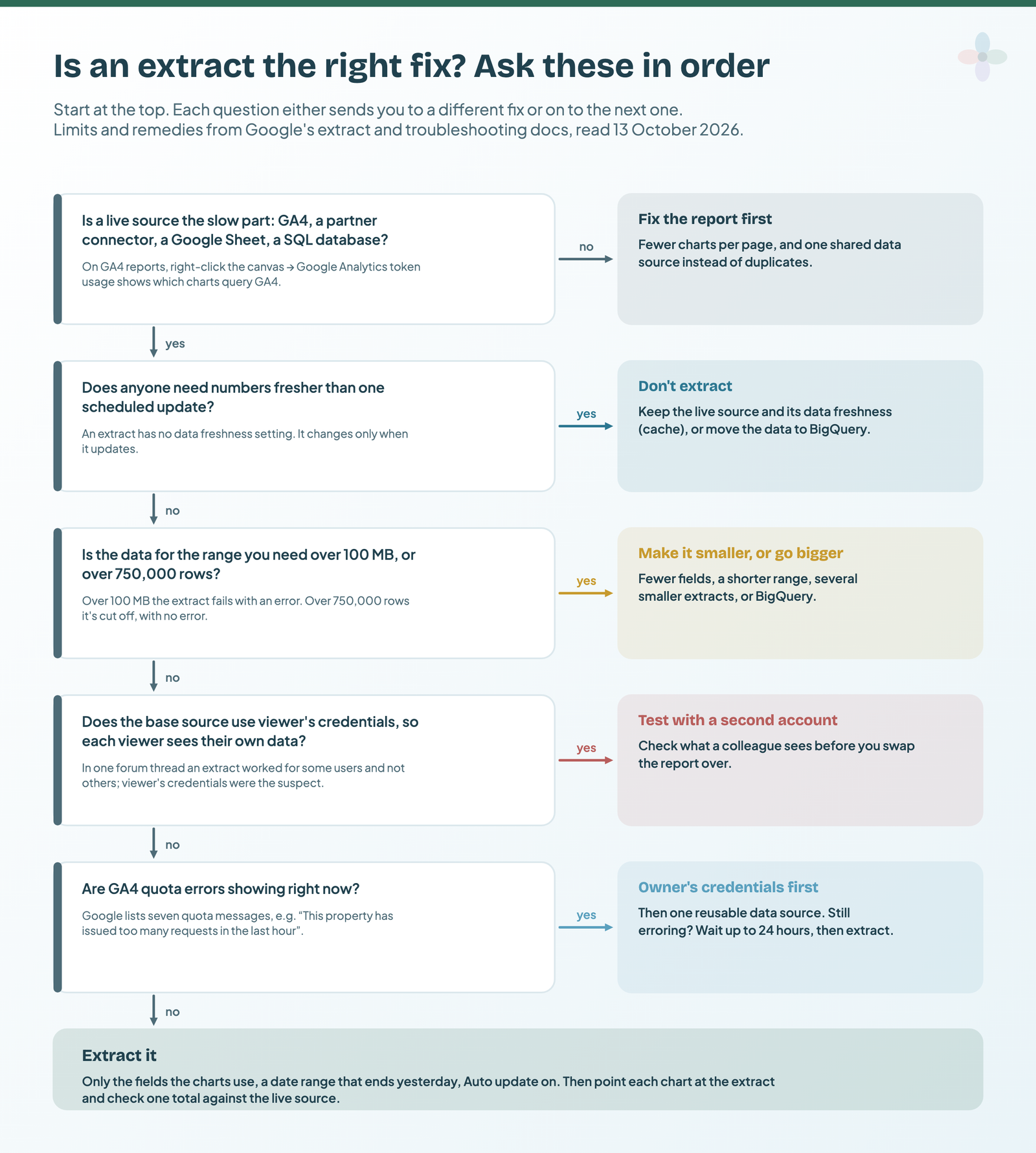
The freshness question catches people: an extract changes only when it updates, so if a client checks spend at lunchtime expecting this morning’s numbers, keep the live source. If you’re still connecting the source, how to connect GA4 to Data Studio covers the basics, and why your report shows yesterday’s numbers covers the cache.
What Extract Data does, and the two limits that matter
An extracted data source is a copy of selected fields from another data source, stored by Google, that reports query instead of the original. You pick an existing data source of any type (GA4, Google Ads, a Sheet, BigQuery, a partner connector), choose the dimensions and metrics, and optionally add filters and a date range. Once it exists, report requests go to the snapshot, not the underlying data, which Google says can make reports load faster and respond faster to filters and date ranges. (New to the vocabulary? Data sources vs datasets explains what a data source is.)
The two limits behave differently, and none of the top-ranking guides I read separates them: one fails loudly, the other quietly.
| Limit | What happens past it | How you’d notice | What to do |
|---|---|---|---|
| 100 MB of data | The extract fails and Data Studio shows an error | An error when you save and extract | Fewer fields, a shorter range, filters, several extracts, or BigQuery |
| 750,000 rows | The extract is truncated | You don’t, unless you check: there’s no error | Compare the row count with the source after every change |
| Data freshness | There’s no freshness setting at all | Numbers change only when the extract updates | Auto update, or re-extract by hand |
| Fields | No field limit is documented | — | The limits are size and rows |
| Aggregation | Extracts from aggregated sources (Google Ads, Analytics) are disaggregated | Users and similar metrics can differ from the live source | Check one total before swapping charts over |
| Storage | Google’s servers; deleting the extract deletes the data | — | Pro can keep extracts in your own BigQuery dataset (below) |
From Google’s Extract data for faster performance and Improve performance pages, read 13 October 2026.
The aggregation row cuts both ways. In a standard GA4 data source, Users is locked to Auto aggregation; in an extract you can choose any aggregation, which is also how a scorecard ends up showing more Users than GA4: summing daily users counts a person once per day.
Set up an extract that keeps updating, step by step
Here’s the build on a GA4 data source, following Google’s steps.
- Create → Data source → Extract Data. On the Data Studio home page, top left, click Create, choose Data source, and pick Extract Data from the connector list.
- Choose the data source to extract from.
- Add only the dimensions and metrics your charts use. Drag them from Available fields or click Add. Every extra field adds rows and megabytes.
- Optional: aggregation and filters. For unaggregated data, an aggregation such as Sum cuts the volume; filters cut rows.
- Set the date range. GA4 requires one; other connectors don’t. More on this below.
- Name it: click Untitled Data Source, top left. Put the client and the range in the name.
- Turn on Auto update, bottom right, and set the update schedule.
- Click Save and Extract.
- Add it to the report and swap each chart’s data source to the extract. Before you swap the rest, check one total on one chart against the live source for the same dates.
Rolling or fixed: setting the date range
The extract’s date range is the outer limit of what the report can show. If the extract holds 90 days, a date range control set to “last 12 months” still only finds 90 days.
A fixed range (1–30 September) pulls the same window on every update: right for a closed month, useless for a live report. A relative range ending yesterday is what you want for a report that keeps moving. Here I have to be careful: Google’s extract doc doesn’t say whether a relative range is re-read on each Auto update, so the window moves forward. Third-party guides, including one agency’s 2023 guide to GA4 quota errors, describe setting the end to yesterday with a rolling start and having it work. I’d set it that way, then open the extract after its first scheduled update and check that the dates moved.
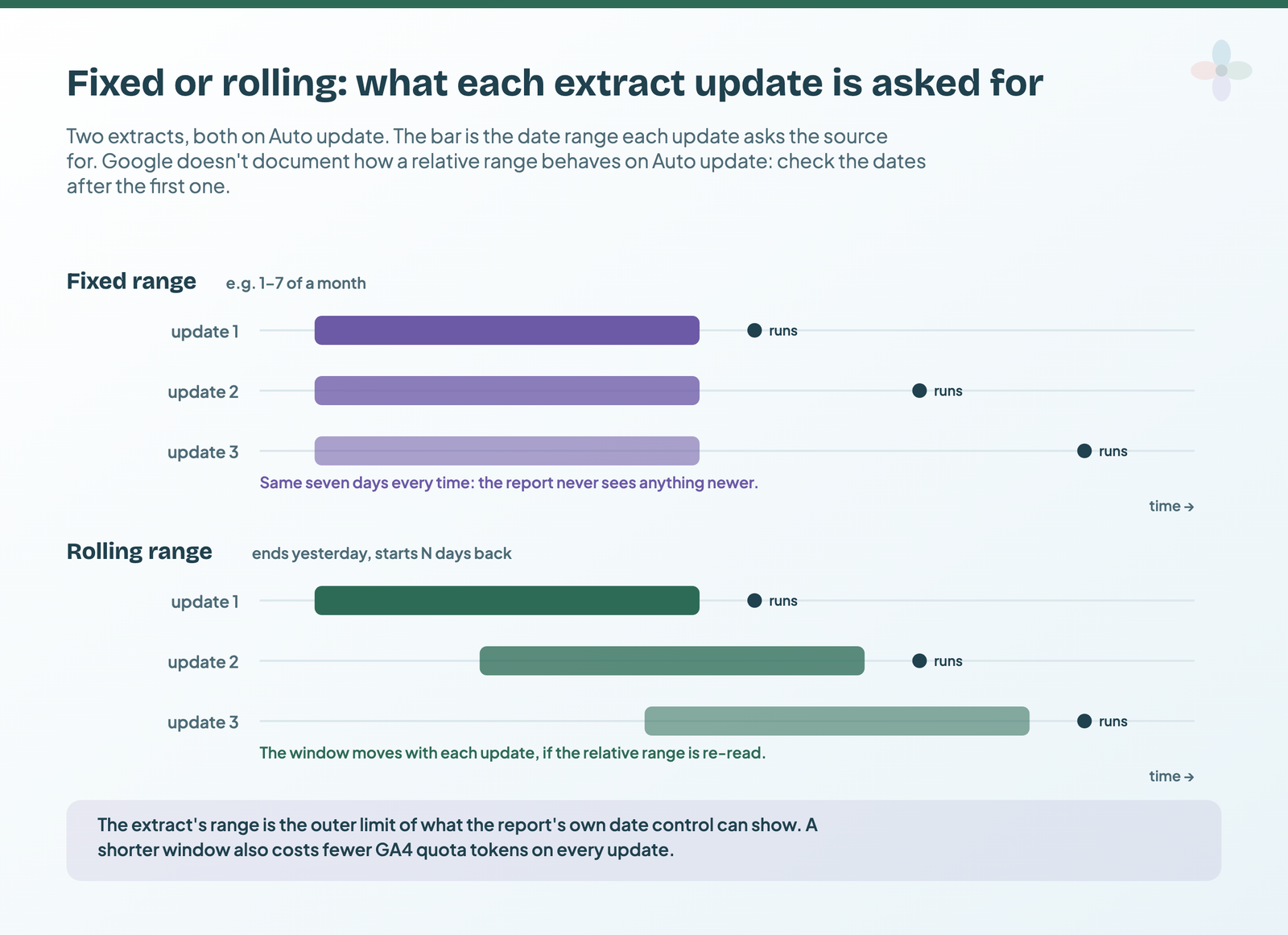
Keep the window as short as the report needs. GA4’s quota cost rises with date range length, so a 90-day extract is cheaper to update than a two-year one, as well as smaller. The report-level side of this is in how date range controls work.
Auto update: what it runs, and what it costs
Google’s doc says only to turn on Auto update and “set an update schedule”. It doesn’t list the schedule options. Third-party guides describe daily, weekly and monthly options, but that list isn’t confirmed by Google, so look at the panel in your own account. (In late 2024, forum users reported the schedule time wouldn’t save and kept reverting to 8am; that was a bug, marked resolved on 18 December 2024.)
Three things worth knowing:
- It runs whether anyone looks or not. A Google staff member on the forum confirmed that an auto refresh on a data extract “will continue to run queries in the background”, even for a report in the bin. On GA4 that’s tokens; on BigQuery it’s billed queries.
- Stagger several extracts. The same agency guide recommends spreading schedules so they don’t all hit GA4 at once, which fits GA4’s limit of 10 concurrent requests per standard property.
- Nothing tells you it failed. Google doesn’t document a notification. One forum user reports that a failed scheduled extract shows only as a red X under Status in edit mode, with no detail, so put a check in your weekly routine.
A Google Sheet source has its own refresh trap, covered in connecting Google Sheets to Data Studio.
Using an extract to stop GA4 quota errors
GA4 reports in Data Studio run on the GA4 Data API, which has quotas per property. Hit one and charts show one of seven messages Google lists, such as “This property has issued too many requests in the last hour” or “Exhausted concurrent requests quota”.
| GA4 Data API quota | Standard property | Analytics 360 |
|---|---|---|
| Core tokens per property per day | 200,000 | 2,000,000 |
| Core tokens per property per hour | 40,000 | 400,000 |
| Core tokens per project per property per hour | 14,000 | 140,000 |
| Core concurrent requests per property | 10 | 50 |
From Google’s GA4 Data API quotas page, read 13 October 2026. Daily quotas reset at midnight Pacific time. Some older guides quote different figures; these are Google’s current ones.
An extract is on Google’s list of remedies, but fifth. Here’s the list in Google’s order:
| # | Google’s remedy | What it changes | Effort |
|---|---|---|---|
| 1 | Switch the data source to owner’s credentials | Viewers share one cache instead of each spending tokens | Low |
| 2 | Consolidate duplicate GA4 data sources into one reusable source | More charts answered from the shared cache | Low |
| 3 | Reduce traffic: fewer viewers, no embeds on busy pages | Fewer queries reach GA4 | Low to medium |
| 4 | Fewer charts across the report’s pages | Fewer queries per view | Medium |
| 5 | Extract the data, after waiting up to 24 hours for the quota to reset | Charts query the snapshot, not GA4 | Medium |
| 6 | Export GA4 to BigQuery and use the BigQuery connector | The GA4 API quotas stop applying; BigQuery bills queries | High |
| 7 | Upgrade to Analytics 360 | Higher API limits | High |
| 8 | Use a partner connector | Depends on the connector | Medium |
From Google’s Data Studio troubleshooting guide, read 13 October 2026. “Effort” is my reading, not Google’s.
The 24-hour wait in step 5 matters: Google says to let an exceeded quota reset before running the extraction, which makes sense, since building the extract queries GA4 too. Once it runs, the extract only spends tokens on its scheduled updates, however many people open the report. For the partner-connector route, the connectors comparison covers what each one does.
Why extracts fail: 39 forum threads, coded
The single biggest Extract Data thread on Google’s forum, “Extract Data not working”, has 68 posts. I read all of them. It isn’t 68 problems; it’s one. On 12 June 2025 Google Cloud had an incident that included Data Studio among the affected products. From the next day, extracts on SQL databases, BigQuery, Sheets and GA4 updated “successfully” and came back empty, with no error, while live connections to the same data worked. Users reported it working again on 16 June, about three days after the incident closed, once they ran Save and Extract by hand or the next scheduled update came round. Google staff replied “fixed” to the related threads on 1 July.
Then I searched the forum for every other thread about failing extracts and coded each by its main cause.
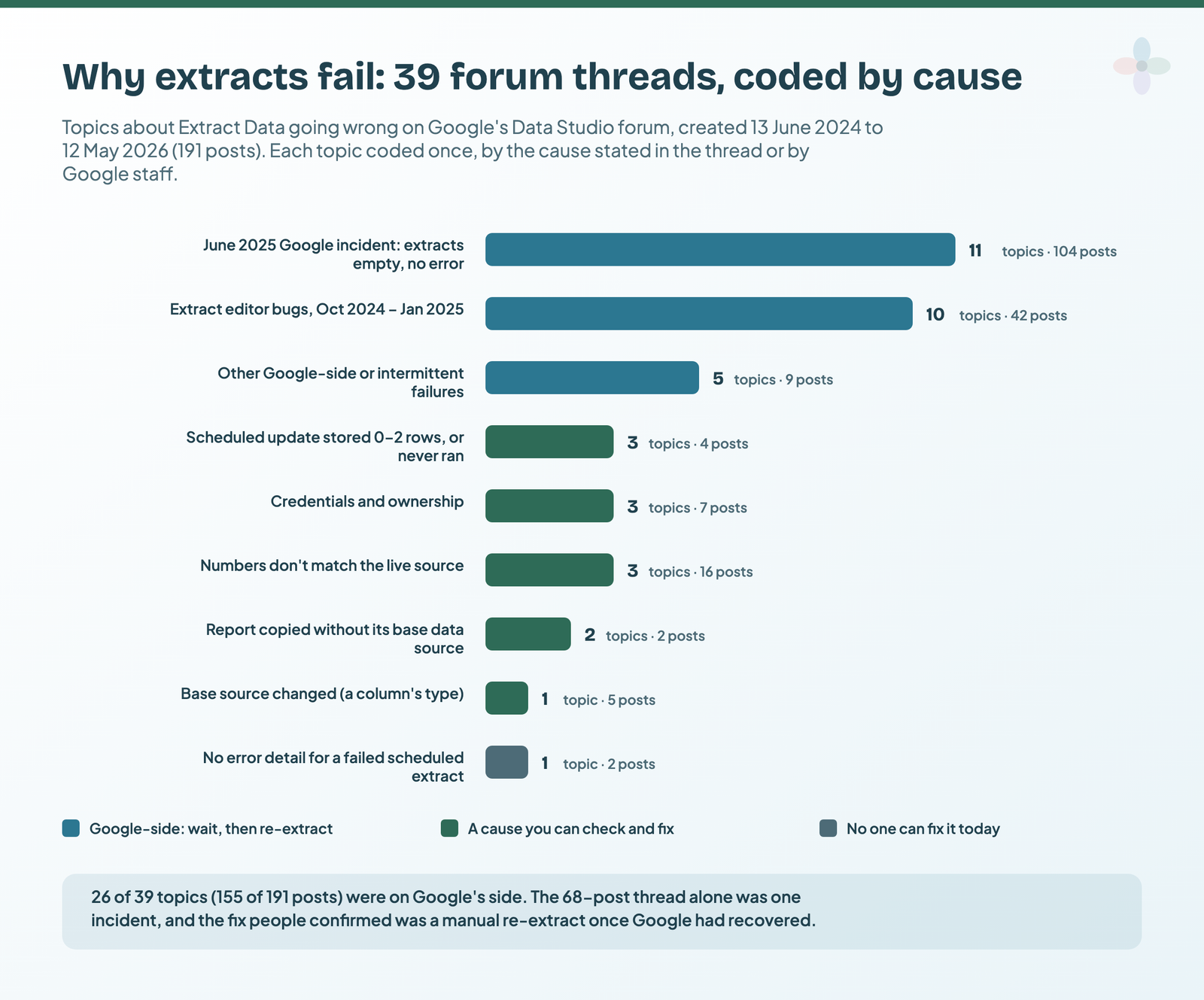
| Cause | Topics | Posts | Who fixes it | Example |
|---|---|---|---|---|
| Google incident, June 2025: extracts empty, no error | 11 | 104 | Google, then you re-extract | Jun 2025 |
| Editor bugs: Save and Extract greyed out, schedule time won’t save | 10 | 42 | Google (fixed) | Oct 2024 |
| Other Google-side or intermittent failures | 5 | 9 | Google; retry later | — |
| Scheduled update stored 0–2 rows, or never ran | 3 | 4 | You: re-extract, check the base query | — |
| Credentials and ownership | 3 | 7 | You | Jun 2024 |
| Numbers don’t match the live source | 3 | 16 | You, mostly | — |
| Report copied without its base data source | 2 | 2 | You | Jan 2025 |
| Base source changed (a column’s type) | 1 | 5 | You | Jun 2024 |
| No error detail for a failed scheduled extract | 1 | 2 | No one, today | — |
39 topics (191 posts) about Extract Data going wrong, created 13 June 2024 to 12 May 2026 on Google’s Data Studio forum, found by searching the forum, read 13 October 2026. Each topic coded once, by the cause stated in the thread or by Google staff. Discourse caps search results, so this is what the search surfaced, not a census of the forum.
Two readings. Google-side causes dominate: 67% of the topics and 81% of the posts, and in none of them was a user mistake found. And the limits barely show up: one thread was about size (the real cause was a changed column on a 2 MB Sheet) and one about rows. The 750,000-row truncation is silent by design, so I can’t tell from the forum whether it’s rare or just unnoticed. Check the row count anyway.
Fix a failing extract: the checklist
Work down the list; the fastest checks come first.
- Is it everyone? If extracts on different source types fail at once, check Google Cloud’s status page and the forum for a thread from the last day or two. If it’s Google, wait, then go to step 2.
- Re-extract by hand. Open the extracted data source, click Edit connection, then Save and Extract. Only the data source owner sees Edit connection. If this works, the scheduled run failed or stored nothing; watch the next one.
- Has the base source changed? A renamed, deleted or retyped column can break the extract: in one forum case a Sheet’s date column had changed type and the error was “Failed to extract data into Looker Studio”. Open the base data source, click Refresh fields, then re-extract.
- Credentials and owner. See below.
- The limits. An error on Save and Extract can mean the extract is over 100 MB. A row count at or near 750,000 means it was truncated.
- Was the report copied? See below.
- Do the numbers differ from the live source? See below.
Credentials and owners
An extract reads its base data source with that source’s credentials: owner’s credentials (one person’s access, used for everyone), viewer’s credentials (each viewer’s own access), or a service account (BigQuery only, in Workspace or Cloud Identity organisations). The credential owner can be a different person from the data source owner. Two forum patterns follow from that. When ownership of extracts was transferred, the new owner couldn’t update credentials, and another user noted that if the owner leaves and their account is deactivated, the charts fail. And an extract on a SQL source worked for some users and not others; the suggested cause was viewer’s credentials on the base source. Plan who owns extracts before anyone leaves: who owns your client reports covers handovers, and ownership and credentials covers the settings.
When the numbers don’t match the live source
Four usual suspects, in the order I’d check them: aggregation (an extract is disaggregated, so Users summed across days is higher than GA4’s figure); truncation past 750,000 rows; the extract’s own date range and filters, which the live source doesn’t have; and blends of two extracts, where a Pro user on the forum found the blended figures didn’t match the extracts they came from (the suggested cause was the join creating duplicate rows). Compare one total for one date range on a single chart before blaming the extract.
Copying a report that uses an extract
Two forum reports from early 2025 describe the same thing: copying a report brought the extract along but not the base data source it was built from, and the charts errored. Copy or re-point the base data source first, then rebuild or re-point the extract in the copy. The general version is in what to do when a copied report breaks.
Extract, cache, connector or BigQuery: which layer to use
An extract is one of several places a report’s data can sit between the platform and the chart. They trade freshness, size and cost differently:
| Layer | Where the data sits | How fresh | Size ceiling | Cost | Best for |
|---|---|---|---|---|---|
| Live source + data freshness | The platform; Data Studio caches results | The freshness setting (12 hours by default on Google’s marketing connectors) | The source’s own limits | Free; GA4 quota applies | Most reports |
| Extract Data | Google’s servers | As of the last update | 100 MB / 750,000 rows | Free; each update queries the source | Slow or quota-bound sources, many viewers |
| A Google Sheet as the data layer | The Sheet | Whatever fills it | The Sheet’s limits | Free, plus any tool that fills it | Small, hand-checked data |
| Connector-side storage | The vendor | The vendor’s schedule | Per vendor | The vendor’s plan | Teams already paying for a connector |
| BigQuery (with BI Engine or materialised tables) | Your Google Cloud project | The freshness setting you choose | No extract limit; BigQuery’s own | BigQuery bills every query, refreshes included | Large data, SQL, several sources |
| Pro: customer-managed storage | Your own BigQuery dataset | As of the last update | Not stated | Pro subscription plus BigQuery | Organisations that need the data in their own project |
From Google’s data freshness, performance, customer-managed storage and release-notes pages, read 13 October 2026.
The Pro row is new. Since 11 June 2026, Data Studio Pro can store extracts in your own BigQuery dataset instead of Google’s servers. It’s only for a new Pro subscription, set up by a Pro admin, and Google doesn’t say whether it changes the 100 MB and 750,000-row limits. Nothing in Google’s docs says Pro makes extracts more reliable, either. More on what Pro adds in Data Studio free vs Pro.
For connector-side storage, the connector comparison covers where each vendor caches. When the data outgrows 100 MB, BigQuery is Google’s suggested route, with BI Engine, materialised views or scheduled queries for heavy reports.
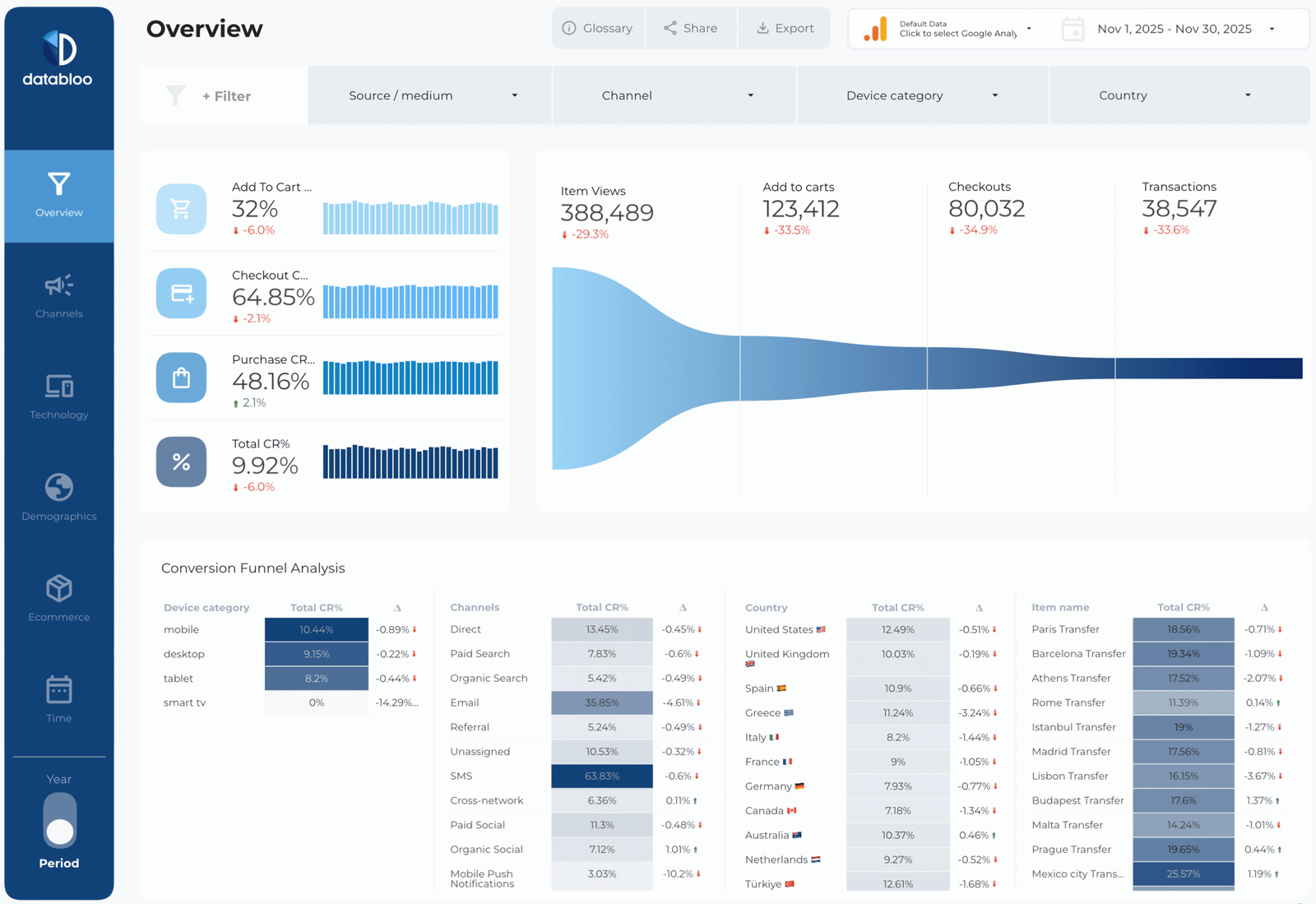
Two templates show both ends of this. Data Bloo’s funnel template ships a version built on Extract Data:
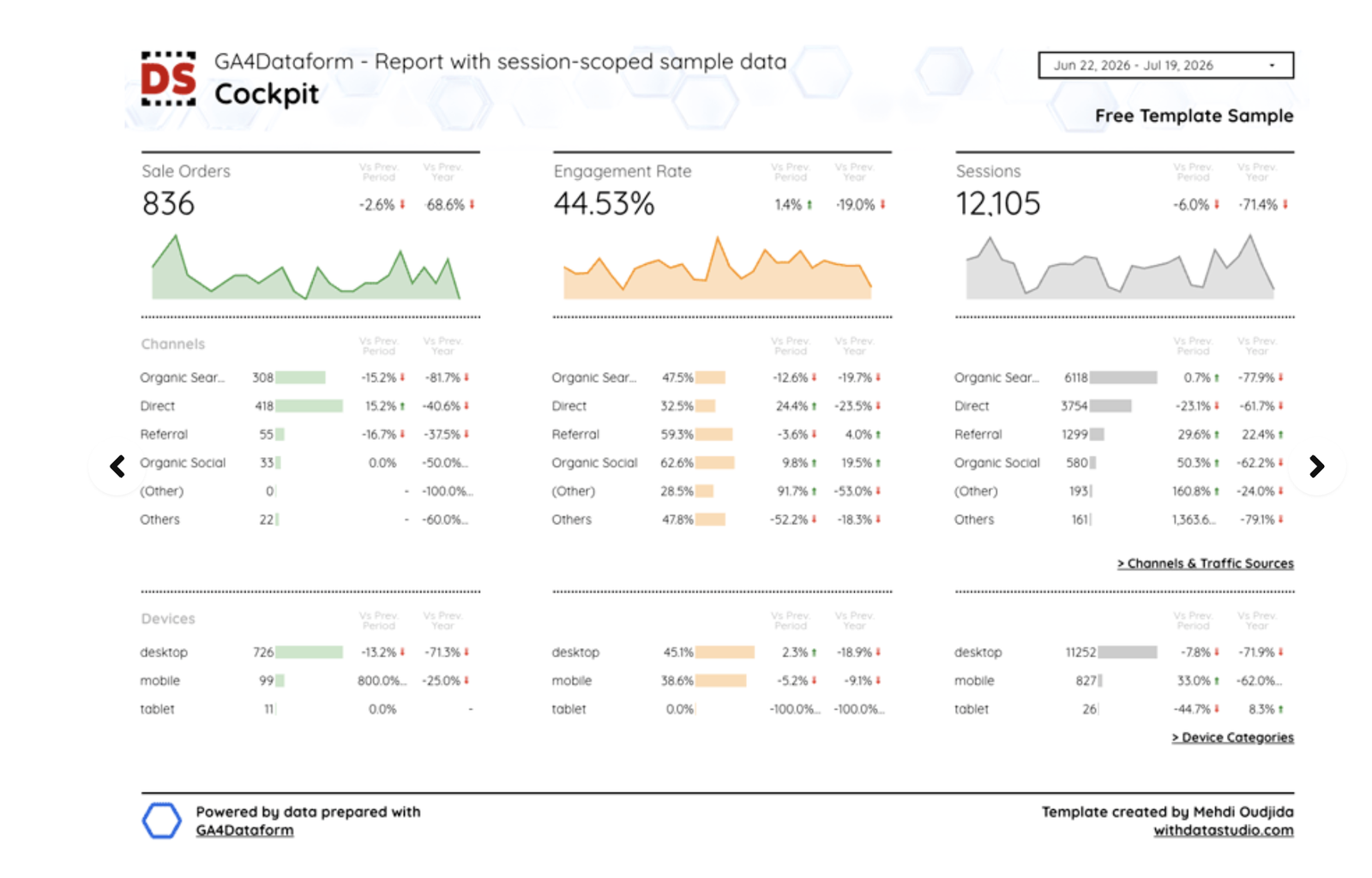
And for the BigQuery route:
If your paid media already sits in a warehouse, Supermetrics’ Paid Channel Mix (BigQuery) template reads it from BigQuery or Supermetrics’ storage.
Where to go next
- Automated client reporting in Data Studio
- Why your report shows yesterday’s numbers: freshness and caching
- How to connect GA4 to Data Studio
- Data sources, datasets and credentials
- Copying and reusing a Data Studio template
- Who owns your client reports
Frequently asked questions
Does an extract update itself?
Only with Auto update turned on. Otherwise it’s a one-off snapshot until the owner re-extracts.
How big can an extract be?
100 MB and 750,000 rows. Over 100 MB it fails with an error; over 750,000 rows it’s truncated without one.
Will Data Studio Pro fix failing extracts?
Google doesn’t say Pro changes reliability. What Pro adds, since June 2026, is the option to store extracts in your own BigQuery dataset, set up when a new Pro subscription is created.
Do extracts keep running if nobody opens the report, or it’s in the bin?
Yes. According to Google staff on the forum, Auto update keeps querying the base source in the background.
Can someone other than the owner re-run an extract?
Not from Edit connection, which only the data source owner sees.
Why does my extract show more Users than GA4?
An extract is disaggregated, so Users can be summed across days or rows, counting the same person more than once.
Does deleting an extract delete the data?
Yes, from Google’s servers.
Some links in this post are affiliate links: if you sign up through one, I may earn a commission at no extra cost to you. How I work with partners.