
HubSpot still has no Data Studio (formerly Looker Studio) connector of its own, so you connect it one of five ways: a manual export to Google Sheets, a Zapier integration, a HubSpot workflow that writes to Google Sheets, a partner connector such as Supermetrics, or your own integration with HubSpot’s API. For most teams, the choice comes down to how fresh the data must be, who holds Super Admin on the HubSpot account, and how much personal data you’re willing to move.
Marketers use HubSpot for full-funnel reporting. Because HubSpot doesn’t offer a Data Studio connector, reporting on it next to other sources, such as GA4, Search Console or Google Ads, is a challenge, as that kind of reporting usually happens in BigQuery or Data Studio.
Funnel reporting is a style of report that shows how a record moves towards its goal. In HubSpot, that’s how contacts move towards becoming customers, or how deals move towards closed-won. The questions it answers get much more interesting once the funnel sits next to the traffic and campaigns that fed it.
Below are five ways of closing that reporting gap, each with its benefits, limitations and setup tips. I first wrote this in December 2021 on lazarinastoy.com, after working through the options for a portfolio of client accounts. The trade-offs still hold; HubSpot’s API authentication, its limits, the workflow tiers and the connector line-up have changed, so those are updated here from HubSpot’s knowledge base and developer docs and each vendor’s own documentation, read 22 October 2026.
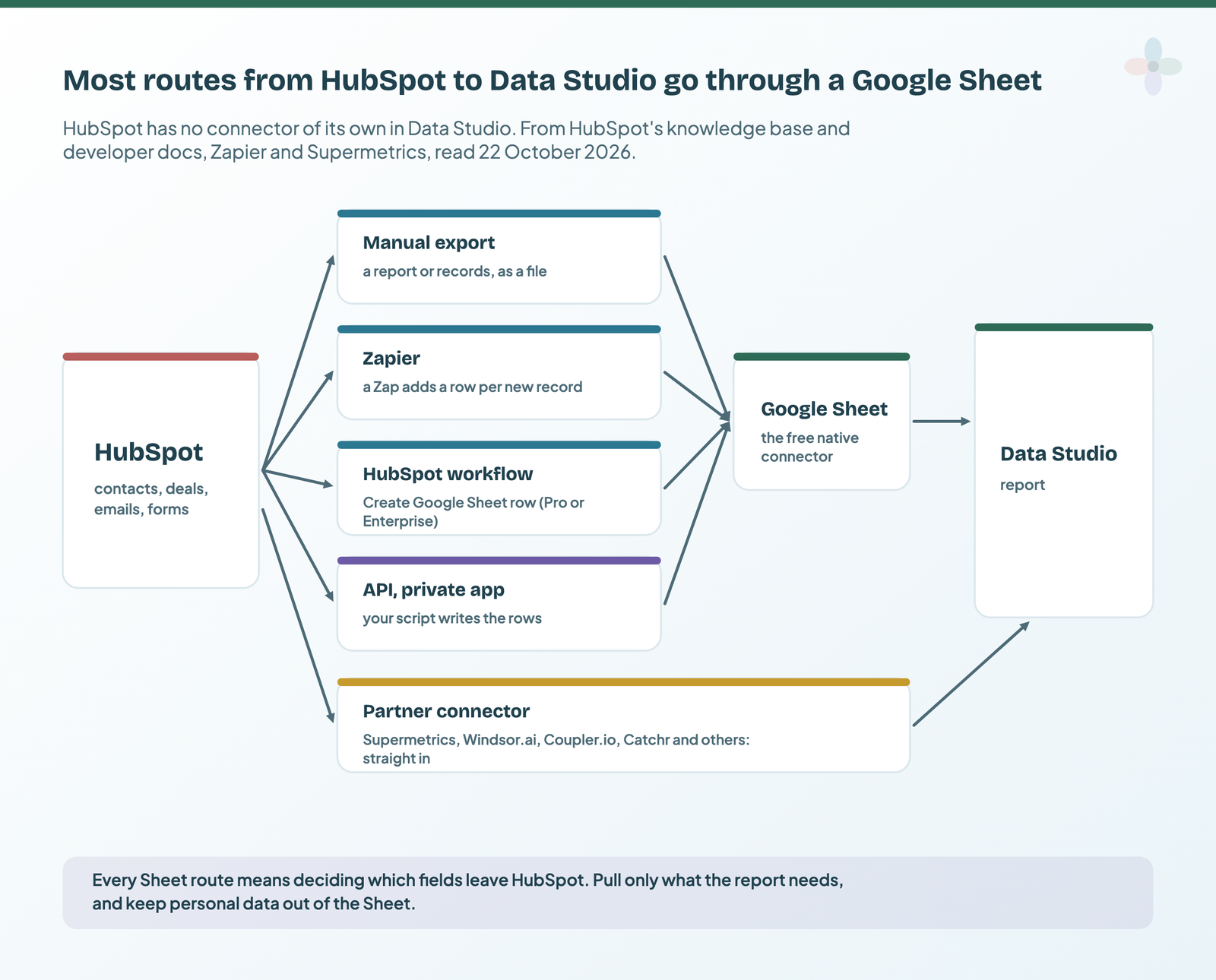
1. Connect HubSpot with a manual export to Google Sheets
You can export the individual charts and tables in your HubSpot dashboards, and the records behind them.
There are two ways of exporting a report: from the reports list, through the Actions menu, or by opening the report itself and clicking Export. Upload the file to Google Drive, open it as a Google Sheet, and connect the sheet to Data Studio.
Important considerations
To export, your HubSpot user needs the export permission. Permissions are set per user, so check yours, and your clients’ accounts, before you plan around this route. HubSpot’s user permissions guide lists what each one allows.
Benefits of a manual export
Cost. There’s no development time, no training cost, and no extra risk around data ownership or software access.
Simplicity and ease of implementation. This is by far the most beginner-friendly approach. It’s easy and simple to implement, and the only cost is data freshness.
Scalability, with a caveat. How well this scales depends entirely on the design of your HubSpot report, the filters applied to it, and the visualisation you plan in Data Studio (likely a mirror of the HubSpot one). If you can write a playbook of the metrics you typically collect in HubSpot, and how they’re represented with the relevant filters applied, you can scale one reporting system across your client portfolio: the exports plug into one HubSpot template in Data Studio for every client you manage.
That playbook has to consider the anonymity of the data, and what you report on, so that you can blend it with other data sources and actually enrich the reporting by bringing HubSpot into Data Studio. Otherwise, you might struggle to show your clients the value of the report.
Limitations of a manual export
Data freshness. The data in the dashboard won’t be fresh: it’s ad hoc, rather than synced with the source. On the surface that might not seem a big issue, but it means pulling a fresh report every time you present to a client, or at a set time each week. You can automate this with scripts; without that, the cost of this route is someone’s time.
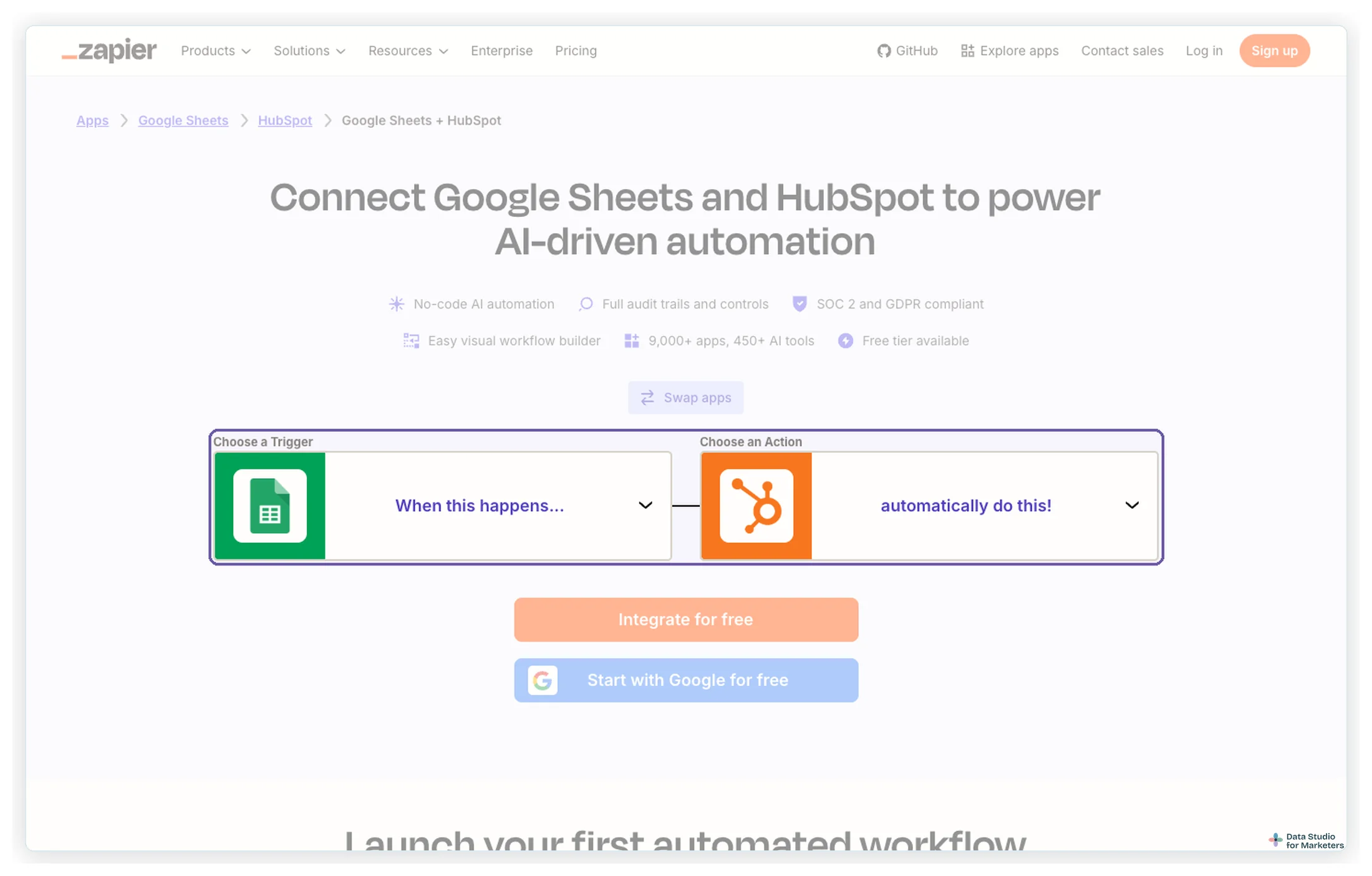
2. Connect HubSpot with a Zapier integration
Zapier automates processes across a huge range of tasks, and once you have it, the whole team can use it for other automation too.
How does this particular solution work? A quick summary:
- Create a Google Sheet and a Zapier account.
- In Zapier, create an integration (a Zap) between your HubSpot account and the sheet.
- Set the rules for populating the sheet: for example, when there’s a new contact, create or update a row with the fields you choose.
- Connect the Google Sheet to your Data Studio dashboard.
Benefits of Zapier
Cost. Zapier bills by tasks (each action a Zap performs) and has a free tier, so a modest flow of new records can be cheap to run. Check its pricing against your monthly volume of new contacts or deals before you commit.
An automated solution. Once the sheets are connected to each client’s dashboard, and the setup accounts for the limitations below, the data fills itself in and the report shows it at its next refresh, with no specialist or developer time.
Data freshness. The report has fresh data at all times, as long as your Zapier plan has enough tasks for the volume.
Scalability. The Zaps you create for one client can be replicated for all the others, changing only the authentication. The same goes for the Data Studio template or page you roll out across your portfolio.
The only thing that can hold back scaling is that every Zap needs its connection defined: what data you pull, how it’s represented in the sheet and where it comes from. Testing and error handling are crucial.
Another tip: use Zapier’s filter step to set conditions on which data passes through to the sheet. The catch is that you need to know the format of the incoming data. Letting the Zap run for a few hours with every field, as a test, is a good way to find the format of each one. To illustrate: if you only want organic-source contacts, you need to know which field that is in HubSpot, how it shows up in Zapier and how its values are formatted (underscores? capitals?) before you build the filter.
Limitations of Zapier
Security. The process usually looks like this: export a sheet with the report you want and its current setup, create Zaps that copy new contacts or deals matching the report’s filters, then connect the sheets and visualise them in Data Studio. It’s not ideal, because you can expose yourself to a security risk if the data you collect isn’t anonymised. Anonymisation and restricted access to the sheet are absolutely mandatory.
Data filtering. Not every filter available in HubSpot is available in Zapier, so you can end up running more tasks than typical reporting needs. You might, for instance, collect first and last names and addresses because they come with every new contact. If you can’t apply HubSpot’s full filtering, you can end up collecting data you never use, which can breach data protection law such as the GDPR in the EU.
Scalability of cost. Across a large client portfolio, the cost of all those Zaps is hard to control (unless rigorous filtering is applied), especially if leads, deals from organic and CRO are SEO goals you’re actively pursuing. Depending on volume, you may need to move up Zapier’s plans quickly.
3. Connect HubSpot with HubSpot workflows
HubSpot workflows can mimic Zapier’s job from inside HubSpot. They solve the data freshness problem by sending data from HubSpot to Google Sheets automatically.
The workflow actions are Create Google Sheet row and Update data in a Google Sheet, and they send HubSpot property values to your spreadsheet. Each action can add up to 20 cells of data per row, and the spreadsheet can’t go over 5,000,000 cells. Create Google Sheet row inserts new rows rather than updating existing ones, so keep formulas off that tab; use the update action when a row should change instead.
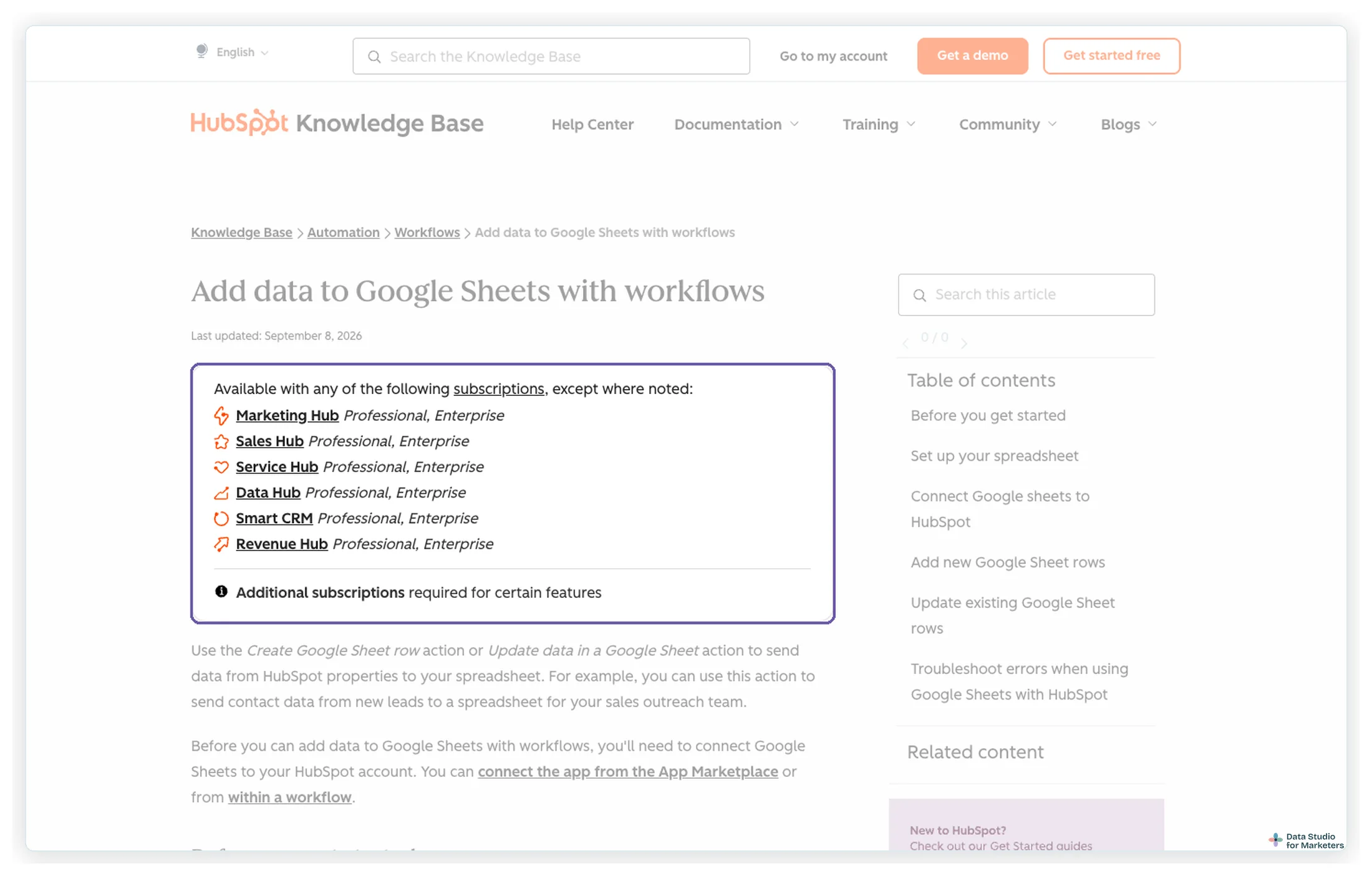
Workflows are only available on some subscriptions: the Google Sheets actions need a Professional or Enterprise tier of Marketing Hub, Sales Hub, Service Hub, Data Hub, Smart CRM or Revenue Hub. Check your clients’ accounts for the tier before you plan around it.
Read more on setting up workflows:
- Add data to Google Sheets with workflows (HubSpot)
- Create workflows (HubSpot)
- Connect HubSpot to Google Sheets using Workflows (video by Lex Hultquist)
Apart from the subscription it needs, this approach has the benefits of the Zapier integration without its main limitations: the filtering happens in HubSpot’s own enrolment criteria, so only the records and properties you choose ever reach the sheet, and there are no third-party tasks to pay for.
4. Connect HubSpot with a partner connector
Partner connectors are third-party connectors in Data Studio’s gallery that pull HubSpot data straight into the report, with no sheet in between. In 2021 I looked at three: Supermetrics, Power My Analytics and Jivrus. The field has grown since. These all list HubSpot as a source:
| Partner connector | HubSpot connectors | Worth knowing |
|---|---|---|
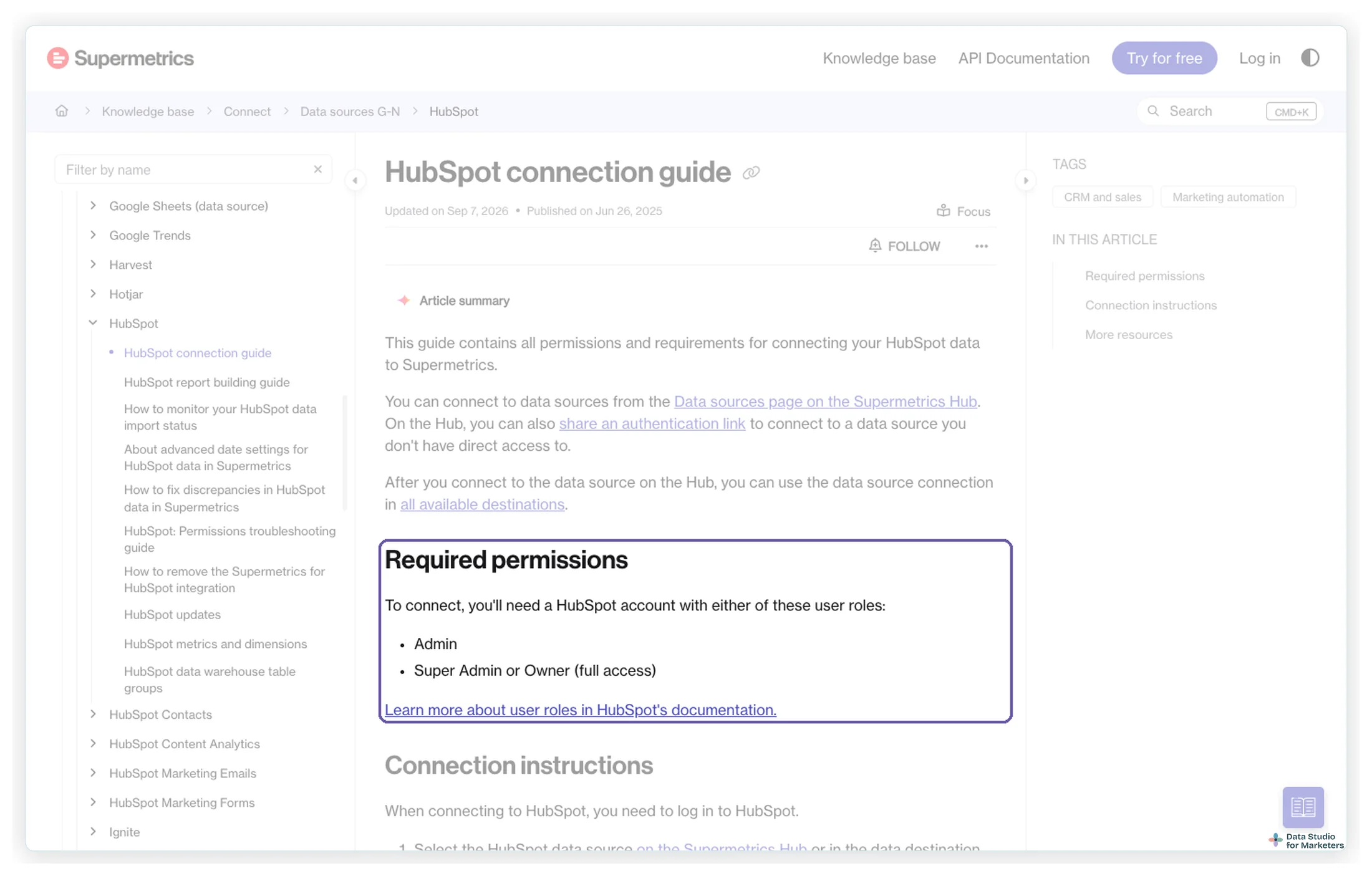
| Supermetrics | HubSpot; plus HubSpot Contacts, Content Analytics, Marketing Emails and Marketing Forms (marked early access) | Needs a HubSpot Admin, or Super Admin or Owner, to connect |
| Windsor.ai | HubSpot | Data Studio is one of many destinations |
| Coupler.io | HubSpot | Can also send HubSpot data to Google Sheets |
| Catchr | HubSpot | Data Studio and spreadsheet destinations on every plan |
| Porter Metrics | HubSpot | Backfills rate-limited APIs such as HubSpot’s through BigQuery |
| Power My Analytics, Jivrus | HubSpot | Their own Data Studio connectors |
Connector lists from each vendor’s own site and our platform research, checked 13 to 22 October 2026.
Benefits of a partner connector
Speed. Connecting HubSpot through a partner connector is easy and straightforward: you authorise HubSpot once, choose the accounts, and the data is in the report.
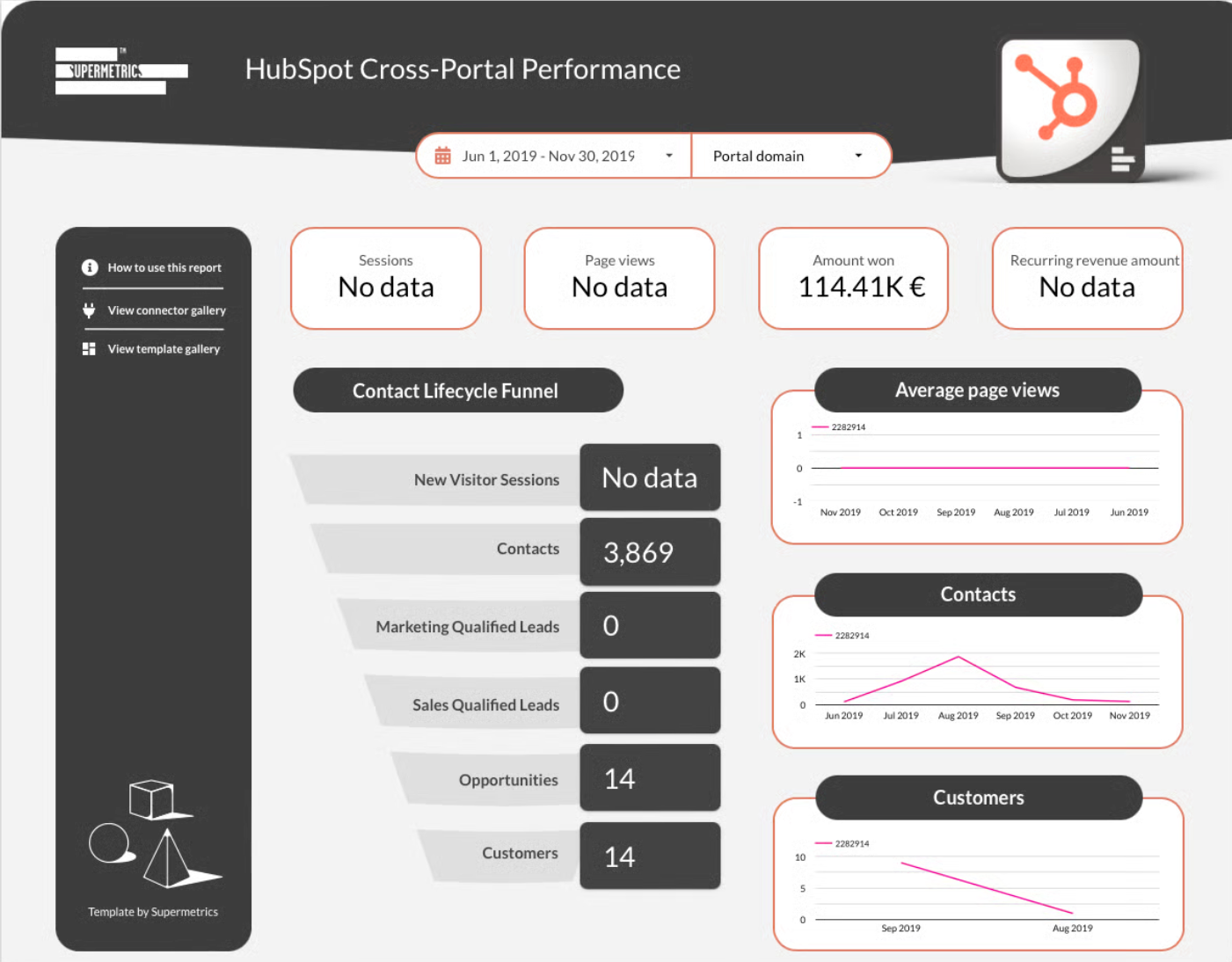
Templates. Most of these connectors come with ready-made HubSpot templates. If you manage several HubSpot portals, this one compares them side by side in one report:
Limitations of a partner connector
Security and data access. The connection needs a senior HubSpot role. Supermetrics asks for an Admin, or a Super Admin or Owner; agencies often don’t hold that on a client’s account, so plan who will authorise it.
Data discrepancies. Expect to spend time making the numbers match HubSpot’s own. Supermetrics documents the reasons in its guide to fixing discrepancies in HubSpot data: HubSpot data is imported about once a day, the query’s time zone has to match the HubSpot account’s, some email fields need a Super Admin to grant access, and the date a record is counted on is a setting. Its advanced date settings let you base contacts on their creation date or their lifecycle-stage change date, and deals on created, closed or last-modified dates. When I first wrote this, I tinkered with those settings a lot. Decide the date basis before you build, and write it on the report.
Cost. You pay for the connector on top of HubSpot. In 2021, Supermetrics sold HubSpot in a specific package, with separate connectors for accounts under and over 100,000 contacts; today every connector prices on its own model (per data source, per account or per platform). My comparison of Data Studio connectors works through what each one counts and what common setups cost.
Back then I also flagged Jivrus as a potential opportunity: a community connector at a lower price, which I’d tested and could report good feedback on. A cheaper connector solves the cost limitation, but not the access and discrepancy ones above, and that’s true of any connector you pick.
5. Connect HubSpot with your own API integration
Important considerations
Authentication has changed. In 2021 this route used the account’s API key. HubSpot retired account API keys at the end of November 2022. A single-account integration now uses a private app (HubSpot calls the older kind “legacy private apps”; apps on its newer developer platform can also be distributed privately), which gives you an access token scoped to only the data the app needs.
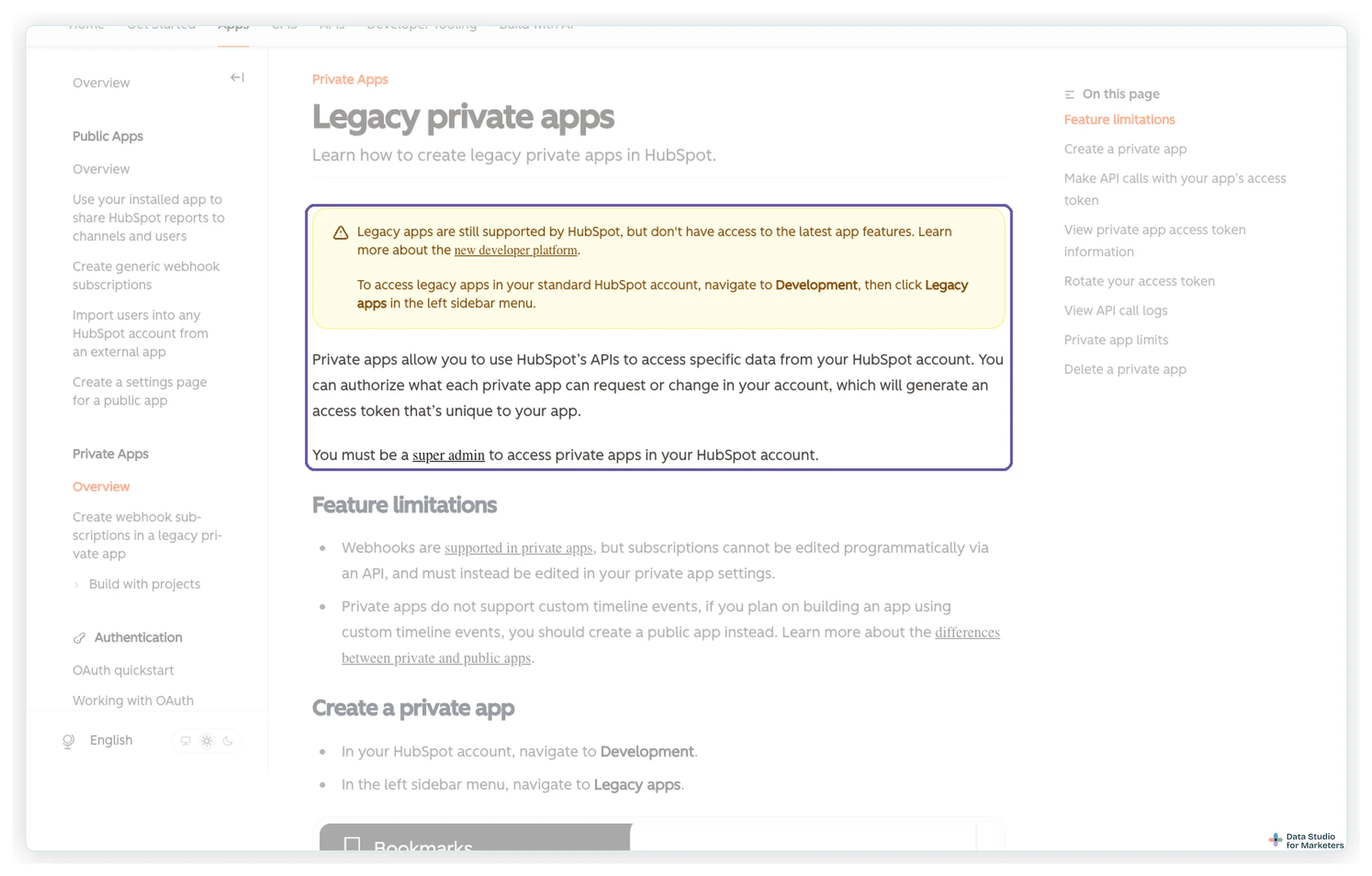
Super Admin access. You must be a Super Admin to create and see private apps. Super Admins have access to all tools and settings in the account, and only a Super Admin can make another user a Super Admin. If a Super Admin is needed for a task, HubSpot’s recommendation is to have an existing Super Admin do it, rather than changing an individual user’s permissions.
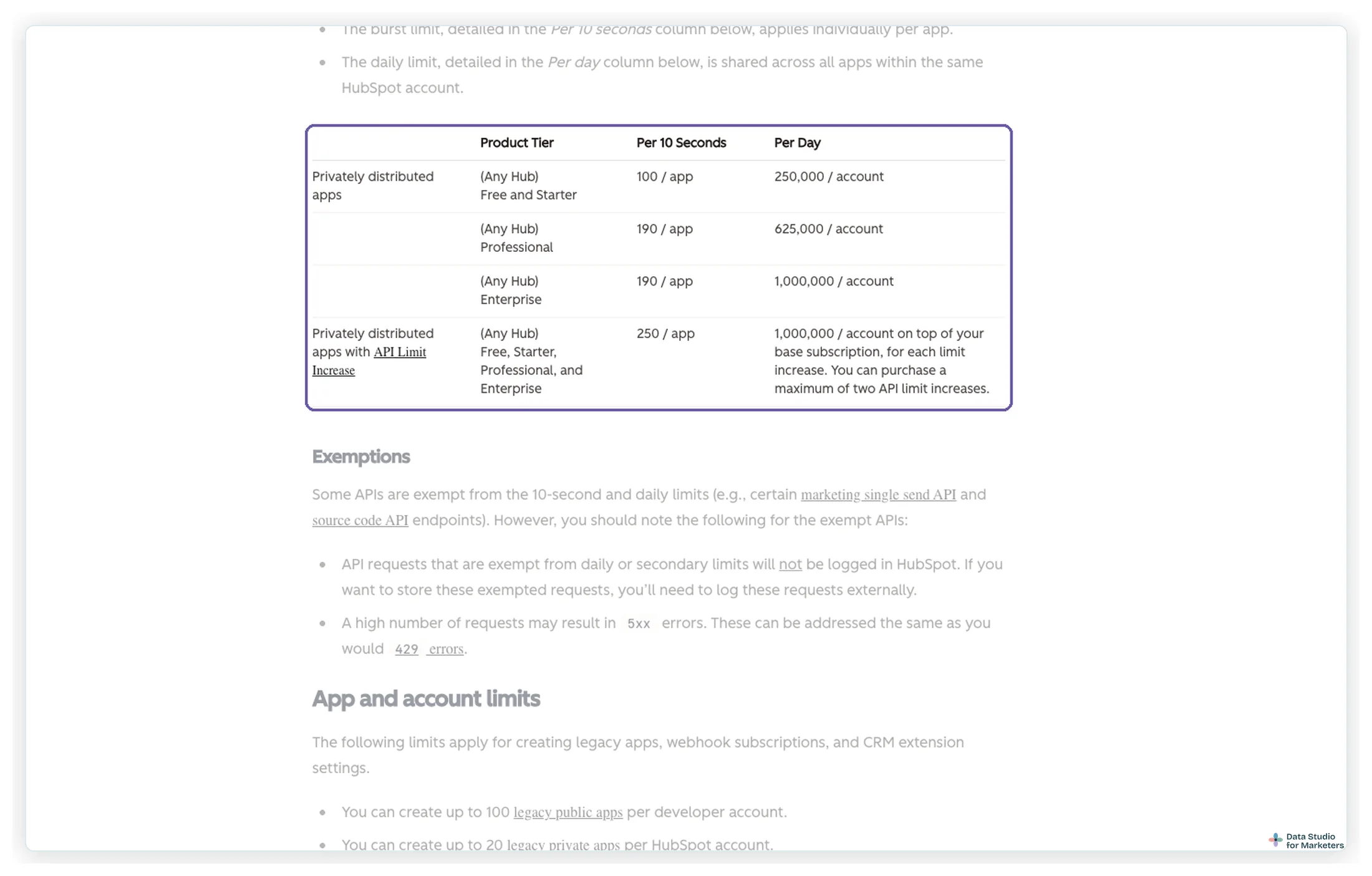
Limits. Using HubSpot’s APIs doesn’t cost extra within your subscription’s limits. In 2021, the limit people quoted was 40,000 calls a day. Limits are now per subscription tier: a private app gets a burst limit per 10 seconds, and the account gets a daily limit shared by all its private apps.
| Subscription (any Hub) | Per 10 seconds, per app | Per day, per account |
|---|---|---|
| Free and Starter | 100 | 250,000 |
| Professional | 190 | 625,000 |
| Enterprise | 190 | 1,000,000 |
| With the API limit increase add-on | 250 | +1,000,000 per increase, up to two |
From HubSpot’s API usage guidelines, read 22 October 2026. A daily report pull uses a tiny fraction of this.
How to create a private app and pull the data
- In your HubSpot account, go to Development, then Legacy apps in the left sidebar.
- Click Create legacy app and choose Private. Give it a name and a description.
- On the Scopes tab, add only the read scopes the report needs (for contacts, the contacts read scope).
- Click Create app, then copy the access token from the app’s details page.
Anyone with that token can read whatever its scopes allow, which is why the scopes should be as narrow as the report. When I first wrote this, an API key gave full access to the account, including logged emails from connected inboxes; a scoped token is a real improvement.
While pulling the data through the API is straightforward, building an application that does it automatically and anonymises the data might need a developer. For a single account, a short Apps Script in the Google Sheet does the job. This one pulls only three contact properties, with no names or emails, into a Contacts tab:
// Pulls only the contact fields a report needs into a "Contacts" tab.
// Token: Project Settings > Script Properties > HUBSPOT_TOKEN (a private app access token).
const FIELDS = ['createdate', 'lifecyclestage', 'hs_analytics_source']; // no names or emails

function pullHubSpotContacts() {
  const token = PropertiesService.getScriptProperties().getProperty('HUBSPOT_TOKEN');
  const base = 'https://api.hubapi.com/crm/objects/2026-09/contacts?limit=100&properties=' + FIELDS.join(',');
  const rows = [['id'].concat(FIELDS)];
  let after = '';
  do {
    const res = UrlFetchApp.fetch(base + (after ? '&after=' + after : ''), {
      headers: { Authorization: 'Bearer ' + token },
      muteHttpExceptions: true,
    });
    if (res.getResponseCode() !== 200) throw new Error(res.getResponseCode() + ': ' + res.getContentText());
    const body = JSON.parse(res.getContentText());
    body.results.forEach(c => rows.push([c.id].concat(FIELDS.map(f => c.properties[f] || ''))));
    after = body.paging && body.paging.next ? body.paging.next.after : '';
  } while (after);
  const ss = SpreadsheetApp.getActiveSpreadsheet();
  const sheet = ss.getSheetByName('Contacts') || ss.insertSheet('Contacts');
  sheet.clearContents();
  sheet.getRange(1, 1, rows.length, rows[0].length).setValues(rows);
}
It pages through every contact 100 at a time (the most HubSpot returns per request) and keeps the token in Script Properties rather than in a cell. Put it on a daily trigger, as in my guide to automating Google Sheets for Data Studio, and the sheet stays current. I’ve tested the logic offline against HubSpot’s documented response, not against a live account.
Resources on building an integration with HubSpot’s API:
- Contacts API guide (HubSpot)
- Legacy private apps (HubSpot)
- Working with OAuth (HubSpot), if the integration will serve several accounts
- Integration and API Workshop, July 2020 (HubSpot Developers)
Benefits of an API integration
A controlled approach. With a direct API integration, you control exactly which data comes through, in whichever applications you build.
Scalable. With the right expertise, this can scale to every agency client, if the application, infrastructure and processes are built for it. One caveat: a private app works for one account only, so an integration across client accounts needs a public app with OAuth.
Cost. In theory, this is a low-cost approach. In practice, building it to scale takes expertise in the application, the infrastructure and the process, so you either need the learning time to build it yourself, upskilling for someone on your team, or external developers.
Limitations of an API integration
A developer or advanced technical skills. If you don’t have the development expertise to build the application, you may need external developers, or one of the other routes, to avoid compromising situations.
Speed. Because of that, any time spent building an integration is time taken away from billable projects.
Security and data access. Creating the private app needs a Super Admin on the account.
Which way should you connect HubSpot to Data Studio?
Here are all the approaches side by side. Go back to the relevant section to get started with the one you pick.
| Approach | Cost-friendly? | Easy to set up? | Quick to set up? | Scalable? | Fresh data? | Hands-free? | Low risk? |
|---|---|---|---|---|---|---|---|
| Manual export | ✔ | ✔ | ✘ | Depends | ✘ | ✘ | ✔ |
| Zapier | ✔ | ✔ | ✘ | ✔ | ✔ | ✔ | ✘ |
| HubSpot workflows | ✔ (on Pro or Enterprise) | ✔ | ✘ | ✔ | ✔ | ✔ | ✔ |
| Partner connector | Depends on the connector | ✔ | ✔ | ✔ | ✔ | ✔ | ✘ |
| API integration | Depends | ✘ | ✘ | ✔ | ✔ | ✔ | ✘ |
“Low risk” is about how much data leaves HubSpot and who needs which permissions. My 2021 table had separate rows for Supermetrics and Jivrus; they’re one row now, because each connector’s cost depends on your setup.
HubSpot templates for Data Studio
The library has HubSpot dashboards for most of the partner connectors above, from contact and pipeline overviews to email and content performance. Pick one that runs on the connector you chose:
Where to go next
- Data Studio connectors compared: what each partner connector counts, and what common setups cost
- How to connect Google Sheets to Data Studio: for the export, Zapier, workflow and API routes
- How to automate Google Sheets for Data Studio: put an API pull on a schedule
- How to connect GA4 to Data Studio: the other half of the funnel
- Supermetrics alternatives: if you’re choosing a connector for HubSpot and more
Frequently asked questions
Does HubSpot have a Data Studio connector?
Not one of its own, and Google doesn’t make one either (checked 22 October 2026). You can export reports, send data to Google Sheets with HubSpot workflows on Professional and Enterprise plans, use a partner connector, or build your own integration with HubSpot’s API.
Why don’t HubSpot and GA4 numbers match?
In many cases, because of consent and attribution. A possible scenario: a contact arrives from organic search on a non-branded resource page, which GA4 attributes correctly. They accept cookies while on the site. Their session data then shows as direct traffic in HubSpot, and the two tools disagree. HubSpot has an article on why HubSpot and Google Analytics don’t match.
Why connect HubSpot to Data Studio?
To answer questions like: what happens to users after they fill in a contact form or book a demo? What kind of users does your site bring into the funnel? Which personas are the key money-makers? Which channels, campaigns and pages bring the most money-makers? Blending HubSpot with GA4 path data shows how users behave before and after they enter your sales funnel.
What are the challenges of visualising HubSpot data in Data Studio?
Charts may not work the way you expect. HubSpot has separate APIs for different objects (contacts, deals, emails), and a connector usually exposes them as separate reports or data sources, so a chart can only combine fields from one of them. To show fields from more than one in a chart, blend the data sources, and Data Studio can blend at most five in one blend (one of the Data Studio limitations I’ve written about).
Do I still need a HubSpot API key?
No. HubSpot retired account API keys at the end of November 2022. Use a private app’s access token for your own account, or OAuth for an integration across several accounts.
Some links in this post are affiliate links: if you sign up through one, I may earn a commission at no extra cost to you. How I work with partners.