
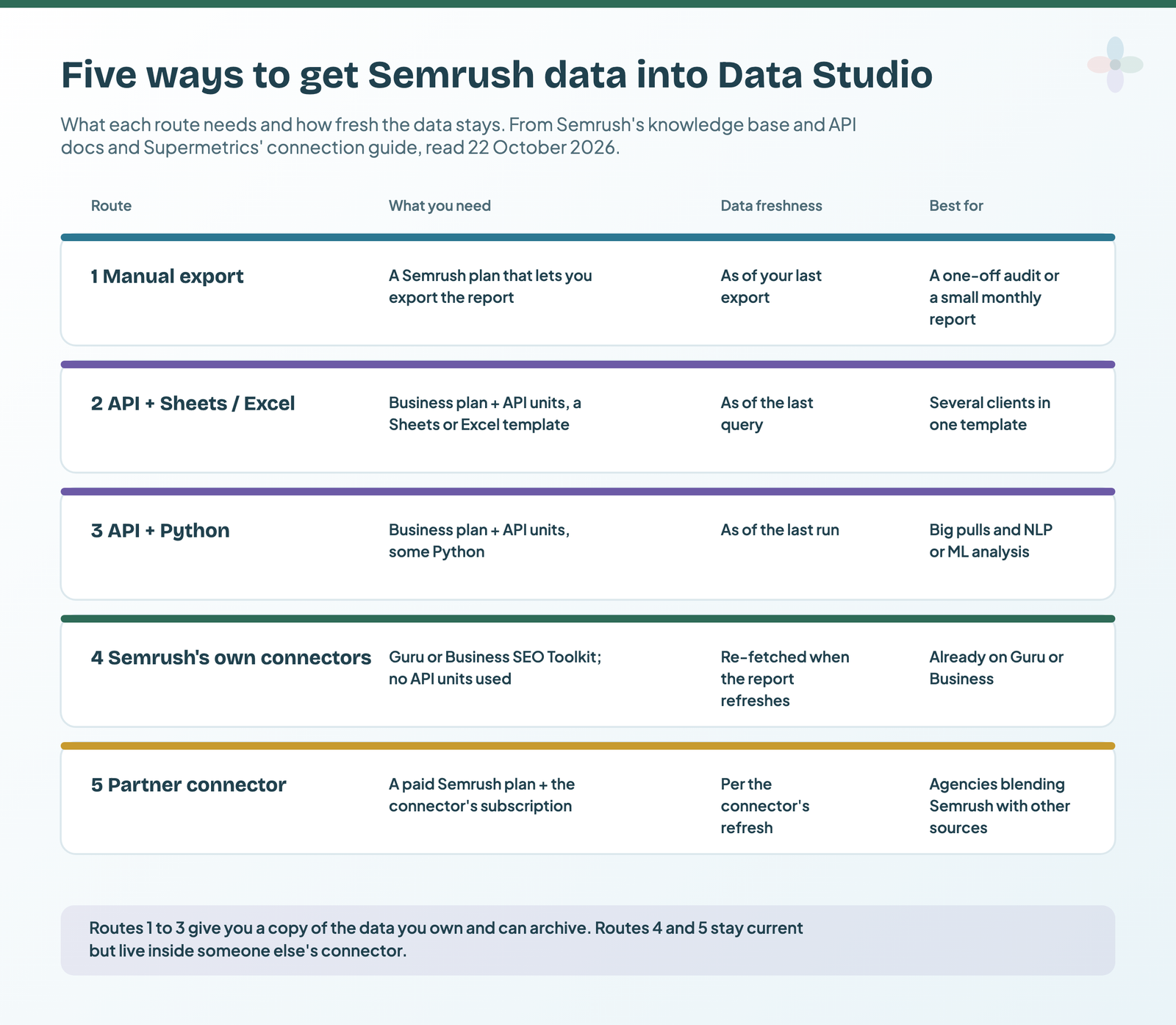
There are five ways to connect Semrush to Data Studio (formerly Looker Studio): a manual export, the Semrush API through Google Sheets or Excel, the API through Python, Semrush’s own Data Studio connectors, and a partner connector such as Supermetrics. If you already pay for a Guru or Business SEO Toolkit plan, Semrush’s own connectors are the quickest; if you don’t, a manual export or an API template gets you there without upgrading.
Semrush is one of the best all-in-one platforms for digital marketing and analytics. What can you do with Semrush?
- Keyword research: keyword suggestions, discovery, keyword sizing, as well as position tracking
- Ranking research: find out the keywords you rank for, and how difficult it will be to rank for specific search phrases
- Backlink research: number of backlinks and referring domains, anchor text, type of links (sponsored, follow, nofollow, image, text and so on), and backlink opportunities
- SEO auditing: audit the site for technical improvements, which, when made, can result in better search rankings
- Content development: help with content templates, the structure of your blog post, keywords and readability
There are a lot of insights you can get via Semrush, but what are insights without visualisation and understanding? Just a bunch of spreadsheets nobody’s ever going to see, that is what.
The first step to visualising and organising your Semrush data in Data Studio is connecting to it. Below are all five ways, each with its benefits, limitations and how to get started.
I first wrote this guide in June 2021 on lazarinastoy.com. The five routes still exist and my opinions on them haven’t changed much, but plans, menus and a few connector details have, so they’re updated here from Semrush’s knowledge base and API docs and each connector’s own documentation, read 22 October 2026.
1. Connect Semrush to Data Studio with a manual export
The first way to connect Semrush with Data Studio is a manual export from the Semrush web dashboard. Starting with the easiest method out there: export a spreadsheet from a Semrush report, then upload it with the Google Sheets connector in Data Studio.
It’s a beginner-friendly, usually cost-free approach to getting started, as long as your Semrush plan lets you export the report you want. Free accounts only show a subset of the data, so the export is limited in the same way.
What are the pros of a manual export?
This is a very straightforward setup. Literally anyone with access to the Semrush dashboard can do this.
There are good templates out there that can help you visualise these spreadsheets beautifully. As the export fields are unlikely to change in structure, a plug-and-play framework is possible.
Another good thing is that this lets you keep an archive of exports, which, when paired with data on your content development efforts, gives a clear picture of their impact.
Owning the connection means the report is less likely to break because of server or connector malfunctions.
What are the cons of a manual export?
There is inefficiency in this approach, which adds to the indirect costs. The inefficiency comes from the time and effort it takes to export the spreadsheets, upload them to Google Drive, convert them to Google Sheets and connect them to the report.
Another limitation is that the data isn’t real-time, so any significant change between exports can be missed. That can lead to missed opportunities, where, for instance, the dashboard fails to show you a sharp rise in search volume and visibility for a topic.
How to get started with a manual export
- Export the Organic Search Positions report. In Semrush, go to Organic Research, open the Positions tab and export it as a CSV.
- Pull backlinks data. Go to Backlink Analytics, open the Backlinks tab and export it as a CSV.
- Save the files in your Google Drive and open each one as a Google Sheet.
- Add them to your report. In Data Studio, choose Add data, pick the Google Sheets connector and select each sheet. My guide to connecting Google Sheets to Data Studio covers how to get the sheet ready first.
- Replace the files with new exports. Open the Resource menu and select Manage added data sources. Find the two Semrush data sources, click Edit, then Edit connection, and select the new sheets from your Drive. The tables and charts update with the new data.
The free JameSEO report I recommended in 2021 is no longer online; there are Semrush templates at the end of this post instead. Whichever you start from, add other visualisations and adapt it to what your stakeholders need.
2. Connect Semrush with the API and Google Sheets (or Excel)
You can also connect the Semrush API to a Google Sheets or Excel file and use formulas that call the API to get the same reports. You don’t need to build any of this by hand: there are templates with the formulas already written.
It’s a step ahead of the manual export, and a few behind the connectors.
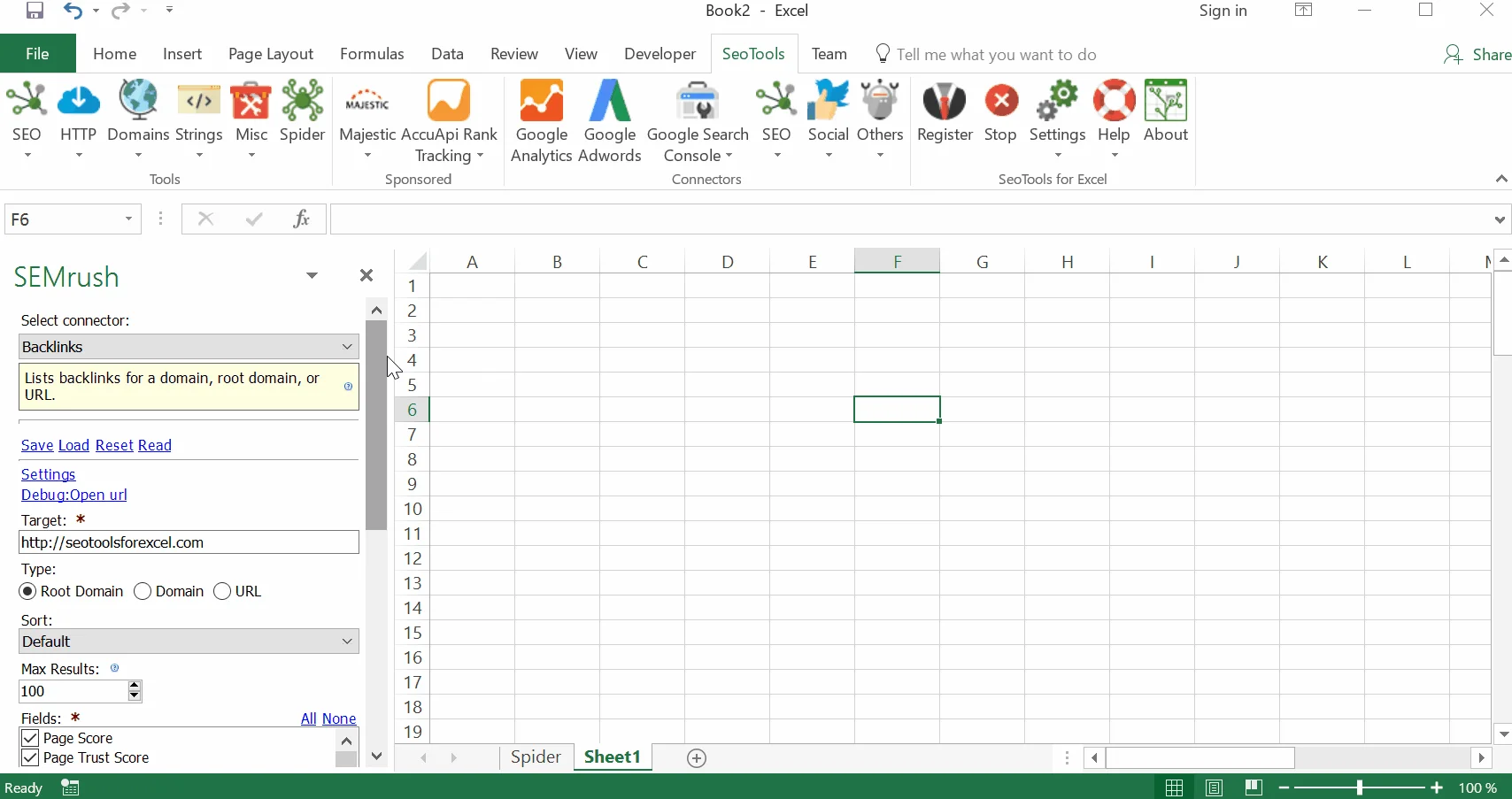
The friendly folks at SEO Tools for Excel have a Semrush connector that pulls data from Semrush’s API straight into a spreadsheet. That spreadsheet can then be brought into Data Studio for reporting and visualisation.
You can also follow my guide on getting Nightwatch rankings into Google Sheets and Data Studio. The approach and the script in that tutorial work for Semrush’s API too, with Semrush’s request URL in place of Nightwatch’s.
What are the pros of the API and Google Sheets?
You get to store archived versions of the data.
You get around the import limits you’d typically have when pulling data through a connector. You might still hit your plan’s limits, though.
You own the connection, which means there’s a lower chance of the report malfunctioning.
You can easily disconnect the data source and switch between accounts, something that’s not so easy with Semrush’s own connectors. That means the same report template can show different clients’ data, as long as you have API keys for the accounts you manage.
What are the cons of the API and Google Sheets?
You need an API key, and API access is a paid add-on to the Business tier of the SEO Toolkit, bought as API units. That’s a higher bar than the connectors in method 4, which work on Guru as well. In 2021 I wrote that the API came with the same tiers as the connectors; that’s no longer the case.
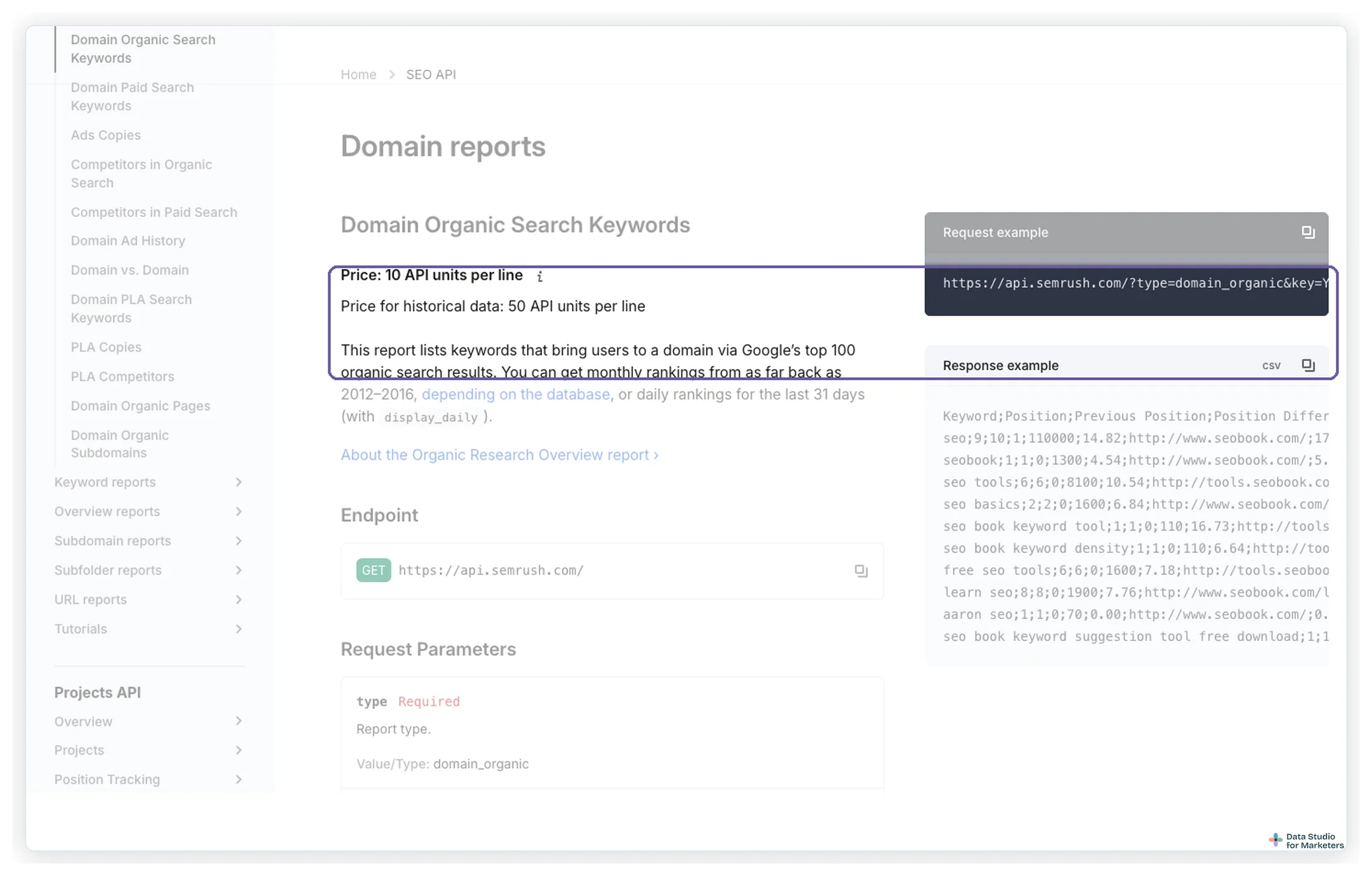
Every line of data a request returns costs units. The Domain Organic Search Keywords report, for example, costs 10 units per line, and 50 per line for historical data, so set a row limit on every request.
Managing these spreadsheets can take more time in maintenance and querying.
The data isn’t real-time, as a query is needed to update the spreadsheet.
How to get started with the API and Google Sheets
- Get your Semrush API key. In Semrush, click the profile icon in the top-right corner and, in the My profile sidebar, select API Keys. Check your unit balance before you start pulling.
- Download a template and follow its tutorial. The setup is quick. If you get stuck, the tutorial from the creators of SEO Tools for Excel walks through it.
- Prefer Google Sheets to Excel? Semrush has its own guide to using the Semrush API in Google Sheets. If you’re looking for a template with formulas in Google Sheets, David Sottimano has created one that works on the same principle. Follow his tutorial and download the free template to query the Semrush database with the Google Apps Script functions he wrote.
3. Connect Semrush with the API and Python
An even more advanced step is getting this data with Python. You’ll need access to the Semrush API (the same Business plan and API units as method 2) and two libraries: requests to call the API, and pandas to work with the result.
What are the pros of the API and Python?
Work with big data! You can pull a lot of data this way, if your API unit budget allows it.
Working with Python directly lets you do more advanced analysis, using machine learning and, specifically, natural language processing libraries.
What are the cons of the API and Python?
This is a very advanced approach and needs at least a rudimentary knowledge of Python, though there are tutorials to help you every step of the way.
You won’t have real-time data in your report, so the limitations of methods 1 and 2 apply here too.
How to get started with the API and Python
1. Call the Semrush API and export your data. Semrush’s API takes a plain HTTPS request: the report type, your key, the domain, the regional database and the columns you want. It answers with semicolon-separated text, which pandas reads straight into a table. The Semrush API documentation lists every report and its column codes.
Here’s a script that pulls a domain’s top 100 organic keywords, by share of traffic, and saves them as a CSV. Set your key as an environment variable called SEMRUSH_API_KEY rather than pasting it into the script.
import io
import os

import pandas as pd
import requests

API_KEY = os.environ["SEMRUSH_API_KEY"]   # keep the key out of the script
DOMAIN = "example.com"
DATABASE = "us"                           # the Semrush regional database

params = {
    "type": "domain_organic",
    "key": API_KEY,
    "domain": DOMAIN,
    "database": DATABASE,
    "display_limit": 100,                 # each line costs API units, so cap it
    "export_columns": "Ph,Po,Nq,Ur,Tr",   # keyword, position, volume, URL, traffic %
    "display_sort": "tr_desc",
}
r = requests.get("https://api.semrush.com/", params=params, timeout=60)
if r.text.startswith("ERROR"):
    raise SystemExit(r.text)              # e.g. a wrong key or no units left

df = pd.read_csv(io.StringIO(r.text), sep=";")
print(df.head(10))
df.to_csv(f"semrush_{DOMAIN}_{DATABASE}.csv", index=False)
Semrush returns errors as text (a wrong key comes back as ERROR 120 :: WRONG KEY - ID PAIR), so the script checks for “ERROR” before parsing. An earlier version of this section used a semrush pip package whose client class I couldn’t find in any package, so it’s now a direct request: one less dependency to keep up to date.
2. Analyse the data with machine learning and NLP libraries. The libraries that help most as a beginner in machine learning are pandas, NumPy and NLTK.
3. Export the result as a CSV with pandas’ to_csv, as the script’s last line does.
4. Connect it through Google Sheets. In Google Sheets, create a blank spreadsheet and use File → Import → Upload to bring in the CSV. Then, in Data Studio, choose Add data, pick the Google Sheets connector and select the spreadsheet and the tab. When you paste in a new export, the charts follow. If the pull should run on a schedule, my guide to automating Google Sheets for Data Studio covers the triggers.
4. Connect Semrush with its own Data Studio connectors
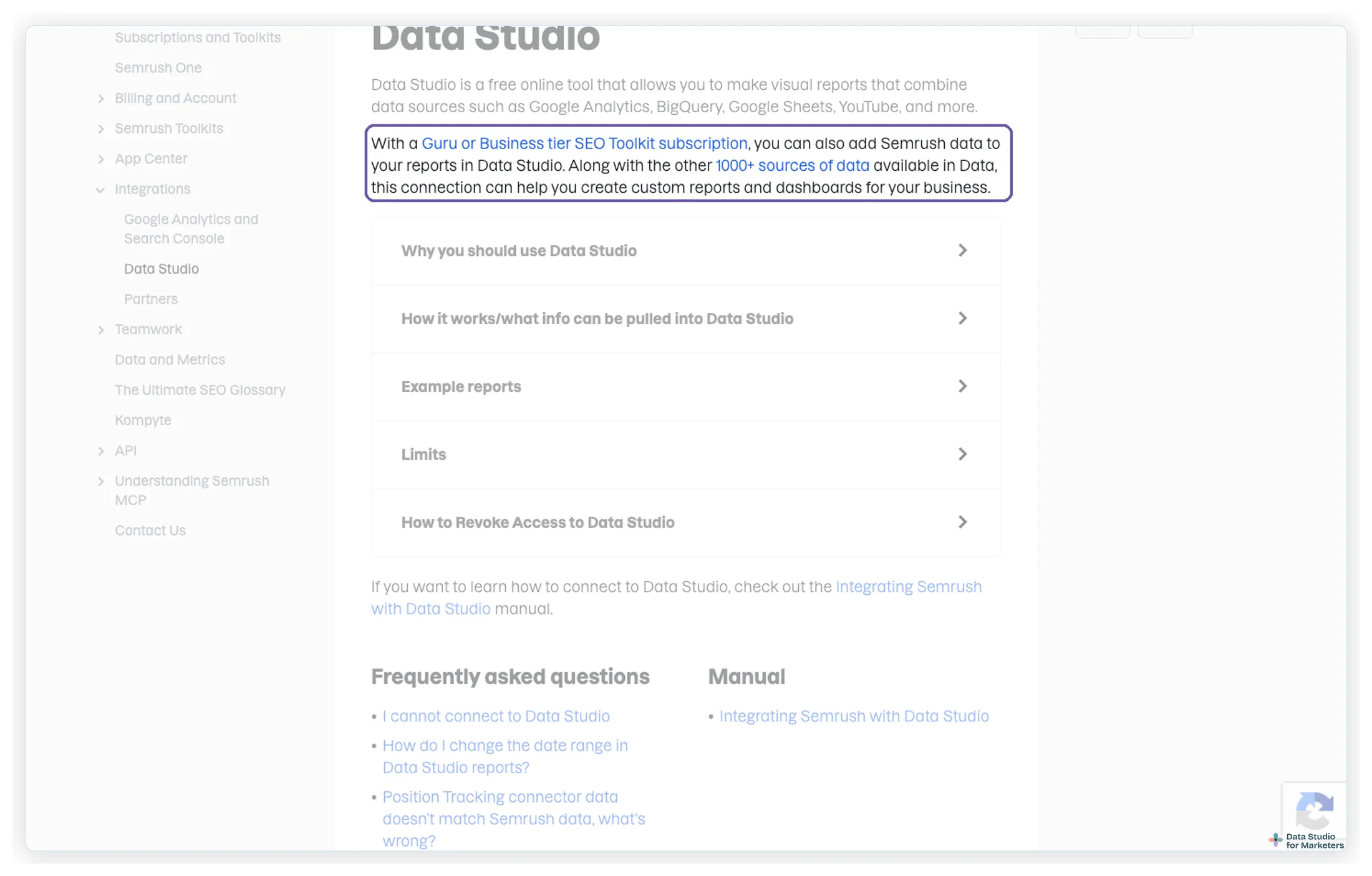
Now let me just specify quickly. The connectors themselves aren’t charged separately, but they’re only available with a Guru or Business tier of the SEO Toolkit subscription, and using them doesn’t spend API units. That’s a bit steep for solopreneurs, freelancers or small marketing agencies with just a few accounts, which is why I’ve shared the other approaches, which might suit your budget better.
What are the pros of Semrush’s own connectors?
Semrush offers good templates to start with if you use its connectors. All you need to do to replicate them is copy the report and connect your data in the way shown below.
The data comes straight from Semrush whenever the report refreshes, with nothing else to do.
It’s relatively easy to get started, as there’s no manual exporting and no API key to find.
What are the cons of Semrush’s own connectors?
The most obvious limitation is the plan they need. If you already use Semrush at those tiers, the connectors can absolutely enhance your consultancy. If not, upgrading just for the connectors is likely not worth it.
Another, less obvious limitation is that they’re built on a very granular schema: there are three connectors for three different types of report, Domain Analytics, Position Tracking and Site Audit.
Each of the three offers several choices per connection, which makes data blending difficult, because Data Studio can blend at most five data sources in one blend, one of the Data Studio limitations I’ve written about before.
It also takes time to set up on multiple projects, and many separate connections make a report less stable.
How to get started with Semrush’s connectors
1. Find Semrush in the connector gallery. In Data Studio, choose Add data and search for Semrush. There are three Semrush connectors, each pulling different data from Semrush.
| Connector | Reports you can pull | Worth knowing |
|---|---|---|
| Domain Analytics | Domain Overview, Organic Search Positions (the top 100 keyword positions), Paid Search Positions, Backlinks: Top Referring Domains, Backlinks: History (12 months of backlink counts, new and lost per month), Backlinks: Overview (Authority Score, backlinks, referring domains and IPs, link types) | You can analyse a root domain, a subdomain, a subfolder or a single URL, in the regional database you choose |
| Position Tracking | Organic positions, Google Ads positions, Organic visibility, Google Ads visibility, Organic overview, Rankings evolution (change in top positions over a period) | One project per connection, identified by its project ID; shows up to 5,000 results |
| Site Audit | Five groups of issues: crawlability, performance, linking (internal and external), international SEO (hreflang) and HTTPS | Needs a Site Audit project already set up in Semrush; the campaign ID is in the project’s URL |
One very important thing to note about the Position Tracking connector: every report is pulled for a single Semrush project. So if you have position tracking campaigns for different keyword clusters on a big website, or you manage several accounts, you need to repeat the setup for each report, for each project.
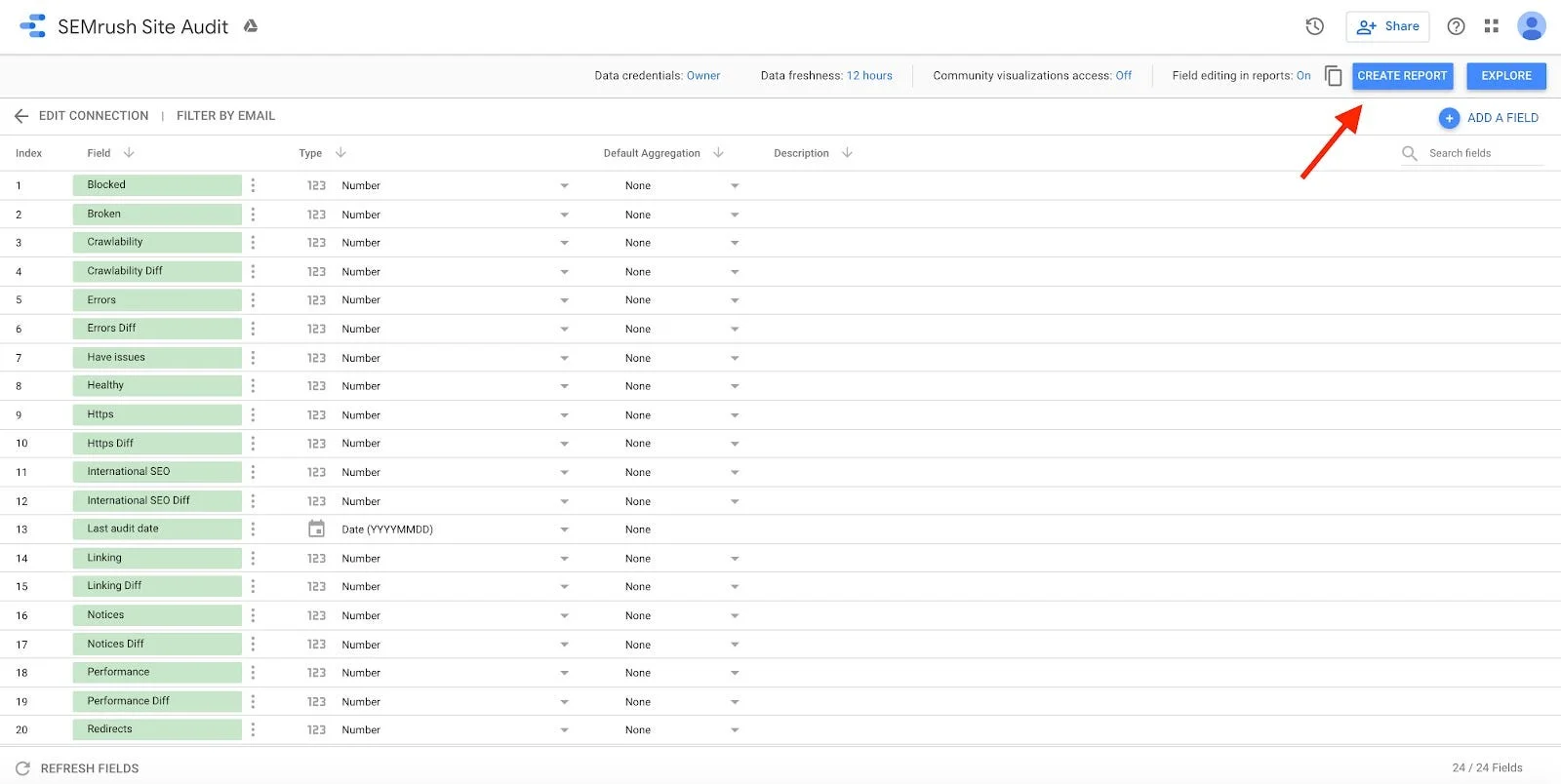
2. Authorise both accounts. When you pick a connector, Data Studio asks you to authorise your Google account, then to sign in to Semrush and allow access. You only get through if your Semrush plan includes the connectors.
3. Choose the data to import. Choose the report type and its settings. A pro tip: give every data source a very specific, identifiable name, so you can find it with the search bar later. Your report can easily become cluttered, and ten data sources all called “Domain Analytics” won’t give you any clue which data you’re working with. A good naming pattern for Domain Analytics is the report name (Domain Overview, Organic Search Positions, Backlinks History) plus a summary of the settings (US db, root domain).
4. Build your Semrush report. If you get stuck, Semrush’s guide to integrating Semrush with Data Studio covers every connector option.
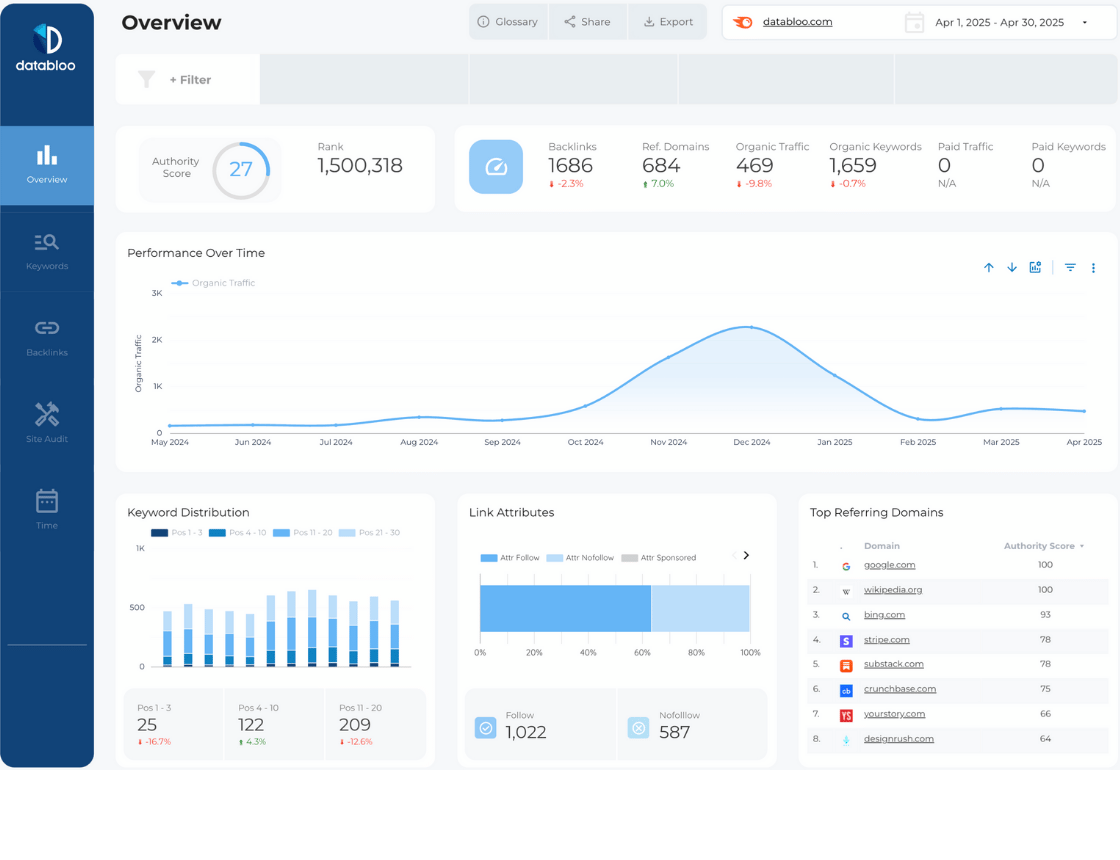
To skip the build, this template runs on exactly these three connectors, with ten data sources set up for rankings, backlinks and site health:
5. Connect Semrush with a partner connector
Finally, you can connect Semrush through a partner connector: a third-party connector that sits in Data Studio’s gallery and pulls Semrush data on your behalf. You still need a paid Semrush plan, and you pay for the connector too. The ones I found with a Semrush connector for Data Studio:
| Partner connector | Semrush connectors | How it connects |
|---|---|---|
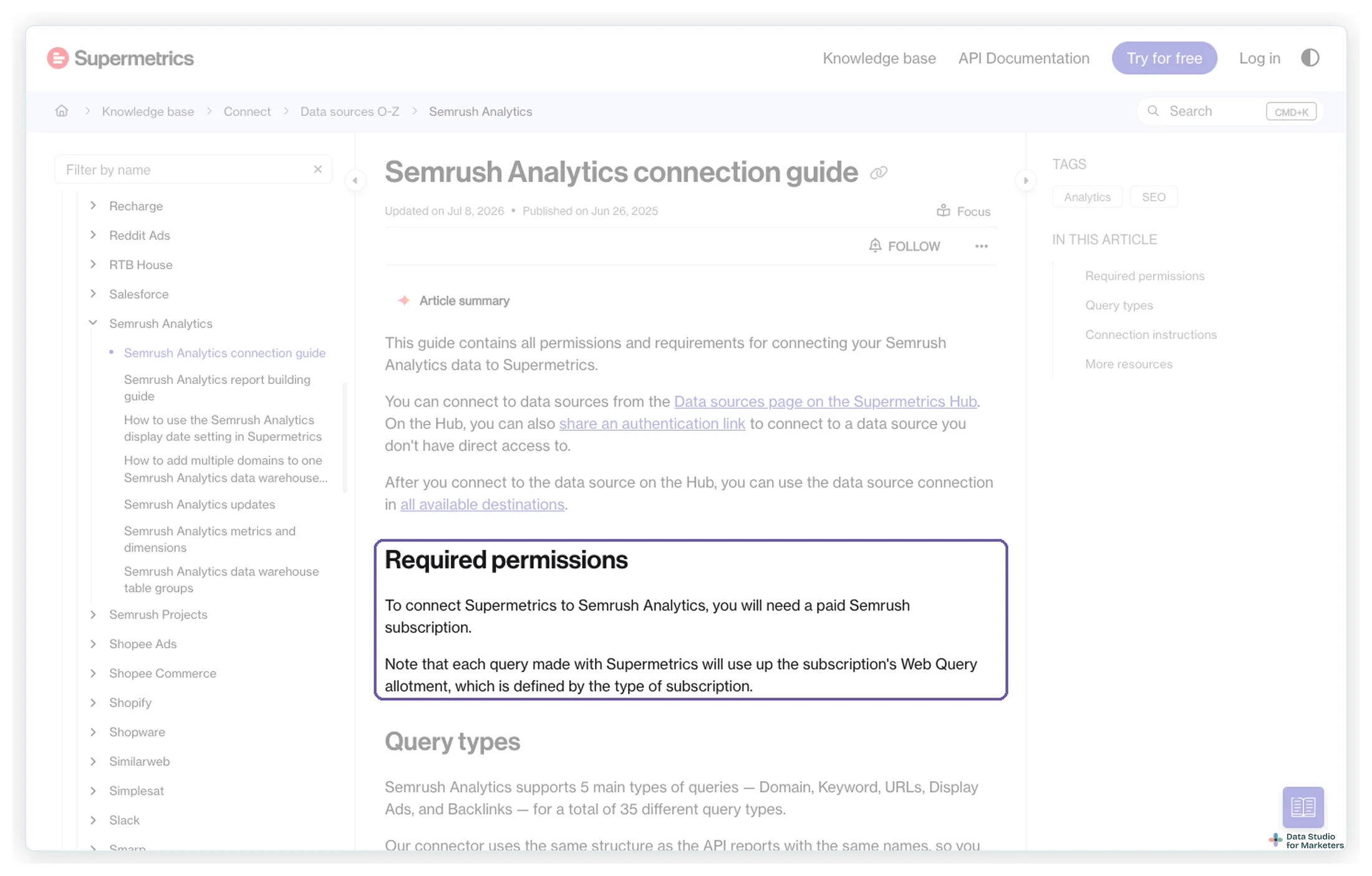
| Supermetrics | Semrush Analytics; Semrush Projects (marked early access) | Sign in with your Semrush email and password. Each query uses your Semrush plan’s query allowance |
| Windsor.ai | Semrush | Semrush is one of its data sources, with Data Studio as a destination |
| Power My Analytics | Semrush Analytics; Semrush Projects | Its own Data Studio connectors |
Connector lists from each vendor’s own site, checked 22 October 2026.
Supermetrics’ Semrush Analytics connector supports five main types of query (Domain, Keyword, URLs, Display Ads and Backlinks), 35 query types in total, and uses the same structure and names as Semrush’s API reports. One correction to my 2021 version: I wrote that the only way to authenticate a third-party tool with Semrush is the API key. Supermetrics’ connector signs in with your Semrush login and draws on your plan’s query allowance, so a busy report can use it up.
What are the pros of a partner connector?
You can connect Semrush easily, as the connector groups the different reports into one place.
It suits agencies that manage multiple client accounts, with refreshes that update and share reports with clients without manual work.
The same connection often works in Google Sheets as well as in Data Studio.
And the same connector pulls your other marketing sources, so Semrush sits next to them easily.
What are the cons of a partner connector?
You pay for a Semrush subscription and a connector subscription, which adds up for a solopreneur with one or two domains. Each connector counts differently (per data source, per account, or per platform), so compare them on your own setup; my comparison of Data Studio connectors works through what each one counts and what common setups cost.
How to get started with a partner connector
Check that your Semrush plan covers what the connector needs, start its trial and connect Semrush in Data Studio or Google Sheets. Supermetrics’ Semrush Analytics connection guide and report building guide walk through it, and two of its Semrush templates are at the end of this post.
Which way should you connect Semrush to Data Studio?
| Method | Semrush plan it needs | Fresh data? | Skills | Blends easily? |
|---|---|---|---|---|
| Manual export | One that can export the report | No, as of the last export | None | Yes, it’s one sheet |
| API + Sheets or Excel | Business + API units | As of the last query | Spreadsheet formulas | Yes |
| API + Python | Business + API units | As of the last run | Python | Yes |
| Semrush’s connectors | Guru or Business | Yes | None | Hard: many granular sources |
| Partner connector | A paid plan (Supermetrics) | Yes, on the connector’s refresh | None | Yes |
The cheapest way to connect Semrush with Data Studio is a manual export, but it brings problems with data freshness, time cost and accuracy.
The most expensive way is a partner connector, but it gets around the database-structure problems of Semrush’s own connectors, and you get the connector’s customer support.
The most advanced way is Python, because it lets you use the data for big data analytics and natural language processing, to get more insight out of it.
Semrush’s own connectors can lead to a very cluttered report in terms of the number of data sources, which can make the dashboard unstable.
Exporting to Excel or Sheets gets around the stability problem and the authentication problem of multiple accounts, at the cost of data freshness and more troubleshooting and error handling.
Semrush templates for Data Studio
Three Semrush dashboards to start from, depending on the route you picked: the Data Bloo Semrush template for Semrush’s own connectors, and two built on Supermetrics’ Semrush connector, the Semrush SEO dashboard and the Semrush competitor analysis dashboard.
Where to go next
- Data Studio connectors compared: what each partner connector counts, and what common setups cost
- How to get Nightwatch rankings into Google Sheets and Data Studio: the Apps Script method, which works for Semrush’s API too
- How to connect Google Sheets to Data Studio: for the export and API routes
- How to automate Google Sheets for Data Studio: put an API pull on a schedule
- Custom dimension formulas for Data Studio: ranking buckets and other fields for position data
Frequently asked questions
How do I connect Semrush to Data Studio?
Five ways: a manual export, the API through Sheets or Excel, the API through Python, Semrush’s own connectors, or a partner connector.
What’s the cheapest way to connect Semrush to Data Studio?
A manual export, at the cost of data freshness, your time and accuracy.
Does Semrush have a Data Studio connector?
Yes, three: Domain Analytics, Position Tracking and Site Audit. They’re available with a Guru or Business tier of the SEO Toolkit (checked 22 October 2026).
Do Semrush’s Data Studio connectors use API units?
No. Semrush says API units aren’t charged for Data Studio. The API itself, used in methods 2 and 3, is a paid add-on to the Business tier and spends units on every line it returns.
Can I put Semrush data next to GA4 and Search Console?
Yes. With a manual export or an API sheet, add the sheet as a data source and blend it on a shared field such as the page URL or the date. Semrush’s own connectors work too, but every report is a separate data source, and a blend can join at most five.
Some links in this post are affiliate links: if you sign up through one, I may earn a commission at no extra cost to you. How I work with partners.