
Google’s official Google Analytics MCP server is free, read-only and runs on your own computer, so it works in Claude Desktop and Claude Code. ChatGPT and Claude in the browser can only use a hosted (remote) MCP server, which today means a connector such as Windsor.ai, Porter Metrics, Catchr, Coupler.io or Supermetrics. Whichever route you take, check the assistant’s first answers against the same chart in your Data Studio report (formerly Looker Studio) before a number goes anywhere near a client.
This post covers what MCP is and why an assistant can’t open a Data Studio report, the three routes sorted by the assistant you use, what Google’s server can and can’t do, the setup for Claude step by step, what works in ChatGPT today, the hosted options, a parity check with a worksheet, and the limits. If you want the wider picture of AI in Data Studio first, start with my overview of AI in Data Studio.
I’m writing this from Google’s, Anthropic’s, OpenAI’s and each vendor’s documentation, read on 14 October 2026. I haven’t run the setup on a client property, and I say where the docs are thin.
What MCP is, and why Claude can’t open your Data Studio report
The Model Context Protocol (MCP) is, in Anthropic’s words, “an open standard, created by Anthropic, for AI applications to connect to tools and data”. An MCP server is the small program in the middle: it tells the assistant which tools exist (say, “run a GA4 report”) and runs them when asked. A Google Analytics MCP server lets Claude or ChatGPT run GA4 reports for you and read the results back.
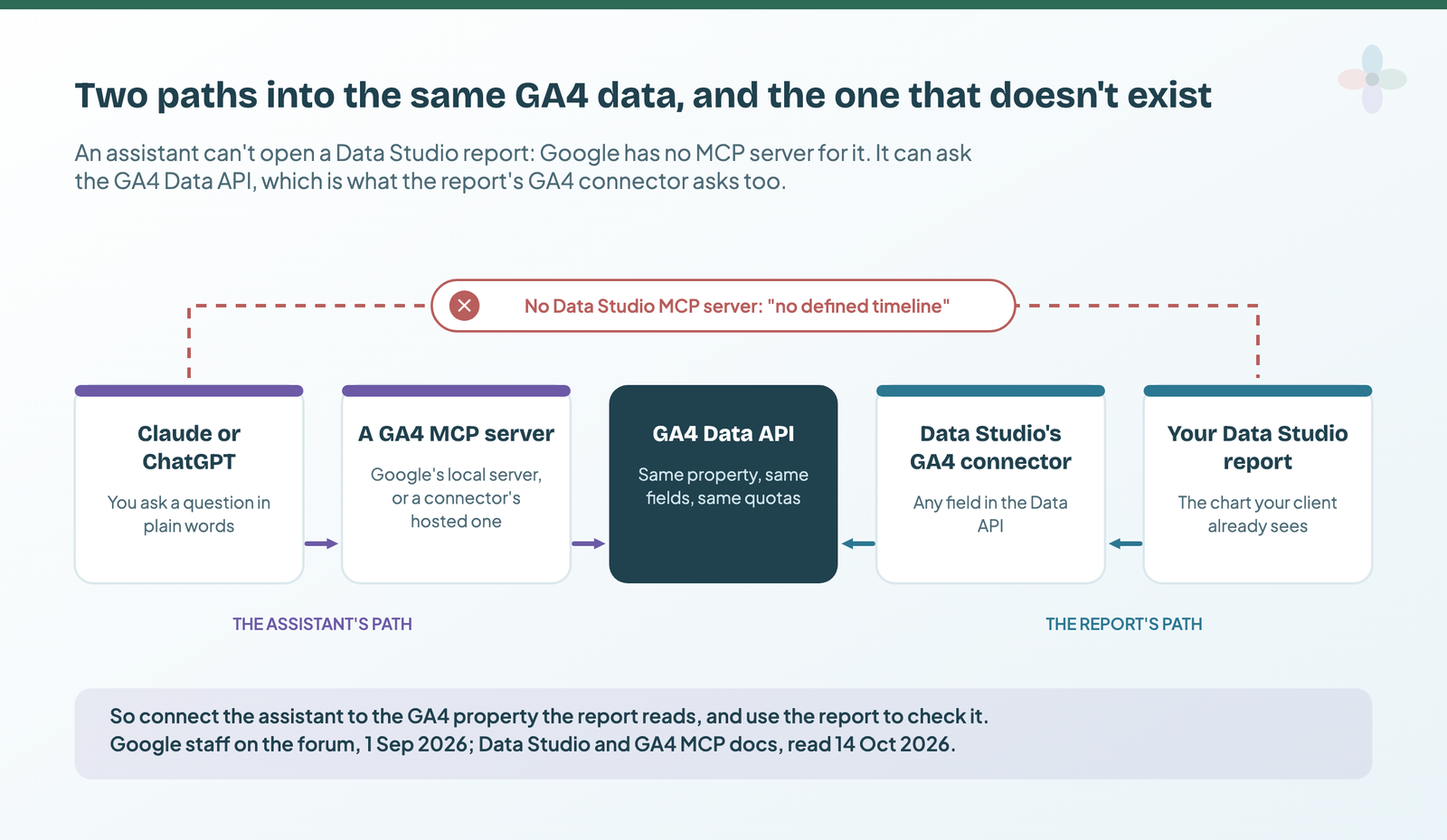
What there isn’t is an MCP server for Data Studio. In a forum thread asking for one, Google staff wrote on 1 September 2026: “due to shifts in strategic priorities, there is currently no defined timeline for the development of an MCP server for Data Studio.” The Data Studio API won’t fill the gap either: it searches and manages reports and their sharing, and Google’s page says “deeper metadata like filters, sections, and dimensions within a report cannot be retrieved” (I went through it in what the Data Studio API can and can’t do). And Looker’s MCP server is for Google’s enterprise Looker, not Data Studio (the naming, untangled).
So connect the assistant to what the report reads instead. That turns out to be useful, because the report then becomes the check:
Pick your route by the assistant you use
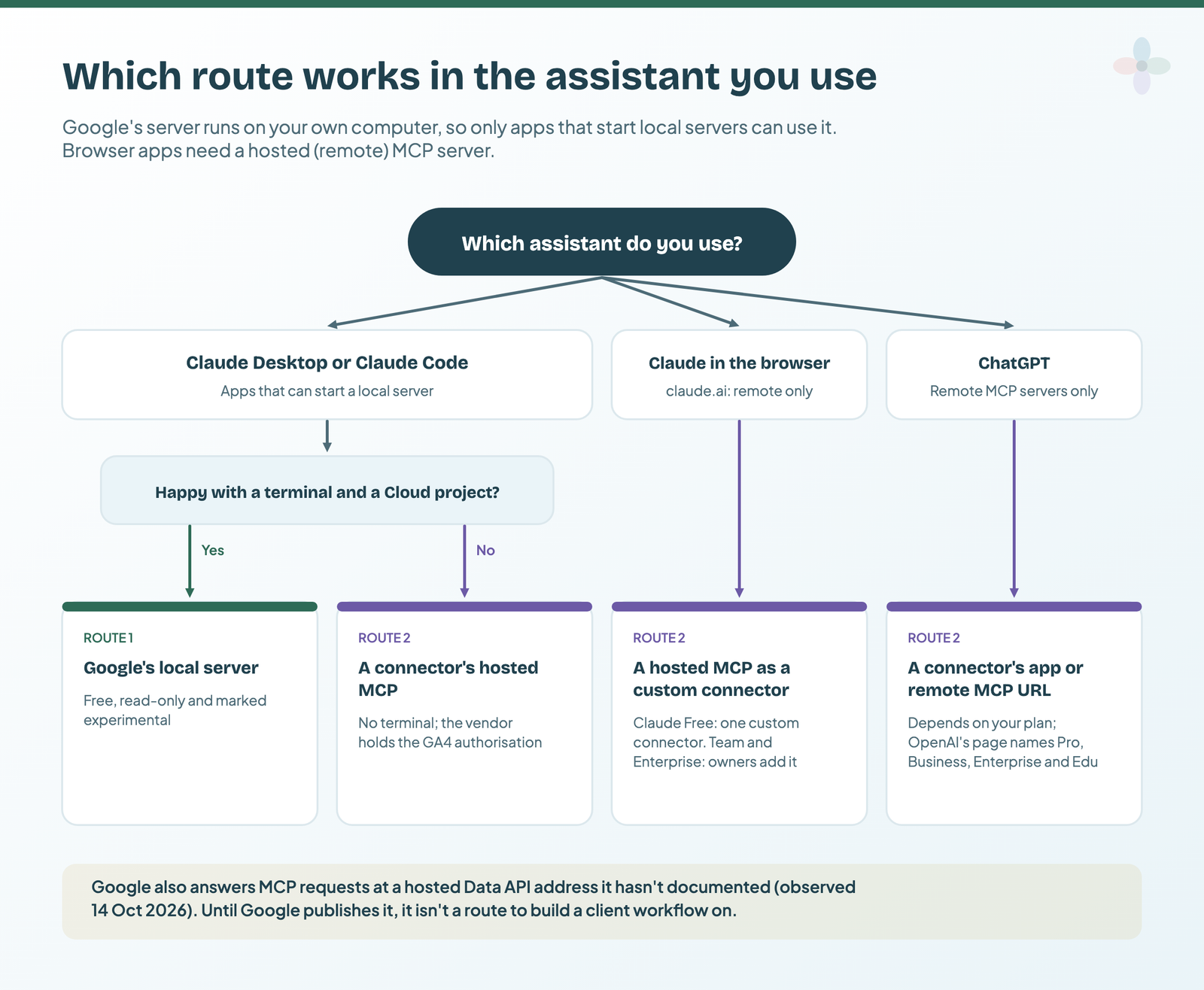
The deciding question isn’t which server is best. It’s where your assistant can run one. Google’s server is a local MCP server: a program on your computer, which only desktop apps can start. Browser apps need a remote one, hosted on someone’s servers and reached by a URL. OpenAI’s help page is blunt about it: “ChatGPT connects to remote MCP servers.”
| Google’s local server | A connector’s hosted MCP | Google’s hosted endpoint | |
|---|---|---|---|
| Runs where | Your computer | The vendor’s servers | Google’s servers |
| Claude Desktop | Yes, via the config file | Yes, as a custom connector | Undocumented: not a route yet (below) |
| Claude Code | Yes | Yes, as a remote server | |
| Claude in the browser | No | Yes (Free plan: one custom connector) | |
| ChatGPT | Not directly | As the vendor’s app or a remote MCP URL, depending on plan | |
| Terminal needed? | Yes, plus a Google Cloud project | No | – |
| Who holds the Google authorisation | You, on your machine | The vendor | – |
| Read or write | Read only | Read; some vendors can also write to ad platforms | Its tools are read-only |
| Cost | Free; uses your property’s Data API quota | The vendor’s plan | – |
Checked against each vendor’s documentation on 14 October 2026. Re-check before you rely on a plan detail: this changes monthly.
If you’re weighing the connectors against each other on price and coverage, that’s marketing data MCP servers compared. This post sticks to GA4.
Google’s Google Analytics MCP server: what it can and can’t do
Google’s Google Analytics MCP server is open source (Apache-2.0), labelled “Experimental” in its own README, and described as “source code for running a local MCP server”. It talks to two Google APIs: the Admin API (accounts, properties, settings) and the Data API (reports). Google’s developer guide is clear on the main safety point: “The MCP server is available for read requests only. It can’t edit your Google Analytics configuration or settings.” The code backs that up: it requests only the read-only Analytics scope.
The README lists seven tools. The released package (analytics-mcp 0.7.0, published 29 July 2026) registers nine, two more than the README:
| Tool | What it returns | A question it answers |
|---|---|---|
get_account_summaries |
Your GA4 accounts and properties | “Which properties can I see?” |
get_property_details |
A property’s settings | “What time zone and currency is this property in?” |
list_google_ads_links |
Google Ads accounts linked to a property | “Is this property linked to Ads?” |
list_property_annotations (not in the README) |
The property’s annotations | “What changed on 3 September?” |
get_custom_dimensions_and_metrics |
The property’s custom dimensions and metrics | “Which custom dimensions do I have?” |
run_report |
A Data API report | “Sessions by channel last month” |
run_realtime_report |
A realtime report | “How many users right now?” |
run_funnel_report |
A funnel report | “Where do people drop out between product page and checkout?” |
run_conversions_report (not in the README) |
A conversions report, with an attribution model | “Conversions by campaign, data-driven attribution” |
Two catches with the name. The package you install is analytics-mcp; the PyPI package called google-analytics-mcp is a third-party project, not Google’s. And it reads GA4 only: no Search Console, and no Google Ads data beyond what GA4 already holds. Those have their own servers, covered in Google Ads and Search Console MCP servers.
The hosted endpoint Google hasn’t documented
One more thing you may see mentioned. On 14 October 2026 I observed Google’s Data API address analyticsdata.googleapis.com/mcp/v1 answering MCP requests, listing four read-only tools (run_report, get_metadata, run_realtime_report, check_compatibility). I only asked it for its tool list; I didn’t sign in or connect an assistant. Google hasn’t documented it: the reference URL other sites cite returns a 404, and Analytics isn’t on Google Cloud’s list of supported remote MCP servers (updated 9 October). Watch for an announcement, but don’t plan a client workflow on it.
Set it up for Claude Desktop or Claude Code, step by step
This is Google’s documented setup, with the Claude Desktop part from the MCP docs for local servers. It’s the documented setup, untested by me. You’ll need a terminal, and the README’s badge asks for Python 3.10 or newer.
1. Install pipx and the Google Cloud CLI
Install pipx (it runs Python apps without you managing them) and the Google Cloud CLI, which gives you the gcloud command.
2. Enable the two Analytics APIs
In a Google Cloud project, open the API Library and enable the Google Analytics Admin API and the Google Analytics Data API.
3. Create credentials
Create an OAuth client of type Desktop app (Google’s Manage OAuth Clients page shows where) and download its JSON file. Then sign in with a Google account that has access to the GA4 property, asking for the read-only Analytics scope:
# From Google's README. The documented setup, untested by me.
gcloud auth application-default login \
  --scopes https://www.googleapis.com/auth/analytics.readonly,https://www.googleapis.com/auth/cloud-platform \
  --client-id-file=YOUR_CLIENT_JSON_FILE
When it finishes, it prints Credentials saved to file: [PATH_TO_CREDENTIALS_JSON]. Copy that path; you need it next. (The README also documents service-account impersonation, with --impersonate-service-account=SERVICE_ACCOUNT_EMAIL, if your agency prefers a service account with access to the property.)
4. Add the server to Claude
Claude Code takes one command, verbatim from the README. Replace the two placeholders with your credentials path and your Cloud project ID:
# From Google's README. The documented setup, untested by me.
claude mcp add analytics-mcp \
  --scope user \
  -e "GOOGLE_APPLICATION_CREDENTIALS=PATH_TO_CREDENTIALS_JSON" \
  -e "GOOGLE_PROJECT_ID=YOUR_PROJECT_ID" \
  -- pipx run analytics-mcp
Claude Code’s own docs say to run /mcp and check that the server shows as connected.
Claude Desktop reads a config file. Open it from the Claude menu → Settings… → Developer → Edit Config. It lives at ~/Library/Application Support/Claude/claude_desktop_config.json on a Mac and %APPDATA%\Claude\claude_desktop_config.json on Windows. Add the server under mcpServers. This is the README’s JSON, verbatim, and the documented setup, untested by me. Replace PATH_TO_CREDENTIALS_JSON with the full path you copied in step 3 (JSON doesn’t allow comments, so don’t paste any notes into the file):
{
  "mcpServers": {
    "analytics-mcp": {
      "command": "pipx",
      "args": ["run", "analytics-mcp"],
      "env": {
        "GOOGLE_APPLICATION_CREDENTIALS": "PATH_TO_CREDENTIALS_JSON",
        "GOOGLE_PROJECT_ID": "YOUR_PROJECT_ID"
      }
    }
  }
}
Then quit Claude Desktop completely and restart it. You should find the server under “Add files, connectors, and more” → Connectors → Manage connectors.
One oddity: the README’s text recommends a GOOGLE_CLOUD_PROJECT attribute, while its examples use GOOGLE_PROJECT_ID. It doesn’t say which is required, so I’ve kept the examples as written.
5. Ask your first question
Start with the README’s own prompt, what can the analytics-mcp server do?, then a property question, such as Give me details about my Google Analytics property with 'xyz' in the name. If the server doesn’t appear, Anthropic’s troubleshooting advice is to use absolute paths and read the logs in ~/Library/Logs/Claude (mcp.log and mcp-server-analytics-mcp.log), or %APPDATA%\Claude\logs on Windows.
The companion sheet has every step as a checklist, the snippets ready to copy, and the parity worksheet for the next part:
Can you use it in ChatGPT?
Not directly. OpenAI’s developer mode help page (updated in October) says ChatGPT connects to remote MCP servers, and a server on “a developer machine” needs OpenAI’s Secure MCP Tunnel. What you can connect depends on your plan:
| Plan | What OpenAI’s page says you can connect |
|---|---|
| Business, Enterprise, Edu | Full MCP, including write actions, “rolling out in beta”, on ChatGPT web; admins or owners turn on developer mode |
| Pro | MCP servers “with read/fetch permissions in developer mode” |
| Other plans | Not mentioned on that page |
MCP apps are web only, not mobile. So the practical route is a connector’s ChatGPT app or remote MCP URL, added under Settings → Plugins. OpenAI says app availability “depends on the app, your ChatGPT plan, region, workspace, role, model, and the ChatGPT interface”. Google hasn’t published a GA4 app for ChatGPT that I could find. Which leaves the hosted connectors.
Hosted options: connector MCPs that also feed Data Studio
Five connectors that already feed Data Studio also ship an MCP server, so one GA4 authorisation can serve your report and your assistant. Here’s what each vendor’s own page said on 14 October 2026, in the same columns for each:
| Vendor | MCP on which plans (vendor’s words) | Read or write | How it reaches Claude / ChatGPT | Also a Data Studio connector |
|---|---|---|---|---|
| Windsor.ai | “Access to Windsor MCP for AI analysis” on all plans, including the free plan | Read, and since May 2026 write actions to ad platforms such as Google Ads, Meta and LinkedIn | A Windsor MCP destination for “ChatGPT, Claude, Copilot, and other AI chats” | Yes |
| Porter Metrics | “Included in every Porter plan at no extra cost—including the Free forever plan” | Not stated on the pages I read | Claude, ChatGPT “and any AI assistant via MCP” | Yes |
| Catchr | “Catchr MCP” on all plans (no free tier; 14-day trial) | Read: “eight tools, and all eight of them read” | From Claude’s connector directory | Yes |
| Coupler.io | AI integrations (Claude, ChatGPT, custom MCP and others) on every plan; AI Agent requests from Starter | Not stated on the pages I read | Claude, ChatGPT or any custom MCP client | Yes |
| Supermetrics | The standalone MCP server needs Data API access (Enterprise); Starter and Growth reach it through the AI chats destination | Read, plus campaign changes on seven ad platforms (early access) | Claude’s connector directory; its GA4 page describes “the Supermetrics MCP server” | Yes |
From each vendor’s pricing and MCP pages, checked 14 October 2026. Supermetrics’ GA4-to-Claude page also says its data is unsampled; that’s the vendor’s claim, and the parity check below shows how to see sampling for yourself.
In Claude, a hosted MCP goes in as a custom connector: Customize → Connectors → + Add → Add custom connector on Pro and Max, or Organization settings → Connectors, added by an Owner, on Team and Enterprise. Free users get one custom connector. Claude’s directory also lists some vendors, so you may not need a URL at all.
The trade is plain: no terminal, but the vendor holds your client’s GA4 authorisation, and some can write as well as read. For the connector side of the choice, Data Studio connectors compared and Porter vs Windsor vs Supermetrics go further.
Check the answer against your Data Studio report
Here’s the part the setup guides I read skip. Google’s MCP server asks the GA4 Data API. Data Studio’s GA4 connector can show “any of the fields that are available in the Google Analytics Data API (GA4)”, and Google says Data Studio “will match the data, but not the explorations, in Google Analytics reporting” (Data Studio’s GA4 connector docs). Same API, same property: for the same metric, dimension and fixed dates, the numbers should agree. When they don’t, the cause is findable.
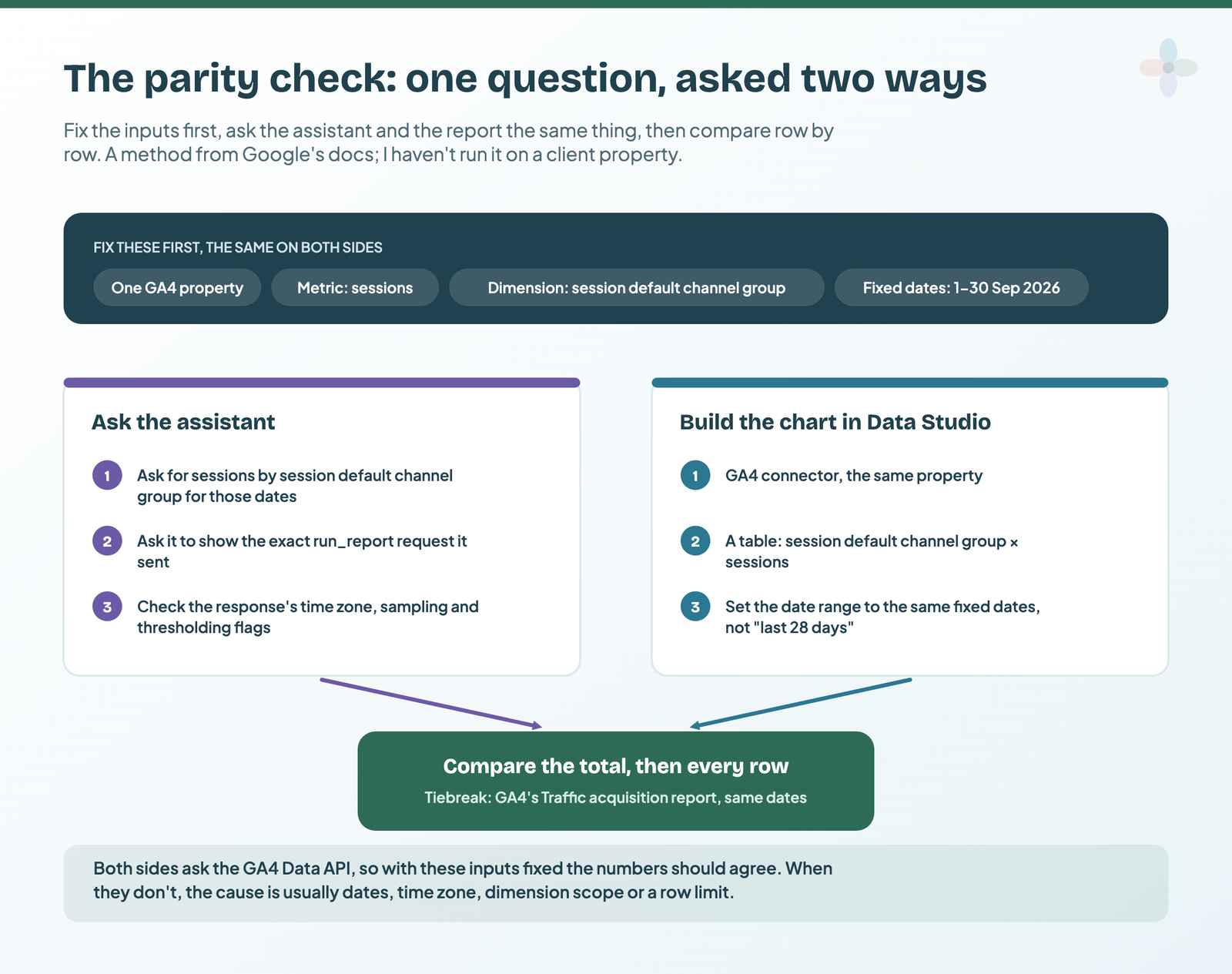
This is a method, not a result: I haven’t run it on a client property.
- Fix the dates. Pick a closed period such as 1–30 September 2026, not “last 28 days”, which moves.
- One metric, one dimension. Sessions by session default channel group is a good first test.
- Build the chart in Data Studio on the GA4 connector, same property, same fixed dates (connecting GA4 to Data Studio, if you haven’t).
- Ask the assistant for the same thing, and tell it to show the exact
run_reportrequest it sent. The request shows the dimension, filters and row limit it picked. - Compare the total, then each row in the parity worksheet.
- Tiebreak with GA4’s own Traffic acquisition report for the same dates.
The server returns the full API response, so you can ask for its metadata too. When the numbers differ, start here:
| Symptom | Likely cause | How to check |
|---|---|---|
| Totals differ by about a day | Relative dates on one side | Fixed start and end dates on both |
| Every row off a little | Time zone: the API reports in the property’s | timeZone in the response |
| Channels differ, total matches | Session-scoped vs user-scoped channel dimension | Ask which dimension it used |
| Conversions don’t match | Key events vs a different metric | The metric name in the request |
| Assistant’s total is lower | Row limit (10,000 by default) or it summed only the top rows | The limit sent; the full response |
| Figures look scaled | Sampling | samplingMetadatas in the response |
| Small rows missing | Thresholding | subjectToThresholding |
| An “(other)” row | High-cardinality data rolled up | dataLossFromOtherRow |
| A subset of the data | A filter the assistant added | The filter in its request |
| Percentages differ | Arithmetic the assistant did itself | Ask for raw values only |
| Answer stops partway | Data API quota reached | The error; wait for the reset |
If the Data Studio side is the odd one out, check its cache before blaming the assistant (how data freshness works). The parity worksheet in the companion sheet does the differences for you and has these causes as a drop-down:
The limits: sampling, thresholds, quotas, invented metrics and client data
Sampling. GA4 may sample when a request uses more events than its limit: 10 million events for standard properties and up to 1 billion on Analytics 360. A sampled API response carries samplingMetadatas, so ask for it.
Thresholds. GA4 withholds some demographics and search-query data to protect identities. The thresholds are “system defined. You can’t adjust them”, though a wider date range can help (Google’s help page).
Quotas. A standard property gets 200,000 core tokens a day, 40,000 an hour, 14,000 per Cloud project per property per hour, and 10 concurrent requests; Analytics 360 gets ten times that. “Most requests will charge 10 or fewer tokens” (Google’s quotas page). The catch for agencies: Data Studio reports on GA4 draw on the same property quota, and they show errors when it runs out. An assistant looping through big reports on a busy client property can do that.
Invented metrics. The server’s instructions tell the assistant to use standard GA4 names or the property’s own custom ones, but an assistant can still mislabel a metric or do its own sums. Google’s own warning on AI output applies: it “can generate output that seems plausible but is factually incorrect. We recommend that you validate all output.” Asking for the request it sent is the cheapest validation there is.
Client data. With the local server, data goes from Google to your machine and then to the assistant’s provider. With a connector, the vendor is in the chain too. Anthropic says “only connect to trusted servers” and to “be aware of prompt injections”; OpenAI warns that untrusted servers increase exposure to risks “including prompt injection”. The governance side is in client data and AI assistants for agencies. This isn’t legal advice, but before client data goes in, I’d tick these:
- ☐ Read-only: Google’s server is; for a connector, check what it can do.
- ☐ Which account authorised it, so access can be removed later.
- ☐ The client’s contract allows AI processing of their analytics data.
- ☐ Write actions are off unless you need them.
- ☐ The number was parity-checked against the report before it was shared.
GA4 templates to check the assistant against
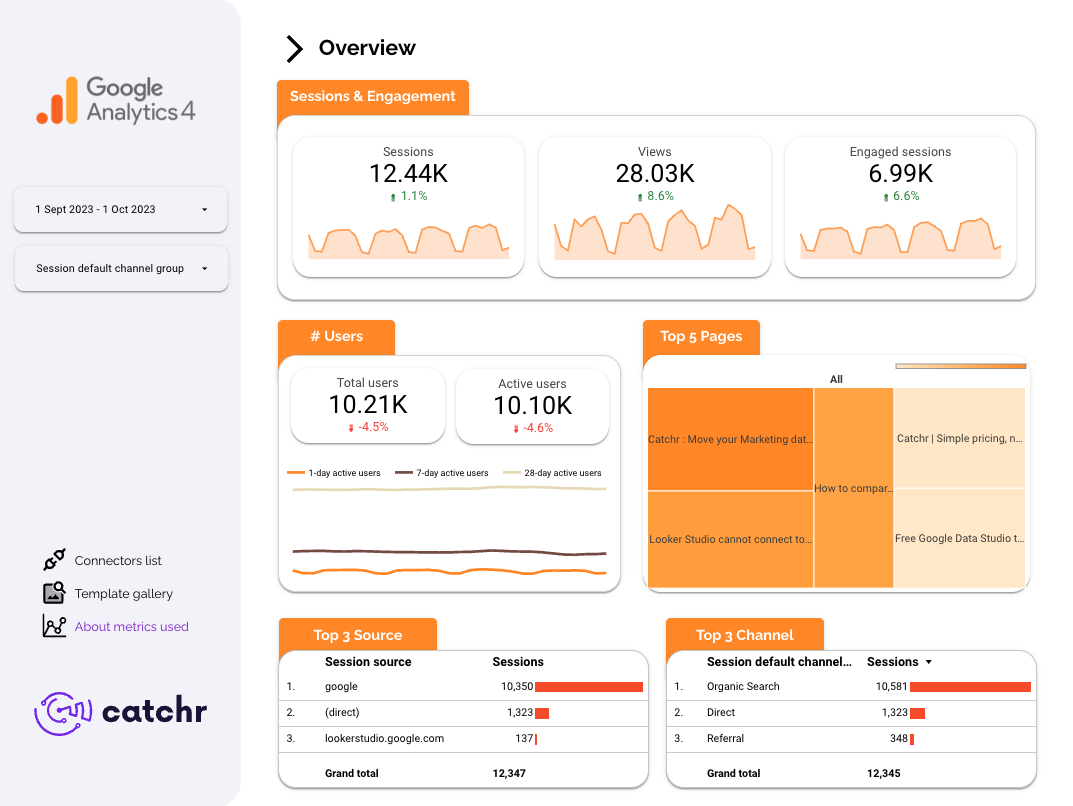
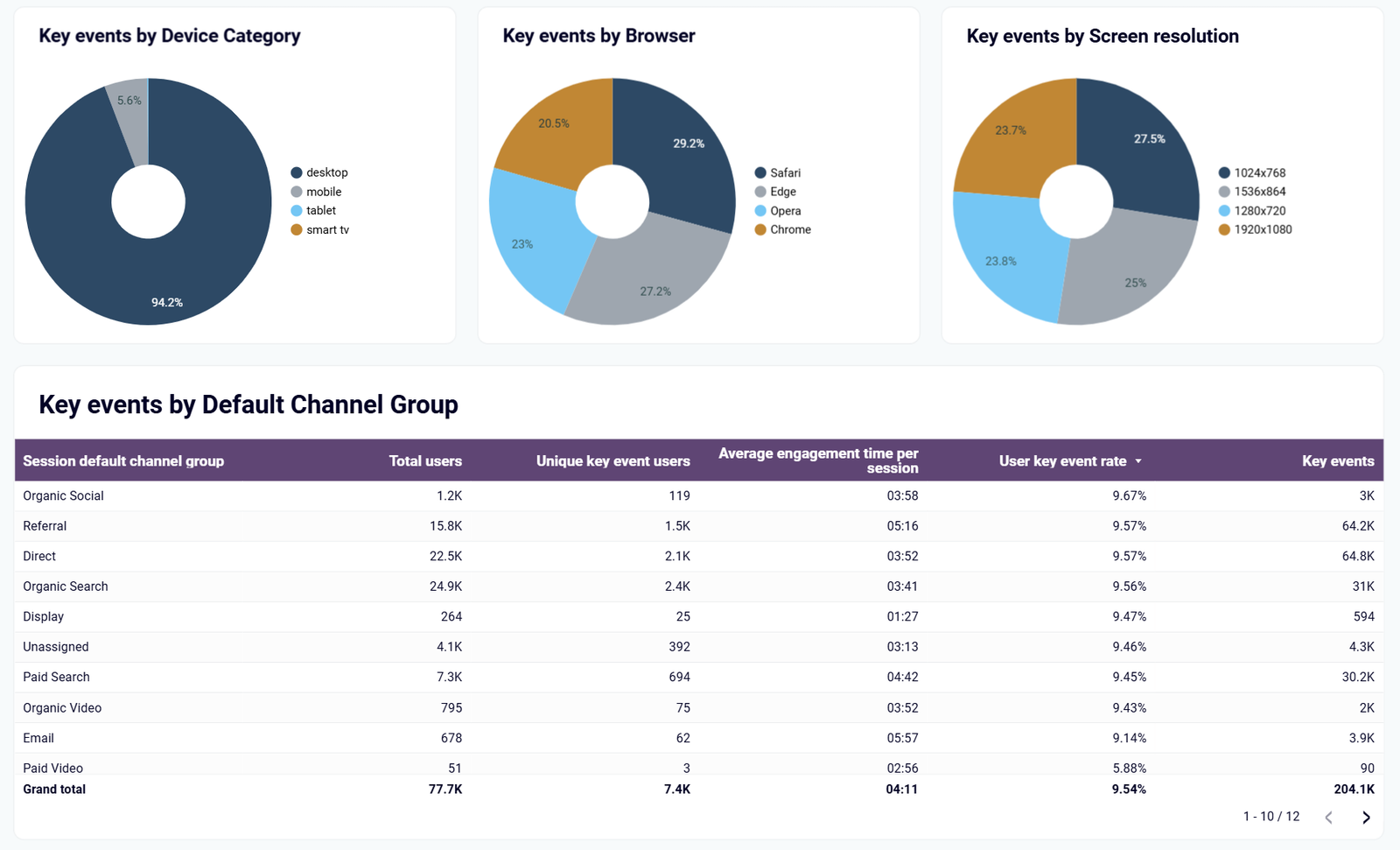
No GA4 report yet to compare against? These free templates from the library all break GA4 data down by session default channel group, the dimension the parity check starts with:

Where to go next
- AI in Data Studio: what Gemini does, what’s free, and what to use instead
- Connect GA4 to Data Studio, the report side of the check
- Marketing data MCP servers compared
- Google Ads and Search Console MCP servers
- Client data and AI assistants: what agencies need to check
- What the Data Studio API can and can’t do
Frequently asked questions
Is there a Looker Studio or Data Studio MCP server?
No. Google staff said on Google’s forum on 1 September 2026 that there’s “no defined timeline” for one. Looker’s MCP server is for Google’s enterprise Looker product, not Data Studio.
Is the Google Analytics MCP server free?
The server is free and open source. Its requests count against your GA4 property’s Data API quota, and you need an assistant that can run local MCP servers, such as Claude Desktop or Claude Code.
Can it change my GA4 settings or data?
No. Google says it’s for read requests only and “can’t edit your Google Analytics configuration or settings”, and it asks for the read-only Analytics scope.
Does it work in ChatGPT?
Not directly. ChatGPT connects to remote MCP servers, and Google’s server runs locally. Use a connector’s ChatGPT app or remote MCP URL, if your plan allows it.
Does it work with Search Console or Google Ads?
No, it reads GA4 only. Google’s Google Ads MCP server is a separate, read-only server, and Google hasn’t published a Search Console one.
Why doesn’t Claude’s number match my report?
Usually dates, time zone, dimension scope or a row limit. Ask Claude to show the request it sent and compare it with your chart’s settings; the parity table above lists the common causes.
Some links in this post are affiliate links: if you sign up through one, I may earn a commission at no extra cost to you. How I work with partners.