

A theme is how a report looks. A template is a whole report somebody means you to copy. That’s the one-line answer, and it would be the end of the post if Data Studio behaved the way people expect.
It doesn’t, and the reason is worth knowing: a theme can’t be saved. So the only way to reuse one is to turn its report into a template — which collapses the two ideas into each other in daily use, and is why nobody can keep them straight.
What a theme is in Data Studio
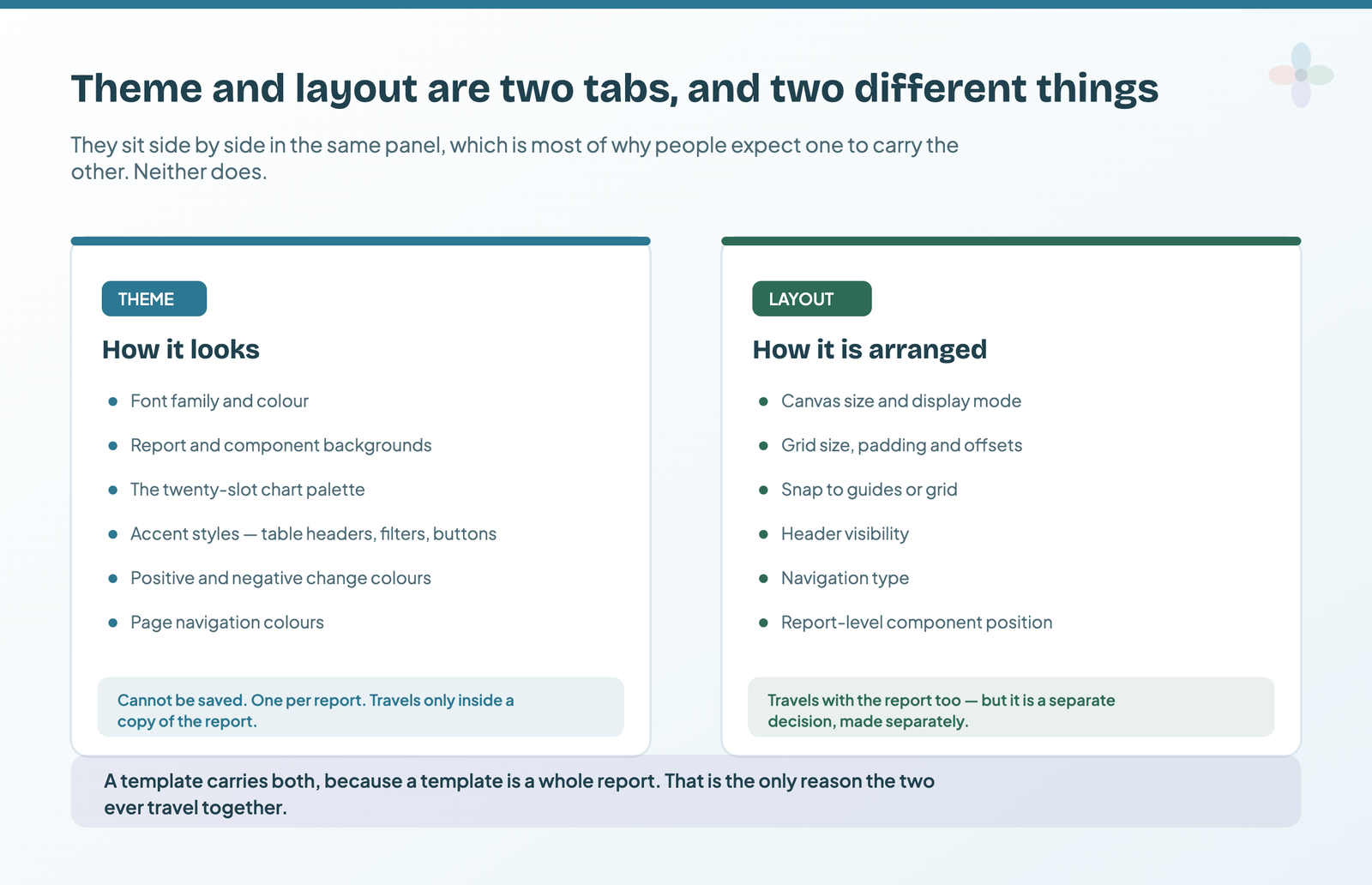
A theme is a set of style rules applied to a whole report: font family and colour, report and component backgrounds, the chart palette, accent styles for table headers and filter controls, the positive and negative change colours on scorecards, and the page navigation colours.
Three things about it are unusual enough to catch people out, and all three are stated plainly in Google’s documentation on themes.
It can’t leave the report. “Custom themes aren’t shared across reports. To reuse a custom theme in another report, make a copy of the report with the custom theme.” There is no export, no theme file, no library.
You get one. “You can have one custom theme at a time. Modifying an existing theme creates a new custom theme, overwriting any previous custom theme.” That limit is per report, so different reports can each hold their own — but within any single report, editing the custom theme destroys what was there.
It applies to everything. “Themes apply to the entire report. It’s not possible to apply different themes on separate pages of a report.” A cover page in different colours has to be built by overriding individual components, not by theming that page.
What a template is in Data Studio
This is the part that surprises people, because “template” sounds like an object and it isn’t one. From Google’s documentation:
“A template is a special kind of report, created by appending
/previewto the report’s URL. You can interact with a template in view mode just as you would any report. However, before you can modify or share the template, you must copy it to a new report by clicking Edit…”
So a template is a report with six characters on the end of its URL. There’s no template object in your Drive, no publish step, no separate file type. Any report you have can become a template, right now, by changing the link you send.
What that URL does is change what the page invites. A normal report link says look at this. A /preview link says take a copy of this — it puts an edit-and-copy action in front of the reader rather than asking them to find “Make a copy” in a menu.
Data Studio themes and templates, side by side

| Theme | Template | |
|---|---|---|
| What it is | A set of style rules | A whole report, plus /preview |
| Is it a file? | No | No |
| Where it lives | Inside one report | It is a report |
| Can you send it to someone? | Only by sending the report | Yes — that’s the point |
| How many can you have? | One custom theme per report | As many reports as you like |
| Does it carry data? | No | Yes — charts, and their data sources |
| Does it carry layout? | No — layout is a separate tab | Yes |
| Scope | The whole report; can’t vary by page | Whatever is in the report |
Why the theme/template distinction is blurrier than it should be
Put the two limits together and you get the thing that confuses everyone.
You want to reuse your brand styling on the next client report. That’s a theme problem. But a theme can’t be copied on its own, and Google’s own documented answer is to copy the report carrying it. A report you intend somebody to copy is a template.
So in practice, “reuse my theme” and “make a template” are the same action. The concepts are genuinely distinct; the workflow forces them together. That’s not a misunderstanding on anyone’s part — it’s the product.
Which is why, if you’re setting up brand styling for an agency, the thing you end up maintaining is a blank branded report rather than a style guide. Building a branded report theme walks through that, including the one-theme-at-a-time trap that bites when two clients share a slot.
What a copied Data Studio report actually carries
Since copying is the mechanism for both, it’s worth knowing what survives it. Two things in particular break reports quietly.
Data sources need a decision. When someone copies your report they’re asked to map each data source, and what happens next depends on whether the source was embedded or reusable. Get it wrong and the copy either fails to load or, worse, silently shows your data to them.
The Google Analytics measurement ID does not come along. Google is explicit that a copied report doesn’t inherit it, which means every report copied from your template arrives with usage tracking switched off. If you measure whether your dashboards get opened — and it’s four minutes per report to do so — pasting the ID becomes a line on the go-live checklist.
The full mechanics are in copying and reusing a Data Studio template.
Do you need a theme, a template, or both?
You need a theme when the report is right and the colours aren’t. It’s a styling job, it lives in Theme and layout, and it takes twenty minutes. What to put in that palette is Chapter 20 of my ebook, Data Storytelling in Data Studio: one job per colour, and the same colour for each channel on every page.
You need a template when you’ll be building this same report again — for another client, another market, another quarter. Build it once, keep it blank, copy it each time.
You need both, arranged deliberately, if you’re an agency. One blank branded report per client brand, carrying that brand’s theme, copied for every new report. It’s the only arrangement the product actually supports, and it’s worth setting up on purpose rather than discovering by accident.
Setting up the agency arrangement, concretely
Since the answer for most agencies is “both, arranged deliberately”, here’s what that arrangement looks like in a Drive folder.
- One folder per brand. Not per client — per brand, because a client with two brands needs two themes and the one-custom-theme rule is per report.
- Inside it, one report called
— MASTER (do not edit). The leading dash sorts it to the top of the folder, and the parenthetical is the only documentation anyone will read. - The master carries the theme, the layout, the cover page and a swatch page. No charts bound to live data, because the moment it has those you’re maintaining a report rather than a shell.
- Every new report is Make a copy of the master, renamed. Never “open the master and save as”.
- When the brand changes, copy the master first, change the copy, and rename the old one with the year. The theme you overwrite does not come back.
The thing that makes this stick is the swatch page. Without it, nobody can tell whether a copy inherited the theme correctly until a chart is on it — and by then they’re in a client report rather than a shell. Chapter 6 of my free ebook, The Marketer’s Guide to Dashboard Design, on building a branded theme you can reuse, draws this arrangement: one master per brand, each in its own theme, every report a copy, and the master never edited.
If you also share templates outside the agency, keep those separate from the masters. A master is a private shell with a warning in its name; a public template is a finished report you’re inviting people to copy, and it wants the /preview URL and a sample data source that works for a stranger.
Report Gallery or Template Gallery: one naming quirk
Google refers to the same destination as both the Report Gallery and the Template Gallery in different places, which doesn’t help anyone learning the distinction. They’re the same thing: a set of reports that Google, or a partner, has published with the expectation that you’ll copy them.
Frequently asked questions
What is the difference between a template and a theme in Data Studio?
A theme is a set of style rules — fonts, colours, backgrounds, chart palette — that applies to one whole report and can’t be saved separately or moved between reports. A template is an entire report that someone intends you to copy, created by adding /preview to the report’s URL. One is styling; the other is the whole artefact.
Can I save a Data Studio theme and use it on another report?
Not directly. Google’s documentation says custom themes aren’t shared across reports, and that to reuse one you make a copy of the report carrying it. That is why agency brand styling ends up being maintained as a blank branded report rather than as a saved theme.
How do I turn my report into a template?
Add /preview to the end of the report’s URL and share that link. There is no publish step and no separate file — the template is the report, and the URL suffix is what invites the reader to take a copy rather than just view it.