
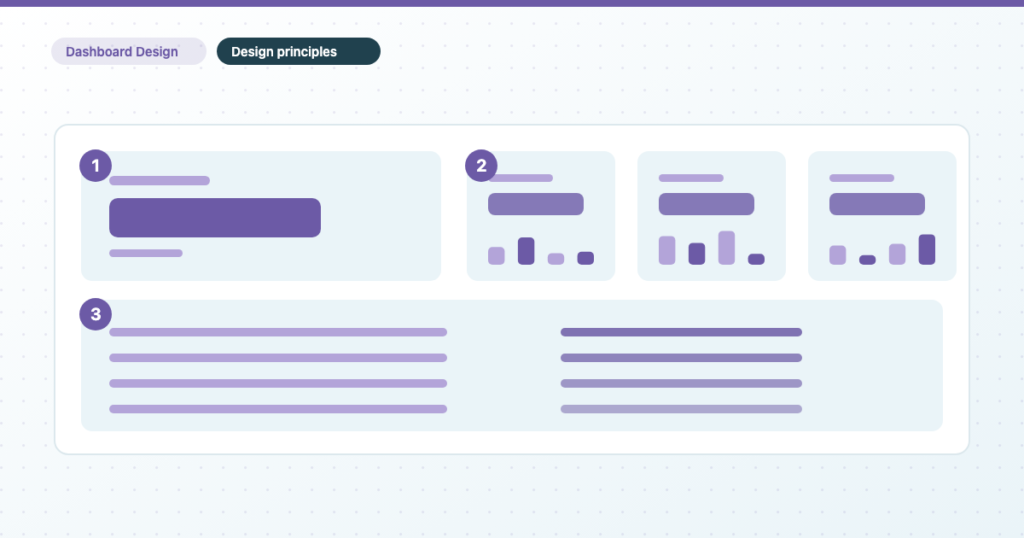
Most dashboards aren’t badly designed. They’re undesigned: assembled one chart at a time, each added because somebody asked for it once. The result is technically correct and hard to read, and no better chart type fixes it, because the problem sits at the level of the page, not the chart.
This post covers the page-level decisions (what to remove, what to make biggest, how to group, colour, text and page order), each with the Data Studio steps that hold it in place. Choosing a chart from the shape of your data handles the chart-level ones. The screenshots are mine, captured in 2026; the worked examples use Harbour & Fern, the fictional garden and home retailer from my ebooks.
Remove to improve: the clutter isn’t neutral
Every element that carries no information is something the reader has to notice and dismiss before they reach the number. One border costs almost nothing; a page of them costs comprehension. I run four passes on every chart, in this order, and none of them loses information:
- Strip the frame. Background fills, chart borders, heavy gridlines, shadows.
- Strip the redundancy. A legend that repeats the axis labels, an axis title that repeats the chart title. Keep one of each pair.
- Collapse the numbers. Pence on a revenue figure is precision nobody uses and characters everybody reads.
- Say the point. Grey everything that’s context, give one colour to the thing you’re writing about, and make the finding the title. This is the pass people skip.
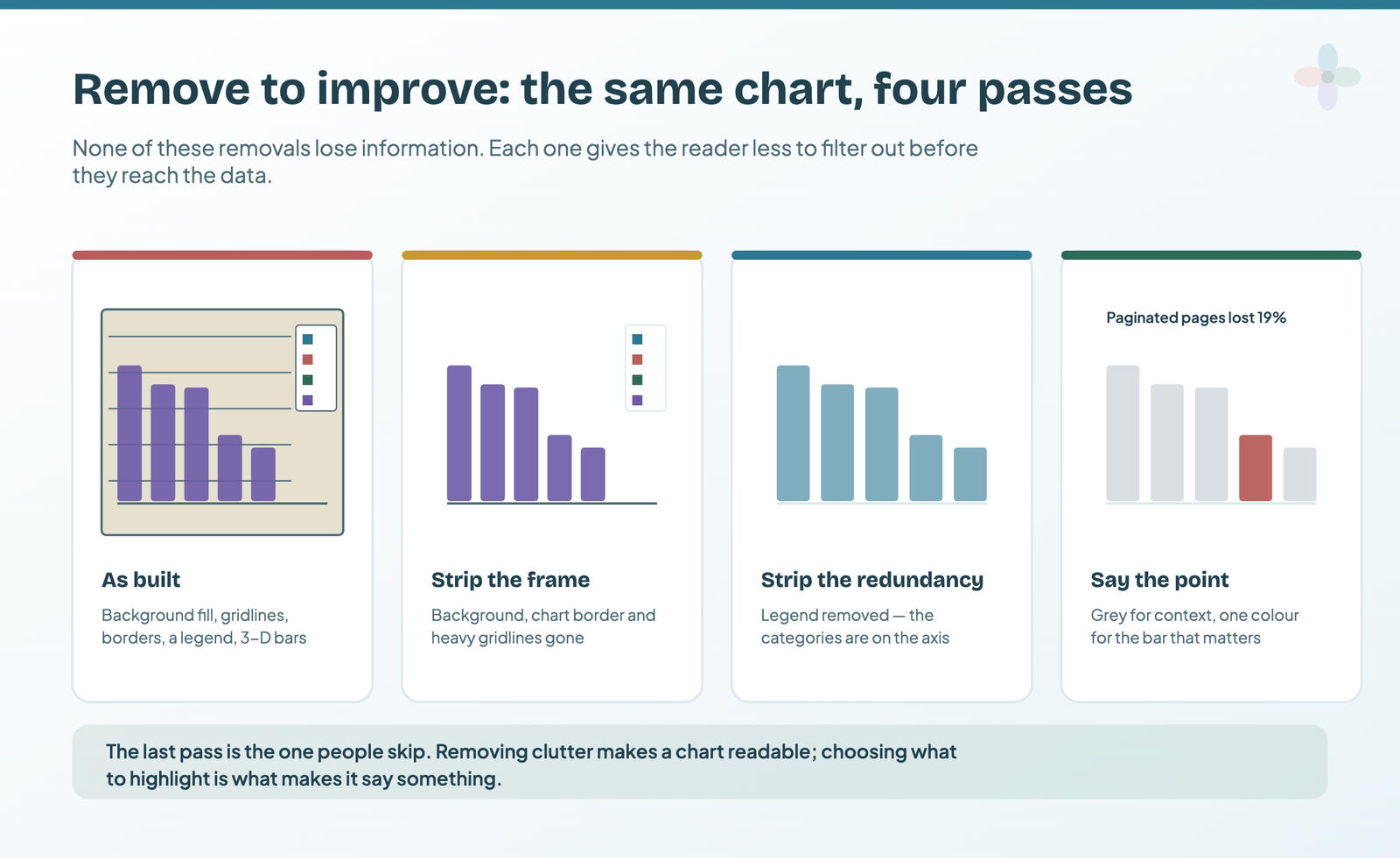
On Harbour & Fern’s September revenue-by-channel chart, that means: the beige fill, border, legend and gridlines go; £132,963.00 for paid search becomes £133k and £14,040.00 for referral becomes £14k; five bars go grey; and the title stops saying “Revenue by channel” and says “Organic search: £113k, up £27k on last September”.
In Data Studio: strip a chart in its Style tab
- Select the chart and open the Style tab.
- Under Background and border, set the background to white or none, and turn the border off.
- Under Grid, turn off the grid lines you don’t need, or set their colour to a light grey.
- Under Legend, turn off Display legend if the axis or direct labels already name the series.
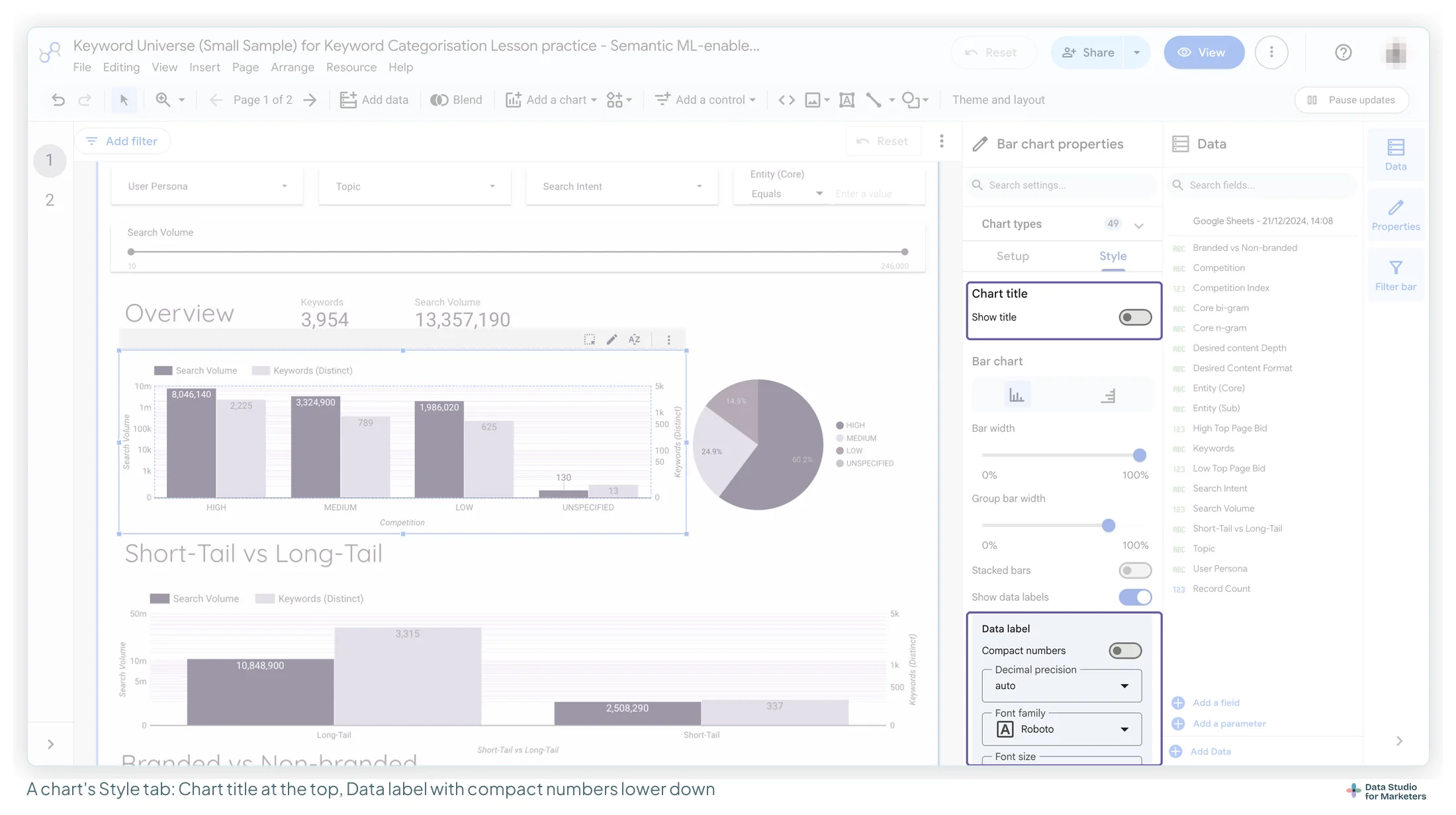
- If the chart shows data labels, open Data label, switch on Compact numbers (Google’s example: 553,939 becomes 553.9K) and set Decimal precision to 0.
- Turn on Show title under Chart title and write the finding, not the metric name.
Visual hierarchy: what gets read, and in what order
Type size and weight decide reading order, whether or not you chose them. The question is whether the thing you most want read got the biggest type.
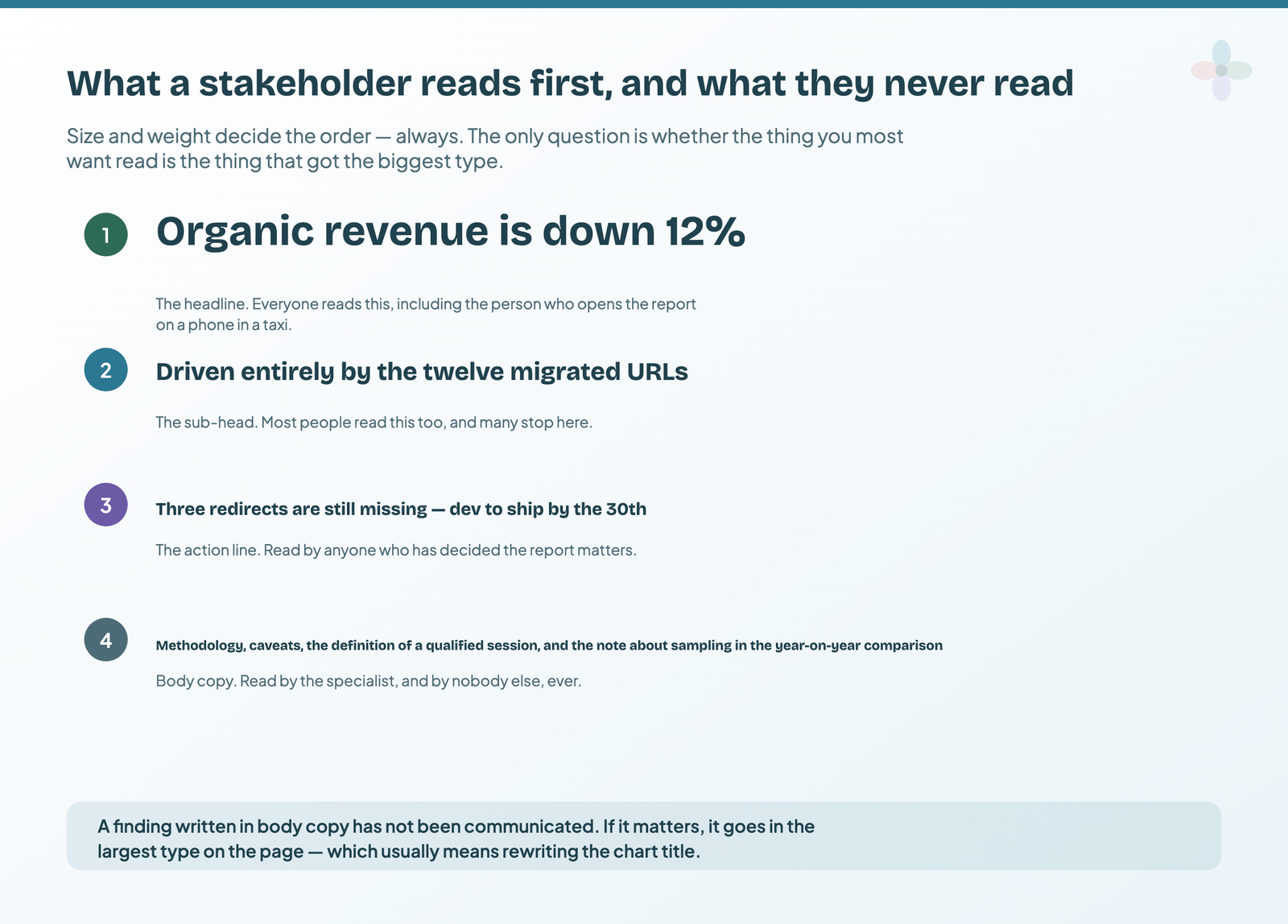
A report page has four tiers: the headline, read by everyone; the sub-head, where many stop; the action line, read by anyone who has decided the report matters; and body copy, read by the specialist. So a finding written in body copy hasn’t been communicated. If it matters to every reader, rewrite a chart title rather than adding a paragraph. Caveats belong in body copy on purpose, where the reader who needs them will look.
In Data Studio: hold four sizes
The theme sets a font family but no size, so each component holds its own. I use 34 px for the page headline, 22 px for section headings, 16 px for chart titles and 12 px for body text; my fonts post explains why those four.
- For the headline and section headings, add a text box and type the size into its font size field.
- On one chart, open Style › Chart title and pick 16. A chart’s size comes from a list, so it can’t be typed.
- Finish styling that title, then right-click the chart and choose Copy.
- Right-click each chart that should match and choose Paste special › Paste style only, as Google describes. Each keeps its data and takes the first chart’s look.
Design for the direction people read
Readers of left-to-right languages start at the top left and sweep right, then down. That’s where the most important thing goes, and it’s easy to miss: a row of summary scorecards placed under the charts it summarises, or the chart that matters most in the bottom right because that’s where there was room. If you report to markets that read right to left, mirror the layout rather than assuming the convention travels.
Grouping: let the gaps between tiles do the work
A page of twelve evenly spaced tiles tells the reader nothing about which belong together. Group related tiles with real space between the groups, and that’s answered before anyone reads a word. Three rules cover most reports.
Group by question, not by data source. A GA4 section, a Search Console section and an Ads section is the shape of your data pipeline, not of anybody’s question. Which source a number comes from is your problem, not the reader’s. Chapter 1 of my free ebook, The Marketer’s Guide to Dashboard Design, on what a dashboard page is for, redraws one twelve-tile summary page both ways, by data source and by the reader’s questions, so you can see what the grouping changes.
Put things people compare side by side, at the same scale: spend against conversions, say. Space consistently: equal gaps, equal margins, one grid. Uneven spacing reads as carelessness even to people who couldn’t say why.
| Harbour & Fern’s summary page | Before | After |
|---|---|---|
| Grouped by | Data source: GA4, Search Console, Google Ads | The marketing lead’s three questions |
| Tiles | 12, evenly spaced | 6, in three groups with wide gaps |
| Are we on target? | Revenue somewhere in the GA4 band | Revenue £412,000, 91.6% of the £450,000 target; orders |
| Where did the growth come from? | Not answered | Sessions 272,000, up 18%; paid social’s share of sessions 21.0%, from 4.8% |
| Is the ad spend working? | Cost in the Ads band | Google Ads cost £64,800, 108% of its £60,000 budget; cost per conversion |
The six numbers that left moved to the channel pages behind the summary.
In Data Studio: set a grid, then align
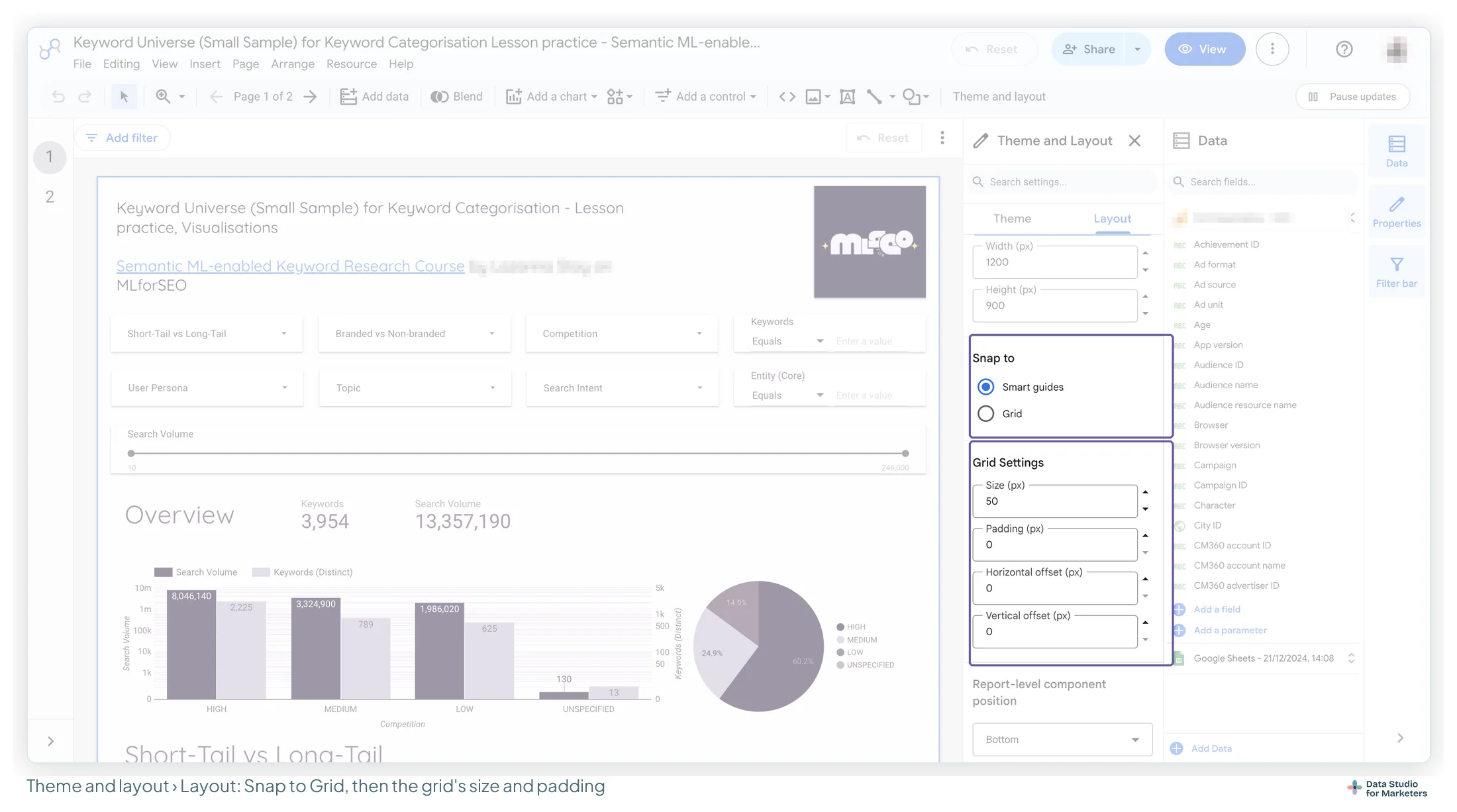
- Open Theme and layout › Layout and set Snap to to Grid.
- Under Grid Settings, set Size (px) and Padding (px): the padding is the gutter between components. Harbour & Fern’s report uses a 20 px grid with 10 px padding.
- Select the tiles in a row: click the first, then Shift-click the others.
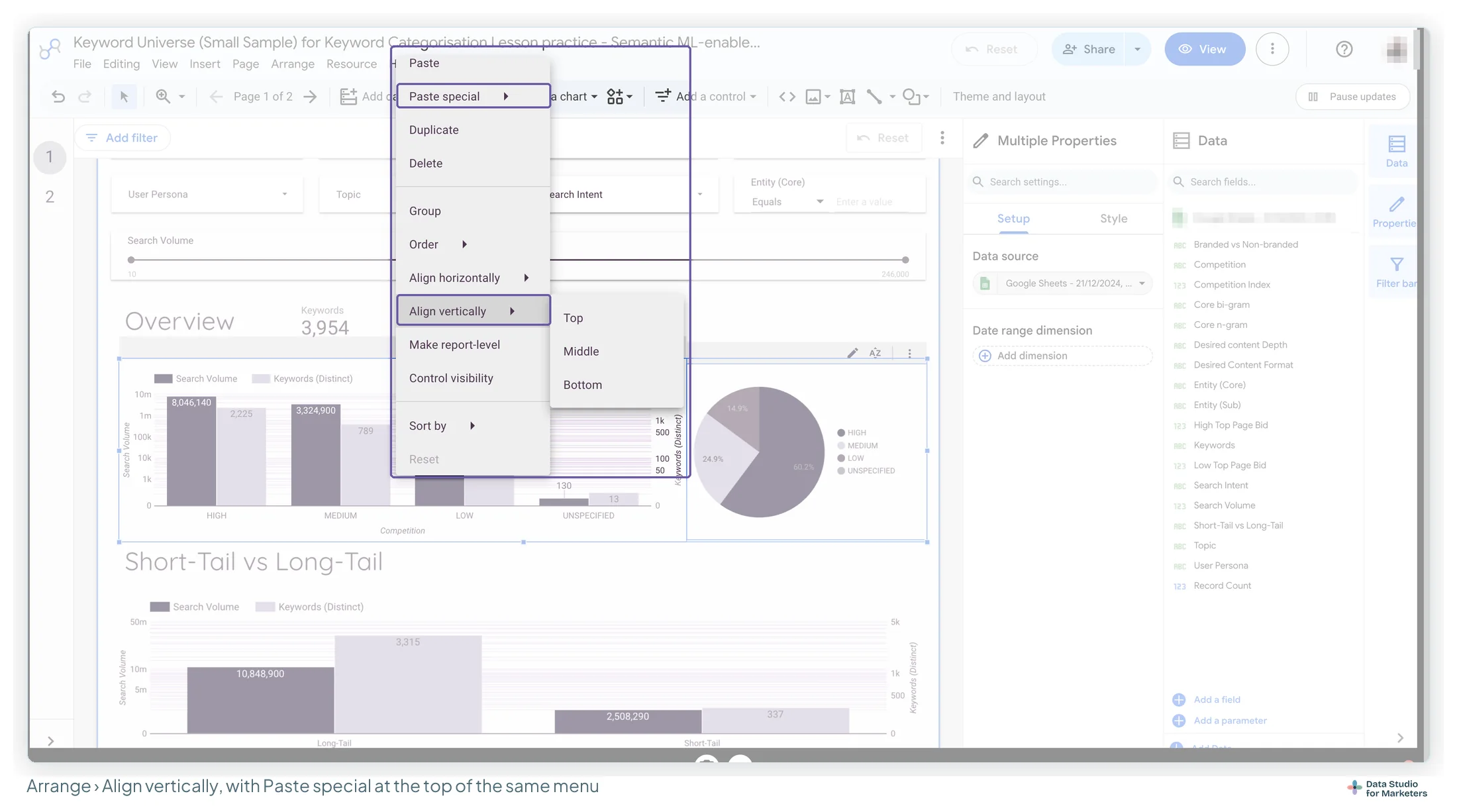
- Open Arrange › Align vertically › Top to line the row up on its top edge. For a column, Align horizontally offers Left, Centred and Right.
The grid only applies to components you add or move, so on an existing report set it first, then realign the busiest page row by row. My layout and grid guide has the rest of the Layout tab.
Fewer, larger tiles beat more, smaller ones
A page that needs more tiles is doing an exploratory job, and it belongs behind the summary (the argument in my guide to narrative frameworks and the martini-glass report structure). My check is a five-second test: show the page to someone for about five seconds, take it away, and ask what it said. It’s my rule of thumb, not a research finding.
Stay consistent across pages, so differences mean something
If a metric is a bar chart on one page and a gauge on the next, the reader spends attention working out whether the change means something. It never does. So the same metric gets the same chart type, the same channel the same colour, and the comparison periods, number formats and header positions match on every page. That’s what makes an inconsistency readable as a signal, and it’s the argument for building every report from one master, as my branded theme tutorial does.
In Data Studio: pin a colour to each channel
- Open Theme and layout › Theme › Customise and, under Data styles, set Colour by to Dimension values.
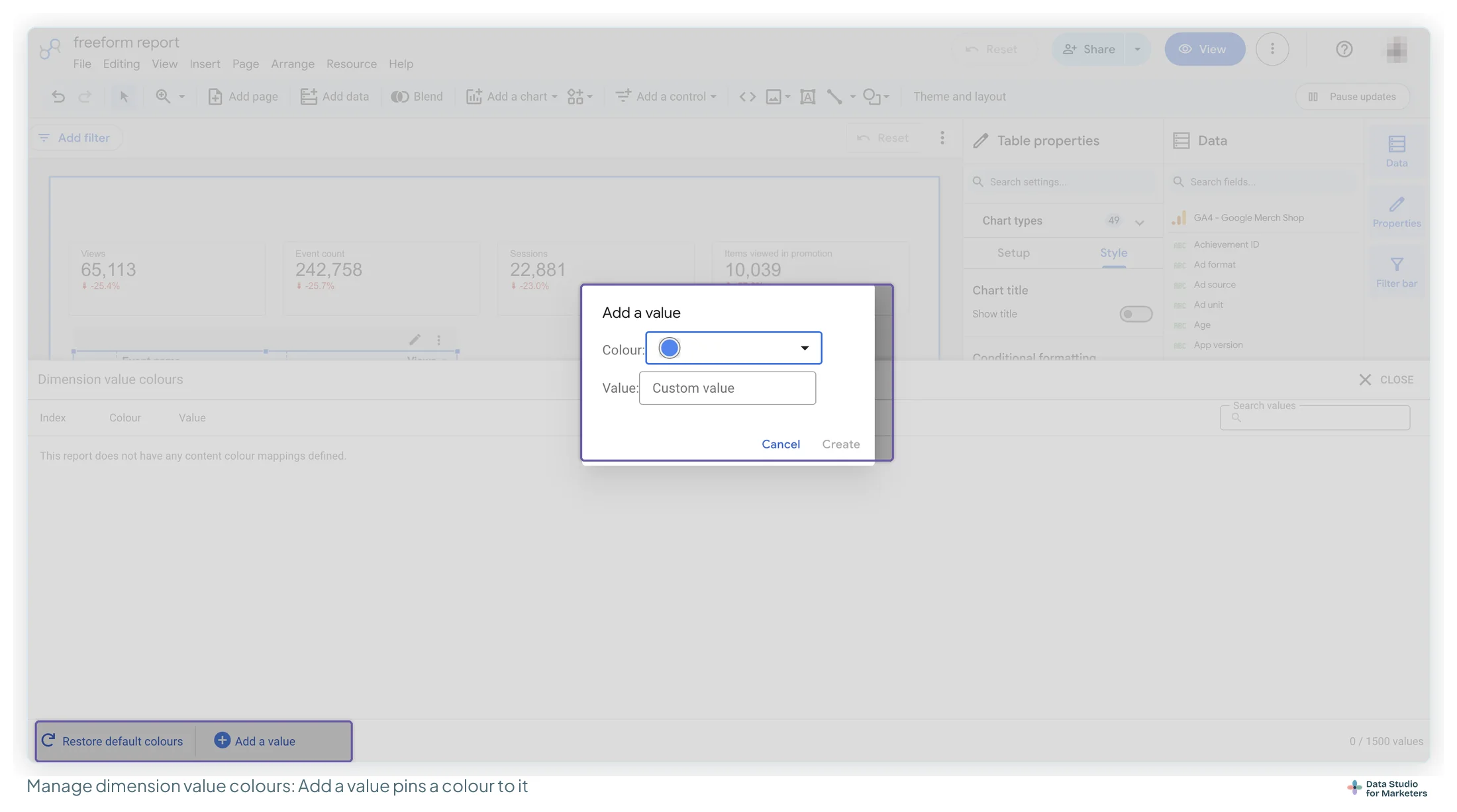
- Click Manage dimension value colours (also on the Resource menu), then Add a value.
- Pick the colour, type the value exactly as the data spells it, and click Create. Harbour & Fern pins organic search to its fern green and paid search to harbour navy.
- Repeat for each value that appears on more than one page.
Google’s documentation caps the map at 1,000 entries; the counter in my capture reads “0 / 1500 values”.
For the header band, select its components and choose Arrange › Make report-level, so the logo and title sit in the same place on every page.
Every number needs a subject, a period and a comparison
A bare number is a fact, not information: the reader silently supplies a baseline, usually the wrong one. It needs a label (the scorecard’s title), the period it covers (in the label or a date range control), and a comparison. The comparison is the one to check: Period is the default comparison type, and in my captures a new scorecard showed a change on the previous period as soon as it was placed, with nothing to say which period. So a comparison is there whether or not anyone chose it. Name the period, and set the comparison your reader judges by: last year, the target, or both.
Harbour & Fern’s £412,000 is 91.6% of its £450,000 target, £38,000 short, and up 9.6% on last September’s £376,000. Same number, two verdicts, and the reader needs both.
In Data Studio: give a scorecard last year and a target
- Select the scorecard and open Setup. Leave Comparison type on Period (it reads “Full stop” in UK English).
- Under Default date range, set the Comparison date range to Previous year and click Apply.
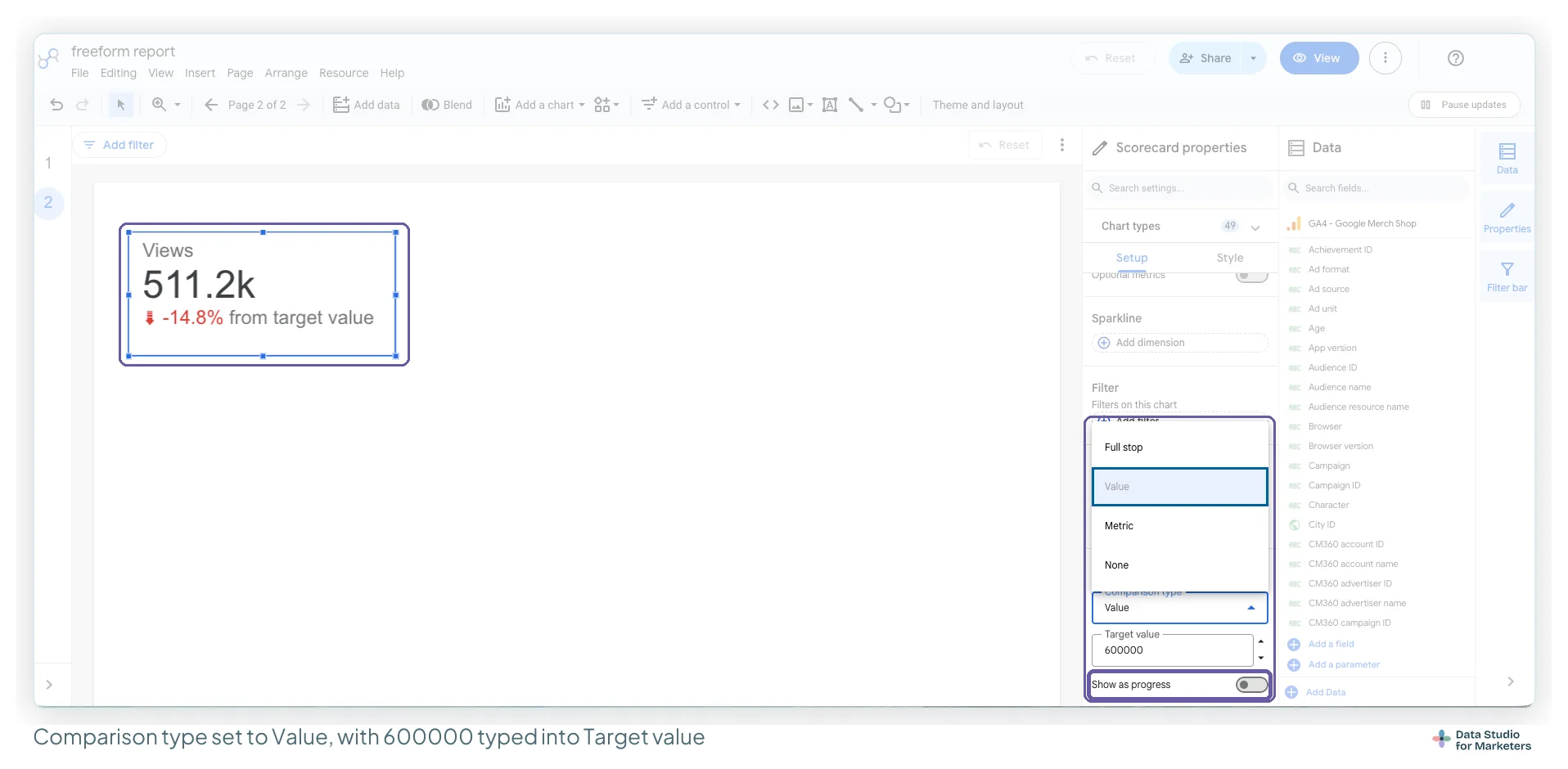
- For the target, add a second scorecard of the same metric, set its Comparison type to Value and type the target in Target value: 450000, no currency sign. A fixed value needs changing every month, so add it to your monthly send checklist.
Charts follow the same logic: “Paid social brought a fifth of September’s sessions” beats “Sessions by channel”. The “so what?” test sorts your titles.
How to use colour on a dashboard
Colour is the element most often used decoratively and the one that most rewards being used for meaning. Two rules carry almost all of it.
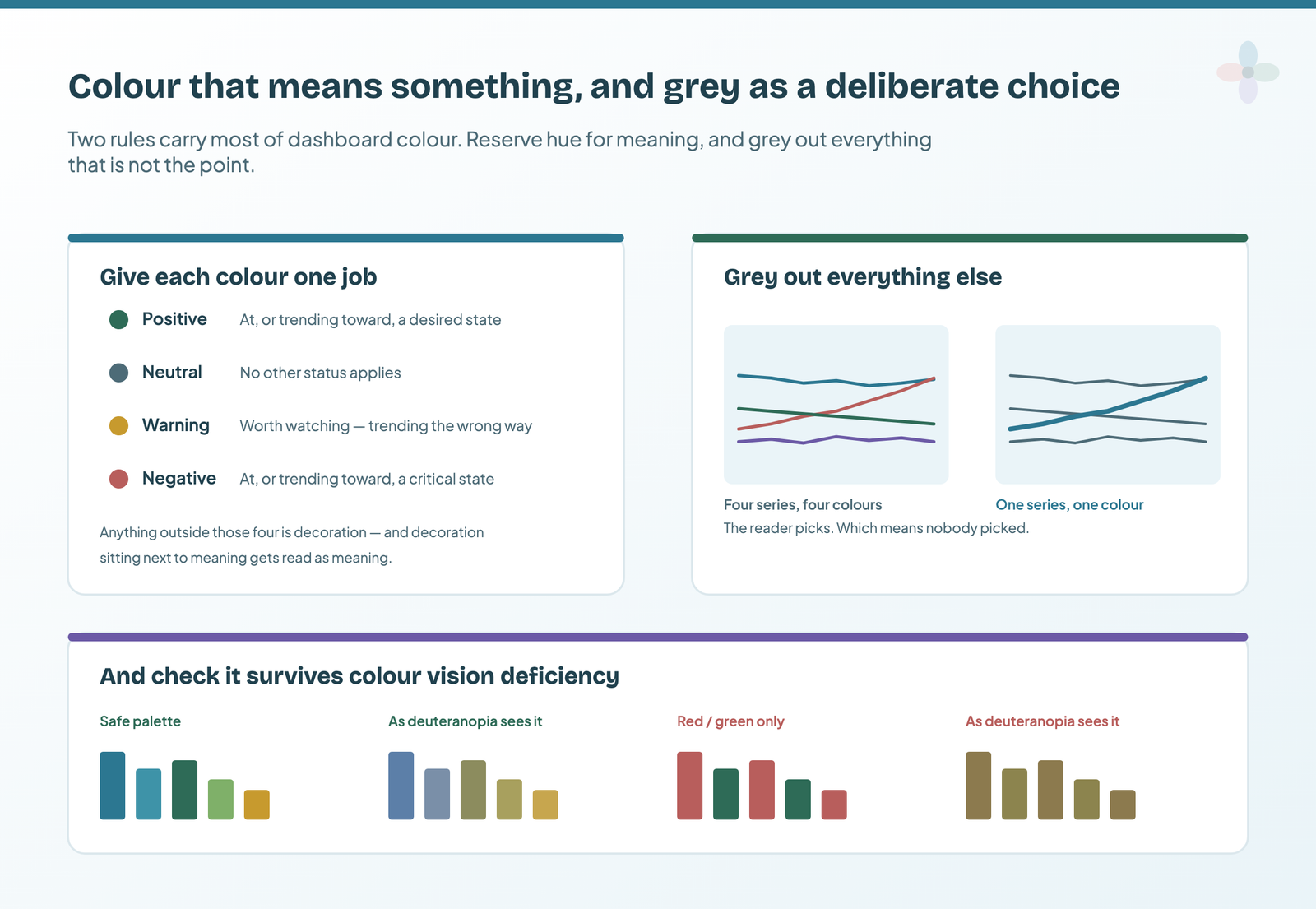
Give each colour exactly one job
Four roles are enough for a marketing report: positive (at, or trending toward, a desired state), neutral, warning (worth watching), and negative (at, or trending toward, a critical state). Anything else is decoration, and decoration next to meaning gets read as meaning. A brand-coloured accent on one tile and a semantic red on the next teaches the reader that colour on this page is unreliable. In Data Studio the positive and negative pair is one theme setting, which my theme tutorial sets apart from the brand accent.
Grey is a decision, not an absence
A chart with four series in four colours asks the reader to decide which one matters. A chart with three greyed series and one in colour has already answered. Chapter 20 of my ebook, Data Storytelling in Data Studio, takes colour for emphasis further, including why on a cost metric down is good, and how to tie conditional formatting to a rule you’ve written down.
- Select the chart your commentary is about and open Style.
- Set the context series to grey and the one you’re writing about to the accent. Google notes a chart styled this way leaves the report theme.
Resist greying slots two onwards in the theme’s Chart palette. That greys positions, not things: the month the order changes, you’ve highlighted something you never meant to.
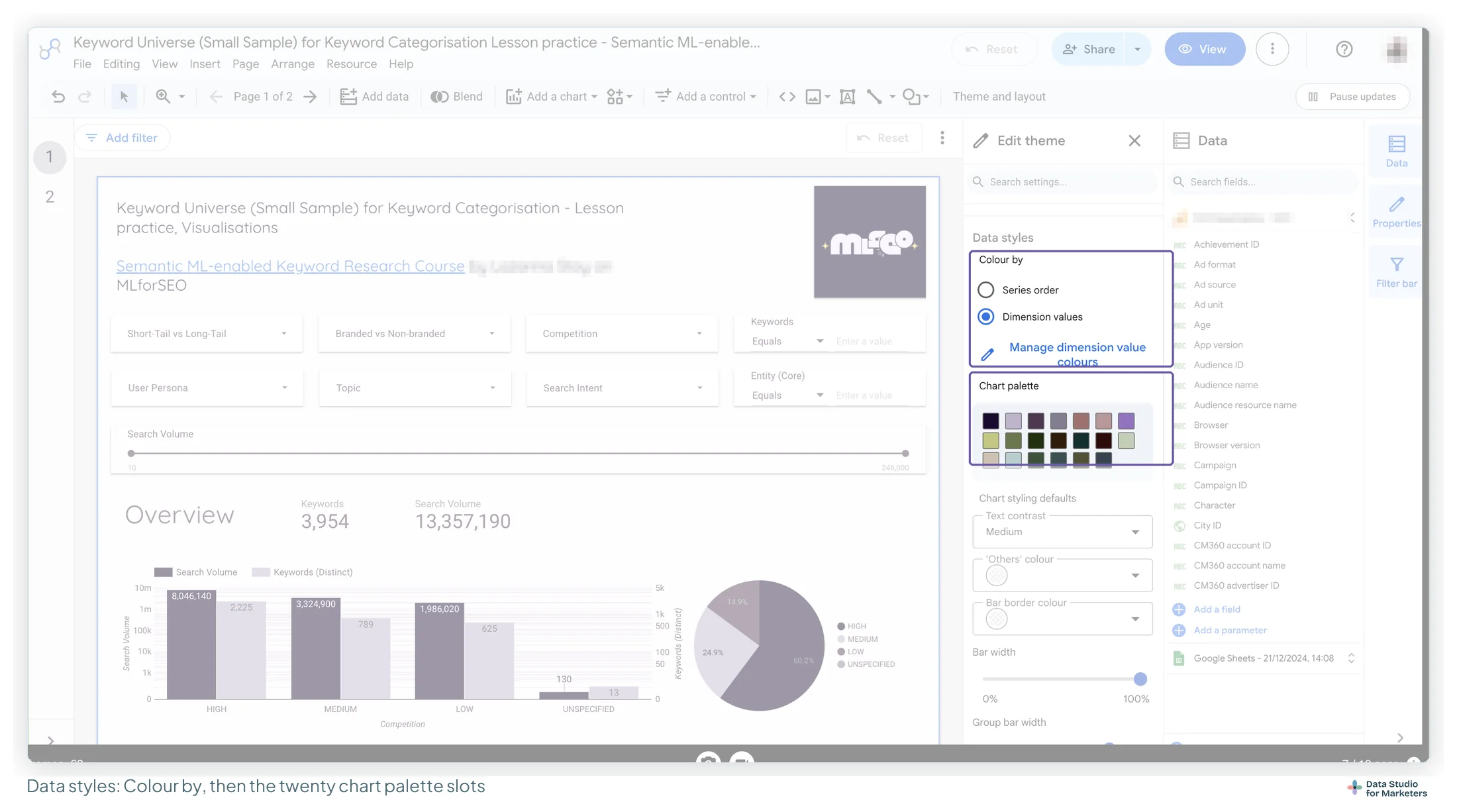
Check the palette survives colour vision deficiency
The US National Eye Institute puts it at about one in twelve men, most commonly red-green, and roughly 0.4% of women. Birch’s review of worldwide prevalence puts red-green deficiency at about 8% of men of European Caucasian descent, but 4–6.5% of men of Chinese and Japanese ethnicity. So don’t encode good versus bad in red and green alone: pair it with a sign, an arrow or a label, prefer palettes that vary in lightness, and check the report through a simulator. The colour palette guide covers the WCAG criterion for chart series.
Don’t assume colour meanings travel
Don’t assume red-means-bad, green-means-good reads the same way to every audience. If a report goes to a market whose conventions you don’t know, let labels and position carry the meaning.
Where text belongs on a dashboard page
Text on a dashboard tends to be missing, or dumped in a paragraph nobody reads. There are three kinds, and each has a place.
| Text | Where it goes | Harbour & Fern |
|---|---|---|
| Titles | Directly above what they describe, as a short sentence: the finding | “Organic search is 18% above last year, after the March dip” |
| Definitions | One definitions page at the back, linked from any page that needs it | What “organic” includes, which conversion is reported |
| Commentary | Next to the chart it explains, in a form that survives the data refreshing | The March migration and the April redirects, beside the organic chart |
If a piece of text applies to every reader, it belongs in the largest type on the page. Commentary typed into a text box is right for one month and wrong the next, so I keep mine in a sheet blended on date: see annotations and expert commentary in Data Studio.
Make the report’s page order do some of the work
A multi-page report has a reading order whether or not you designed one; left alone, it’s the order you built the pages in. Put the summary first, after the cover; keep connected pages together; and make the navigation visible, because readers follow whatever path you left.
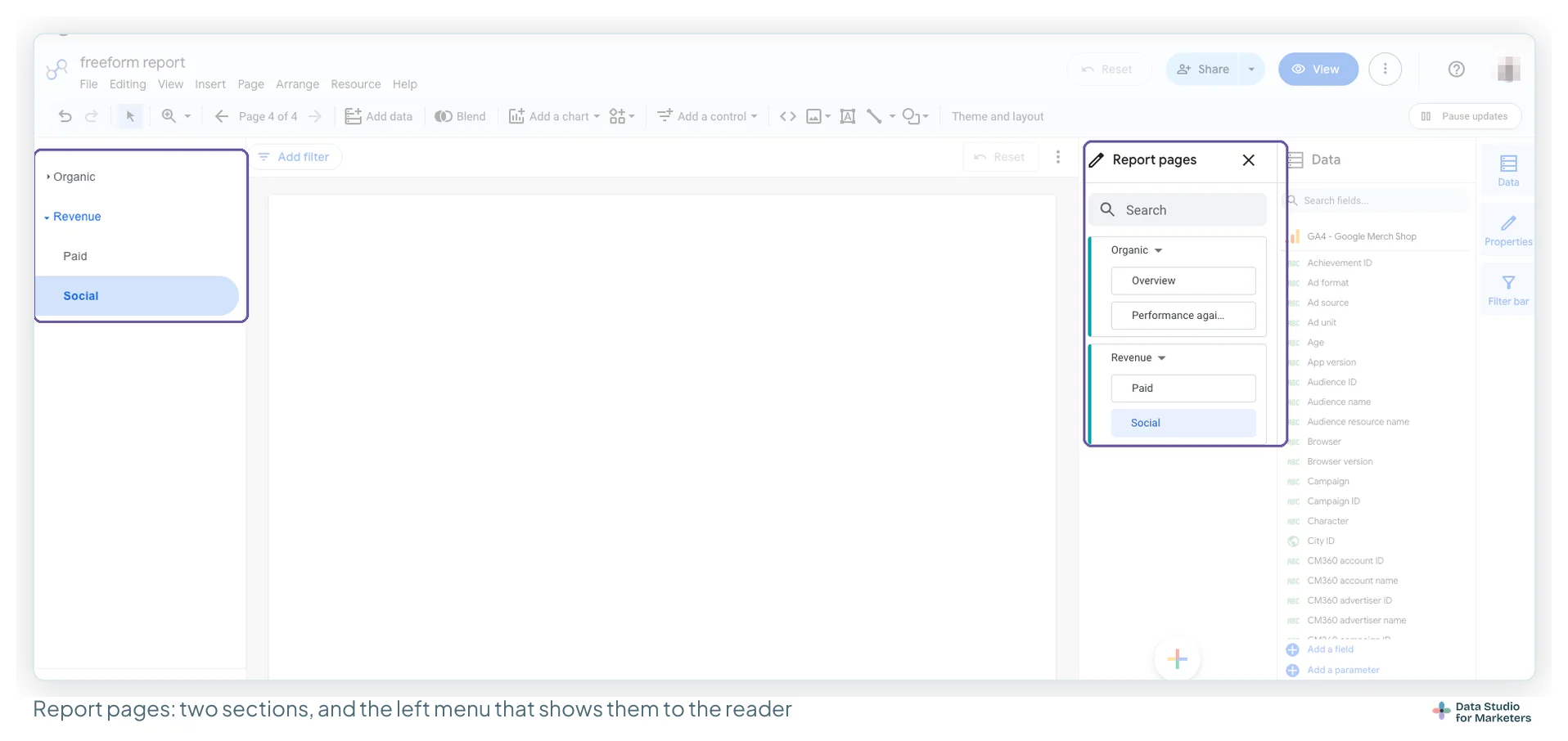
Harbour & Fern’s ten pages had grown in the order the agency added them. Reordered, they read: cover, summary, then a section called Acquisition (organic search, paid search, paid social, email), a section called On the site (landing pages, checkout funnel), a divider, and an Appendix header over definitions and data health. Nothing was rebuilt.
In Data Studio: sections, headers and dividers
- Open the Report pages panel: Page › Manage pages, or click Page _ of _ in the toolbar.
- Click Add a page and choose a section, a header or a divider.
- Rename the new item from its three-dot menu.
- Drag pages into place, or use the three-dot menu’s Move options (Move to top, Move up and so on). Google allows three levels of sections.
- Switch to view mode and check the menu as a reader would see it.
Buttons and custom navigation bars are in my navigation tutorial.
Where each principle becomes a Data Studio setting
Principles travel; the controls don’t. This is the map from each idea above to the setting that holds it, and the guide that walks through it.
| The principle | The Data Studio control | Covered in |
|---|---|---|
| Remove what carries no information | Chart Style: Background and border, Grid, Legend, Data label | Above; branded theme |
| Size decides reading order | Font size on each component; there’s no theme-level size | Fonts and type sizes |
| Group with real space between groups | Theme and layout › Layout › Grid Settings; Arrange › Align | Layout and grid |
| The same place on every page | Snap to Grid; Arrange › Make report-level | Layout and grid |
| Every number gets a comparison | Scorecard Setup: Comparison type, Comparison date range, Target value | Scorecards |
| The same colour for the same thing | Colour by: Dimension values; Manage dimension value colours | Colour palette |
| Grey out everything that isn’t the point | Series colours set on the chart’s Style tab | Colour palette |
| Page order follows the questions | Report pages panel: sections, headers, dividers | Navigation menu |
| Readable where it’s read | Canvas size; opening the report on a real phone | Mobile-friendly reports |
An hour, in the right order, on an existing report
On a report built page by page on defaults, the order of the fixes matters: set the system first and every page inherits it. The minutes are my guidance, not a measurement.
| Stage | What happens | Minutes |
|---|---|---|
| Set the system, on a new blank master | Canvas and grid, the four type sizes, channel colours, the theme and logo | 25 |
| Each page, in reading order | Summary regrouped by question with a comparison on every number; other pages onto the summary’s grid; cover; pages panel | 25 |
| Where it’s read | On a phone, as a PDF, and through the share link | 10 |
Build the system on a blank report rather than restyling the old one, then move each page across: Google’s tip is to select every component on a page, copy it and paste it into the other report, which brings the data sources and leaves the old theme behind. Chapter 12 of my free ebook walks a ten-page report through the hour.
A dashboard design checklist for an existing report
Run this over one page. It takes about ten minutes.
- Is there anything on this page carrying no information: a border, a gridline, a background, a legend duplicating an axis?
- Does every number have a label, a period and a comparison?
- Does every chart title state a finding rather than name a metric?
- Is the most important thing on the page also the largest thing on the page?
- Are related tiles grouped, with real space between the groups?
- Does each colour on this page mean exactly one thing?
- On any chart with more than two series, is one of them emphasised?
- Would the page still work for a reader who can’t distinguish red from green?
- Is the page readable in five seconds, or does it need leaning in?
- Is this page in the right position in the report’s order?
Frequently asked questions
What are the most important dashboard design principles?
Remove anything that carries no information, give every number a label, a period and a comparison, put the most important thing in the largest type, group related tiles with real space between groups, and use colour for meaning rather than decoration. Those five cover most of what separates a readable dashboard from an accumulated one.
How many charts should be on a dashboard page?
Fewer than you think, and larger. The test I use is whether somebody can take a useful impression of the page in about five seconds. If a page needs leaning in, it’s doing an exploratory job and belongs behind the summary rather than on it.
What colours should I use on a dashboard?
Give each colour exactly one job (positive, neutral, warning, negative) and grey out everything that isn’t the point of a given chart. In Data Studio, pin each channel to a colour with Colour by: Dimension values. Don’t encode meaning in red versus green alone.