
Images in Data Studio split into two different things, and most of the trouble comes from not noticing. There’s the picture you place on the canvas: a logo, an icon, a band behind a cover. And there’s the image that comes out of your data, a column of product shots or status icons drawn inside a table. They’re set up in different places, and they fail in different ways.
This tutorial covers both, step by step: placing a logo once, with alt text, on every page; why Google Drive links let you down; building an image field with IMAGE(), including a four-line status column on GA4; the three documented ways image fields break and how to test for them; then icons, backgrounds and a checklist to run before the report goes out.
Putting an image on a Data Studio canvas
Data Studio takes the common image formats, and Google’s documentation names PNG, JPG and SVG. The third is the one to reach for: use SVG for logos wherever you have one: it stays sharp at any size and after any change of canvas, and it’s usually a smaller file than the PNG.
Three settings on the image’s Setup tab are worth using every time:
| Setting | What it does | Set it to |
|---|---|---|
| Preserve aspect ratio | Keeps the image’s proportions when a viewer’s window resizes the report | On, for every logo |
| Image link URL | Makes the image clickable. The address has to start with https. | The client’s site, or leave empty |
| Accessibility › Alt text | Gives a screen reader something to say. Added in the 24 July 2025 release. | The organisation’s name, for a logo |
Preserve aspect ratio covers the viewer’s window, not your own hand: when you resize the image yourself, drag a corner and check it hasn’t stretched, because a squashed client logo is the fastest way to make a report look careless.
Place a logo properly, in five steps
- Insert it. Insert › Image (or the image icon in the toolbar), then upload the SVG or PNG, or paste its https address.
- Lock its shape. In the image’s Setup tab, turn on Preserve aspect ratio.
- Name it. Under Accessibility, fill in Alt text with the organisation’s name.
- Make it report-level. Right-click the image and choose Make report-level (it’s also under Arrange), so it’s on every page and maintained in one place.
- Bring it forward. In Theme and layout › Layout, set Report-level component position to Top, so no page’s background shape hides it.
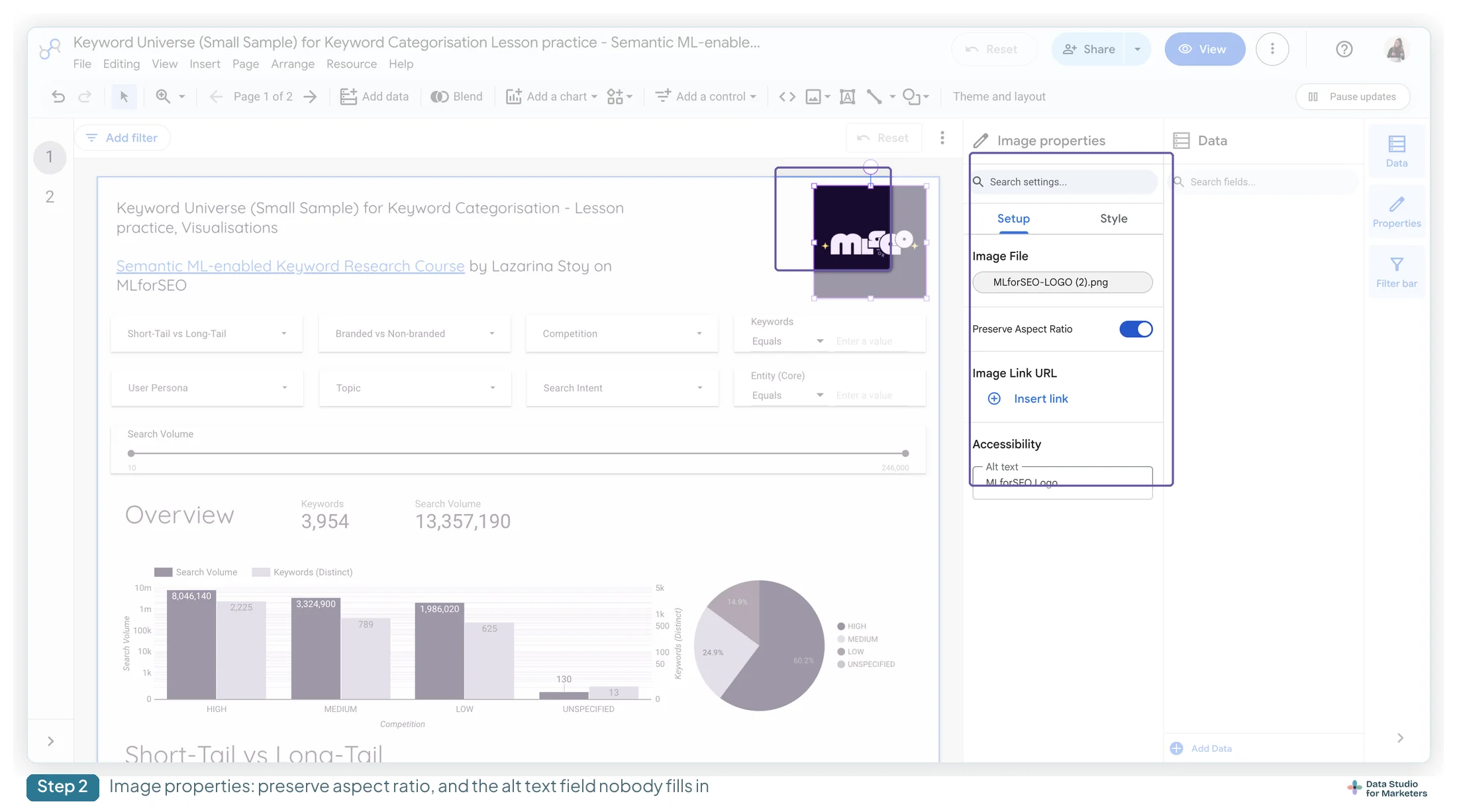
What to write in the alt text depends on the image’s job. A logo wants the organisation’s name and nothing else: “Acme Corp”, not “Acme Corp logo image”. A purely decorative band or shape wants it left empty, so a screen reader skips it rather than announcing the furniture. An image that carries information, such as a legend, a diagram or a screenshot, wants a sentence saying what it shows, because nothing else in the report will.
Place the logo once, not on every page
The quick way to get a logo onto every page is to paste it onto each one. Then the client rebrands, and there’s a copy on every page to find. Harbour & Fern, the homeware retailer in my free ebook, had exactly that: the logo pasted onto each of its ten report pages as a PNG, at three slightly different sizes, and when the logo was redrawn, two pages kept the old one for a month.
The fix is steps 4 and 5 above. One SVG, top left in the header band, aspect ratio preserved, alt text “Harbour & Fern”, made report-level with the position set to Top. Within the report, the next redesign is one replacement, not ten. Do it on the brand’s master report and every report copied from it starts with the logo in place. Copying and reusing a template covers the master-report setup.
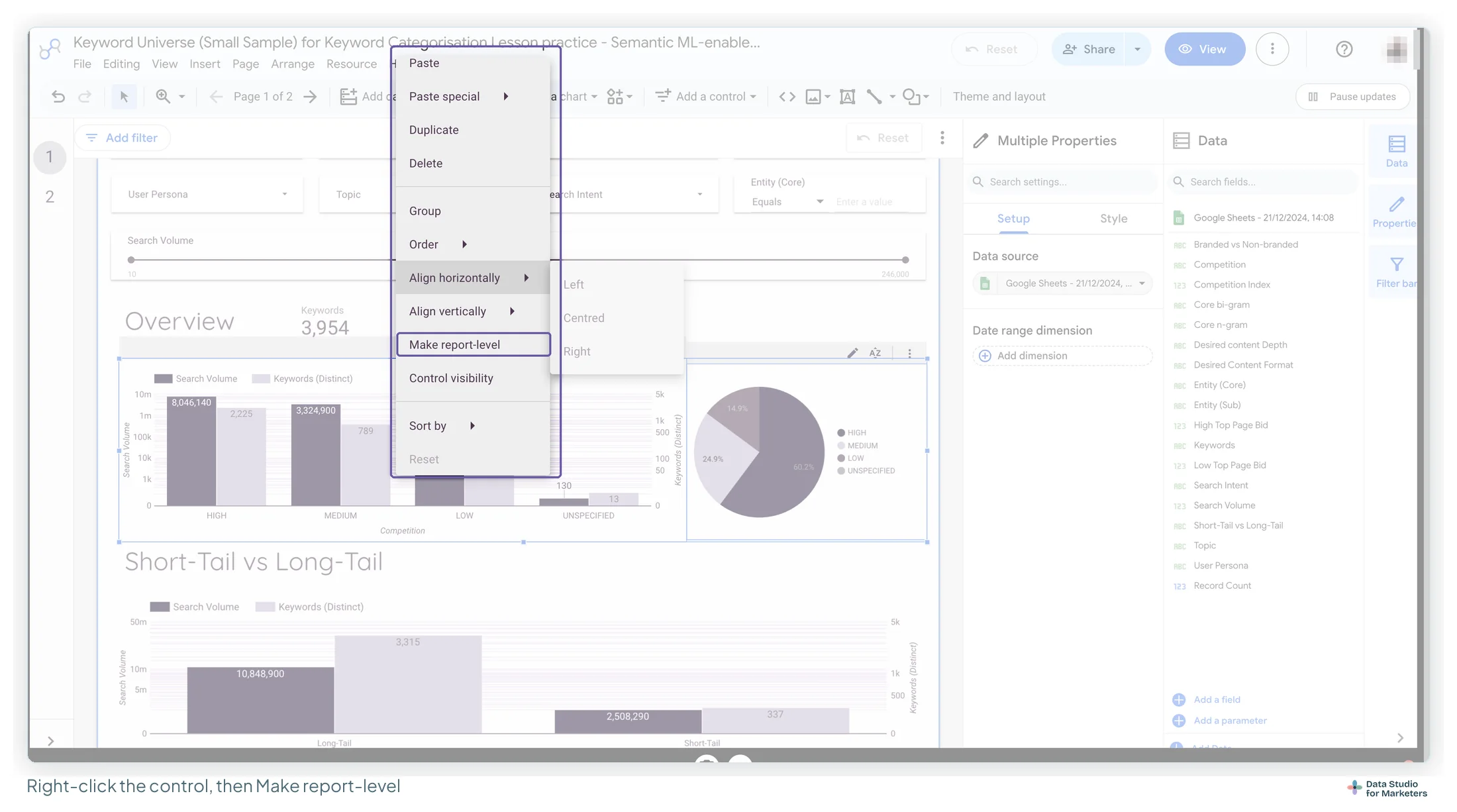

Google’s documentation says report-level components appear behind everything else on the page by default. If your logo vanishes the moment you add a background shape, that’s why. The layout and grid guide covers the rest of the Arrange menu.
Why Google Drive image links fail in Data Studio
Drive is where most marketers keep a logo, and it’s where many report images quietly fail.
The share link you copy out of Drive, the drive.google.com/file/d/FILE_ID/view kind, is the address of a viewer page, not of an image file, so Data Studio gets a web page where it expected a picture.
Other address forms built from the file’s ID circulate on Google’s forums, with mixed reports of success: drive.google.com/uc?export=view&id=FILE_ID and lh3.googleusercontent.com/d/FILE_ID are the two I see most. Neither is documented by Google, and I haven’t verified either in the product, so I don’t recommend one.
The advice that doesn’t depend on settling that: put report images somewhere with a stable public https address, such as the client’s own site, your site or any static host. It removes a whole category of failure, and the permissions question that comes with it.
Images that come out of your data
The second kind starts as a column of web addresses: product images, video thumbnails, country flags. You want the picture in the table rather than the link.
The route Google documents is the IMAGE() function in a calculated field. It takes a field or expression that gives a web address, plus optional alt text: IMAGE(image_URL, [alt_text]). That gives you two things a bare address can’t, alt text and an address you can build or choose with a formula. Google’s IMAGE page sets the rules:
- Image fields only work in tables. Change the chart type and the image is ignored, or the address shows as text.
- The picture’s size follows the column width. Widen the column to enlarge it.
- A wrong address shows a broken-image icon, and so does an image type Data Studio doesn’t support.
- To make the image clickable, pass the image field to
HYPERLINK()as its image.
Setting a URL field’s type to Image in the data source is a shortcut people use, but Google’s IMAGE page doesn’t describe it, and it leaves you with no alt text. I treat IMAGE() as the method.
Build an image field, step by step
- Open the data source that holds the URL column (Resource › Manage added data sources › Edit), and click Add a field.
- Name it, for example “Thumbnail”.
- Write the formula. Google’s own example builds a YouTube thumbnail from the video ID:
IMAGE(CONCAT('https://i.ytimg.com/vi/', External Video Id, '/hqdefault.jpg'), Video Title). For a column that already holds full addresses, it’sIMAGE(Image URL, Product name). - Save, then add the field to a table as a dimension.
- Size it by widening the column until the picture reads.
Building a status column with IMAGE() and CASE
The most useful thing IMAGE() does is a status column: a tick, a warning or a cross beside each row, chosen by the data. On a GA4 data source, write the comparison on the conversion-rate metric the connector already provides. There’s nothing to sum, so no SUM(); GA4 sends its metrics already aggregated. (If your rate has to be built from a raw-row source such as a Google Sheet, build it first, then compare.) The field, with your own icon addresses:
CASE
  WHEN Conversion rate >= 0.03
    THEN IMAGE("https://example.com/icons/tick.svg", "On target")
  WHEN Conversion rate >= 0.015
    THEN IMAGE("https://example.com/icons/warn.svg", "Watch")
  ELSE IMAGE("https://example.com/icons/cross.svg", "Below target")
END
The thresholds are decimals, 0.03 for 3%, because a comparison works on the underlying value, not the formatted one. Use your source’s own name for the rate: GA4’s connector has more than one, and the one you compare should be the one the report shows.
Here’s what it renders on Harbour & Fern’s September channel table, from my free ebook’s sample data:
| Channel | Conversion rate | Status (target 3%) |
|---|---|---|
| 4.20% | ✓ On target | |
| Paid search | 3.85% | ✓ On target |
| Direct | 3.10% | ✓ On target |
| Referral | 1.95% | ⚠ Watch |
| Organic search | 1.42% | ✗ Below target |
| Paid social | 0.90% | ✗ Below target |
| Organic social | 0.55% | ✗ Below target |
Three things make it work in practice:
- Host the three icons somewhere stable, for the same reasons as a logo: three files, uploaded once, used in every report you build.
- Always fill the second argument. A column of ticks with no alt text means nothing to a screen reader.
- Put the threshold in the column header, not in the reader’s head. Rename the field “Status (target 3%)” so nobody has to ask what a tick means.
The table also shows the judgement a status column forces. A cross on organic search and paid social says those channels miss a target that was never theirs: both bring people in earlier in the journey. The fix isn’t a different icon; it’s a target per channel, which the field can hold as one more WHEN line each. Chapter 20 of my ebook, Data Storytelling in Data Studio, makes the same case for conditional formatting: tie the symbol to a threshold the reader can see.
Three documented ways Data Studio image fields break
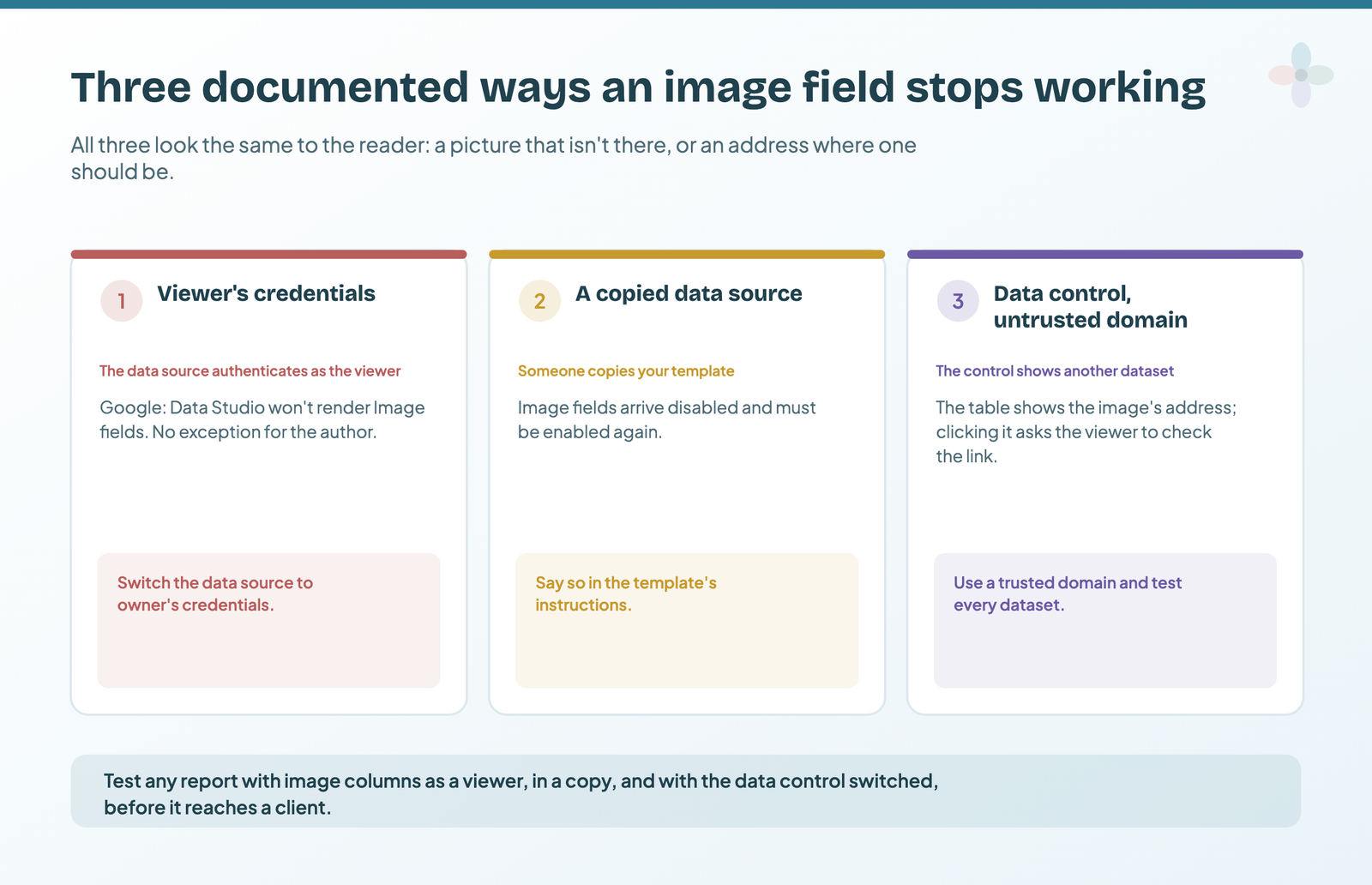
These are the ones that cost an afternoon, and all three are in Google’s IMAGE page. Chapter 7 of my free ebook, The Marketer’s Guide to Dashboard Design, on images, logos and icons, sets the three out side by side: when each one happens, what the reader sees, and the fix.
| What happens | What the reader sees | The fix |
|---|---|---|
| The data source uses viewer’s credentials | No images: Google says Data Studio won’t render Image fields for such a source | Switch the data source to owner’s credentials if the report needs pictures |
| The data source is a copy | No images: every Image field arrives disabled in a copied data source | Edit the data source and enable each Image field again |
| A data control switches to another dataset whose images come from a domain Data Studio doesn’t trust | The image’s address in place of the picture; clicking it opens a dialog asking them to check the link | Serve the images from a domain Data Studio trusts (Google says that includes most Google domains, without listing them), and check every dataset the control offers before the report goes out |
1. Viewer’s credentials. Google doesn’t limit this to other viewers, so don’t expect the column to work for you and fail for the client: expect it not to render. The data source guide covers which credential mode to use and why.
2. Copying a data source disables them. If you’re distributing a template with image columns, re-enabling them belongs in your instructions: edit the data source, find each Image field, and choose Enable.
3. The trusted-domain dialog. On the default dataset the images appear. It’s when a data control shows a different dataset that images from an untrusted domain are swapped for their address. On a client report that reads as “something is wrong with this dashboard”, and a stable host alone doesn’t prevent it, so it’s the case the test below is for.
Test an image column the way the client will open it
Two of the three only show up in conditions the builder rarely sees: in someone else’s copy, and on a dataset other than the default. So I check every report with image columns three ways before it goes out:
- As a viewer: open it from a second Google account that only has view access.
- As a copy: make a copy of the report, as a client copying your template would, and look at the image column there.
- With the data control switched: if the page has a data control, pick each dataset it offers.
Icons in a report, and how to stop them looking assembled
Icons do two jobs in a report: marking sections so the eye can find them, and carrying status in a table. Four habits keep them from looking collected from three places:
- One size. Pick one, 24 × 24 px works, and export every icon at it before you place any.
- One family. An outline icon next to a filled one reads as a mistake, even to people who couldn’t say why.
- Status by condition, never by hand. A hand-placed status icon is wrong the moment the data changes, which on a live report is immediately. Use the
IMAGE()andCASEfield above. - Emoji as a shortcut. In a field name or a chart title, an emoji needs no hosting, no address and no permissions. Whether it suits the client’s tone is your call.
Images as report backgrounds, and when to stop
A background image or a coloured band behind a cover page is fine; the cover page guide builds one on a band. A background image behind charts is almost always a mistake. It competes with the data for contrast, and it’s the fastest way to fail the 3:1 and 4.5:1 thresholds (WCAG’s minimums for chart marks and for text), which the colour palette guide works through.
If you want a branded field rather than white, use a flat colour or a very faint texture, then check a chart’s gridlines are still visible on top of it. If they aren’t, the background has won and the data has lost.
An image checklist before a Data Studio report goes out
- Logo is SVG where possible, aspect ratio preserved, alt text filled in
- Logo is report-level, not copied onto every page, with Report-level component position set to Top
- No report images hosted on Google Drive
- Image columns only on data sources with owner’s credentials, since Data Studio won’t render Image fields under viewer’s credentials
- Image columns tested as a viewer, in a copy, and with the data control switched
- If the report is a template, a note about re-enabling image fields after copying
- Icons all one size and one family; status icons driven by a condition, with the threshold in the header
Frequently asked questions
What image formats does Data Studio support?
Google’s documentation names PNG, JPG and SVG among the common formats it takes. Use SVG for logos wherever you have one, because it stays sharp at any size and after a canvas change.
Why aren’t my Google Drive images showing in Data Studio?
The share link Drive gives you points at a viewer page rather than an image file, so it can’t render. Other address forms circulate on Google’s forums, but none is documented and I haven’t verified them, so the reliable answer is to host report images somewhere with a stable public https address instead.
Why are the images in my Data Studio table not showing?
Check the data source’s credentials first: Google says Data Studio won’t render Image fields when a data source uses viewer’s credentials, so switch it to owner’s credentials. If the data source is a copy, its image fields arrive disabled and need enabling again. If a data control is showing another dataset, images from an untrusted domain show as their address instead.
How do I add alt text to an image in Data Studio?
Select the image, and in its Setup tab fill in Accessibility › Alt text. For an image that comes from data, use the second argument of IMAGE(url, alt_text).