

Data Studio has no cover page feature, which is why most cover pages look improvised. There’s no template, no “add cover” button, no setting that marks a page as the front. You assemble one out of shapes, text, an image and four layout settings — and the reason most of them don’t quite work is that people get the first three right and never touch the fourth.
Here’s what belongs on a cover, how to build it, and the one question about cover pages that nobody answers properly.
What a Data Studio cover page is actually for
Three jobs, and it’s worth being strict about them because a cover that tries to do a fourth becomes a summary page badly.
It says whose report this is. Client name, your name or agency, and the branding that makes it look deliberate rather than exported.
It says what period it covers. The single most common question about a forwarded report is “is this the latest one”, and a date on the cover answers it before anyone asks.
It gives the reader a route in. Either a contents list or a set of buttons. A cover with no way forward is a door with no handle.
The job it does not have is showing data. One headline number is defensible if the whole report is about that number; a row of scorecards means you’ve built a summary page and put it in front of your summary page. If that’s what you want, build the summary page properly and skip the cover. Chapter 22 of my ebook, Data Storytelling in Data Studio, covers that page: the five-second test for its headline, and how to write the summary in four sentences.
The six elements of a report cover page

- The logo — theirs, or both. Top-left or centred; anywhere else looks accidental.
- The report title — the largest thing on the page. “SEO performance” beats “Report”.
- The period — explicit dates rather than “monthly report”. Somebody will open this in eight months.
- Prepared by, and for — one line. It’s what makes a forwarded report attributable.
- A route in — contents list or buttons. This is the element most covers are missing.
- Optionally, one number — the headline the report exists to deliver.
What to leave off: navigation instructions nobody reads, a methodology note that belongs in an appendix, stock photography, and the agency’s full service list.
Building the cover page in Data Studio
Add a page and move it to position one. Page ordering is drag-and-drop in the Report Pages panel.
Set the canvas. A cover is one of the few pages where a per-page canvas size earns its keep — Page → Current page settings → STYLE. A 16:9 cover in front of a report of A4 pages reads as a title slide rather than a first page, which is usually what you want. Otherwise inherit the report’s. The layout and grid guide covers the presets and the trap where a page-level size silently overrides the report one.
Build the background. A full-bleed rectangle in a brand colour, or a page background colour, plus a shape for a band if the design calls for one. Shapes sit behind everything you add afterwards, so do this first.
Add the image. Insert → Image, then either upload or point at a URL. Data Studio accepts PNG, JPG and SVG — SVG is worth knowing about because a logo that stays sharp at any size is exactly what a cover needs, and several popular tutorials wrongly claim only JPG works. Lock the aspect ratio, and fill in the alt text field while you’re there.
Add the text. Text boxes for the title, period and byline. One caution that applies specifically here: text boxes ignore theme changes. Google is explicit that changing a report’s theme doesn’t override custom styles applied to text boxes, so if you hand-style your cover title and later rebrand, the cover will be the page that didn’t update.
Align it. Select everything and use Arrange → Align, then Distribute. A cover is mostly empty space, which makes misalignment more visible here than anywhere else in the report.
The four settings that make it read as a cover
This is the part that separates a cover page from a first page, and all four live in Theme and layout → LAYOUT.
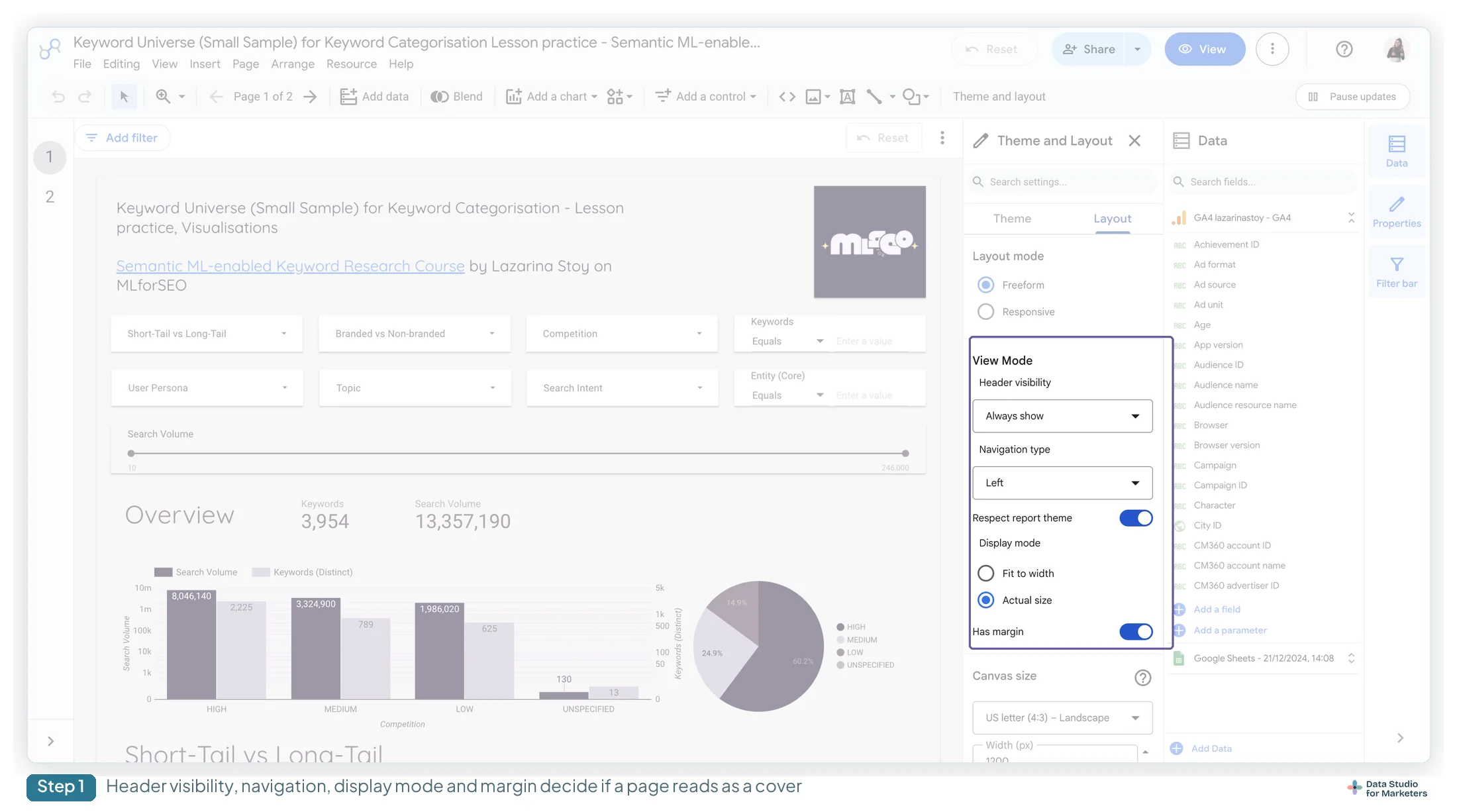
Header visibility. Always show / Auto hide / Initially hidden. A report header sitting across your cover is the most common thing that spoils one. Initially hidden gives you a clean cover while keeping the header available on the pages that need it.
Navigation type. If you’ve built buttons as the route in, set navigation to Hidden or the reader gets two navigation systems. If you haven’t, leave it visible — a cover with no way forward is worse than a visible menu.
Display mode. Unchecking Has margin removes the gap around the canvas, which is what makes a full-bleed cover actually reach the edges rather than floating on a background.
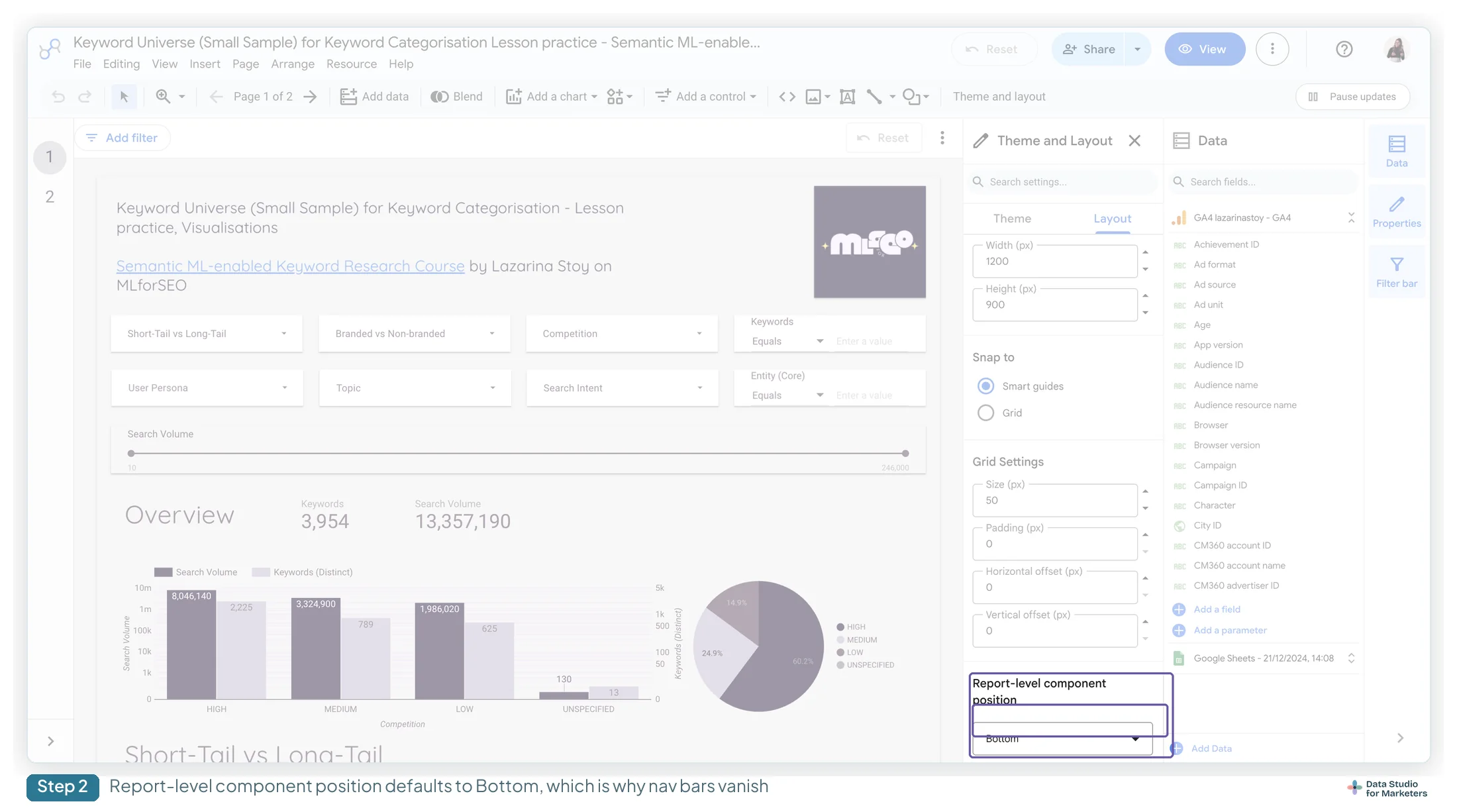
Report-level component position. The one nobody finds, sitting at the very bottom of the same panel. If you have report-level components — a logo, a nav bar — they sit behind page content by default, so your cover’s background shape covers them. If the cover looks right but the nav bar has vanished, this is why. Set it to Top to bring them forward, or to Bottom if what you want is for the cover to sit cleanly over them.
Three cover layouts that work, and what each suits
Rather than describing one cover, here are three arrangements I keep coming back to. All three are built from the same six elements; what changes is where the weight sits.
The band. A full-width coloured rectangle across the top third, logo and title inside it in reverse-out white, everything else on the white below. It’s the most forgiving of the three because the band hides any misalignment between the logo and the title, and it survives a long client name without redrawing anything. Suits a monthly report that goes out twelve times a year and needs to look the same every time.
The split. Canvas divided vertically: a solid brand colour on the left third carrying the logo and the period, white on the right two thirds carrying the title and the contents list. Suits a report with a real contents list — five or more pages — because the right-hand column has room for one.
The minimal. No shapes at all. White page, logo at the top-left, title at roughly a third of the way down in the largest type you have, period beneath it in grey, one button below that. Suits a report for a client whose brand is itself restrained, and it’s the only one of the three that looks right in a dark theme without rework.
Chapter 8 of my free ebook, The Marketer’s Guide to Dashboard Design, on the cover page, draws the band, the split and the minimal side by side from the same elements, so you can pick by the report’s length and the brand’s temperament.
Whichever you pick, build it once as a page in your brand master report — the blank branded report from the theme guide — and copy the page forward rather than rebuilding it. A cover is the page most worth templating, because it’s the page with the least data in it and the most design.
Giving the reader a route into the report
Three ways, with different failure modes.
Specific page links survive renaming (I’ve tested it) but break if you delete and recreate the target page, because page links use the page’s unique identifier rather than its name. Recreate a page and you have to reset each link’s target to the new one.
Dynamic links — First, Previous, Next, Last — re-point automatically when pages move. A “Start reading →” button pointing at Next is the most robust thing you can put on a cover.
Buttons are the cleanest build. Add a control → Button, label it, then Navigation → Static link → pick a page. They can also fire report actions, so a cover can carry “Download PDF” alongside its contents links. The navigation guide covers the button control and the report actions in full.
Does your cover actually load first?
The honest answer is that it depends on how the link was copied.
Page order is the documented mechanism: the report opens on page one. But the Share → Get a link to this report dialog carries a checkbox, “Link to your current report view”, which is ticked by default. Google’s helper text says: “Your current report view includes your selections in date range controls, filter controls and more.”
Google’s page on the dialog lists what the current view includes: filters, quick filters, the date range and data controls, plus chart interactions such as table pagination, cross-filtering, optional metrics and drilling down. Neither the page nor the dialog names the current page.
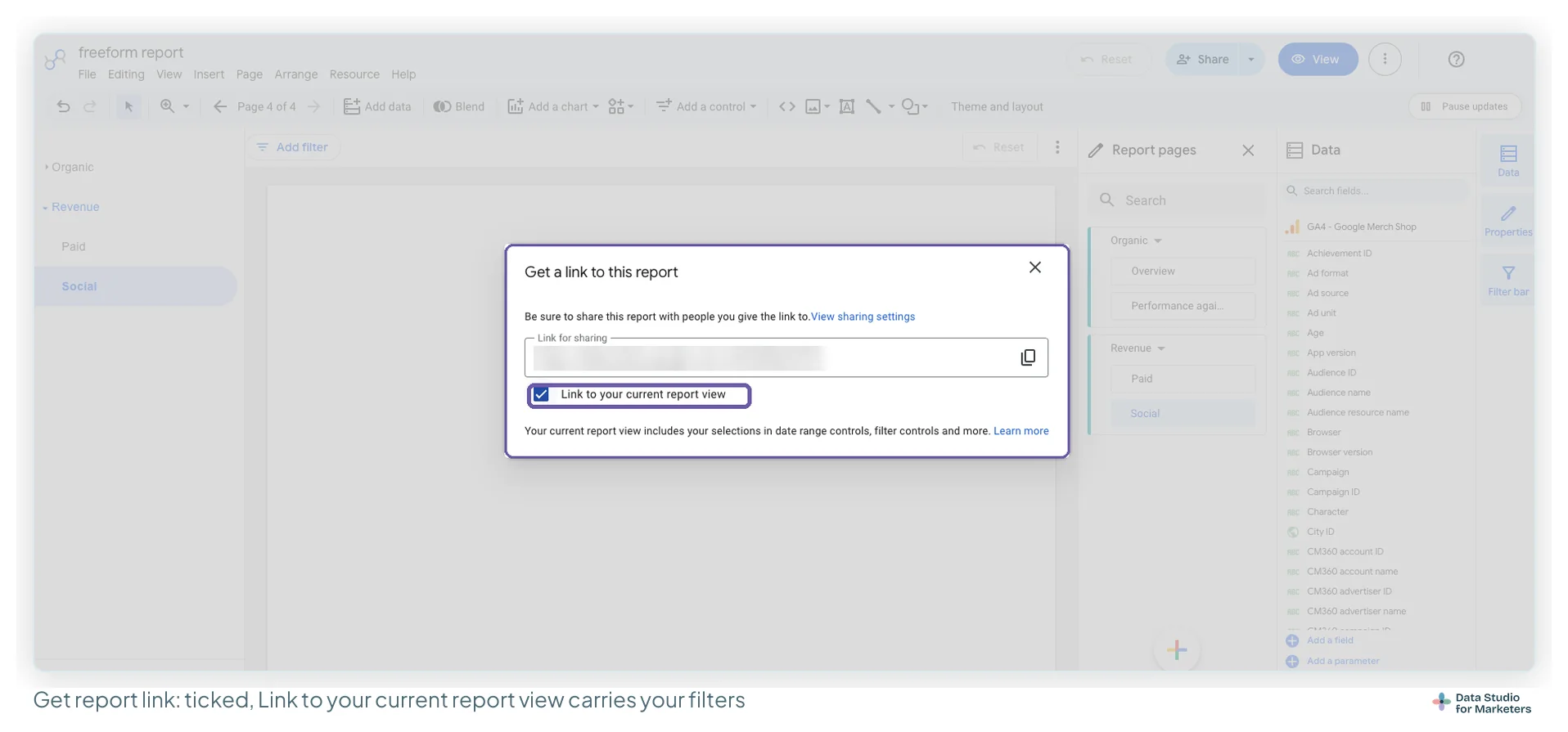
So whether a link copied while you’re on page four opens on page four, rather than on your cover, isn’t documented, and I haven’t yet tested it in a clean private window. Treat it as an open question, not a rule, and take the precaution either way. The browser’s address bar is a different matter: Google’s page on links says the URL of the page you’re on links to that page, which is how you send someone straight to page four when you mean to.
The precaution is free: before you copy a share link, go to the cover. Or untick the box. Thirty seconds, and it’s the difference between the report opening where you designed it to and opening wherever you happened to be.
Building a contents list out of buttons
The version I’d build for a five-page report, which takes about ten minutes:
- Add a control → Button. Label it with the question the page answers rather than the page name — “Where did the traffic come from?” not “Acquisition”.
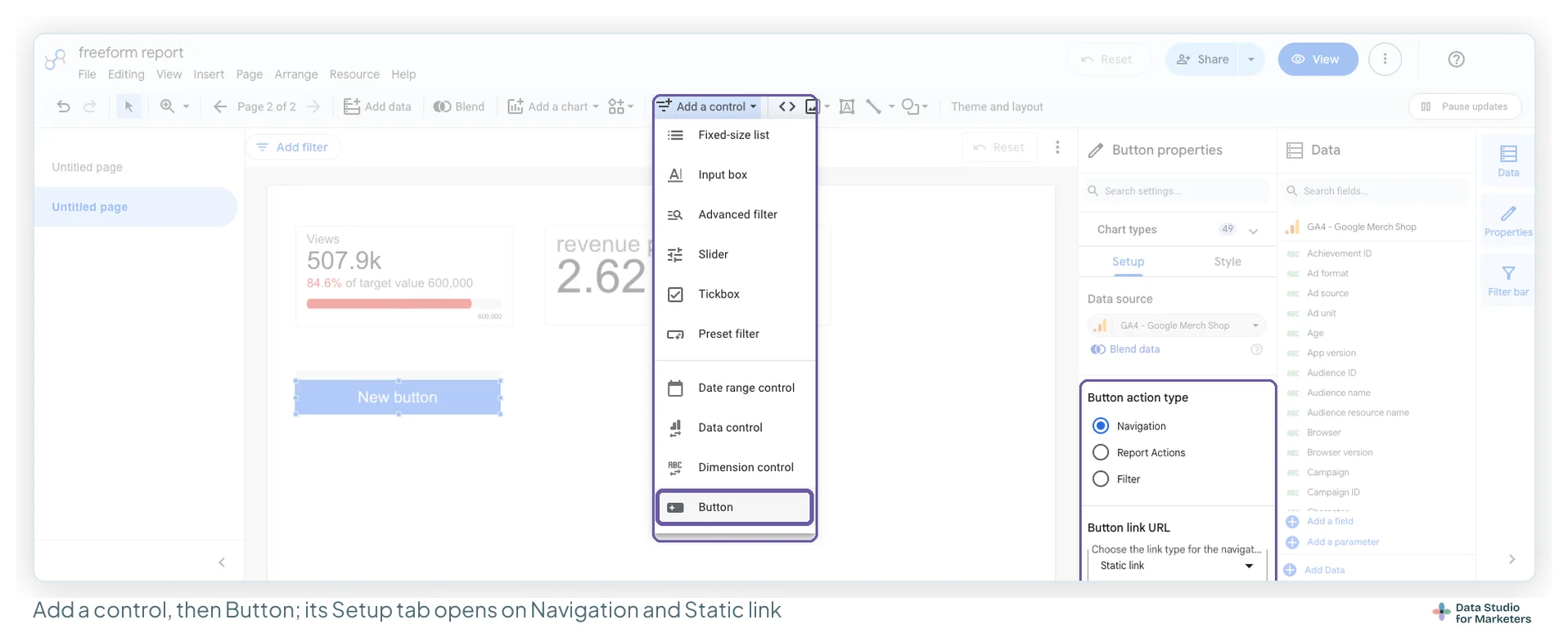
- In Setup, keep Button action type on Navigation and Button link URL on Static link, click Insert link and select the first page of that block of the report.
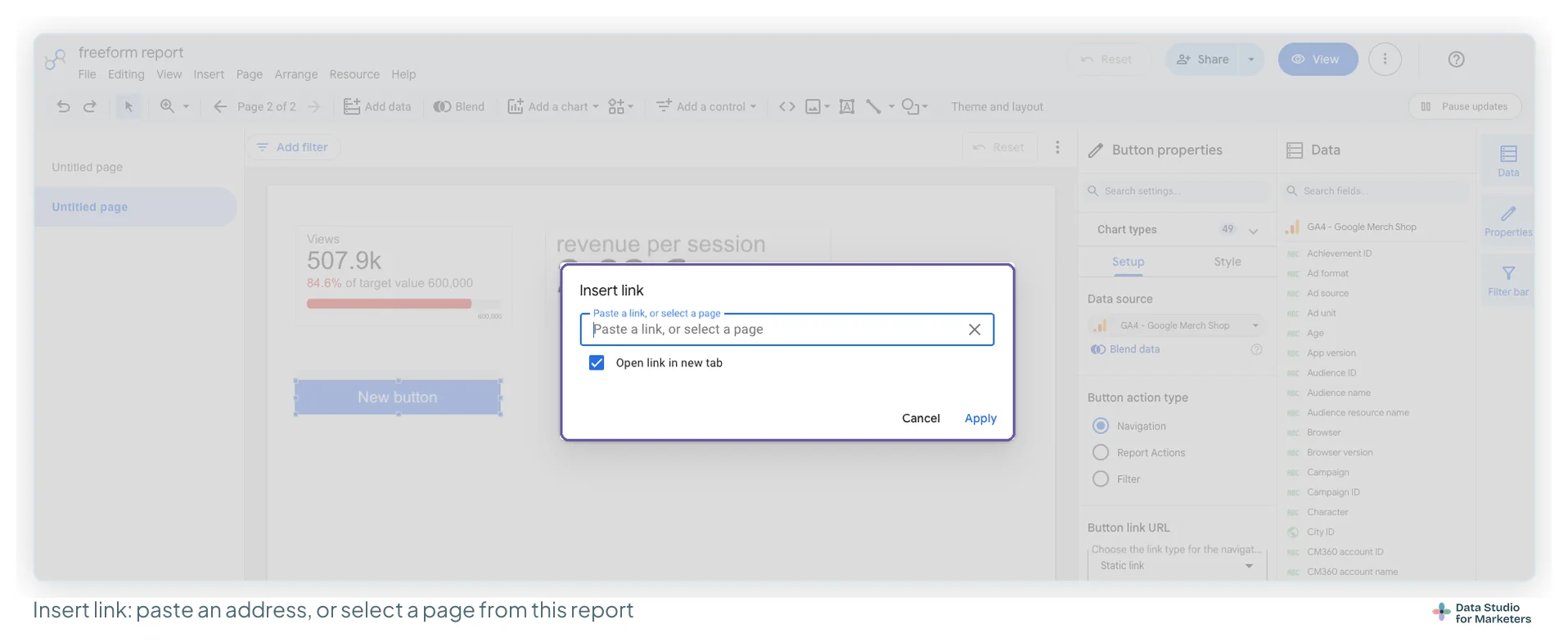
- In Style, set the background to your theme’s accent and the border radius to match the rest of the report. Give every button the same width, so the column reads as one list rather than a ragged edge. Get this one exactly right: the others are copies.
- Copy and paste it for each remaining block, then change each copy’s label and link.
- Select them all and Arrange → Align horizontally → Left, then space them evenly by eye or with the grid.
- Add one more button at the bottom with Button action type set to Report Actions and Download report chosen from the Action list — in my experience a PDF button on the cover is the thing clients thank me for most.
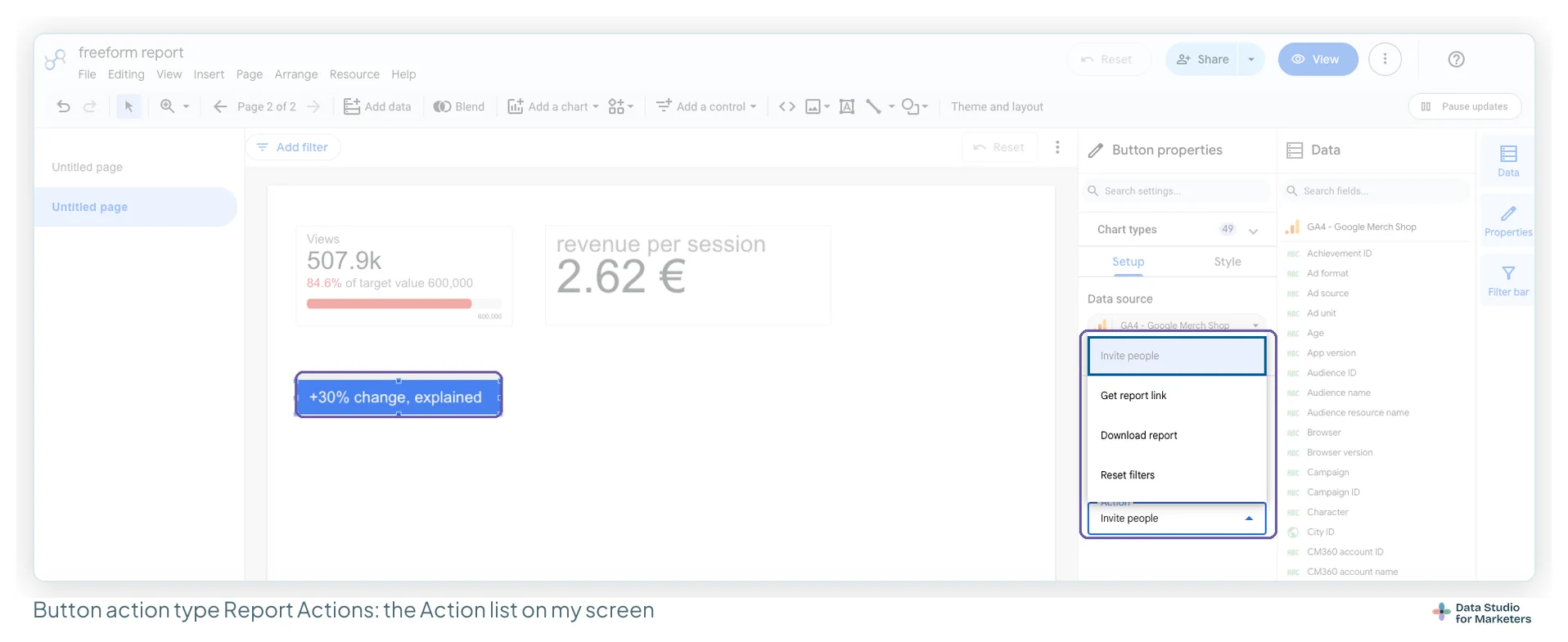
Do not make these report-level. A contents list belongs on the cover only; report-level would put it on every page.
A cover page checklist before the report goes out
- Page is in position one
- Logo placed, aspect ratio locked, alt text filled in
- Title is the largest element on the page
- Explicit dates, not “monthly report”
- Prepared by and for, on one line
- A route in — buttons or a contents list
- Header set to Initially hidden
- Has margin unchecked if the design is full-bleed
- Report-level component position checked, not assumed
- Share link copied from the cover
Frequently asked questions
Does Data Studio have a cover page feature?
No. There’s no cover page template or setting — you build one from a page moved to position one, plus shapes, text, an image and four layout settings: header visibility, navigation type, display mode and report-level component position. The fourth is the one most people never find.
Why does my report header appear on top of my cover page?
Header visibility is a report-wide setting, so it shows on every page including the cover. Set it to Initially hidden in Theme and layout. If report-level components are also landing on the cover, that’s a separate setting — Report-level component position.
Will my report always open on the cover page?
It opens on page one, but the share dialog’s “Link to your current report view” checkbox is ticked by default and captures the view you copied the link from. The safe habit is to navigate to the cover before copying the link, or untick the box.
Where to go next on report design
- How to add a navigation menu to a Data Studio report
- Data Studio layout and grid: building aligned reports
- How to build a branded report theme in Data Studio
- Using images, logos and icons in Data Studio
- How to build an executive summary page in Data Studio
- Dashboard design principles for readable reports