
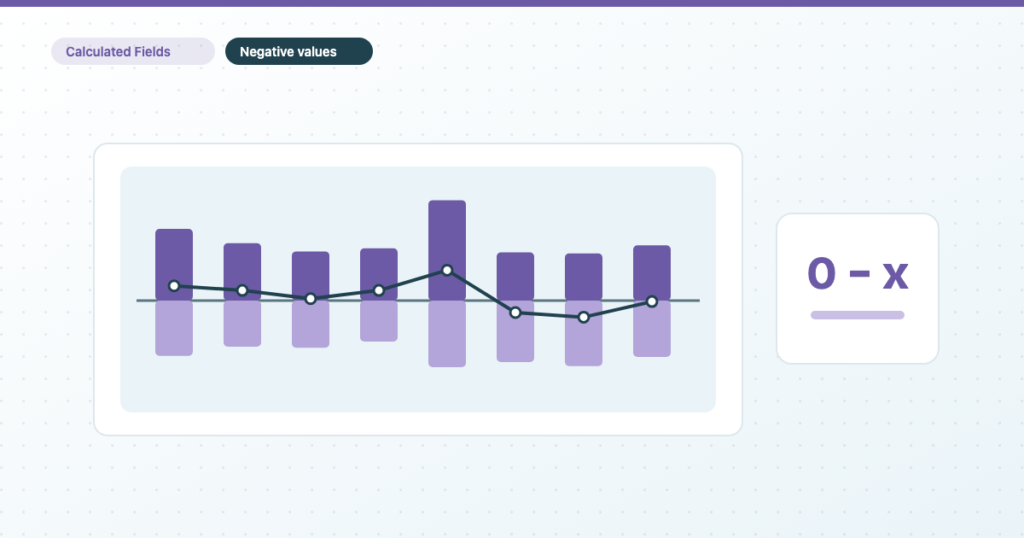
To show losses as negative bars in a Data Studio stacked combo chart, create a calculated field that subtracts the loss from zero (0 - Lost Backlinks), use it in the chart instead of the original field, and leave the axis minimum on (auto). The gains stack above the axis, the losses hang below it, and a reader sees the net direction at a glance.
You have some beautiful data, showing the loss and gain of the same thing. Typically it’s recorded in two separate fields, one for the loss and one for the gain. Ideally, you’d have one for totals as well.
How can you illustrate this beautifully in Data Studio? There are many ways, and a good one is a stacked combo chart. The best way is to show the losses as negative bars below the axis. That’s what this tutorial shows, step by step, using Semrush’s Data Studio connector and its Backlinks History data (I wrote it in 2021, when the product was called Google Data Studio, and the screenshots are from then). Data Studio has its limits, and I wrote about the ones advanced users hit, but this one has a neat fix.
When a negative-value chart is the right one
This works for any pair of numbers that move one thing in opposite directions, where the connector gives you both as positive numbers. A few that marketers report on:
| Gain | Loss | Where it usually comes from |
|---|---|---|
| New backlinks | Lost backlinks | An SEO tool’s connector (Semrush’s Backlinks History, used below) |
| New referring domains | Lost referring domains | The same report |
| Keywords that entered the top 10 | Keywords that dropped out | A rank tracker export in Google Sheets |
| New subscribers | Unsubscribes | Your email platform, via a connector or a Sheet |
| Orders | Refunds | Your shop, via a connector or a Sheet |
If the two numbers aren’t parts of one movement (sessions and bounce rate, say), a combo chart with a line on a second axis is the better choice; the combo chart section of the chart types guide covers that version.
Step 1: Connect your data
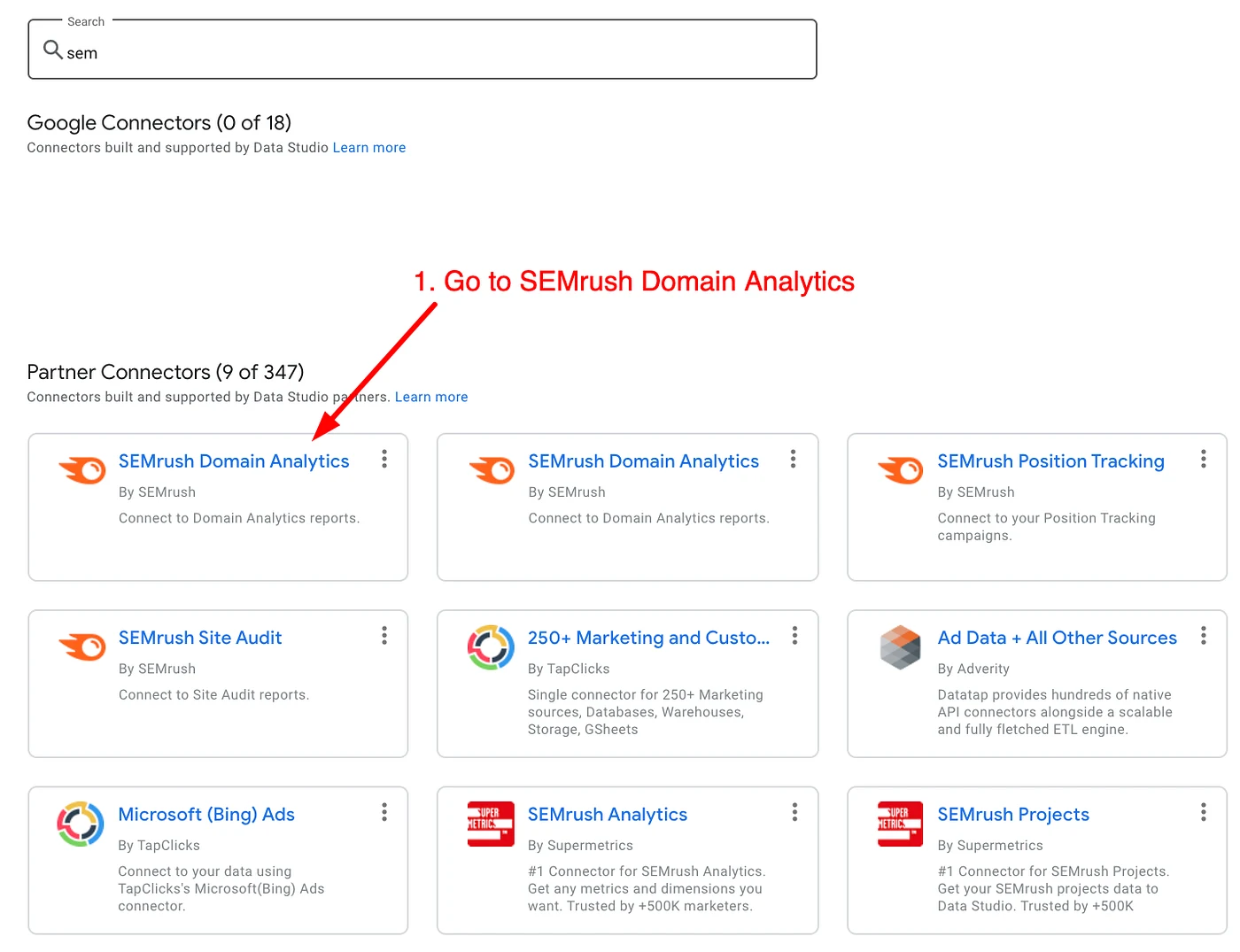
Use the Semrush Domain Analytics connector to bring the Backlinks History data into Data Studio. To import the backlinks history, search the connector gallery for Semrush and pick Semrush Domain Analytics.
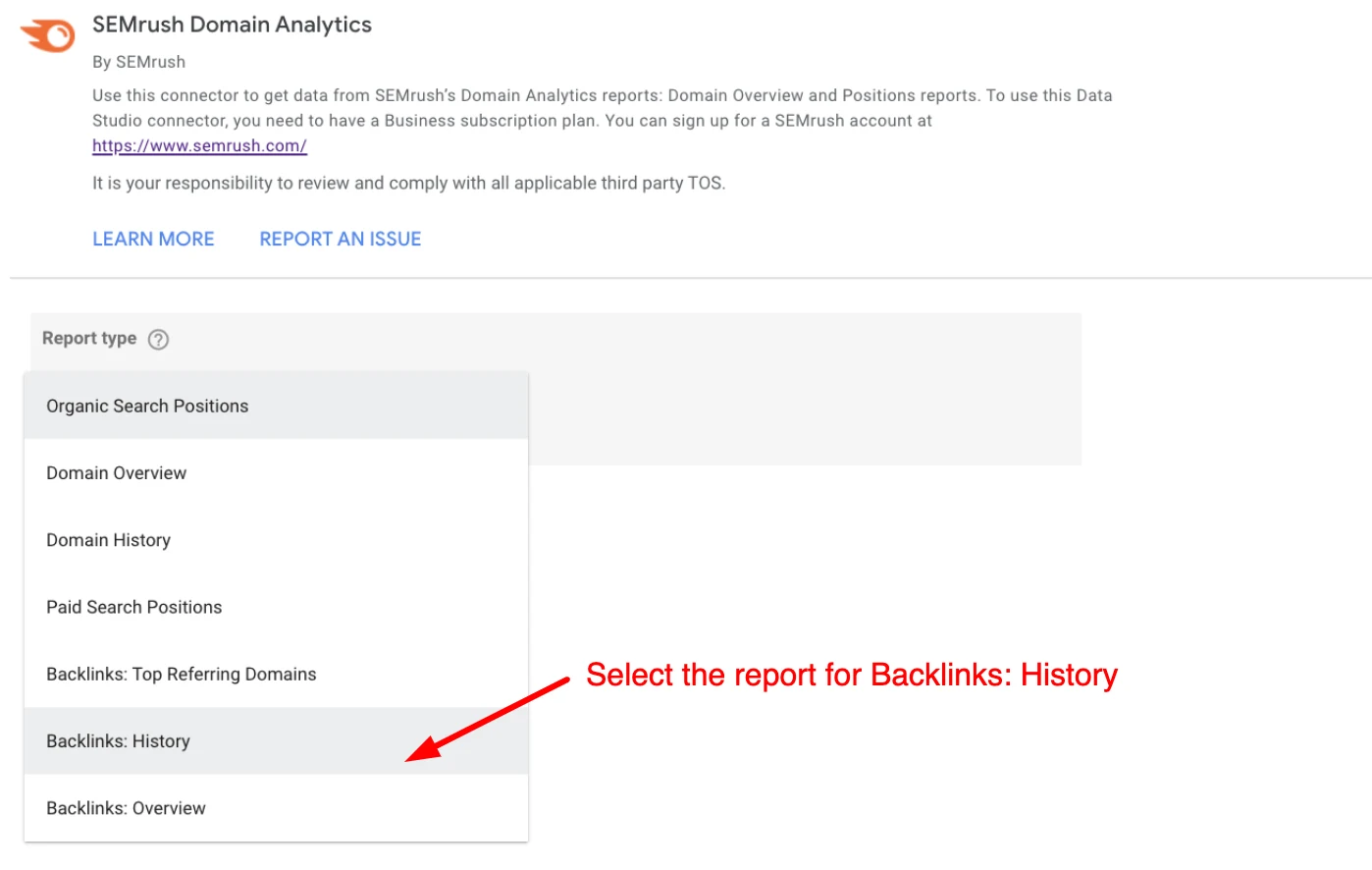
Then select the Backlinks: History report type.
Finally, enter the domain you want to pull data for.
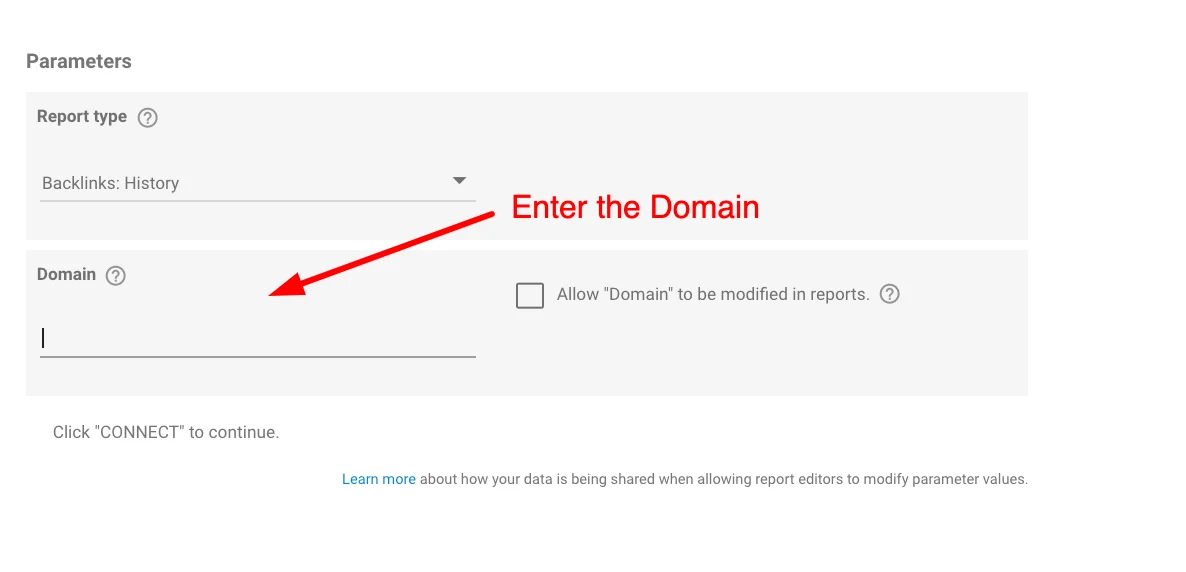
What’s changed since 2021. Semrush still splits its data across three connectors (Domain Analytics, Position Tracking and Site Audit), and its help page says you need a Guru or Business SEO Toolkit plan to use them. Backlinks: History shows “the trend of a domain’s backlink count over the past 12 months”, so a year is the longest window this chart can show from the connector.
Step 2: Configure your chart
When the data is first imported, it has three fields for backlinks and another three for referring domains, which you can plot against the date dimension. Here’s the full list of available fields.
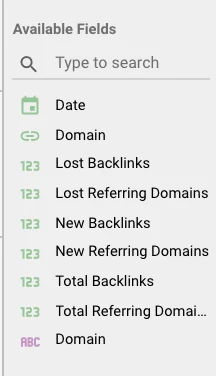
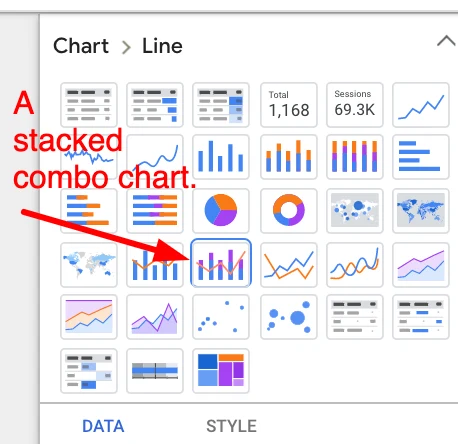
A stacked combo chart like Semrush’s own, however, needs two additional fields, which let you show Lost Backlinks and Lost Referring Domains as negative numbers on the chart. Pick the stacked combo chart from the chart menu.
This is how the chart should look, as per Semrush’s demo report:
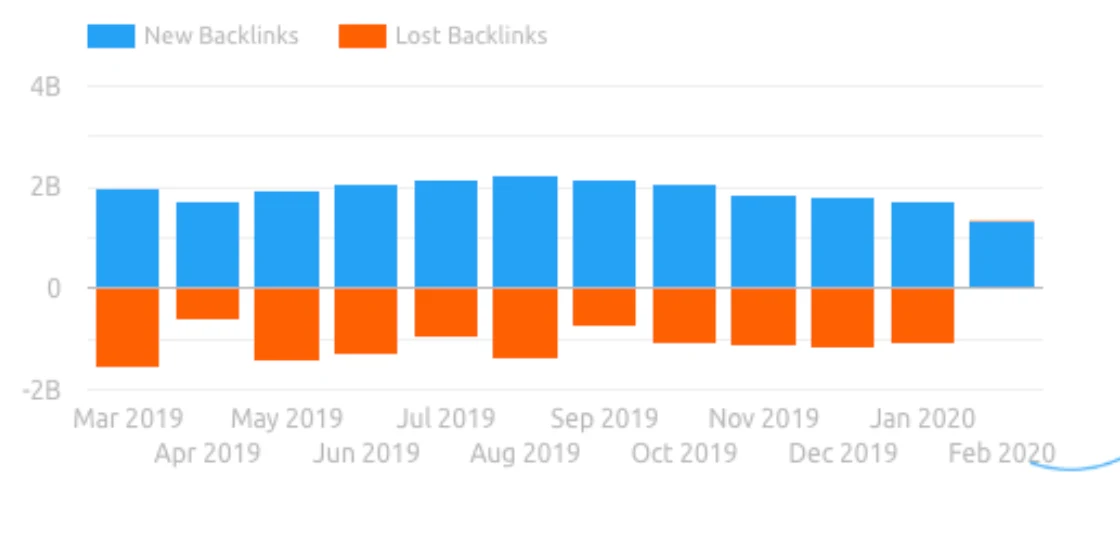
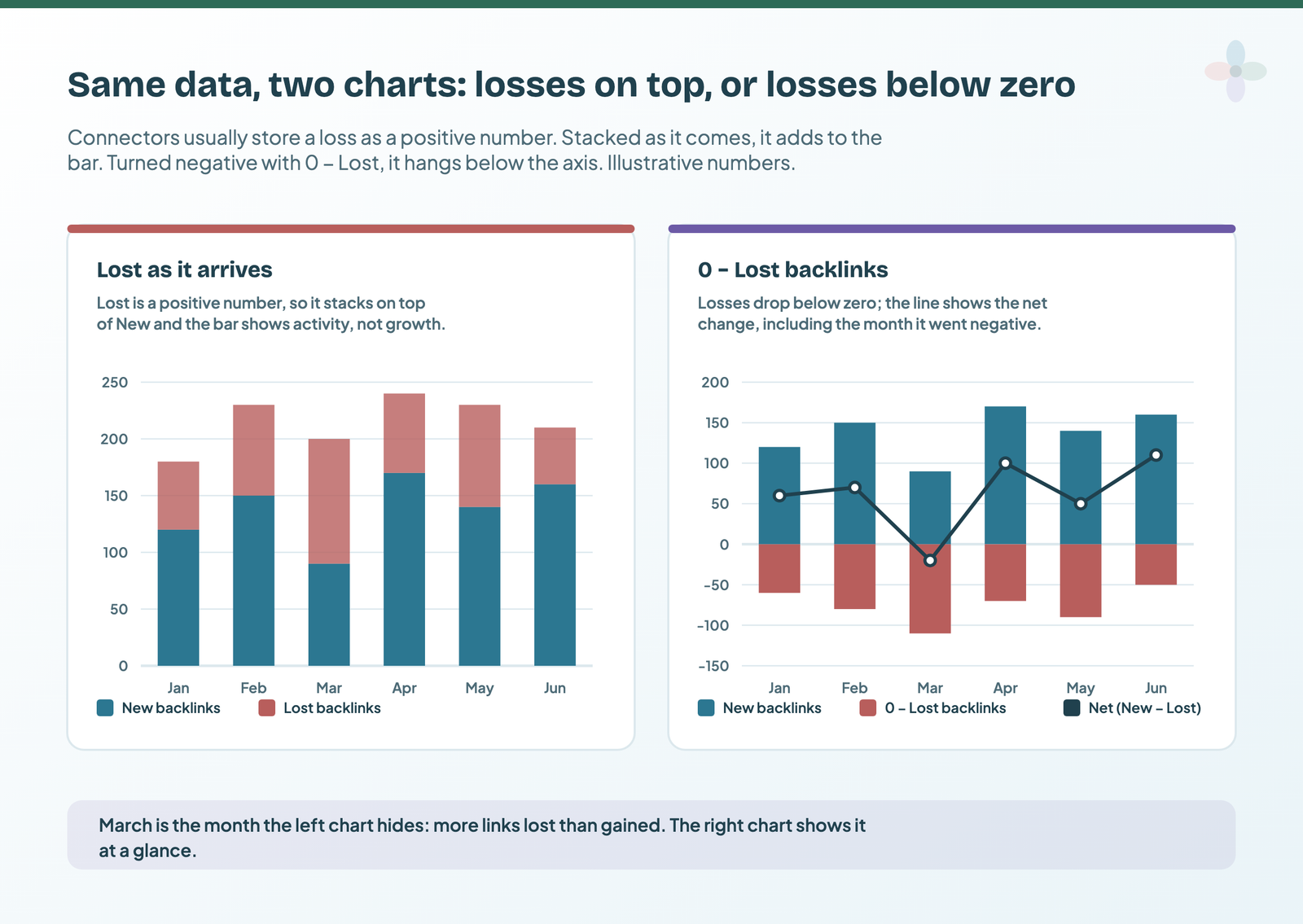
If we just plot the built-in fields Semrush provides, we can’t show lost backlinks as negative values, because the connector records them as positive numbers.
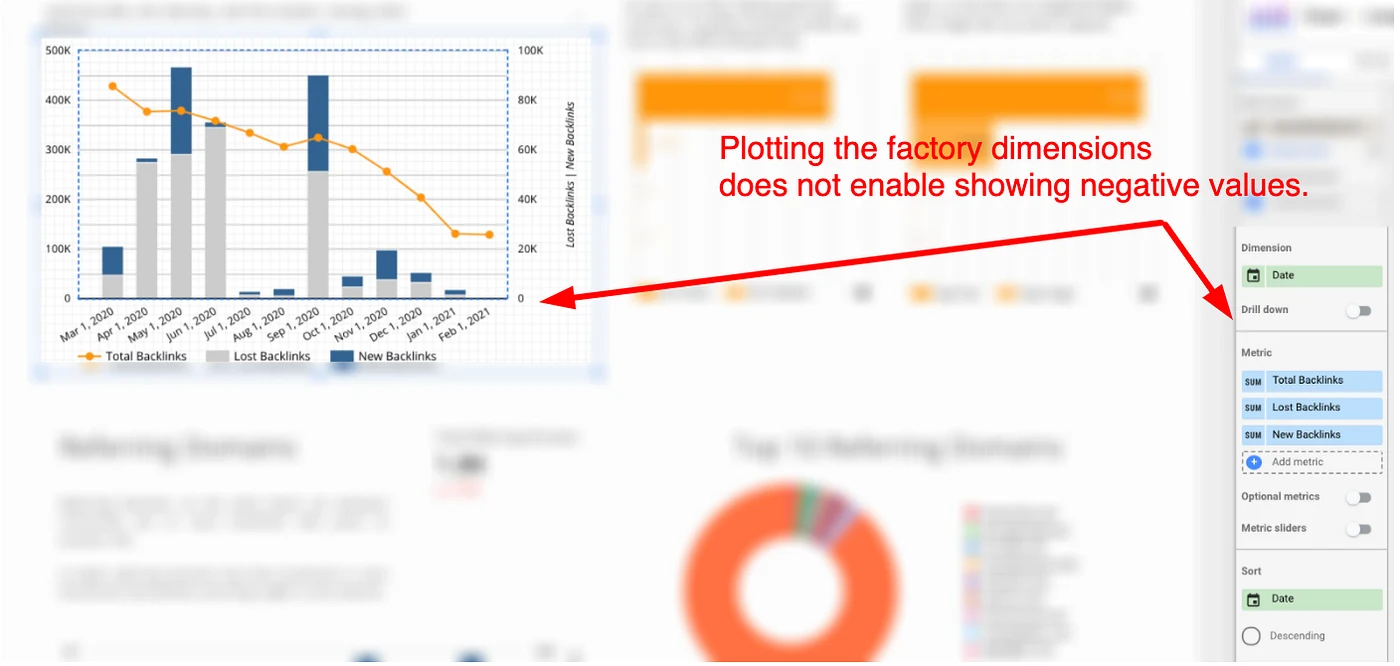
Google also has some advice about displaying negative numbers in charts:
Set Axis min to (auto) to display negative and mixed values in charts.
(Auto) has been the default since January 2019, so you’d only change it on older charts. And it won’t help if the numbers in the fields aren’t themselves negative. Instead, we create a custom field that represents the same thing (Lost Backlinks) as a negative value.
Step 3: Create a custom field
A custom field, or calculated field, is a new field you define with a formula. To create one, click Add a field at the bottom right of the data panel.

To show the lost backlinks as a negative number, create a field that subtracts Lost Backlinks from 0. Name it (I used Lost Backlinks (N)), enter the formula below and save.
0 - Lost Backlinks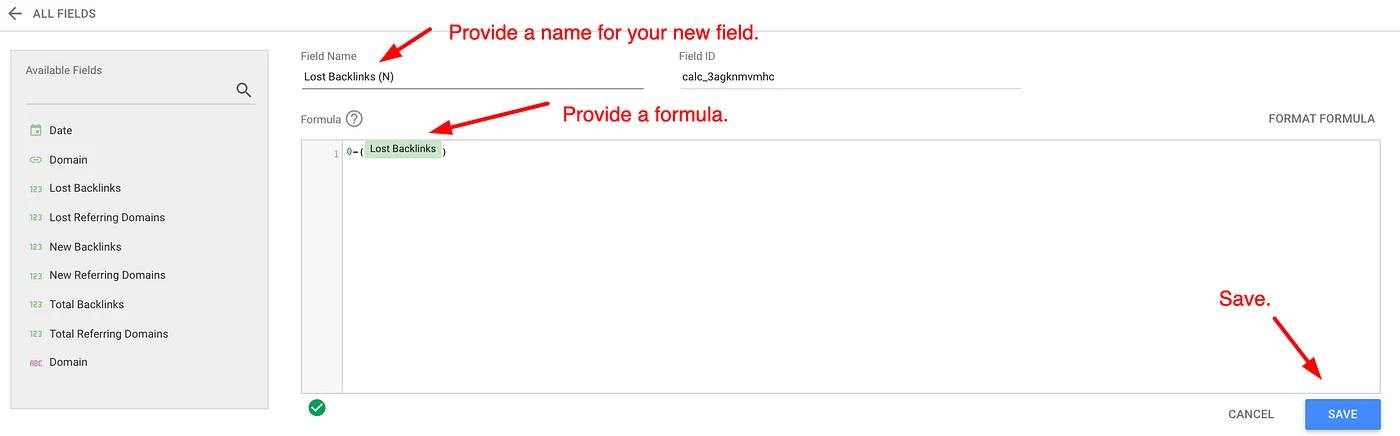
Assuming you’d like the same view for referring domains, repeat the process with the Lost Referring Domains field.
There are three ways to write the same thing, and which one works depends on where you create the field and what kind of metric you start from:
| Where you create it | Formula | When to use it |
|---|---|---|
| In the data source (as above) | 0 - Lost Backlinks |
The field is reusable in every chart on that data source. Best when you’ll chart it more than once. |
| In the chart only (chart-specific field: Setup › Add metric › Add field) | 0 - SUM(Lost Backlinks) |
When you can’t edit the data source, or the chart uses a blend (chart-specific fields work with blended data). It exists only in that chart; copy the chart to reuse it. If SUM() returns an aggregation error, use the next row’s form. |
| On an already-aggregated metric (GA4, Google Ads) | Conversions * -1 |
Google says re-aggregating these metrics isn’t supported (SUM(Sessions) errors), so flip the sign without adding SUM. |
Step 4: Replace the built-in field with your custom field
Finally, replace the built-in Lost Backlinks field in the chart with your custom field, and do the same for referring domains. Both charts should now look like this.
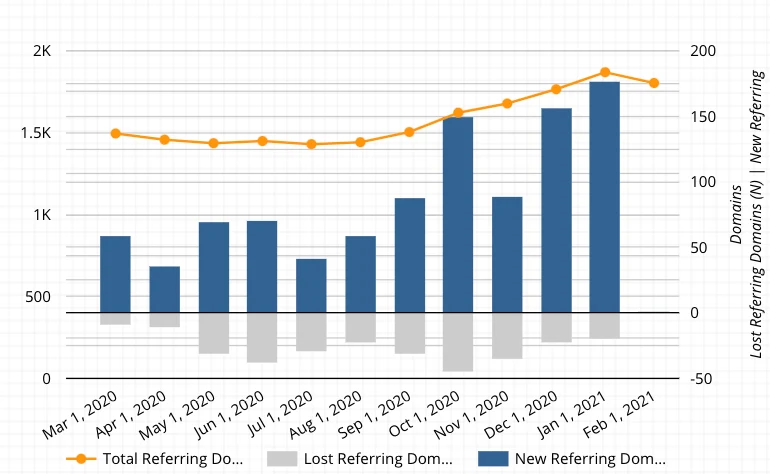
Look closely at the axes in my 2021 version: the bars sit on the right axis, where zero is in the middle, while the total line’s left axis starts at zero at the bottom. It reads fine once you know, but the two zeros don’t line up. Data Studio now has a setting for exactly this.
Make it easier to read: axes, labels and colours
These settings are all in the chart’s Style tab (from Google’s line and combo chart reference):
- Series type and stacking. Set New and Lost (N) to Bars and the total or net to Line. Stacked Bars appears once at least one series is a bar.
- Axis min. Leave it on (auto) on the axis that holds the bars. A fixed 0 cuts the negative bars off.
- Align both axes to 0. When the line sits on the other axis, this makes both axes start at 0, so the bars’ zero and the line’s zero match. It’s the fix for the mismatch in my chart above.
- Labels without the minus sign. Under the field’s Display Format, a custom number format can format negatives differently: the part after the semicolon is for negative numbers. Google’s example
#,##0;(#,##0)shows -1234 as (1,234), the accounting way of writing a loss. Custom formats are switched off while Compact numbers is on, and the data source needs Field Editing in Reports enabled. - Stacked labels. For stacked bars, Bar label type Stacked shows the total of each stack; Metric value (the default) labels each segment.
- Colours. Give the loss series a colour that reads as a loss and keep it the same on every chart; the colour palette guide covers choosing one.
A net line is worth adding: create New Backlinks - Lost Backlinks as another field and plot it as a line. It answers the question the reader actually has (did we grow this month?) without making them add bars in their head.
If the losses still don’t go below zero
| What you see | Likely cause | Fix |
|---|---|---|
| Negative bars cut off at the axis | Axis min set to 0 (older charts kept the pre-2019 default) | Clear Axis min so it’s (auto) |
| Losses still stacked on top | The chart still uses the original Lost field | Swap it for your negative field in Setup |
| Formula error mentioning aggregation | SUM() around a metric that’s already aggregated | Use Metric * -1 without SUM |
| Bars and line zeros don’t match | Two axes with different ranges | Style › Axes › Align both axes to 0 |
| Custom number format greyed out | Compact numbers on, or Field Editing in Reports off | Turn Compact numbers off; enable field editing on the data source |
To sum up…
This type of problem is quite common, so I hope this quick tutorial helps you build better charts in Data Studio. To show a negative number on a chart where you only have a field that holds it as a positive, you create a custom field that subtracts the number from 0, then use it in place of the original.
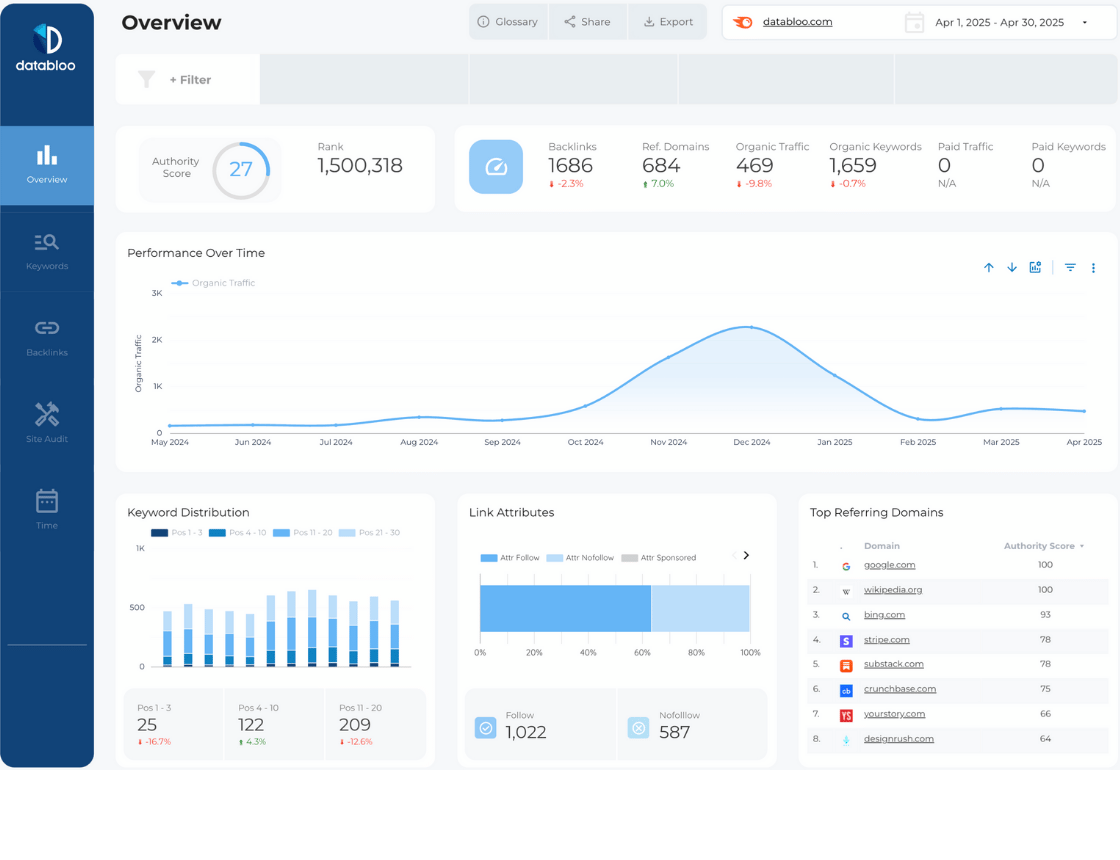
Templates with backlink and Semrush data
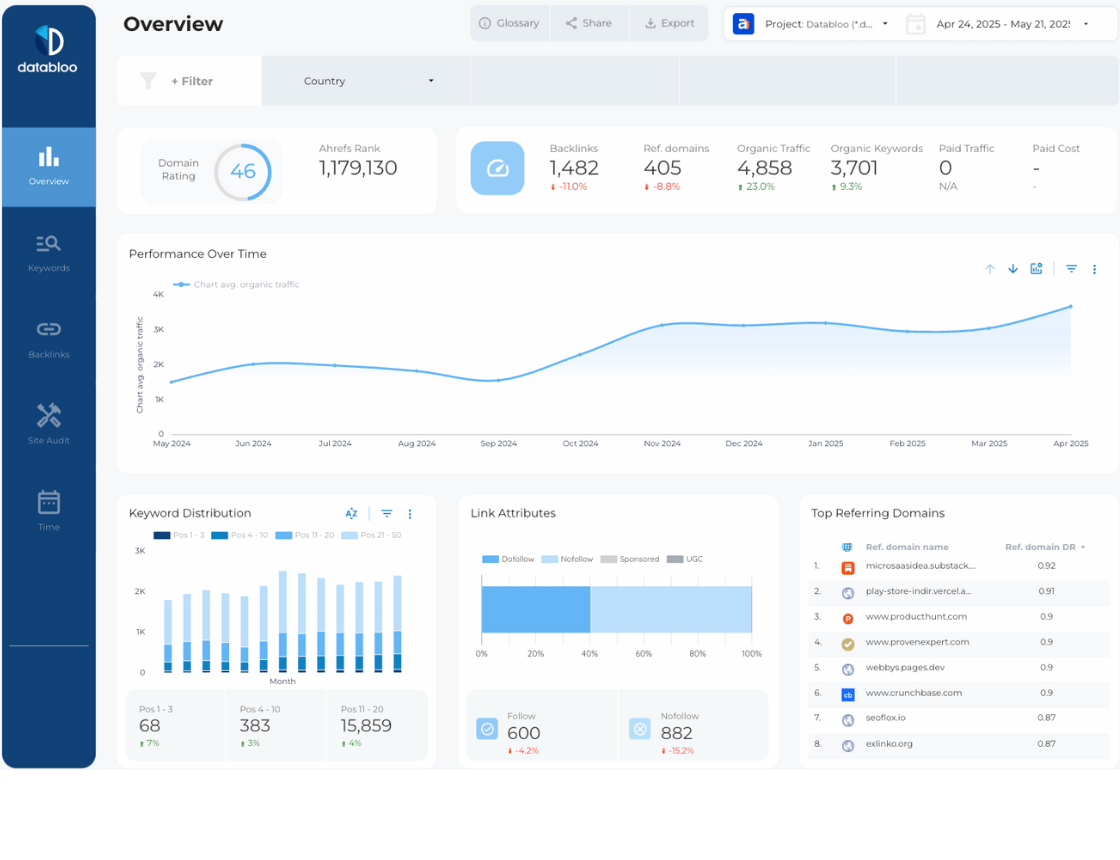
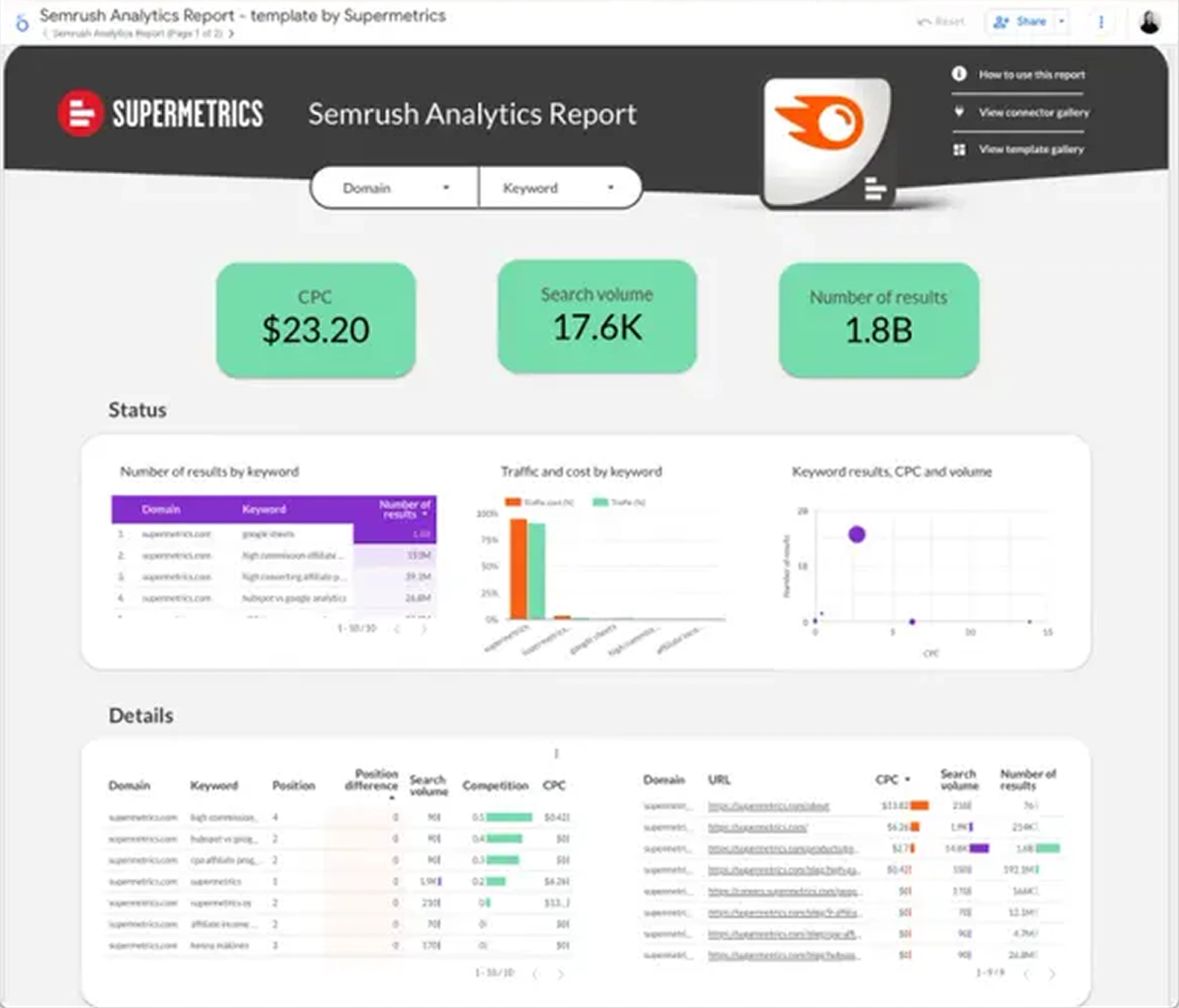
Three dashboards from the library built on the same kind of SEO tool data, if you’d rather start from a finished report and add the negative bars to it.
Where to go next
- Data Studio chart types, and when to use each
- Custom dimension formulas for SEO data
- Reference lines: targets and averages on a chart
- Choosing a colour palette for your reports
- Connect Google Sheets to Data Studio, for gain and loss data you keep yourself
Frequently asked questions
How do I show negative values in a Data Studio chart?
If the numbers are already negative, leave Axis min on (auto) in the chart’s Style tab; that’s been the default since 2019. If the connector stores them as positive numbers, create a calculated field such as 0 – Lost Backlinks and chart that instead.
Can I hide the minus sign on the negative bars?
Yes, with a custom number format on the field in that chart. The part after the semicolon formats negatives, so Google’s example #,##0;(#,##0) shows them in brackets.
Does this work with GA4 data?
Yes, but GA4 metrics are already aggregated, so write the field as Metric * -1 rather than wrapping it in SUM().
Do I need a Semrush plan for this?
For the Semrush connector, yes: Semrush lists Guru or Business. The method itself works on any data with a gain and a loss column, including a Google Sheet.
Some links in this post are affiliate links: if you sign up through one, I may earn a commission at no extra cost to you. How I work with partners.