
A custom dimension in Data Studio is a calculated field you create with Add a field: you give it a name and a formula, and it labels, cleans or groups the values already in your data source. Below are the 17 formulas I use most for marketing and SEO dashboards, each with the use case, the copy-paste formula and what to swap in for your own data.
I first published these in 2022. Since then Universal Analytics has gone, Data Studio (formerly Looker Studio) has added Group and Bin fields that do some of this without a formula, DATE_DIFF has become a legacy function, and I found bugs in several of my own formulas. Every formula below is the corrected version, checked against Google’s function documentation on 21 October 2026, and each section says what changed.
The 17 formulas at a glance
“Works on” is the source each was written for; most work on any source with a field of the same type.
| # | What it gives you | Main functions | Works on | Output |
|---|---|---|---|---|
| 1 | The domain (brand) from a URL | REGEXP_REPLACE, REGEXP_EXTRACT, TRIM | SERP or rank-tracker exports | Text dimension |
| 2 | Top-level directory or subdirectory | REGEXP_EXTRACT | Any URL or path field | Text dimension |
| 3 | Ranking position buckets | CASE, CAST (or a Bin field) | Rank trackers; Search Console | Text dimension (metric on Search Console) |
| 4 | URLs grouped by page section | CASE, REGEXP_CONTAINS | Crawls, Search Console, GA4 | Text dimension |
| 5 | URLs segmented by language | CASE, CONTAINS_TEXT | Any URL or path field | Text dimension |
| 6 | Queries labelled by search intent | CASE, REGEXP_CONTAINS | Search Console, keyword lists | Text dimension |
| 7 | Frequency bands from a date | CASE, DATETIME_DIFF, TODAY | Crawl or URL Inspection data | Text dimension |
| 8 | Two blended fields compared | CASE, IS NULL | Blends | Chart-specific dimension |
| 9 | QoQ / YoY with date-limited blend tables | Blend settings | GA4, any dated source | Blended metrics |
| 10 | Branded vs non-branded keywords | CASE, REGEXP_CONTAINS | Search Console, Google Ads, GA4 | Text dimension |
| 11 | On-page quality labels (title, H1, meta) | CASE, LENGTH | Crawls, GA4 | Text dimension |
| 12 | Traffic type by country | CASE, AND | GA4 | Text dimension |
| 13 | Free vs paid traffic | CASE, REGEXP_MATCH | GA4 | Text dimension |
| 14 | Numeric values in discrete buckets | CASE (or a Bin field) | Sheets, BigQuery, ecommerce exports | Text dimension |
| 15 | YouTube labels from title and length | CASE, REGEXP_MATCH, AND/OR | YouTube data exports | Text dimension |
| 16 | A target evaluated with a parameter | CASE, parameter | GA4, Google Ads | Metric |
| 17 | A landing page key to blend GA4 and Search Console | CONCAT, REGEXP_EXTRACT, REGEXP_REPLACE | GA4 + Search Console | Text dimension (join key) |
How to create a custom dimension, and the rules every formula here follows
A calculated field is a field you create by applying functions, operators or branching logic to the fields you already have. It shows up as a dimension or a metric depending on what the formula returns. “Custom dimension” is the everyday name for the dimension kind.
- Open the data source (Resource › Manage added data sources › Edit), or the Data panel while you edit a report.
- Click Add a field, then Add calculated field. The same menu has Add group and Add bin, which come up in formulas 3, 4 and 14.
- Name the field, paste the formula, and replace my field names with yours. Fields turn green in the editor when Data Studio recognises them.
- When the editor accepts the formula, click Save. Calculated fields show an fx symbol in the field list.
You can also add a field to one chart (Add dimension › Create field in its Setup tab). Chart-specific fields need Field Editing in Reports switched on, exist only in that chart, and are the only kind that works on blended data. My piece on data sources and what you can edit in them covers who can change what.
Five rules that stop most of these formulas breaking
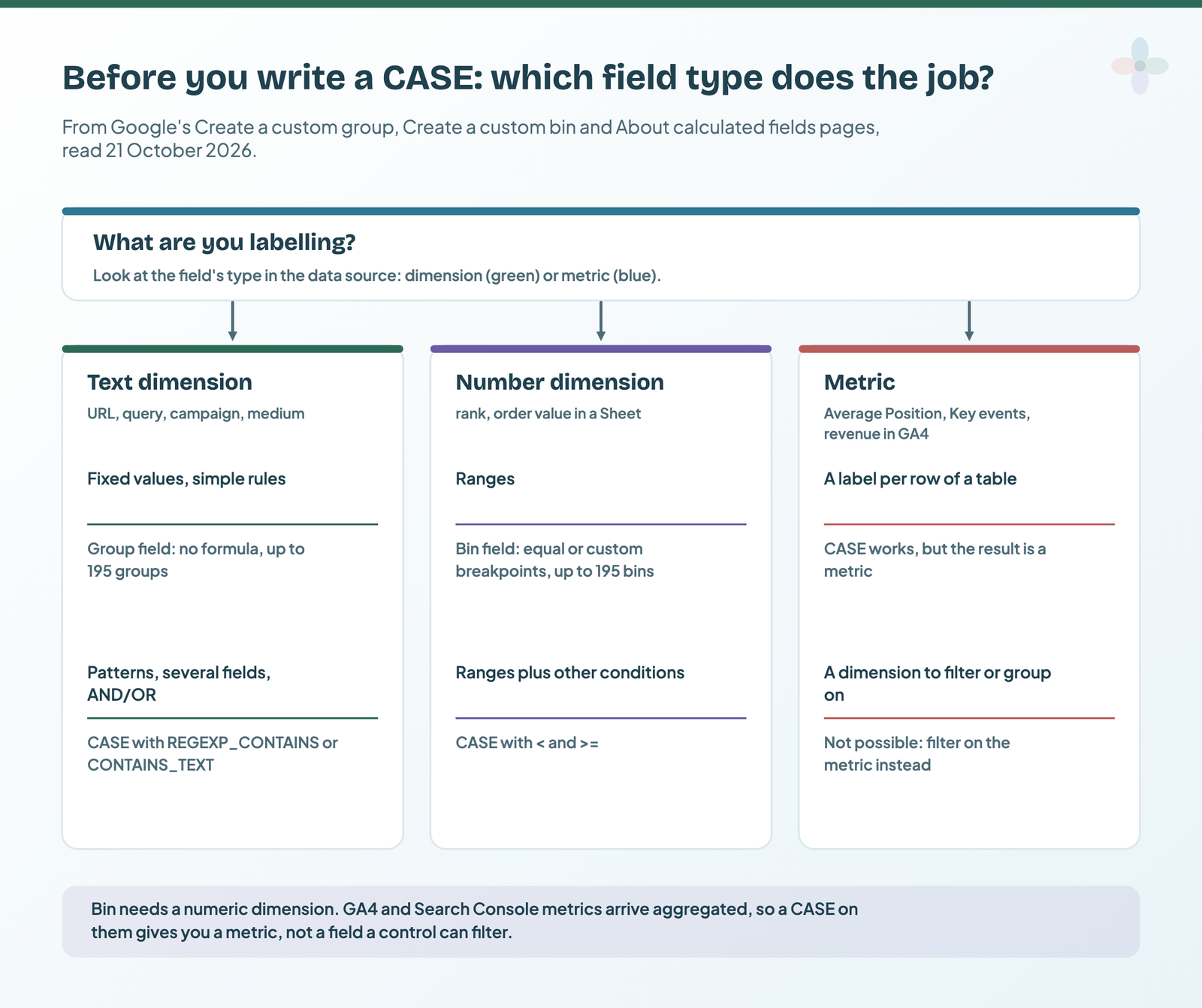
- CASE stops at the first true WHEN. Google’s documentation is explicit: the remaining WHEN clauses and the ELSE aren’t evaluated. The order of your WHENs is the classification, which is why formula 6 changed.
REGEXP_MATCHmatches the whole value;REGEXP_CONTAINSmatches any part.REGEXP_MATCH(Query, "seo")is false for “seo tools”. Use CONTAINS unless you mean the entire value.- Escape backslashes, or use a raw string. Data Studio uses Google’s RE2 syntax, and a backslash inside a normal string needs doubling (
"\\."for a literal dot). A raw string,R"\.", takes it as written. I use raw strings for anything with\bor\.. - Never end a pipe list with
|. An empty alternative matches everything. Google’s own regex page warns against it, and my 2022 intent formula had one. - A formula built on a metric gives you a metric. GA4, Google Ads and Search Console metrics arrive already aggregated, so a CASE on Average Position or Key events can label rows in a table, but you can’t filter or group by it. Formula 3b and formula 16 are like that on purpose.
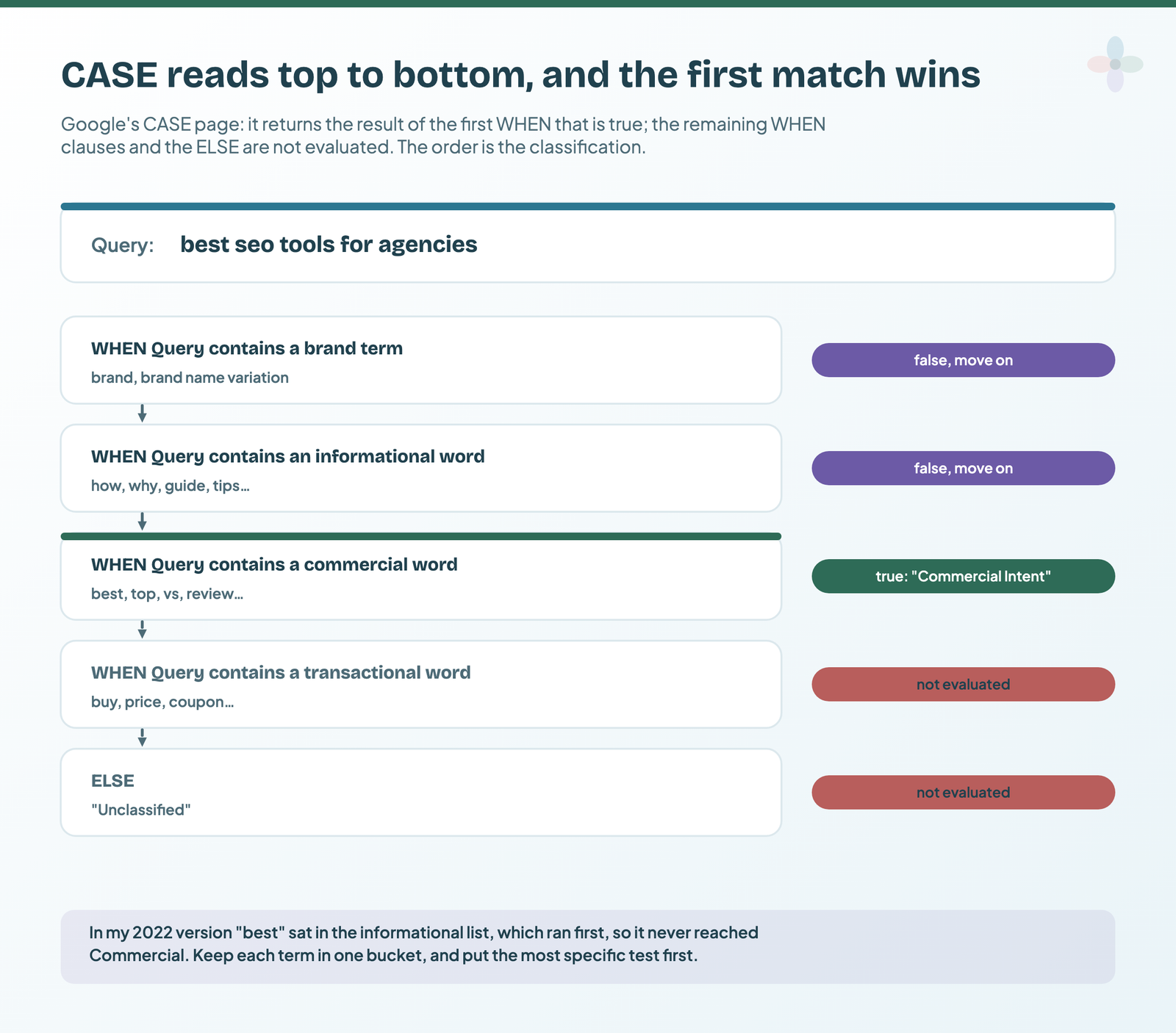
Before you write a CASE at all, check whether a Group field (fixed labels for text values) or a Bin field (numeric ranges) does the job. Google describes both as ways to group values “without needing to develop CASE WHEN expressions”, with up to 195 groups or bins per field.
1. Extract the brand (domain) from a URL
When doing competitor analysis at scale or SERP analysis, it’s very useful to visualise your data in a user-friendly way. One such instance is trimming the URLs ranking for a set of queries down to the brand name, so you can visualise share of voice per competitor. I’ve built this into the ML-enabled SERP analysis template too.
Create a custom dimension called “Brand name” with the formula below. Replace URL with any field from your data source that contains a URL or web address.
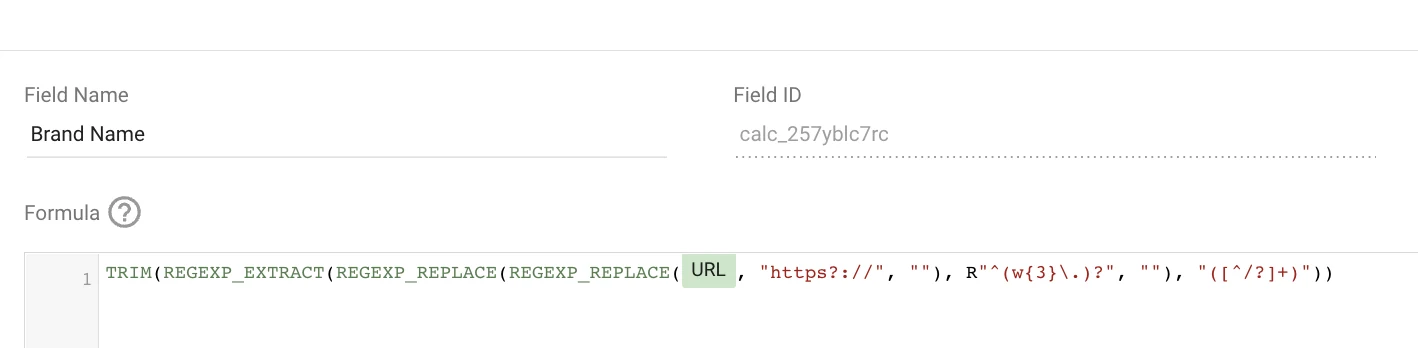
TRIM(REGEXP_EXTRACT(REGEXP_REPLACE(REGEXP_REPLACE(URL, "https?://", ""), R"^(w{3}\.)?", ""), "([^/?]+)"))Reading it from the inside out: strip the protocol, strip a leading www., then keep everything up to the first slash or question mark. The result is the domain, so https://www.example.com/blog/ becomes example.com. The same thing in one function, if you prefer it:
REGEXP_EXTRACT(URL, R"^(?:https?://)?(?:www\.)?([^/?#:]+)")Subdomains stay in (shop.example.com); merge them with a Group field if they’re the same competitor.
2. Extract the top-level directory or a subdirectory from a URL
Extracting the top-level directory is useful not only when analysing your own website, but also for competitor or SERP analysis. It shows how competitors structure their top-level directories around the terms that matter to you, and whether there are insights to be gained from that.
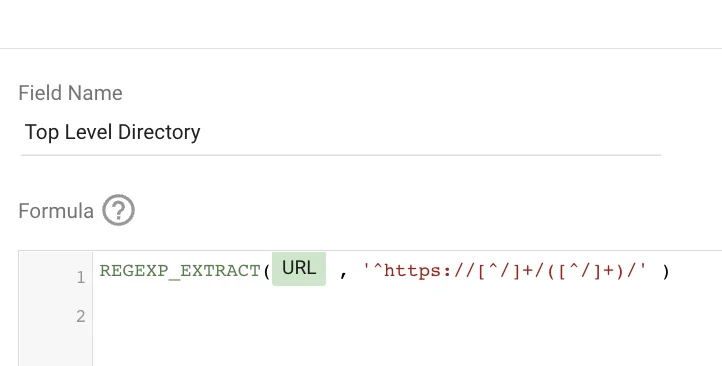
Here’s the formula. Again, replace URL with any field that contains a full URL. I’ve changed https to https? so http:// addresses match too; otherwise it’s the same pattern Google uses as its own example.
REGEXP_EXTRACT(URL, '^https?://[^/]+/([^/]+)/')It returns blog for https://site.com/blog/post/, and null for a top-level page like /about, which isn’t in a directory.
If you instead want the subdirectory, use this one on a path field such as GA4’s Landing page. I’ve added the ^ anchor so it can’t drift into the domain when someone feeds it a full URL.
REGEXP_EXTRACT(Landing page, '^/[^/]+/([^/]+)/')Extracting a subdirectory is really useful to replicate a behaviour flow chart, track internal links, or see how search and traffic metrics relate on a larger website. I’ve found it useful when auditing bigger sites, too.
3. Create custom buckets for ranking positions
Custom buckets for position (or rank) results are a great way to communicate the scale of your ranking keywords or URLs. They give you a top-level view of ranking performance at a glance.
Replace Rank Absolute with the keyword rank from your rank tracker (Nightwatch, Ahrefs, Semrush or any equivalent). I use these same buckets in my Nightwatch rank tracking dashboard. This version is the one to use now:
CASE
  WHEN CAST(Rank Absolute AS NUMBER) <= 3 THEN "Page 1: Positions 1 - 3"
  WHEN CAST(Rank Absolute AS NUMBER) <= 10 THEN "Page 1: Positions 4 - 10"
  WHEN CAST(Rank Absolute AS NUMBER) <= 20 THEN "Page 2: Positions 11 - 20"
  WHEN CAST(Rank Absolute AS NUMBER) <= 50 THEN "Positions 21 - 50"
  WHEN CAST(Rank Absolute AS NUMBER) <= 100 THEN "Positions 51 - 100"
  ELSE "Not in the top 100"
END
What I fixed. My 2022 version matched the rank as text, and the last two lines were wrong: "[21-50]" is a character class (any single digit 0–5, 1 or 2), not the numbers 21 to 50, and "[51-100]*" matches anything at all. A rank of 61 or 100 landed in “21 – 50”. Casting to a number and comparing with <= avoids regex entirely, and because CASE stops at the first true WHEN, each line only needs its upper limit. If the rank is already a Number field, drop the CAST. If you’d rather keep regex, the two lines become REGEXP_MATCH(Rank Absolute, "2[1-9]|[34][0-9]|50") and REGEXP_MATCH(Rank Absolute, "5[1-9]|[6-9][0-9]|100").
No-formula option: if the rank is a numeric dimension, a Bin field with custom breakpoints at 4, 11, 21, 51 and 101 gives you the same buckets from a menu.
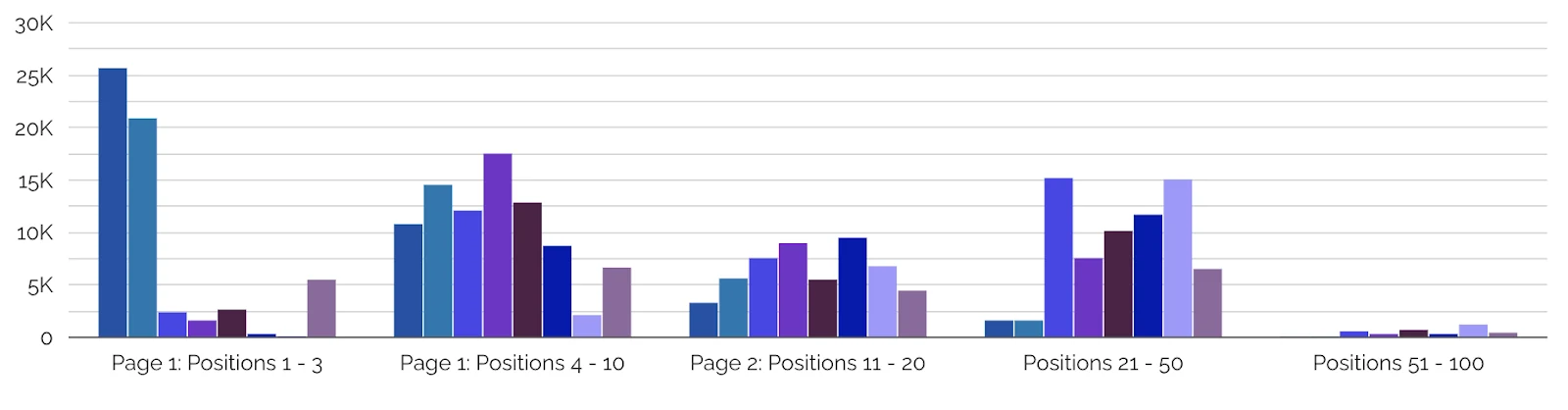
This type of field lets you build charts like this one when you have competitor SERP data. The chart shows eight competitors’ distribution by ranking position, answering two questions:
- Which competitors have the most URLs ranking on page 1 (positions 1–3), page 1 (positions 4–10), and so on?
- From the collected SERP data, how are results distributed across the position groups (for example, the fewest results were collected for positions 51–100)?
3b. Label average positions in groups with Search Console data
The field above only works on a dimension: rank as text or a number per row, as you get from a rank tracker like Nightwatch, SE Ranking or Oncrawl. If you want to use Search Console’s Average Position metric instead, build the label on the metric:
CASE
  WHEN Average Position >= 1 AND Average Position < 3 THEN "Money Keywords - Protect"
  WHEN Average Position >= 3 AND Average Position < 10 THEN "High value Keywords - Prioritize improvements"
  WHEN Average Position >= 10 AND Average Position < 20 THEN "Striking Distance Keywords - Improve"
  ELSE "Position 20+ - Monitor"
END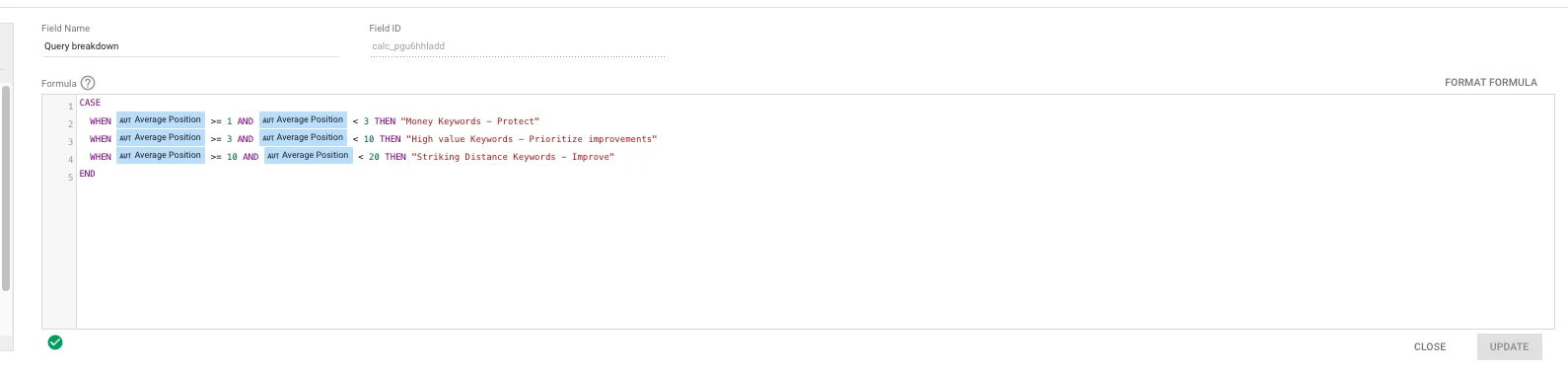
I’ve added an ELSE so queries past position 20 get a label instead of a blank. As this is saved as a calculated metric, not a dimension, you’re a bit limited in the visualisations. I think the best place for it is a table, as below, which is also great for exporting and working on the data in Google Sheets.
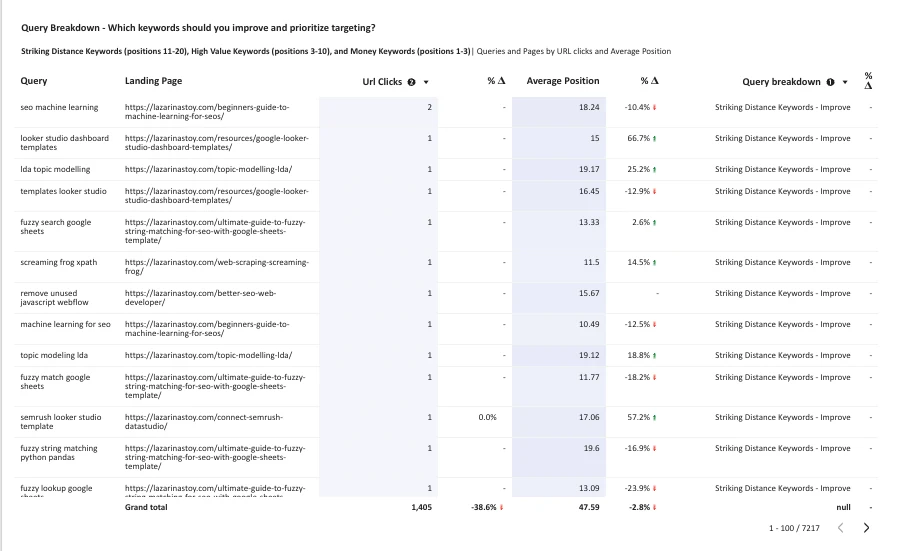
The one limitation here is that you can’t use this calculated metric in a filter control for a cleaner look; you can only sort by it. Because it’s a metric, a Bin field won’t work on it either (bins need a numeric dimension). My piece on filter controls explains why. One workaround: create a flag field for each category with the logic “if it matches X label, then 1, else 0”, and use it in a chart filter, or sort by it.
4. Group URLs by page section
When you’re working with a big website, or a site run by a siloed organisation where different teams own different parts of it, you need to be able to split the data into page sections.
This is also very useful for spotting technical issues, such as Core Web Vitals problems caused by images used section-wide, or by section-specific templates. You can see this filter in action in my Core Web Vitals auditor dashboard.
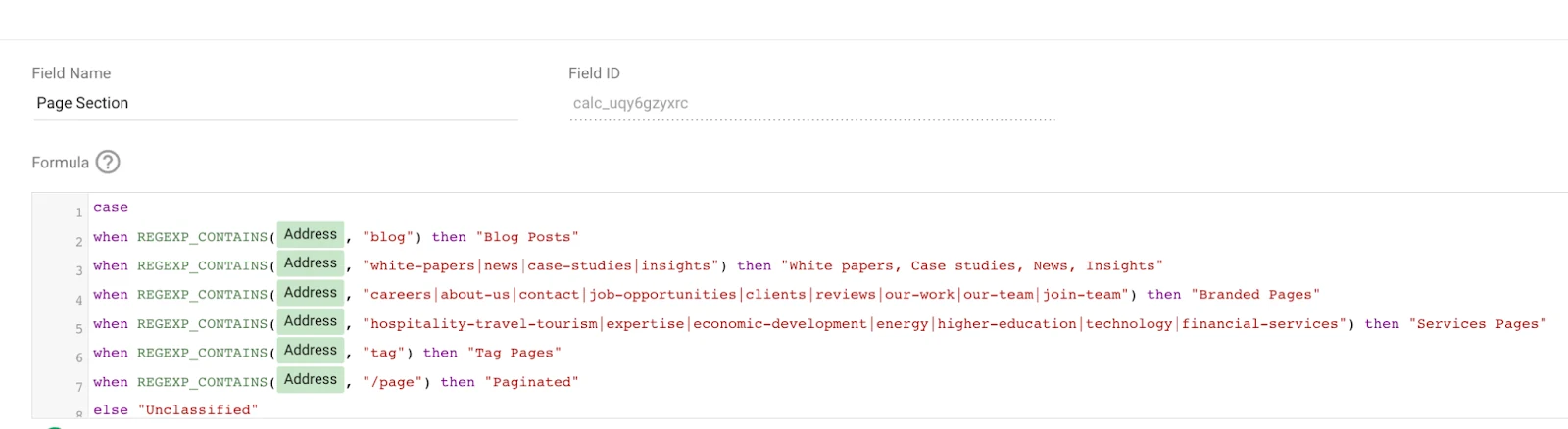
Here’s the formula for copy-pasting. Replace Address with any field that contains a URL, and only include terms in the regex that actually appear in your URLs. Some adjusting is needed to make it specific to your site.
CASE
  WHEN REGEXP_CONTAINS(Address, "blog") THEN "Blog Posts"
  WHEN REGEXP_CONTAINS(Address, "white-papers|news|case-studies|insights") THEN "White papers, Case studies, News, Insights"
  WHEN REGEXP_CONTAINS(Address, "careers|about-us|contact|job-opportunities|clients|reviews|our-work|our-team|join-team") THEN "Branded Pages"
  WHEN REGEXP_CONTAINS(Address, "hospitality-travel-tourism|expertise|economic-development|energy|higher-education|technology|financial-services") THEN "Services Pages"
  WHEN REGEXP_CONTAINS(Address, "tag") THEN "Tag Pages"
  WHEN REGEXP_CONTAINS(Address, "/page") THEN "Paginated"
  ELSE "Unclassified"
END
What I fixed: the 2022 version was missing its closing END, so it wouldn’t save. Order matters here too: a blog post with “tag” in its slug is a Blog Post, because that line comes first. If your sections are cleanly separated by the first folder, a Group field on formula 2’s output does the same job without regex.
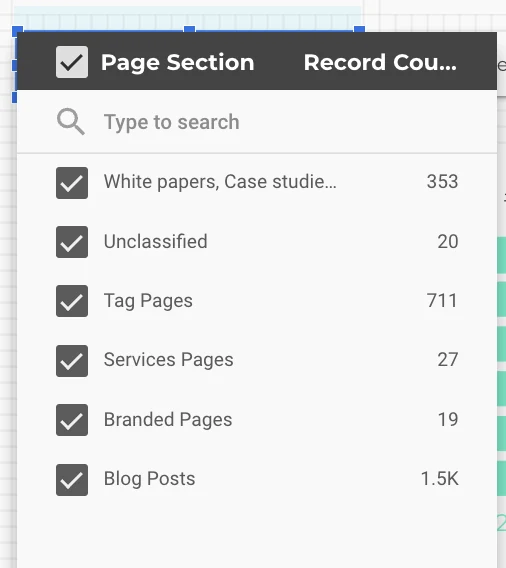
The end result gives you a quick overview of the split of URLs per page section, next to any metric you choose. In the example it’s Record Count, but it can be Clicks, Impressions or Sessions, depending on your data source.
5. Segment URLs by language
When you’re working with an international website that has versions of pages in several languages, you’ll often want to report on each language separately.
To do this, create a CASE formula that sorts the URLs by language version and gives each a user-friendly label you can use in a filter. That way, your dashboard users decide which URLs they see.
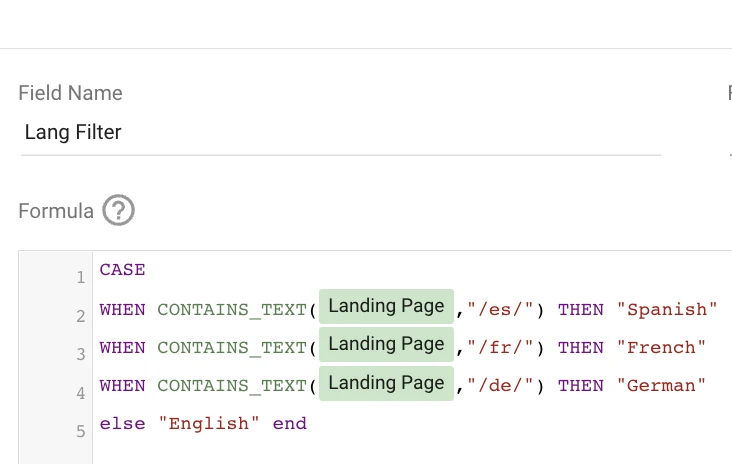
Here is the formula in text format. The landing page field can be replaced with any address or URL field in your data source, and the language folders will depend on the site you’re reporting on.
CASE
  WHEN CONTAINS_TEXT(Landing Page, "/es/") THEN "Spanish"
  WHEN CONTAINS_TEXT(Landing Page, "/fr/") THEN "French"
  WHEN CONTAINS_TEXT(Landing Page, "/de/") THEN "German"
  WHEN CONTAINS_TEXT(Landing Page, "/it/") THEN "Italian"
  ELSE "English"
END
This one needed no fix. It also works as a Group field: contains “/es/” and so on, with the remaining values grouped as English.
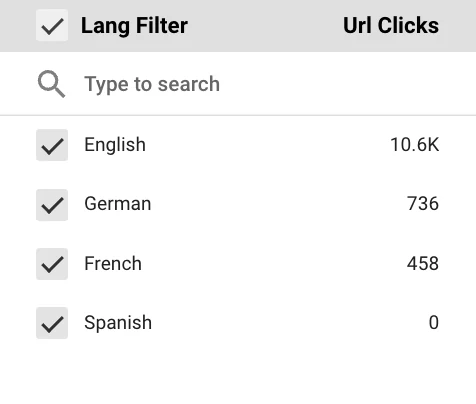
After creating this field, you can see a split of a metric of your choice (clicks, impressions, record count, sessions) for each language version, which helps you prioritise recommendations or get a more nuanced view of country-level performance.
6. Label the queries you rank for by search intent
This field is inspired by my Search Intent Classification dashboard, where I used filters to show only the keywords matching a condition.
That’s a somewhat limiting approach, though, because the keywords that don’t match are left out of the visualisations entirely.
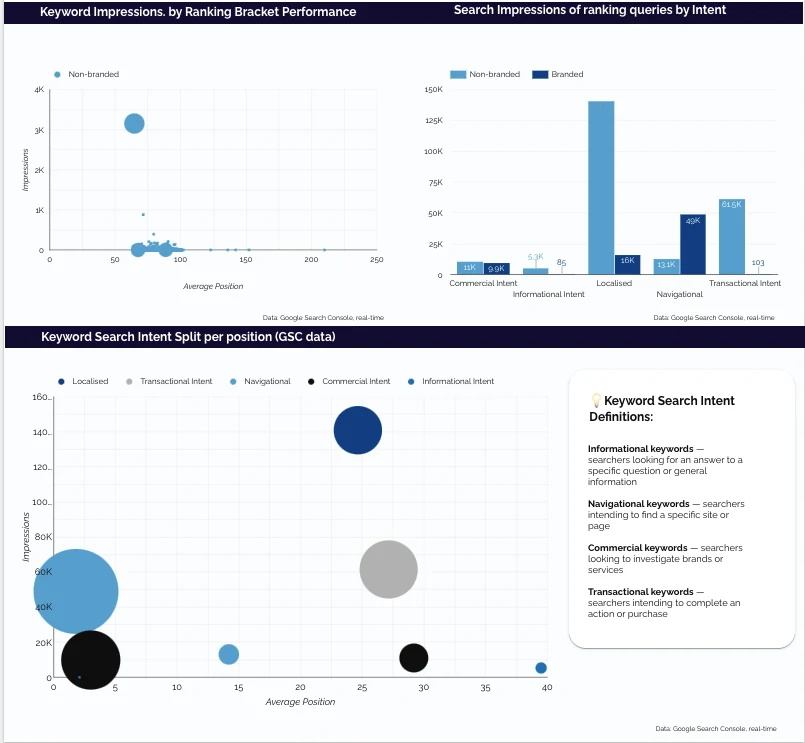
Instead, a CASE field segments every keyword with regex, so the dashboard user can show keywords for a particular intent, or the ones that fall into none of the categories.
Bear in mind this is the most basic form of the classification, and it can be enhanced (like, a lot!) with the specific words that signal each intent in your industry. If you want to go further, read about how to do search intent classification better, or internationally and in different industries.
And here is the formula:
CASE
  WHEN REGEXP_CONTAINS(Query, R"(?i)\b(brandname|brand name variation|brandname\.com)\b") THEN "Navigational"
  WHEN REGEXP_CONTAINS(Query, R"(?i)\b(how|why|does|which|when|who|guide|tutorial|tutorials|learn|example|examples|resource|resources|ideas|tips|difference between|strategies|strategy|ways|directory|directories|pictures|samples|sample|plans|plan|news|basics|concepts|troubleshoot|issue|resolve|risks|beginners|beginner|beginner's|beginner’s guide|upgrade|improve|optimize|case study|get|best practices|templates|template|pros|cons|about|actionable|analysis|articles|ask|audit|avoid|become|benefits|blogs|build|calculate|campaign|choose|common|consider|cost|create|deal with|decrease|definition|definitive|definite guide|earn|easy|essential|events|explainer video|factors|facts|find|fix|get better|get more|graph|great|grow|hacks|highest rated|hot|ideal|importance of|increase|infographic|information|know|many|meaning|measure|meme|metrics|mistakes|most|myths|opportunity|popular|practices|questions|quotes|remove|set up|shortcuts|stats|study|successful|tactics|techniques|terms|that get|things|time|trends|tricks|types|unknown|updates|used|well|whether|whose|worst|framework|checklist|process|test|formula|glossary|scripts|survey|exercises|report|certification|webinar|calendar|quiz|form|things to do|to do|design|designs|not working)\b") THEN "Informational Intent"
  WHEN REGEXP_CONTAINS(Query, R"(?i)\b(best|top|vs|review|reviews|comparison|builder|builders|maker|creator|editor|editors|generator|plugin|plugins|services|service|app|apps|estimator|checker|planner)\b") THEN "Commercial Intent"
  WHEN REGEXP_CONTAINS(Query, R"(?i)\b(buy|prices?|pricing|cheap|cheapest|expensive|recommendation|recommended|near me|firm|firms|coupon|order|purchase|stores?|enterprise|calculator|wordpress|chrome extension|appliances?|free|affordable|best range|ratings|online|courses?|discount|for sale)\b") THEN "Transactional Intent"
  WHEN REGEXP_CONTAINS(Query, R"(?i:\b(alabama|alaska|arizona|arkansas|california|colorado|connecticut|delaware|florida|georgia|hawaii|idaho|illinois|indiana|iowa|kansas|kentucky|louisiana|maine|maryland|massachusetts|michigan|minnesota|mississippi|missouri|montana|nebraska|nevada|new hampshire|new jersey|new mexico|new york|north carolina|north dakota|ohio|oklahoma|oregon|pennsylvania|rhode island|south carolina|south dakota|tennessee|texas|utah|vermont|virginia|washington|west virginia|wisconsin|wyoming)\b)|\b(AL|AK|AZ|AR|CA|CO|CT|DE|FL|GA|HI|ID|IL|IN|IA|KS|KY|LA|ME|MD|MA|MI|MN|MS|MO|MT|NE|NV|NH|NJ|NM|NY|NC|ND|OH|OK|OR|PA|RI|SC|SD|TN|TX|UT|VT|VA|WA|WV|WI|WY)\b") THEN "Localised - US"
  ELSE "Unclassified"
END
What I fixed, and why it matters more than it looks:
- The last list ended in a pipe. An empty alternative matches every string, so every query that reached that line was labelled “Localised – US”.
- Terms sat in two buckets. “best” was in the informational list, which ran first, so no query ever reached Commercial through “best”. Same for “top” and “cheap” between Commercial and Transactional. Each term now lives in one bucket.
- Navigational moved to the top. A query with your brand in it is navigational whatever else it contains.
- Word boundaries and case.
\bstops “how” matching “show”, and(?i)ignores capitals. State abbreviations only match in capitals, because “in”, “or” and “me” are everyday words. - An ELSE, so unclassified queries form a group you can review.
Combined with the branded vs non-branded field (formula 10), this gets you much more detail out of Search Console reporting, with views like these:
7. Create a frequency field from a date
Your data source often has a date field, but a date on its own makes scale hard to see, especially when there are time thresholds your stakeholders understand better than raw dates.
Here is the current version. Replace Last Crawl with any Date field in your data source, and adjust the labels.
CASE
  WHEN DATETIME_DIFF(TODAY(), Last Crawl, DAY) < 30 THEN "Crawled Last 30 days"
  WHEN DATETIME_DIFF(TODAY(), Last Crawl, DAY) < 60 THEN "Crawled Last 60 days"
  WHEN DATETIME_DIFF(TODAY(), Last Crawl, DAY) < 90 THEN "Crawled Last 90 days"
  WHEN DATETIME_DIFF(TODAY(), Last Crawl, DAY) < 180 THEN "Crawled Last 180 days"
  ELSE "Crawled Last 180+ Days"
END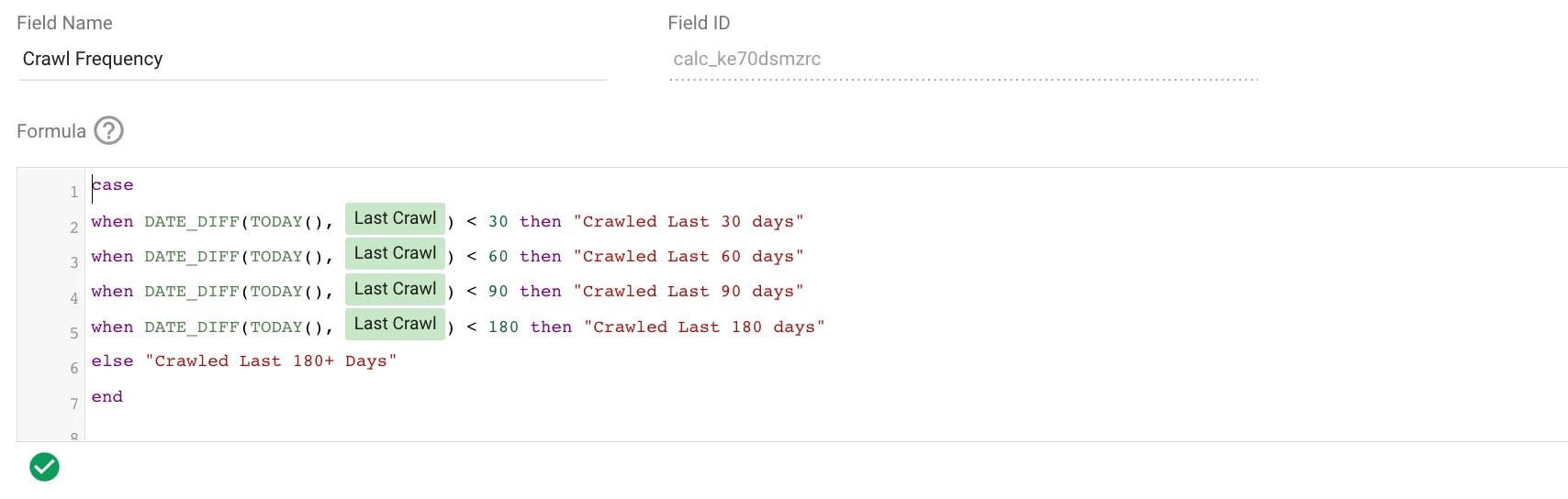
What changed: the 2022 version used DATE_DIFF(TODAY(), Last Crawl). Google now marks DATE_DIFF as supporting only old “compatibility mode” date fields, and recommends DATETIME_DIFF on proper Date or Date & Time fields. If your date arrives as text (common in crawl exports pasted into Sheets), set the field’s type to Date in the data source first. TODAY() uses UTC unless you give it a timezone, as in TODAY("Europe/London").
To see this field in action, open my URL Inspection API dashboard.
8. Compare two fields from two different datasets
Comparative analysis in Data Studio can get complex, especially given the limitations of data blending. Here’s a simple way to compare two datasets and surface the differences between them.
You need two datasets with the same structure. In the screenshots I used two Screaming Frog SEO Spider exports with the same fields: one crawl of the mobile version of the site, one of the desktop version.
Blend the data first, with the URL address as the join key. Add the two fields you want to compare, and name the blend accordingly.
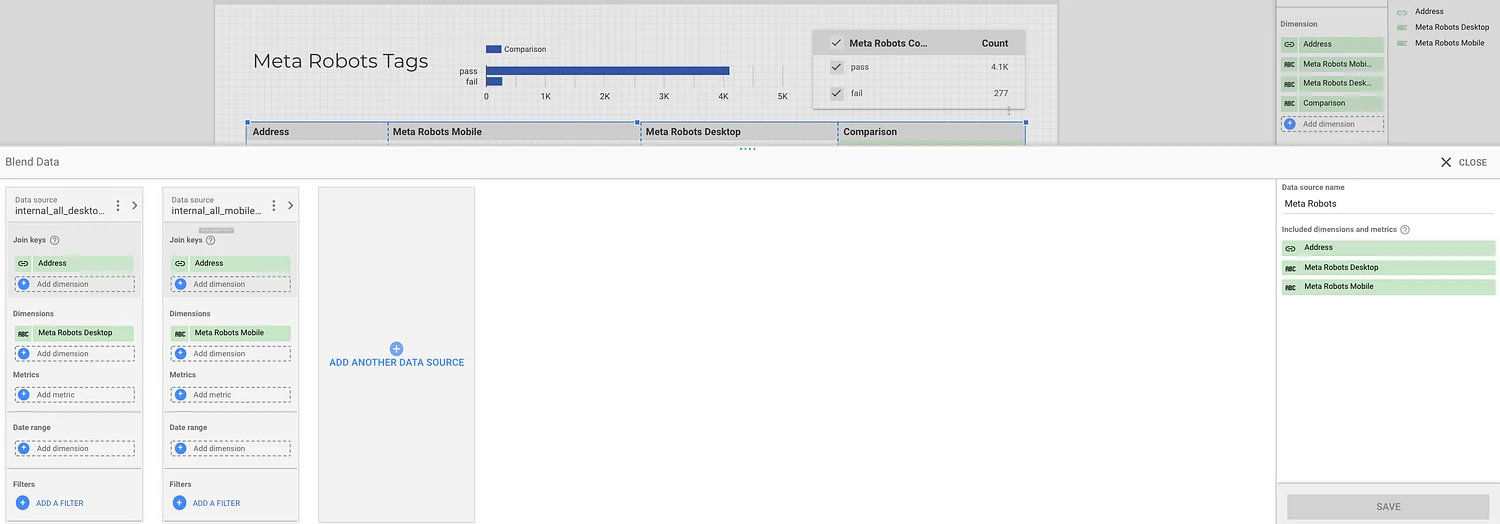
Then create a table showing the three fields side by side: the join key (the address) and the two fields (the mobile and desktop values).
Now add a “Comparison” dimension. This is where the CASE formula comes in. Select the table, click Add dimension › Create field, and use this format:
CASE
  WHEN Dimension 1 = Dimension 2 THEN "text"
  ELSE "other text"
END
In our case, the formula looks like this:
CASE
  WHEN Meta Robots Mobile = Meta Robots Desktop THEN "pass"
  ELSE "fail"
END
It compares the two fields and returns the text you set for each condition. It has to be a chart-specific field: Google’s documentation says data source calculated fields can’t be used with blended data, and a field inside one blend table can only see that table’s fields.
To count passes and fails, use Record Count as the metric, or add the Comparison field as a metric and change its aggregation from Count Distinct (which only ever shows 2) to Count. A fixed-size list control on the field lets users filter the table.

There are some limits to blending data and creating a custom dimension on a blend:
- A blend can join at most five tables.
- The comparison field exists only in the chart you create it in. To reuse it, copy the chart.
- You can’t point a filter control at a chart-specific field on a blend (this is reported by users rather than stated by Google). Build the condition into the CASE instead, as below.
If you want rows where both crawls are empty to count as a pass, add an IS NULL condition joined with AND:
CASE
  WHEN Meta Robots Mobile IS NULL AND Meta Robots Desktop IS NULL THEN "pass"
  WHEN Meta Robots Mobile = Meta Robots Desktop THEN "pass"
  ELSE "fail"
END
Without that first line, two blanks fall through to “fail”, because comparing null with null isn’t true.
9. Build a QoQ or YoY report with date-limited blend tables
Another use of this kind of blend is year-over-year or quarter-over-quarter reporting, explained in this sample report by Nimantha. It’s the same idea, except you blend four or five copies of one data source and limit each table to its own date range in the blend settings.
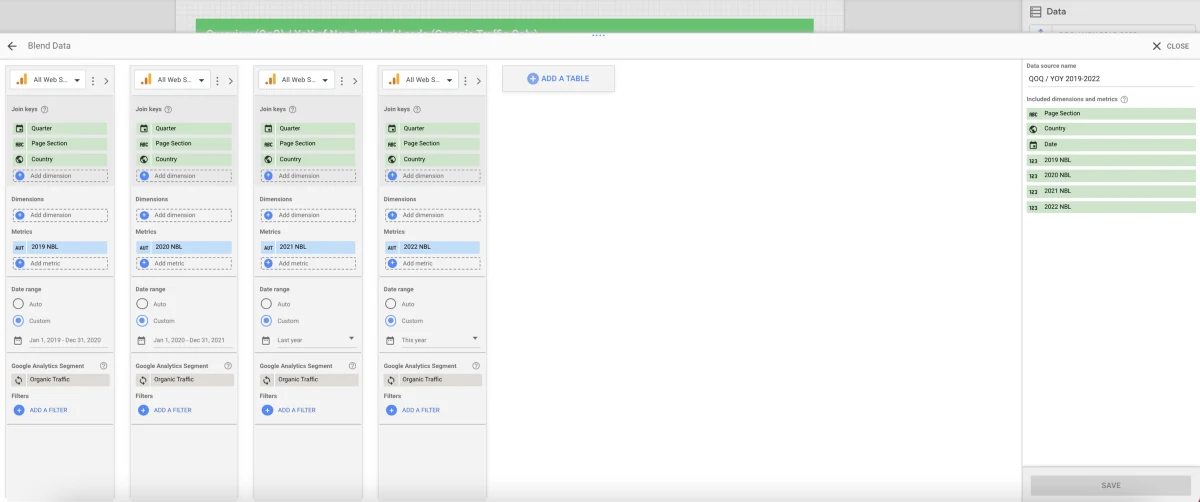
The end result can be a pivot table showing the year-over-year difference in quarterly performance, combined here with the page section breakdown from formula 4.
When you don’t need a blend now: for “vs previous period” or “vs last year”, charts have a comparison date range built in. The blend is still the way to show three or four years side by side.
10. Split keywords into branded and non-branded
This is a useful formula to have for any data source with a keyword or query field, not only search or website analytics. It’s also handy in keyword research, to separate navigational queries from the rest.
Make sure to include every brand name variation, misspellings included. Replace Query with Search Console’s Query, a Google Ads keyword, or GA4’s Session manual term.
CASE
  WHEN REGEXP_CONTAINS(Query, R"(?i)brandname|brand name|brnadname") THEN "Branded"
  WHEN REGEXP_CONTAINS(Query, R"\((not provided|not set|unavailable)\)") THEN "Not specified"
  ELSE "Non-Branded"
END
What I fixed: the 2022 version had brand^ in it. ^ means “start of the value”, so after other characters it can never match; if you meant “starts with”, write ^brand. I also escaped the brackets around “(not set)”, added (?i) so capitals don’t matter, and swapped the old Multi-Channel Funnels keyword field, which went with Universal Analytics in 2023.
It’s the first field I add after connecting Search Console.
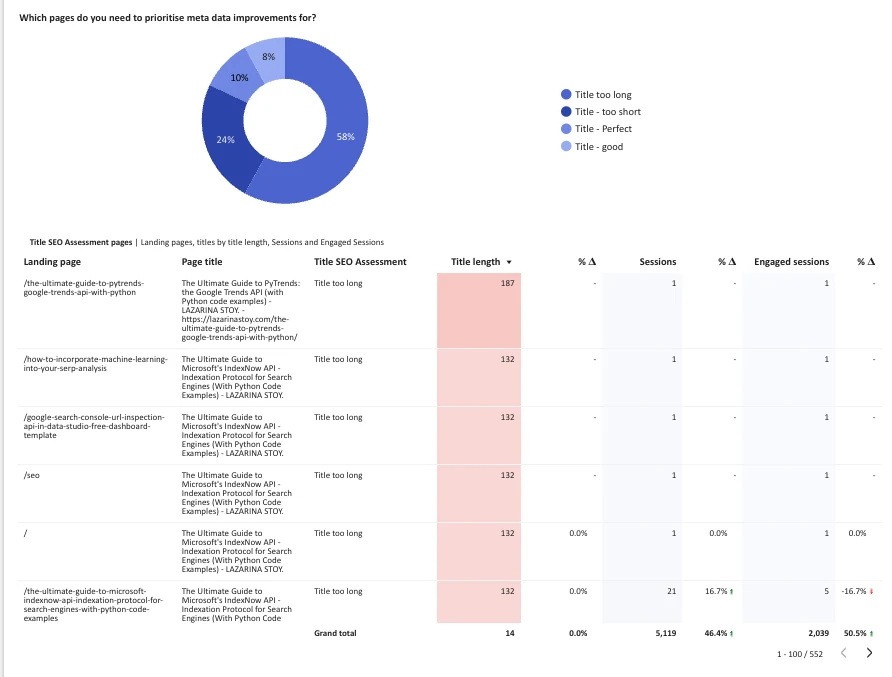
11. Label titles, meta descriptions and H1s by length

This view uses three fields. The first is the title tag evaluation:
CASE
  WHEN Title Length >= 50 AND Title Length <= 60 THEN "Title - Perfect"
  WHEN Title Length >= 40 AND Title Length <= 50 THEN "Title - good"
  WHEN Title Length < 40 THEN "Title - too short"
  WHEN Title Length > 60 THEN "Title too long"
END
In GA4, where there’s no length field, wrap the page title in LENGTH:
CASE
  WHEN LENGTH(Page title) >= 50 AND LENGTH(Page title) <= 60 THEN "Title - Perfect"
  WHEN LENGTH(Page title) >= 40 AND LENGTH(Page title) <= 50 THEN "Title - good"
  WHEN LENGTH(Page title) < 40 THEN "Title - too short"
  WHEN LENGTH(Page title) > 60 THEN "Title too long"
END
A title of exactly 50 characters matches the first two lines; CASE takes the first, so it’s “Perfect”. Here’s the view this can give you:
The H1 evaluation:
CASE
  WHEN H1 Length >= 50 AND H1 Length <= 60 THEN "H1 - Perfect"
  WHEN H1 Length >= 40 AND H1 Length <= 50 THEN "H1 - good"
  WHEN H1 Length < 40 THEN "H1 - too short"
  WHEN H1 Length > 60 THEN "H1 - too long"
END
And the meta description evaluation:
CASE
  WHEN Meta Description Length >= 150 AND Meta Description Length <= 160 THEN "MD - Perfect"
  WHEN Meta Description Length >= 140 AND Meta Description Length <= 150 THEN "MD - good"
  WHEN Meta Description Length < 140 THEN "MD - too short"
  WHEN Meta Description Length > 160 THEN "MD - too long"
END
These fields are very useful once a technical crawl is in your report: Sitebulb, Oncrawl and Screaming Frog exports usually include the length fields. The ranges are my rules of thumb, not Google limits.
You get a quick, holistic view of the on-page opportunities, and with controls and tables you can deep-dive into the individual “offending pages” and export every URL with a title, H1 or meta description that’s too long or too short.
12. Create custom categories for traffic type and country
You can do this with a CASE statement and a logical AND. It’s useful for executive-level reporting, and for page-level or report-level filters on your most important markets. In GA4, the fields are Country ID (the two-letter ISO code) and Session medium:
CASE
  WHEN Country ID = "US" AND Session medium = "cpc" THEN "US - Paid"
  ELSE "other"
END
This is Google’s own CASE example, which still uses the Universal Analytics names Country ISO Code and Medium. Those don’t exist on GA4.
13. Show free versus paid traffic
A field that separates traffic you’ve paid for, like CPC, from everything else. Google’s documentation gives the simplest version, a check for inequality:
CASE
  WHEN Session medium != "cpc" THEN "free"
  ELSE "paid"
END
Of course, this can be more granular. Paid traffic arrives with more mediums than “cpc”, so for GA4 I now use the same pattern GA4’s own default channel groups use to decide what’s paid:
CASE
  WHEN REGEXP_MATCH(Session medium, "^(.*cp.*|ppc|retargeting|paid.*)$") THEN "paid"
  ELSE "free"
END
Written this way round, a row with no medium falls to the ELSE as “free” instead of being counted as “paid”. If GA4’s own groupings are enough, Session default channel group already splits Paid Search, Paid Social and the rest.
14. Classify numeric values into discrete buckets
This field is super useful for building user personas from purchase value in an ecommerce store. Once you have buckets, you can filter behaviour and acquisition data for each segment and make better decisions about targeting.
CASE
  WHEN Amount < 20 THEN "Small"
  WHEN Amount >= 20 AND Amount < 100 THEN "Medium"
  WHEN Amount >= 100 THEN "Large"
END
This works where Amount is a value on each row: an orders export in Google Sheets, BigQuery or a Shopify connector. On GA4, Purchase revenue is an aggregated metric, so this CASE gives you a metric too, not a segment you can filter by (rule 5 above). For row-level data, a Bin field with custom breakpoints at 20 and 100 does the same thing without a formula.
15. Label YouTube videos by title and length
This one uses a regular expression match with a logical AND/OR. It assumes a data source with the video title, a livestream flag and the length in seconds, such as a YouTube Data API export in Google Sheets; the field names will differ in yours.
CASE
  WHEN REGEXP_MATCH(Video Title, ".*Google Analytics.*")
       AND (is_livestream = TRUE OR Video Length > 600)
  THEN "GA Livestream or long video"
END
What I fixed: the pattern was ".*Google Analytics*", where the final * applies only to the “s”, so it only matched titles ending in “Google Analytic” or “Google Analytics” (REGEXP_MATCH needs the whole value to match). It’s now .*Google Analytics.*. I’ve also added brackets. Google’s operators page says to use them to force the order, and without them the usual rule (AND before OR) meant any video longer than ten minutes got the label whatever its title.
16. Evaluate a target with a parameter
This one evaluates a metric against a target you set. Say you’re running a campaign whose aim is conversions: create a number parameter for the target, then compare the recorded key events with it.
- In the data source or the report’s Data panel, click Add a parameter, set the data type to Number, call it “Target key events” and give it a default value.
- Create a calculated field with the formula below.
- To let viewers change the target, add a control to the report that uses the parameter.
CASE
  WHEN Key events >= Target key events THEN 1
  ELSE 0
END
GA4 renamed conversions to “key events”; on Google Ads use Conversions. The 1/0 result works well with conditional formatting, or swap in “On target” and “Below target”.
17. Create a landing page field to blend GA4 and Search Console data
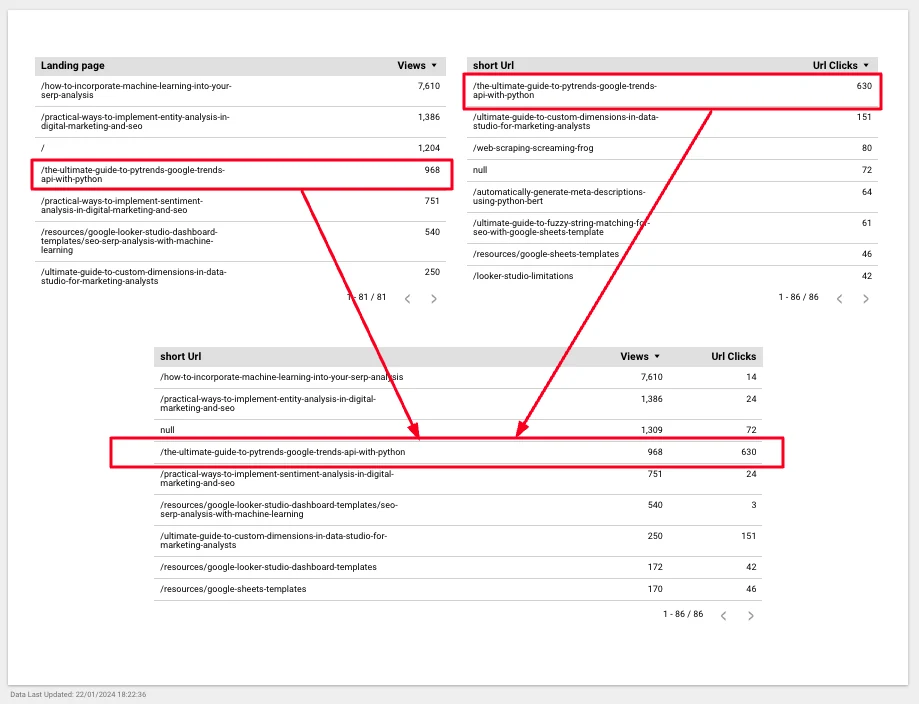
To blend GA4 with Search Console, the landing pages have to match, and they don’t by default: Search Console gives full URLs, GA4 gives paths. There are two ways to make a join key.
Option A: add the domain to the GA4 path. GA4’s Landing page is the path of the first page in a session, for example /how-to-incorporate-machine-learning-into-your-serp-analysis/. Prepend your domain:
CONCAT("https://www.yoursite.com", Landing page)Use your domain exactly as Search Console shows it. For several hostnames, use GA4’s Hostname; CONCAT now takes more than two arguments:
CONCAT("https://", Hostname, Landing page)Option B: extract the path from Search Console’s full URL. Search Console gives landing pages as full URLs, such as https://www.mlforseo.com/machine-learning-implementation-guides/keyword-research/pytrends-google-trends-api-python/. This keeps everything after the domain and before any ? or #:
REGEXP_EXTRACT(Landing Page, R"^https?://[^/]+(/[^?#]*)")What I fixed: the 2022 pattern needed at least one character after the slash, so the homepage came back null and dropped out of the join. I also used to strip the trailing slash on the assumption that GA4 stores paths without one. GA4 records the path as it was requested, so whether it ends in a slash depends on your site. Check a few rows on both sides, and if they differ, strip the slash from both so they always match:
REGEXP_REPLACE(Landing page, "/$", "")Wrap the Search Console extraction the same way. Then create each key inside its own table in the blend (Add dimension › Create field in the blend editor), and join on it.
What I changed from the 2022 versions
If you copied any of these from my 2022 guide, this is what to update. Everything else is as it was.
| # | 2022 version | Problem | Now |
|---|---|---|---|
| 2 | ^https:// |
http URLs return null | ^https?://, and a ^ anchor on the path version |
| 3 | Regex on rank text | [21-50] and [51-100]* mislabel ranks 21–100 |
CAST to number and <=, or a Bin field |
| 3b | No ELSE | Positions past 20 blank | ELSE label added |
| 4 | No END | Formula won’t save | END added |
| 6 | Trailing |, shared terms, no boundaries |
Everything left over became “Localised – US”; Commercial rarely reached | Pipe removed, one bucket per term, \b and (?i), ELSE |
| 7 | DATE_DIFF |
Legacy: compatibility-mode dates only | DATETIME_DIFF(…, DAY) |
| 10 | brand^, MCF keyword |
Dead alternative; UA field retired | (?i), escaped brackets, GA4 fields |
| 12–13 | UA field names | Fields don’t exist on GA4 | Country ID, Session medium; paid regex from GA4’s channel rules |
| 13–16 | Missing spaces (WHENMedium) |
Syntax errors | Spaces restored |
| 15 | Analytics*, no brackets |
Pattern and AND/OR precedence | .*Google Analytics.*, brackets |
| 16 | Conversions | Renamed in GA4 | Key events and a number parameter |
| 17 | (/[^?#]+), slash stripped on one side |
Homepage null; slash mismatch | (/[^?#]*), normalise both sides |
Universal Analytics names to swap if you’re moving an old report to GA4:
| Universal Analytics field | GA4 field | Used in |
|---|---|---|
| Medium | Session medium | 12, 13 |
| Country ISO Code | Country ID | 12 |
| Goal completions / Conversions | Key events | 16 |
| Keyword (Multi-Channel Funnels) | Session manual term, or Session Google Ads keyword text | 10 |
| Landing Page | Landing page (path only), or Landing page + query string | 2, 17 |
Templates to try these formulas on
Try formulas 3b, 4, 6 and 10 on a copy of one of these:
Further reading
- Google’s Data Studio function list, with a page per function
- Regular expressions in Data Studio, Google’s guide to the RE2 rules
- About calculated fields, Google’s overview, including blends
- The SQL CASE statement (W3Schools) and Mode’s CASE tutorial, if you want the SQL background
- My Weekly SEO video on reporting automation tips for SEOs
- Useful calculated fields and functions (datastudio.ca)
Where to go next
- Connect Search Console to Data Studio: the source for formulas 3b, 6 and 10
- Connect GA4 to Data Studio, including adding Search Console alongside it
- Filter controls in Data Studio: putting these fields in front of your readers
- Date range controls and comparison ranges
- Data source vs dataset: where a calculated field lives and who can edit it
Frequently asked questions
How do I create a custom dimension in Data Studio?
Open the data source (or the Data panel in a report), click Add a field, then Add calculated field. Name it, write the formula and save. For a field that only one chart needs, use Add dimension › Create field in that chart’s Setup tab.
What are calculated fields in Data Studio?
Fields you create by applying functions, operators or branching logic such as CASE to your data. A calculated field becomes a dimension or a metric depending on what the formula returns.
How do I find which fields are custom?
Calculated fields, groups and bins show an fx symbol next to their name in the data source’s field list. Click it to open the formula.
What is the CASE statement?
CASE checks conditions in order and returns the result of the first one that’s true, like an if-then-else. If none is true, it returns the ELSE value, or null when there’s no ELSE. The format is CASE WHEN condition THEN result [WHEN … THEN …] [ELSE result] END.
What can a CASE formula do in a marketing report?
Relabel values so readers understand them (“P1” becomes “Phase 1: Exploration”), add context (queries containing the brand become “Branded”), tag values that meet a condition (URLs containing /fr/ become “French”), create a dimension to filter on that doesn’t exist in the source (page section), and match a client’s own reporting structure, such as custom quarters.
Some links in this post are affiliate links: if you sign up through one, I may earn a commission at no extra cost to you. How I work with partners.