
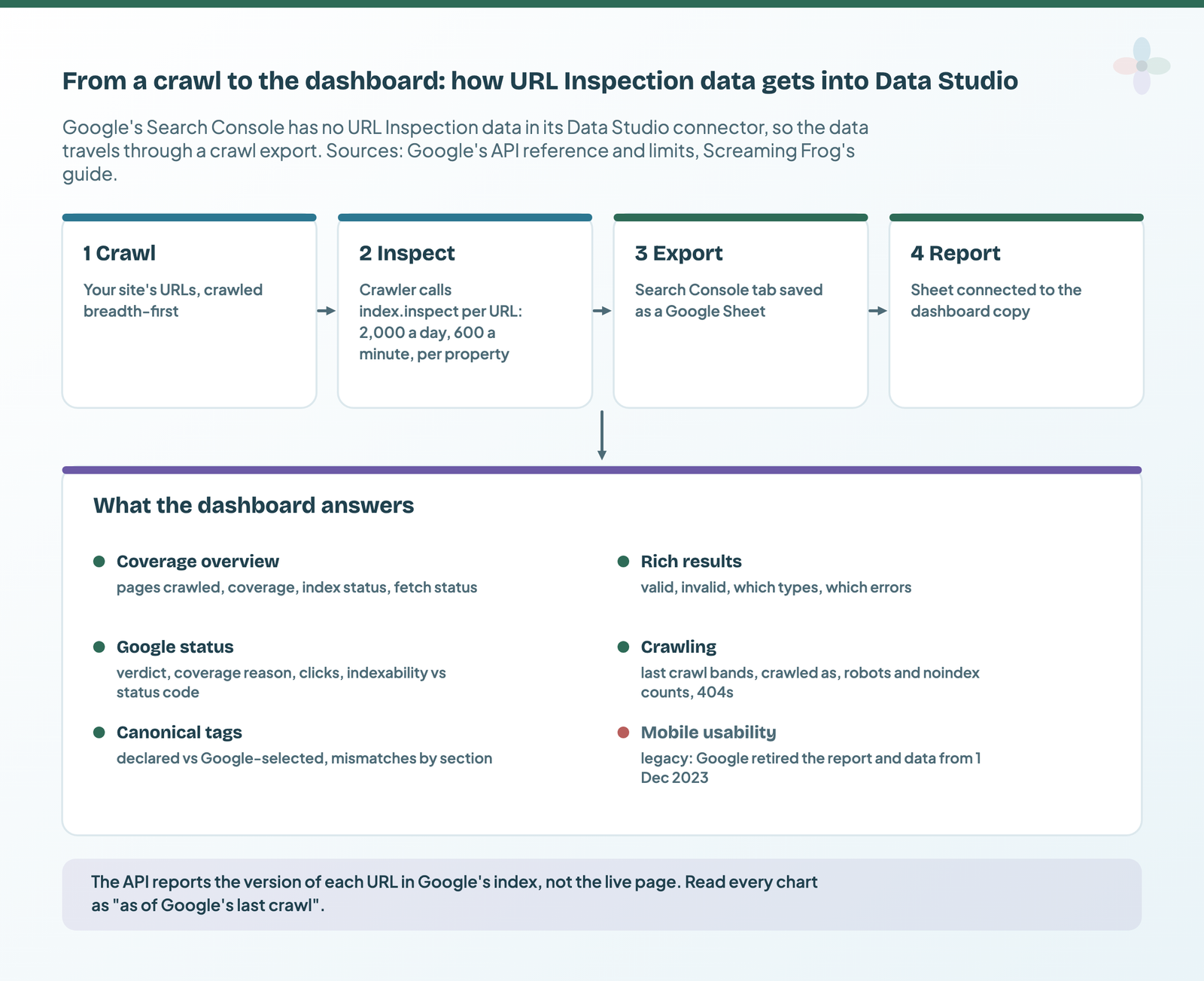
Google’s Search Console connector for Data Studio (formerly Looker Studio) doesn’t include URL Inspection data, so the way to report on it is to crawl your site with the URL Inspection API switched on (in Screaming Frog or a similar tool), export the results to Google Sheets, and connect that Sheet to a dashboard. I built a free one for exactly this, and this tutorial walks through the API, the setup and how to read every section.
This covers:
- what the URL Inspection API returns, its quotas, and what has changed since it launched
- the tools that pull the data for you
- how to set up my URL Inspection API Explorer dashboard, including the custom fields, fixed for 2026
- how to interpret each section, and how to answer the questions stakeholders actually ask
Google released the Search Console URL Inspection API on 31 January 2022, announcing it on the Google Search Central blog, and I built the dashboard in the week after. I first published this tutorial on lazarinastoy.com that February. Two things have changed since: Google retired mobile usability data in December 2023, and two of my custom fields needed fixing. Both are marked below. API details are from Google’s reference and usage limits pages, read 22 October 2026.
What the URL Inspection API gives you
The URL Inspection API returns what Search Console’s URL Inspection tool shows for a single URL: whether it’s indexed, why or why not, when Google last crawled it, which canonical Google chose, and which rich results it found. It contains a number of fields and parameters that help with the technical reporting of site health, and its JSON responses are easy to reshape for visualisation afterwards.
It uses one method, index.inspect: a POST request to https://searchconsole.googleapis.com/v1/urlInspection/index:inspect. You need two parameters: the URL you’d like to inspect, and the URL of the property as defined in Search Console. The request body looks like this:
{
  "inspectionUrl": "https://www.example.com/blog/post/",
  "siteUrl": "https://www.example.com/",
  "languageCode": "en-US"
}siteUrltakes a URL-prefix property with its trailing slash (https://www.example.com/) or a Domain property (sc-domain:example.com). The inspected URL must sit under it.languageCodeis optional and only changes the language of issue messages. The default isen-US.- The request needs OAuth with the
webmastersorwebmasters.readonlyscope, and the account needs access to the property.
What comes back
| Part of the response | What it tells you | Fields you’ll report on |
|---|---|---|
| indexStatusResult | Index status of the version in Google’s index | verdict, coverageState, robotsTxtState, indexingState, pageFetchState, lastCrawlTime, crawledAs, googleCanonical, userCanonical, sitemap, referringUrls |
| richResultsResult | Structured data Google detected, and its issues (absent if none) | verdict, detected items by type, issues with severity |
| ampResult | AMP validity (absent if the page isn’t AMP) | verdict, issues, AMP index status |
| mobileUsabilityResult | Deprecated: see below | verdict, issues (legacy) |
| inspectionResultLink | A link to the same URL in Search Console’s inspection tool | handy as a clickable column |
From Google’s UrlInspectionResult reference, read 22 October 2026.
A few values are worth knowing by name. verdict is PASS (valid), NEUTRAL (excluded), FAIL (error) or, in older data, PARTIAL, which Google says is no longer used. pageFetchState separates a soft 404, a real 404, a 401, a 403, a server error and a redirect error. crawledAs is DESKTOP or MOBILE.
Exclusion: presently only the status of the version in the Google index is available; you can’t test the indexability of a live URL through the API.
Quota limits
The quota is enforced per Search Console website property (calls querying the same site), and per Google Cloud project:
| Quota | Per day | Per minute |
|---|---|---|
| Per site (calls inspecting the same property) | 2,000 | 600 |
| Per project (calls made with the same Cloud project key) | 10,000,000 | 15,000 |
From Google’s Search Console API usage limits, read 22 October 2026. Unchanged per site since launch.
In practice it’s the 2,000 a day per property that shapes your crawl. If you have more URLs than that, inspect the templates and sections that matter most, spread the work over several days, or (where they exist) use more specific properties: a URL-prefix property for a subfolder has its own quota.
What changed since 2022: mobile usability is gone
In April 2023 Google announced that, starting 1 December 2023, it would retire Search Console’s Mobile Usability report, the Mobile-Friendly Test tool and the Mobile-Friendly Test API. The API reference now marks mobileUsabilityResult as deprecated.
For a dashboard built in 2022, that means two things:
- Some crawlers still list mobile usability columns in their URL Inspection output (Screaming Frog’s guide still describes them). Treat them as legacy: don’t read an empty or unchanged column as “no issues”.
- My dashboard’s Mobile Usability section is now best used on crawls from before December 2023, or repurposed (I suggest a Core Web Vitals or PageSpeed view below).
Google was clear that mobile usability still matters for users; it pointed to other tools, including Chrome’s Lighthouse. If you crawl with Screaming Frog, its PageSpeed Insights integration pulls Lighthouse data during the same crawl.
Ways to pull the data from the URL Inspection API
If you have already read Aleyda Solis’ article on the tools you can use with this API, feel free to skip this section. Here’s a summary of the free tools I listed in 2022, rechecked in October 2026, but do check Aleyda’s article for a detailed review of all of these tools (and more!):
| Tool | By | What it is | Gets data into a Sheet? |
|---|---|---|---|
| Google Bulk Inspect URLs | Valentin Pletzer | Free online tool | Download, then import |
| MyDomain.Dev | Lino Uruñuela | Free online tool; now a wider set of Search Console data tools | Download, then import |
| URL Inspection API in Sheets | Mike Richardson | Google Sheets template using Apps Script | Yes, directly: connect it straight to Data Studio |
| Screaming Frog SEO Spider | Screaming Frog | Crawler; URL Inspection alongside the crawl | Yes, export to Google Sheets |
| Sitebulb | Sitebulb | Another SEO crawler | Export |
| Google Index Inspection API Node.js script | Jose Luis Hernando | A JavaScript script | CSV output, then import |
| Google URL Inspection API with Python | Jean-Christophe Chouinard | A Python script | Your own export |
All pages loaded on 22 October 2026. MyDomain.Dev’s signed-out page no longer names URL Inspection, so check it still offers the export before you rely on it.
One newer route: some Search Console MCP servers include a URL inspection tool (see my guide to Search Console MCP servers). For a dashboard, a crawl export is still simpler, because it brings the crawl data along with it.
How to set up Data Studio reporting for the URL Inspection API (free dashboard)
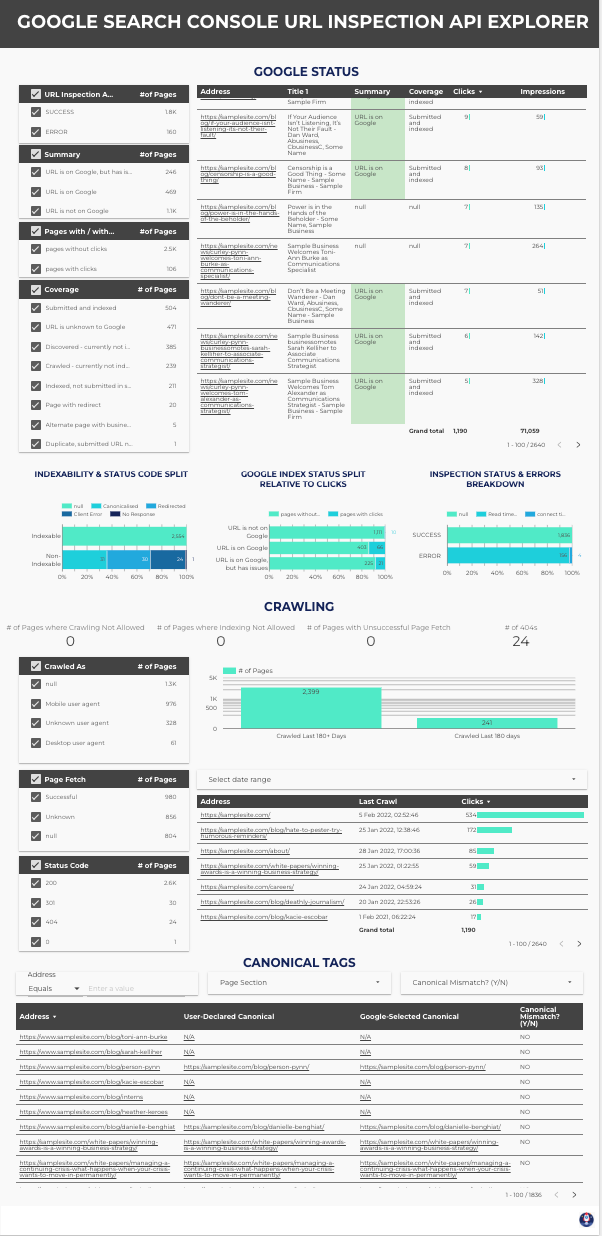
Here’s the dashboard, the Google Search Console URL Inspection API Explorer. It’s free to copy, two pages long, and built on a Screaming Frog export. The sections are Coverage Overview, Mobile Usability Issues, Rich Result Snippet Issues, Google Status, Crawling, and Canonical Tags.
1. Crawl your website with URL Inspection switched on
For my dashboard, I used an export from my beloved tool Screaming Frog. To replicate my data source, run a crawl of your site with URL Inspection enabled:
- Go to Configuration → API Access → Google Search Console and connect the Google account that has access to the property.
- Choose the property, then open the URL Inspection tab and tick Enable URL Inspection.
- Optional: tick Ignore Non-Indexable URLs for URL Inspection to save quota for pages you want indexed, and Use Multiple Properties if you’ve verified several properties for the domain (Screaming Frog then uses the most specific one for each URL, which can take you past 2,000 URLs in one crawl).

Screaming Frog queries the first 2,000 HTML URLs it discovers, and it crawls breadth-first, so on a big site focus the crawl on the sections you care about, or use list mode with your key URLs.
2. Export the Search Console tab to Google Sheets
Run the crawl, go to the Search Console tab and click Export. Export the file as a Google Sheet in your connected Google Drive account. Export only this tab: it holds the URL Inspection columns alongside clicks and impressions from the Search Analytics API, and it’s the input the dashboard expects.

3. Copy the dashboard and connect your export
Open the template, make a copy, and when Data Studio asks for a data source, choose your exported Sheet through the Google Sheets connector (how to connect a Sheet). Keep the column headers exactly as Screaming Frog exported them, because the dashboard’s fields expect those names.
If you’re using a different tool, map its columns to Screaming Frog’s names (Address, Summary, Coverage, Last Crawl, Crawled As, Crawl Allowed, Page Fetch, Indexing Allowed, User-Declared Canonical, Google-Selected Canonical, Rich Results, Clicks) before you connect.
Notes on setting up: the custom fields and filters
Sometimes Data Studio malfunctions when a report is copied, specifically with custom fields, filters, or where filters are applied. I’ve written about the limitations of Data Studio before; to spare you, here is a summary of the custom fields and filters, and where they’re applied, to help you set up the dashboard.
| Custom field | What it does | Used in |
|---|---|---|
| Canonical Mismatch? (Y/N) | Flags URLs where Google chose a different canonical from the one you declared | Canonical Tags |
| Page Section | Groups URLs by site section, from patterns in the address | Coverage Overview, Canonical Tags |
| Pages with / without clicks | Splits URLs by whether they had any Search Console clicks | Coverage Overview, Google Status, Crawling |
| Crawl Frequency | Bands URLs by how long ago Google last crawled them | Crawling |
Canonical Mismatch? (Y/N), fixed
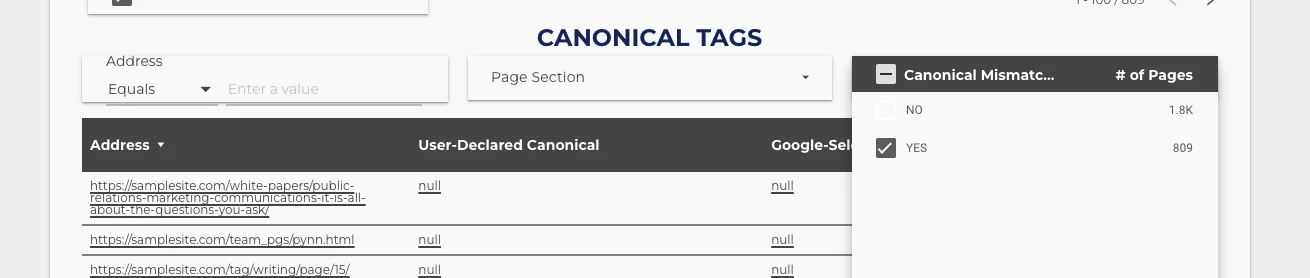
My 2022 version compared the two canonical columns and returned “NO” when they matched, “YES” otherwise. The catch: when either column is empty (no declared canonical, or a URL Google hasn’t indexed, so it has no Google-selected canonical), the comparison isn’t true, so the row fell through to “YES”. On my sample crawl, hundreds of URLs with two empty canonicals were flagged as mismatches. This version labels those separately:
CASE
  WHEN Google-Selected Canonical IS NULL OR Google-Selected Canonical = "" THEN "No Google canonical (not indexed)"
  WHEN User-Declared Canonical IS NULL OR User-Declared Canonical = "" THEN "No declared canonical"
  WHEN User-Declared Canonical = Google-Selected Canonical THEN "NO"
  ELSE "YES"
END
If your site mixes http and https, or trailing and non-trailing slashes, compare normalised versions (for example with LOWER and REGEXP_REPLACE on both sides) so a formatting difference doesn’t read as a mismatch.
Page Section
A CASE statement with REGEXP_CONTAINS on the Address, one line per section of your site (blog, white papers, careers, tag pages, pagination), with an “Unclassified” ELSE. Your sections will differ from mine, so the pattern to copy is in the page-section formula in my custom dimension formulas guide:
CASE
  WHEN REGEXP_CONTAINS(Address, "/blog/") THEN "Blog posts"
  WHEN REGEXP_CONTAINS(Address, "/tag/") THEN "Tag pages"
  WHEN REGEXP_CONTAINS(Address, "/page/[0-9]+") THEN "Paginated"
  ELSE "Unclassified"
END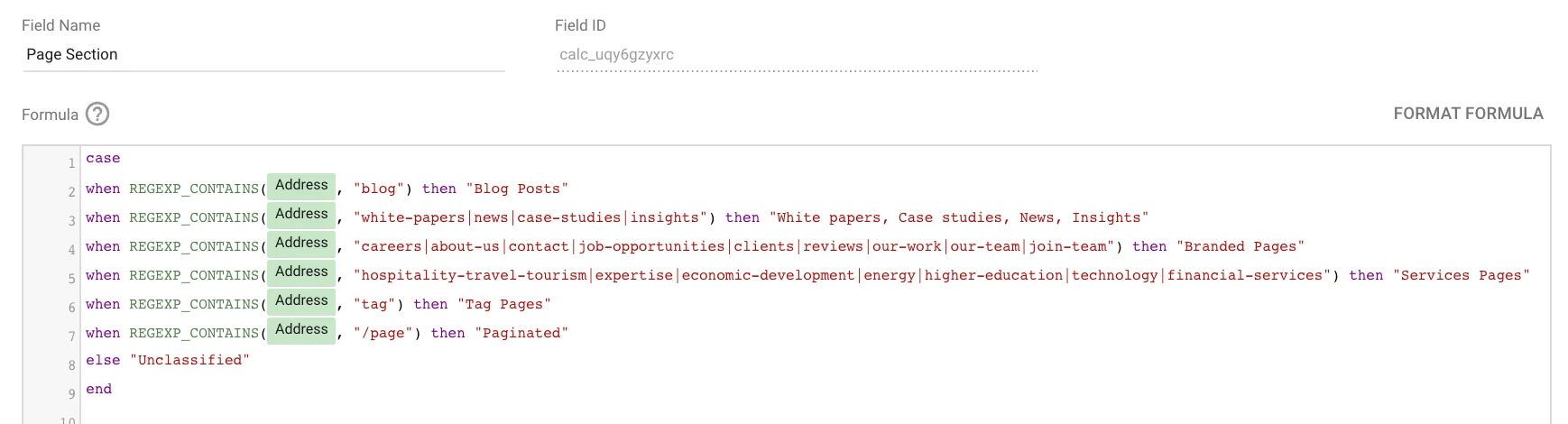
Pages with / without clicks
CASE
  WHEN Clicks > 0 THEN "pages with clicks"
  ELSE "pages without clicks"
END
URLs with no Search Analytics data have an empty Clicks value, which lands in “pages without clicks”. That’s usually what you want.
Crawl Frequency, updated
CASE
  WHEN DATETIME_DIFF(TODAY(), Last Crawl, DAY) < 30 THEN "Crawled Last 30 days"
  WHEN DATETIME_DIFF(TODAY(), Last Crawl, DAY) < 60 THEN "Crawled Last 60 days"
  WHEN DATETIME_DIFF(TODAY(), Last Crawl, DAY) < 90 THEN "Crawled Last 90 days"
  WHEN DATETIME_DIFF(TODAY(), Last Crawl, DAY) < 180 THEN "Crawled Last 180 days"
  ELSE "Crawled Last 180+ Days"
END
My 2022 field used DATE_DIFF, which Google now documents for old compatibility-mode dates only. DATETIME_DIFF needs Last Crawl to be a Date or Date & Time field, so check its type in the data source after connecting the export (crawl exports often arrive as text). Two more things: a URL Google never crawled has no Last Crawl, so it lands in the last band, and TODAY() uses UTC unless you pass a time zone. More on this formula in the frequency-bands formula.
Filters added in the report
- Exclude pages with no mobile usability issues (legacy: see above)
- Exclude pages with 0 clicks
- Exclude URLs with no summary
- Exclude rows where Inspection Status is null
- Crawling not allowed pages
- Indexing not allowed
- Page fetch unsuccessful
- Status code = 404
If a chart in your copy shows everything or nothing, check that its filter survived the copy and is pointed at your data source.
Data interpretation: Google’s disclaimers
Before I get to how to read the dashboard, here are a few important notes on interpreting URL Inspection data, from Google:
- This is not a live test. The data reflects the most recent crawl, not the live page. However, the information shown is what Google uses to evaluate Search results.
- “URL is on Google” doesn’t actually mean that your page is appearing in Search results. Appearing requires the page and its structured data to meet Google’s guidelines. The URL Inspection tool doesn’t take into account manual actions, content removals, or temporarily blocked URLs.
- URL not showing on Google, but the tool says it’s indexed? Explore this resource to find out why.
- The Last Crawl date shows when the information was retrieved (if the page was crawled successfully). It’s the primary crawler’s last visit.
Section breakdown: what each part of the dashboard shows
Now, on with the fun stuff: using the dashboard! Below, I go through what each section contains, with a few use cases.
Coverage Overview
In the Coverage Overview section, you get:
- how many pages were crawled, and the distribution of pages per section
- how many pages have a coverage status from the Inspection API, and the distribution of pages per status
- how many pages receive clicks
- how many pages have rich result issues, and the error breakdown
- how many pages have mobile usability issues (legacy, see above)
- a summary of index status (URL is on Google; URL is on Google, but has issues; URL is not on Google)
- a summary of crawl user agent: is your site crawled mostly by the mobile, desktop or an unknown agent?
- a summary of page fetch status: have the pages in the crawl been fetched successfully by Google?
- a summary of URL Inspection status: did any inspection calls return errors?
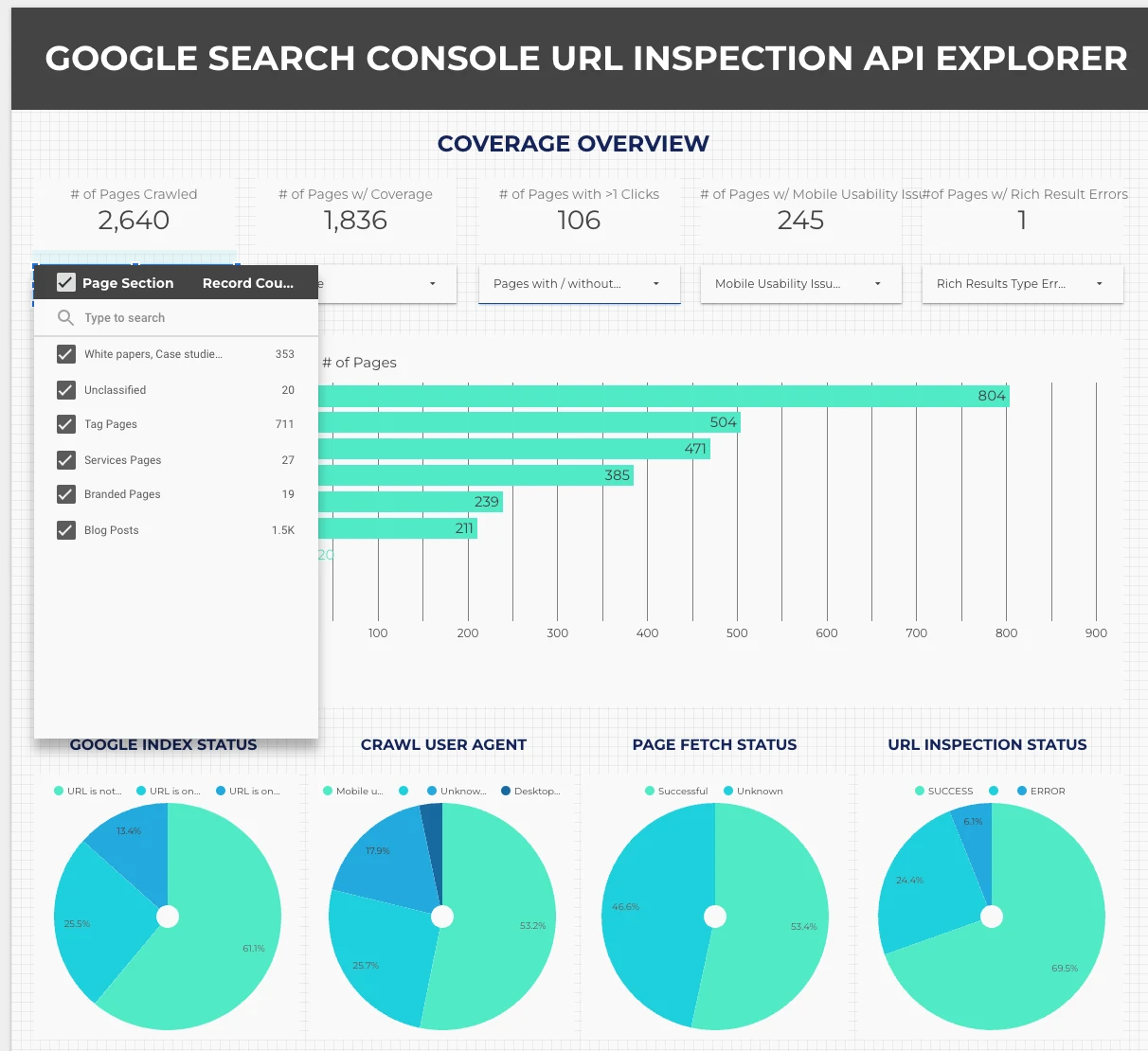
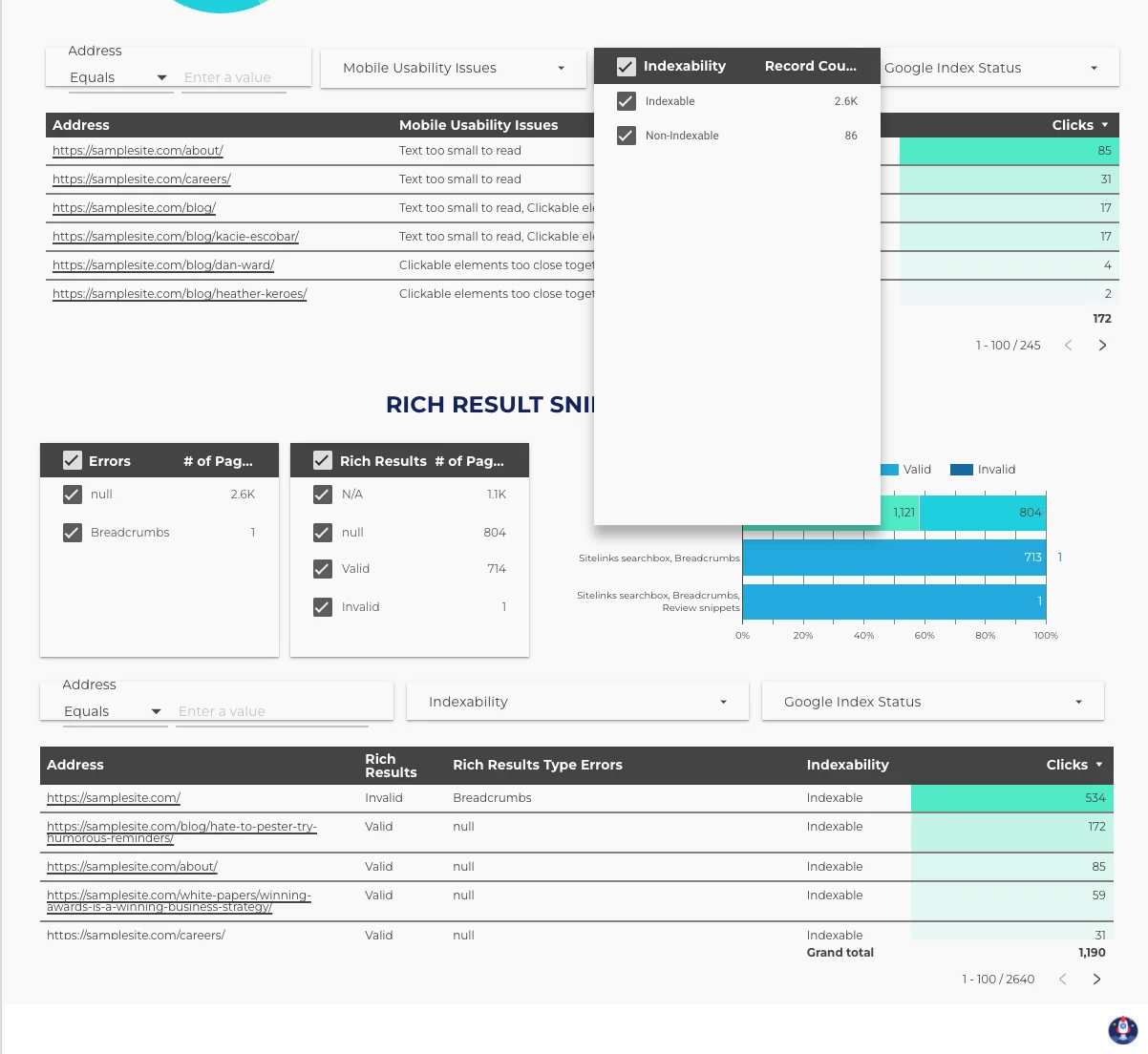
Mobile Usability Issues (legacy)
In 2022 this section gave an overview of whether pages were mobile-friendly, the main types of errors and how many pages triggered each, with filters for error type, indexability and Google index status to help prioritise fixes. With Google’s mobile usability data retired, I’d use this space for a Core Web Vitals or PageSpeed Insights view from the same crawl, or keep it only for crawls from before December 2023.
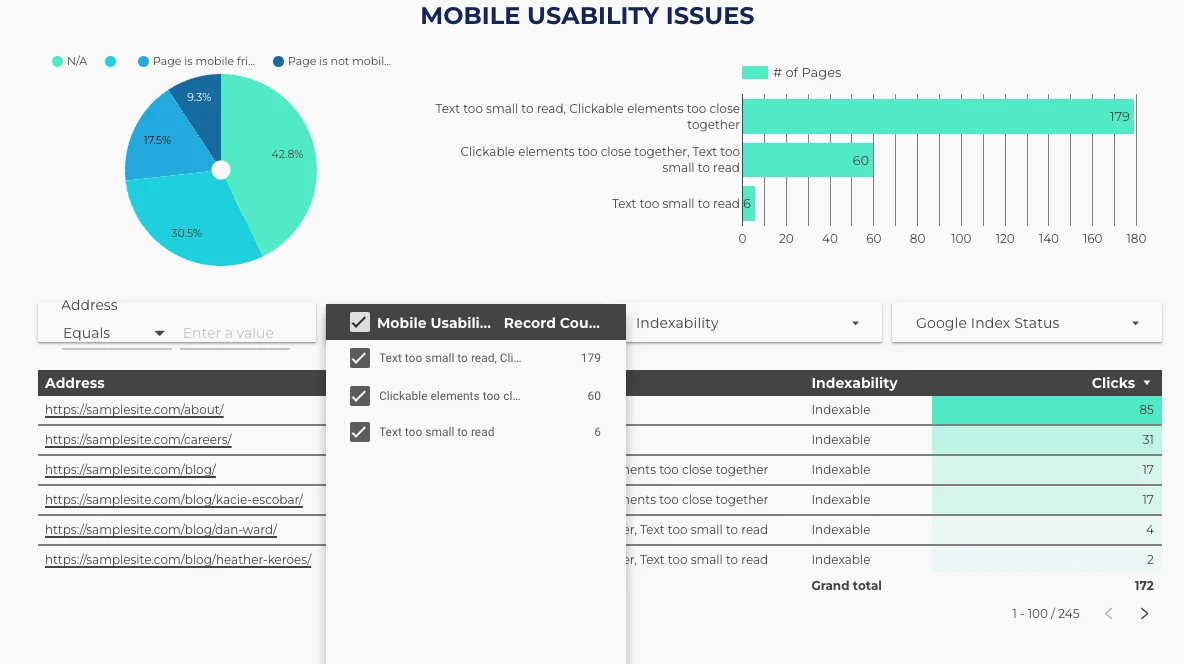
Rich Result Snippet Issues
In the Rich Result Snippet Issues section, you can:
- get an overview of the main errors related to rich results
- see the number of pages that are valid for rich results
- see the main schema types implemented
- filter and explore URLs by indexability, clicks and Google index status, to help with prioritising fixes
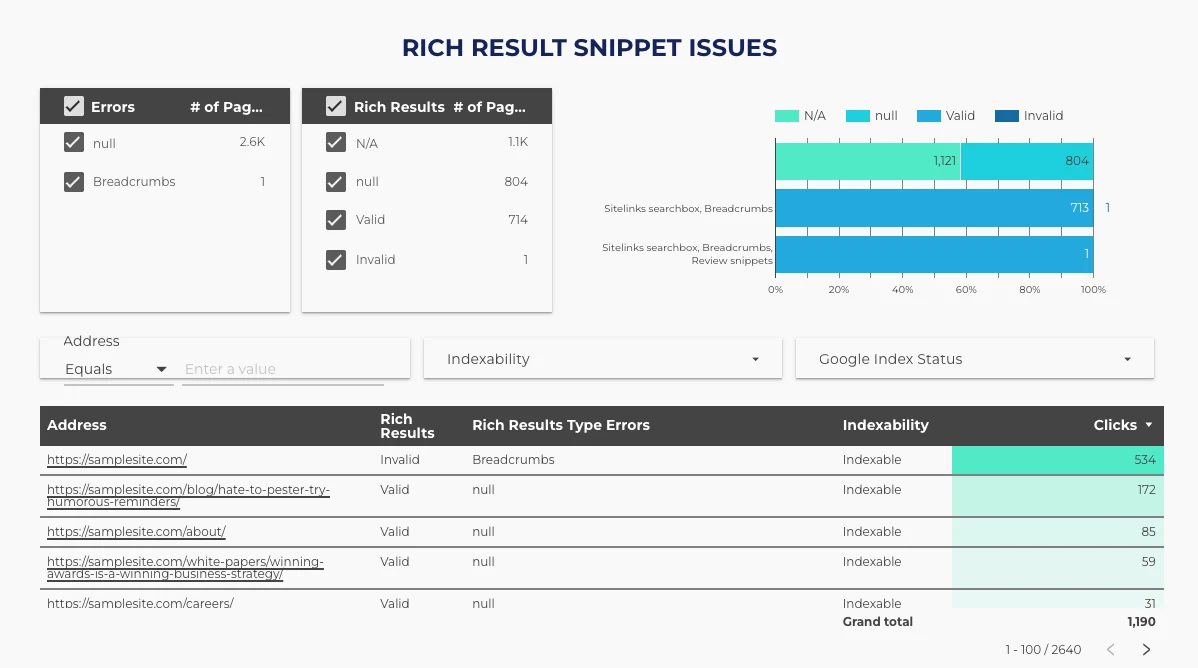
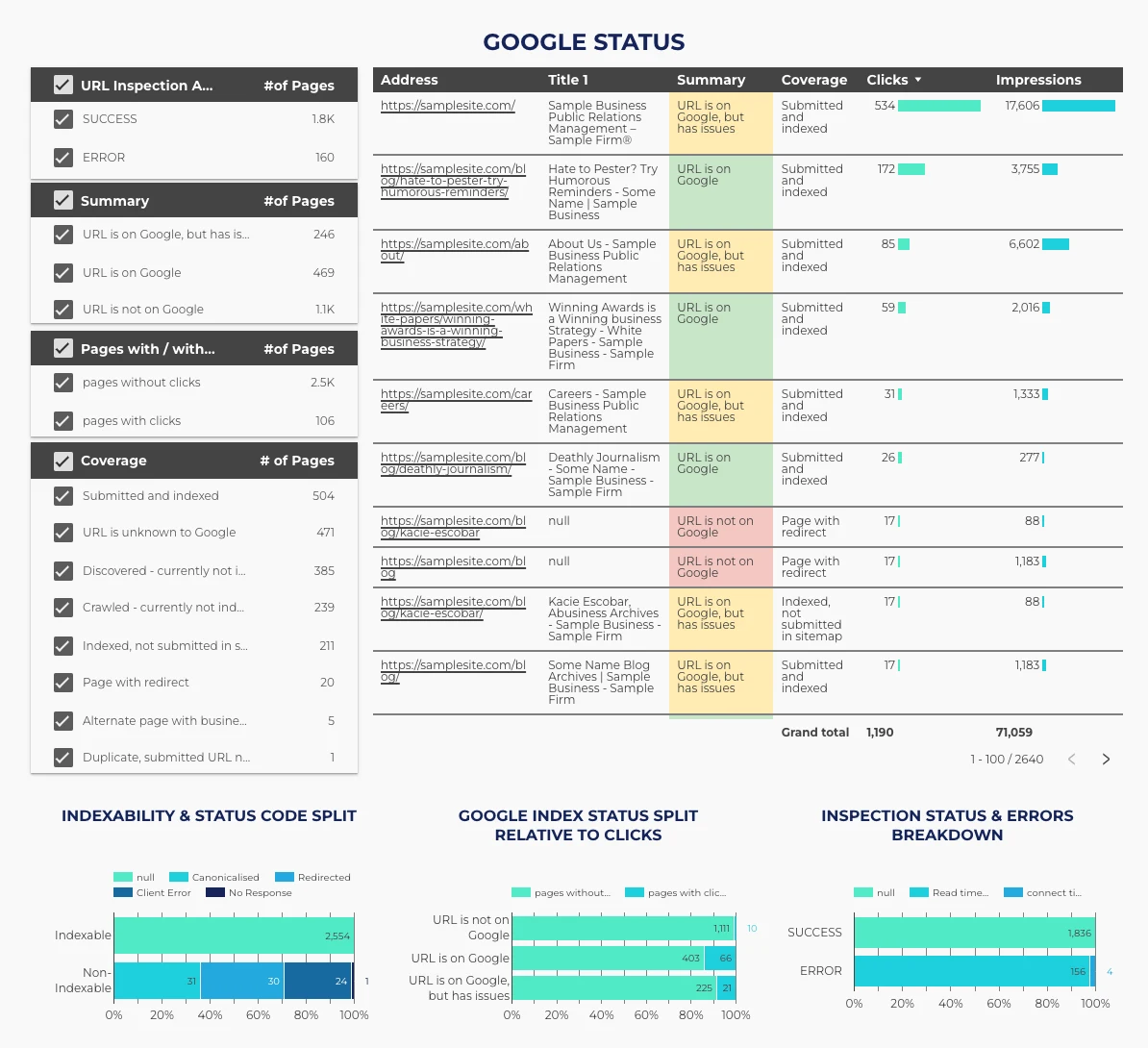
Google Status (page 2)
Page 2 of the dashboard covers indexability, canonicalisation and crawl behaviour. In the Google Status section you can:
- filter and explore URLs by URL Inspection status, summary, pages with or without clicks, and coverage, to get an idea of what kind of pages are on Google
- see the relationship between indexability and status code: are all the pages you declared indexable returning a 200?
- see the relationship between Google index status and clicks: are pages with issues receiving clicks? Prioritise their optimisation.
- see the relationship between inspection status and the error breakdown: when an inspection returns an error, what’s the reason? A read timeout, a connect timeout? Investigate.
Crawling
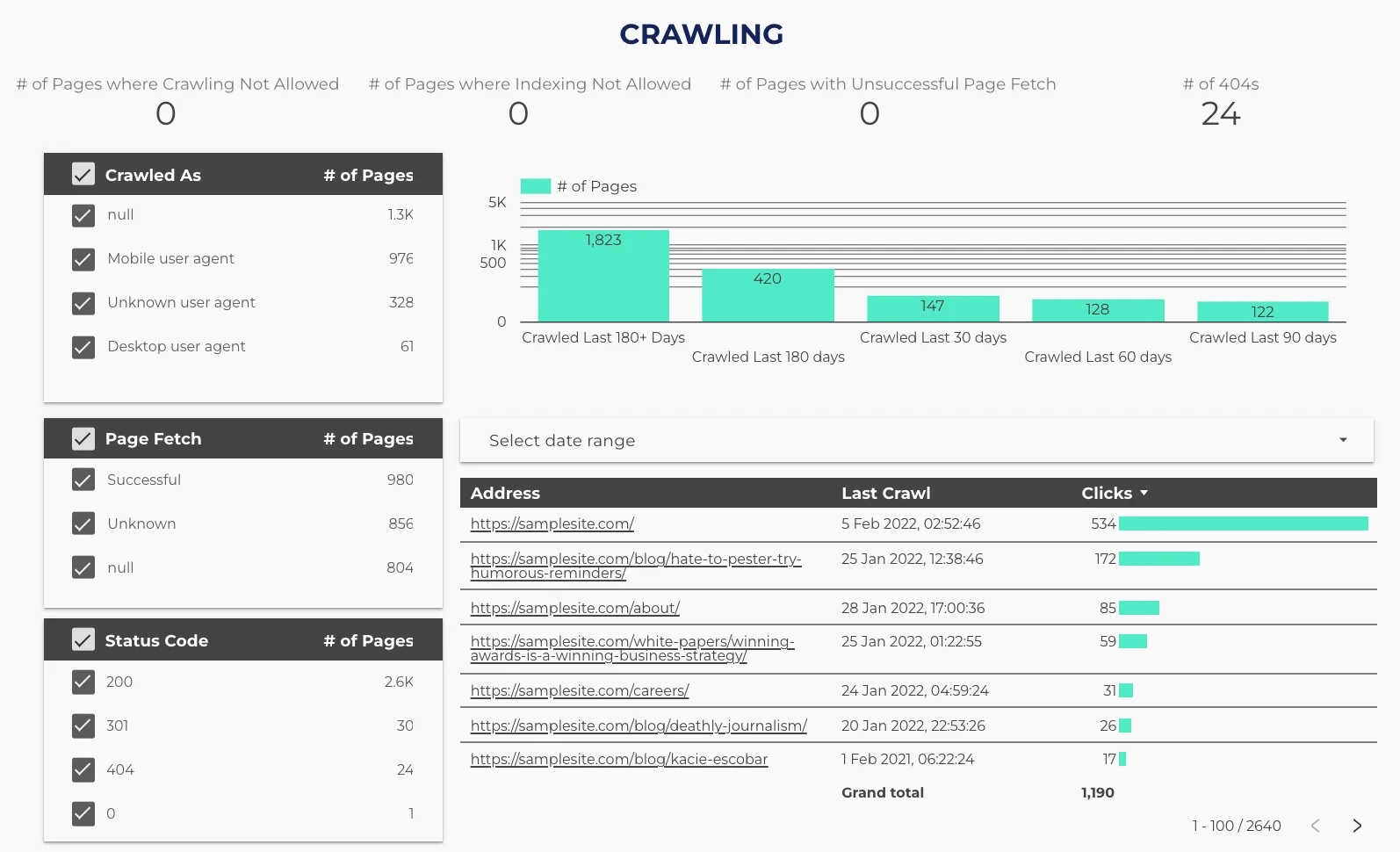
In the Crawling section, you can:
- get summary stats on the number of pages where crawling isn’t allowed, where indexing isn’t allowed, where the page fetch was unsuccessful, and the number of 404s
- filter URLs by the agent that crawled them (mobile, desktop, unknown) and look for patterns
- filter by last crawl date, with the date range control
- filter by page fetch status and by status code
- get an overview of crawling behaviour on the site: how recently were URLs crawled?
Canonical Tags
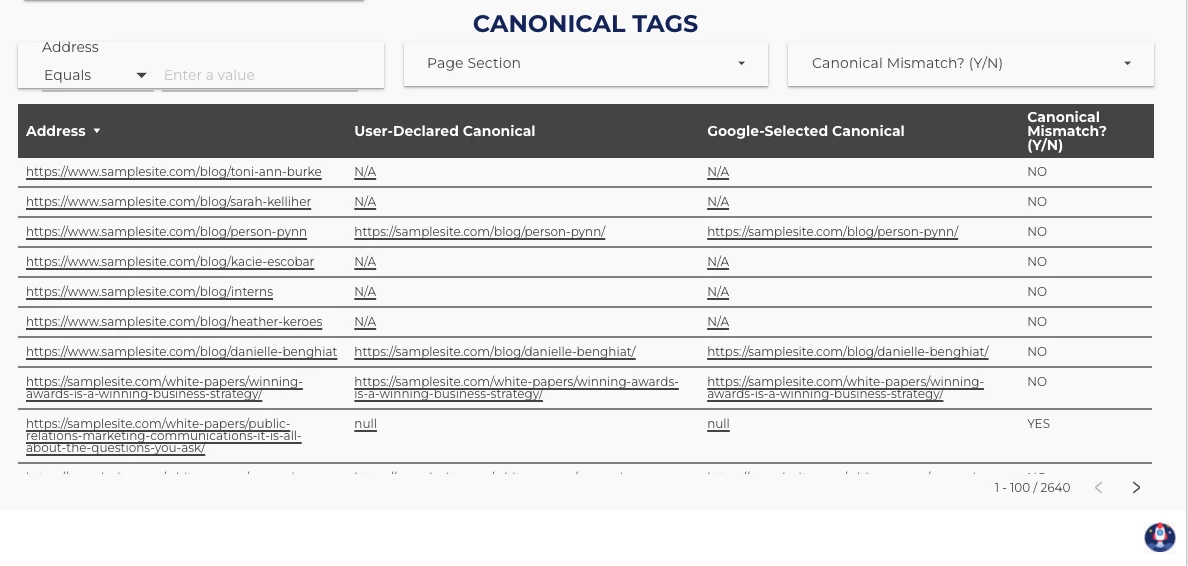
In the Canonical Tags section, you can check for mismatches between the canonical tags you declared and the ones Google selected. Combine it with the filters above the table (Page Section, Canonical Mismatch) to find patterns in any mistakes you might have made in declaring canonicals. With the fixed field, “YES” now means a real disagreement, not two empty cells.
Executive Q&A: answering stakeholder questions from the dashboard
In part inspired by Aleyda’s thread on the questions the URL Inspection API answers, this section shows where to find each answer in the dashboard, so you can handle these questions on client calls.
| Question | Where to look | How |
|---|---|---|
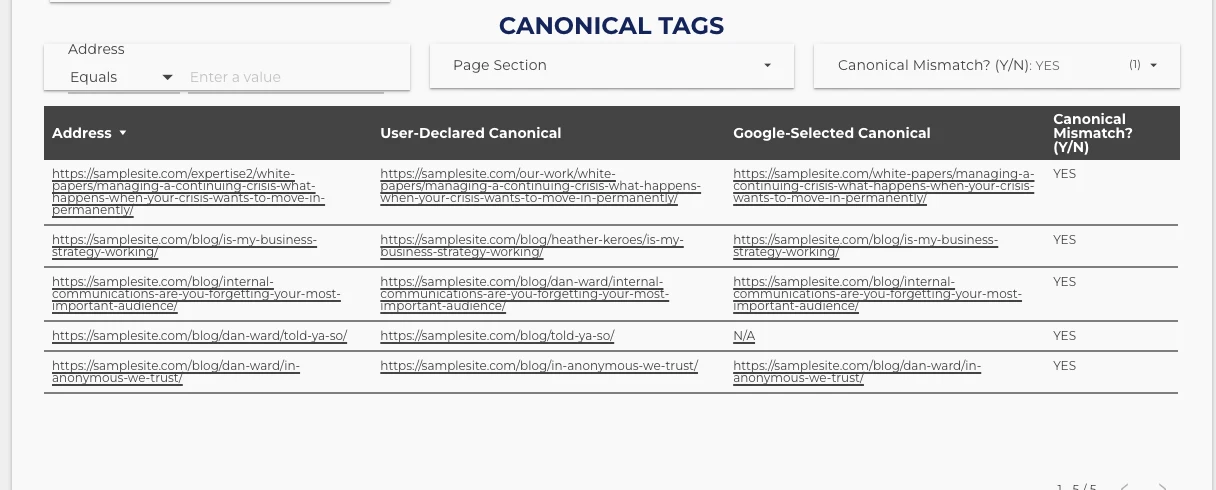
| For which pages is Google not using my canonical, and what is it using instead? | Page 2, Canonical Tags | Set the Canonical Mismatch? (Y/N) filter to YES and review the table, which shows both canonicals side by side |
| Which ranked pages attracting clicks haven’t been crawled lately? | Page 2, Google Status, then Crawling | Set Pages with/without clicks to pages with clicks, then use the date range control in Crawling to pick the time frame. The table lists URL, Last Crawl and clicks |
| When did Google last crawl our URLs, and how? | Page 2, Crawling | The crawl frequency chart, Last Crawl column and Crawled As filter |
| Which indexable URLs attracting clicks have rich result issues? | Page 1, Rich Result Snippet Issues | Use the indexability and clicks filters (in 2022, the same worked for mobile usability) |
For the second question, also check whether those URLs are in your XML sitemap: the API’s sitemap field lists the sitemaps Google found a URL in, though Google says the list isn’t guaranteed to be complete.
What the answers look like
Summary
The URL Inspection API has had lots of love from the industry since it launched. There are limits on quota, and it only reports the indexed version of a page, but it’s still a much-needed extension of the data SEOs work with.
There are several ways to export the data, and most of them can feed the dashboard. Its sections (Coverage Overview, Rich Result Snippet Issues, Google Status, Crawling and Canonical Tags, plus the legacy Mobile Usability section) will help you answer a ton of questions about the sites you report on. Feel free to let me know how I can improve it, or how you’d use it.
The dashboard, and more Search Console templates
Copy my URL Inspection API Explorer dashboard, connect your crawl export, and apply the two fixed fields above. For Search Console performance reporting next to it, these free templates use Google’s own connector.
Where to go next
- Connecting Search Console to Data Studio
- 17 custom dimension formulas for marketing dashboards
- Connecting Google Sheets to Data Studio
- Google Ads and Search Console MCP servers
- Filter controls in Data Studio
Frequently asked questions
What is the Google Search Console URL Inspection API?
An API Google released on 31 January 2022 that returns what the URL Inspection tool shows for a URL: index status and coverage, robots and noindex checks, last crawl, the crawler used, declared and Google-selected canonicals, and rich result and AMP results. It reports the version in Google’s index, not the live page.
Does the URL Inspection API have a Data Studio connector?
No. Google’s Search Console connector doesn’t include URL Inspection data. Export it with a crawler such as Screaming Frog, a Sheets template or a script, and connect the export to a dashboard such as my free URL Inspection API Explorer.
How many URLs can I inspect per day?
2,000 per Search Console property per day, and 600 per minute. The per-project limits are much higher (10,000,000 a day), so the property quota is the one you’ll hit.
Does the URL Inspection API still return mobile usability?
Google retired its mobile usability report and tools from 1 December 2023, and the API marks mobile usability results as deprecated. Treat any mobile usability columns in a crawl export as legacy.
Can the API test a live URL?
No. Only the indexed version is available through the API. The live test is in Search Console’s own URL Inspection tool.