
To get Nightwatch rankings into Data Studio (formerly Looker Studio), connect Nightwatch’s own connector, Nightwatch SEO Tracker, which now includes keyword rankings; to get the full keyword list into a Google Sheet as well, call Nightwatch’s List keywords API endpoint from Apps Script. The Sheet route is the one I built my Nightwatch dashboard on, and it’s still the most flexible if you want to blend, archive or reshape the data.
This covers:
- what Nightwatch’s connector gives you now, and what it gave me in 2021
- the fast route: copy my API Sheet and my Data Studio dashboard
- my original method, an ImportJSON formula in Google Sheets, with the fixes it needs in 2026
- a scheduled Apps Script that pulls every keyword, every day, without the token sitting in a cell
- which fields to visualise, and how they map to the connector’s
I first wrote this tutorial in October 2021 on lazarinastoy.com, when Nightwatch’s connector only had three site-level metrics. Most of the method still holds. The menus moved, the connector grew, and a few things I’d now do differently are marked as I go. API details are from Nightwatch’s API docs and help centre, read 22 October 2026. The script is written from Nightwatch’s and Google’s documentation and tested offline against Nightwatch’s documented response; I haven’t run it against a live account for this update.
What is Nightwatch?
Nightwatch is an SEO platform built around rank tracking: daily keyword positions across locations, devices and search engines, plus site audits, keyword research and integrations with GA4 and Search Console. Its pricing page also lists newer AI-search features, such as AI prompt tracking and an SEO MCP server.
When I first wrote this, I described it as an alternative to Semrush or Ahrefs at a lower price point, with a few elements still missing in comparison to the industry giants. What sold me on it was the user interface for position tracking, and the API, which enables a wide array of operations.
One thing the tool didn’t support fully in 2021 was a Data Studio integration. Surprisingly, I didn’t find an in-depth tutorial on bringing the Nightwatch API into Data Studio via Google Sheets formulas and Apps Script. Hence, this tutorial.
Doesn’t Nightwatch have a Data Studio connector?
Good news: yes, Nightwatch has a Data Studio connector. In Data Studio it’s listed as Nightwatch SEO Tracker, and you authorise it with your Nightwatch API token (Nightwatch’s connector guide).
What it gave me in 2021
When I wrote the original post, the connector only pulled three metrics and one dimension (date): average position, click potential and visibility index. Here is what you could visualise with it then.
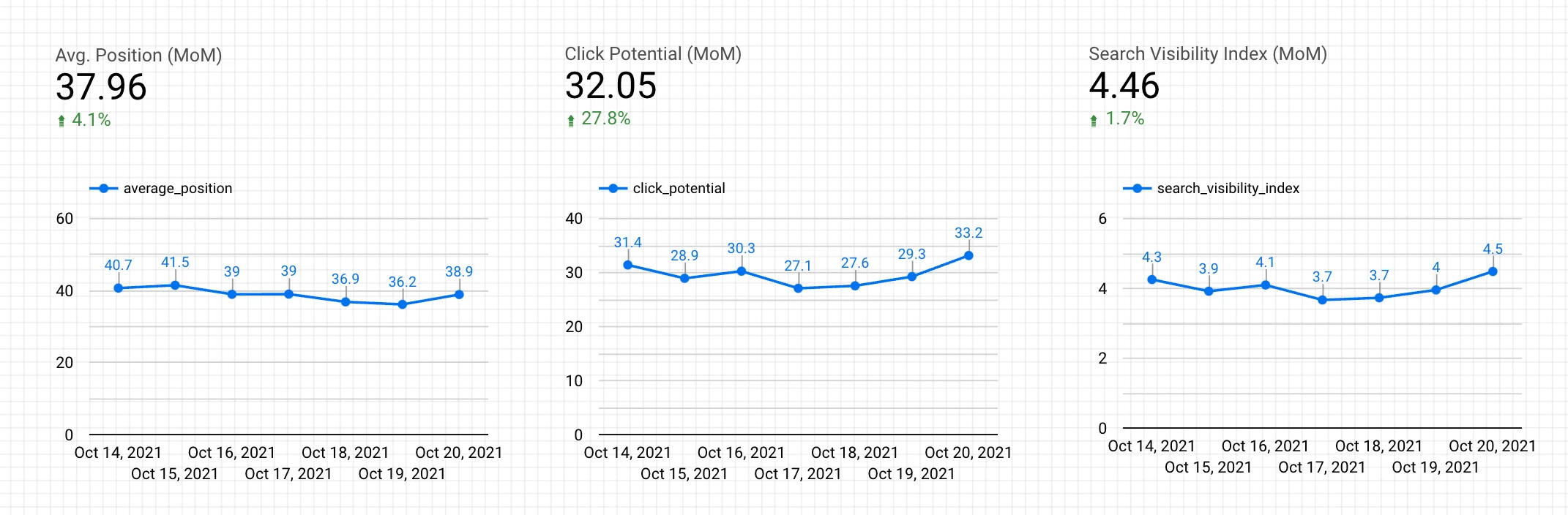
That wasn’t sufficient for reporting on any of the sites I tracked in Nightwatch, which is why I went to the API.
What it gives you now
Nightwatch released a much bigger connector in 2025. You pick a report type when you create the data source, and each one unlocks a different layer of data:
| Report type | What it’s for | Examples of fields |
|---|---|---|
| Keyword Rankings | Tables of keyword positions, trends and search volume | Rank, Best Rank Achieved, Previous Week Change, Previous Month Change, Ranking URL, Country Code, Language Code, Search Volume (Global and Local) |
| Individual Keyword Performance | Time series for chosen keywords | Keyword Position (organic, local pack, AI Overview snippet), Keyword Clicks, Impressions, CTR, Search Console Position |
| Website Metrics | Site-level overview | Average Position, Search Visibility Index, Click Potential, by day |
| Graphs | Time series mixing Nightwatch, GA4 and Search Console metrics | Average Position, Clicks, Impressions, Sessions, Users, Total Keywords |
| Website View Stats | Keyword distribution for a View (a saved segment, such as branded or local keywords) | Keyword Distribution Top 3 / Top 10 / Top 100 / No Rank, Indexed Pages, Traffic Value |
From Nightwatch’s connector help article (2025 release reference), read 22 October 2026.
Two things from Nightwatch’s guide worth knowing before you build. Metrics aggregate as a sum or an average by default, so a metric like Keyword Count needs its aggregation changed to count in the Setup tab. And the Individual Keyword Performance report makes you pick the keywords when you create the data source.
Which plan? Nightwatch’s pricing page lists both API access and its Data Studio integration on the Professional plan and above, not on Starter (checked 22 October 2026). The connector guide’s prerequisite is a plan with API access and at least 1,000 tracked keywords, and the API docs still use the older plan names, Optimize and Agency. Check the pricing page for your own account before you build.
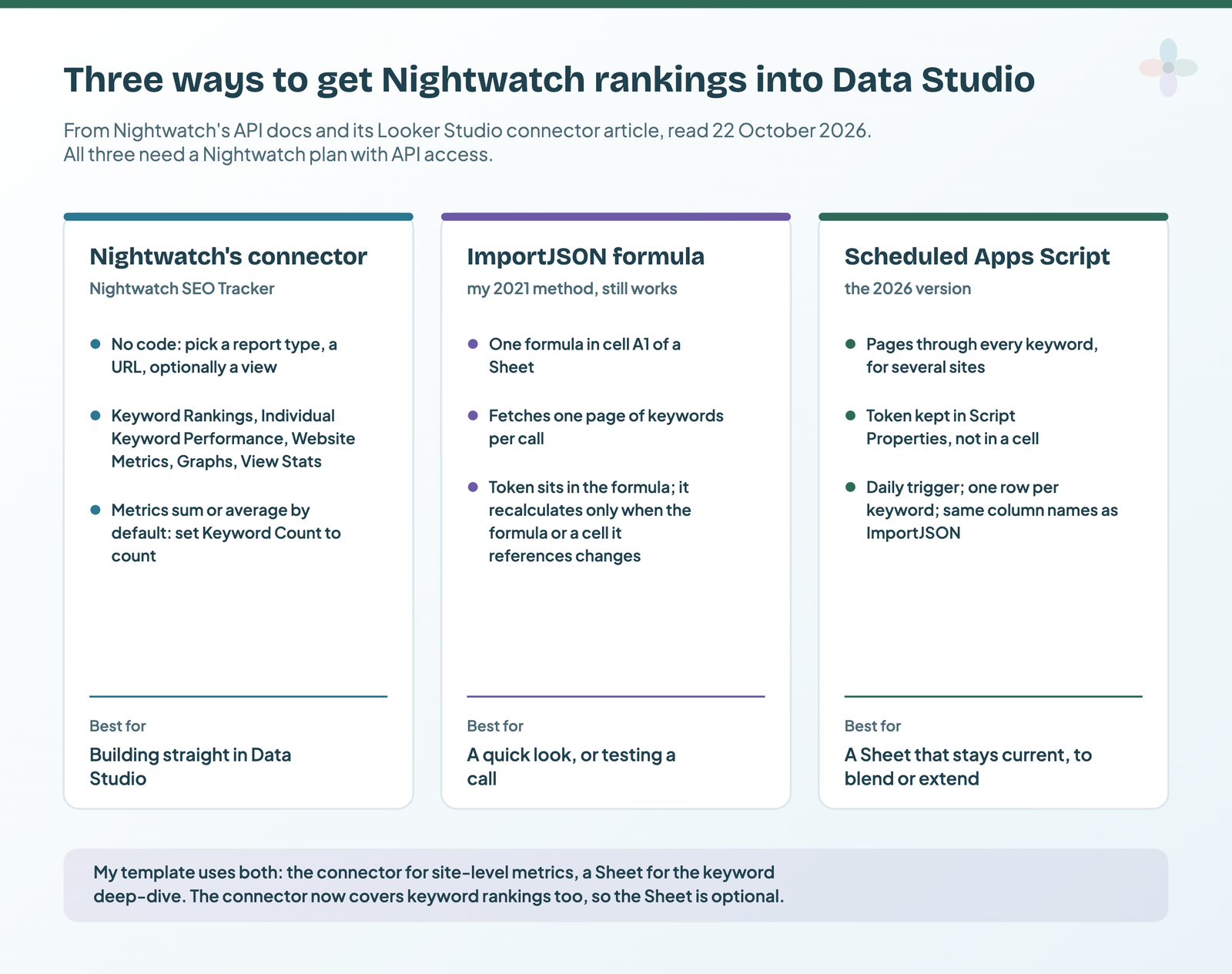
So why bother with the API at all, now that the connector covers rankings? Three reasons I still reach for it: a Sheet keeps a copy of the data you can archive day by day, you can reshape it (custom groups, merged views, notes) before Data Studio ever sees it, and the API reaches endpoints the connector doesn’t expose, such as SERP results and competitors.
Fast track: copy my Sheet and my Data Studio dashboard
To fast-track the process, copy the Sheet template below, enter your URL number and API key, then connect it to my dashboard. Both are free. The Sheet does the API work with no code; the dashboard is one page in three parts: a metrics overview, a rankings overview by position group, and a rankings deep-dive per keyword.
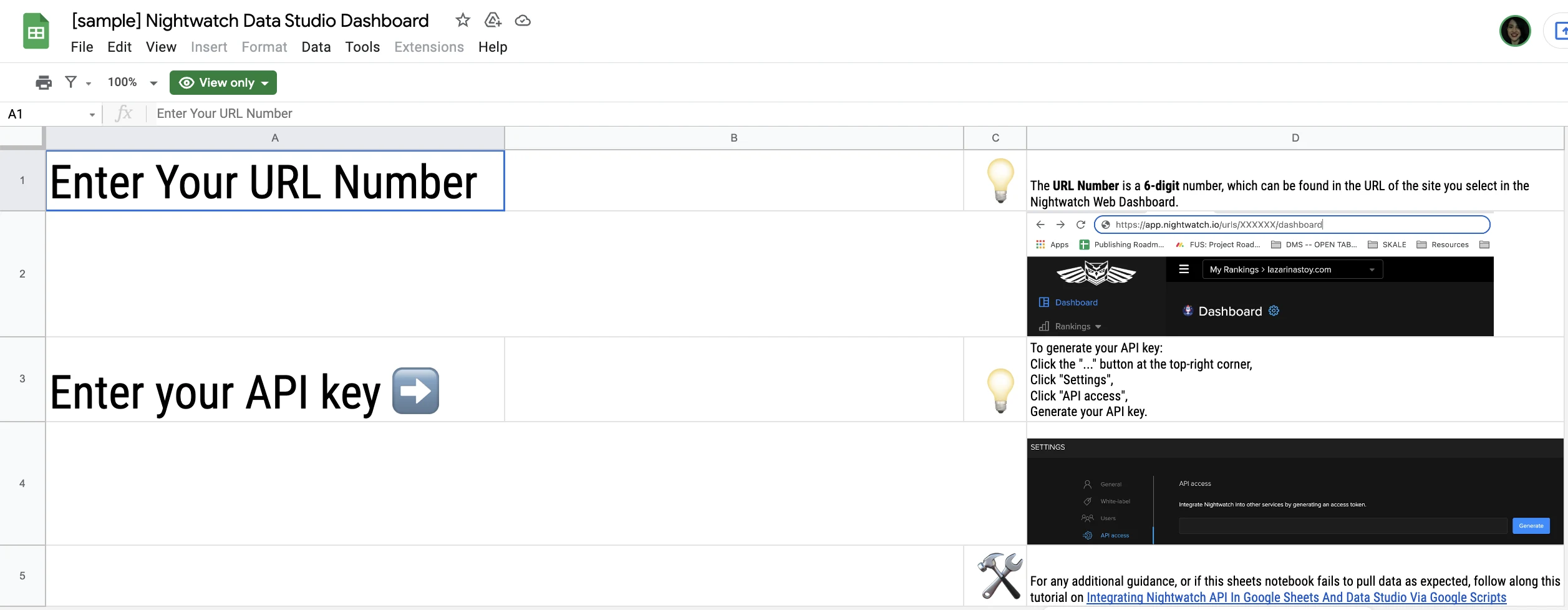
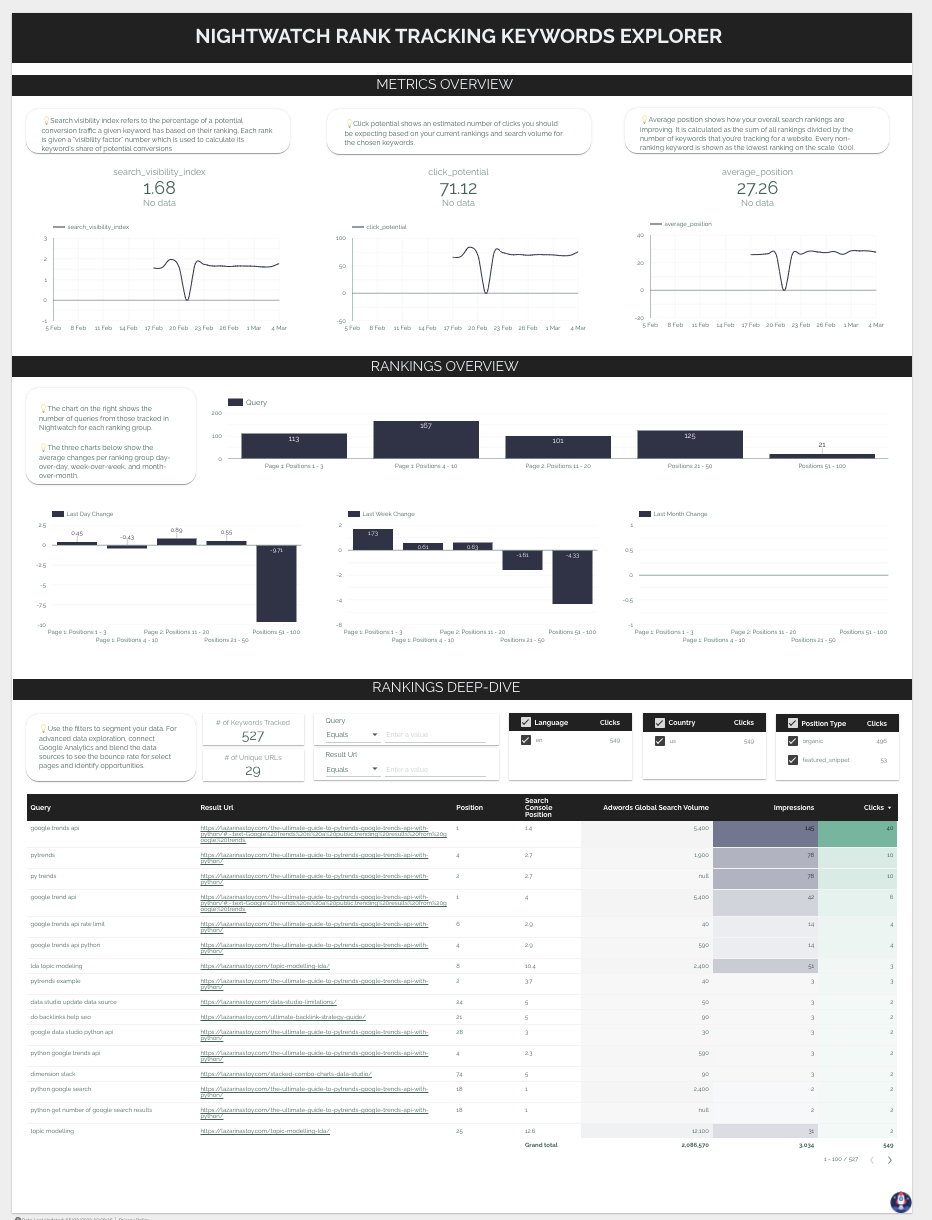
- Copy the Sheet: open the Nightwatch API Sheet template and choose File → Make a copy.
- Fill in the two cells: your URL number and your API token (both explained in the next section).
- Copy the dashboard from its template page and, in the Copy this report dialog, pick your copy of the Sheet and your Nightwatch SEO Tracker data source as the two new data sources.
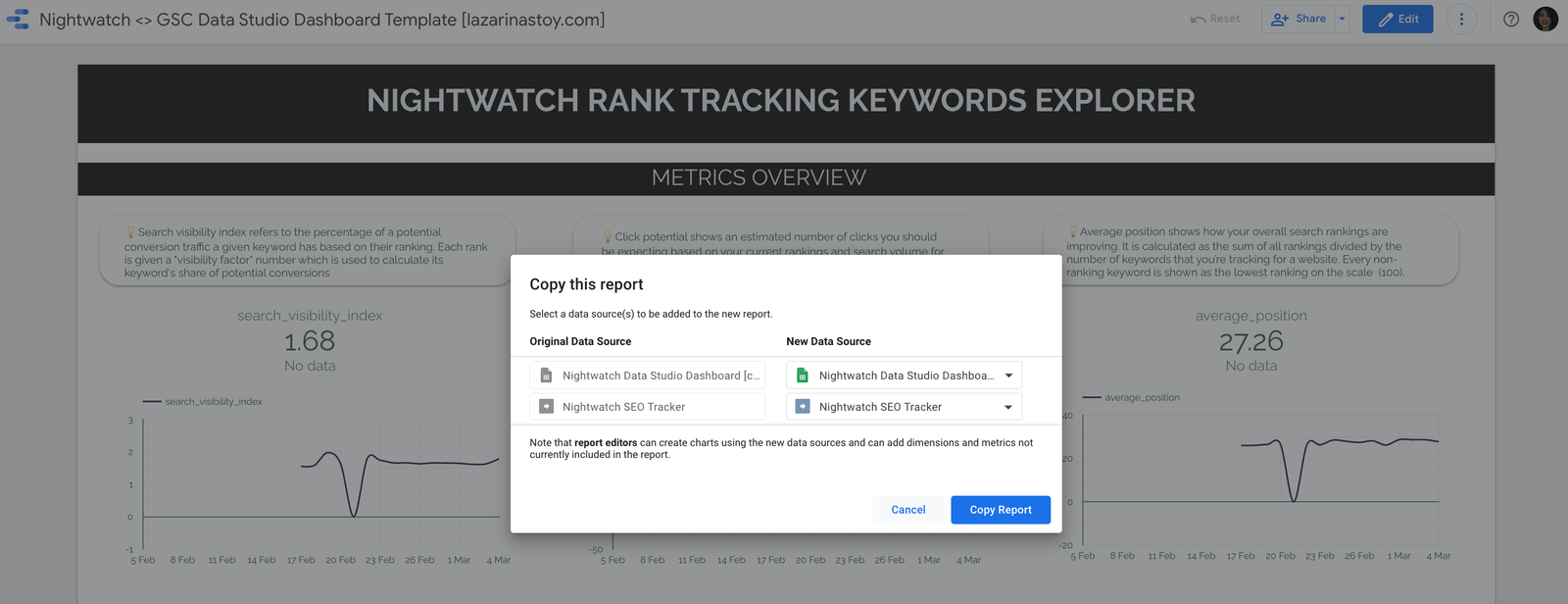
If you’d rather understand what the Sheet is doing (or build your own), read on. If not, jump to visualising the data.
Method 1: connect the Nightwatch API to Google Sheets with ImportJSON
This is my original method, and it still works. You add a small Apps Script library called ImportJSON to a Sheet, and it gives you a formula that turns any JSON API response into rows and columns.
1. Create a new Sheet and open Apps Script
In a new Google Sheet, go to Extensions → Apps Script. (In 2021 this lived under Tools → Script editor; Google moved it.)
2. Name the script file importJSON
Rename the file importJSON and name your project anything you like. Apps Script keeps the .gs extension (that stands for Google Script). Delete the empty function myFunction() code in the file and leave it blank for now.
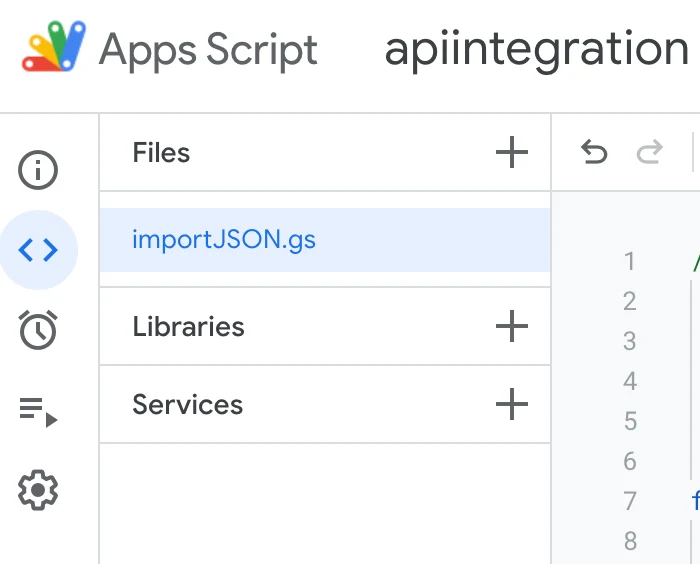
3. Copy Stefan Judis’ ImportJSON script and paste it in
Stefan Judis adapted this script for pulling different APIs into Google Sheets and shared it with his audience on YouTube. Definitely check it out and show him some love. The library itself is Trevor Lohrbeer’s ImportJSON (GPL-3.0), which Stefan’s gist bundles.
Open the Google Script for API integrations on Stefan’s GitHub, open the first file (importJSON.gs), click Raw and copy its contents.
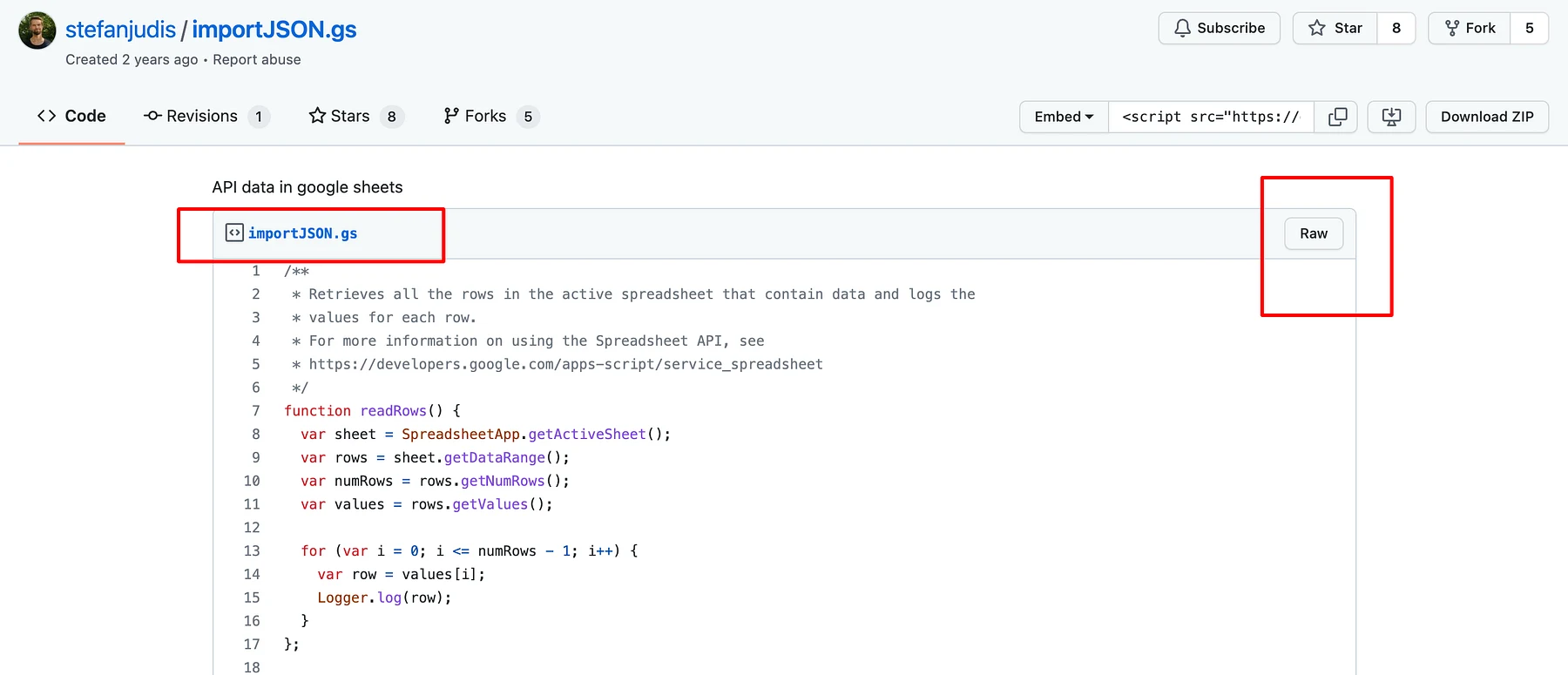
Paste the contents into the Apps Script editor and save. Two notes from 2026: the top of the file starts with a sample readRows() and onOpen() from Google’s old template, which ImportJSON doesn’t need (you can delete them, or leave them), and the gist now also has a triggerAutoRefresh.gs file, which I come back to below.

4. Go back to the Sheet and use the function
In the top-left cell (A1), paste the following formula, replacing the two placeholders. Type the quotes as straight quotes: my 2021 post had curly ones, which Sheets doesn’t accept.
=ImportJSON("https://api.nightwatch.io/api/v1/urls/REPLACEWITHTHEURLID/keywords?access_token=REPLACEWITHYOURACCESSTOKEN")- Replace REPLACEWITHTHEURLID with the ID of the site you want positions for. Open that site’s dashboard in Nightwatch and copy it from the address bar: it’s the number after the
/urls/part of the address (a six-digit number on my account).
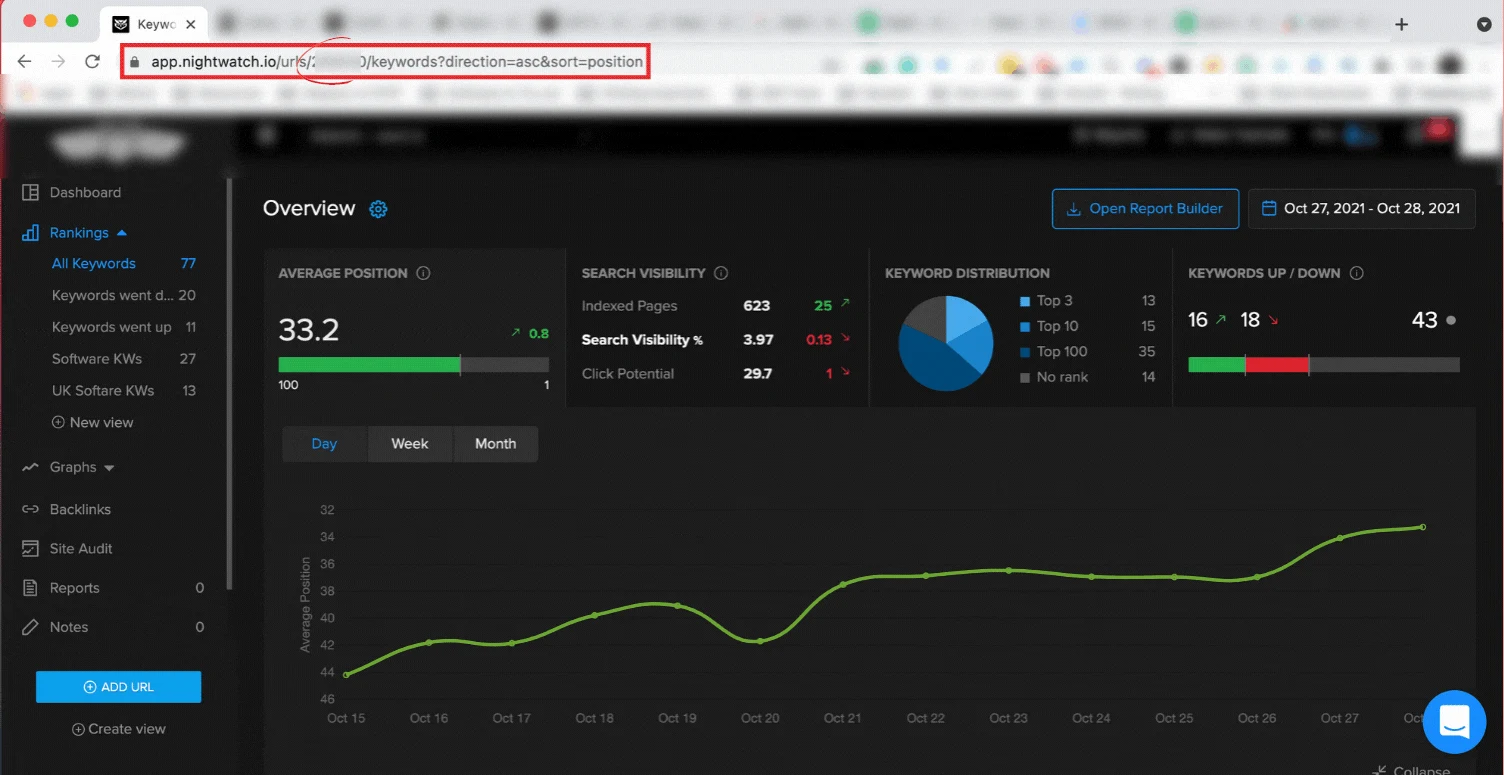
- Replace REPLACEWITHYOURACCESSTOKEN with your access token. In Nightwatch, open the menu in the top-right corner, then Settings → API Access (
/settings/api-access), and generate or copy your token there. Nightwatch says the token is permanent until you revoke it.
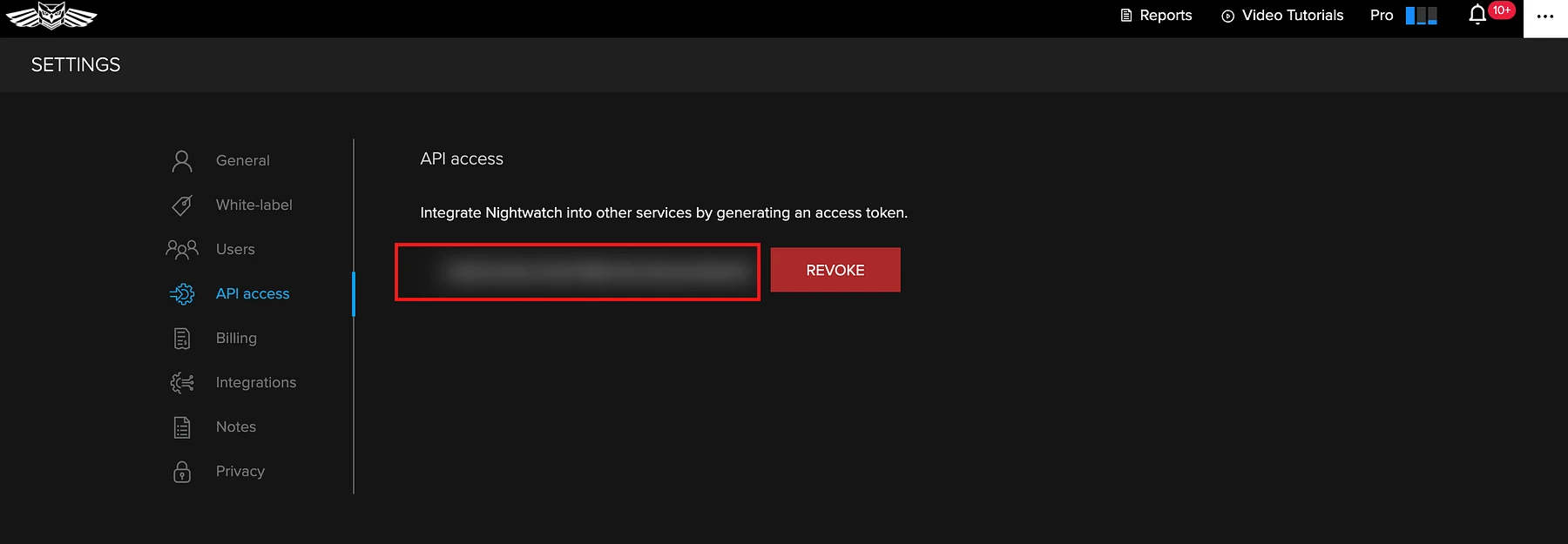
Then, voilà. If all worked well, your Sheet fills with one row per tracked keyword: the query, its current position, language and country, last day, week and month changes, best position, the ranking URL and more.
What did we just do with the Nightwatch API?
We performed a List keywords request. It’s one of many functions in the Nightwatch API, but it’s the one that most comprehensively mirrors the position tracking reports in each site’s Nightwatch dashboard. You can check the documentation of this function and the others on Nightwatch’s API site.
Three details from the current docs matter for reporting:
- It’s paginated. The endpoint takes
pageandlimitparameters and returns the total in two response headers,X-Page-CountandX-Total-Count. One formula fetches one page. - It sorts and searches.
sort(position, query, best_position, search volume and more),direction(asc or desc) andsearch(matches the keyword, tags, result URL and location). - Extra metrics are opt-in. Add
calculate_click_potential_selected_interval=true,calculate_search_volatility_selected_interval=trueorcalculate_traffic_value_selected_interval=trueto get those columns and their change.
What if you want other data from the Nightwatch API?
Change the URL in the formula, following the structure each endpoint shows in the docs (the request is on the panel on the right). The endpoints listed today include URLs, keyword views, keyword results, competitors, data series, data stats and SERPs. For instance, you can:
- get SERP data for your tracked keywords
- retrieve data for your competitors
- pull the site-level data series behind Nightwatch’s charts
(My 2021 list also had backlinks for a URL. I can’t find a backlinks endpoint in the current API docs, so check before you plan around it.)
A nifty trick for testing whether your call URL works is to paste it in your browser before pasting it in the formula, and see what data it returns and how it’s wrapped. Just remember the token is part of that URL, so it ends up in your browser history.
What if you don’t want every field from the call?
Stefan’s script is amazing because it also lets you name the fields you want. After the URL, add a comma and, in quotes, a comma-separated list of the paths to import. Add a third argument for options:
=ImportJSON("https://api.nightwatch.io/api/v1/urls/REPLACEWITHTHEURLID/keywords?access_token=REPLACEWITHYOURACCESSTOKEN",
  "/query,/position,/google_hl,/google_gl,/last_day_change,/last_week_change,/last_month_change,/best_position,/result_url,/position_type",
  "noInherit,noTruncate")
I now always add those two options, and here’s why. By default ImportJSON fills an empty cell with the value from the row above (noInherit turns that off), which matters for Nightwatch: a keyword with no featured-snippet position or no ranking URL would silently inherit the previous keyword’s. And it cuts every value at 256 characters (noTruncate turns that off). Naming the fields also keeps list fields such as tags and historic_positions out, which ImportJSON spreads across extra rows.
Three things to know before you rely on the formula
| Behaviour | Why it happens | What to do |
|---|---|---|
| Anyone with access to the Sheet can read your token | It’s part of the URL in the formula | Share the Sheet carefully, or use the scheduled script below, which keeps the token in Script Properties |
| The data doesn’t refresh on its own | Google: a custom function only recalculates when you edit it or a cell it references changes, and it can’t take NOW() or RAND() as an argument | Stefan’s triggerAutoRefresh.gs writes a random number into a helper cell on a timer, and the formula references that cell; or use the scheduled script |
| Large accounts come back incomplete, or as #ERROR! | One call returns one page, and a custom function must finish within 30 seconds | Add &page=2 (and so on) in more formulas, or use the script, which pages through for you |
Custom function behaviour from Google’s Custom Functions in Google Sheets guide; pagination from Nightwatch’s API docs. Both read 22 October 2026.
Method 2: a scheduled Apps Script that pulls every keyword
This is the version I’d build today. Same API call, same column names as ImportJSON produces (“Query”, “Google Hl”, “Last Day Change”…), so a dashboard built on the formula keeps its fields. What it adds: it pages through every keyword, works for several sites at once, keeps the token out of the cells (out of sight of anyone who can only view the Sheet), and refreshes itself once a day.
- Make a Settings tab and put your URL number in
B1. For several sites, separate the numbers with commas. - Open Extensions → Apps Script, paste the script below into a new file and save.
- Reload the Sheet. A Nightwatch menu appears. Choose Save API token… and paste your token. It’s stored in the script’s Script Properties rather than in a cell, so viewers and commenters on the Sheet never see it (editors can still reach it through the script’s project settings, so share edit access with care).
- Choose Nightwatch → Refresh keywords now and accept the permissions prompt the first time. The keywords land in a Keywords tab, one row per keyword, with a
Pulled Attimestamp. - Choose Refresh every day to install a time-driven trigger. It runs between 6 and 7 a.m. in the script’s time zone, and Nightwatch tracks daily, so once a day is enough.
- Connect the Keywords tab to Data Studio as a Google Sheets data source (how to connect a Sheet).
/**
 * Nightwatch -> Google Sheets (2026 version of my 2021 ImportJSON method)
 * Settings!B1 = your Nightwatch URL number(s), comma-separated.
 * Nightwatch menu > Save API token... (stored in Script Properties, not a cell).
 */
const NW_BASE = 'https://api.nightwatch.io/api/v1';
const SHEET_NAME = 'Keywords';
const PAGE_SIZE = 100;   // keywords per request; lower it if requests time out
const MAX_PAGES = 500;   // safety stop

function onOpen() {
  SpreadsheetApp.getUi().createMenu('Nightwatch')
    .addItem('Refresh keywords now', 'refreshKeywords')
    .addItem('Save API token…', 'saveToken')
    .addItem('Refresh every day (install trigger)', 'installDailyTrigger')
    .addToUi();
}

function saveToken() {
  const ui = SpreadsheetApp.getUi();
  const r = ui.prompt('Nightwatch API token',
    'Paste the token from Settings > API Access in Nightwatch:', ui.ButtonSet.OK_CANCEL);
  if (r.getSelectedButton() !== ui.Button.OK) return;
  PropertiesService.getScriptProperties()
    .setProperty('NIGHTWATCH_TOKEN', r.getResponseText().trim());
  ui.alert('Token saved in Script Properties. It is not stored in any cell.');
}

function refreshKeywords() {
  const ss = SpreadsheetApp.getActive();
  const token = PropertiesService.getScriptProperties().getProperty('NIGHTWATCH_TOKEN');
  if (!token) throw new Error('No API token saved. Use Nightwatch > Save API token… first.');
  const rows = [];
  getUrlIds_(ss).forEach(function (id) {
    fetchAllKeywords_(id, token).forEach(function (kw) {
      const flat = {};
      flatten_(kw, '', flat);
      flat['Nightwatch Url Id'] = id;   // after the API fields, so their column order matches 2021
      rows.push(flat);
    });
  });
  write_(ss, rows);
}

function installDailyTrigger() {
  ScriptApp.getProjectTriggers().forEach(function (t) {
    if (t.getHandlerFunction() === 'refreshKeywords') ScriptApp.deleteTrigger(t);
  });
  ScriptApp.newTrigger('refreshKeywords').timeBased().everyDays(1).atHour(6).create();
}

function getUrlIds_(ss) {
  const settings = ss.getSheetByName('Settings');
  const raw = settings ? String(settings.getRange('B1').getValue()) : '';
  const ids = raw.split(/[,\s]+/).filter(function (s) { return /^\d+$/.test(s); });
  if (!ids.length) {
    throw new Error('Put your Nightwatch URL number(s) in Settings!B1 (comma-separated for several sites).');
  }
  return ids;
}

function fetchAllKeywords_(urlId, token) {
  const all = [];
  let page = 1, pages = 1;
  do {
    const url = NW_BASE + '/urls/' + encodeURIComponent(urlId) + '/keywords' +
      '?access_token=' + encodeURIComponent(token) +
      '&page=' + page + '&limit=' + PAGE_SIZE;
    const res = fetchWithRetry_(url);
    const body = JSON.parse(res.getContentText());
    if (!Array.isArray(body)) {
      throw new Error('Unexpected response for URL ' + urlId + ': ' + res.getContentText().slice(0, 200));
    }
    if (!body.length) break;
    Array.prototype.push.apply(all, body);
    const h = res.getHeaders();
    const count = Number(h['X-Page-Count'] || h['x-page-count'] || 0);
    pages = count || (body.length >= PAGE_SIZE ? page + 1 : page);
    page++;
  } while (page <= pages && page <= MAX_PAGES);
  return all;
}

function fetchWithRetry_(url) {
  for (let attempt = 1; attempt <= 3; attempt++) {
    const res = UrlFetchApp.fetch(url, { muteHttpExceptions: true });
    const code = res.getResponseCode();
    if (code === 200) return res;
    if (code === 401 || code === 403) {
      throw new Error('Nightwatch refused the token (HTTP ' + code +
        '). Check the token, and that your plan includes API access.');
    }
    if (attempt === 3 || (code < 500 && code !== 429)) {
      throw new Error('Nightwatch API HTTP ' + code + ': ' + res.getContentText().slice(0, 200));
    }
    Utilities.sleep(2000 * attempt);   // wait, then retry rate limits and server errors
  }
}

// Nested objects become extra columns; lists become one comma-separated cell,
// so a keyword is always exactly one row.
function flatten_(value, path, out) {
  if (Array.isArray(value)) {
    out[title_(path)] = value.map(function (v) {
      return (v && typeof v === 'object') ? (v.name || v.id || JSON.stringify(v)) : v;
    }).join(', ');
  } else if (value && typeof value === 'object') {
    Object.keys(value).forEach(function (k) { flatten_(value[k], path ? path + '_' + k : k, out); });
  } else {
    out[title_(path)] = (value === null || value === undefined) ? '' : value;
  }
}

function title_(key) {   // "google_hl" -> "Google Hl", as ImportJSON names it
  return key.replace(/_/g, ' ').replace(/\w\S*/g, function (w) {
    return w.charAt(0).toUpperCase() + w.substr(1).toLowerCase();
  });
}

// Overwrites the tab in place (no clear first, so a report never reads an
// empty tab mid-run), then blanks any leftover rows or columns.
function write_(ss, rows) {
  const sheet = ss.getSheetByName(SHEET_NAME) || ss.insertSheet(SHEET_NAME);
  const headers = [];
  rows.forEach(function (r) {
    Object.keys(r).forEach(function (k) { if (headers.indexOf(k) < 0) headers.push(k); });
  });
  headers.push('Pulled At');
  const now = new Date();
  const values = [headers].concat(rows.map(function (r) {
    return headers.map(function (h) { return h === 'Pulled At' ? now : (h in r ? r[h] : ''); });
  }));
  sheet.getRange(1, 1, values.length, headers.length).setValues(values);
  const extraRows = sheet.getLastRow() - values.length;
  if (extraRows > 0) {
    sheet.getRange(values.length + 1, 1, extraRows, sheet.getLastColumn()).clearContent();
  }
  const extraCols = sheet.getLastColumn() - headers.length;
  if (extraCols > 0) {
    sheet.getRange(1, headers.length + 1, sheet.getLastRow(), extraCols).clearContent();
  }
}
What each part does, compared with the formula:
| ImportJSON formula | Scheduled script | |
|---|---|---|
| Keywords per pull | One page | Every page (X-Page-Count), for each site in Settings!B1 |
| Where the token lives | In the formula, visible to anyone with the Sheet | Script Properties: hidden from viewers and commenters |
| Refresh | When the formula or a referenced cell changes | Menu click, or a daily time-driven trigger |
| Errors | #ERROR! in the cell | Retries rate limits (429) and server errors twice; a failed trigger run gets Apps Script’s failure email |
| Lists (tags, historic positions) | Spread across extra rows | One cell, comma-separated, so one keyword is one row |
Two caveats. It overwrites the Keywords tab each run, so it holds today’s snapshot, not history. If you want a history to chart over time, append instead of overwrite: the pattern (and the append-and-skip-duplicates script) is in my guide to automating the Sheet behind a Data Studio report, along with Apps Script’s quotas. And a trigger runs as whoever installed it, so install it from an account that won’t leave.
PAGE_SIZE is set to 100 per request. Nightwatch’s docs don’t state a maximum for limit, so if requests start timing out on a big account, lower it.
How to visualise the Nightwatch position tracking data in Data Studio
Here is a simple way to visualise the data pulled from the API in Data Studio, alongside the overview data from the connector, as in my dashboard.
Which dimensions will you need? These are the columns I use from the Sheet, and their closest field in the connector’s Keyword Rankings report, if you’d rather skip the Sheet:
| Sheet column | What it is | Closest connector field |
|---|---|---|
| Query | The keyword you’re tracking | Not named in Nightwatch’s field reference; check the data source |
| Position | The current position | Rank |
| Google Hl | Language | Language Code |
| Google Gl | Country | Country Code |
| Last Day Change | Position change since yesterday | Rank Change (check which period it covers) |
| Last Week Change | Position change over the week | Previous Week Change |
| Last Month Change | Position change over the month | Previous Month Change |
| Best Position | The best position the site has ranked at for this keyword | Best Rank Achieved |
| Result Url | The URL of the page that ranks for the keyword | Ranking URL |
| Position Type | An organic result or a featured snippet | Organic Rank / Organic Position (organic only) |
Connector field names from Nightwatch’s 2025 field reference, read 22 October 2026. “Closest” is my mapping; check the definitions in your data source before you swap one for the other.
My dashboard builds three things from these:
- A metrics overview: search visibility index, click potential and average position over time, from the connector.
- A rankings overview: how many tracked queries sit in each position group (1–3, 4–10, 11–20, 21–50, 51–100), and the average day, week and month change per group. The groups are a custom field on Position: the formula is ranking position buckets in my custom dimension formulas guide. If Position is a number in your data source, a Bin field does the same job with no formula.
- A rankings deep-dive: every query, its ranking URL, position and search volume, with filters for language, country and position type, and Search Console clicks and impressions alongside.
One modelling note: Last Day, Week and Month Change are already differences, so average them (or show them per keyword). Summing them across keywords gives a number that doesn’t mean anything.
What are the alternatives to Nightwatch?
There are many industry tools that offer position tracking. Many of them charge a lot for use of their API, and in 2021 few had Data Studio connectors. That’s why I called Nightwatch a budget-friendly route at the time.
Nonetheless, it’s worth mentioning that Semrush also does position tracking, has an API and has Data Studio connectors. I’ve previously written about how to connect Semrush to Data Studio, and the limitations of doing so. Semrush’s own help page says its Data Studio connectors, Position Tracking included, need a Guru or Business SEO Toolkit subscription (checked 22 October 2026). From personal experience, Semrush API pulls can also become quite expensive, especially on an agency account managing several clients at once.
If you’re weighing paid connectors that bring several sources into Data Studio rather than one rank tracker, my comparison of Data Studio connectors covers them.
The Nightwatch dashboard, and other SEO templates
Everything above is built into my Nightwatch Rank Tracking Keywords Explorer: copy it, connect your Sheet and your Nightwatch SEO Tracker data source, and the three sections fill in. If your rankings come from Search Console rather than a rank tracker, these free templates are a good place to start.
Let me know on LinkedIn how you end up visualising your Nightwatch position tracking data.
Where to go next
- Connecting Google Sheets to Data Studio
- Automating the Google Sheet behind your report
- 17 custom dimension formulas, including ranking buckets
- Connecting Search Console to Data Studio
- Data Studio connectors compared
Frequently asked questions
Does Nightwatch have a Data Studio connector?
Yes. It’s called Nightwatch SEO Tracker. Since its 2025 release it covers keyword rankings, individual keyword performance, website metrics, graphs and view stats, not just the three site-level metrics it had in 2021. It needs a Nightwatch plan with API access.
Which Nightwatch plans include the API?
Nightwatch’s pricing page lists API access and the Data Studio integration on Professional and above, not on Starter (checked 22 October 2026). The API docs still call the eligible plans Optimize and Agency.
Where do I find my Nightwatch API token?
In Nightwatch, open the menu in the top-right corner, then Settings → API Access. The token stays valid until you revoke it.
What if I want other data from the Nightwatch API?
Change the URL in the ImportJSON formula (or in the script) to the endpoint you need, following the request structure in Nightwatch’s API docs: keyword results, competitors, SERPs, data series and more.
Why does my ImportJSON formula not update?
Custom functions only recalculate when the formula or a cell it references changes. Reference a helper cell that a timed script updates, or use a scheduled script that writes the values instead.
What are the alternatives to Nightwatch?
Many tools offer rank tracking; fewer have both an API and a Data Studio connector. Semrush has both, with its connectors on Guru and Business SEO Toolkit plans.
Some links in this post are affiliate links: if you sign up through one, I may earn a commission at no extra cost to you. How I work with partners.