
The Data Studio API can’t create, copy, schedule or refresh a report. It does two things: it finds your reports and data sources, and it changes who can access them, and it only works for organisations on Google Workspace or Cloud Identity. If you searched for the Looker Studio API, it’s the same thing: Google renamed the product back to Data Studio in April 2026, and plenty of pages still use the old name.
If you came here to copy one report per client, the route you want is the Linking API: a URL that opens a copy of a template with each client’s data in it, which someone still has to save in a browser. Getting data in is the job of community connectors, and showing a report somewhere else is the job of embeds. This post covers what each of the four does, what it needs, what it can’t do, a code example for each, and which one fits your job.
Everything here comes from Google’s documentation (checked 13 October 2026) and its Data Studio forum. I haven’t run these against a client account; the code is shown as Google documents it, and I say where Google is silent.
Three things Google calls a Data Studio API, and a fourth route
Data Studio has four ways in, and only the first is an API in the developer sense:
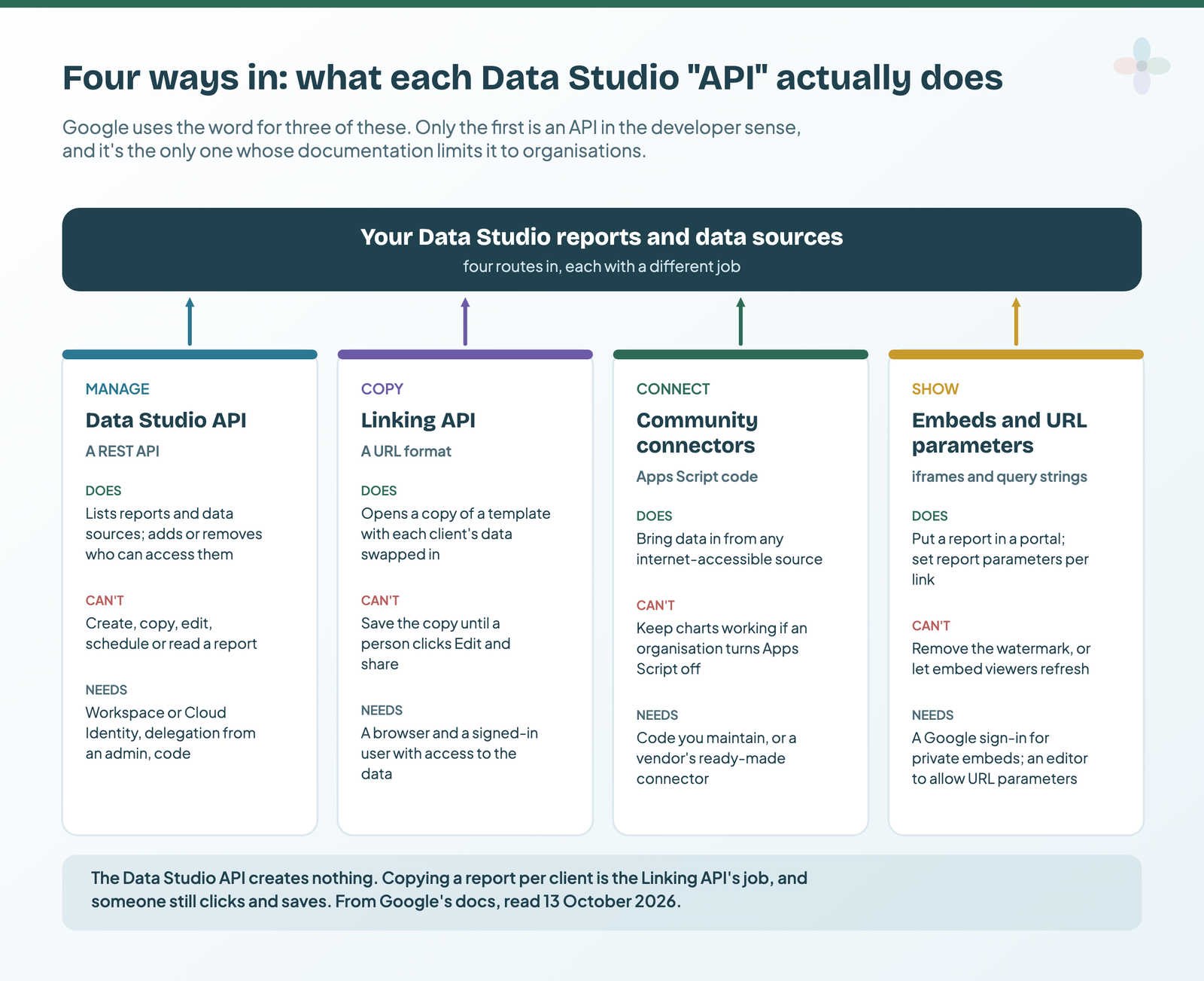
| Route | What it does | What it can’t do | Who can use it | Code? | Browser? |
|---|---|---|---|---|---|
| Data Studio API | Searches reports and data sources; reads and changes their sharing | Create, copy, edit, schedule, refresh or read a report | Workspace or Cloud Identity organisations only | Yes | No |
| Linking API | A URL that opens a copy of a template with each client’s data swapped in | Save the copy without a person clicking | Google doesn’t limit it to Workspace | No, it’s a URL | Yes |
| Community connectors | Bring data from any internet-accessible source into Data Studio | Run without Apps Script | Anyone who builds or is given one | Apps Script | No |
| Embeds and URL parameters | Put a report in a portal; set report parameters per link | Remove the watermark; let embed viewers refresh | Anyone the report is shared with | No | Yes |
If the names themselves confuse you, see Looker vs Looker Studio vs Data Studio.
What the Data Studio API does: finds reports and changes who can see them
Google says the Data Studio API “lets you search for and manage Data Studio assets”, mainly so Workspace and Cloud Identity organisations can automate managing and migrating them (Google’s overview, updated 13 May 2026). An asset here is a report or a data source. Five methods cover it.
| Method (as Google’s reference names it) | What it does | Where a marketer would use it |
|---|---|---|
assets:search |
Lists reports or data sources (one type per call), filtered by title, owner, creator, or who shared what with whom | Every report a leaver owns, before their account goes; every report you’ve shared with a particular person or group |
Permissions: get |
Reads who has which role on an asset | An access audit before a client offboards |
Permissions: addMembers |
Adds users, groups or a domain as viewers or editors | Give a client’s team group view access to a batch of reports |
Permissions: revokeAllPermissions |
Removes members from an asset (never the owners or the caller) | Remove a departed contractor from everything |
Permissions: patch |
Updates an asset’s permissions | Changing roles already set on a report |
A search returns each asset’s ID, title, description, owner, creator, dates, type and whether it’s in the bin. Not what’s inside: “deeper metadata like filters, sections, and dimensions within a report cannot be retrieved using the API”. An inventory, not an audit.
The documented request, filtered by owner. It returns reports the signed-in user can access, so run it as someone who can see them:
# The documented request shape (from Google's reference), not tested here.
# One asset type per call: REPORT or DATA_SOURCE.
# Returns title, owner and dates per report; open one at
# https://datastudio.google.com/reporting/{name}
GET https://datastudio.googleapis.com/v1/assets:search?assetTypes=REPORT&owner=leaver@youragency.com
And the sharing side, adding a client’s Google Group as viewers. Members can be user:, group:, domain: or serviceAccount:; nobody can be added as an owner:
# Written from Google's docs, not tested here.
POST https://datastudio.googleapis.com/v1/assets/REPORT_ID/permissions:addMembers

{
  "role": "VIEWER",
  "members": ["group:client-team@youragency.com"]
}
That’s the real agency use: offboarding and access hygiene. If only one person can edit a client’s reports, fix that first (running reporting as an agency); the report ownership guide covers moving reports before an account goes.
What it takes to switch it on
There’s no API key. The setup, from Google’s overview:
- Enable the Data Studio API in a Google Cloud project.
- Create an OAuth client for your app, and note its client ID. Google says not to add the Data Studio scopes to the client itself.
- A Workspace admin grants domain-wide delegation in the Admin console: they add your client ID with the scopes, usually
https://www.googleapis.com/auth/datastudioandhttps://www.googleapis.com/auth/userinfo.profile, or the read-onlyhttps://www.googleapis.com/auth/datastudio.readonlyif the app doesn’t manage assets. - Call the API with an OAuth access token. Once the organisation has authorised the app, its users don’t see a consent dialog.
Step 3 is where most people stop. A personal Gmail account can’t use the API at all, and in an organisation it needs an admin. Without it, users get “Error 400: invalid_scope”.
The no-code version
Make’s app for Data Studio wraps exactly these methods in five modules: Search Assets, List Asset Permissions, Add Asset Members, Revoke Asset Permissions, and a raw API call. Same Workspace requirement, and the same limit: there’s no “create report” module, because there’s nothing for it to call.
What the Data Studio API can’t do: the endpoints people keep asking for
No method creates, copies, edits, schedules, refreshes or exports a report, reads a chart’s numbers, or changes a data source’s credentials. The most-viewed Stack Overflow question on this (2020, 12,688 views) asked to copy a report from code; the accepted answer, updated in August 2024, says the API only views assets and updates permissions. In June 2026 a user posted a feature request on Google’s forum for create, copy, delete and move methods, data source credentials and refresh. As of 13 October it has no replies.
| What you’d want | In the API? | The closest real route |
|---|---|---|
| Create a report from a template | ✘ | The Linking API |
| Copy a report | ✘ | The Linking API, or copying it by hand |
| Schedule a PDF email | ✘ | The schedule dialog (sharing and scheduling) |
| Refresh data | ✘ | Data freshness settings (how freshness works) |
| Export PDF or CSV | ✘ | Download or schedule from the report (getting data out) |
| Read a chart’s numbers | ✘ | Query the source instead: GA4’s own API, BigQuery, or the Sheet |
| Edit charts or fields | ✘ | The report editor only |
| Change a data source’s credentials | ✘ | The editor (data sources explained) |
| List reports and their owners | ✔ | assets:search |
| Share or unshare in bulk | ✔ | The permissions methods |
I wouldn’t wait for it. The API went generally available in August 2020, and its last changelog entry, in April 2022, was documentation fixes: over four years without a functional change.
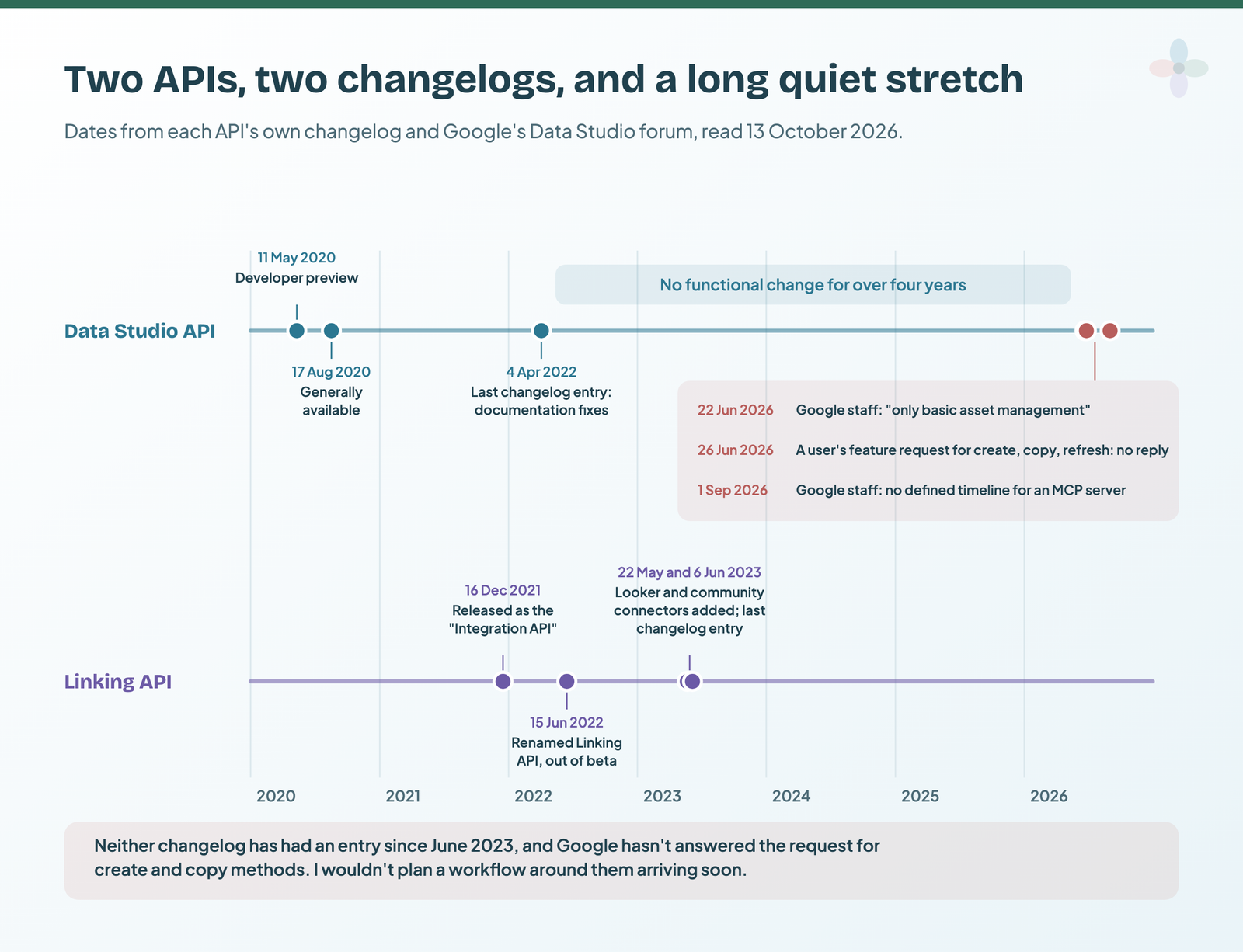
What about AI? In a 22-post forum thread asking for an MCP server (the protocol AI assistants use to call tools), a Google staff member described the current API as supporting “only basic asset management”. On 1 September 2026 the same thread got this from Google staff: “due to shifts in strategic priorities, there is currently no defined timeline for the development of an MCP server for Data Studio.” The workaround is to connect the assistant to the data rather than the report: how to connect GA4 to Claude or ChatGPT over MCP.
The Linking API: one URL per client, and the click it still needs
The Linking API is a URL format that opens a copy of a template report with its data sources swapped for someone else’s. Point it at your master report and one client’s GA4 property and Search Console site, and whoever opens it sees your layout with that client’s numbers. The reference page was last updated on 30 April 2026.
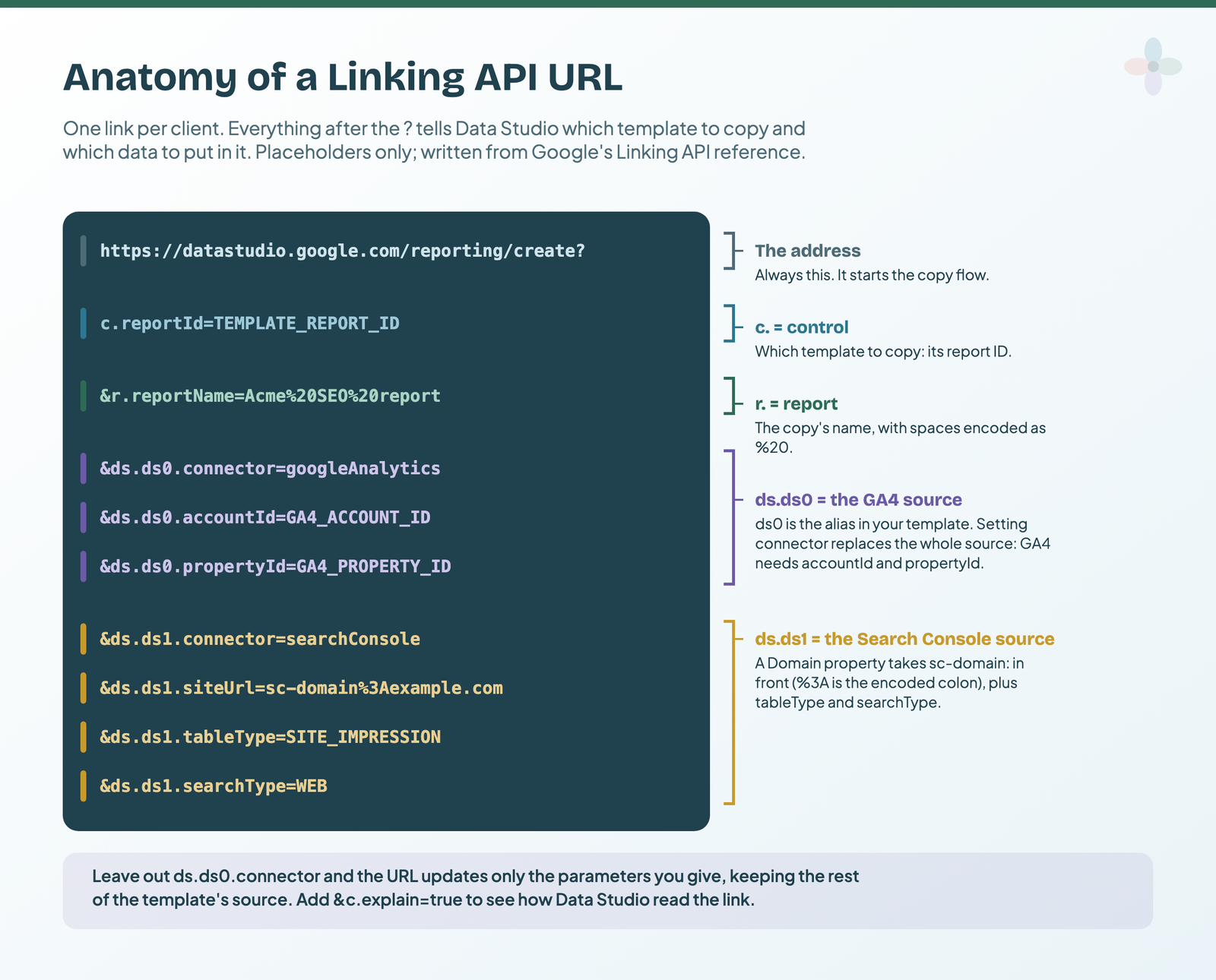
As text, each ds. group names a data source by its alias (ds0, ds1…), shown in the template under Resource → Manage added data sources:
# Written from Google's Linking API reference, not tested here.
# Placeholders in capitals. Shown one parameter per line; join them
# with no spaces or line breaks before you use it.
https://datastudio.google.com/reporting/create?
  c.reportId=TEMPLATE_REPORT_ID
  &r.reportName=Acme%20SEO%20report
  &ds.ds0.connector=googleAnalytics
  &ds.ds0.accountId=GA4_ACCOUNT_ID
  &ds.ds0.propertyId=GA4_PROPERTY_ID
  &ds.ds1.connector=searchConsole
  &ds.ds1.siteUrl=sc-domain%3Aexample.com
  &ds.ds1.tableType=SITE_IMPRESSION
  &ds.ds1.searchType=WEB
The report ID is the part of the template’s URL between reporting/ and /page. Setting connector tells Data Studio to replace that source’s whole configuration, so every required parameter must be there. Leave it out and the link updates only what you give, with the template filling the gaps.
Google’s full list of connectors it can swap:
| Connector | connector= |
Required parameters | refreshFields default |
|---|---|---|---|
| Google Analytics (GA4) | googleAnalytics |
accountId, propertyId (no viewId: that was Universal Analytics) |
false |
| Search Console | searchConsole |
siteUrl (sc-domain: for a Domain property), tableType, searchType |
false |
| Google Sheets | googleSheets |
spreadsheetId, worksheetId |
true |
| BigQuery | bigQuery |
type, projectId, datasetId, tableId (or a custom query) |
true |
| Community connectors | community |
connectorId, plus the connector’s own settings |
true |
| Looker | looker |
instanceUrl, model, explore |
false |
| Google Cloud Storage | googleCloudStorage |
pathType, path |
true |
| Cloud Spanner | cloudSpanner |
projectId, instanceId, databaseId, sql |
true |
Google Ads isn’t on Google’s list, so a template that runs on the native Google Ads connector can’t have that source swapped by a link.
What happens when someone opens the link
The part most write-ups skip: the person opens the link in a browser, the report loads with their data, they click Edit and share, and only then is it saved, to their Data Studio account, as their copy.
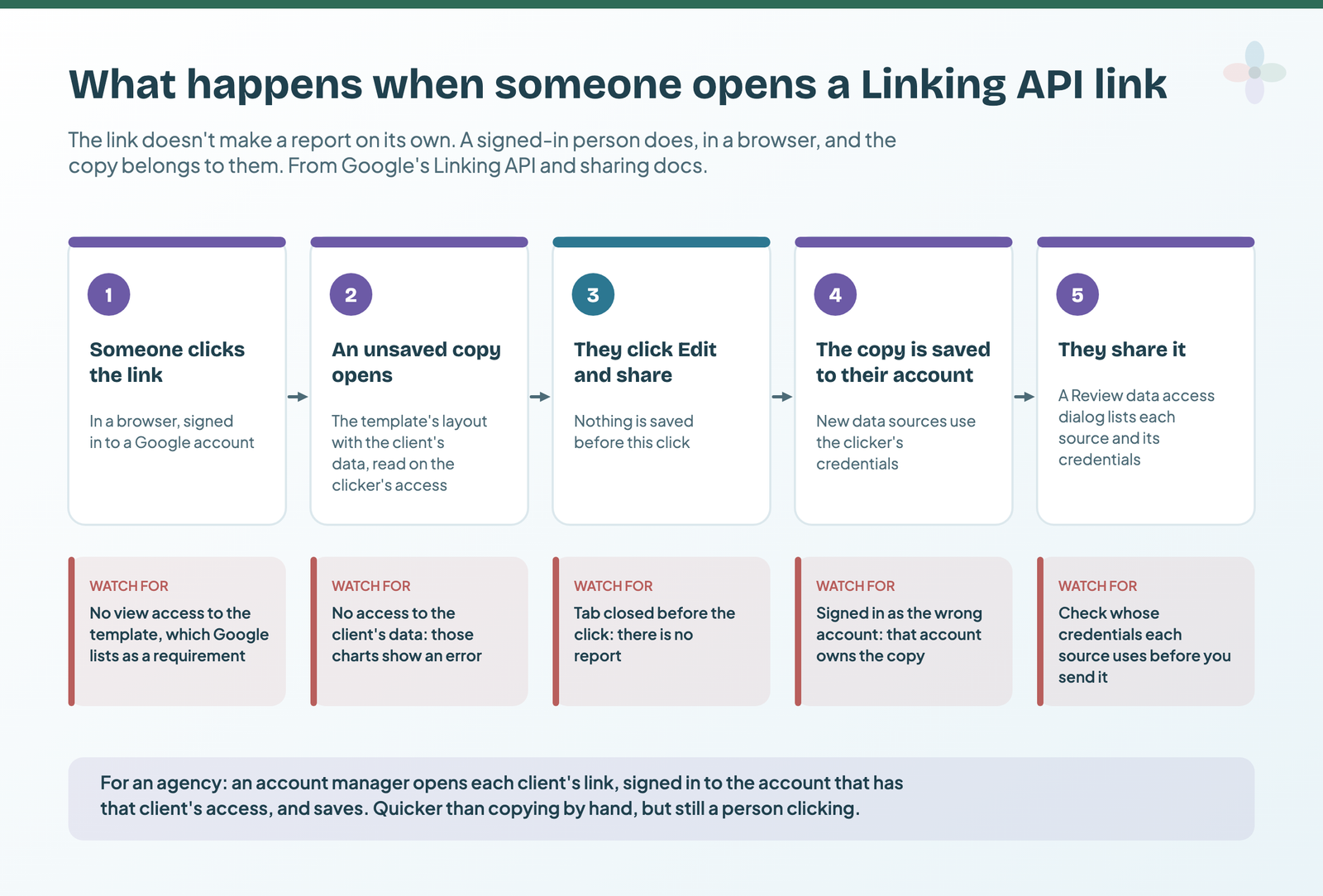
The catches, in the order you’ll hit them
- View access to the template. Whoever opens the link needs at least view access to the master report.
- Access to the client’s data. Without it, the charts that depend on that data show an error. The Linking API never changes anyone’s access.
- Replace or update, and reusable sources. An embedded template source inherits view access from the report. A reusable one being updated (no
connectorin the link) needs view access for the person opening it (embedded vs reusable). refreshFields. For GA4 and Search Console it defaults to false, so field renames and type changes in your template carry over. For Sheets and BigQuery it defaults to true and the fields are re-read. Calculated fields and parameters in template data sources always carry over.- Whose credentials. A new data source made by the link uses the credentials of whoever clicked it. To keep a reusable template source on its existing credentials, leave it out of the link (no alias, no
ds.*wildcard) and it’s re-added as it is. - Nothing is saved until Edit and share. Close the tab and there’s no report.
- Browser only. Google expects the URL to be opened in a browser. There’s an
/embed/form, but a December 2025 forum thread found it still asks the viewer to sign in, and a Google staff member replied that it can’t be embedded without one: the copy is created in the viewer’s own account. - No usage tracking by default. The copy has no Google Analytics measurement ID unless the link sets
r.measurementIdorr.keepMeasurementId=true(more in tracking who opens your reports).
When a link misbehaves, add &c.explain=true to the end. Data Studio then shows a debug button with the configuration as it read it.
Where it fits an agency
The realistic workflow: an account manager opens each client’s link, signed in to the agency account with that client’s access, checks it and clicks Edit and share. It’s quicker than copying a report and swapping every source by hand (the manual route). But it’s a person clicking, per client, and the copy belongs to whoever saved it, so record who that was. Every copy inherits the master’s layout, so the story is built once, in the master: Chapter 25 of my ebook, Data Storytelling in Data Studio, covers turning a monthly storyboard into that master report.
Writing the links is the fiddly part, so I built a sheet that does it from your template’s IDs and a client list.
Community connectors: the API for getting data in
“Connect an API to Data Studio” usually means this. A community connector is a small Apps Script project that fetches data from somewhere and hands it to Data Studio. They’re free to build and use, and can be shared directly or listed in the connector gallery. Google lists social media, CRM and advertising platforms among the sources they’re for.
Each connector defines four functions: getAuthType(), getConfig(), getSchema() and getData(). Here are the first two, trimmed from Google’s npm-downloads sample on the Build a Community Connector page:
// Trimmed from Google's sample (npm-downloads). Not tested here.
var cc = DataStudioApp.createCommunityConnector();

// Which sign-in the data source needs. This one needs none.
function getAuthType() {
  return cc.newAuthTypeResponse()
    .setAuthType(cc.AuthType.NONE)
    .build();
}

// The settings screen people see when they add the connector.
function getConfig() {
  var config = cc.getConfig();
  config.newTextInput()
    .setId('package')
    .setName('Enter a single package name or multiple names separated by commas (no spaces!)');
  config.setDateRangeRequired(true);
  return config.build();
}

// getSchema() lists the fields; getData() fetches the rows.
Two things to weigh: it’s code you maintain when the source’s API changes, and in a Workspace organisation Apps Script must stay switched on, or charts built on the connector show an error.
So there are three routes for outside data:
- Use a vendor’s connector if one exists for your platform. Data Studio connectors compared covers which to pay for.
- Stage it in a Sheet or BigQuery and use Google’s free connector on top. Connecting Google Sheets and automating the Sheet cover that.
- Build your own from Google’s guide, if nobody sells the one you need.
Community connectors also work with the Linking API (connector=community), and a connector’s direct link can open it with its settings prefilled.
Embeds and report URLs: show a report elsewhere, with settings per link
Embedding puts a report inside any site that supports an iframe, including Google Sites. Google’s embed documentation sets the limits: they’re view-only, viewers can’t refresh them by hand, private ones need a Google sign-in, and the Data Studio watermark can’t be removed. The embedding guide goes through the options.
URL parameters set a report’s parameters from the link, so one report can open with a different value per recipient. It’s off by default: an editor ticks “Allow to be modified in report URL” under Resource → Manage variables (parameters), where each parameter’s URL name is also shown.
The value is a small JSON object, URL-encoded and added as params:
# Shape from Google's docs; the parameter name is illustrative. Not tested here.
# The JSON you mean:
{"ds0.client": "acme"}

# The same object, URL-encoded, on the report's view URL:
https://datastudio.google.com/reporting/REPORT_ID/page/PAGE_ID?params=%7B%22ds0.client%22%3A%22acme%22%7D
The parameter only changes a chart if something uses it: a calculated field, a BigQuery custom query or a community connector. And it isn’t access control: anyone holding the URL can edit it. For a portal showing each client only their rows without a Google sign-in, Google’s guide passes a short-lived token in the embed URL to a community connector. That’s developer work; the row-level security guide explains the options.
Which one do you need? Match the job to the route
Start from the job, not the word “API”:
| Your job | Route | What it needs |
|---|---|---|
| A copy of my master report for each new client | Linking API | A browser and access to the client’s data |
| Find every report a leaver owns and move access | Data Studio API, or by hand | Workspace admin for the API |
| Meta, LinkedIn or CRM data in a report | A vendor connector, or Sheet/BigQuery staging | A connector subscription or a staging routine |
| A report inside our client portal | Embed | Viewers signed in to Google, for private reports |
| One link per client, opening on their value | params= URL |
An editor to allow the parameter |
| A scheduled PDF per client | Not an API: the schedule dialog | Sharing and scheduling |
| An AI assistant that builds reports | Not available from Google today | No MCP server timeline; what ChatGPT or Claude can do for a build today |
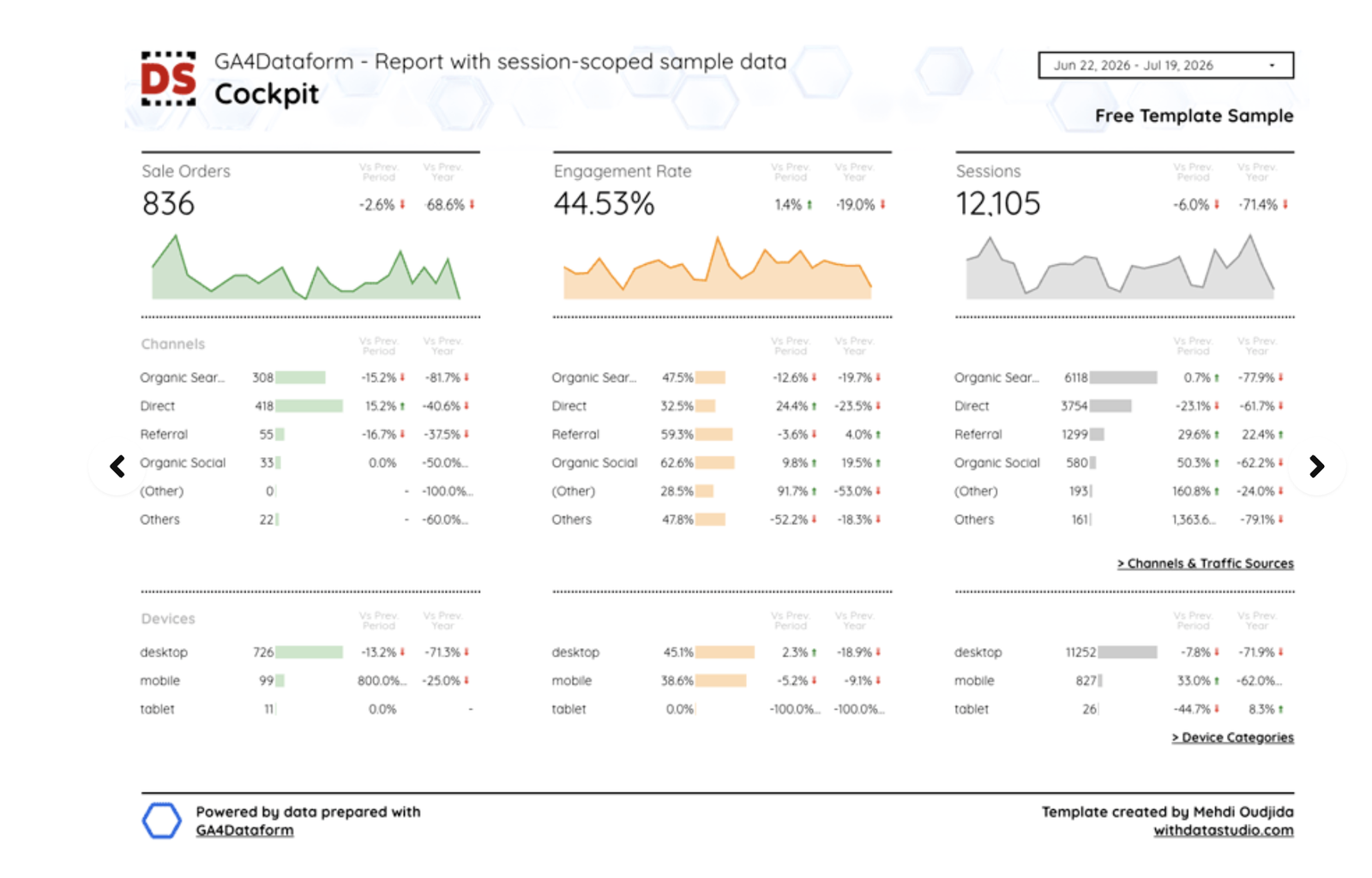
If your reports run on BigQuery, the Linking API swaps project, dataset or table per client:
Where to go next
- Automated client reporting in Data Studio
- Copy and reuse a Data Studio template
- Data Studio connectors compared
- Share and schedule Data Studio reports
- Data sources vs datasets
- Who owns your Data Studio reports
Frequently asked questions
Is there a Data Studio API key?
No. The Data Studio API uses OAuth, and a Workspace admin has to authorise your app through domain-wide delegation in the Admin console. The Linking API needs no key either: it’s a URL.
Does the Data Studio API work with a free Gmail account?
No. Google’s documentation limits it to users in an organisation with Google Workspace or Cloud Identity. The Linking API, embeds and community connectors aren’t restricted to Workspace in Google’s documentation.
Is there an MCP server for Data Studio?
Not from Google. On 1 September 2026 Google staff said on the Data Studio forum that there’s no defined timeline for one.
Do I need Data Studio Pro to use these APIs?
None of Google’s API pages mention Pro. The Data Studio API’s requirement is a Workspace or Cloud Identity organisation, which is a different thing. The free vs Pro guide covers what Pro adds.
What does “Error 400: invalid_scope” mean?
Google’s troubleshooting note says the user’s organisation hasn’t authorised the app, or hasn’t done it correctly. The fix is on the admin’s side, in domain-wide delegation.