
Custom event annotations in Data Studio are dated rows in a Google Sheet (a launch, a redesign, a campaign), blended into your GA4 or Search Console charts on the date and drawn as bars, so the reason for a spike sits on the chart next to the spike. They’re your new best friend for context: added right where you need it, so you’re never left guessing again.
Ever found yourself scratching your head, trying to remember why there was a spike in your data last quarter? This is the fix. The tutorial covers:
- what custom event annotations are, and what they buy you;
- planning the events, and building the sheet the way I build it in my template;
- blending it with GA4 or Search Console, and which metrics to pair with which events;
- configuring the chart, and the visuals that go around it;
- the habits that keep annotations useful across months and dashboards.
It’s one of three annotation builds; the overall logic is in how to annotate charts in Data Studio. The screenshots come from my January 2024 tutorial on lazarinastoy.com (Google’s GA4 demo account and my own site’s Search Console data), when Data Studio was still called Looker Studio, which is why the sheet tab says “Connect to Looker Studio”.
What custom event annotations are, and why bother
Custom event annotations are markers you add to a chart to give context at a specific point in time. They act as contextual bookmarks for the events that may have moved your data: marketing campaigns, product launches, site changes, major updates. Spotting an upward or downward trend is one thing; understanding the cause is another. Annotations give you a concrete reference to correlate with what you see.
Think of them as your data’s diary entries. You’re marking milestones that could reshape how you read trends, and when it’s time to analyse performance, you don’t want to miss the link between what happened and what the chart shows.
| Benefit | What it changes |
|---|---|
| Faster analysis | You see the likely reason for a peak or a dip at once, without second-guessing what happened on that date or sifting through disparate sources. More time for strategic thinking, less for hunting explanations. |
| Better communication | Team members get up to speed by reading the annotations, so the data story and the decisions behind it are easier to follow. Annotations become a shared language between analysts, marketers and executives, and remove confusion about what an event was. |
| Time saved | Less racking your brain or digging through emails to recall what happened; the information is right there on the chart. |
| Proactive decisions | Knowing what affected your metrics before, you’re better placed to anticipate the next change, react promptly and adjust the plan. |
In a separate tutorial I show the same build for Google’s algorithm updates, to see quickly whether a site took a hit. This one is for the events on your side.
You don’t need advanced technical skills for any of it. The process is: create a template in Google Sheets, share it with your client, team or developers so they log the important events, and bring it into Data Studio charts through a blended data source. The annotations are fully customisable: you decide what to mark and you can edit the details as needed. Credit for the blend itself goes to Chris Green, who published it in 2022.
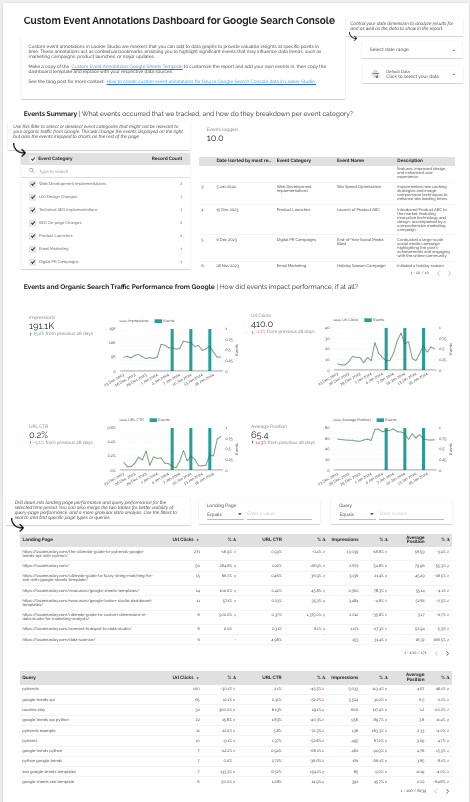
Here’s the finished dashboard, if you’d like to see where this ends up before you build it. It’s free to copy:
Before you build: plan the events and the detail
Plan your annotations before you implement them. Start by identifying the kinds of events that matter to the business, or to the analysis you’re doing: marketing campaigns, website updates, product launches. Then decide how much detail each row should capture. Ask yourself: what would someone reviewing this data six months from now need to know? That foresight saves time and keeps the annotations valuable long term.
- Identify the key events.
- Decide the level of detail.
- Consider the long-term value.
Step 1: build the custom event annotations sheet
The sheet is where you organise the milestones you want to track. Open Google Sheets and set up a spreadsheet just for this. Mine has these columns:
| Column | What goes in it |
|---|---|
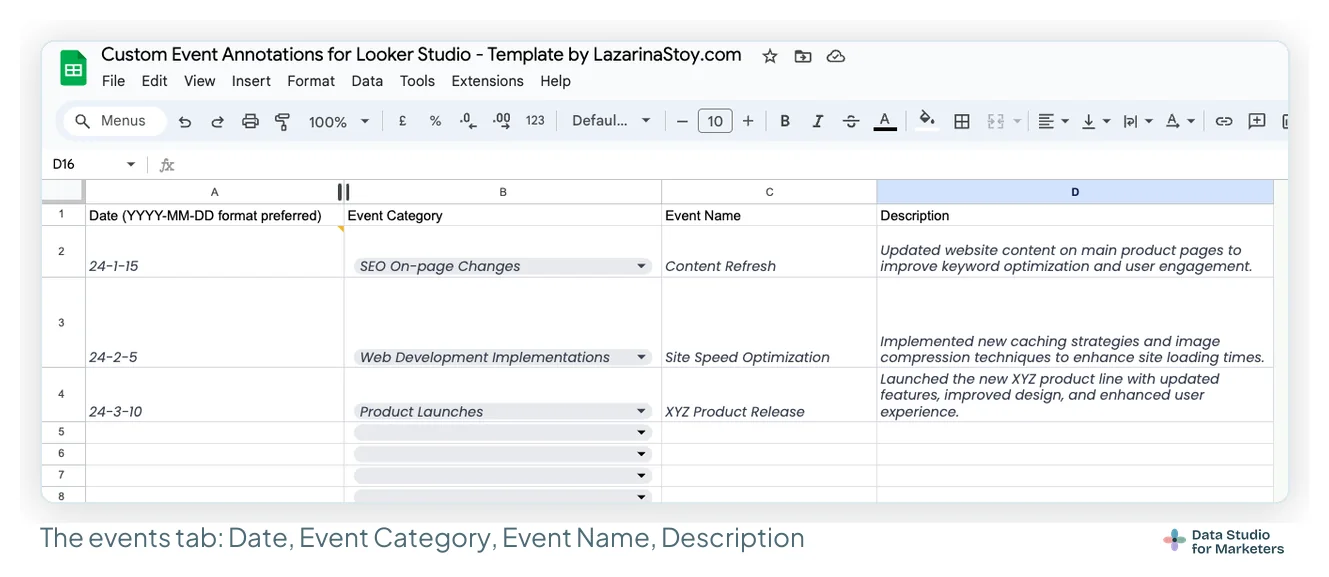
| Date | The exact date of the event. Agree one date format with everyone who writes in the sheet (I use YYYY-MM-DD for compatibility with Data Studio), because dates spelled differently break charts down the line. |
| Event Category | Split events by team: web development, email campaigns, digital PR, SEO on-page changes, and so on. Each team then sees its own events through a filter. |
| Event Name | A brief title: what notable thing happened, what changed. |
| Description | Detail for context. The dashboard doesn’t show it, but if anything ever goes wrong, it’s the saving grace that lets you track down the change behind an error or issue. |
| Confidence and Written by | Two I’ve added since: confirmed, likely or context, and who logged it. |
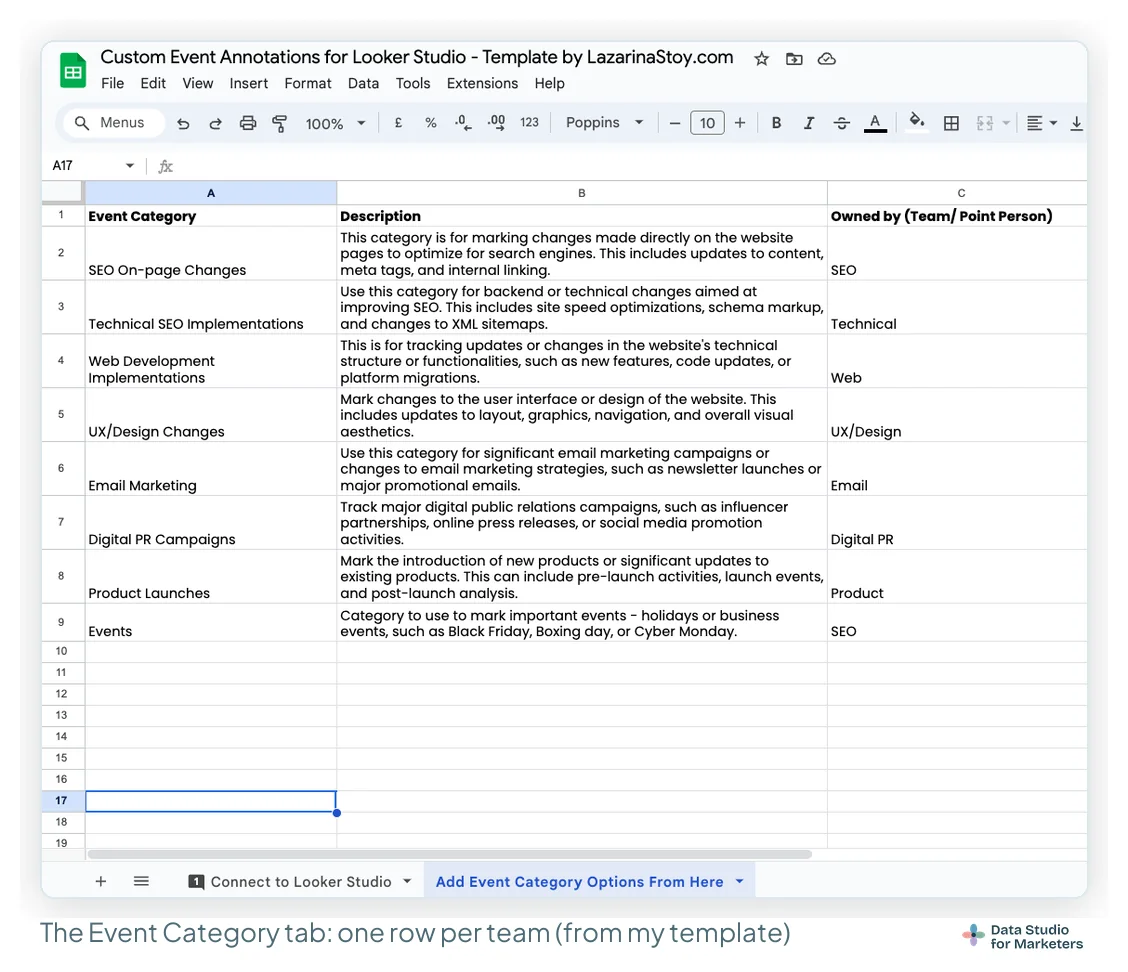
My template keeps the categories on their own tab, each with a description of what belongs in it and the team that owns it, and the category column is a drop-down that reads from that list. The eight I start with: SEO on-page changes, technical SEO implementations, web development implementations, UX/design changes, email marketing, digital PR campaigns, product launches, and events (holidays and business dates such as Black Friday, Boxing Day or Cyber Monday).
Name events clearly. Descriptive names make annotations understandable at a glance. Avoid vague titles like “Update” or “Change”, which could refer to anything; use specific names such as “Website redesign launch” or “Black Friday campaign start”. Prioritise clarity, avoid vague titles, opt for specific descriptions.
Once the template is filled in, check the Date column is formatted as a date. The sample rows in my template show dates like 24-1-15: that’s the sheet’s number format for a real date value, which is what Data Studio needs to join on.
Then share it. Give edit access to the people whose work moves the numbers: the client, the developers, the email team. The rule I ask for: a row goes in on the day something ships, not when the report is due. The sheet comes with the template above, so you can copy it rather than start from blank.
Step 2: blend the sheet with GA4 or Search Console
With the sheet ready, connect it to the data you already report on:
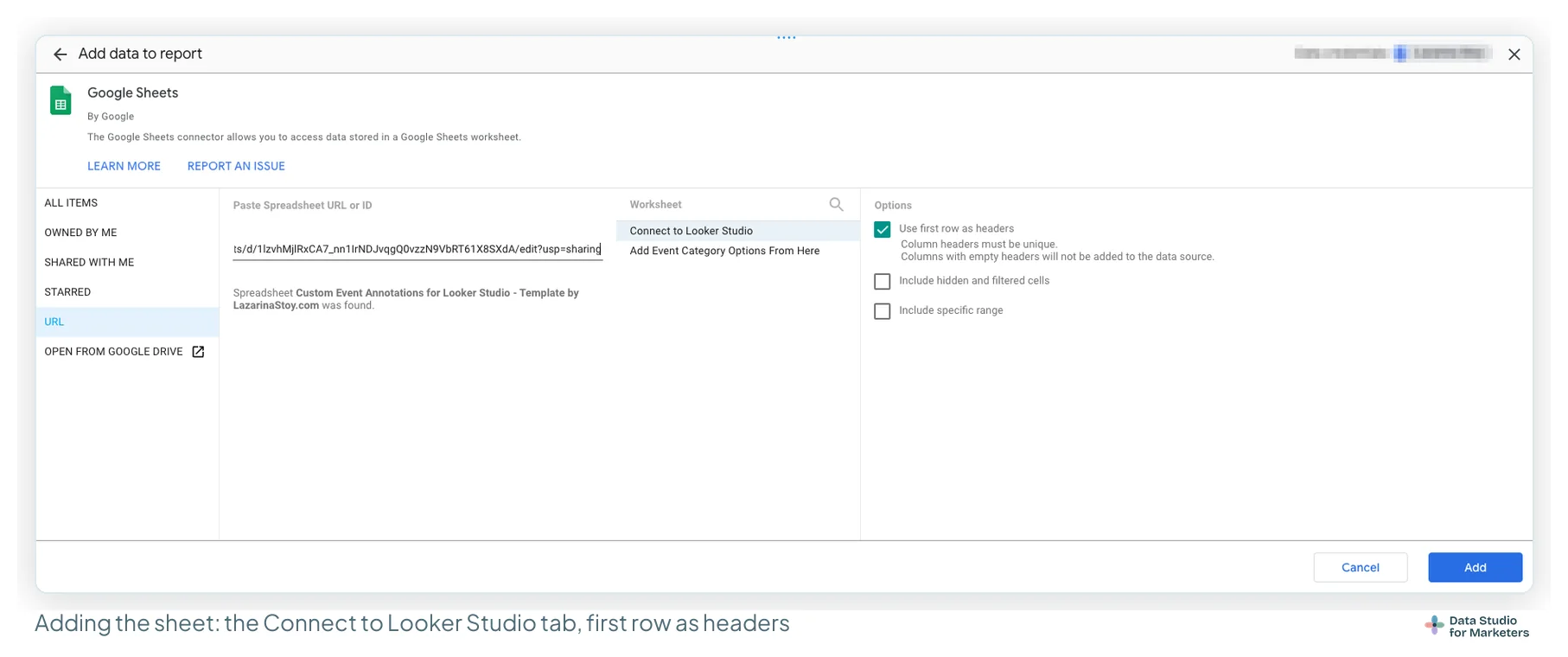
- Connect the sources. Add data › Google Sheets, pick the sheet and the tab the report reads (in my template, “Connect to Looker Studio”), and leave Use first row as headers ticked. Add GA4 and Search Console as well, if the report doesn’t have them yet. Fix the column names before you build, because a renamed column breaks the charts built on it.
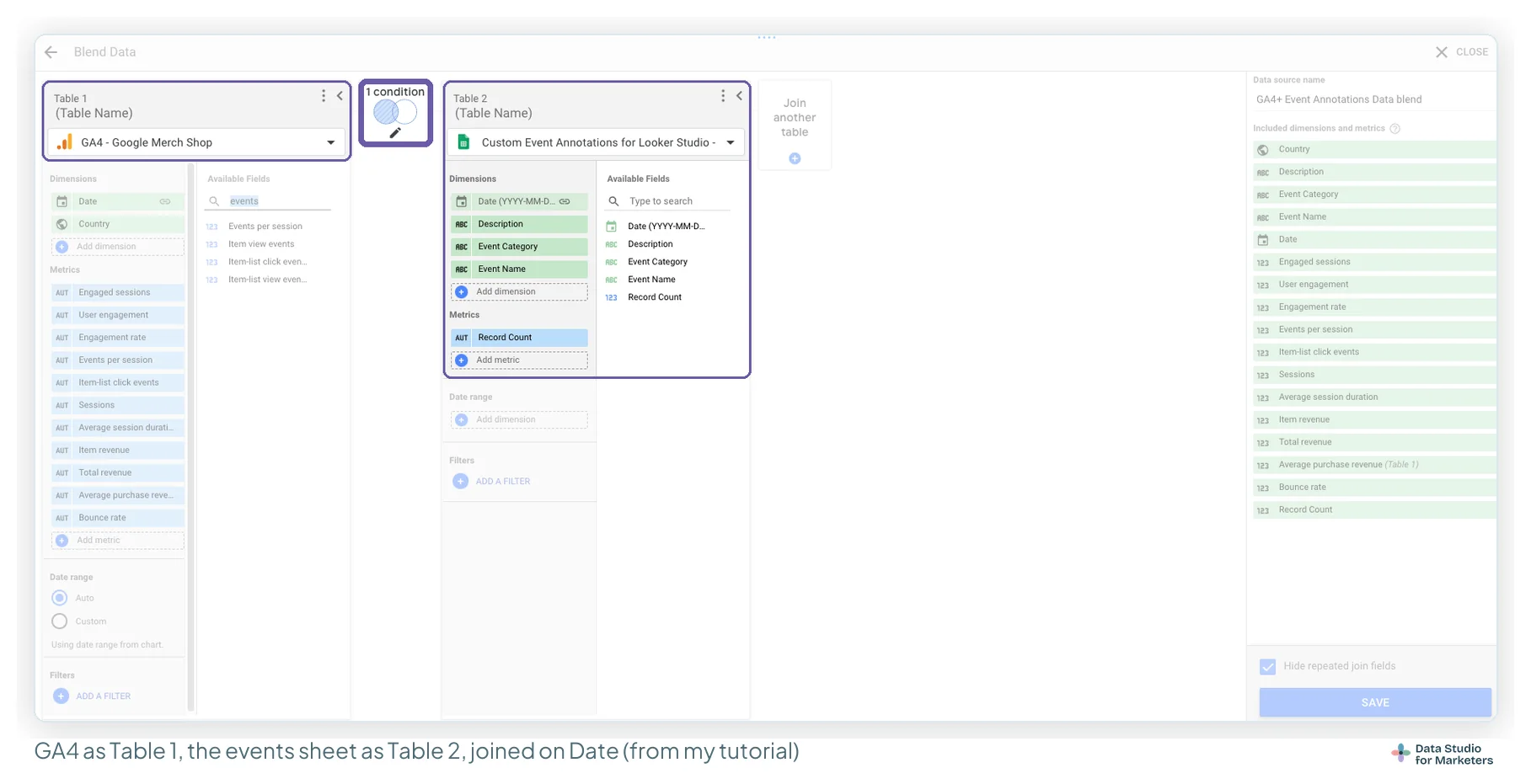
- Select the chart and click Blend data.
- Make GA4 or Search Console Table 1, the primary source with the metrics you chart, and the annotations sheet Table 2.
- Use Date as the join key, so the events line up with your data.
- Set the join to Left outer, so no analytics day drops out; only event days get a value from the sheet. Keep Hide repeated join fields ticked, so you get one Date field, not two.
- Pick the fields you want to display, and save the blend. For the chart, keep Table 2 to Date as its only dimension and Event Name as a Count Distinct metric (step 3): extra sheet dimensions add a row per event, so two events on the same day would double that day’s clicks. The events table beside the chart comes from the sheet on its own, with all its columns.
Blending layers the events directly onto your analytics timeline, so you see how specific events lined up with your metrics.
For GA4 you have a lot more freedom in the metrics you add. My suggestion is to add the metrics that match the event categories you track:
- SEO on-page changes: sessions and bounce rate (plus a custom metric such as title length, if you track one), and Search Console clicks and CTR;
- UX changes: events, item list clicks, bounce rate, events per session, engagement rate;
- Email marketing and digital PR: sessions from referral, email or organic social traffic, broken down by source / medium or default channel group, with sessions or views.
Plot an event against a metric it couldn’t have touched and it’s just noise.
For Search Console, the blend looks like this:

Step 3: configure the chart to show the events
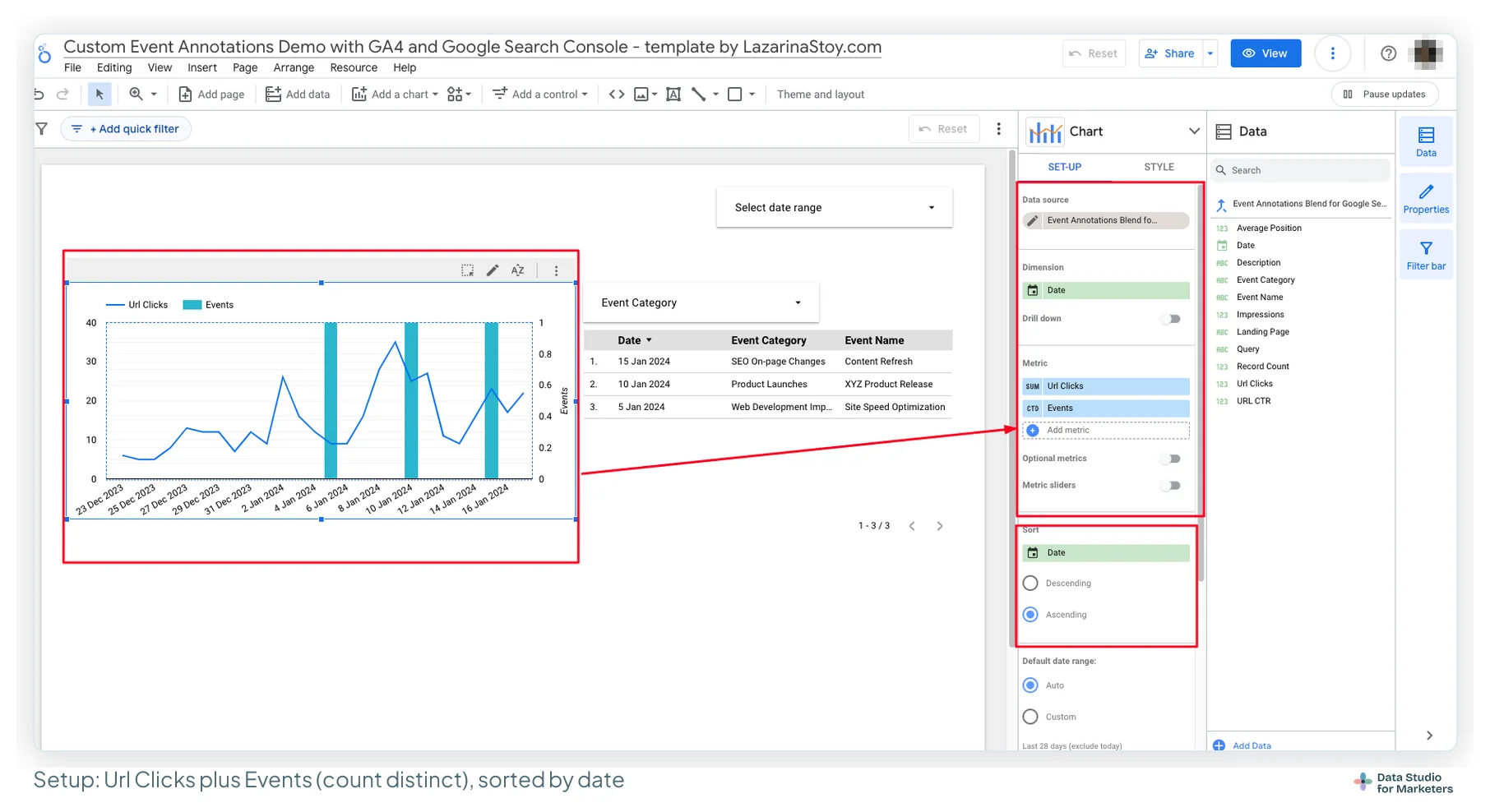
- Pick a chart suited to time series, such as a time series or combo chart, and select the blend as its data source.
- In Setup, use Date as the dimension (the X-axis).
- Add your KPI (sessions, clicks) as the first metric, and Event Name from the sheet as the second, counted with Count Distinct. It returns 1 on an event day and nothing on the rest.
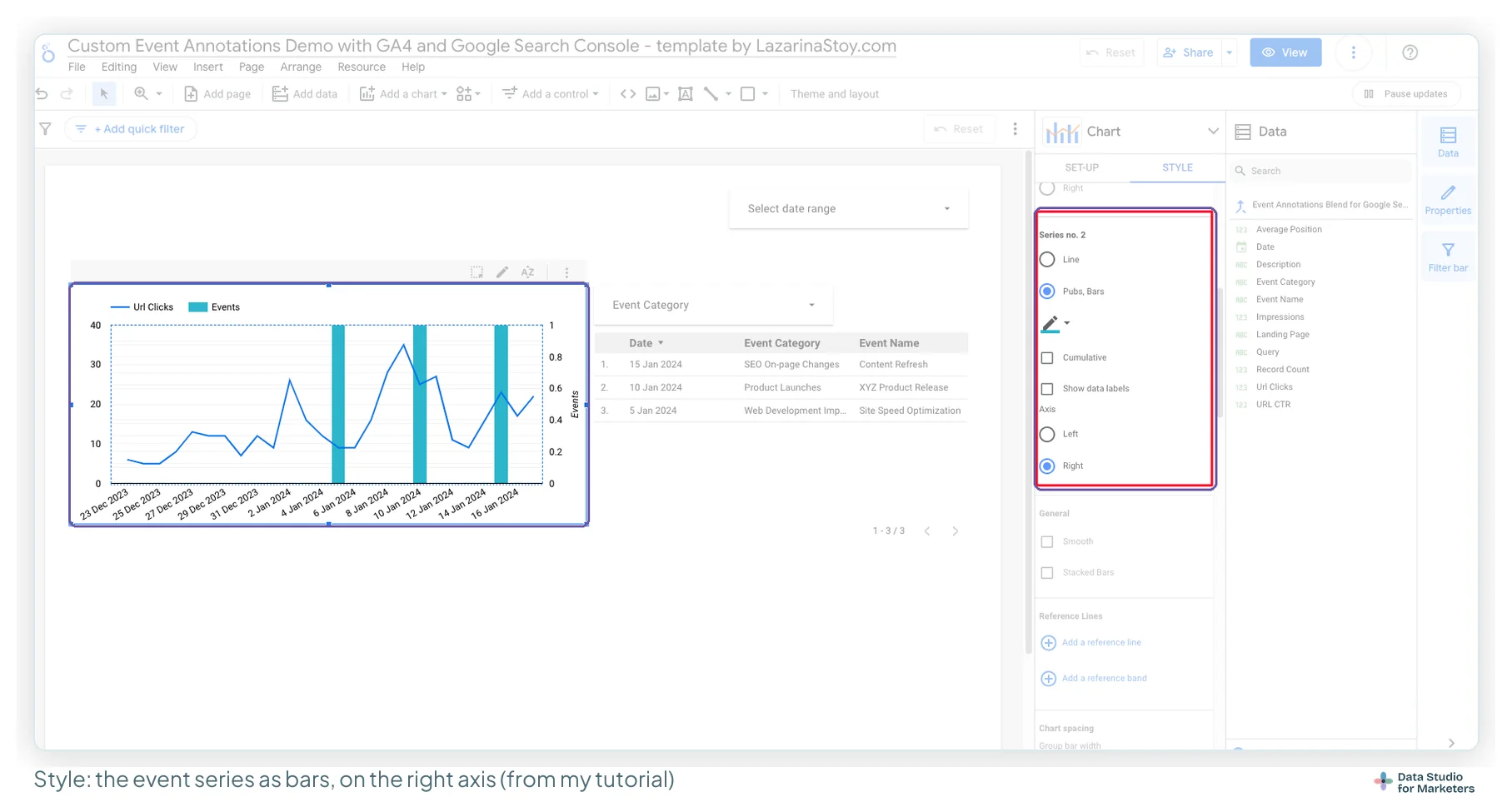
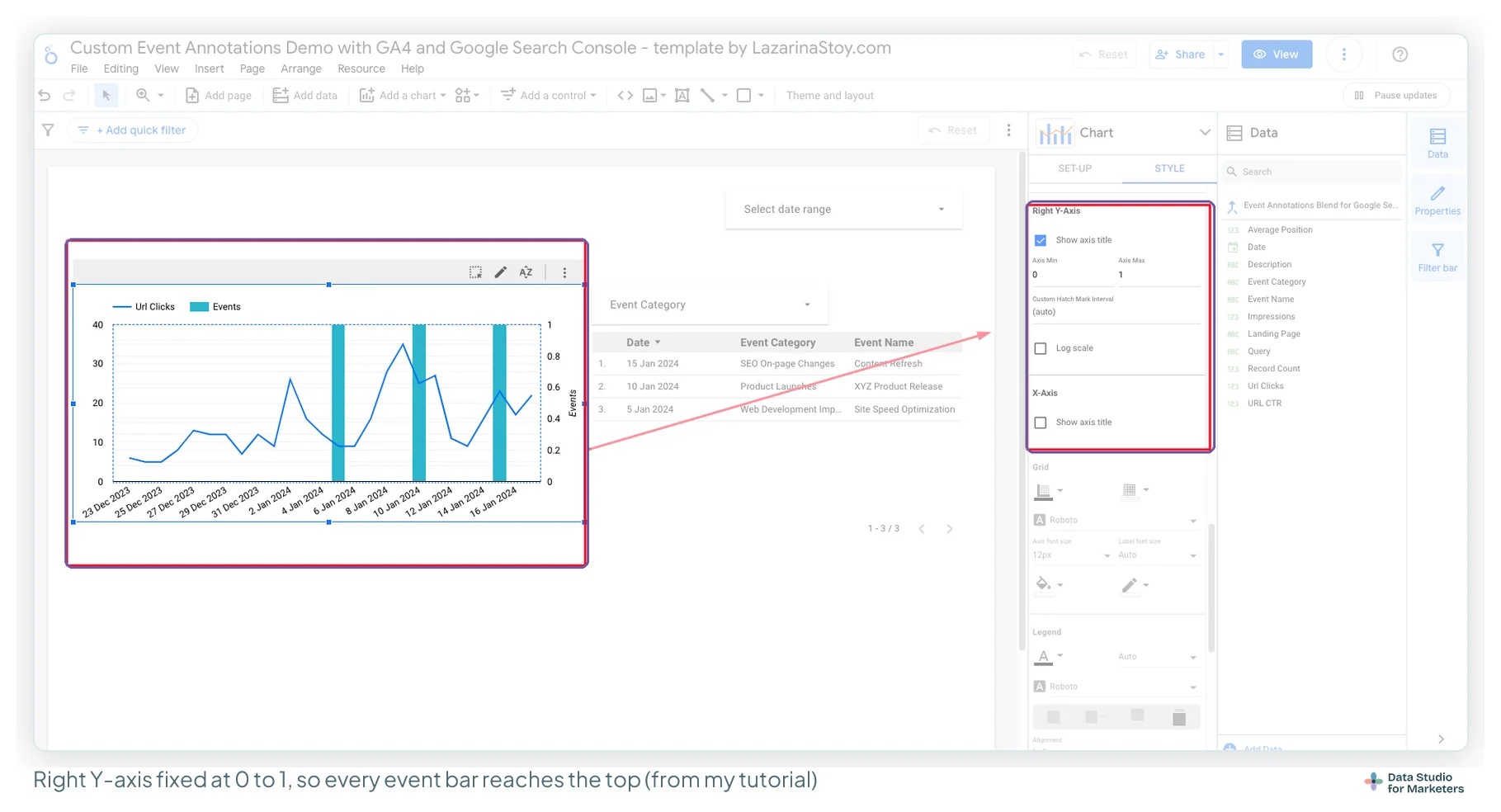
- In Style, find the series for the events and set it to Bars, on the Right axis.
- Scroll down, set the right Y-axis to Axis min 0 and Axis max 1, so every event bar runs the full height of the chart, and show the axis title (I title it Events).
Step 4: add the supporting visuals
The bar marks the day; the words go beside it. To finish the page, add:
- scorecards for the key metrics;
- a table from the sheet with the event’s date, category and name, on the same date range as the chart;
- a date range control;
- a drop-down on Event Category, so each team can see its own events.
These draw attention to trends or outliers that may be related to the annotated events. The goal is a data story enriched with the precise context only well-placed annotations give: the charts stop being data points and become stories people can interact with. The template above is a complete sample page, with Search Console metrics and the events table side by side.
Chris Green calls the build fiddly, and the first one is. From the second month it costs almost nothing: the next event is one more row, added by whoever made the change. A blend lives inside one report, so each report gets its own blend of the same sheet.
Habits that keep event annotations useful
As you use them more, a few practices keep your analytics streamlined and the reports clear for everyone who reads them. Planning and clear names are covered above; the third is consistency.
Keep it consistent across dashboards. Consistency keeps reports trustworthy and professional. If you manage several dashboards, or share findings with a team, set a standard format for annotations and stick to it:
- standardise the date format, the event naming convention and the description style;
- keep the naming conventions the same across reports;
- use one sheet for all of them, so comparing one report with the next is straightforward.
Only some events go on the chart. The sheet can hold every event; a chart with eleven event bars communicates less than one with three. The test from the main guide: does this event explain the shape of the line? If not, it stays in the table and the sheet.
An event bar shows timing, not cause. That’s what the Confidence column is for: “confirmed” needs evidence, not just a date that lines up. The main guide covers how I check before an annotation stays.
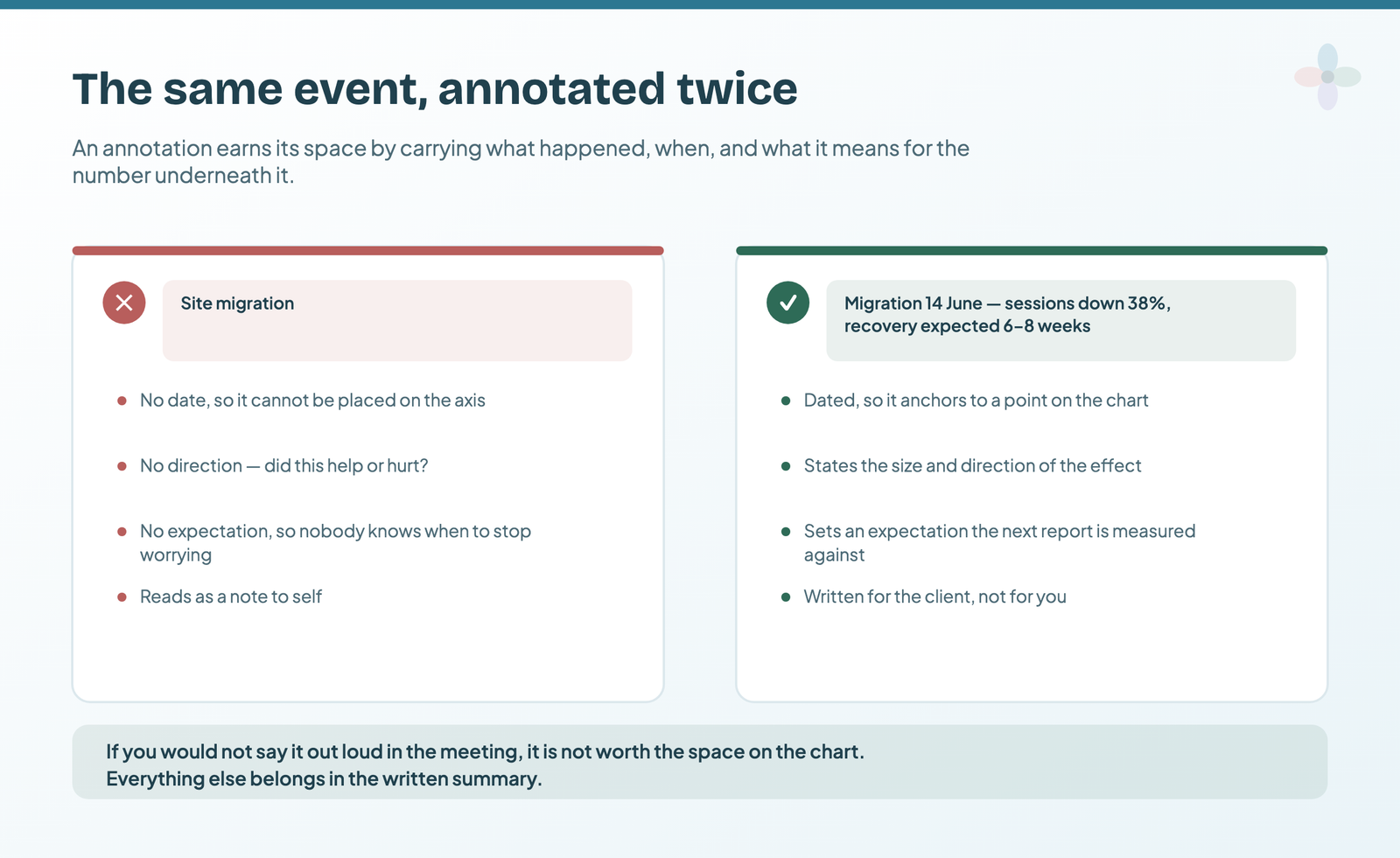
By planning, naming and standardising your annotations, you’ll make better-informed decisions from the stories in your reports. Remember, the impact of analytics isn’t only in the data but in how you present it.
Frequently asked questions
How do I create charts with custom event annotations in Data Studio?
Keep the events in a Google Sheet (date, event category, event name, description), add it to Data Studio, blend it with GA4 or Search Console on Date with a left outer join, add Event Name as a second metric counted distinct, and draw it as bars on a right axis fixed from 0 to 1.
What are the best practices for custom event annotations?
Plan which events matter before you start, give events clear and specific names, and keep the date format, naming and descriptions consistent across dashboards.
Why plan event annotations beforehand?
So they’re relevant and useful later. Ask what someone reviewing the data six months from now would need, and capture that much detail.
How do custom event annotations improve a report?
They add context right on the chart, so readers can see what happened around a change in the data, which makes the report quicker to read and easier to act on.