
Data Studio has no button that pins a note to a date on a chart, so annotating a chart means choosing a carrier: a text box, the chart title, a date reference line, or a sheet of dated events blended into the report. Knowing which one to reach for is most of the job.
There are several methods, they suit different situations, and the one worth learning properly is the sheet. It comes in three versions, depending on what the rows hold, and each has its own step-by-step tutorial:
- custom event annotations: what your team changed and when, blended into GA4 or Search Console;
- expert commentary annotations: what a consultant thinks the numbers mean, dated and signed, beside the chart it explains;
- Google algorithm update annotations: every core and spam update since late 2021 on your organic charts, from a dataset this site keeps up to date.
This post is the overview: what Data Studio gives you natively, the methods compared and when to use which, keeping commentary in step with a report that refreshes itself, and how to write an annotation that doesn’t turn into a claim you can’t support. The worked examples use Harbour & Fern, the fictional garden and home retailer from my ebook.
Why an annotation matters more than the chart it sits on
A spike with no explanation generates a question. A spike with a label generates a decision.
Every unexplained movement in a client report is an invitation for someone else to supply the explanation. A dip in March means “the migration went live on the 4th” if you say so, and “something went wrong with SEO” if you don’t. Without annotation, a dashboard is a data feed with your logo on it.
Think of annotations as your data’s diary entries. Here’s what they buy you:
| What you get | What it looks like in practice |
|---|---|
| Faster analysis | You see the reason for a peak or a dip at a glance, instead of racking your brain or sifting through emails to recall what happened that week. |
| A shared language | A new team member, a client or a director reads the same marker and gets up to speed without a call. Annotations replace the long email chain and the notes scattered across tools. |
| A knowledge base | Over time the sheets become a record of what was done and what you thought about it, so whoever analyses the account next sees the “why” behind past trends. |
| Better next decisions | Knowing what moved your metrics before helps you anticipate what the next launch, campaign or update will do. |
What Data Studio natively gives you for annotating a chart
| Carrier | Good for | Limits |
|---|---|---|
| Text box | A sentence beside the chart | Static; edited by hand every month |
| Chart title | The finding every reader sees | One line; charts have a title and no subtitle field |
| Tooltip | Values on hover | Gone in a PDF or a screenshot |
| Reference line or band | Thresholds; on a time series, one or two dates | One typed date per line, per chart |
Text boxes
Free, static, and underrated: a sentence beside the chart, with no dependencies.
Chart titles as annotation
The most under-used annotation space in the tool. A chart title should state the finding, not name the metric. “Organic traffic fell 12% after the March update” does more work than “Sessions by month”, and it costs nothing. In a chart’s Style tab, turn on Show title under Chart title and type the sentence. There’s no subtitle field, so a second line of context goes in a text box under the title.
If you change one thing after reading this, change your chart titles.
Tooltips
Values on hover: useful live, gone in a PDF or a screenshot, which is where a lot of client reporting ends up.
Reference lines and bands, including a date on a time series
Good for thresholds, and on a time series they can mark a single date: in Style, add a reference line, set Line axis to X-axis and Line type to Constant value, pick the date and label it. I tested it in October 2026, and the line prints in the PDF. Column and bar charts with a date take Y-axis lines only.
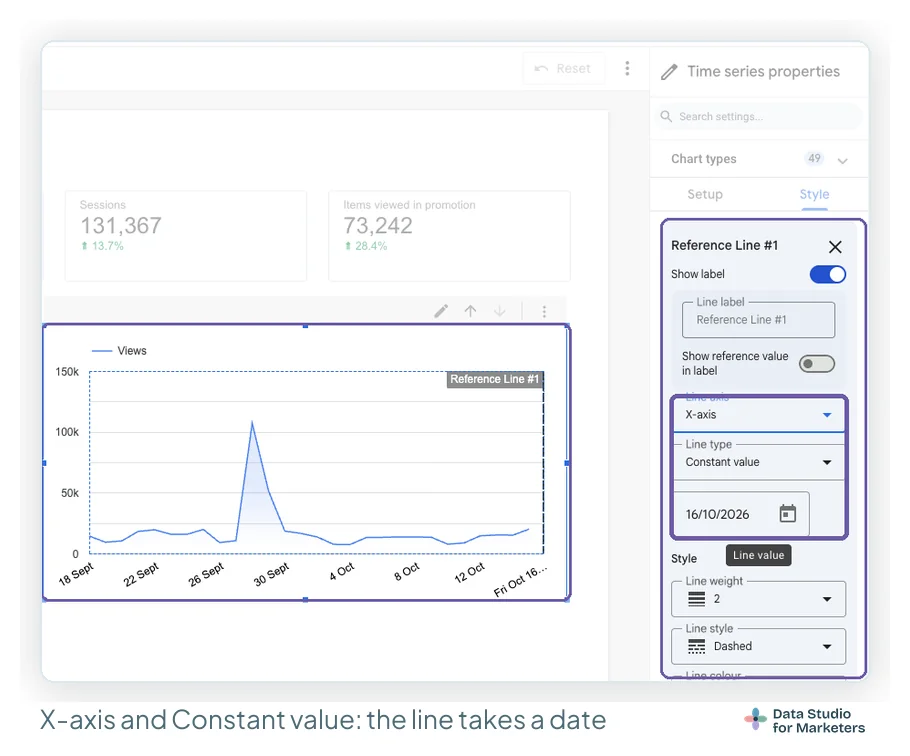
It’s a native marker for one or two big events on a key chart. It doesn’t scale: each date is typed into one chart, a chart takes up to ten reference lines, and a dozen reports means a dozen edits. The full steps are in reference lines and targets.
GA4 and Search Console annotate now, but not in your report
GA4 and Search Console both let you pin a note to a date now. In GA4 you need the Analyst role or above to add one, and Google Analytics adds system notes of its own when something affects the data (About annotations). Search Console followed in November 2025 with custom annotations on its Performance reports (Google’s announcement).
None of those notes travel to Data Studio, and Google documents no way to pull them in. So the sheets below are my record, and I copy the handful of events that matter into GA4 or Search Console for colleagues who work there.
Four ways to get real, data-driven annotations into a Data Studio report
| Method | Effort | Maintenance | Client-safe? | Best for |
|---|---|---|---|---|
| Text box by hand | Minutes | Manual, but trivial | Yes | One-off commentary; small reports |
| Google Sheets blend (events, commentary or Google’s updates) | An hour to set up | Adding a spreadsheet row | Yes | Recurring reports; teams; many events |
| Community component | Minutes | Low, until it breaks | With caution | Internal dashboards |
| Third-party connector | Setup + subscription | The vendor’s problem | Yes | Agencies already paying for one |
Reach for the sheet when the manual work stops being trivial, usually at a few reports or when more than one person maintains them. It’s the only method where updating the story means editing a spreadsheet rather than the report, and it needs no advanced technical skills: a sheet, a blend and two style settings.
The three annotation sheets compared, and when to use which
The three sheets share one build: dated rows blended with your analytics data on the date, drawn as bars on a right axis, with a table beside the chart. What changes is what each row holds and who writes it:
| Sheet | One row is | Who writes it | Columns | Use it when |
|---|---|---|---|---|
| Custom events | Something your side changed or launched | Whoever shipped it: developers, email, PR, SEO | Date, Event Category, Event Name, Description | Several teams change things that move the numbers, and the report has to say what happened when |
| Expert commentary | An interpretation of a metric for a period | The consultant or analyst | Date, Category, Metric, Metric Source, Commentary, Written by | The client needs to know what the numbers mean, and the dashboard refreshes faster than you write |
| Google’s updates | A core, spam or other ranking update | Nobody: it’s a dataset | start_date, end_date, update_name, type, duration, source_url | Any organic search report, so Google’s changes sit next to yours |
Method 1: the custom events sheet
Credit for the blend goes to Chris Green, who published it in 2022: keep your events as dated rows in a Google Sheet, join them to the analytics data by date, and plot them as a second series. Everyone whose work moves the numbers adds a row on the day something ships. The event name, counted distinct, returns 1 on an event day; drawn as bars on a right axis from 0 to 1, each event becomes a full-height bar.
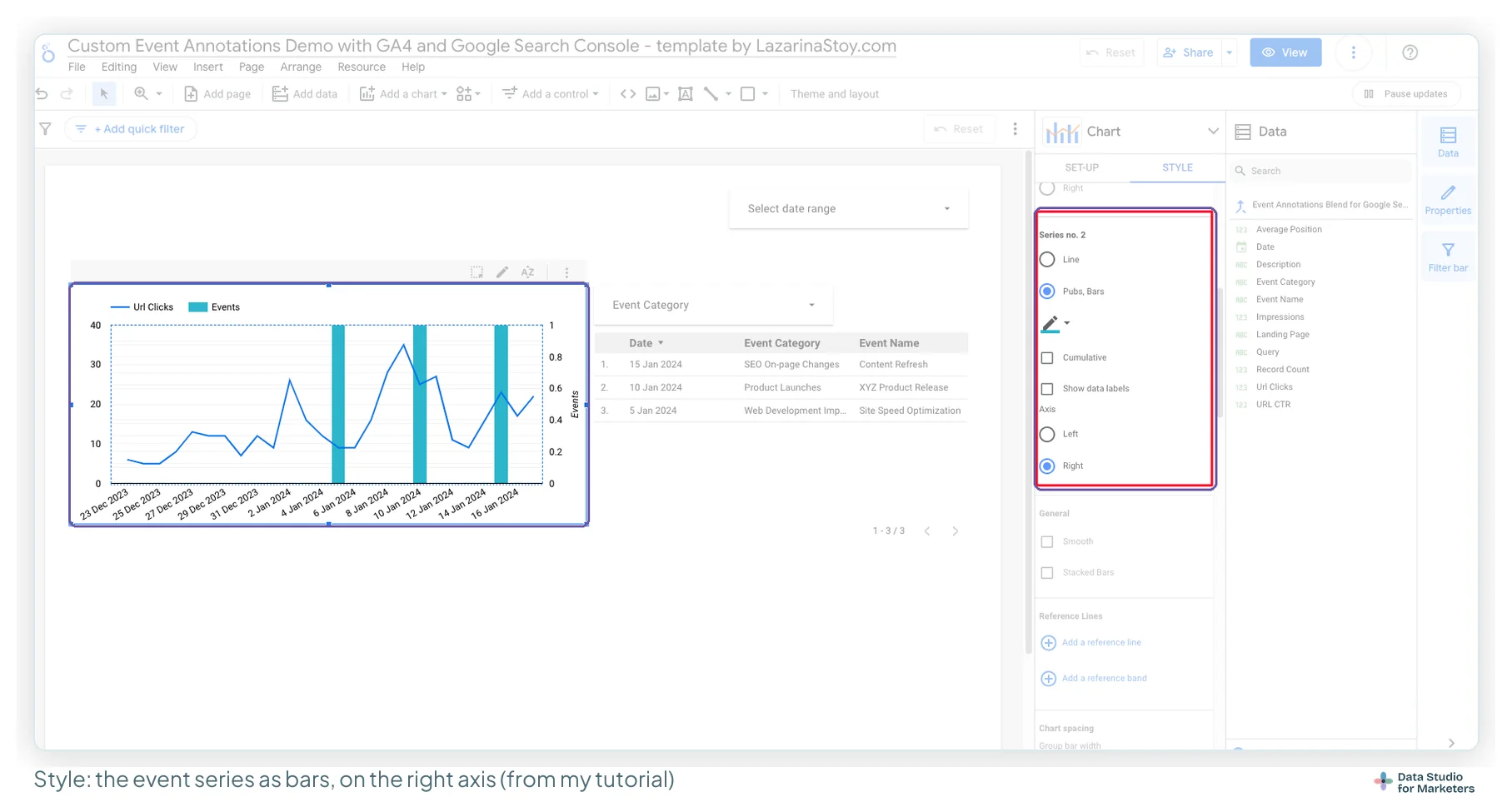
I built it into a template, sheet included:
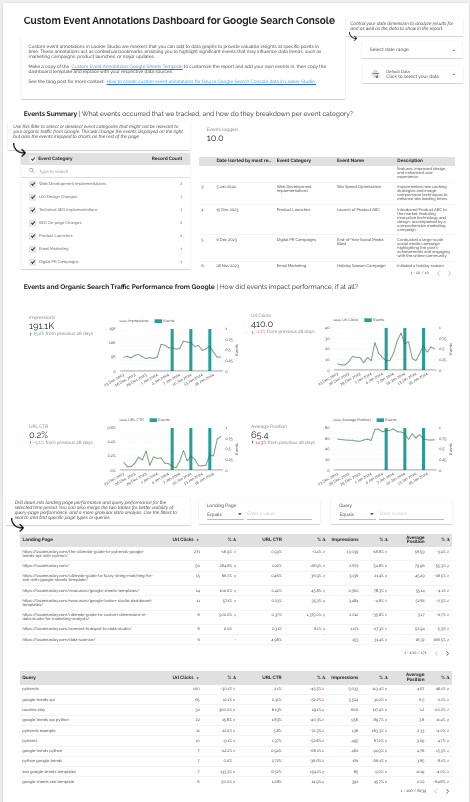
The full build, with the sheet’s columns, the GA4 and Search Console blends, which metric to pair with which event category and the chart settings, is in custom event annotations for GA4 and Search Console, step by step.
Method 1b: the expert commentary sheet
The events sheet records what happened; the commentary sheet records what you think it means. Each comment carries a date, the metric it’s about and who wrote it, so the reading stays attached to its period. Blend it with GA4 on Date (GA4 first, left outer join) and put a table of the comments beside the chart each one explains.
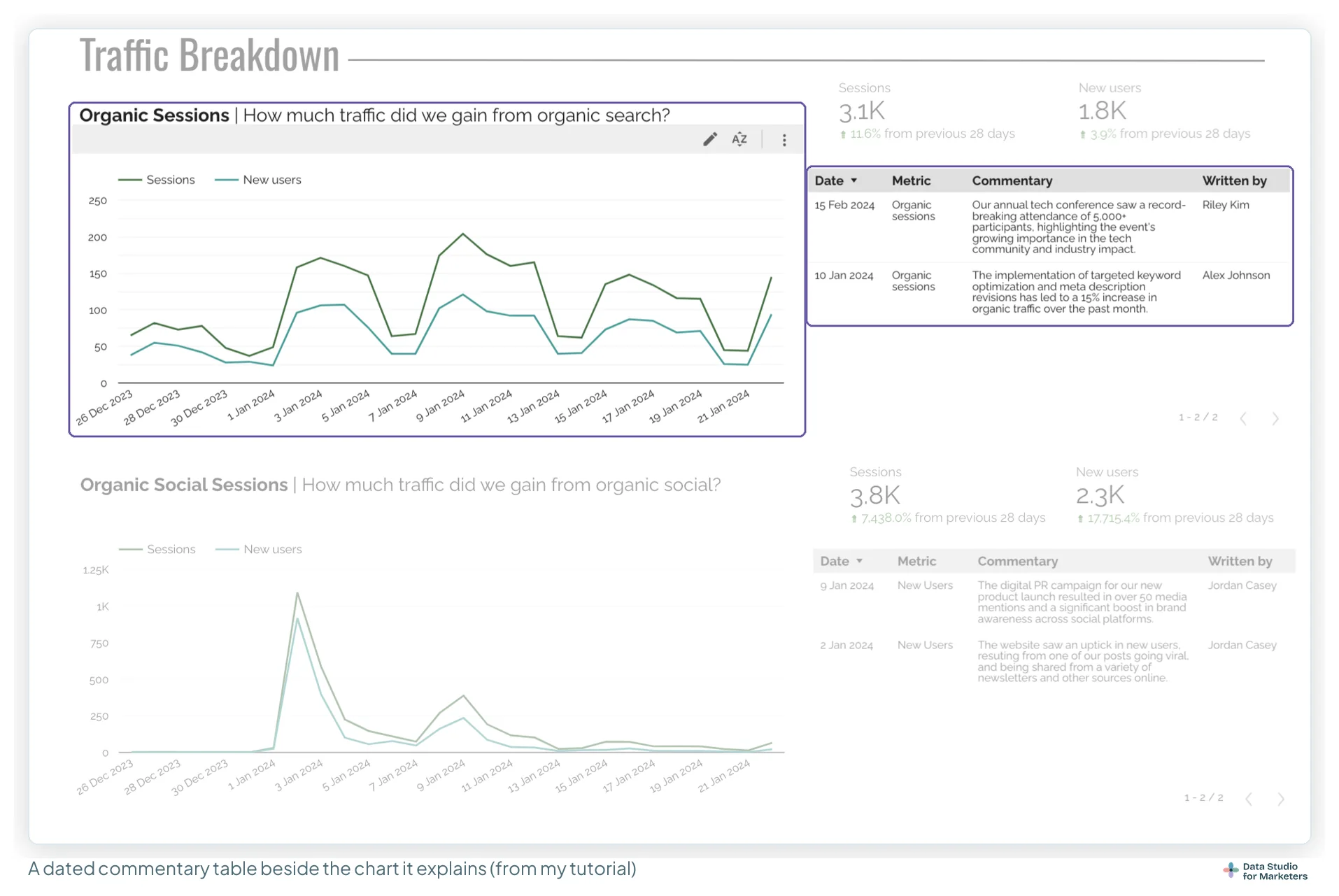
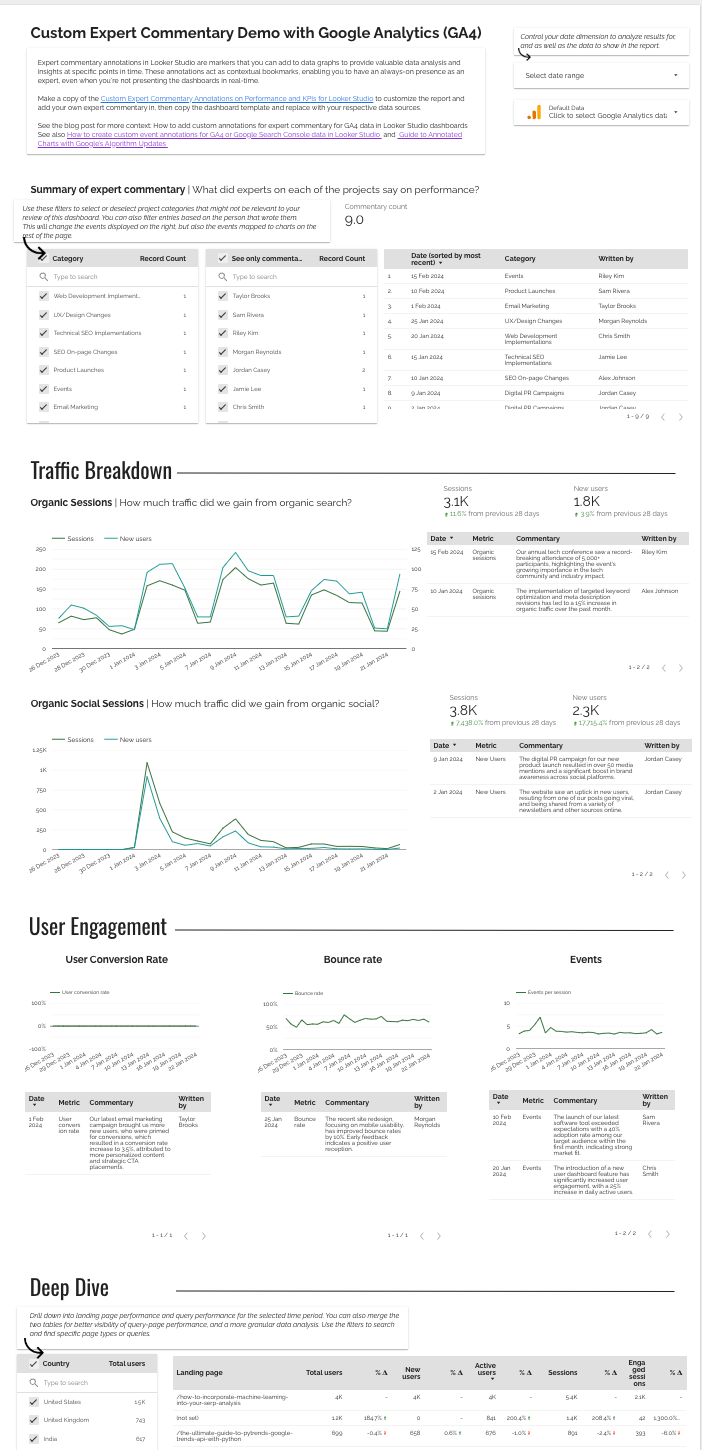
Worked example. At the end of September, Harbour & Fern’s SEO lead adds one row: 30 Sep · SEO · Sessions · GA4 · “Organic now 6% above pre-migration. Two category pages down about two positions since the 12 August core update (likely contributor); recovery plan in October’s report.” · SEO lead. Dated, it reads as September’s view, not as a standing claim on the page.
The full build and my rules for writing the comments are in expert commentary annotations for GA4, step by step.
Method 2: a community visualisation
Community visualisations that add hover annotations are quick and they work. The caveat is the same as for any community visualisation: it’s third-party code running against your data, and if it breaks or is abandoned there’s no support. Fine on an internal dashboard; on a client report you’ll maintain for two years, it’s a dependency you don’t control (community visualisations, and when to trust one).
Method 3: a third-party annotation connector
Some paid connectors offer annotation as a feature. If you already pay one for data, check whether it’s included before building anything.
Method 4: text boxes positioned by hand
The unglamorous one, and frequently correct. Three charts and monthly commentary? A text box beside each is faster to build and impossible to break.
Annotate Google’s updates and the AI search changes
On an organic search report, the biggest bends in the line are often Google’s doing, not yours: core and spam updates, and since 2024 the AI features that change how often a search ends in a click. Give them rows like any other event, marked “context”, since you didn’t cause them and they rarely hit every page the same way.
For the ranking updates you don’t need to type anything. This site keeps a CSV of Google’s ranking updates, refreshed daily from Google’s Search Status Dashboard, with incidents kept in a separate file. One IMPORTDATA formula pulls it into a Google Sheet, and from there it blends like the events sheet.
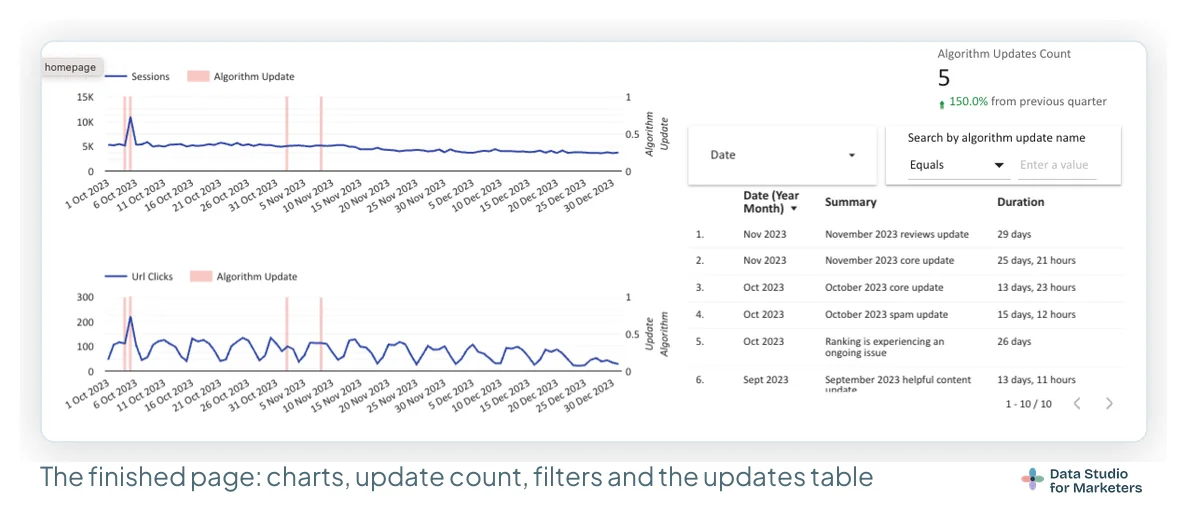
The AI Overviews and AI Mode launches aren’t ranking updates, so they go into the events sheet by hand. The step-by-step build, the dataset’s columns and the AI search dates I’d add for a UK or US site are in how to annotate Data Studio charts with Google’s algorithm updates.
The real objection: the dashboard refreshes and your commentary doesn’t
The dashboard refreshes automatically. Your commentary doesn’t. So on the first of the month, the report shows this month’s data next to last month’s notes, which is worse than no commentary, because it’s confidently wrong. Four habits fix it, and none of them is “update it more often”:
- Move the commentary out of the report. The commentary sheet means each note lives in a spreadsheet with a date attached, tied to the period it describes rather than floating on the page.
- Date the text box when you can’t. A commentary box whose first word is the period (“September: …”) still goes stale, but honestly: the reader can see which month it describes.
- Publish your update cadence on the page. A small text box saying “Commentary updated on the first Monday of each month” turns a stale-looking report into a documented one.
- Stamp how fresh the data is. A “GA4 data to 15 Oct 2026” line, whose date comes from the data itself, through a query result variable. The steps are in the executive summary post.
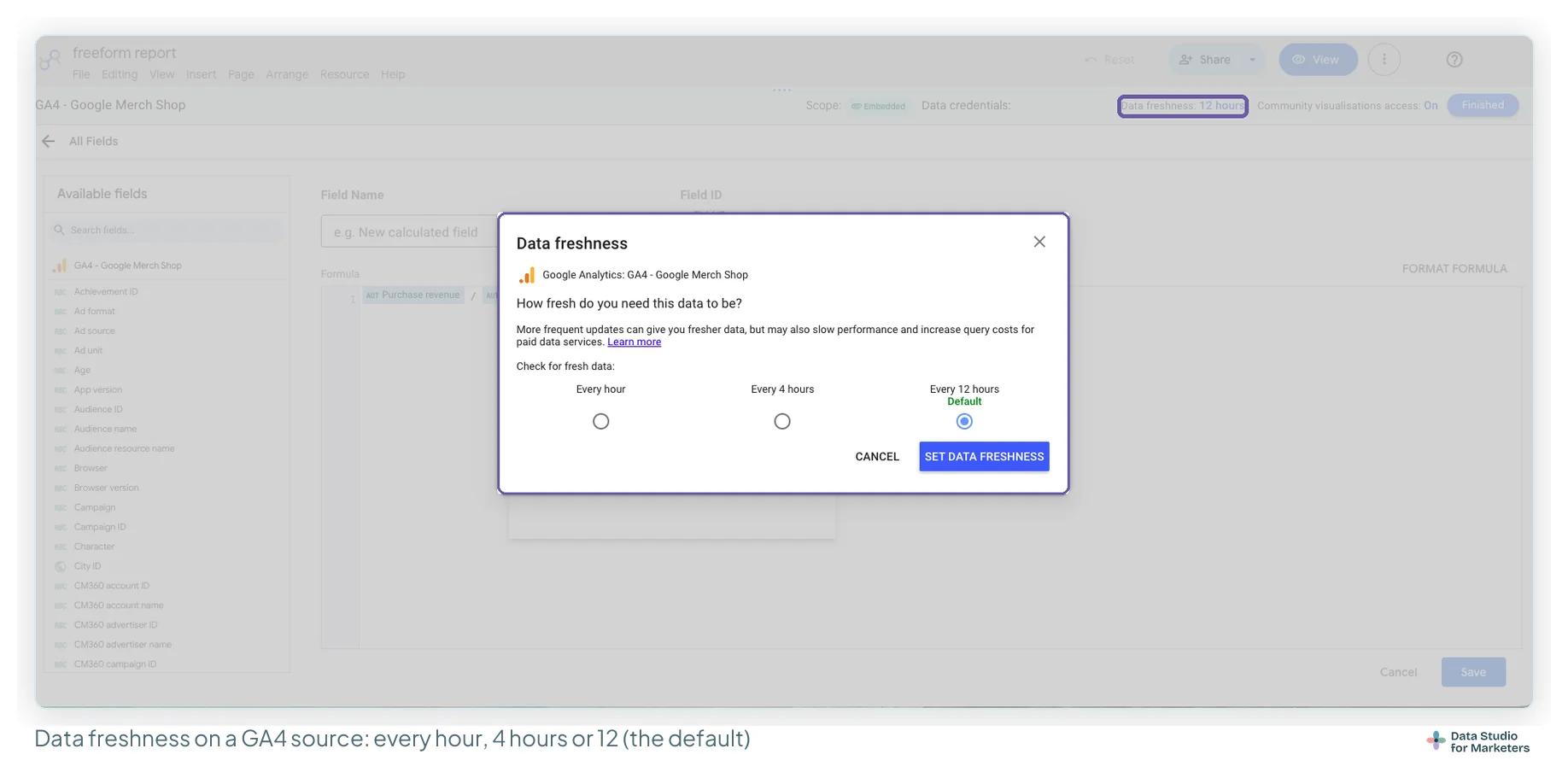
Before you write “data to” anything, check how often the source refreshes. Open Resource › Manage added data sources, click Edit on the source, then Data freshness in the header. On GA4 the choices are every hour, every 4 hours, or every 12 hours, the default.
Chapter 24 of my ebook, Data Storytelling in Data Studio, covers how to show a reader how old a number is, and how to keep commentary in step with the data when it refreshes.
An annotation records an event, it doesn’t prove a cause
An annotation placed next to a movement reads as a causal claim, whether you meant it that way or not. Put “core update” next to a dip and you’ve told the reader the update caused it. If the real cause was a tracking change, a stock-out or seasonality, you’ve anchored the conversation on the wrong thing, and it’s very hard to walk back.
So before an annotation stays on the chart, check it against the inputs. Did anything else change in that window? Did the tag break? Did a redirect go in? An annotation should survive the question “how do you know”. That’s what the Confidence column in my events sheet is for: “confirmed” needs evidence, not timing.
When you’re inferring rather than measuring, say so in the annotation. “Core update landed 12 August, likely contributor” is honest and still useful. “Core update” beside a cliff is a claim you may not be able to support.
What to annotate on a marketing report, and what to leave alone
Worth annotating: algorithm updates and AI search changes · campaign launches and end dates · site migrations and redesigns · tracking, tag or consent changes · pages deleted or redirected · known seasonality · data gaps.
Not worth annotating: everything else that happened. A chart with eleven labels communicates less than a chart with three. The test: does this event explain the shape of the line? If not, it stays in the sheet, not on the chart.
Worked example. Harbour & Fern’s sheet has plenty of rows for the year, but its organic chart shows four: the migration (4 March), the purchase tag gap (3–9 April), the 140 missed redirects finally shipped (28 April), where the line turns back up, and the 12 August core update, labelled a likely contributor. The email flows and the paid social push stay in the sheet; neither changes the shape of the organic line.
Annotating a tracking break or data gap honestly
The most valuable annotation on any client report, and the one most often left off.
When the tag broke, the connector failed, or the GA4 property switched over, say so on the chart, at the dates affected. “Tracking gap 3–9 April, data incomplete” prevents three separate wrong conclusions and takes ten seconds. Mark it on every chart the gap affects, even where that chart’s metric looks fine: Harbour & Fern’s sessions weren’t touched by the April tag gap, but the revenue chart beside them was. A data health page that flags missing days is how you catch the gap before the client does.
It feels like admitting a fault. It reads as competence.
Where to put an annotation, and what each placement does
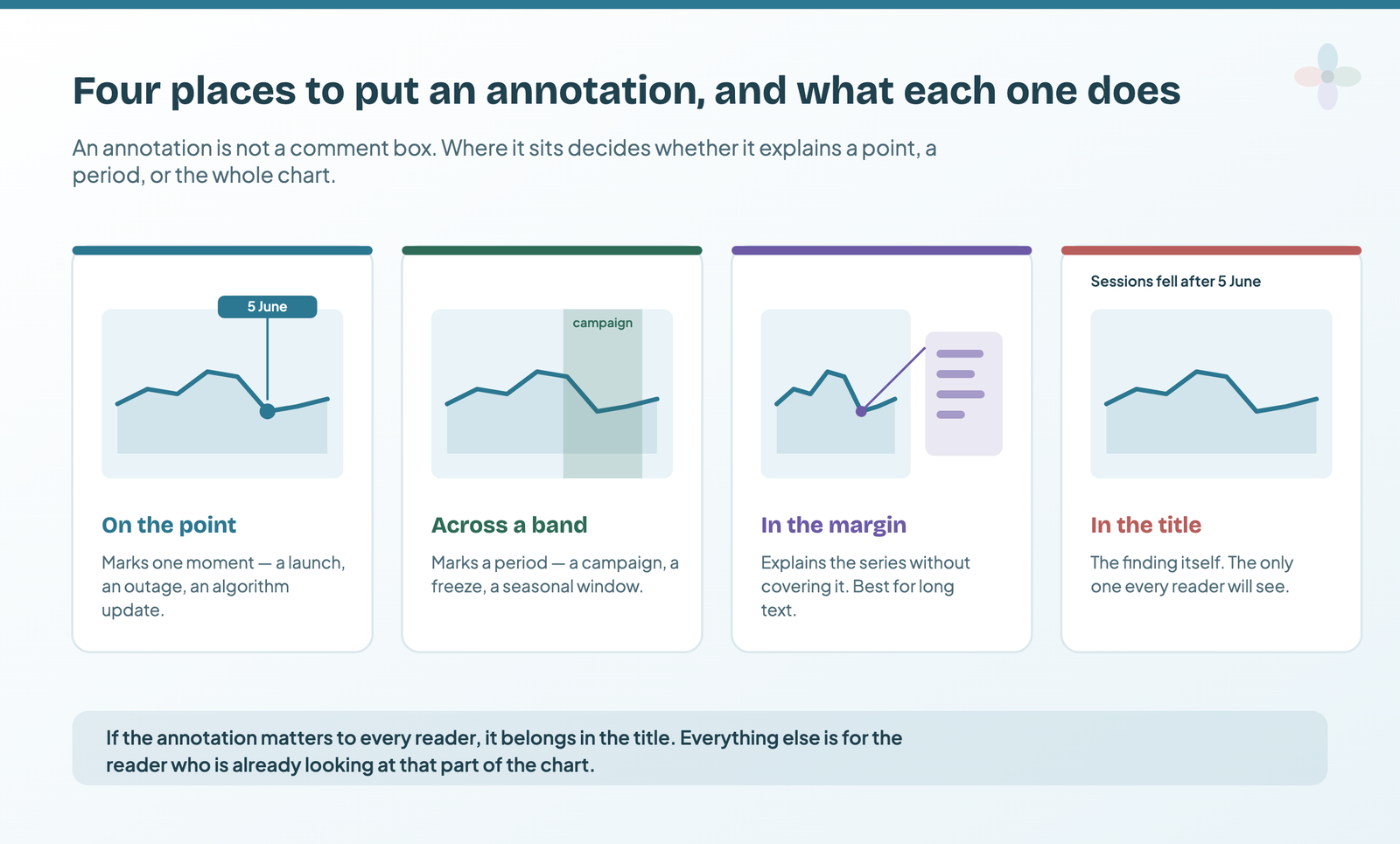
| Placement | Marks | In Data Studio |
|---|---|---|
| On the point | A single moment: a launch, an outage, an update | A date reference line, or an event bar from the sheet |
| Across a band | A period: a campaign window, a content freeze | A reference band (Google documents date ranges on the X axis) or a run of event bars |
| In the margin | Anything over about fifteen words | A text box or the commentary table beside the chart |
| In the title | The finding everyone must see | Style › Chart title, written as a sentence |
The title is the placement that matters most, and the one people reach for last. If a piece of context matters to everyone opening the report, it isn’t an annotation at all: it’s the chart title.
How to write an annotation that earns its space
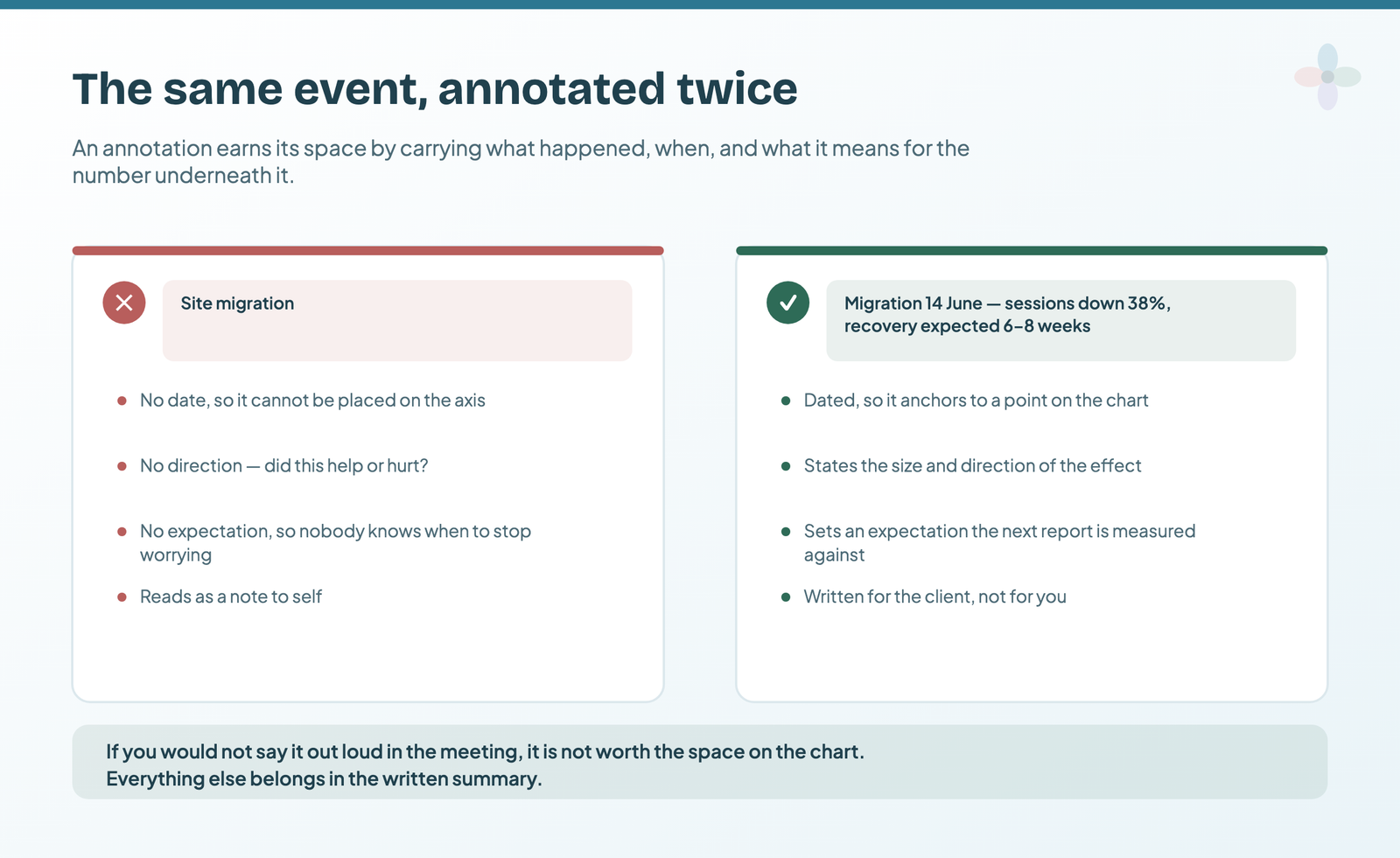
Short, and in this shape: what happened, when, which way it pushed, and what to expect next. Under fifteen words on the chart; anything longer goes in the commentary.
- “Site migration, 4 March: organic down 18%; recovery expected by June”
- “Brand campaign ran 8–22 March: inflates the non-brand comparison”
- “Deleted and redirected 40 thin blog posts in December: explains the Dec–Jan drop”
Each one turns a scary shape into a known event. The same goes for event names in a sheet: specific beats vague every time, because “Update” tells the next reader nothing.
For longer commentary, analyse, don’t report. These are the rules I write by:
- Interpret, don’t restate. The reader can see the numbers. If clicks rose 10%, the scorecard already says so; say why, how sure you are, and how to repeat it.
- Give it context: a benchmark or competitor to compare with, and the outside events that could have moved the number.
- Add, don’t rewrite. New insight is a new dated row; past comments stay as they were written.
- Tell readers when to expect it: “New expert insights added on the first and third Monday of each month.”
The step-by-step tutorials, and more templates to annotate
Each sheet has its own tutorial, with every step screenshotted:
- Custom event annotations for GA4 and Search Console
- Expert commentary annotations for GA4
- Google algorithm update annotations, with the daily ranking-updates dataset
Frequently asked questions
Can you add annotations in Data Studio?
Not as a “note on this date” feature the way you can in GA4 or Search Console. Data Studio gives you text boxes, chart titles, tooltips, and reference lines, including a date line on a time series. For annotations that move with the data, blend a dated events sheet into the report, use a community visualisation, or use a third-party connector.
How do I mark an event like a site migration on a Data Studio time series?
For one event, add a reference line on the X axis: Style › Add a reference line, Line axis X-axis, Line type Constant value, then pick the date and label it. It prints in a PDF download. For several events, blend an annotations sheet keyed on the same date field as the chart.
Which annotation sheet should I use?
Custom events for what your side changed, expert commentary for what the numbers mean, and Google’s ranking updates for what Google changed. Most SEO reports use all three.
Do GA4 or Search Console annotations show up in Data Studio?
No. Google documents no way to bring them into a report. Keep one events sheet as the record, blend it into the report, and copy the events that matter into GA4 or Search Console for colleagues who work there.
How do I stop report commentary going stale when the data refreshes?
Store the commentary as dated rows in a sheet and blend it into the report on the date field, so each note stays attached to the period it describes. Where you must use a text box, start it with the period, and add a line saying when commentary is updated.