
Expert commentary annotations are dated, signed notes in a Google Sheet (what a number means, not just what it is), blended into a Data Studio dashboard so each comment sits beside the chart it explains and stays attached to the period it was written about. They’re the secret sauce that takes a dashboard from data reporting to data storytelling.
I’ve seen first-hand how commentary turns a good report into a great one. It gives context, highlights the key insights, and guides the reader through the narrative of the data. As Aleyda Solis joked in her talk on SEO reports, nobody wants the automatically generated report full of metrics they neither understand nor care about; they want the personalised one that says whether their goals are being reached, and what to do about it. This tutorial covers:
- what expert commentary annotations are, and what they’re for;
- building the commentary sheet, blending it with GA4, and the visuals that go with it;
- how to write commentary that earns its place, and keep it current;
- why it’s worth it: collaboration, a knowledge base, and fewer email threads.
It’s one of three annotation builds; the overall logic is in how to annotate charts in Data Studio. The screenshots are from my January 2024 tutorial on lazarinastoy.com (my own site’s GA4, with invented commentators), when Data Studio was still called Looker Studio.
What expert commentary annotations are
Custom expert commentary is my go-to for adding insight to a dashboard. It’s text placed beside, or marked on, a chart to point at something specific or comment on a trend. Unlike automatically generated labels, it lets you bring out the nuances that would otherwise go unnoticed. From flagging an anomaly to marking a milestone, comments are my narrative bookmarks in a sea of numbers.
They do five jobs:
| Job | What it means on the page |
|---|---|
| Provide context | Give life to the numbers by tying them back to real-world events or decisions |
| Highlight significant data points | A spike or a drop that demands attention doesn’t get lost in the shuffle |
| Direct the reader’s focus | Lead the reader’s eye to the parts of the story that matter |
| Clarify complexity | Explain intricate data in plain words, so the insight is open to every reader |
| Trigger action | Point out trends and outcomes, and nudge stakeholders towards an informed decision |
Adding commentary is adding your voice to the visual conversation. It reminds readers that behind every data point there’s an expert analysing, interpreting and providing context.
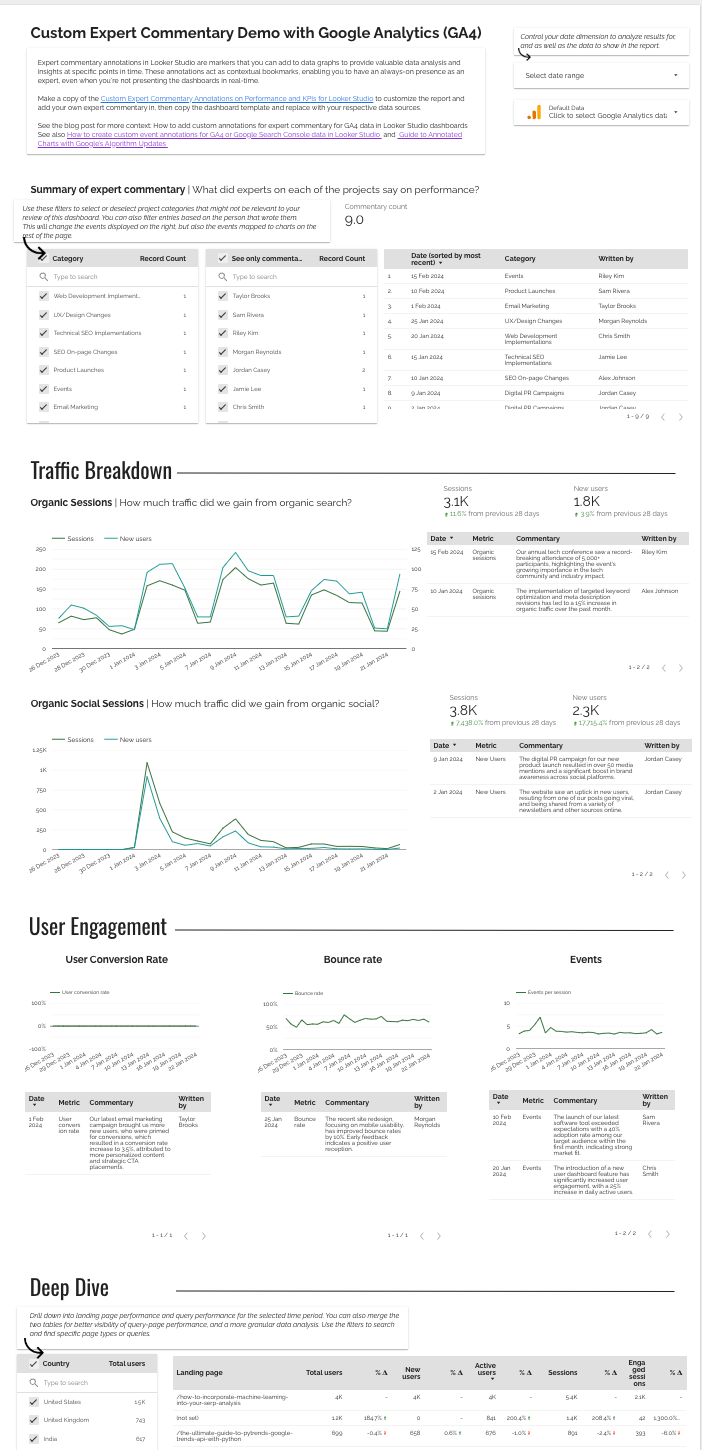
Here’s the finished dashboard this tutorial builds. It’s free to copy, sheet included:
Step 1: build the commentary sheet
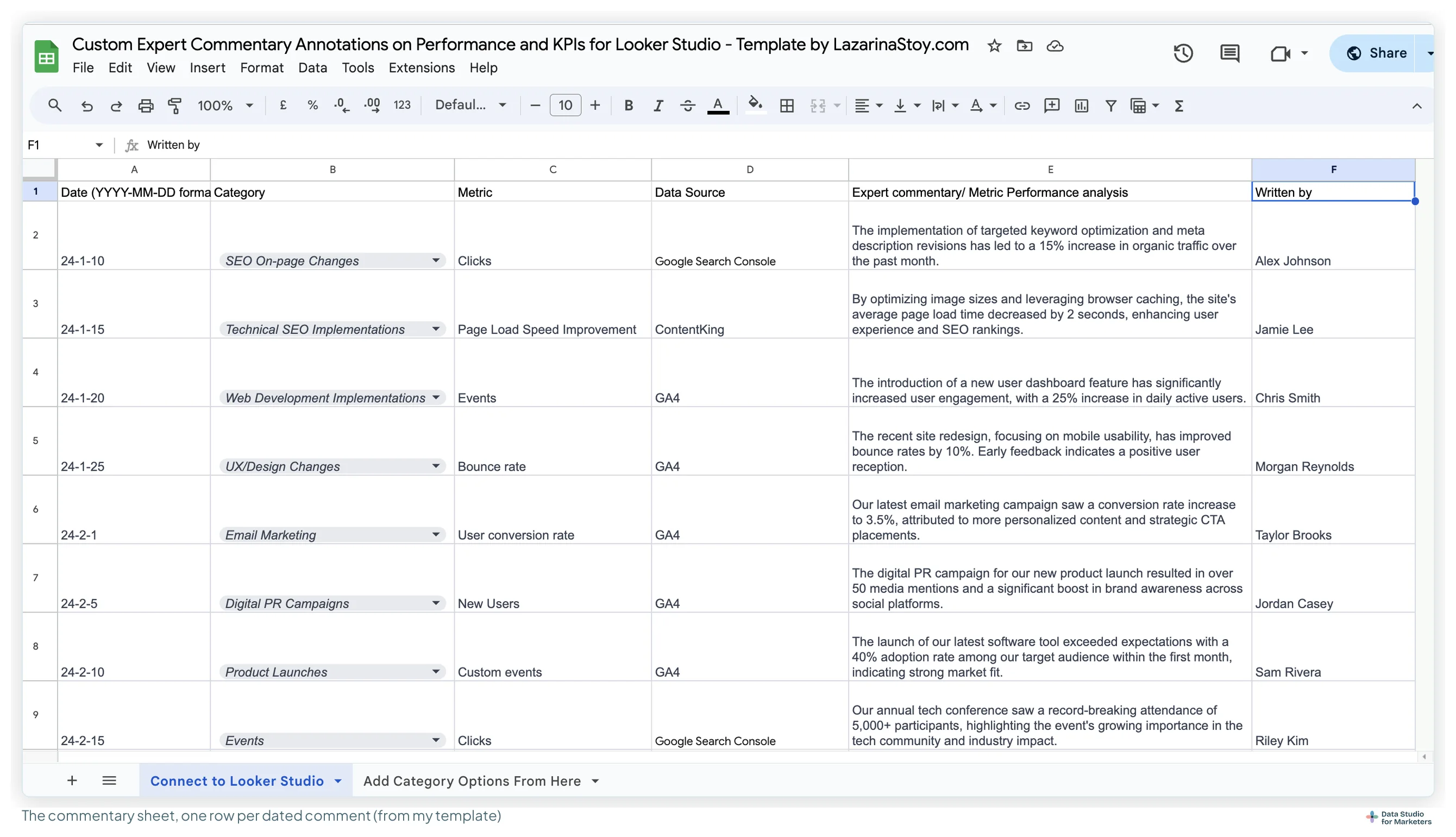
Prepare a commentary template in Google Sheets, structured so each comment corresponds to a specific metric in your reporting. Mine has six columns:
| Column | What goes in it |
|---|---|
| Date | When the comment was added, as a real date (YYYY-MM-DD preferred, for Data Studio) |
| Category | The team or project the comment belongs to |
| Metric | The metric the comment is about |
| Metric Source | Where that metric comes from: GA4, Search Console, a crawler |
| Commentary | The interpretation, written by a consultant |
| Written by | Who wrote it |
In my template’s sheet, the fourth and fifth columns are headed Data Source and Expert commentary, and the sample dates show as 24-1-10: that’s the sheet’s number format for a real date, which is what the blend needs. I keep each entry concise and directly tied to the data. That preparation is what makes the Data Studio side easy.
Step 2: add the sheet to Data Studio and blend it with GA4
- Open an existing dashboard, or create a new one.
- Add data › Google Sheets for the commentary tab, plus any other data you want to show.
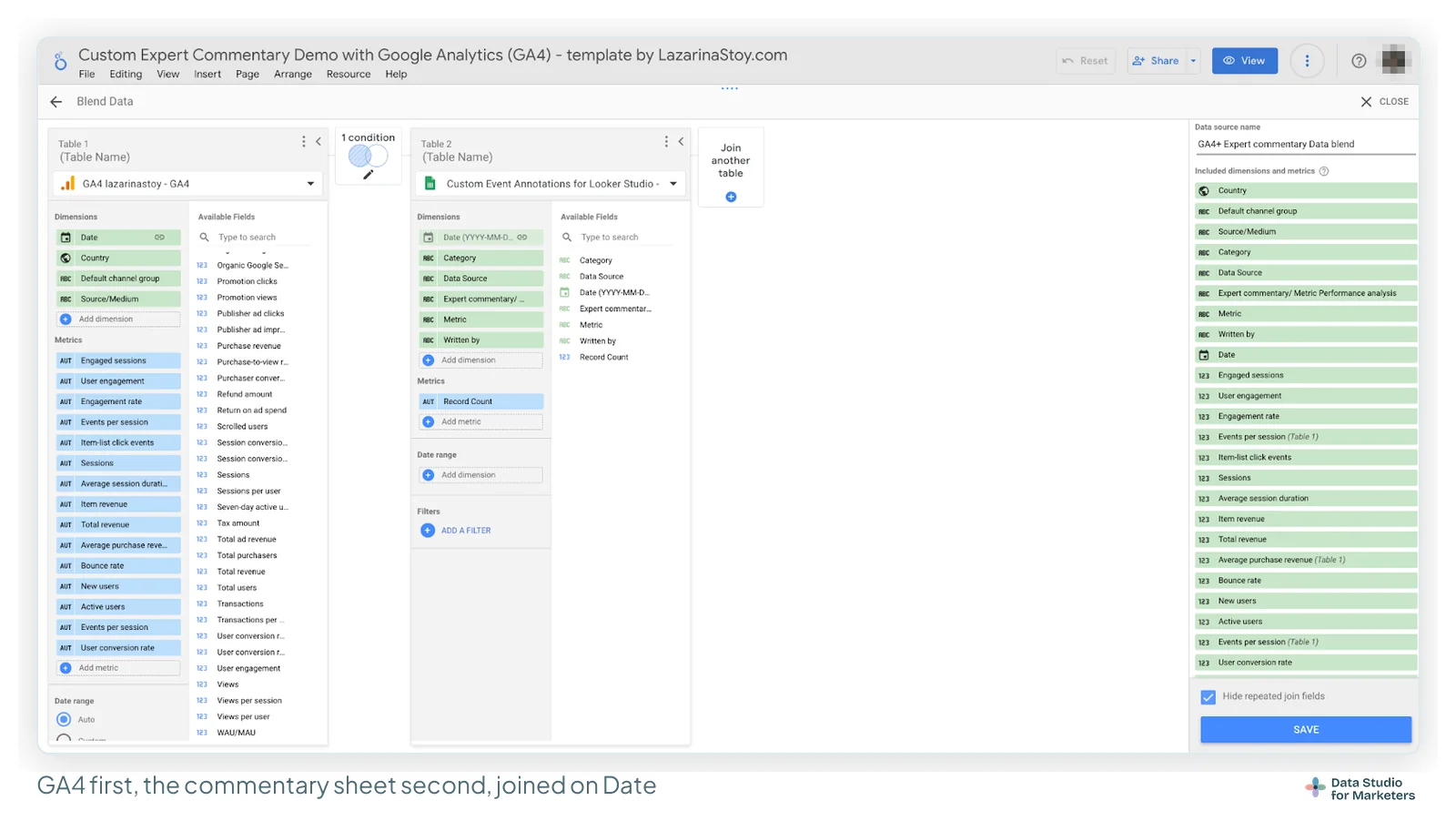
- Select the chart, click Blend data, and make GA4 Table 1 and the commentary sheet Table 2.
- Join on Date with a Left outer join, so the commentary lines up with the matching performance data and no GA4 day drops out.
- Add every GA4 metric you’ve written commentary about. If you also want comment markers on a chart, keep Table 2 to Date as its only dimension plus a Count Distinct of Commentary, so two comments on one day don’t double that day’s numbers; the comment text itself goes in the table from step 4, straight from the sheet.
This is the step that marries the quantitative data with your qualitative expertise. It works the same with any source you report on as Table 1: Search Console, Google Ads.
Skip the blend where you don’t need it. For data sources you report on less, where you want to show the commentary but don’t need in-chart markers (just the date and the note), put a table straight from the sheet on the page, filtered to that source, and leave it unblended.
Step 3: create the charts
Choose charts that leave room for the comments:
- time series;
- bar charts;
- line charts.
I focus on visual clarity: charts that aren’t overcrowded, so the comments stand out and the message stays clear.
Step 4: put the commentary beside the data
Adjust each chart’s Setup and Style so the commentary supports it: a table of the comments (Date, Metric, Commentary, Written by), newest first, next to the chart it explains, filtered to that chart’s metric. Add scorecards for the key metrics, and filters by category and author, so a reader can see who said what. These additions highlight the experts’ insights and make the dashboard more informative.
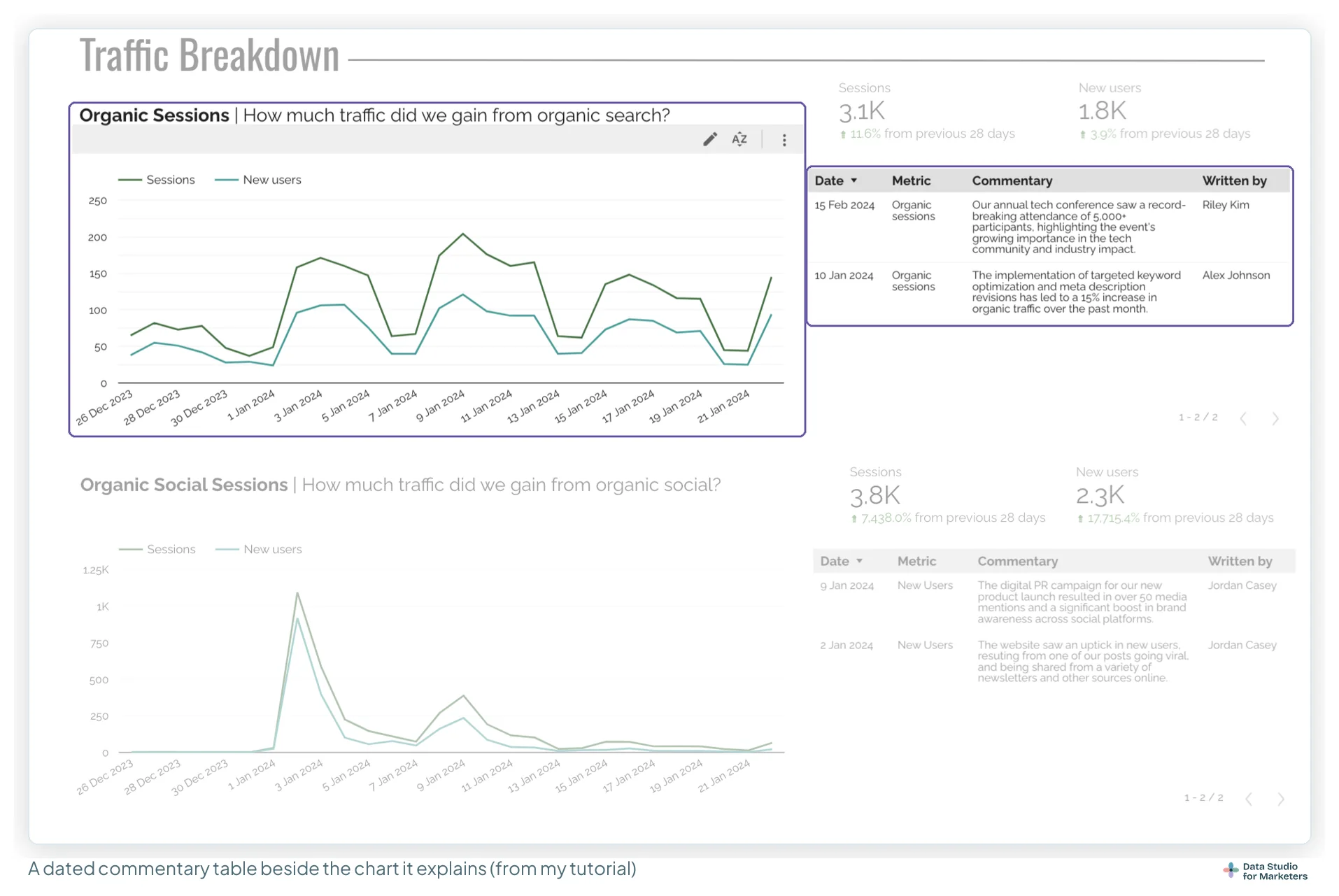
The template above is a complete sample page: GA4 metrics, in-chart annotations, and expert commentary next to each key metric’s chart.
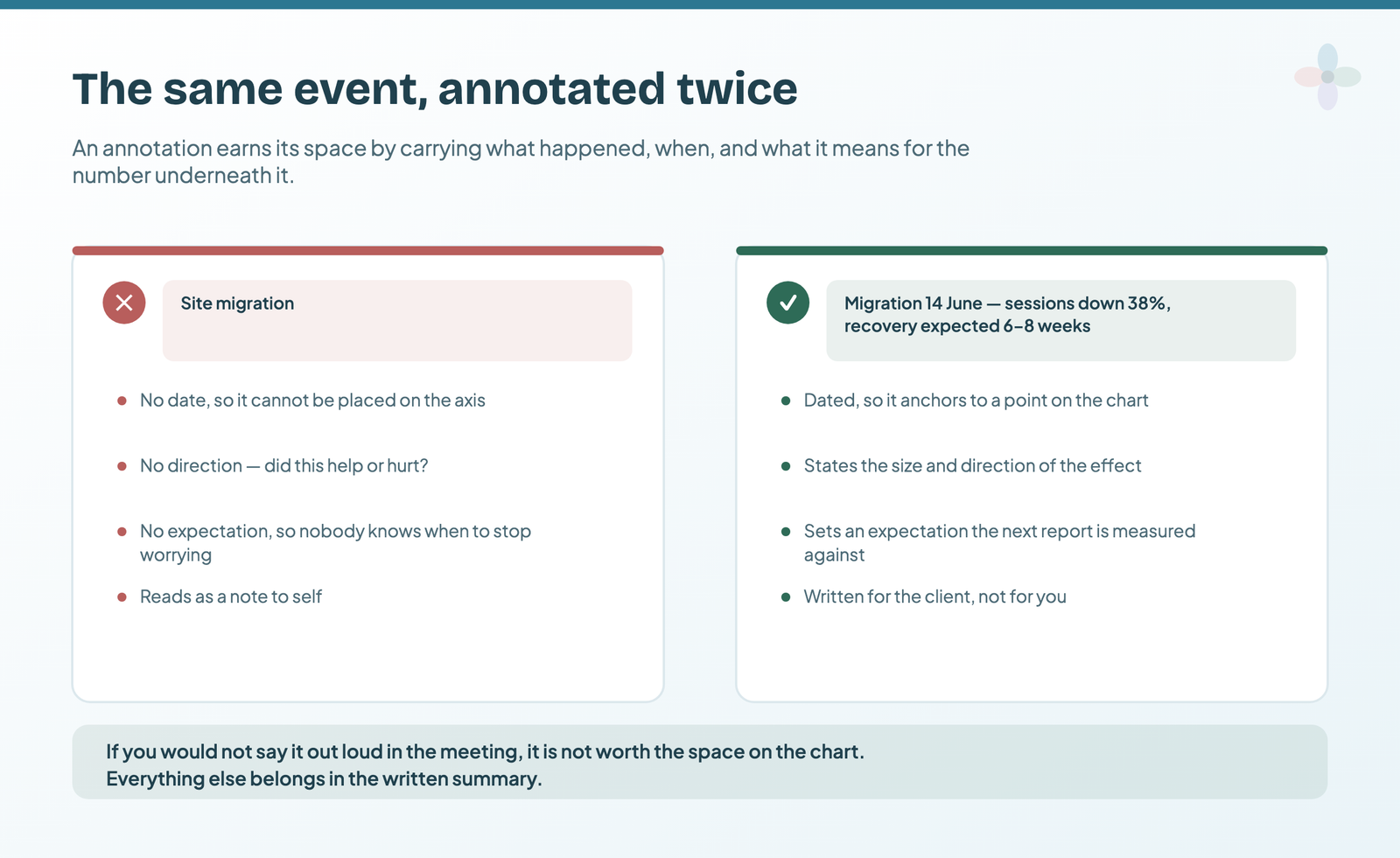
Worked example. At the end of September, the SEO lead at Harbour & Fern (the fictional garden and home retailer from my ebook) adds one row: 30 Sep · SEO · Sessions · GA4 · “Organic now 6% above pre-migration. Two category pages down about two positions since the 12 August core update (likely contributor); recovery plan in October’s report.” · SEO lead. Dated, it reads as September’s view, not as a standing claim on the page.
How to write short expert commentary that earns its row
Analyse and enhance, don’t report the data
Go beyond what the data shows. Interpretation is the job. Look for the insight that isn’t instantly obvious. If there’s a spike in traffic, I don’t just state that clicks rose 10%: the other charts on the dashboard already say so. Instead, give the likely cause (a successful campaign, say), how sure you are, and how to repeat it. Readers can see the numbers; your job is to help them understand the why and the how.
Give it relevant context
Context makes a world of difference. Make sure the commentary gives the reader a backdrop, such as:
- industry benchmarks: how the number stacks up against known standards or competitors;
- related events: outside events that could have influenced it, such as a viral social post or a change in Google’s algorithm.
With that context woven in, the story behind the numbers gets clearer and more compelling. Say how sure you are, too: “likely contributor” is honest; a cause stated flatly is a claim you may have to walk back. The main guide covers why an annotation isn’t an attribution.
Comment on a regular basis
To keep the dashboard dynamic and relevant, comment regularly. That doesn’t mean altering entries already made: past comments stay as they were written, and new insight is a new row, whenever there’s a notable change or trend. Staying on top of the data means everyone who relies on the dashboard gets current, actionable information, and the running narrative improves decisions over time.
Update the sheet as trends evolve or new insights come in, and make sure clients know when to expect them. Ideally, put a note on the dashboard as a reminder: “New expert insights added on the first and third Monday of each month.”
That’s also the answer to the most common objection: the dashboard refreshes itself and the commentary doesn’t. Because every comment carries its date, it stays attached to the period it describes instead of floating on the page next to this month’s numbers. More on keeping commentary in step with a refresh in the main guide.
Why it’s worth adding expert commentary to a dashboard
Better collaboration
Collaboration between team members is essential in analysis, and commentary in the dashboard is a strong tool for it. Several analysts can add their insights directly to the report, which makes the analysis more joined-up and interactive. When I notice a spike in traffic, I can note it straight away, and the rest of the team builds on it with their own expertise. Everyone’s informed insight adds to a deeper understanding of the data.
A central knowledge base
Commentary goes beyond a note on a chart: it builds a central knowledge base. Capturing the reasoning in the dashboard makes past decisions and insights part of the visualisation itself. Over time I’ve seen dashboards grow into full records of the analytical thinking behind an account, a treasure trove of organisational knowledge. Future analysts and new team members can see the “why” behind past trends and decisions, which avoids repeated analysis and missed connections.
Simpler communication
Commentary can replace long email chains and notes scattered across tools. In the dashboard, it’s specific, actionable and linked to the data it’s about. Clients and stakeholders don’t need to sift through outside documents: the relevant information is where it’s needed, in the dashboard, with the context for faster and more accurate decisions.
Two more kinds of annotation to pair with commentary
Google’s algorithm updates. External factors move your numbers too. Google’s updates can change rankings, and with them organic traffic, so marking the exact date of each update helps stakeholders understand the swings. My tutorial on annotating charts with Google’s algorithm updates covers it step by step, with a dataset of the updates that this site keeps up to date.
Project milestones and events. Annotations aren’t only for outside events; they’re just as useful for internal milestones. Custom event annotations put your launches, releases and campaigns on the chart, with their own sheet and template, so the impact of the work is communicated in the context of the data.
Keep comments concise and relevant, and the narrative stays clear. Do that, and you get better collaboration and a lasting knowledge base, right inside your reporting.
Frequently asked questions
How do you add expert commentary annotations in Data Studio?
Keep the commentary as dated rows in a Google Sheet (date, category, metric, metric source, commentary, written by), add it to Data Studio, blend it with GA4 (or Search Console, or Google Ads) on Date with that source as the first table, and put a table of the comments beside the chart each one is about.
Why add expert commentary to a dashboard?
It puts the interpretation where the data is, guiding readers through the story behind the numbers. It also improves collaboration, builds a knowledge base and cuts down on email threads.
What makes good expert commentary?
Interpret rather than restate the numbers, give context such as benchmarks or outside events, say how sure you are, and add new comments regularly without rewriting old ones.