
To show Google’s algorithm updates on a Data Studio chart, pull a dated list of the updates into Google Sheets, blend it with your Search Console or GA4 data on the date, and draw the updates as bars on a second axis. Every core and spam update since November 2021 (as far back as Google’s dashboard goes) then sits on your organic charts, so you can see in seconds whether one lines up with a change in clicks or sessions.
Google publishes every ranking update with its date and duration, which is great. Being the Google Sheets and Data Studio fan that I am, I wanted that list on my charts, for two reasons: to enhance the reports I give clients (and the reporting for my own site), and to map out very quickly whether a given update has had an impact on search performance. This tutorial covers:
- the dataset: a CSV of Google’s ranking updates that this site keeps up to date, and how to pull it into Google Sheets with one formula;
- adding it to Data Studio and blending it with Search Console clicks or GA4 sessions;
- drawing the updates as bars, and building the page around the charts (filters, an update count, a searchable table);
- what the chart can and can’t tell you, and the AI search changes worth adding by hand.
It’s one of three annotation builds. The overall logic, and when to use which, is in how to annotate charts in Data Studio. The screenshots come from my January 2024 tutorial on lazarinastoy.com (Google’s GA4 demo account, and my own site’s Search Console data), when Data Studio was still called Looker Studio.
Prefer to watch? My video walkthrough
Here’s the video I recorded in January 2024. It shows the old formula, pointed at Google’s old address, so follow the dataset step below for the data, then the video for the Data Studio part. Shout-out to Mehdi Oudjida (@wissi_analytics), who shared an alternative take on this method.
Step 1: get the ranking updates into Google Sheets
Google’s list used to live on Google Search Central. That address now redirects to the ranking history on the Search Status Dashboard, which splits the history into one table per year and mixes in a few incidents (“Ranking is experiencing an ongoing issue”) alongside the updates. So instead of scraping it into every client sheet, I keep a clean copy here, refreshed from that page every day:
| File | What’s in it | Address |
|---|---|---|
| Ranking updates | Core, spam, helpful content, reviews and other updates, one row each, newest first | google-ranking-updates.csv |
| Ranking incidents | The “ongoing issue” incidents, kept apart so they don’t land on your chart as updates | google-ranking-incidents.csv |
Each file has six columns:
| Column | Holds |
|---|---|
start_date |
The day the rollout started, as YYYY-MM-DD. This is the join key. |
end_date |
The start date plus the duration Google gives, so it can be a day out; treat it as provisional while a rollout is still running |
update_name |
Google’s name for it, e.g. “March 2026 core update” |
type |
core, spam, link spam, helpful content, reviews, product reviews, page experience, discover or other (incident in the incidents file) |
duration |
The rollout length, as Google writes it (“13 days, 16 hours”) |
source_url |
The update’s own page on the Search Status Dashboard |
- Create a new Google Sheet and call it Algorithm updates. For client reporting, save it in the client’s shared drive.
- In cell A1, enter:
=IMPORTDATA("https://www.datastudioformarketers.com/wp-content/uploads/dsfm-data/google-ranking-updates.csv")The headers come with the data, in row 1, so there’s nothing to type and no row to hide.
- Check the
start_datecolumn is right-aligned, which means Sheets has read the values as dates rather than text.
Sheets re-fetches the file from time to time on its own, so new updates appear without you touching the sheet. If you’d rather have a static copy, download the CSV from the link above and import it (File › Import), or add it to Data Studio directly with the File Upload connector; a downloaded copy won’t pick up new updates, though.
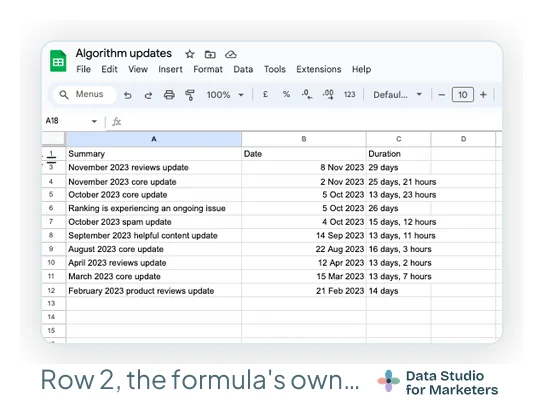
How I did this in 2024, and why it changed. My original sheet used =IMPORTHTML("https://developers.google.com/search/updates/ranking", "table", 0, "en_US") in cell A2, with my own header row typed in row 1 and row 2 (Google’s header row, which the formula brings in) hidden. That worked while Google kept the whole list in one table. The address now redirects, the page holds one table per year, and the names come through twice, so a single IMPORTHTML only gets you one year of messy rows. The dataset does that clean-up once, for everyone. If you still run the old sheet, the hidden-row trick needs the setting in step 2 below.
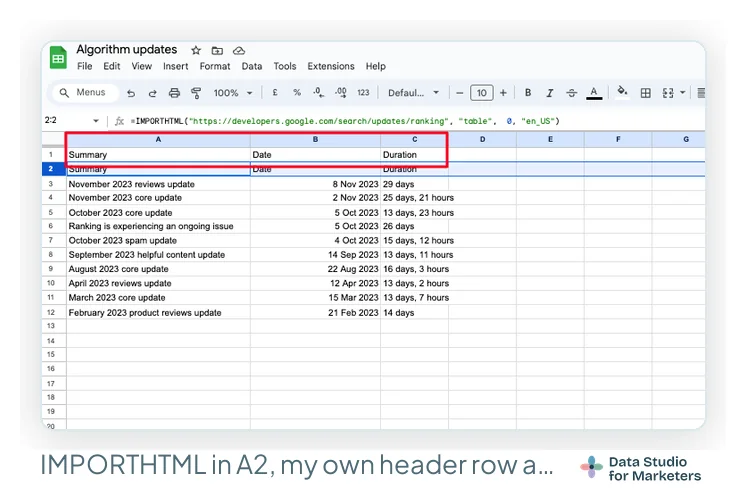
One thing I’d no longer do. My 2024 pro tip was to add a column of expert commentary next to each update, from a senior consultant’s point of view, to show in the report for extra value. The idea stands; the place doesn’t. A typed column beside an imported range doesn’t move with it: when Google adds an update, every row shifts down one and the comments end up next to the wrong update. Keep that commentary in a dated commentary sheet and blend it in the same way; if you want a comment to sit on an update’s bar, give it the update’s start_date rather than the day you wrote it.
Step 2: add the sheet to Data Studio
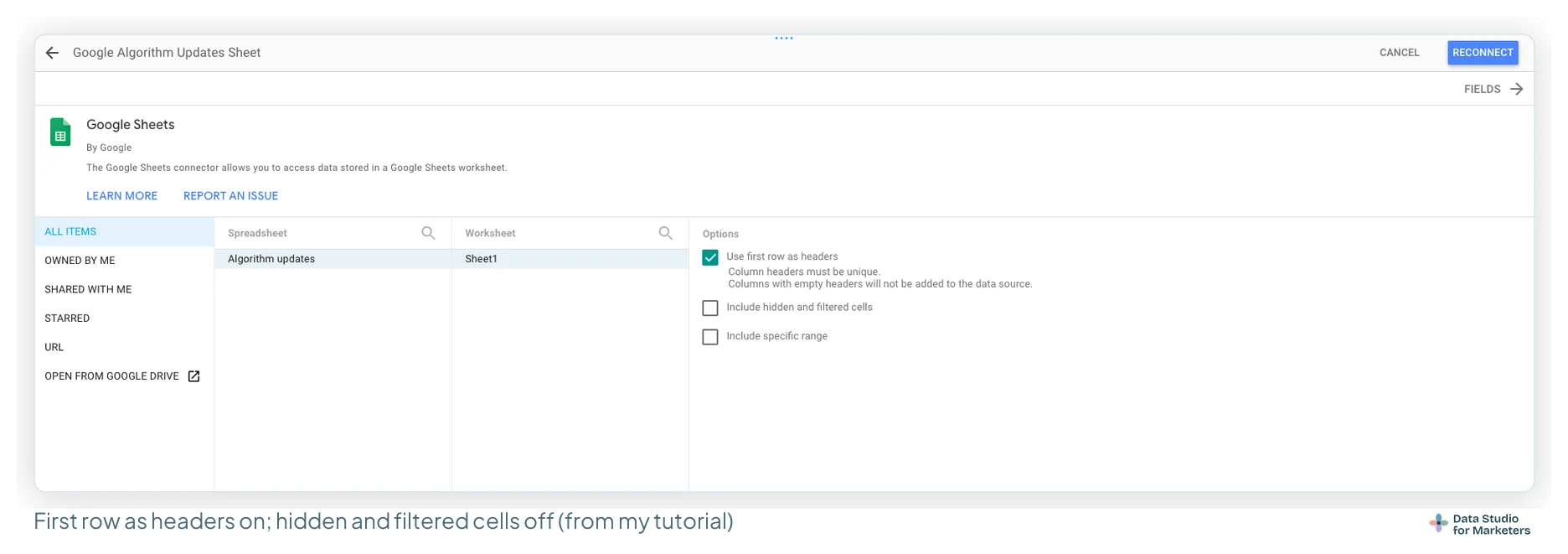
In the report, go to Resource › Manage added data sources › Add a data source › Google Sheets, and pick the Algorithm updates sheet and its tab. Leave Use first row as headers ticked.
With the IMPORTDATA sheet there are no hidden rows, so the other options don’t matter. With my 2024 IMPORTHTML sheet they do: untick Include hidden and filtered cells (Google’s documentation says it’s on by default). The hidden row holds Google’s header text, which isn’t a date, and if it comes through it messes up the date dimension. With hidden cells excluded, Data Studio reads the typed headers in row 1 and the updates below.
Open the new data source and check start_date has a date type. If it says Text, set it to Date (YYYYMMDD) in the field list.
Step 3: blend the updates with Search Console or GA4
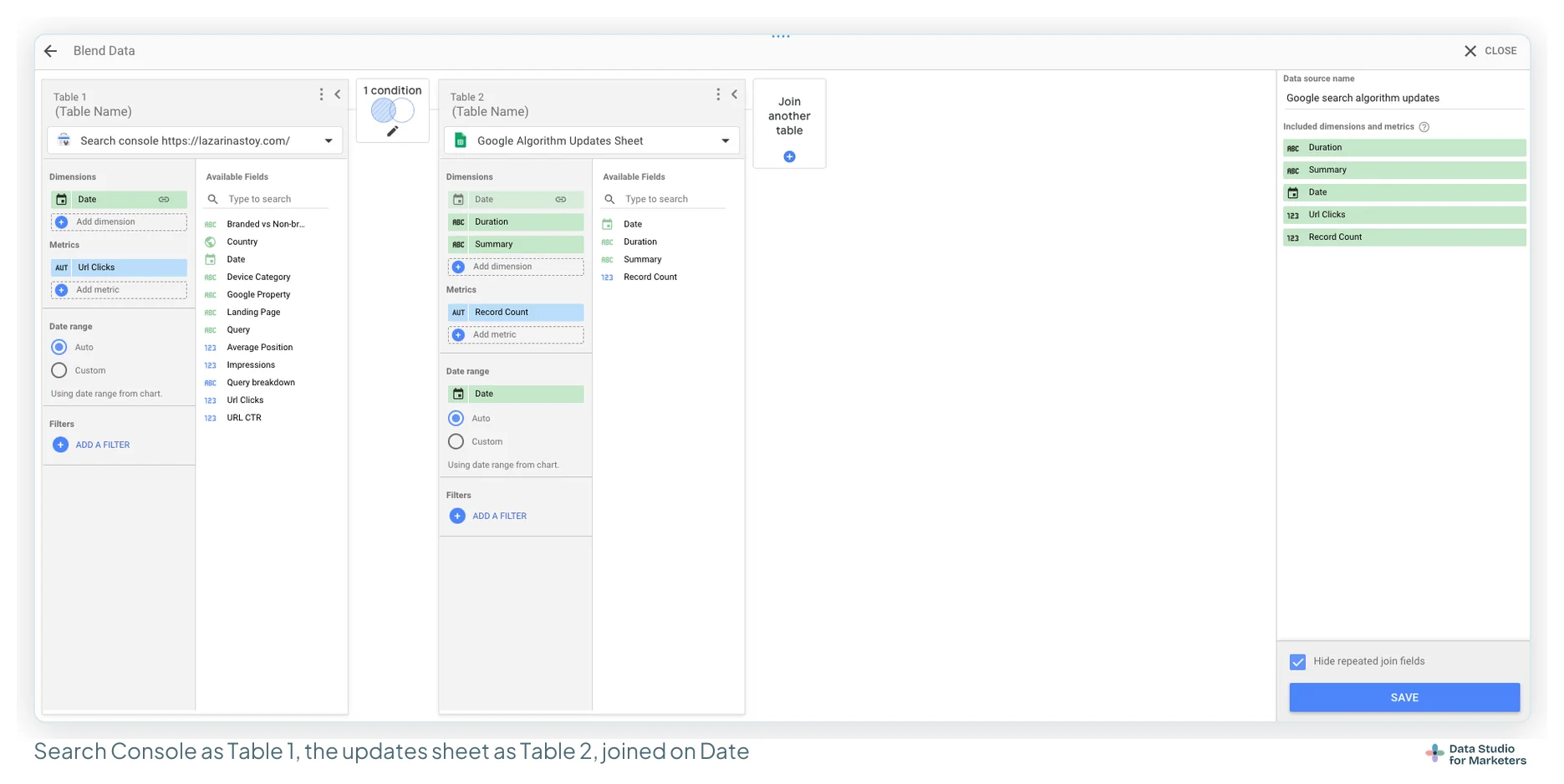
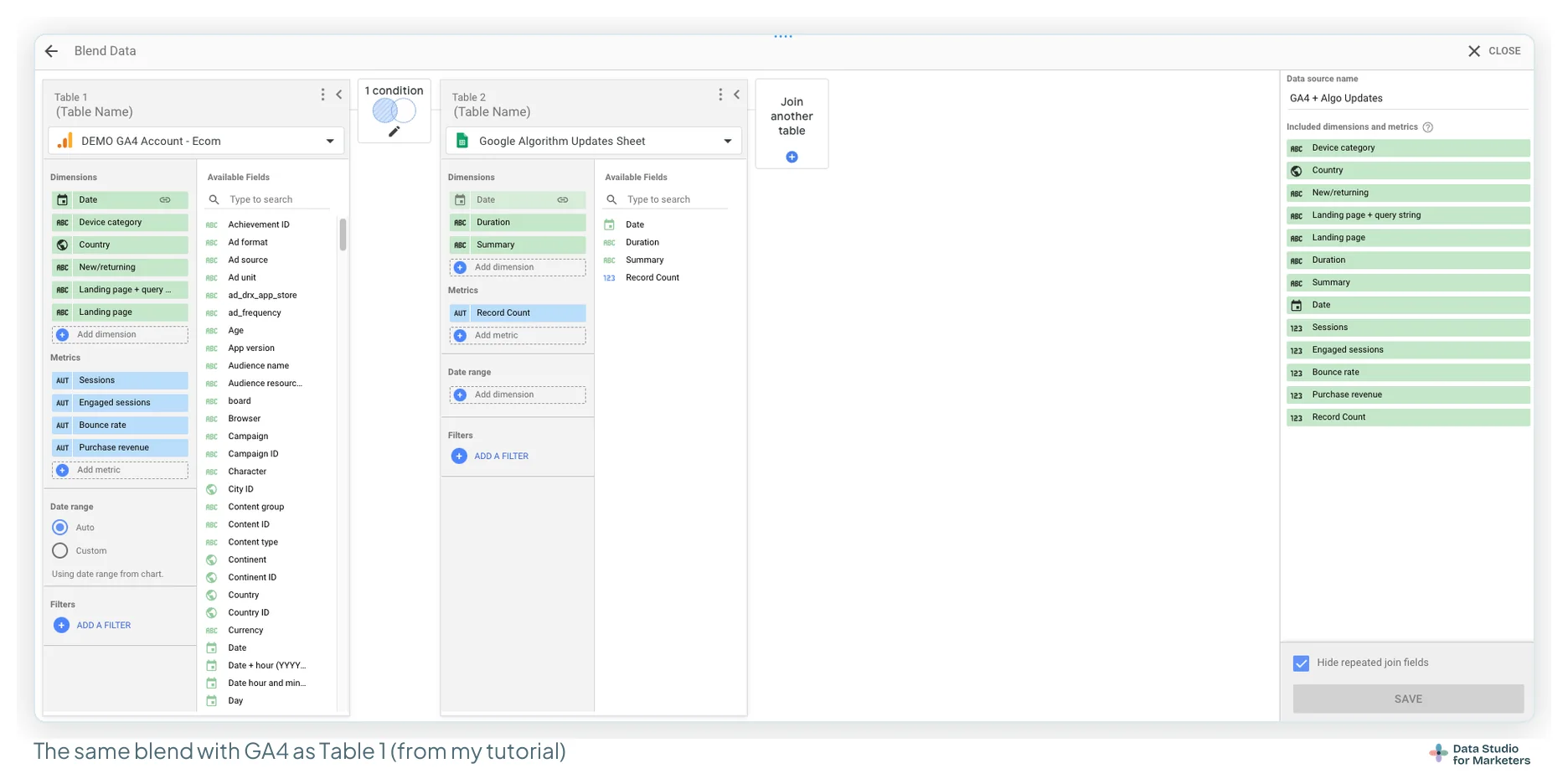
Say you want to report on clicks from Search Console; sessions from GA4 work exactly the same way, and you’ll see the approach doesn’t change. Select the chart, click Blend data, and:
- Make Search Console (or GA4) Table 1, with Date as the dimension and the metrics you want to chart: clicks, and impressions or position if you like. For GA4, use sessions, engaged sessions, bounce rate, purchase revenue or any other metric.
- Click Join another table and add the Algorithm updates sheet as Table 2, with
start_dateas its only dimension andupdate_nameas a metric set to Count Distinct (rename it Algorithm Update). That keeps one row per day, so two updates on the same date (the March 2024 core and spam updates both started on 5 March) don’t double that day’s clicks. For core updates only, add a filter on Table 2: type equals core. The table in step 5 uses the sheet on its own, with all its columns. - Set the join to Left outer, with Date in Table 1 matched to
start_datein Table 2.
For anyone new to joins: a left outer join keeps every row of Table 1, so every date in your Search Console data stays, and the updates are mapped onto the dates where they started. Days without an update just get nothing from the sheet.
Step 4: draw the updates as bars on the chart
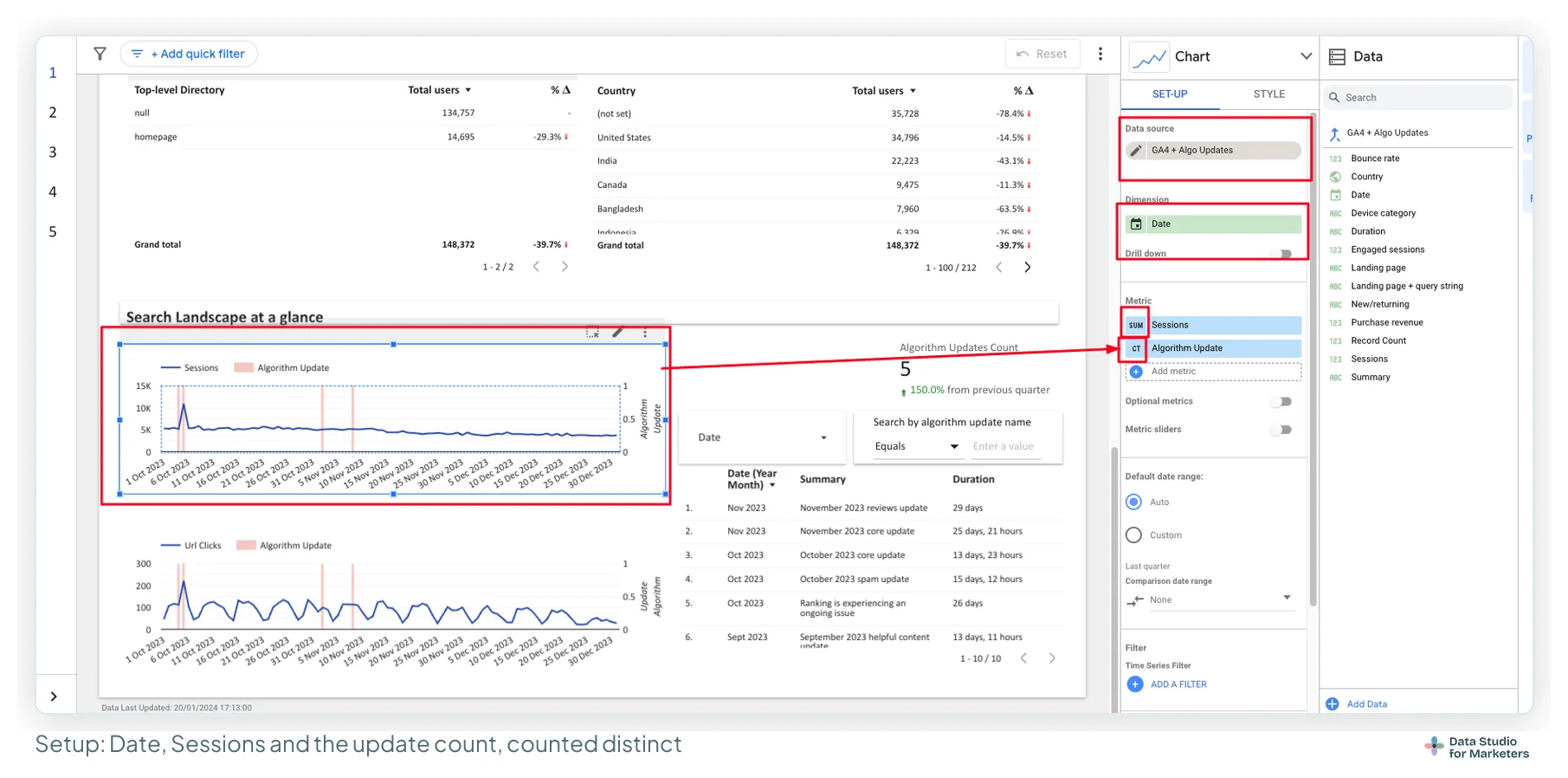
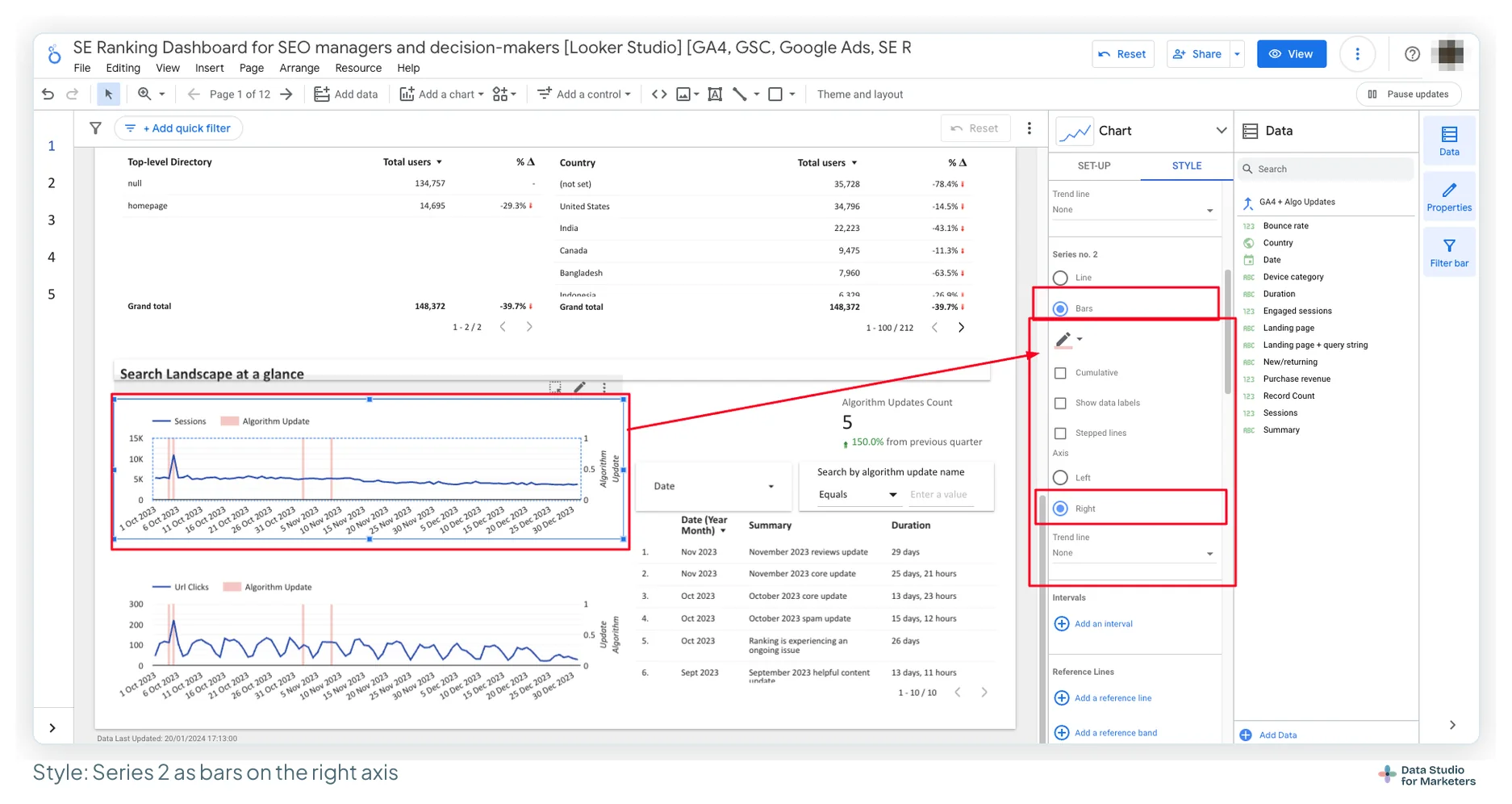
One chart per source works well: sessions (or another GA4 metric) with the updates, and clicks (or another Search Console metric) with the updates.
- Setup: the blend as data source, Date as the dimension, your metric first, then the Algorithm Update metric from the blend (
update_name, Count Distinct), which reads well in the legend. - Style: set Series no. 2 to Bars on the Right axis, so the updates show as bars, not a line.
- Right Y-axis: Axis min 0, Axis max 1, and Show axis title on, so every update bar runs the full height of the chart.
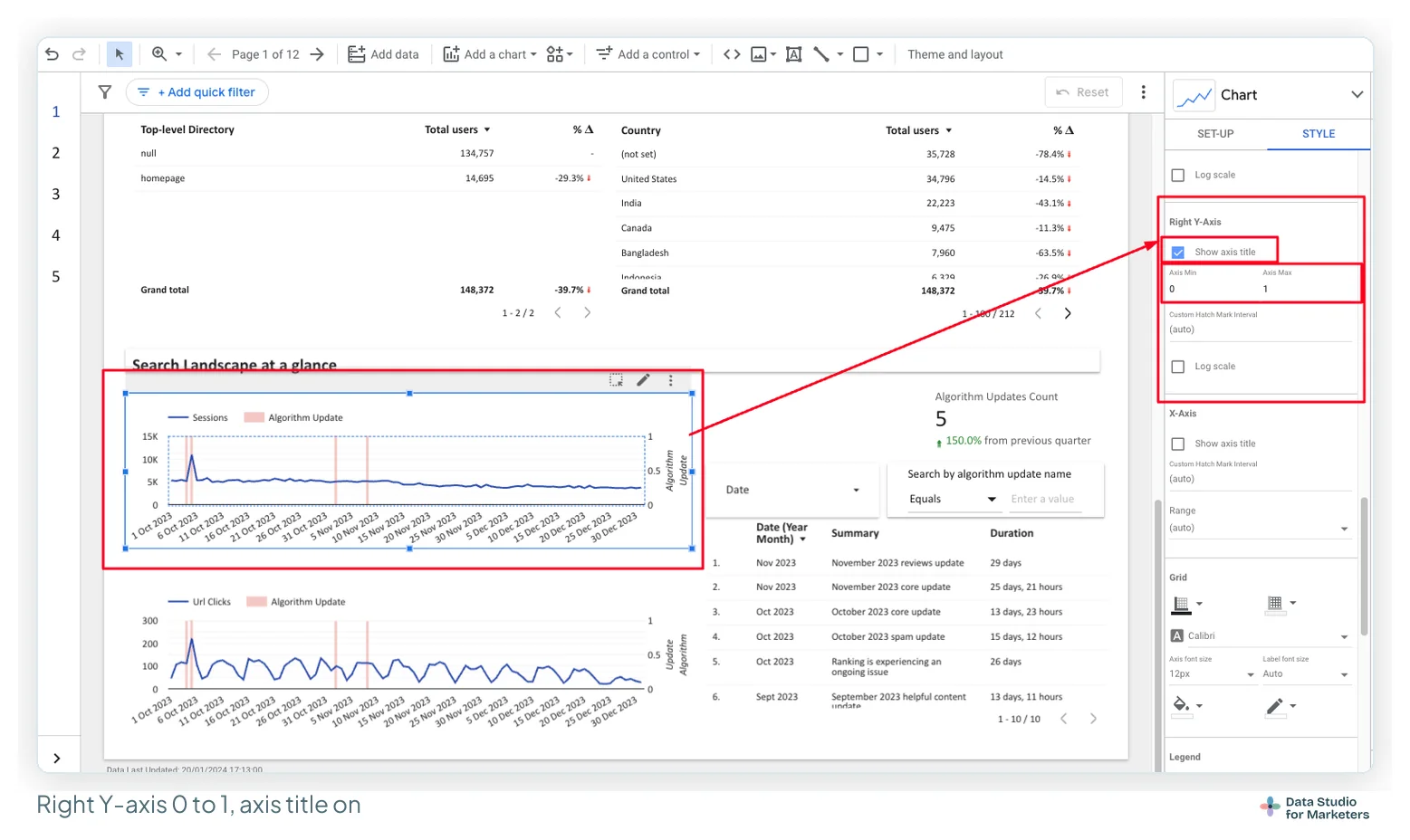
The bar marks the day a rollout started. Rollouts last days or weeks, which is why the table in step 5 shows the duration and end date; a bar is a point, not a band.
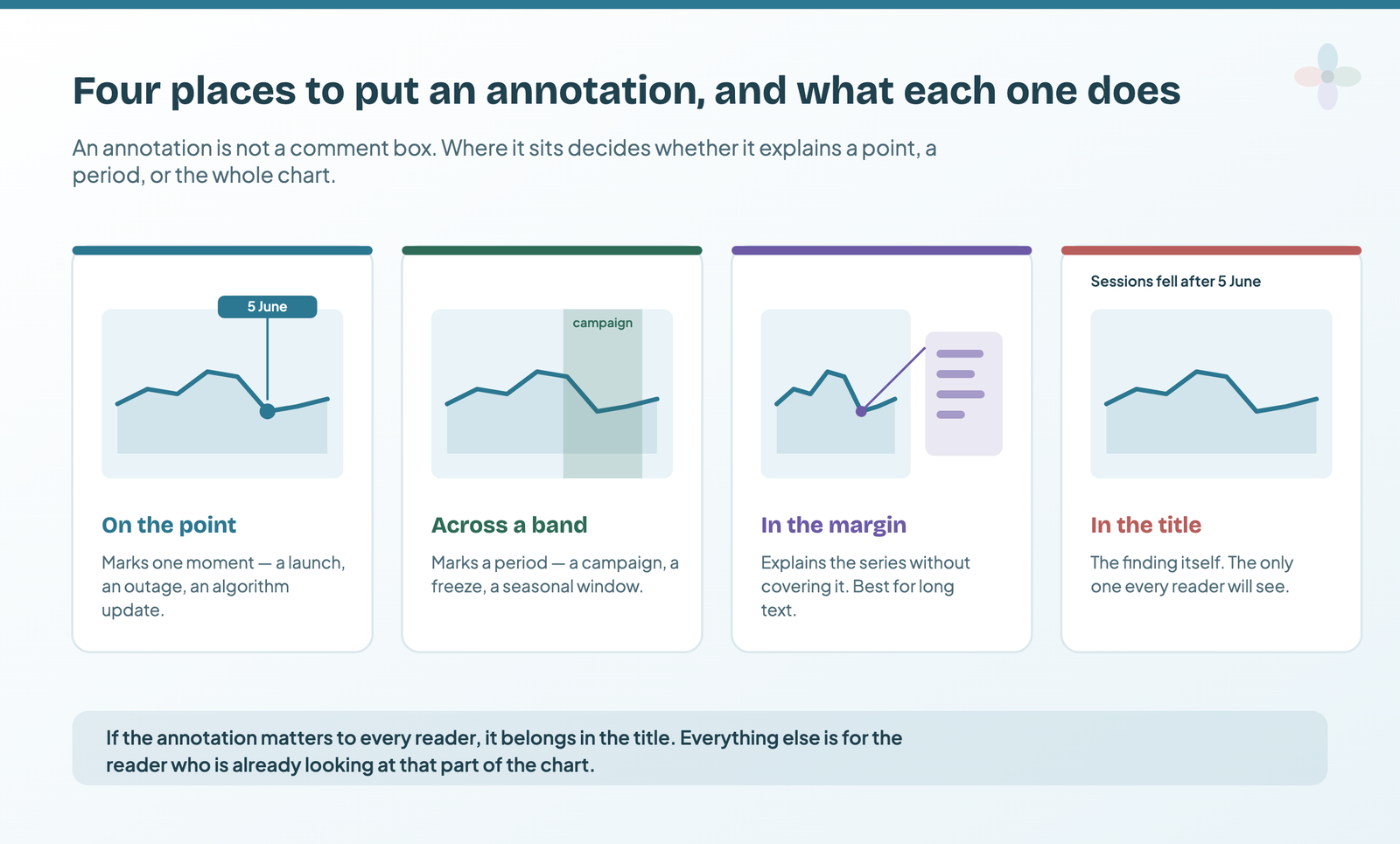
Step 5: build the rest of the page around the charts
Next to the charts, the page should give the reader:
- a date range control, and a search box on the update name, so someone can search per algorithm name, such as “core update” or “product reviews update”;
- a drop-down on type, if you want to look at core updates on their own (the dataset’s
typecolumn makes that one click); - a scorecard counting the updates in the selected period (
update_name, Count Distinct), with a comparison to the previous period if you like; - a filterable table of the updates: start date, name, duration, end date, and any expert commentary you’ve added.
What the updates chart is for, and what it isn’t
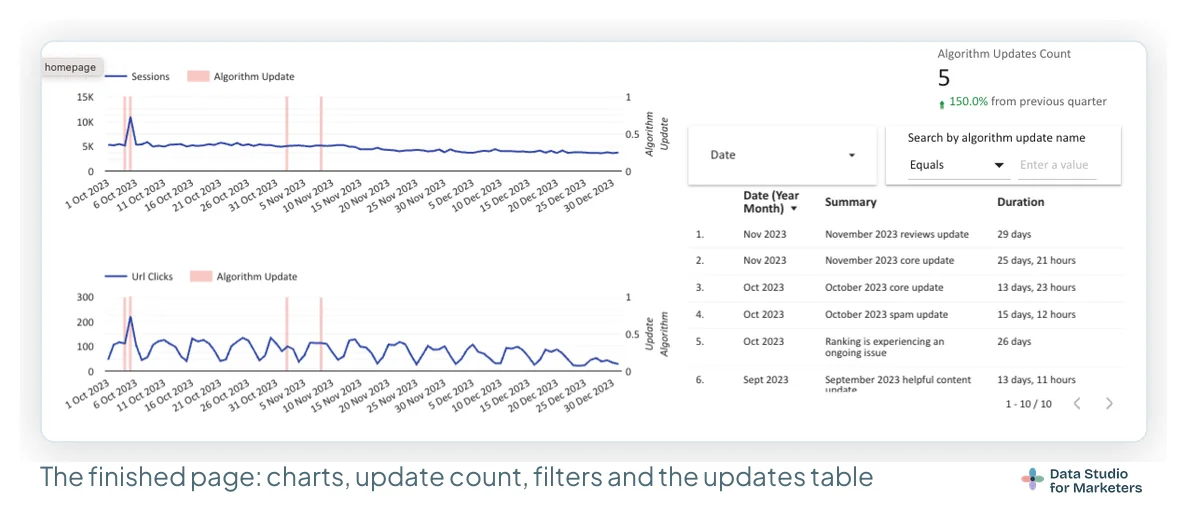
Annotations for Google’s updates matter in SEO traffic reporting because they put changes in the algorithm and movements in your traffic on the same chart. With them, you can:
- Spot whether a change lines up with an update, or whether something else is the better explanation;
- Adjust your SEO plan quickly, according to what that particular update targeted;
- Watch the long-term effect of updates on traffic and rankings, across months rather than days;
- Explain traffic changes to clients and stakeholders clearly, which reinforces the value of the SEO work and is half of data storytelling in a dashboard.
Overall, they add clear, visual context on how Google’s changes affect a site’s performance. In 2024 I called the first of those “identify causation”. I’d put it more carefully now: an update bar next to a dip shows timing, not cause. Before you tell a client an update did it, check what else changed in that window (a tag, a redirect, a release, seasonality) and say how sure you are. The section on annotations and attribution in the main guide has the checks I use, and the wording: “Core update landed 12 August, likely contributor”, not just “Core update” beside a cliff.
Add the AI search changes by hand
The AI Overviews and AI Mode launches aren’t ranking updates, so they aren’t in the dataset; since 2024 they’ve changed how often a search ends in a click, though. Add them as rows in your events sheet, marked “context”. For a UK or US site, these are the rows I’d add, each dated from Google’s announcement:
| Date | Event | Market |
|---|---|---|
| 14 May 2024 | AI Overviews roll out to everyone in the US | US |
| 15 Aug 2024 | AI Overviews start rolling out in the UK and five other countries | UK |
| 20 May 2025 | AI Mode rolls out to everyone in the US | US |
| 28 Jul 2025 | AI Mode launches in the UK | UK |
When a page did lose clicks after one of these dates, write down what you checked as well as the date: “UK AI Overviews rollout from 15 Aug 2024; impressions flat, CTR down on informational queries”.
A template with the same chart build
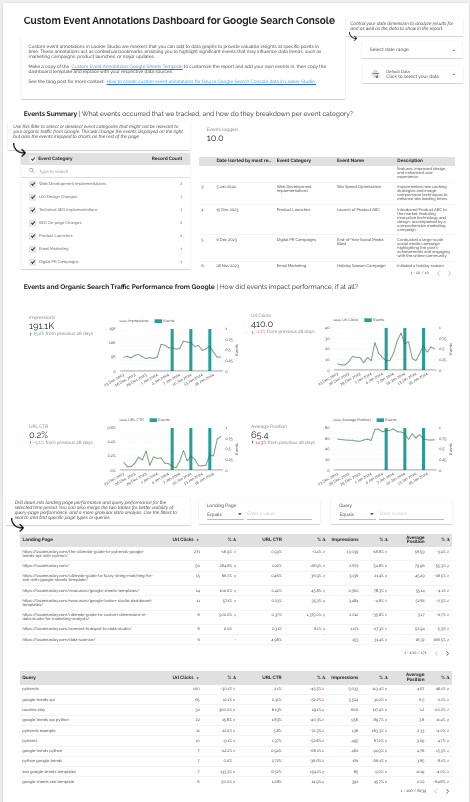
My custom event annotations template uses exactly this chart setup (a metric line, event bars on a right axis fixed at 0 to 1, and a table beside it) on Search Console data. Copy it, then blend the updates sheet in alongside or instead of the events sheet.
Frequently asked questions
How do I show Google algorithm updates on a Data Studio chart?
Pull a dated list of the updates into Google Sheets (for example with IMPORTDATA and the CSV on this page), add the sheet to Data Studio, blend it with Search Console or GA4 on the date with a left outer join, and add the update name as a second metric, counted distinct, drawn as bars on a right axis fixed from 0 to 1.
Where does the ranking updates dataset come from, and how current is it?
From the ranking history on Google’s Search Status Dashboard. This site re-reads that page every day and rewrites the CSV, keeping incidents in a separate file. Rows are only added or corrected, never dropped.
Can Data Studio read the CSV directly?
Not with Google’s own connectors. Go through Google Sheets with IMPORTDATA so it keeps refreshing, or download the CSV and use the File Upload connector for a static copy.
Does an update bar next to a drop mean the update caused it?
No. It shows timing. Check what else changed in the same window before you say so, and label it as a likely contributor unless you have evidence.