
A Core Web Vitals dashboard in Data Studio puts a Screaming Frog crawl with PageSpeed Insights data for every page next to Chrome UX Report field data for the whole site, so you can see which pages fail LCP, INP or CLS, why, and which section or template the problem lives in. This tutorial sets up my free Core Web Vitals Auditor, fixes the two things that changed since I built it, and shows how to use it.
Data Studio is a fantastic tool not only for interactive reporting but also for process automation. The goal of a page experience audit is arguably not the audit itself, but the recommendations we can give by looking at the data. So the aim of this dashboard is just that: to cut the time spent auditing, quickly visualise the patterns in the problems, and move on to brainstorming fixes.
Here’s what I cover:
- a Core Web Vitals refresher, and what’s changed since 2021;
- the tools and data you can audit with, and why site-wide audits stall;
- setting up and troubleshooting the dashboard, including the INP and BigQuery swaps;
- site-, section- and page-level use cases.
Keeping it running month after month is in the companion tutorial, how to automate Core Web Vitals reporting and progress tracking.
I presented this dashboard at brightonSEO’s MeasureFest in 2021 (slides). Prefer video? Here’s the talk:
The screenshots are from 2021 (the product was Looker Studio from 2022 until Google renamed it back to Data Studio in April 2026). Where a menu or a metric has changed since, I say so.
Page experience and rankings: what Google told us, then and now
The page experience update finished rolling out at the beginning of September 2021, and SEOs, and frankly some web developers too, were asked for page experience audits more and more often. John Mueller and the team at Google kept telling us five things at the time, and I felt the need to emphasise them. Here they are, with what’s changed:
| What Google said in 2021 | Now |
|---|---|
| The page experience ranking factor only applies to mobile. Google had moved to mobile-first indexing, and it heavily encourages responsive pages over separate mobile and desktop versions. Another signal that Google assesses pages and sites mobile-first, and so should you. | Page experience came to desktop in February 2022. Audit both: field data is reported separately for phones and desktops, and the two can tell very different stories. |
| Core Web Vitals are only part of page experience, not all of it. The other elements aren’t discussed as often, but that doesn’t make them less important, and we had no information on how they’re weighed. Pay attention to all of them. | Google’s guidance says there’s no single page experience signal: its ranking systems use Core Web Vitals, and reward good page experience in general (HTTPS, working well on mobile, no intrusive interstitials, content easy to tell apart from ads). |
| Speed, crawling and rendering matter too, even though they aren’t labelled Core Web Vitals. | Still true. |
| Aim for 100, but be happy with a pass. As with any test, a perfect score won’t be easy. Google assesses against the thresholds for “good”, not the 100 in PageSpeed Insights. | Still true. |
| Start early, because some fixes take longer than you’d expect (when done right, of course). Quick fixes can “save” a failing score, but relying on them long term is a problem: performance plug-ins can hurt a site’s security and disrupt the design principles you’ve put in place. | Still true. |





So, needless to say (but I’ll say it once more for the people at the back): a score of 100 doesn’t mean your site will shoot up to position one because of page experience alone. Content, E-E-A-T, backlinks, search intent and the overall technical health of the site still decide most of how you rank.
How many sites pass?
Is anyone paying attention? Perhaps not as much as needed. In 2021 the most-quoted figure was a Screaming Frog study of more than 20,000 URLs: only 12% of mobile and 13% of desktop results passed the Core Web Vitals assessment. Things have improved since, but not enough: the 2025 Web Almanac found 48% of mobile sites and 56% of desktop sites with good Core Web Vitals. More than half of mobile sites still don’t pass. So, apparently, we still need to step it up.
The three Core Web Vitals, and the other signals I watch
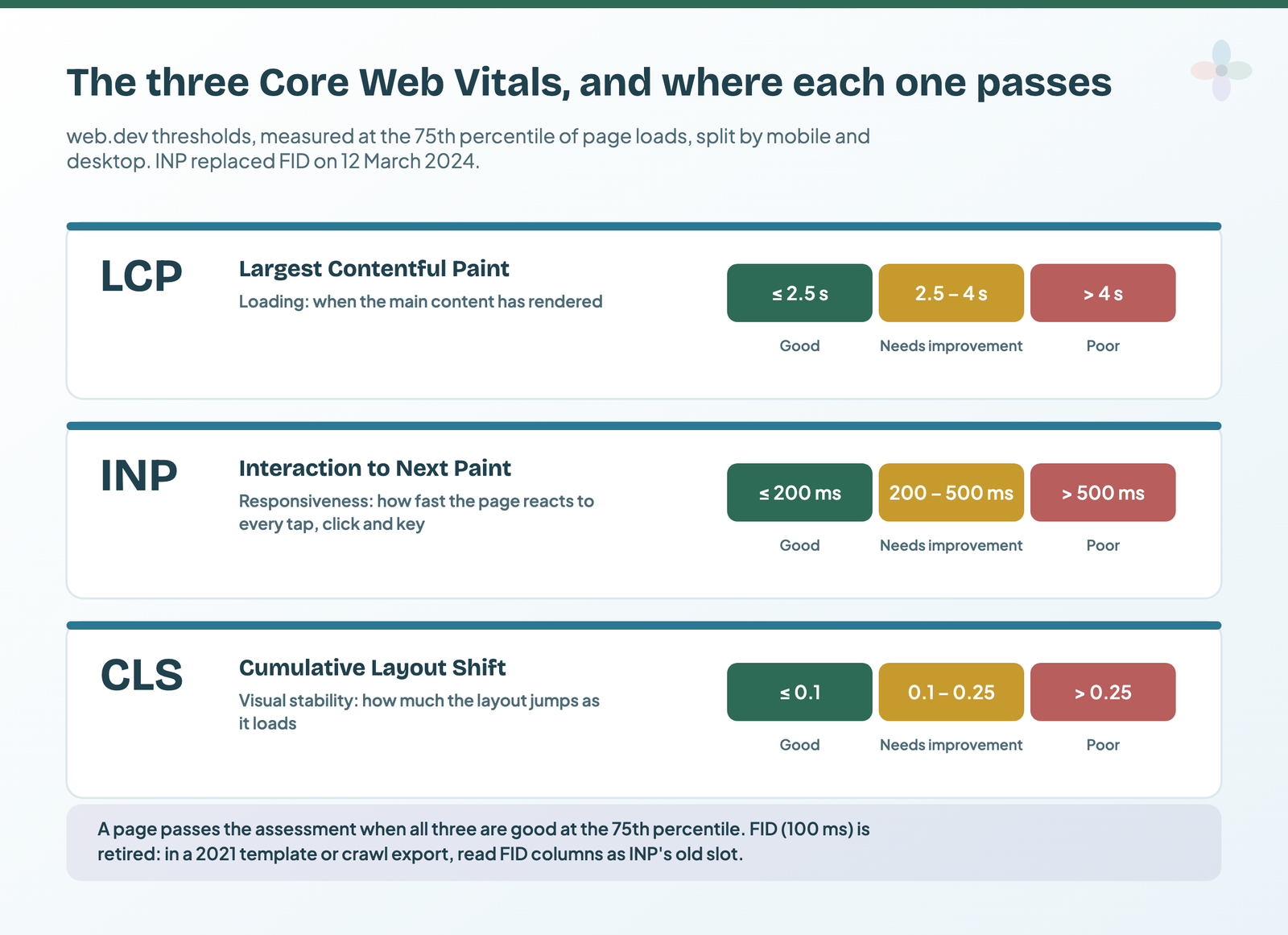
| Metric | Measures | Good | In the 2021 dashboard |
|---|---|---|---|
| Largest Contentful Paint (LCP) | Loading performance | Within 2.5 seconds of the page starting to load | Unchanged |
| Interaction to Next Paint (INP) | Responsiveness to every interaction | 200 milliseconds or less | Shown as First Input Delay (FID), good under 100 ms. INP replaced FID on 12 March 2024. |
| Cumulative Layout Shift (CLS) | Visual stability | 0.1 or less | Unchanged |
| Time to First Byte (TTFB) | Server response speed | 0.8 seconds or less (web.dev); poor above 1.8 s | In the server optimisation scorecards |
Of the metrics outside the three, the one not discussed often enough, in my opinion, is Time to First Byte. It isn’t a Core Web Vital, but a slow server response drags LCP with it. My own rule of thumb has always been around 200–500 ms, comfortably inside web.dev’s threshold, and the template’s server scorecard flags pages above 200 ms.
I won’t spend long on how each metric is calculated: many brilliant writers have done this well, such as Billie Geena, Phil Isherwood and Tom Rankin, to name a few. What I want to give you is a dashboard that makes auditing large sites easier and actionable, and an approach to automating it.
Field data, lab data, and which tool gives you which
There are two methods of auditing Core Web Vitals, and two types of data behind them:
- Field data, or real user monitoring (RUM): what real Chrome users experienced on the page;
- Lab data, or emulated data: performance measured in a controlled environment, with a predefined device and network.
In 2021 I pointed people to Google’s “How to think about speed tools” infographic; it has since been retired, and web.dev’s overview of Core Web Vitals tools replaces it. I highly recommend it before moving on.
| Tool | What it reports | Data | Best for |
|---|---|---|---|
| PageSpeed Insights (and its API) | URL-level experience metrics, plus the opportunities and diagnostics behind them | Lab + field | Testing fixes and measuring individual pages. |
| Chrome UX Report (CrUX) | Aggregated real-user performance across all eligible pages | Field only | Site-level trends over time. Via BigQuery (monthly, origin), the CrUX API (daily, URL or origin) and CrUX Vis. |
| Search Console Core Web Vitals report | Groups of pages with similar issues | Field | Spotting problem groups. Example URLs stand for groups of similar pages, capped at 200 rows: groups, not every URL. |
| Chrome DevTools and Lighthouse | Detailed measurement and guidance on fixing issues | Lab | Detailed analysis of one page |
| Web Vitals extension | A real-time view of the metrics as you browse | Your own sessions | Quick checks while you work |
Why site-wide Core Web Vitals audits stall
You might be wondering: “With so many tools at our fingertips, what can really be the challenge?” Well, let me tell you.
When I first started researching Core Web Vitals in November 2020, I was working with B2B clients. I embedded a detailed Chrome UX Report in each of their dashboards, plus a competitor comparison (shout out to Neal Cole’s blog post for the inspiration). We failed to see value in it beyond a holistic diagnosis and benchmarking tool. Why? CrUX is aggregated from Chrome users who have opted in to sharing usage statistics, so it’s sampled, albeit from real users. And it only gives a holistic view of the site’s performance, even though it’s collected page by page, which gets in the way of diagnosing individual pages unless you add another tool.
Clients want tangible, actionable recommendations, which CrUX alone can’t give. Better yet, they want an interactive auditing system with page-, section- and site-level reporting, the discovery of emerging patterns, and progress tracking. The auditing side looks like this (the reporting side is in the automation tutorial):
| Challenge | What it looks like on a real site |
|---|---|
| Most tools aren’t built for site-wide audits | Web.dev advises using all of them, but integrating them across a medium or large site is near impossible. Page-level performance differs greatly across sections, because of different templates, the “heaviness” of images and media, or different integrations (GTM, Google Ads, HubSpot or other third-party scripts) weighing some sections down. |
| Patterns are hard to see | Snapshot instruments like CrUX don’t drill down to sections or pages, and Search Console’s report samples the affected URLs instead of listing them all. |
| You can’t find the root cause | Often one template or widget causes the issue. Is the problem page-, section- or site-wide? Finding every instance with conventional tools is near impossible unless you know the site intimately from a web development standpoint. |
| No dev-ready exports | Current processes set you up to give non-actionable recommendations: several sweeps of auditing, back-and-forth with developers and testing before things are right site-wide, and exporting every URL with a given issue is a pain. |
The Core Web Vitals Auditor: what’s on each page
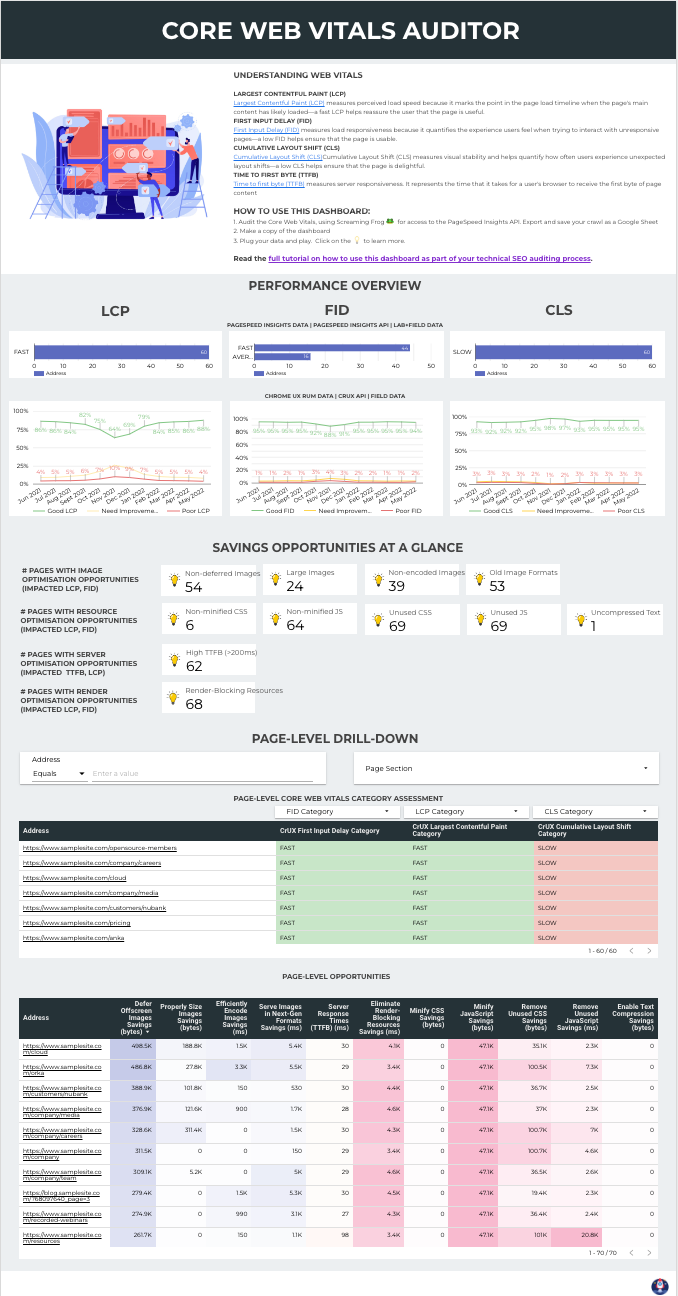
It combines PageSpeed Insights results for every page (from a Screaming Frog crawl exported to Google Sheets) with Chrome UX Report field data over time. Each part has a job:
| Element | What it shows | How it’s built |
|---|---|---|
| Performance overview | LCP, INP (FID in the 2021 copy) and CLS side by side for the whole site | Bars from the crawl’s CrUX category fields, nulls filtered out; lines from Chrome UX Report field data, metrics renamed for easier reading |

| Savings opportunities at a glance | How many pages have each issue, grouped into image, resource, server and render optimisation | Scorecards counting the savings dimension (e.g. “Defer Offscreen Images Savings”, set to Count), filtered to exclude nulls and values below one |
| Recommendations | How to tackle each group of issues using the savings in the tables | Text, plus a web.dev link per opportunity |
| Pie charts (July 2021 V1 only) | Affected pages as a share of all pages crawled | Unfiltered, so unassessed pages (null) and pages with no saving (0) show the scale of the issue and help prioritise |
| Page-level drill-down | Every page’s category per metric, and every page’s savings per opportunity | Two tables straight from the crawl Sheet, coloured as a heatmap |
| Testing ground (V1; add it to your copy) | An in-depth check of a single URL | Now a link out to PageSpeed Insights (below) |
In the July 2021 V1, each Core Web Vital had its own page with these elements (the dashboard documentation details every chart); the September 2021 V2.0 behind the template puts them on one page.
How to set up the dashboard, step by step
Just plug and play in three simple steps: bulk-audit with Screaming Frog, copy the dashboard, connect your data. Okay, maybe not so easy. It takes a little longer, but bear with me.
Before you start: three things that make your life easier later, I promise
- Get a feel for the site’s categories. Best to ask the developers whether different templates are used across the main sections.
- Check the CMS. Very handy when you research the issues and write recommendations.
- Get access to GA4. Optional, but it helps you prioritise. You can connect it inside Screaming Frog’s API menu, but in my opinion adding GA4 to the report with Google’s connector is the better approach (how to blend it).
Step 1: audit Core Web Vitals with Screaming Frog and export to Google Sheets
Connect the PageSpeed Insights API in Screaming Frog first. Go to Configuration › API Access › PageSpeed Insights, enter your API key on the Account Information tab and keep the source on Remote.
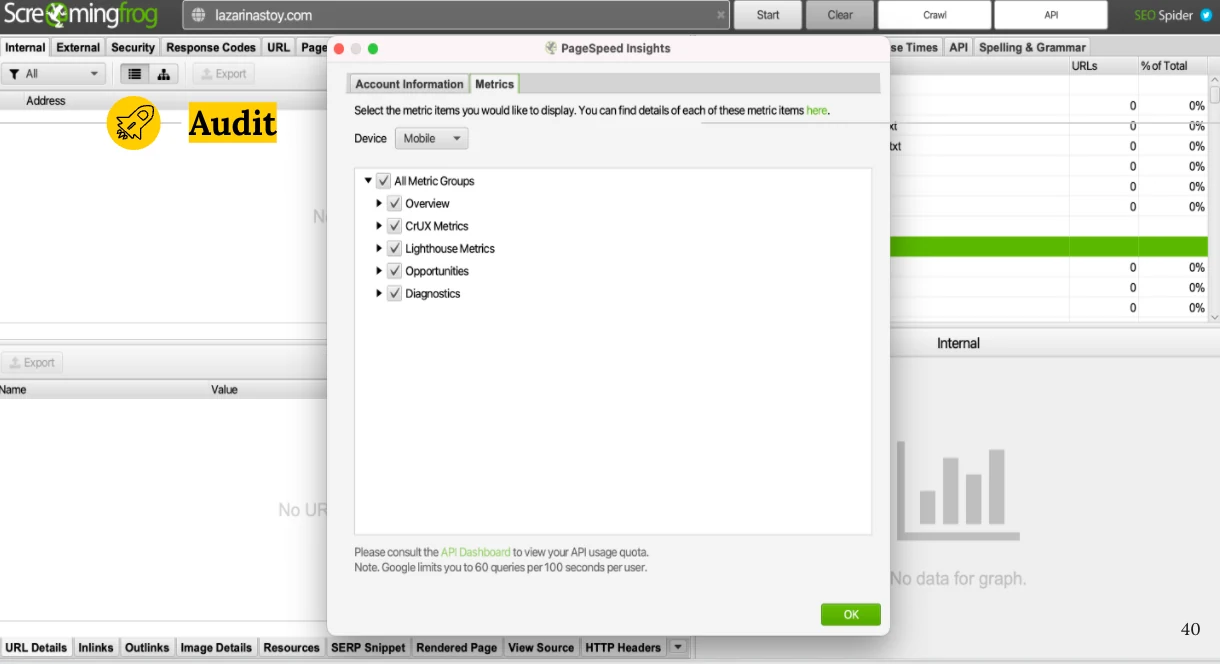
Since my screenshot, Opportunities has been renamed Insights. A Local source now runs Lighthouse on your machine, but it returns no CrUX data, so the field-data columns stay empty: use Remote. The integration needs a paid Screaming Frog licence (the free version stops at 500 URLs without it), and Screaming Frog puts the API allowance at 25,000 queries a day, at 60 per 100 seconds. Their Core Web Vitals audit tutorial covers the crawl, INP included.
Connect Google Drive to Screaming Frog and export all the PageSpeed data straight to a Google Sheet, in the format Data Studio needs. (In 2021, step zero was filtering the API’s renders out of Universal Analytics; here’s the GA4 version.)
Step 2: copy the dashboard and connect your crawl
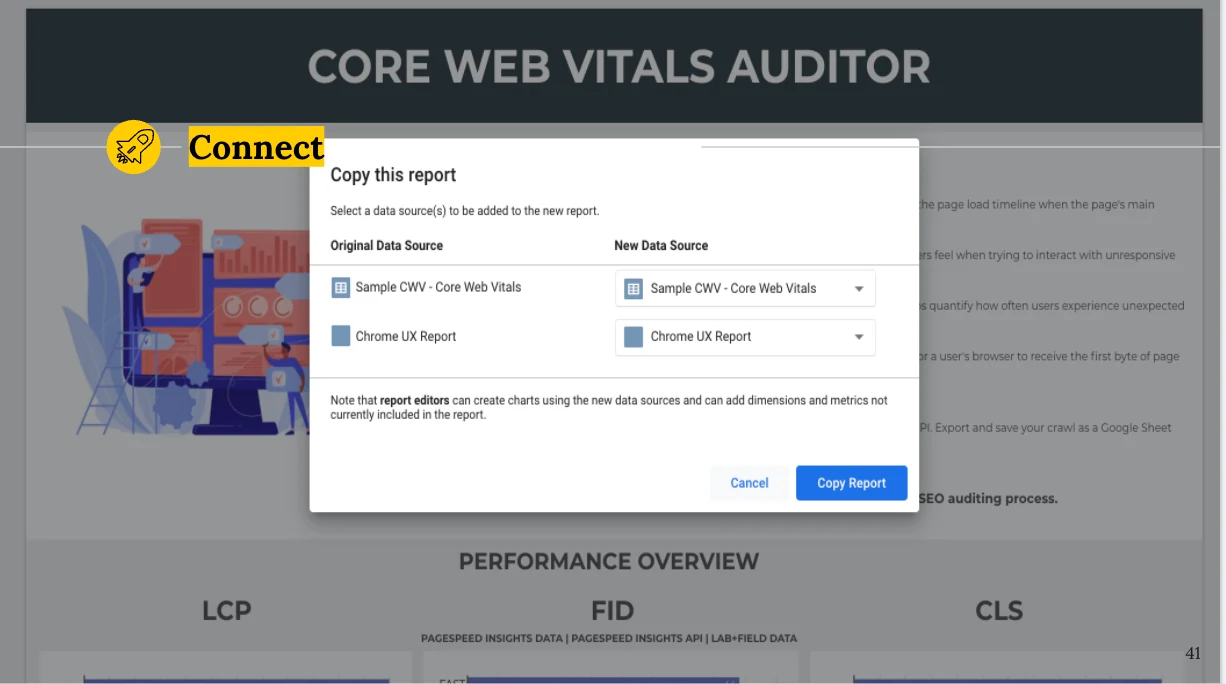
Open the Core Web Vitals Auditor, make a copy, and swap the data sources. The crawl is the first one: choose Google’s Google Sheets connector, find your crawl spreadsheet and connect it.
Step 3: swap FID for INP
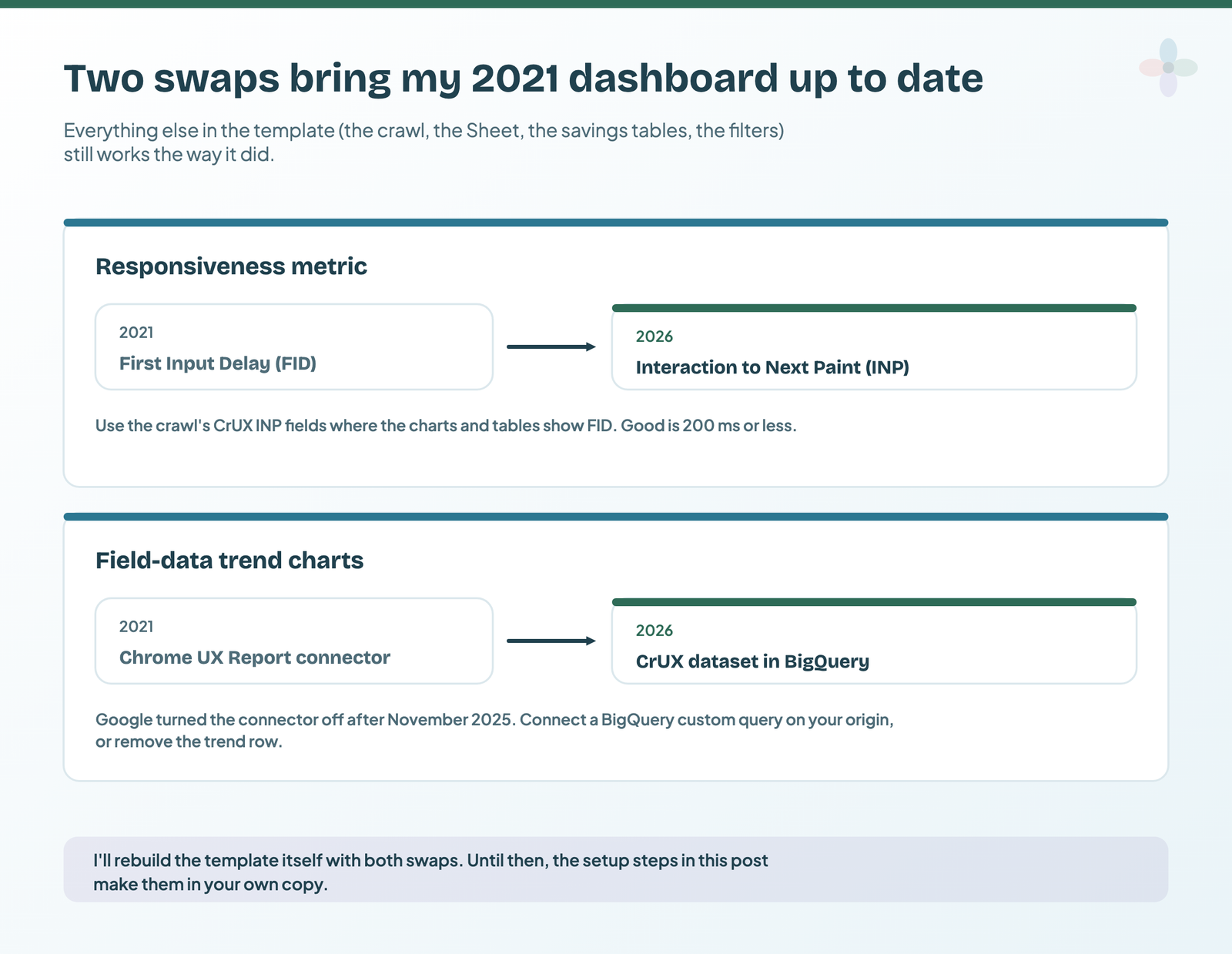
Interaction to Next Paint replaced First Input Delay as a Core Web Vital in March 2024. Wherever a chart, table or scorecard uses an FID field, click it, click the field in the Setup panel and pick the INP equivalent: CrUX Interaction to Next Paint (ms) and CrUX Interaction to Next Paint Category (and the CrUX Origin versions, when a page has too little data of its own). Rename the “FID” titles and headers, and update any thresholds in text boxes: good INP is 200 ms or less, not FID’s 100 ms. One to watch: Google plans to drop CrUX data from the PageSpeed Insights API (no date yet). If these columns empty out, the field data lives on in BigQuery and the CrUX API.
Step 4: reconnect the field-data trend to the CrUX dataset in BigQuery
The template’s second data source is Google’s Chrome UX Report connector (in 2021 you searched “Chrome UX” and entered your site’s URL). Google turned that connector off after the end of November 2025, and reports that relied on it stopped loading data. Its trend charts will show an error until you remove that row or rebuild it on the public CrUX dataset in BigQuery. You need a Google Cloud project; the free BigQuery sandbox is enough to start.
- In Data Studio, add data and choose Google’s BigQuery connector.
- Choose Custom Query, select your billing project, and paste the query below with your own origin (protocol and host, no trailing slash).
- Point the trend charts at it:
monthas the date, the good / needs-improvement / poor shares as metrics, one chart per Core Web Vital. - Set data freshness to 12 hours or more: the dataset only changes monthly.
-- Monthly Core Web Vitals field data for one origin, from the public CrUX dataset
-- Shares are fractions of page loads (0 to 1); set them to Percent in Data Studio.
SELECT
  PARSE_DATE('%Y%m', CAST(yyyymm AS STRING)) AS month,
  device,
  fast_lcp   AS lcp_good,  avg_lcp    AS lcp_needs_improvement,  slow_lcp  AS lcp_poor,  p75_lcp,
  fast_inp   AS inp_good,  avg_inp    AS inp_needs_improvement,  slow_inp  AS inp_poor,  p75_inp,
  small_cls  AS cls_good,  medium_cls AS cls_needs_improvement,  large_cls AS cls_poor,  p75_cls,
  p75_ttfb
FROM `chrome-ux-report.materialized.device_summary`
WHERE origin = 'https://www.example.com'
  AND device IN ('phone', 'desktop')
  AND yyyymm >= 202301
ORDER BY month, device
yyyymm is the month as a number (202601), so the first line turns it into a date. Each release covers a calendar month and lands on the second Tuesday of the next. The dataset is origin level only: the whole site’s trend, while the page-level picture still comes from the crawl. Data Studio re-runs a custom query every time its cache expires, and BigQuery’s free allowance is 1 TB of queries a month, so check the bytes estimate in the BigQuery console first (the automation tutorial has a cheaper monthly route). Google says connecting to BigQuery with your own credentials keeps working but isn’t a route it supports for dashboards, and points to CrUX Vis for a ready-made view. I checked this query against Google’s documented schema; run it once on your own origin before you connect it.
💡 My 2021 tip: if the Chrome UX Report connector errored, disable the option letting viewers change the URL. With BigQuery, the equivalent catch is credentials: if viewers see an error, run the data source on the owner’s credentials.
Troubleshooting: scorecards that won’t populate
🆘 A quick word of caution: the dashboard’s scorecards are filtered, and that can cause errors after you connect your own crawl. Rest assured, they’re easy to fix. Click a broken scorecard and you’ll see a filter error on the right:
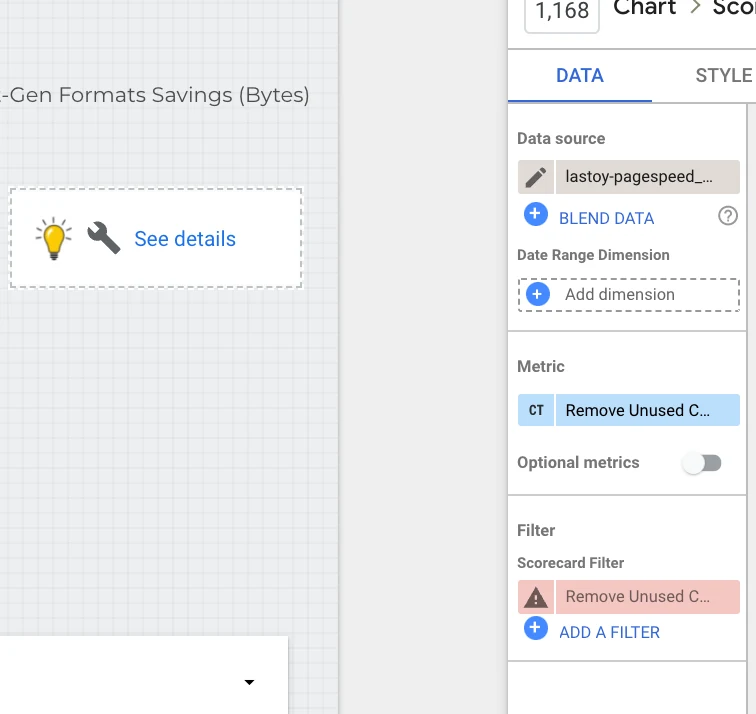
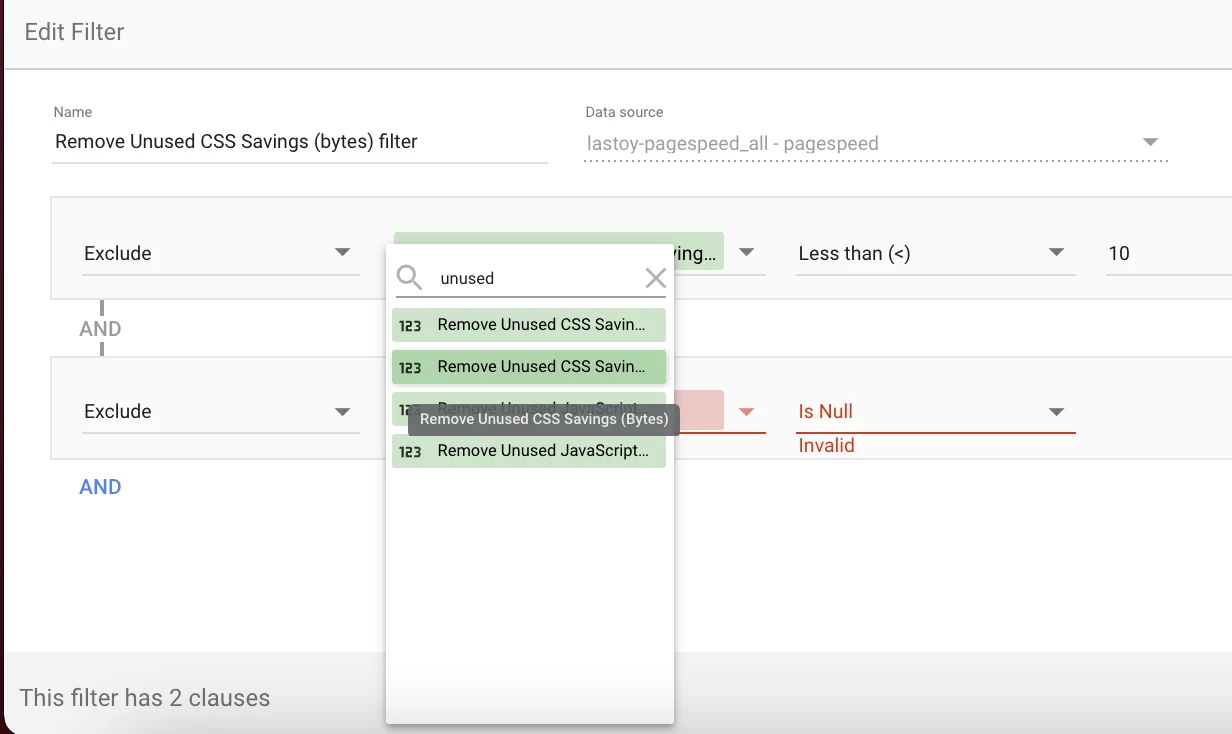
Screaming Frog sometimes renames fields between versions, which breaks the scorecard filters. Click the scorecard, open the filter, and select the renamed field in each exclusion clause:
If the field-data charts say “No data”, CrUX doesn’t have enough real-user data for your origin on that device (or, with the old connector, the property was new). CrUX collects data whether or not a site is in Search Console, but an origin only appears once it has enough visitors. 💡 Don’t be scared of nulls here. Work through the opportunities the PageSpeed Insights data found, and you’ll be ready when the site reaches the threshold.
Voilà! A working dashboard.
Use cases: site, section and page level at a glance
Get an overview of the site from two types of data
The performance overview shows LCP, INP and CLS side by side for the entire site, from the crawl and from field data.

They can differ: field data only reports real users’ experience, while the PageSpeed Insights API also reports Lighthouse lab data. Nulls, excluded from the PageSpeed Insights data in the dashboard (change it in the filter settings), also play a part.
View savings opportunities at a glance
Every savings opportunity at once: the first step in prioritising. They’re grouped into image, resource, server and render optimisation, each linking to web.dev.
Filter pages by metric category


In the page-level drill-down you can see every page that passes, fails or needs improvement on each of the three metrics. The first table shows the category for each metric page by page; the second shows the individual savings (in bytes or milliseconds) for each opportunity.
Sort and filter pages by savings opportunities and values

See every page’s opportunities; sort and filter by any value.
Filter pages by keywords in the URL
Perhaps one of the most useful things is filtering by values in the URL. Type a keyword contained in the address, choose the match type (contains, equals, regex and so on) and press Enter. The savings widgets and both tables filter to match.
Export a dev sheet
Export a dev sheet straight from either table: click the three dots at the top right and choose Export.
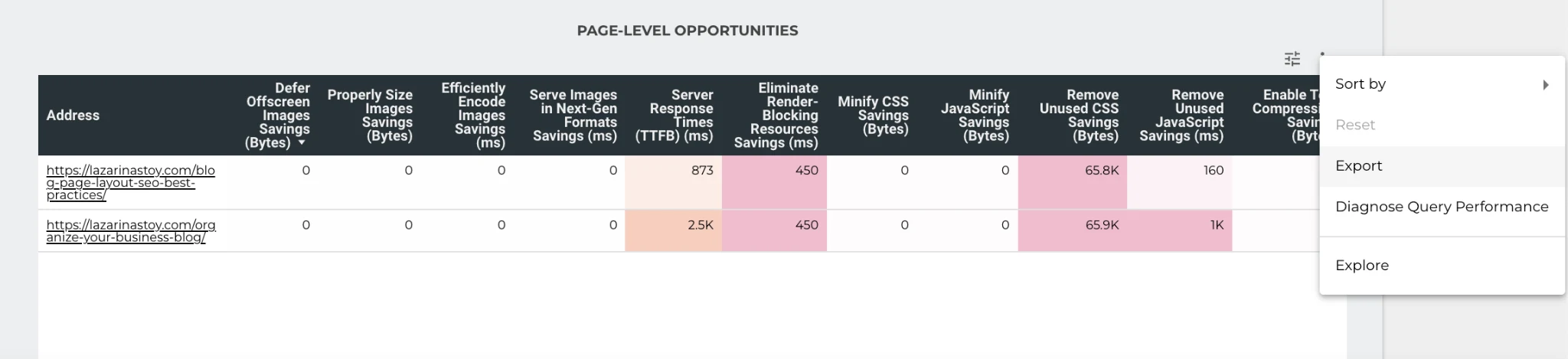
The template also has a Page Section drop-down. How to build that field for your own site, and hand each team its own list, is in the automation tutorial.
The testing ground: one URL in depth
The V1 report ended with a testing ground for page-level checks, inspired by Jackie Jeffers’ Field Guide to Reporting on Core Web Vitals: Part 2. Does it really add value? It does: report users can dig into one page’s issue. For example, image savings:
- Narrow the list of URLs to a section of the site (e.g. the blog).
- Sort by potential image savings.
- Click the row’s Test in PageSpeed Insights link (the field below).
- Click Analyse.
- Scroll down to the opportunities.
- Expand “Properly size images”.
- View the individual files that need resizing for faster page loads.
In 2021 I embedded PageSpeed Insights with the URL embed component and you pasted the URL into its search box. PageSpeed Insights no longer allows embedding, so that stays blank. Instead, add this link field to the crawl data source and the opportunities table:
HYPERLINK(CONCAT("https://pagespeed.web.dev/analysis?url=", Address), "Test in PageSpeed Insights")Templates
Looking for what else you can report on from a Screaming Frog crawl? My URL Inspection API dashboard does the same for crawling, indexing and canonical issues.