
To automate Core Web Vitals reporting in Data Studio, schedule a Screaming Frog crawl with the PageSpeed Insights API to overwrite the same Google Sheet, pull monthly real-user data from the CrUX dataset in BigQuery, log every fix with its date in a progress-tracking Sheet, and schedule the dashboard to email itself to the team. Nothing in that loop needs you to press a button between audits, and the implementation dates let you map each change to the next month’s numbers.
I built this framework in 2021 so my clients could track not only their performance but also their progress: a progress-tracking Sheet with detailed execution advice and prioritisation, so the impact of every change could be mapped in the monthly report. This tutorial covers:
- why a one-off audit isn’t enough, and the automated loop;
- scheduled crawls, and monthly field data from BigQuery;
- the progress-tracking Sheet, blended with field data;
- prioritising and delegating fixes, and tracking competitors;
- email snapshots, and the data quirks that trip people up.
It builds on my Core Web Vitals dashboard tutorial, which sets up the template and explains the metrics. Start there if you haven’t connected a crawl yet.
Why a one-off audit isn’t enough
There are two methods of auditing Core Web Vitals and many tools, each with its own limitations and strengths, which makes traditional reporting complex, holistic and static. A static audit tells developers what’s wrong once, not whether the fixes worked.
The dashboard tutorial covers why the audit itself stalls on large sites. These are the reporting problems that come after it, and the loop below exists to solve them:
| Challenge | What it looks like on a real site |
|---|---|
| You can’t prioritise or communicate urgency | If you can’t identify every page with an issue, prioritisation is a struggle. Tasks the developers see as non-urgent go straight into the backlog, and once a task is there, it probably stays forever, until urgency arrives, often from outside. |
| You can’t delegate | Medium and large sites have organisational silos (the example below). |
| The audit is slow | All of the above makes for a painfully slow auditing process. |
| Progress tracking is ad hoc | Site-wide audit comparison isn’t available in most tools, so testing is ad hoc and tracking happens either holistically (site-level metrics) or page by page. |
Allow me to explain the delegation problem with an example. Imagine a website whose investor subdomain is managed by an external party, which typically handles legal, too. The PR section is run by a different agency. Blog and resource pages are owned by content marketers internally, and product and solution pages by an internal product marketing team. External agencies may have contracted developers for their sections, but there will always be internal developers who’ll likely implement your fixes, and a head of growth or demand-gen lead you need to convince that page experience matters site-wide. Good luck delegating tasks if you can’t filter your recommendations by section.
What clients want is an interactive system: page-, section- and site-level reporting, the discovery of emerging patterns, and progress tracking. And because we want clients to feel a sense of ownership of the changes they need to make, the progress-tracking part belongs to them, not to the auditor.
Here’s the approach. Three sources, each refreshing on its own schedule, feed one dashboard:
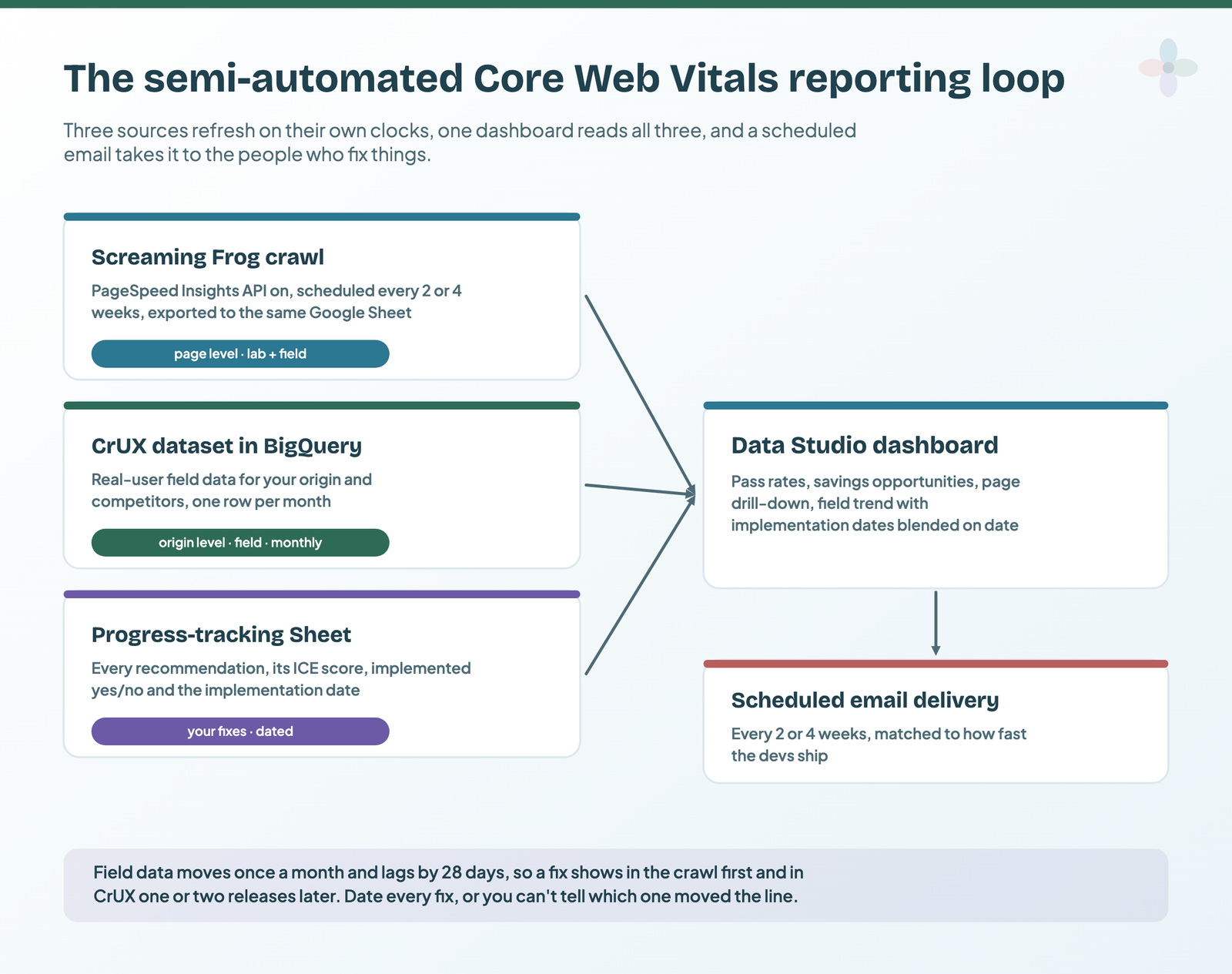
| Source | Data | Level | How often it changes |
|---|---|---|---|
| Screaming Frog crawl, PageSpeed Insights API on | Lab data, field data per URL where Google has it, and every savings opportunity | Page | Whenever you schedule it: every two weeks or monthly |
| CrUX dataset in BigQuery | Real-user field data: good / needs improvement / poor shares and 75th percentiles | Origin (whole site) | Monthly: each release covers a calendar month and lands on the second Tuesday of the next |
| Progress-tracking Sheet | Recommendations, priority, implemented yes/no, implementation date | Fix | Whenever the developers ship |
The whole framework follows five steps, one per section below.
Step 1: schedule the crawl to recur every two weeks or monthly
Set up the crawl once, as in the dashboard tutorial (PageSpeed Insights API connected, all metric groups ticked), then schedule it to recur. More crawls mean more data to visualise while developments are under way, and once fixes ship, stakeholders see each crawl’s results in the same dashboard, with the change since the previous one.
- In Screaming Frog, go to File › Scheduling and add a task: the site, the date and time, and how often (weekly, every two weeks or monthly). Scheduled crawls run headless, so load a saved configuration that has the PageSpeed Insights API switched on.
- On the Export tab, add the PageSpeed tab export (all PageSpeed data), set the format to gsheet, and connect your Google account. On the Output tab, tick Overwrite files in output instead of timestamped folders, so every crawl replaces the same Sheet and the dashboard always reads the latest one.
- If you want a site-level history as well, Screaming Frog’s Looker Studio export (still under that name in the app) appends one row per crawl to a time-series Sheet: connect that as a second data source for crawl-on-crawl trends.
Scheduling is part of the paid licence. Since version 15 Screaming Frog can also compare two crawls and detect changes between them (crawl comparison and change detection), and in 2021 I pointed out that a crawl date plus your implementation dates lets you build time graphs on that change detection. Version 24 added automatic crawl comparison, which saves you a step when you want to check what changed between two scheduled runs.
Step 2: get monthly field data from the CrUX dataset in BigQuery
In 2021 this step was “connect the Chrome UX Report for your domain”, using Google’s connector. Google turned that connector off after the end of November 2025, and reports that relied on it stopped loading data. The replacement for a monthly trend is the CrUX dataset in BigQuery: the same real-user data, one row per origin per month, queried straight from Data Studio with Google’s BigQuery connector. The query for your own site, and how to connect it, is in the dashboard tutorial’s setup.
Once it’s connected, each month’s release appears in the report on its own: a BigQuery custom query re-runs whenever the data source’s cache expires. That’s also its catch, because every re-run is billed against your BigQuery allowance (1 TB of queries a month free). Before you connect, paste the query into the BigQuery console and check the estimate it shows for the bytes it will process. If it’s more than you’d like to run twice a day:
- In the BigQuery console, save the query as a scheduled query that runs monthly, a few days after the second Tuesday, and writes to a small table in your own project (overwrite the table each time).
- Connect Data Studio to that table instead of the custom query. The report then reads a few hundred rows, and the CrUX dataset is queried once a month.
If you want something fresher than monthly, the CrUX API updates daily with a rolling 28-day window, at URL or origin level, and the CrUX History API updates weekly with up to 40 weeks of history. Neither has a Data Studio connector, so you’d write the results into a Sheet on a timer with Apps Script, as in filling a Sheet from an API on a schedule. That route is also the safer long-term one for page-level field data: Google says it plans to stop including CrUX data in the PageSpeed Insights API, which is where the crawl gets its field columns today (no date announced).
Step 3: give the developers a progress-tracking Sheet
Give your developers a list of recommendations based on the page experience issues you found, in a Sheet they own. To make life a bit easier, I’ve created a Core Web Vitals recommendations template. Make a copy and fill it in with your audit. It includes:
| Column | What goes in it |
|---|---|
| Area and metric of impact | Which optimisation group the recommendation belongs to, and which Core Web Vital it moves (update any FID rows to INP) |
| Recommendation name and description | What to change, in the developers’ language |
| ICE assessment | An Impact-Confidence-Ease prioritisation score |
| Rationale | Why it’s worth doing: the pages and savings from the dashboard |
| Guidance / how-to | Detailed execution advice, or a link to it |
| Implemented | A yes/no checkbox |
| Implementation date | The day the change went live |
| Implementation notes | Anything that changed from the plan |
The most important thing about this sheet is, without a doubt, the implementation date. While difficult, get your devs to fill it in. Notes are great too, but totally optional. The date is what lets you map the impact of each change later in the report. (The first, July 2021 version was a simpler progress-tracking spreadsheet built around the same date column; the recommendations template replaced it in V2.0, where it sits as the dashboard’s second page for easy access.)
Step 4: blend implementation dates with field data to map the impact
Connect your copy of the Sheet as an extra data source in your copy of the dashboard, then use the date dimension to blend it with the field data. That way you can proactively check whether your changes made an observable difference to the site’s reported page experience.
- Select the field-data trend chart and click Blend data.
- Keep the BigQuery source on the left with its
monthdate and the share of good page loads. - Add the progress-tracking Sheet on the right. In the Sheet, add a helper column with the first day of the implementation month (
=EOMONTH(G2,-1)+1if the date is in column G), and set its type in Data Studio to Date. - Join on month = implementation month with a left outer join, so months without a fix still show.
- Add the recommendation name as a second metric with Count Distinct, and show it as bars on the right axis: each bar is a month in which something shipped.
The same idea works at crawl level: blend the progress Sheet with the crawl dates of your scheduled exports, and you see the drop in, say, pages with unused JavaScript in the first crawl after the fix, weeks before it reaches field data. The bar-on-a-line technique is the one I use for custom event annotations, if you’d like the full chart configuration.
Field data moves slowly, so give a change a month or two before you judge it. And a bar shows timing, not cause: if three fixes shipped in the same month, the chart can’t tell you which one moved the line.
Step 5: prioritise and delegate fixes
Prioritise by GA4 or Search Console
Blend GA4 with the crawl on the URL to add a layer of prioritisation, based on page views, new users or key events (what GA4 used to call conversions). Do the same with Search Console’s URL data to prioritise by clicks, impressions and CTR.
- Blend the crawl Sheet (left) with GA4 or Search Console (right).
- Join key: the crawl’s
Addressagainst a full-URL field on the other side. GA4’s Landing page is a path, so build the full URL with a calculated field, such asCONCAT("https://www.example.com", Landing page); Search Console’s URL-level data source has the full Landing Page URL already. - Use a left outer join with the crawl on the left, so pages with no traffic stay in the list.
- Sort the opportunities table by sessions or clicks: a page with a large saving and a lot of traffic goes to the top of the dev list.
Trailing slashes and parameters are what usually break this join; my landing page formula normalises both sides.
Group pages by section, template or language, and delegate
Remember the delegation problem? To hand each team its own list, filter by section rather than by keyword. Create groups of pages with a calculated field. Click Add a field in the data source (or in a chart’s Setup panel), and write a CASE statement on the Address field. You can group pages by language:
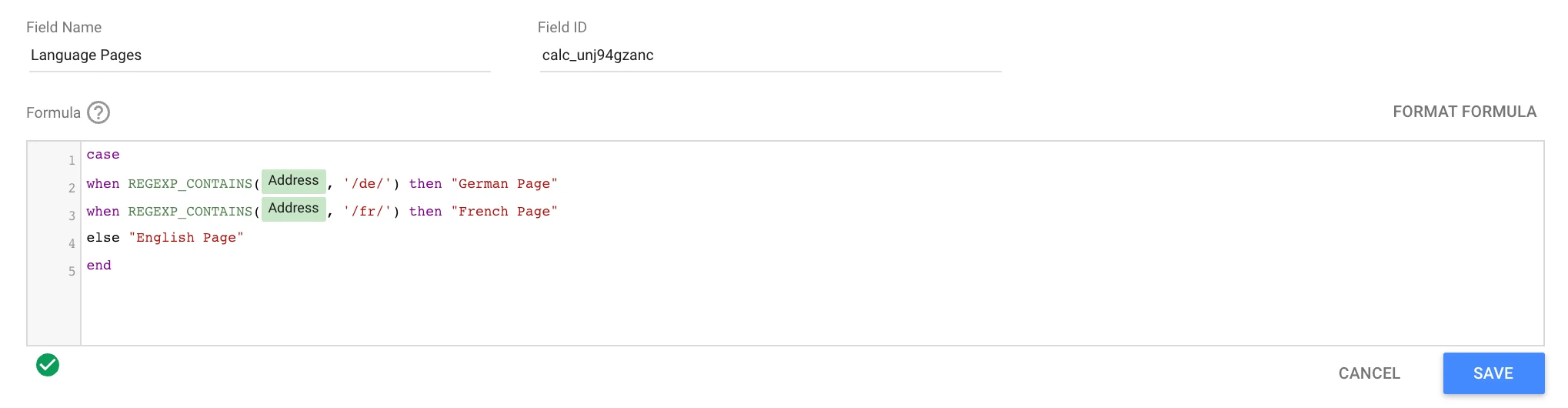
Or by site section:

Here are both, updated with an ELSE so nothing comes back null, and anchored so “/blog/” only matches the path. Replace the folders with your own:
CASE
  WHEN REGEXP_CONTAINS(Address, "^https?://[^/]+/de/") THEN "German pages"
  WHEN REGEXP_CONTAINS(Address, "^https?://[^/]+/fr/") THEN "French pages"
  ELSE "English pages"
END
CASE
WHEN REGEXP_CONTAINS(Address, "^https?://[^/]+/blog/") THEN "Blog posts"
WHEN REGEXP_CONTAINS(Address, "^https?://[^/]+/solutions/") THEN "Solution pages"
WHEN REGEXP_CONTAINS(Address, "^https?://[^/]+/product/") THEN "Product pages"
ELSE "Other"
ENDAdd the field as a drop-down control and you can hand each team (the agency running the PR section, the product marketers, the content team) its own list. The same grouping works for templates or organisational silos. More URL formulas, including extracting the top-level folder without listing every section, are in my custom dimension formulas; and if you’d like each section’s pass rate as a dial, the Gauge visualisation works on any of these fields.
Track competitors’ field data over time
Rachel Anderson wrote an amazing guide to Core Web Vitals competitor analysis in Data Studio (on the DeepCrawl blog at the time, now Lumar), with a step-by-step tutorial on blending CrUX data for your chosen competitors and a full process for building a report page like this one. In 2021 I suggested adding a new page to the dashboard and following along.
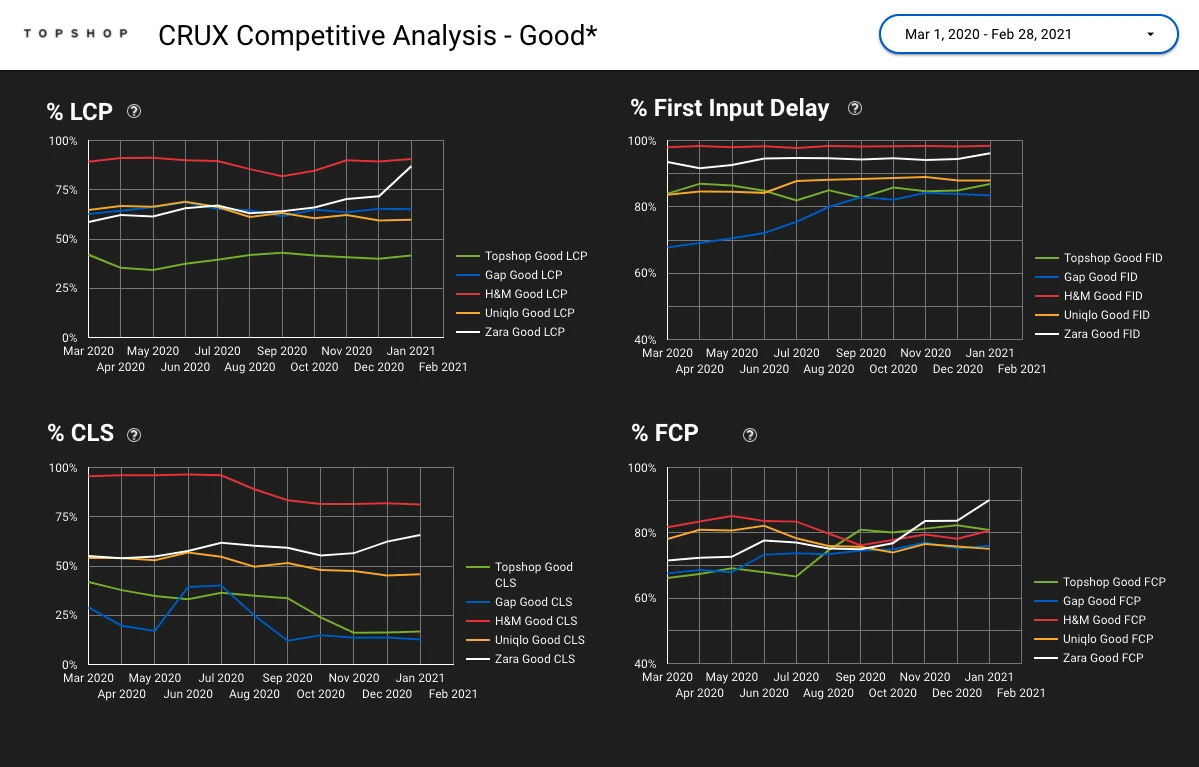
Her method blended one Chrome UX Report connector per competitor, so it went with the connector. The good news: BigQuery makes this easier. The blend limit meant you could compare five sites at most; one query can return any number of origins, one row per origin per month:
-- Share of good page loads per Core Web Vital, on phones, for you and your competitors
SELECT
  PARSE_DATE('%Y%m', CAST(yyyymm AS STRING)) AS month,
  origin,
  fast_lcp  AS lcp_good,
  fast_inp  AS inp_good,
  small_cls AS cls_good,
  (p75_lcp <= 2500 AND p75_inp <= 200 AND p75_cls <= 0.1) AS passes_all_three
FROM `chrome-ux-report.materialized.device_summary`
WHERE device = 'phone'
  AND origin IN ('https://www.example.com',
                 'https://www.competitor-one.com',
                 'https://www.competitor-two.com')
  AND yyyymm >= 202301
ORDER BY month, origin
Put origin as the breakdown dimension on a time series and you have the same page, with no blend at all.
Know Data Studio’s limits before a client meeting
💡 Be wary of the platform’s limitations. If you need to visualise many charts on one page, there are limits to how many elements a page can hold, and if you blend data sources, a blend takes at most five. There are still instances where Data Studio could (temporarily) fail you, so be aware of its limits and your data sources’ limits, and prepare accordingly. My best advice: keep version history in mind and make a copy before big changes, so you’re never stuck with a broken dashboard right before a client meeting.
Send bi-weekly or monthly snapshots by email
Data Studio can send the report out automatically: schedule a snapshot every two weeks or monthly, depending on how fast your developers are progressing.
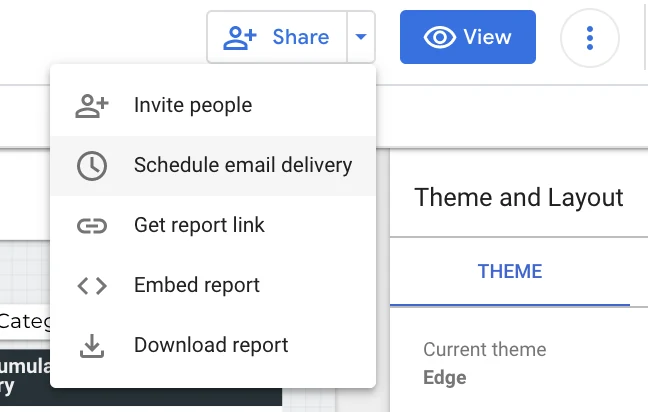
In 2021 I hoped Zapier’s Data Studio integration would fully automate the last mile. That never happened: Zapier still has no Data Studio integration, so I settle for this semi-automated approach, and honestly it covers most of what I wanted. On the free version, a report can have one schedule, sent at most daily to up to 50 recipients. Who can schedule, and what recipients get, is in sharing and scheduling reports; if a schedule stops arriving, here’s how to fix it.
Data notes that save you an awkward meeting
Data freshness: CrUX moves monthly, crawls move when you say
In 2021 Google confirmed that Chrome UX Report data was updated once a month, on the second Tuesday, with no plans to change the schedule. That still holds for the BigQuery dataset: each release covers the previous calendar month. Screaming Frog crawls can be scheduled far more often, which is why the crawl is where you’ll see a fix first. If a number in the report looks older than it should, my data freshness guide walks through which of the clocks is behind.
Why PageSpeed Insights and CrUX numbers don’t match
The CrUX API gives low-latency access to aggregated real-user metrics: field data only, streamlined and quick, which suits real-time auditing. The PageSpeed Insights API also reports Lighthouse lab data, and returns desktop results by default. Crawl field values are per URL (or origin, when a page lacks data); the BigQuery trend is the whole origin over a calendar month. Different windows, different scopes, different numbers. Neither is wrong.
| PageSpeed Insights API (via the crawl) | CrUX API | CrUX in BigQuery | |
|---|---|---|---|
| Data | Lab (Lighthouse) + field | Field only | Field only |
| Level | URL, falling back to origin | URL or origin | Origin |
| Window | Lab: the moment of the test. Field: the last 28 days | The last 28 days, updated daily | A calendar month |
| Default device | Desktop unless the strategy is set to mobile | All devices unless you pass a form factor | Split by device in the table |
Sources: Google’s Measure Core Web Vitals with the PageSpeed Insights and CrUX Report APIs codelab, the PageSpeed Insights API reference and the CrUX API documentation.
Keep the crawl’s PageSpeed Insights renders out of GA4
The PageSpeed Insights API renders pages to collect lab data. In 2021 those renders showed up in Universal Analytics as direct traffic, even with “Exclude all hits from known bots and spiders” switched on, so Screaming Frog suggested excluding Google’s IP range with a view filter. This was the pattern (a Medium export had turned its hyphens into en dashes, which breaks the regex, so this is the corrected version):
^66\.249\.(6[4-9]|[78][0-9]|9[0-5])\.([0-9]|[1-9][0-9]|1[0-9][0-9]|2[0-4][0-9]|25[0-5])$Universal Analytics stopped processing data in July 2023, and GA4 has no view filters. GA4 excludes traffic from known bots and spiders automatically, and you can’t switch that off or see how much it removed. Screaming Frog’s FAQ still describes the issue, so if the renders do appear in your GA4 data (a spike of direct sessions during each scheduled crawl is the giveaway), exclude the same range as internal traffic:
- In GA4, go to Admin › Data streams, choose the web stream, then Configure tag settings › Define internal traffic.
- Create a rule with a
traffic_typevalue such aspsi_crawl, match type IP address is in range (CIDR notation), value66.249.64.0/19(the same 66.249.64.0 to 66.249.95.255 range as the regex). - In Admin › Data filters, create an Internal traffic filter set to Exclude for
traffic_type=psi_crawl, leave it in Testing for a crawl or two, and check the results before you make it Active: an active filter permanently removes the data.
The range is used by other Google services too, so test first, and only filter if you can see the crawl traffic in the first place.
Final thoughts
It’s unlikely that Core Web Vitals alone will dramatically change your rankings. Improving the technical performance of a site is highly unlikely, on its own, to bring traffic; it’s one of many page experience signals Google uses. Search engine optimisation is hard work, as we’re all painfully aware.
But an interactive progress-tracking approach can benefit your stakeholder relations greatly, so don’t underestimate it. Pique client and developer interest in page experience as a shared cause, because it really should be one. Get them involved and improving the site’s page experience sooner rather than at the next update. Shared interest, engagement and some communicated urgency can sometimes be the only way to get your recommendations actually implemented.
I said in 2021 that I expected this dashboard to evolve, and it has: INP and BigQuery are the two changes so far. I’d love to see how you customise it, and what you’d suggest for the next iteration.
Templates
Frequently asked questions
How often should I schedule the crawl?
Every two weeks while developers are actively shipping fixes, monthly once things settle. Match the scheduled email to the same rhythm.
How soon will a fix show up in the report?
In the next crawl, for lab data and savings opportunities. In the BigQuery field data, only once a full calendar month that includes the fix has been released, on the second Tuesday of the following month.
Do I need to pay for BigQuery to get CrUX data?
Not to start. The CrUX dataset is public and BigQuery’s free allowance is 1 TB of queries a month. You need a Google Cloud project to run the queries from; check each query’s bytes estimate, and use a monthly scheduled query if Data Studio would re-run a large one often.
Can I schedule the report on the free version of Data Studio?
Yes. On the free version a report can have one schedule, sent at most daily to up to 50 recipients. Data Studio Pro allows more frequent schedules.