
Copying a Data Studio template takes about two minutes: open the report, choose ⋮ › Make a copy at the top right, and pick your own data source for each of the template’s. It’s the fastest way to a working dashboard, and taking apart a report that already works teaches you the tool faster than a blank canvas does.
This tutorial covers the copy step by step, the mapping step that decides whether it works, what a copy leaves behind, how to fix a copy that breaks, and how to reuse one master report across many clients. It ends with what to check if you’re the one publishing a template.
Why start from a template
Building from scratch teaches you the buttons. Taking apart something that already works teaches you the decisions: why that metric is a scorecard rather than a chart, why the date control sits where it does, how someone structured a page for a client who only reads the top third.
It’s also faster. A good template is someone else’s iteration, yours to copy. To watch that taking-apart done slowly, Chapters 27 to 33 of my ebook, Data Storytelling in Data Studio, are seven before-and-after makeovers of marketing reports, with every redesign decision explained.
How to copy a Data Studio template, step by step
Google’s documentation puts it in one sentence: you can duplicate any report you have access to, unless the owner has disabled copying in the sharing options. Any report can be used as a template.
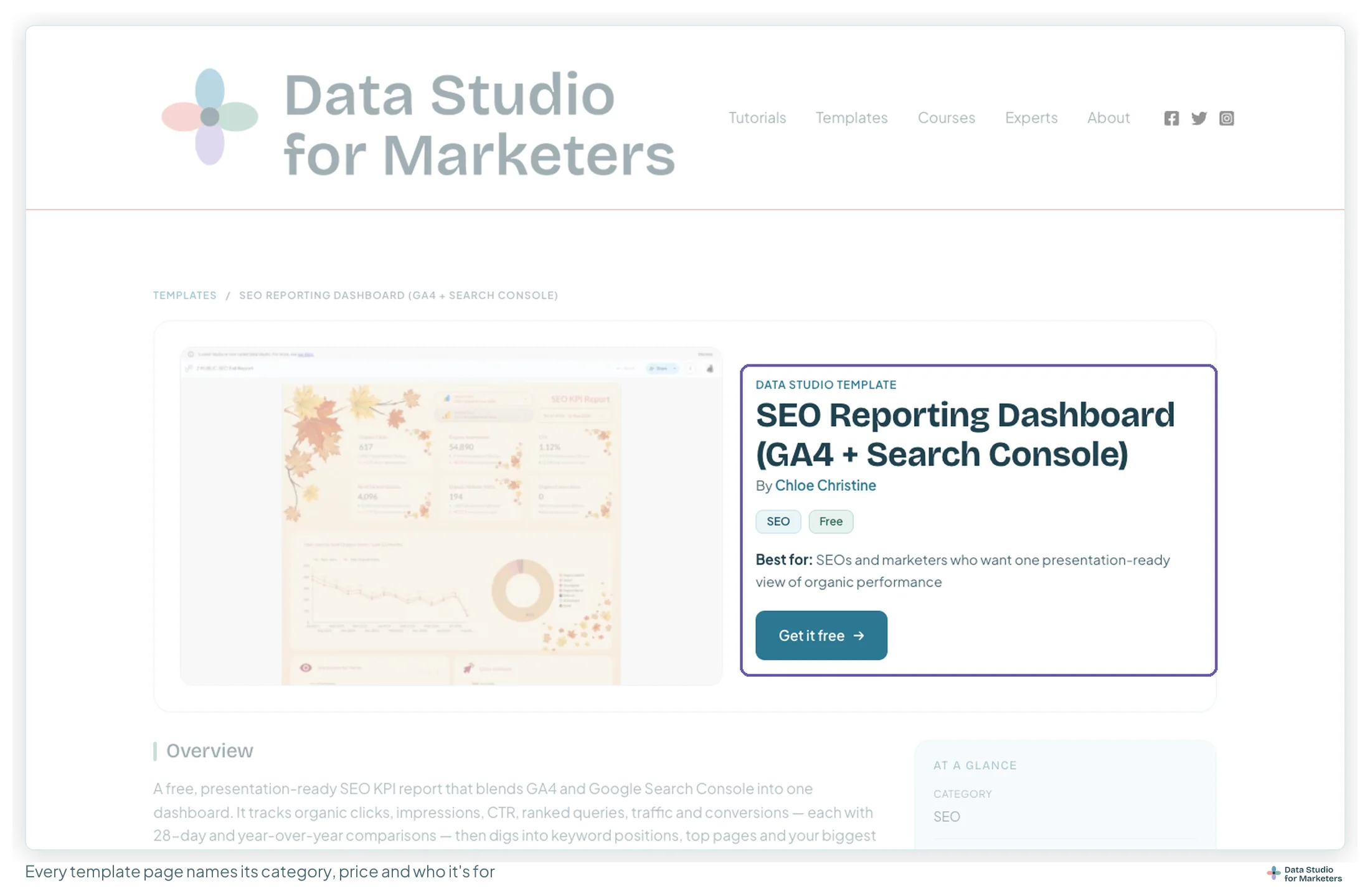
- Open the report. For a template from our library, open its page (category, who it’s for, creator) and click through to the report.
- Choose Make a copy. In view mode, click ⋮ (More) at the top right, then Make a copy. If it isn’t there, the owner has turned copying off.
- Map the data sources. The Copy this report dialog lists each Original Data Source on the left. Under New Data Source on the right, pick your own for each one, or Create data source if you haven’t connected it yet. The rules that decide whether the copy works are below.

- Confirm the copy. Google’s guide calls the button Create report. You now own a separate report; your edits don’t touch the original.
- Rename it straight away, with the client’s name, so nobody mistakes it for the template.
- Check what it’s connected to. In edit mode, Resource › Manage added data sources lists every source the copy uses, with how many charts use each. A source still pointing at the template’s sample data shows up here.

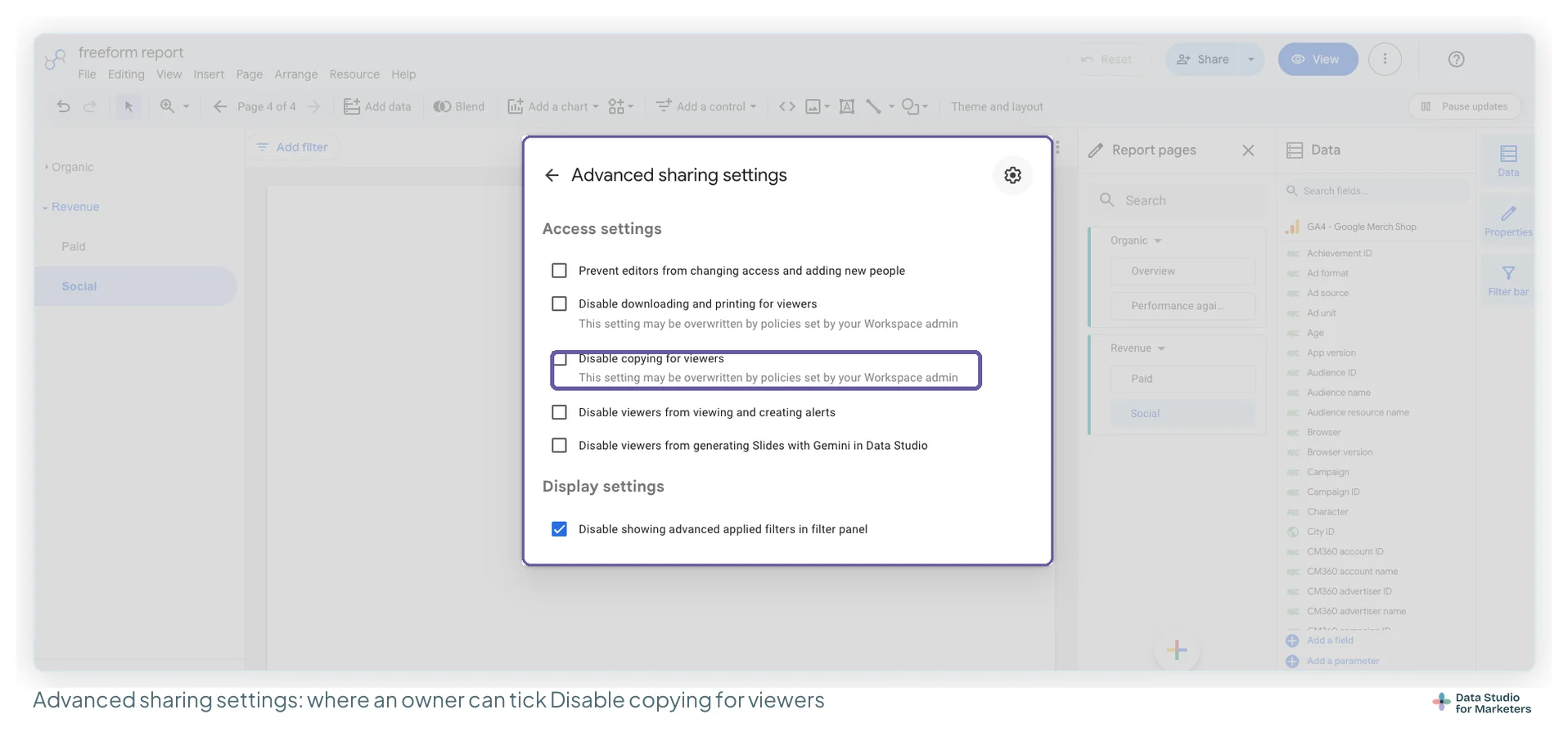
If Make a copy is missing, this is the setting behind it. An owner can tick Disable copying for viewers in the share dialog’s advanced settings (the gear icon in Share with people and groups), and the dialog notes a Workspace admin’s policies can override it. Ask the owner, or look for the same template published with copying on.
If the template opens with “Use my own data”
Some templates are shared as a link ending in /preview. Google calls that a template in the strict sense: a report you can use in view mode, but must copy before you can change or share it. The flow is slightly different:
- Click Use my own data at the top right, then Replace data (one button per data source).
- Choose one of your data sources, or create a new one, and click Add.
- When the charts show your numbers, click Edit and share to save it as your own report.
Google adds one warning worth reading: an orange dot beside Add data means you only have view access to the template’s default source, and a copy left on it will have errors. Replace it first.
The step everyone gets wrong: mapping the data sources
The mapping dialog is where copies go bad. Three rules:
- Map every row. A template with five sources needs five choices. Google lets you keep an original source if you can view it, so a row left alone can keep showing the template’s sample numbers on one page of your report.
- Match the source type, not just the name. If a row expects a GA4 property, give it a GA4 property. Google warns that a source that doesn’t match the original’s schema can break the charts and controls built on it, because the fields they reference aren’t there.
- “Unknown” means not shared with you. A source the owner hasn’t shared shows as Unknown, and you have to pick one of your own.
Two more behaviours depend on how the template’s sources were built. Embedded data sources (made inside the report) move with the copy; reusable ones don’t, which is why you map them. The exception: an embedded source using Owner’s credentials isn’t copied unless those credentials are yours, and its charts ask you to fix the missing source. And if the template uses blended data, map the sources the blend is built from, then open Resource › Manage blends in the copy and check each blend still joins on the right fields.
What a copy takes with it, and what it leaves behind
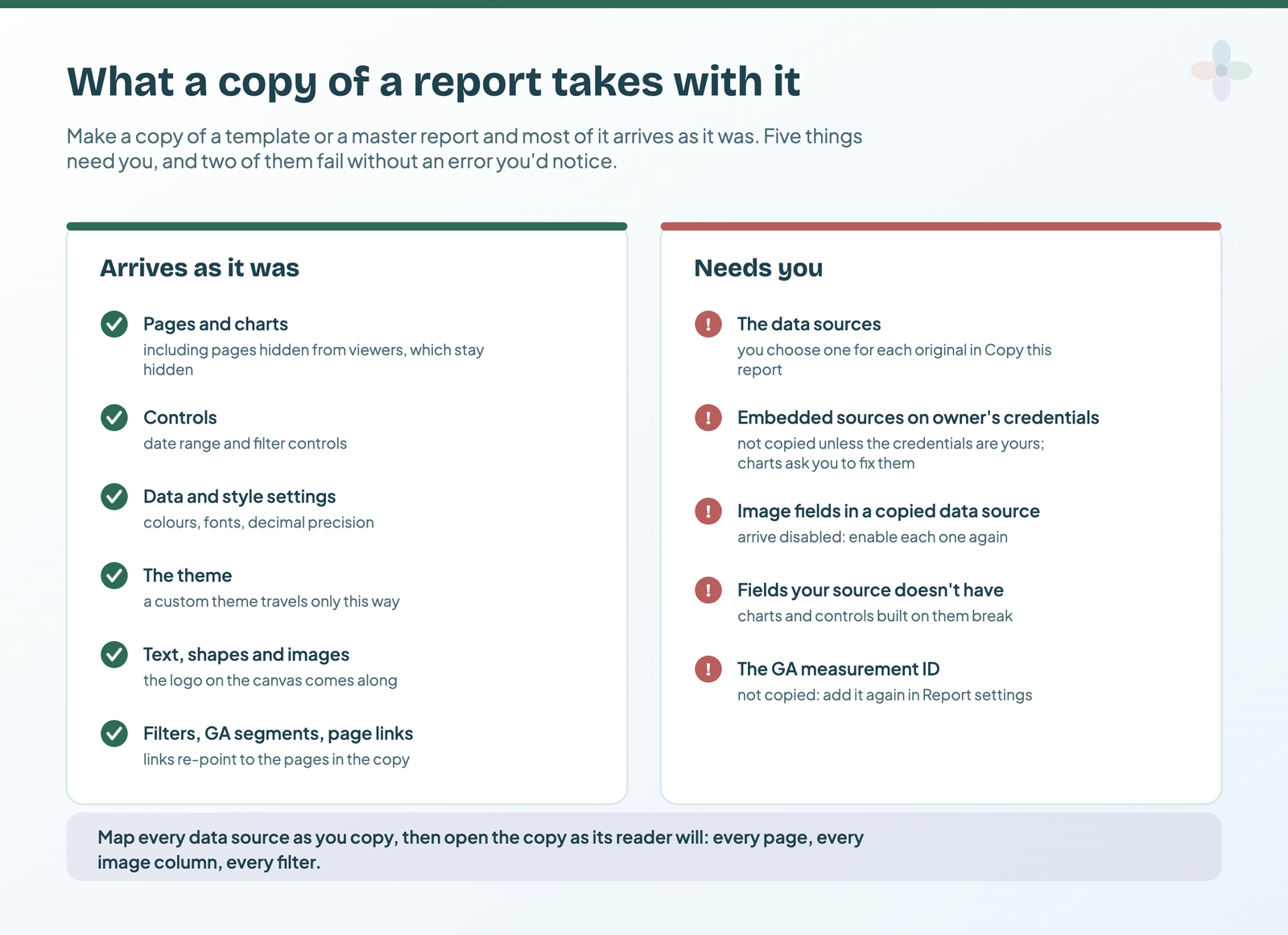
Google’s list of what a copy inherits covers almost everything you can see: pages, charts, date range and filter controls, style settings such as colours, fonts and decimal precision, text, shapes, images, filters and Google Analytics segments. Two more matter for a reusable report: a hidden page stays hidden in the copy, and page links re-point to the copy’s own pages, so a custom navigation bar keeps working.
The catches, in the order they bite:
| What doesn’t come across | What you’ll notice | The fix |
|---|---|---|
| The data sources | The mapping dialog | Choose one for each original (step 3) |
| The Google Analytics measurement ID | Nothing: the copy’s views go untracked | File › Report settings, add the ID again |
| Image fields, in a copied data source | A blank image column | Edit the data source and enable each Image field |
| Embedded sources using Owner’s credentials that aren’t yours | Charts asking you to fix a missing source | Connect your own source to those charts |
The measurement ID is the quiet one: Google is explicit that copying “does NOT copy the Google Analytics measurement ID”. If you track who uses your reports, every copy arrives with tracking off until you add it.
What to do when a copied report breaks
Copies break. It’s normal, it’s usually one of six things, and none of them means you did anything wrong.
| What you see | What it usually is | Fix |
|---|---|---|
| Configuration error on a chart | The chart references a field your source doesn’t have, often a calculated field the template’s source had | Recreate the field in your source, or swap it for one you have |
| Charts show, numbers look like someone else’s | A data source row wasn’t remapped | Resource › Manage added data sources; replace it |
| A calculated field is broken | The formula names a field your source spells differently | Edit the field and repoint it |
| Filters do nothing, or filter out everything | They match values from the original data; Google warns your source choice can affect filters and GA segments | Resource › Manage filters; rebuild them against your values |
| An image column is blank | Image fields arrive disabled in a copied data source | Enable each Image field in the data source |
| Charts ask you to fix a missing data source | An embedded source on owner’s credentials that weren’t yours | Point those charts at your own source |
My images guide covers the image-field rules, and the data source guide covers embedded versus reusable sources and the credential settings.
Reusing one template across many clients
This is where templates stop being a convenience and start being a business process. Three approaches, in order of effort and payback:
| Approach | How it works | Fine for |
|---|---|---|
| Copy per client | Copy the template once per client and remap the sources | A handful of clients. Past that, a design change means editing every copy. |
| One report, swap the source | Keep one report and change its data source when you need another client’s view | Ad-hoc checks; never a report a client has a live link to |
| A master you copy deliberately | One canonical report per brand, copied per client and never edited for a client | An agency. The design lives in one place. |
Why the master has to be a report, not a theme
There’s no theme file in Data Studio. Google’s themes page says custom themes aren’t shared across reports, that the way to reuse one is to copy the report that has it, and that a report holds one custom theme at a time: editing it creates a new custom theme over the old one. So the asset you maintain is a report. Change the master’s theme “just for this one client” and the original brand’s theme is gone, not saved under another name.
The arrangement I use, from Chapter 6 of my free ebook, The Marketer’s Guide to Dashboard Design:
- One folder per brand, not per client, holding one report called “— MASTER (do not edit)”. The dash sorts it to the top; the warning is the only documentation anyone reads.
- The master holds the theme, the layout, the cover and a swatch page, and no charts bound to a client’s live data.
- Every new report starts as Make a copy, renamed at once.
- When the brand changes, copy the master first, change the copy, and rename the old one with the year.
A page a particular client doesn’t need goes behind Control visibility rather than being deleted (Report pages panel, the page’s three-dot menu, Always hide the page for all viewers in the view mode). The copy keeps the master’s structure, so the next design change still lines up, and Google says a hidden page is left out of PDF downloads too.
Start a new client report from the master
- Open the master in view mode and choose ⋮ › Make a copy.
- For each of the master’s data sources, choose the client’s own, then confirm the copy.
- Rename the copy with the client’s name straight away.
- Add your Google Analytics measurement ID again in File › Report settings, if you measure report usage.
- Hide the pages this client doesn’t need with Control visibility, then read every page in view mode.
The two words get mixed up: a theme is styling that lives inside one report; a template is a whole report you invite people to copy. Templates versus themes sets them side by side, and the branded theme guide builds the master’s theme. If you’re managing dozens of client reports, this is also where Data Studio Pro earns a look, not for the charts, but because who owns each report starts to matter.
Copying a template that needs a paid connector
Some templates are built on a third-party connector. Anything covering Meta Ads, LinkedIn, TikTok, Shopify or Google Business Profile has to be, because Google provides no native connector for those platforms.
Copying works the same way, but the New Data Source list only shows that platform if you have an active connector account. If you’re evaluating, most have a free trial with no card (trial lengths from each partner’s own site, read 9 September 2026): Windsor.ai has a 30-day trial and a permanently free single-source plan, Catchr and Supermetrics both run 14 days, and Coupler.io gives 7 days at its Pro plan’s limits.
If the template only uses Google sources, you need none of that: copy it and connect for free.
Making your own report copyable
If you’re the one publishing a template, for clients or for a library like ours, four checks before you send the link:
- Leave copying on. In Share, open the gear for advanced settings and make sure Disable copying for viewers is unticked.
- Give it a sample data source that works for a stranger. Share the data source itself with view access: one the copier can’t see shows as Unknown when they copy, and they have to pick another.
- Write the instructions the copy will need: which source type goes in each row, and, if there’s an image column, how to enable image fields again.
- Send the
/previewlink if you want people to see it with their own data before copying (the flow is above).
Google’s measurement page also lists a duplicate_report event that Data Studio sends when someone copies a report, so a measurement ID on your template can show you how often it’s copied. The copies themselves arrive without it.
Frequently asked questions
How do I copy a Data Studio template?
Open the report in view mode, click ⋮ at the top right and choose Make a copy. In Copy this report, pick your own data source for each original one, confirm, and rename the copy straight away.
Why can’t I see Make a copy on a Data Studio report?
Copying has been turned off: Disable copying for viewers is a setting in the share dialog’s advanced settings, and a Workspace admin’s policy can override it. Ask the owner, or look for a version of the template published with copying on.
Does copying a report affect the original?
No. A copy is a separate report with your own data sources, and your edits don’t touch the original.
Why are my charts showing “configuration error” after copying?
Almost always a field mismatch: the chart references a field that doesn’t exist in the source you mapped. Check you mapped the same type of source, and look for calculated fields the template’s source had that yours doesn’t.
Do I need to remap every data source?
Yes. Google lets you keep an original source you can view, so a row you leave alone can keep showing the template’s sample numbers in your report.
What doesn’t get copied with a Data Studio report?
The data sources, which you choose as you copy, and the Google Analytics measurement ID, which you add again. Image fields in a copied data source arrive disabled, and an embedded source using Owner’s credentials that aren’t yours isn’t copied.
How do I reuse one template for many clients?
Keep one master report per brand and copy it per client. Never edit the master for one client: a report holds one custom theme, and changing it overwrites the old one. Hide the pages a client doesn’t need rather than deleting them.
Where to go next
- Browse the free template library
- The best free Data Studio templates, by job
- Data sources versus datasets in Data Studio
- How to build a branded report theme in Data Studio
- Automating client reporting in Data Studio
- How to track who actually uses your Data Studio reports
Some links in this post are affiliate links: if you sign up through one, I may earn a commission at no extra cost to you. How I work with partners.