

A Data Studio scorecard is readable when it carries a comparison somebody chose on purpose (a target, the previous period, the same month last year, or another metric), formatted so the reader can tell at a glance whether the number is good. Left on its defaults, it’s a number compared with whatever came before it, and the reader has to guess what that means.
The scorecard is the most-read component on any report: the first thing on the page, and the thing that gets screenshotted into Slack. This is how I build them, step by step:
- each comparison type and how to set it up: previous period, previous year, a typed target with a progress bar, and another metric, plus how to show two comparisons on one tile;
- the Style settings that decide how the comparison reads: absolute change for rates, the change colours (flipped for cost metrics), compact numbers and decimals;
- building a rate from two totals so the tile shows the right number;
- titles, rows, the limits, and when a scorecard is the wrong component.
The scorecard screenshots are mine, on Google’s GA4 demo account for the Merchandise Store. The worked examples use Harbour & Fern, the fictional garden and home retailer from my ebook, which took £412,000 in September against a £450,000 target.
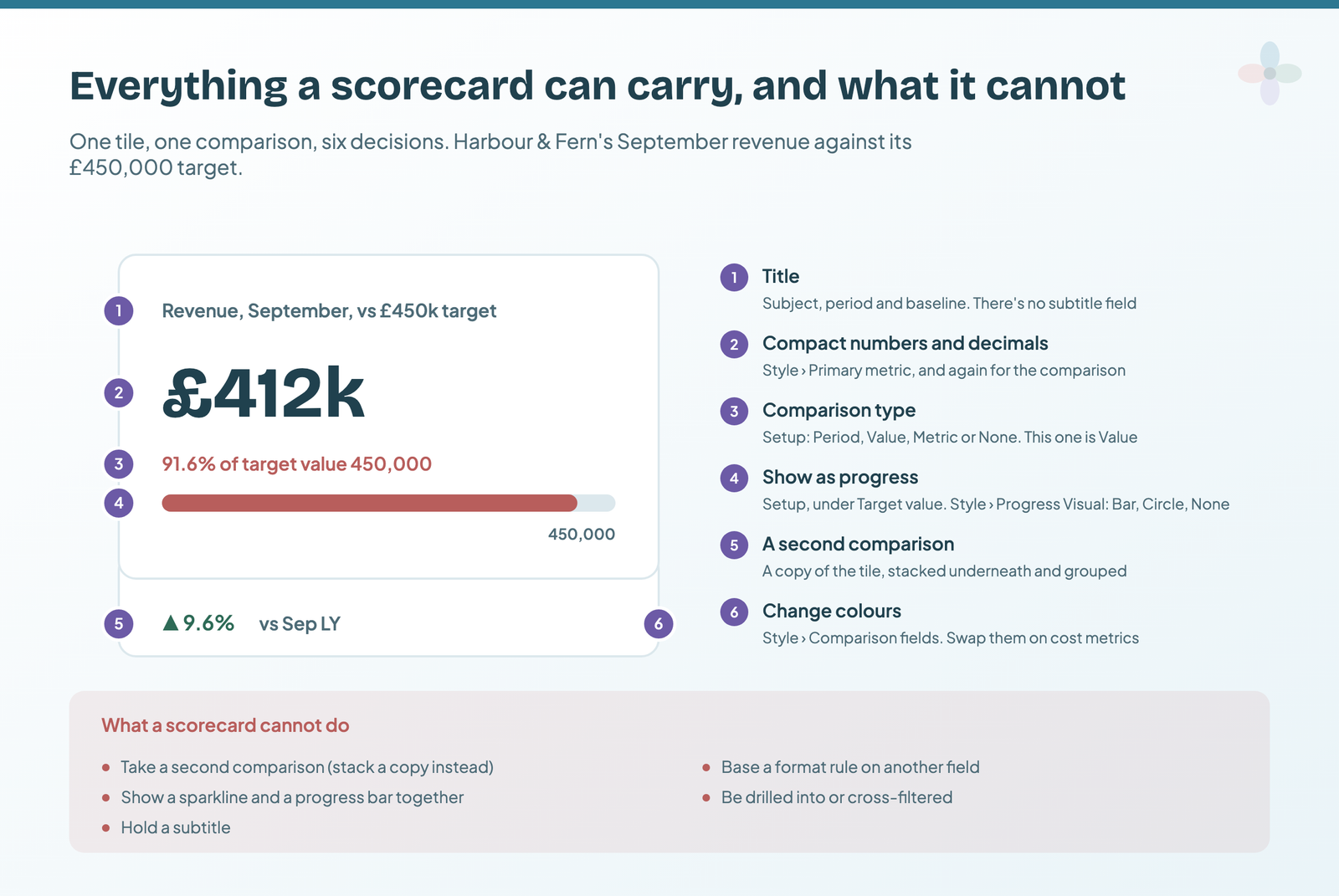
Everything a Data Studio scorecard can carry
Here is a row of them when nobody makes those decisions: four tiles straight off the defaults.
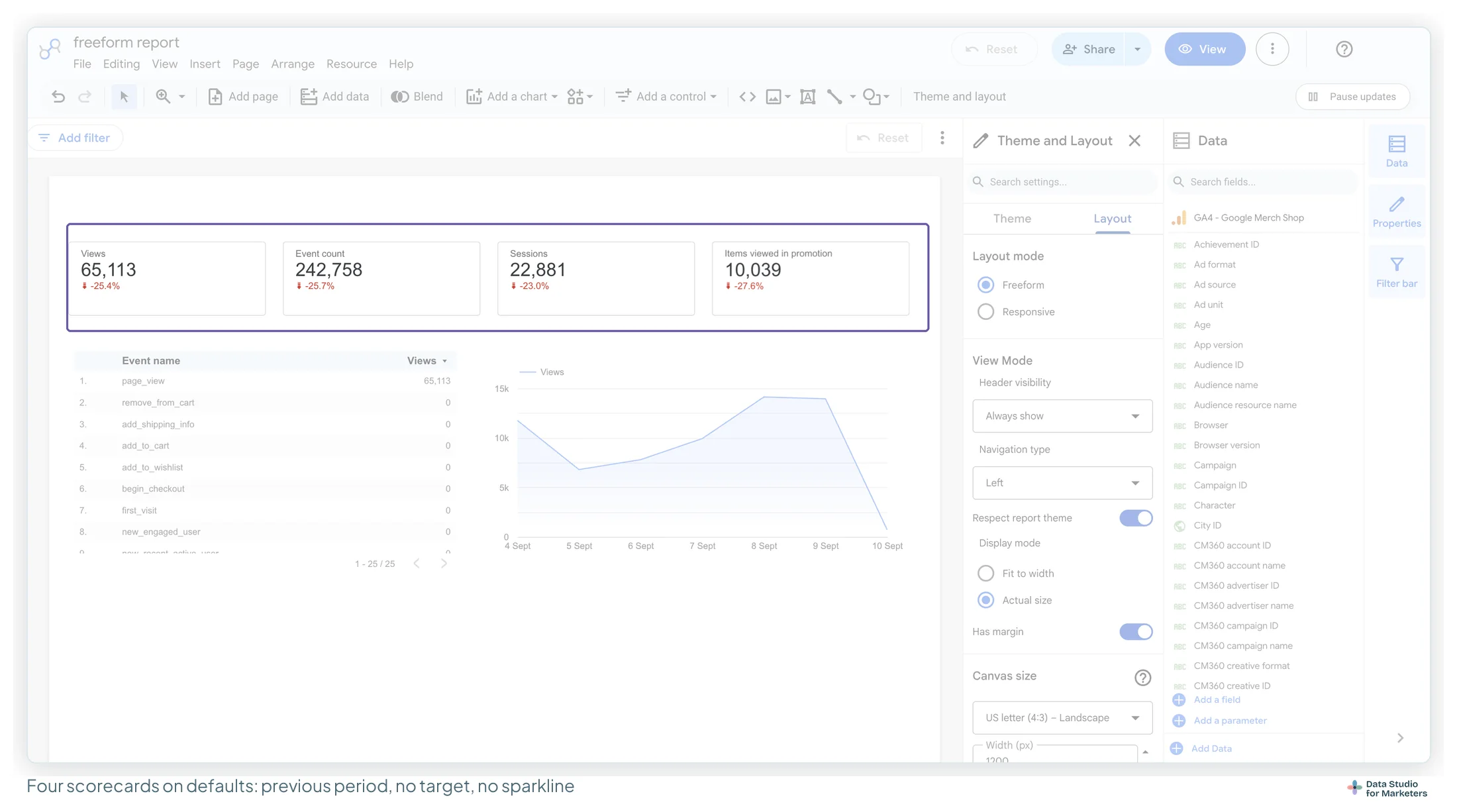
Everything wrong with that row is a default somebody didn’t change. The titles name the metric and nothing else. The comparison is previous period on all four, so nobody can tell which has a target. And four red arrows look like four equally bad stories when one might be a seasonal dip. Each fix is a setting, split across the two tabs of the Properties panel:
| Setting | Where it is | What it decides |
|---|---|---|
| Sparkline | Setup › Sparkline | A small trend line under the number |
| Comparison date range | Setup › Default date range | Which earlier dates a Period comparison uses |
| Comparison type, Target value, Show as progress | Setup, near the bottom | What the number is compared with, and whether it reads as progress |
| Compact numbers, Decimal precision | Style › Primary metric, and again under Comparison fields | 511.2k or 511,214; 2.5 or 2.50 |
| Change colours, Show absolute change, Comparison label | Style › Comparison fields | Which way is green; a difference instead of a percentage; the words after it |
| Progress Visual | Style (when progress is on) | Bar, Circle or None |
All of them are in Google’s scorecard reference, which I checked on 19 October 2026. I’ll go through them in the order you’d set them, because the comparison type decides what most of the others can be.
The four comparison types, and the question each one answers
A scorecard compares its number with one thing, and the Comparison type dropdown on the Setup tab decides what:
| Comparison type | Compares with | Answers | Use it when |
|---|---|---|---|
| Period (default) | The same metric over earlier dates | Are things moving? | There’s no target, and a past period is a fair baseline |
| Value | A number typed into Target value | Are we on plan? | There’s an agreed target |
| Metric | Another field, the Target metric | How does this compare with that? | The target or budget lives in your data |
| None | Nothing | What is it right now? | A stock figure, such as active accounts today |
One comparison per tile. If the reader needs “on plan?” and “growing?”, that’s two tiles, which is usually right anyway: two questions. Previous period is the default and rarely the most useful; on a summary page I reach for a target first. Chapters 6 and 10 of my ebook, Data Storytelling in Data Studio, go into why each comparison gives a different verdict on the same number.
In UK English, Period is called “Full stop”
In a UK-English interface, the first option in the Comparison type list doesn’t say Period. It says Full stop, the British name for the punctuation mark. Same option; you can see it at the top of the list in the first screenshot below. Google’s documentation calls it Period.
Comparing with the previous period, step by step
The previous period is the same length of time immediately before the tile’s range. Google’s example: on 1 January 2019, Last 7 days is 25–31 December 2018, and its previous period is 18–24 December (Set report date ranges).
- Add a scorecard (Add a chart › Scorecard) and set its metric.
- On the Setup tab, leave Comparison type on Period (Full stop). The comparison date range only appears with Period.
- In the Default date range section, under Comparison date range, choose Previous period and click Apply.
- On the Style tab, under Comparison fields, edit the comparison label to name the baseline (“vs Aug”).
Viewers can move the tile’s range with a date range control, and the comparison follows. Only editors can change what it’s compared with.
Worked example. Harbour & Fern took £412,000 in September and £406,000 in August, so against the previous period the tile reads up about 1.5%. True, and for a garden retailer at the end of the season it says more about the calendar than the shop. Previous period suits short operational views, such as a weekly paid search check, more than monthly reports.
When the previous period isn’t like for like
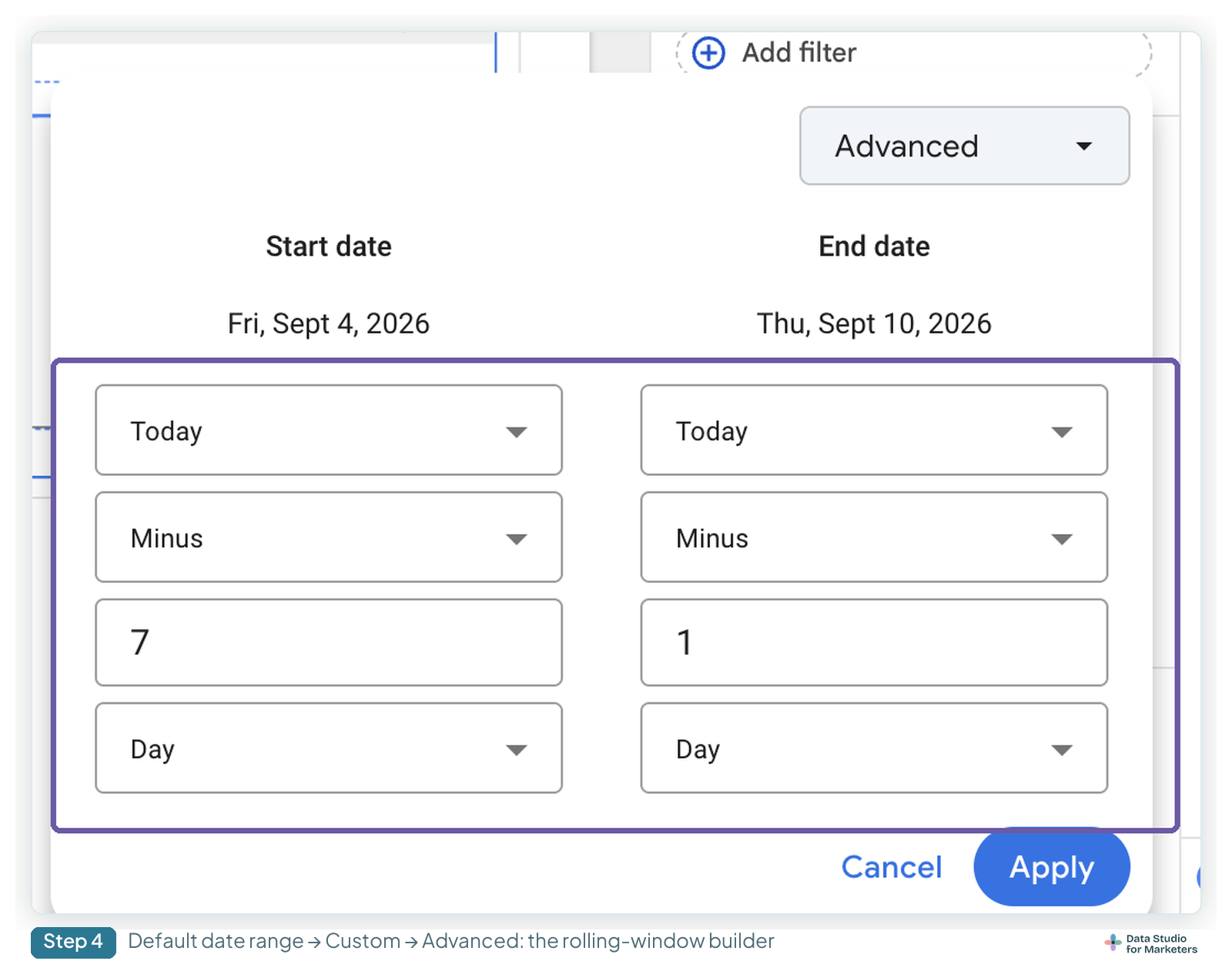
A short range can hold a different mix of weekdays from the one before it, and months differ in length. For both, the comparison date range has two more options: Fixed, where you pick the exact dates, and Advanced, a range built from a start and an end, which Google documents for comparing the last 30 days with the 30 before, aligned by day of the week.
Comparing with the same period last year
For anything seasonal, the question is whether this is better than the same point last year. Same steps as above, but choose Previous year at step 3. It uses the same calendar dates a year earlier (Google’s example: 25–31 December 2018 against 25–31 December 2017), not the same weekdays, so a month can hold one more Saturday than it did last year. Check that before reading much into a small move.
Worked example. Last September, Harbour & Fern took £376,000, so this September’s £412,000 is up 9.6% on the previous year. Next to the 1.5% on the previous period, you can see why the comparison is a choice: same number, two stories.
| Report | Comparison date range | Comparison label |
|---|---|---|
| Monthly client or board report | Previous year | vs Sep last year |
| Weekly operational check | Previous period | vs last week |
| A campaign against the same campaign last year | Fixed | vs Spring Sale 2025 |
Putting a target on a scorecard: Value and Show as progress
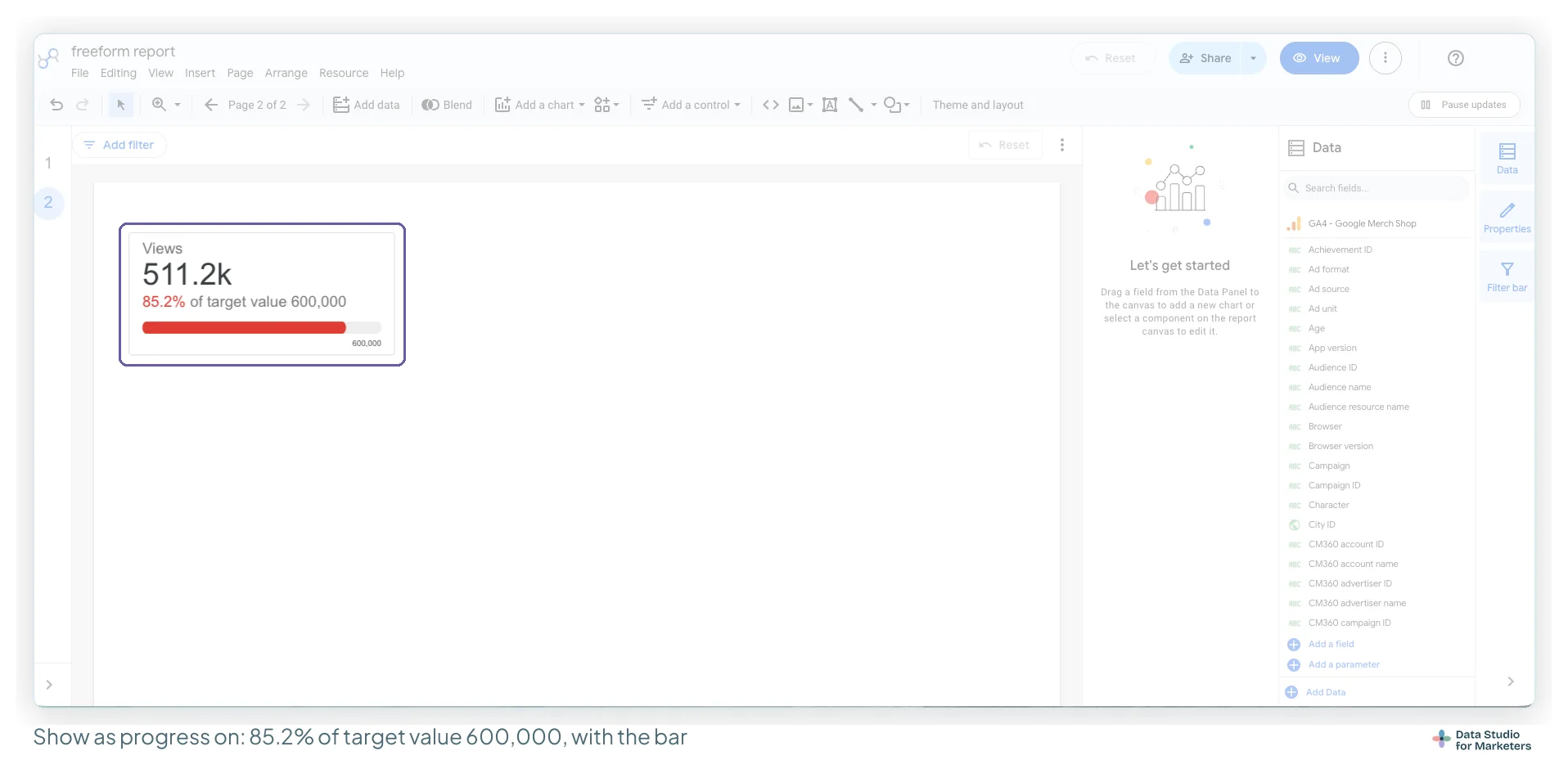
This is the comparison that answers what the budget holder actually asks: are we where we said we’d be? My screenshots use Views on the GA4 demo account against a target of 600,000; Harbour & Fern’s target is £450,000.
- Select the scorecard and open the Setup tab.
- Set Comparison type to Value. A Target value field appears.
- Type the target as a plain number: 600000, or 450000. No currency sign, no commas.
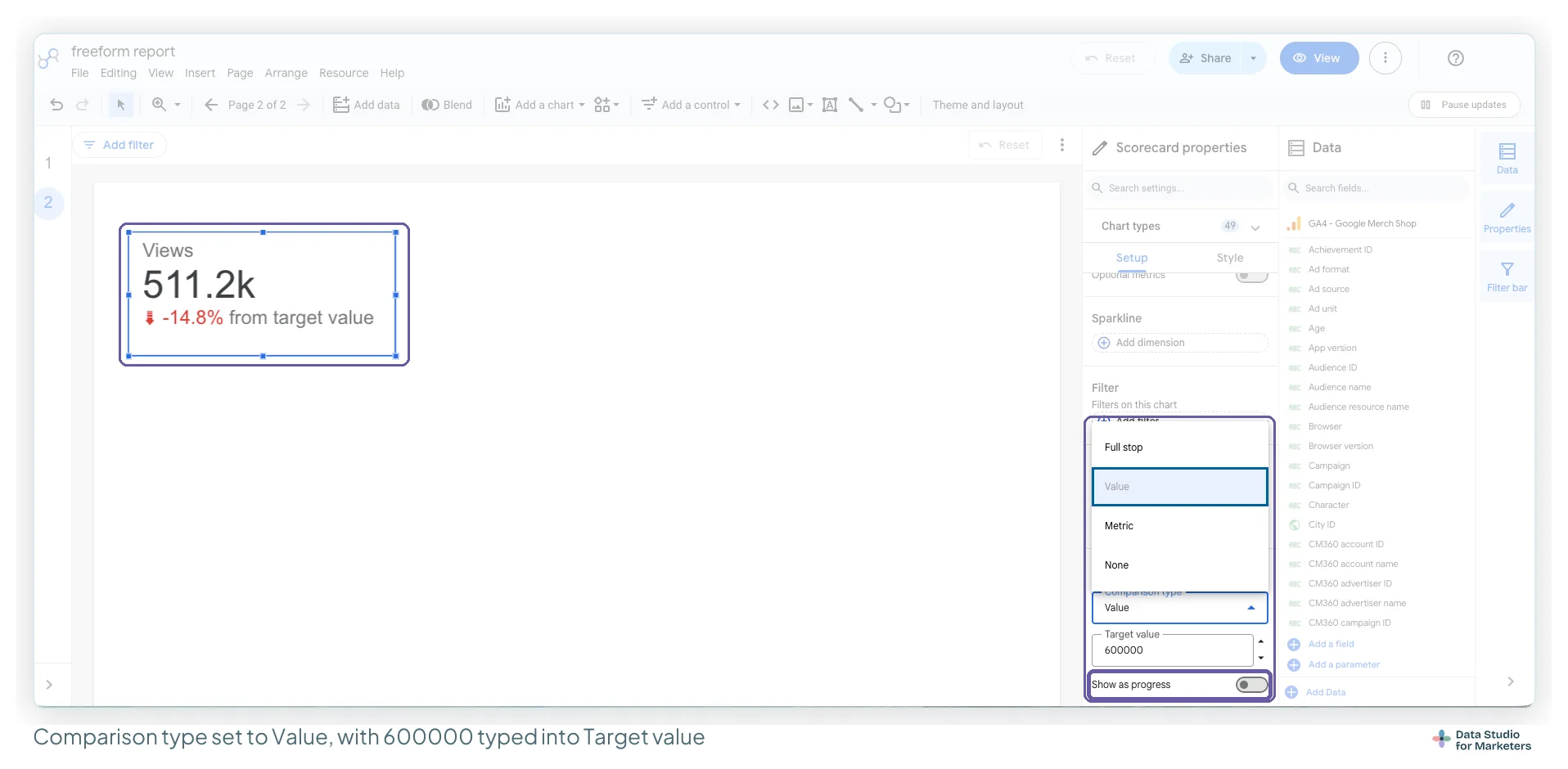
With progress off, the tile shows the gap: 511.2k Views reads “-14.8% from target value”, and Harbour & Fern’s £412,000 would read -8.4%. Accurate, and easy to misread as a fall rather than a shortfall.
- Turn on Show as progress, directly under Target value on the Setup tab, not the Style tab.
- Optional: Progress Visual on the Style tab turns the bar into a Circle, or None for the wording alone.
- Put the target in the title too (“Revenue, September, vs £450k target”). With progress off, the tile shows only the gap, never the target.
| Show as progress | GA4 demo tile | Harbour & Fern | Use it for |
|---|---|---|---|
| Off | -14.8% from target value | -8.4% from target value | Detail pages, where the gap is the point |
| On | 85.2% of target value 600,000 | 91.6% of target value 450,000 | Summary pages, anything with a period goal |
For Harbour & Fern, 91.6% is £38,000 short, and nobody mistakes it for a decline. Two caveats. A typed target doesn’t change when the month does, so a target that varies by month needs editing each month, or a Metric comparison against a target column. And a stretch goal nobody expects to hit makes a permanently red tile, which is worse than none. Agree what the number means before it goes on the front page.
Sparkline or progress bar: never both
Google’s reference is explicit: no sparkline on a scorecard with Show as progress on. A sparkline answers “is this going anywhere?”: a metric up 4% on a steady climb is a different story from one up 4% after three months of falls. Add it under Setup › Sparkline › Add dimension, with a date dimension. A progress bar answers “are we going to make it?” An executive summary page almost always wants progress; a detail page, the sparkline.
Two comparisons on one tile: stack two scorecards
A scorecard takes one comparison. Often the reader needs two: progress to the target, and the change on last year. There’s no setting for a second one, and no subtitle field to type it into, so I stack two scorecards and let them read as one tile.
- Build the first scorecard with the comparison that matters most. Mine is Views on the GA4 demo account against the previous 28 days, with Show as progress on; for Harbour & Fern it would be revenue against the £450,000 target.
- Copy it and paste the copy. On the copy’s Setup tab, change the Comparison type or the Comparison date range to the second baseline: Previous year, for example. If you want your own wording (“vs Sep LY”), type it into the Comparison label under Style › Comparison fields.
- On the copy, open Style › Labels and turn on Hide field Name, so the metric’s name doesn’t show. There’s no switch that hides the number itself; the first tile will cover it.
- On the first scorecard, set Style › Background and border › Background to solid white (or your page colour) at 100% opacity, so it hides whatever sits behind it.
- Move the copy directly under the first tile, overlapping it so only its comparison line and bar show below, then right-click it and choose Send backward (or Send to back; both are on the Arrange menu too). If your tiles sit on a background shape, Send backward is the safer one: Send to back puts the copy behind the shape as well.
- Select both and choose Group (from Arrange or the right-click menu), so they move together.
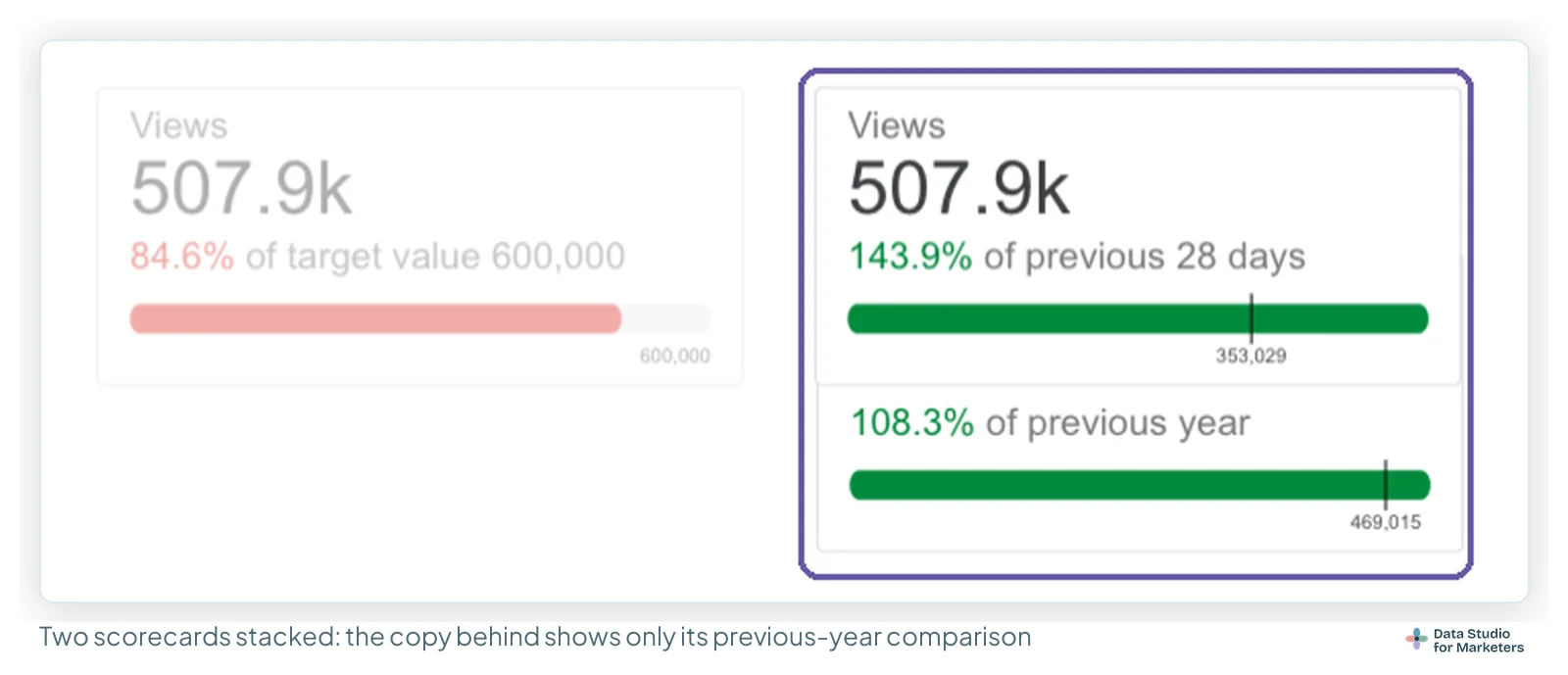
Worked example. Harbour & Fern’s revenue tile shows the target as a progress bar, 91.6% of £450,000, and the copy stacked under it carries the change on last September, +9.6%, labelled “vs Sep LY”. The reader gets the shortfall and the context in one glance, without a second tile competing for attention.
This only works in a freeform report: Google’s docs say components can’t overlap in a responsive report, and grouping isn’t available there either (Arrange, group, and distribute components). Check the pair in view mode and in a PDF download before it goes out.
Comparing against another metric
The Metric comparison is the Value comparison with the target read from your data. That fixes the monthly-target problem: with one target row per month, the tile picks up the right one for whatever month the reader selects.
- On the Setup tab, set Comparison type to Metric.
- In Target metric, choose the target or budget field.
- Turn on Show as progress if it’s a target. Leave it off for a peer, such as spend against budget, where the gap is the point.
The target has to be in the chart’s data. A GA4 revenue figure against a target in a Google Sheet needs the two blended first; a target column in the same Sheet or BigQuery table as the actuals is the tidiest setup.
Show absolute change: points, not percentages, for rates
The comparison shows a percentage change by default. Right for counts, often misleading for rates. Harbour & Fern’s conversion rate fell from 2.40% last September to 2.10%: the default tile says -12.5%, which sounds like a crisis, while the rate moved 0.30 percentage points. Readers think about rates in points.
- Select the rate scorecard and open Style.
- In Comparison fields, turn on Show absolute change. The comparison becomes the difference between the values instead of the percentage change.
- Set the comparison’s Decimal precision so a small move doesn’t round to zero.
- Edit the Comparison label so the unit is unambiguous: “pts vs Sep last year”.
| Kind of metric | Show the change as | Example |
|---|---|---|
| Counts and money: sessions, orders, revenue | Percentage (the default) | Revenue up 9.6% on last September |
| Rates: conversion rate, CTR, engagement rate | Absolute change, in points | Conversion rate down 0.30 pts, 2.40% to 2.10% |
| Averages: AOV, revenue per session | Either, with the label saying which | “€ vs Sep last year” or “% vs Sep last year” |
Positive and negative change colours, and inverting them for cost metrics
A rise takes the positive change colour, a fall the negative. The report-wide pair is set in the theme (Theme and layout › Customise, then Positive and negative change style in the Edit theme panel); Google’s themes page says it’s the default for gauge, scorecard and waterfall charts. My colour guide covers choosing the pair.
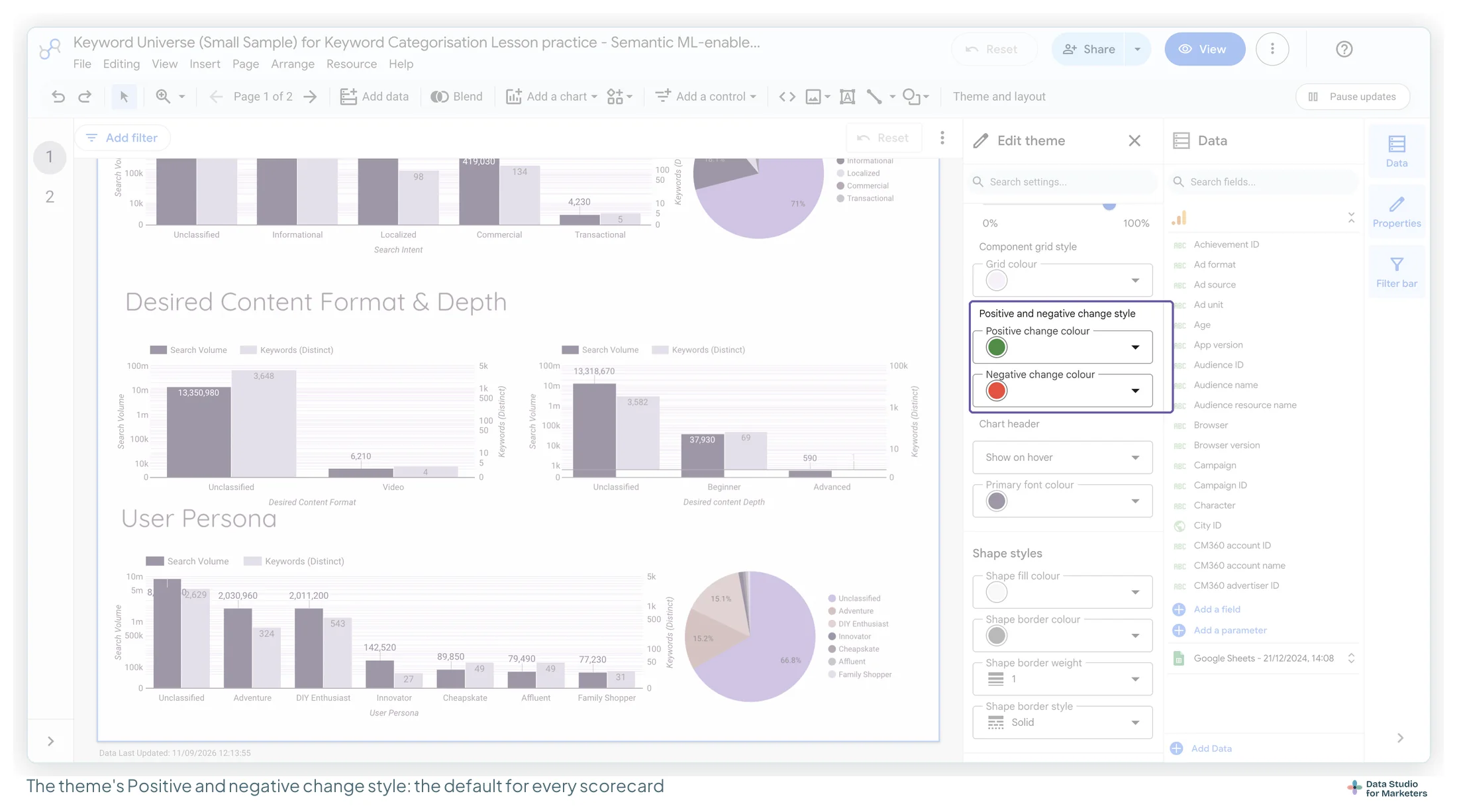
The theme assumes up is good. For cost metrics (CPA, cost per click, cost per lead) up is bad, and a rising CPA in green tells the reader the opposite of the truth. Flip it on that tile alone:
- Select the cost scorecard and open Style.
- In Comparison fields, set Positive change colour to your red and Negative change colour to your green.
- Add “lower is better” to the title or comparison label, so the colours don’t look like a mistake.
Worked example. Harbour & Fern’s generic search CPA is £38 against a £30 target. As a Value comparison the tile shows +26.7% from target, and on the defaults that’s green, on a number 27% over target. After the swap it’s red. Keep one meaning across the row: if green means good on the first tile, it means good on the cost tile too.
Compact numbers and decimal precision
Two settings under Style › Primary metric do more for readability than any font. Compact numbers rounds the figure and adds a unit: Google’s example is 553,939 becoming 553.9K, and in my capture Views reads 511.2k. Leave it off for small counts; 42 leads should stay 42. Decimal precision sets the decimal places: zero above a few hundred, two for a small currency average such as revenue per session, one or two for a rate. Comparison fields has its own pair of the same settings, so set both.
| Metric | Compact numbers | Decimals |
|---|---|---|
| Revenue, sessions, views | On | 0 or 1 |
| Leads or orders, a small count | Off | 0 |
| Conversion rate, CTR | Off | 2 |
| Revenue per session, AOV | Off | 2 |
One trap with conditional formatting on a scorecard: the rule compares the underlying value, not the displayed one. Google’s conditional formatting page gives the example: for 51.2%, write Bounce rate > .512, and a rule for exactly .512 won’t fire on .5119.
A rate built from two totals
Rates are where I most often see a scorecard show the wrong number. Revenue per session, conversion rate, cost per lead: each is one total divided by another, and the right answer comes from dividing the totals, not averaging a rate across rows. Build it once as a calculated field. How you write it depends on the source:
| Source | Formula | Why |
|---|---|---|
| GA4, Google Ads and Google’s other marketing connectors | Purchase revenue / Sessions |
The metrics arrive already aggregated; SUM() around them returns “Re-aggregating metrics is not supported” |
| Google Sheets, BigQuery and other raw-row sources | SUM(Revenue) / SUM(Sessions) |
The rows aren’t aggregated yet, so the formula says how |
Google’s calculated field troubleshooting page uses SUM(Sessions) on Google Analytics as its example of the re-aggregation error, and About calculated fields gives SUM(Profit) / SUM(Revenue) as the pattern for raw rows.
Building revenue per session on GA4
- In edit mode, select the scorecard and choose Add a field at the bottom of the Data panel. Google’s docs say this adds it to the data source, so every chart on that source can use it.
- Name it for what it means: “revenue per session”.
- In Formula, write
Purchase revenue / Sessions. NoSUM(). - Save it and use it as the scorecard’s metric.
- Set its type. The formula screen has no type setting (Field Name, Field ID and Formula), so click the metric’s chip in the Setup tab and change Data type: Currency for a revenue ratio, Percent for a conversion rate. (Google’s docs also let you set Type in the data source’s field list.)
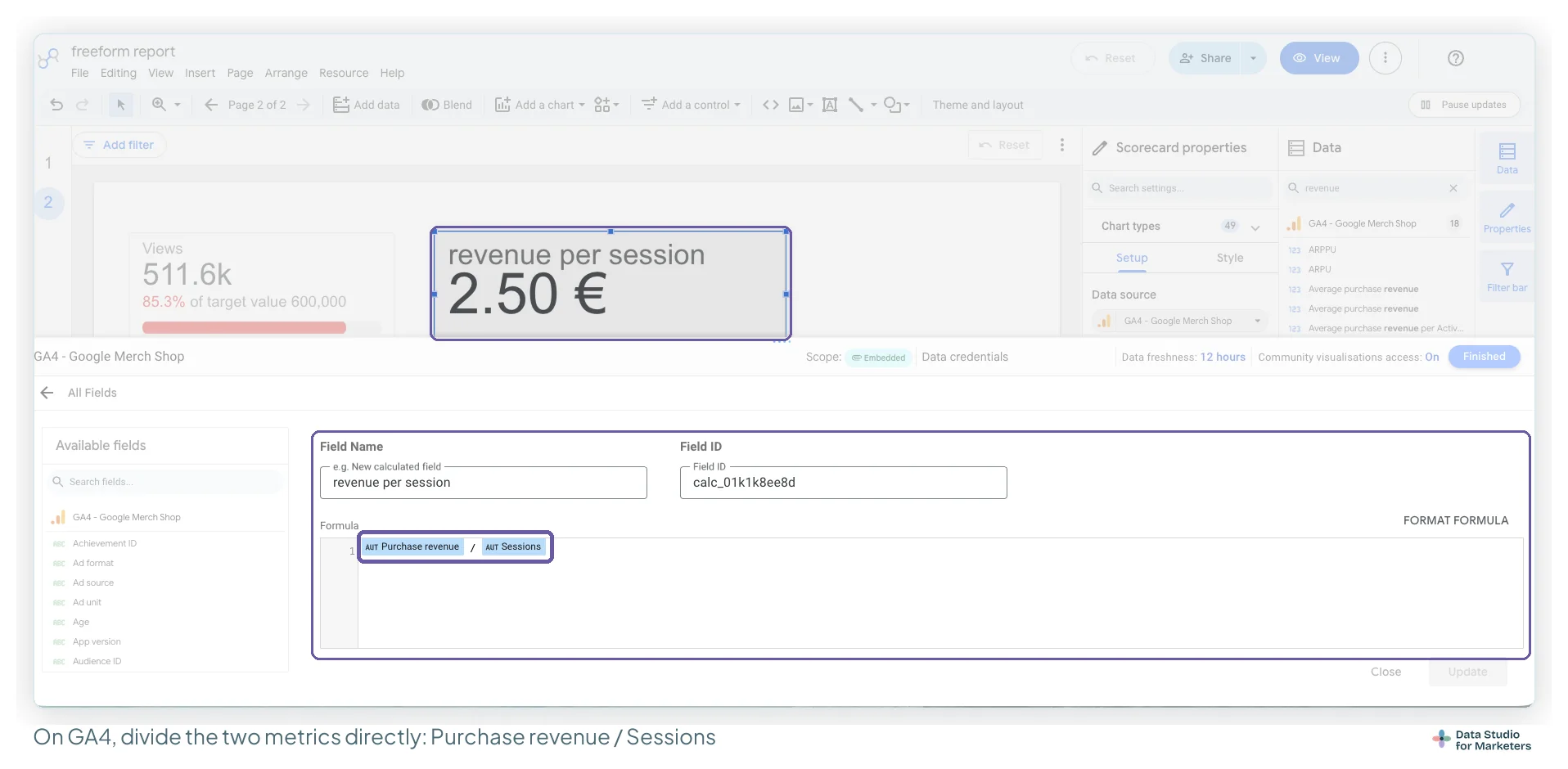
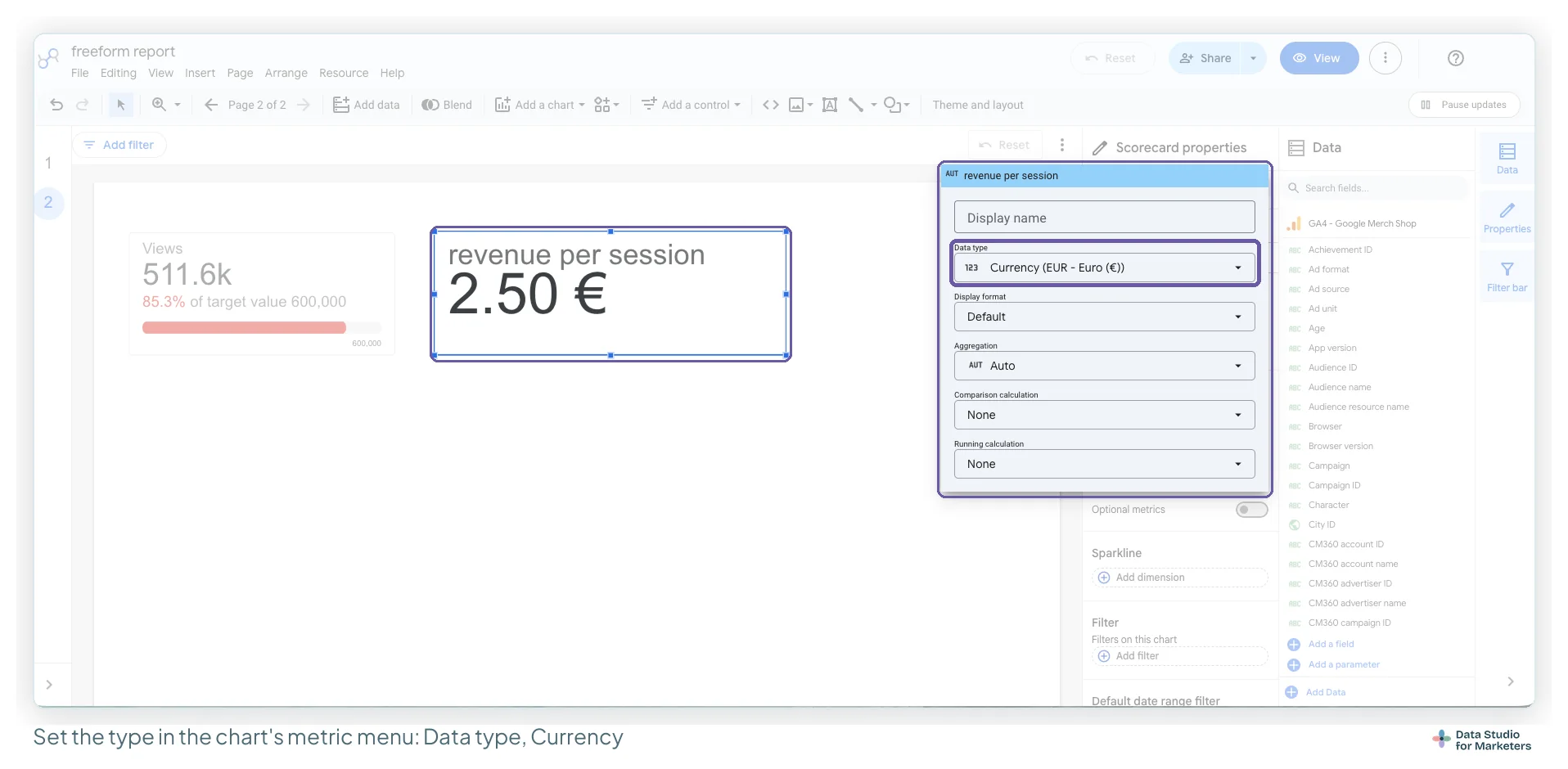
Once the rate is a field, every comparison above works on it: revenue per session against last year, conversion rate in points, cost per lead with the colours inverted.
The scorecard title is the part that’s actually broken
Most scorecard titles name the metric: “Sessions”, “Revenue”. That’s the one thing the number already implies. The title should say what it is, whose it is, and over what period, and the comparison label should say what it’s compared with. “Qualified leads, this month” above “vs 31 in Aug” does more than “Leads” above “+35.5%”. On a forwarded report, that’s the difference between a number somebody can quote and one they have to ask about.
Where a visible date control already shows the period, drop it from the title; where the report will be read as a PDF six months later, keep it. I go further on this in Chapter 17 of my ebook, Data Storytelling in Data Studio, including thirty titles to adapt by channel.
Designing a row of scorecards
- Three or four, not eight. A row of eight is a table with extra steps.
- The same comparison across the row. Readers assume every tile shares the first one’s, and nobody checks.
- One big tile and three small ones when one number is the headline: twice the width, with the sparkline or progress bar.
- Targets in their own band. A row of progress tiles next to previous-period tiles reads as one set.
- Aligned and distributed, not placed by eye: align, then distribute.
When a scorecard is the wrong choice
| The reader needs | Use instead | Why |
|---|---|---|
| The shape over time more than the latest value | A time series | A sparkline has no axis or dates |
| “On plan?” and “growing?” together | Two tiles, or a table with comparison columns | One comparison per scorecard |
| Many rows: channels, campaigns, pages | A sorted table | A row of tiles stops being scannable after four |
| A target plus the ranges around it | A bullet chart | The progress bar shows no bands |
| To click a number and see what’s behind it | A table or bar chart | Drill actions and cross-filtering aren’t available on scorecards |
| A change on a tiny base (400 sessions to 1,000) | Both numbers, with volumes | “+150%” alone oversells it |
My guide to Data Studio chart types goes through the other components the same way.
What a Data Studio scorecard can’t do
- No second comparison. One tile takes one baseline. For two, stack a second scorecard underneath so the pair reads as one tile.
- No sparkline and progress together.
- No subtitle field. The title and the comparison label are the text it carries; a second comparison goes on a stacked scorecard, and anything else in a text box beside it.
- Conditional formatting works from the tile’s own value. The rule’s basis is fixed to the metric, and a chart takes up to 20 rules.
- No drill-down or cross-filtering, per Google’s docs.
A scorecard checklist before a report goes out
- The title names the subject and the period; the label names the baseline.
- The comparison type was chosen, not left on the default, and it’s the same across the row.
- Metrics with a target use Value or Metric, with Show as progress on summary pages.
- Monthly tiles compare with the previous year.
- Rates are calculated fields from two totals, typed in the metric menu, with the change in points.
- Cost metrics have their change colours swapped.
- Compact numbers and decimals are set for the number and the comparison.
- Sparkline or progress is chosen on purpose.
Frequently asked questions
How do I add a target to a Data Studio scorecard?
On the Setup tab, set Comparison type to Value and type the target into Target value. Then turn on Show as progress, just under it on the same tab, to get “85.2% of target value 600,000” and a bar instead of “-14.8% from target value”.
My Comparison type list says Full stop. Where is Period?
That’s Period, as labelled in a UK-English interface. Choose it, then set the Comparison date range (Previous period, Previous year, Fixed or Advanced) in the Default date range section.
Why does SUM() give me “Re-aggregating metrics is not supported”?
Your source, like GA4 or Google Ads, sends metrics already aggregated. Write the ratio directly, such as Purchase revenue / Sessions. SUM() belongs on raw-row sources such as Google Sheets or BigQuery.
How do I make a falling CPA show green?
On that scorecard’s Style tab, under Comparison fields, swap the Positive change colour and Negative change colour. The theme’s pair stays right for everything else.
Where to go next on report components
- How to build an executive summary page in Data Studio
- Date range controls, and the three levels of date range
- Reference lines and targets on charts
- How to choose a dashboard colour palette in Data Studio
- Metrics that tell a story, and the ones that do not
- Dashboard design principles for readable reports