
When a scheduled Data Studio report doesn’t arrive, it has almost always failed in one of four places: the person who last saved the schedule lost access, the report hit an error while it was being turned into a PDF, the sender ran past an email quota they can’t see, or something between Google and the recipient’s inbox stopped it. On the free tier you also get one schedule per report, sent at most daily, and each sender on a personal Google account can email 200 recipients a day and 800 a month (500 and 3,000 on Workspace).
Below: how delivery works, a five-minute diagnosis, each cause with its fix, and exactly what free and Pro allow. If you’re setting a schedule up for the first time, my guide to sharing and scheduling reports walks through the dialog; this post is for when it goes wrong. (Data Studio was called Looker Studio until April 2026. Same product, same scheduler.)
What this is based on: Google’s scheduling documentation (updated 9 October 2026) and the related Google pages linked as I go, plus 18 threads about scheduled delivery on Google’s Data Studio community forum since late 2024. I haven’t run a Pro trial, so Pro details come from Google’s docs, and I flag where a point rests on forum reports.
What happens between “Schedule” and the inbox
A schedule is a small robot. At the set time it opens the report as the person who last saved the schedule, turns the pages into a PDF, checks that person’s email quota, and sends an email with the PDF attached and a link to the report. Google’s wording is precise: schedules run “by using the credentials and permissions of the user who last saved the schedule”. That person is the sender, and it’s often not the report’s owner.
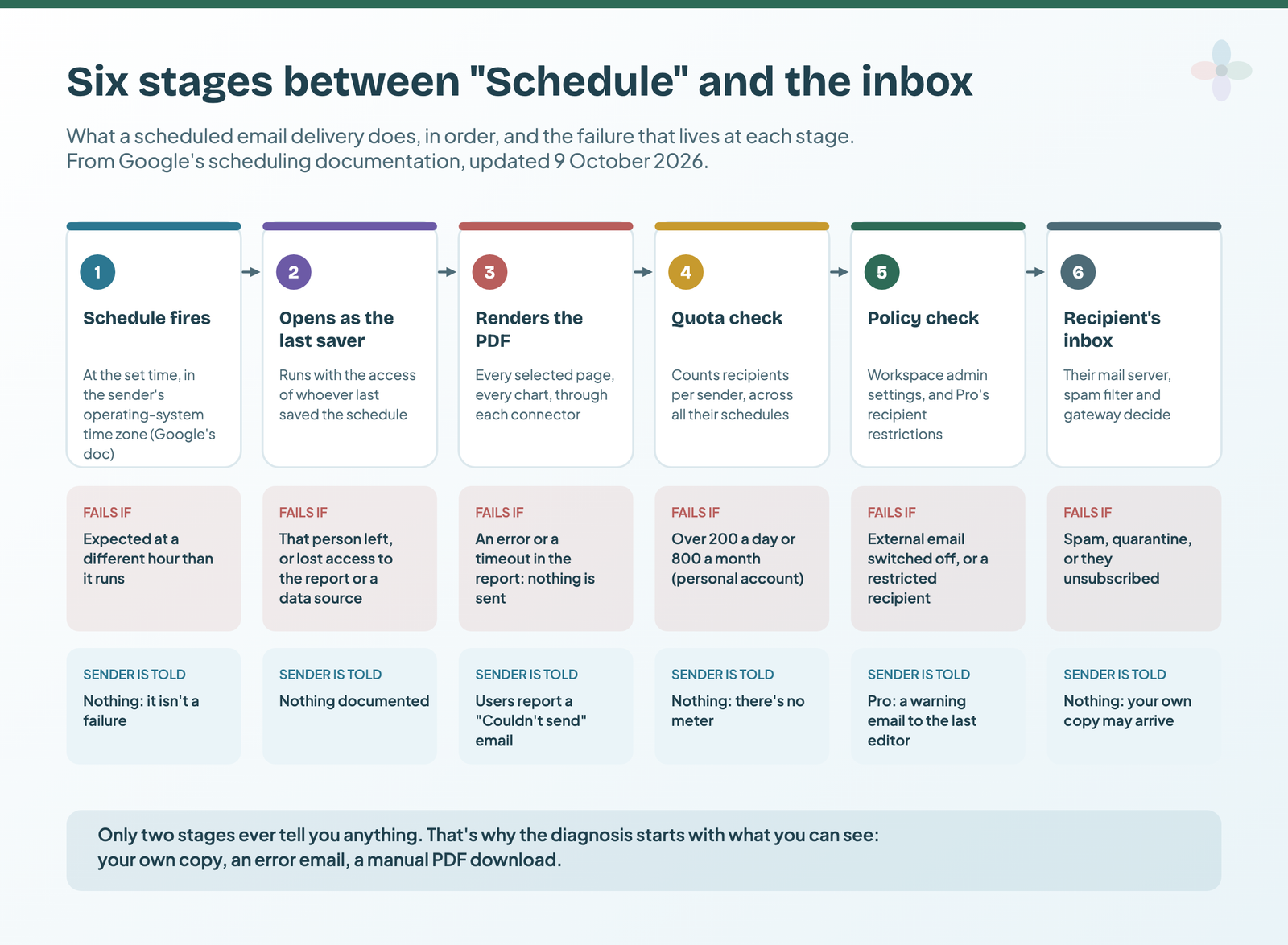
Details from Google’s doc that matter later:
- Recipients can be individual addresses or group email aliases, up to 50 per schedule.
- The schedule’s creator is always on the recipient list, so your own inbox is a delivery log.
- On the free tier the email carries the PDF and a link, with no inline preview image. Google moved the preview, along with Send now and the custom subject and message, to Pro in March 2025.
- Timing follows your computer. Google’s doc says delivery is based on your operating system’s time zone and can’t be changed inside Data Studio.
Find your cause in five minutes
Four questions, in order, split the causes cleanly, and the first one is the most useful: did the sender’s own copy arrive?
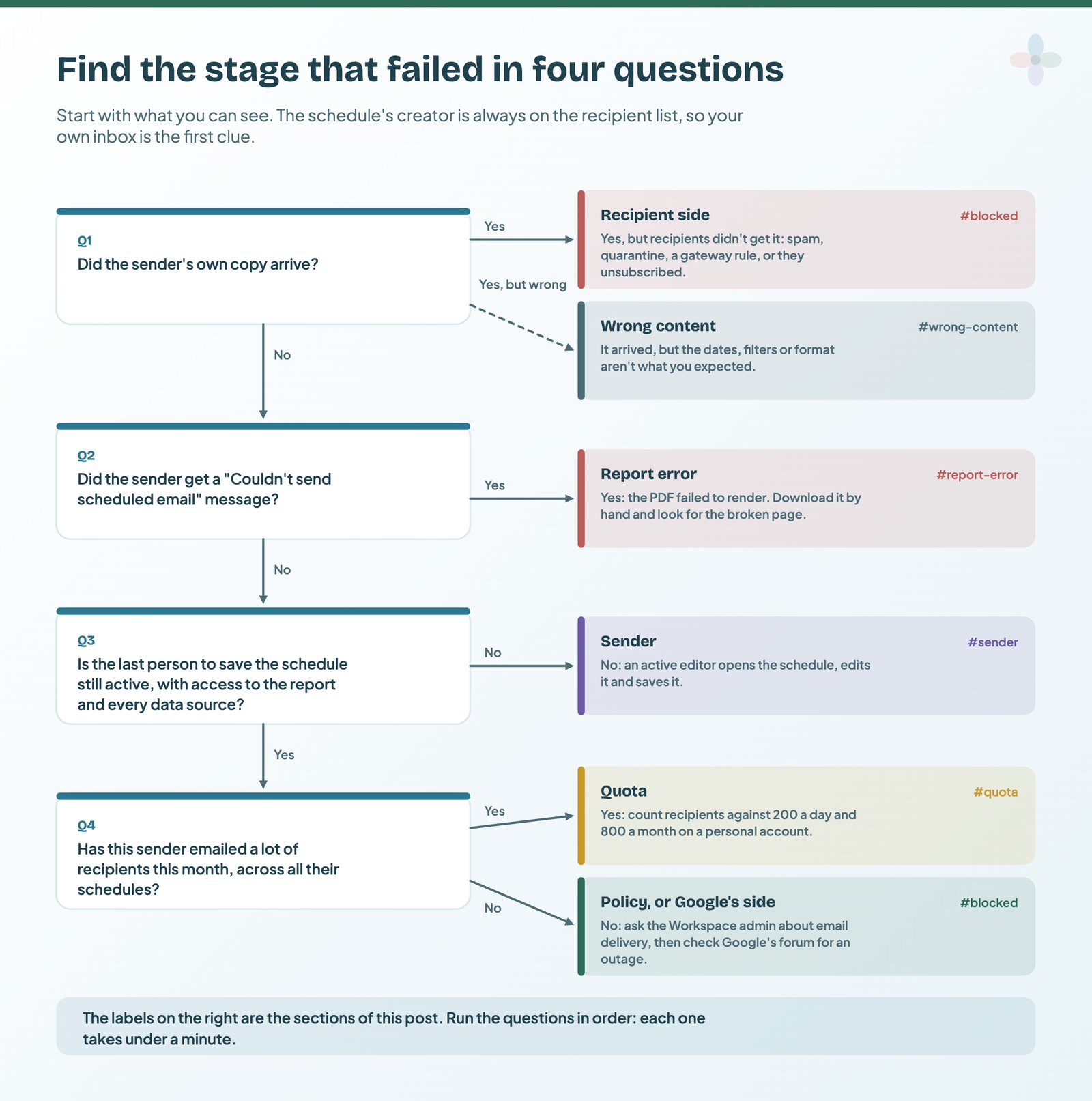
Or match a symptom:
| What you see | Most likely cause | Check | Fix |
|---|---|---|---|
| Nobody got it, you included; no error email | The last saver left or lost access | Who last saved it, and can they still open everything? | An active editor edits and saves it (sender) |
| A “Couldn’t send scheduled email” message | An error while the PDF was made | Download the PDF as the sender | Fix that chart or connector (report error) |
| One sender’s schedules stopped mid-month | Over the monthly quota | Count that sender’s recipients this month | Fewer recipients or another sender (quota) |
| Everything stopped, nothing changed | A problem on Google’s side | Google’s Data Studio forum, same day | Wait a day; re-save if it persists |
| You got it; one recipient didn’t | Spam, quarantine or unsubscribed | Their spam and quarantine | Their IT allowlists the sender (blocked) |
| Only external recipients miss it | A Workspace admin setting | Ask your Workspace admin | Admin allows external email |
| Pro: stopped, with a warning email | A restricted recipient | The error in the View schedule dialog | Remove that recipient |
| A blank chart or “System Error” in the PDF | Export timeout or a third-party chart | Download that page by hand | Split the report; stagger times |
| Wrong dates or filter values | The schedule keeps its own filter values | The schedule’s Filters tab | Change them there (wrong content) |
| Numbers and dates in US format | Documented behaviour | None needed | Can’t be changed in the schedule |
| It arrives at an unexpected hour | Your operating system’s time zone | The schedule computer’s time zone | Set the time for that zone |
Sometimes it isn’t you. Eight of the 18 forum threads describe schedules that stopped or ran hours late with no change on the user’s side, in clusters (November to December 2024, May 2025, 18 November 2025, April to June 2026), most of which cleared without the users changing anything. If others are posting the same thing that day, wait before rebuilding anything.
The schedule runs as whoever last saved it
This one surprises people, because it breaks “the report owner sends it”. Google’s doc says the user who most recently edited a schedule is its sender, and on Pro that even includes flicking the Active switch. To create, edit or delete a schedule you need scheduling permission, editor access, or ownership; Google also has a “Schedule creator” user type, a viewer who can create schedules but can’t change the report or its data sources.
Google’s troubleshooting section spells out the failure: if the last saver’s account becomes inactive (they leave the organisation, say) or loses the permissions it needs on the report or the data, the schedule fails. Two forum threads from November 2024 point the same way: in one, a user with almost 20 stopped schedules was told to re-create them under a different editor; in the other, changing the sender to another editor got the email going again.
Take over a schedule, in four steps
- Open the report as an active editor who will be around for a while.
- Share → Schedule delivery, and find the schedule that stopped.
- More (the three dots) → Edit, check the settings, and Save. Saving makes you the sender. Deleting it and creating a new one works too.
- Make sure you keep access to the report and every data source under it. Google lists that as part of the fix.
Data access is the half people forget. Each data source has data credentials: owner’s credentials (everyone sees data through the owner’s access), viewer’s credentials (each person needs their own access), or a service account. If the sender can’t read a source, the PDF can’t be made. I explain the difference in data sources vs datasets, and the short version for sharing is in the credentials section of my sharing guide.
For offboarding: on the no-cost version, a deleted user’s assets are permanently deleted after 20 days unless an admin restores the user and transfers them, and transferring a data source keeps its credentials intact. So when someone leaves, list their schedules, re-save each from a lasting account, then transfer what they own. My post on report ownership covers the transfer, and agency reporting operations covers the routine.
The report hit an error, so nothing was sent
Google’s rule here is blunt: “If the downloaded report contains an error, the report won’t be sent.” The schedule doesn’t send a broken PDF; it sends nothing. What users report receiving instead is an email headed “Couldn’t send scheduled email”, telling them Data Studio hit an error running the report and suggesting they open it in the browser. (That’s the wording quoted in forum threads from late 2024; I haven’t received one myself.)
So a manual PDF download is the free tier’s test send. Google removed Send now from free accounts in March 2025, and its suggested alternative is to download the PDF and send it yourself.
The pre-flight, in three steps
- Open the report signed in as the schedule’s sender (or ask them to), so you’re testing their access, not yours.
- Share → Download report, and choose PDF with the same pages the schedule sends.
- Open the PDF and check every page: blank charts, “System Error” boxes and missing pages are what will stop or spoil the schedule.
Size is the other render-time failure. Google publishes no PDF size limit for scheduled emails; it documents a timeout. Large reports can show “System Error” on charts when the export times out, and exports can miss pages or fail. Google’s fix is to split the report into smaller ones (its example turns a 14-page report into two 7-page reports) and set their delivery times at least 30 minutes apart.
Then there are third-party pieces. Five forum threads describe a scheduled PDF missing something the report shows on screen: community visualisations (two threads), a community connector’s Google Business Profile data, a table showing “Invalid configuration”, and a GA4 page blank on some days. In one, manual PDFs dropped the community visualisations too, which the pre-flight would catch. These are user reports, not Google statements; replies suggested owner’s credentials or pre-caching with Extract Data, which Google doesn’t document as a fix. If a chart blanks only in scheduled PDFs, swap it for a built-in chart.
One BigQuery case: behind VPC Service Controls with IP-based access levels, scheduled emails arrive with only a link; Google’s workaround is service-account credentials or an identity-based access level.
You hit the sending quota, and there’s no meter
Data Studio caps the number of recipients each user can send scheduled emails to, per day and per month. This is Data Studio’s own quota, separate from Gmail’s sending limits:
| Account type | Recipients per day | Recipients per month |
|---|---|---|
| Individual (personal Google account) | 200 | 800 |
| Google Workspace | 500 | 3,000 |
| Data Studio Pro | No quota | No quota |
From Google’s scheduling documentation, updated 9 October 2026. Reports in a Pro user’s “Owned by me” folder count as personal and stay under the quota.
It counts per sender, across all their schedules; Google says you can’t check your progress; and past a limit, further emails from your account simply aren’t sent. Google doesn’t say whether a recipient who gets the same report every day counts once a month or on every send, so the table below takes the cautious reading: every recipient, every send.
| Setup | Recipients | Against the limits | Result |
|---|---|---|---|
| Freelancer, personal account: 10 client reports, weekly, 4 recipients each | 40 on the send day; about 173 a month (40 × 52 ÷ 12) | Under 200 a day and 800 a month | Fits |
| Agency, personal account: 10 reports, daily, 5 recipients each | 50 a day; 1,500 over a 30-day month | 800 reached after 16 days (800 ÷ 50) | Sends from day 17 don’t go |
| The same agency on Google Workspace | 1,500 a month | Under 3,000 | Fits |
| One report, daily, 40 recipients, personal account | 40 a day | 800 reached after 20 days (800 ÷ 40) | The last 10 days of a 30-day month are lost |
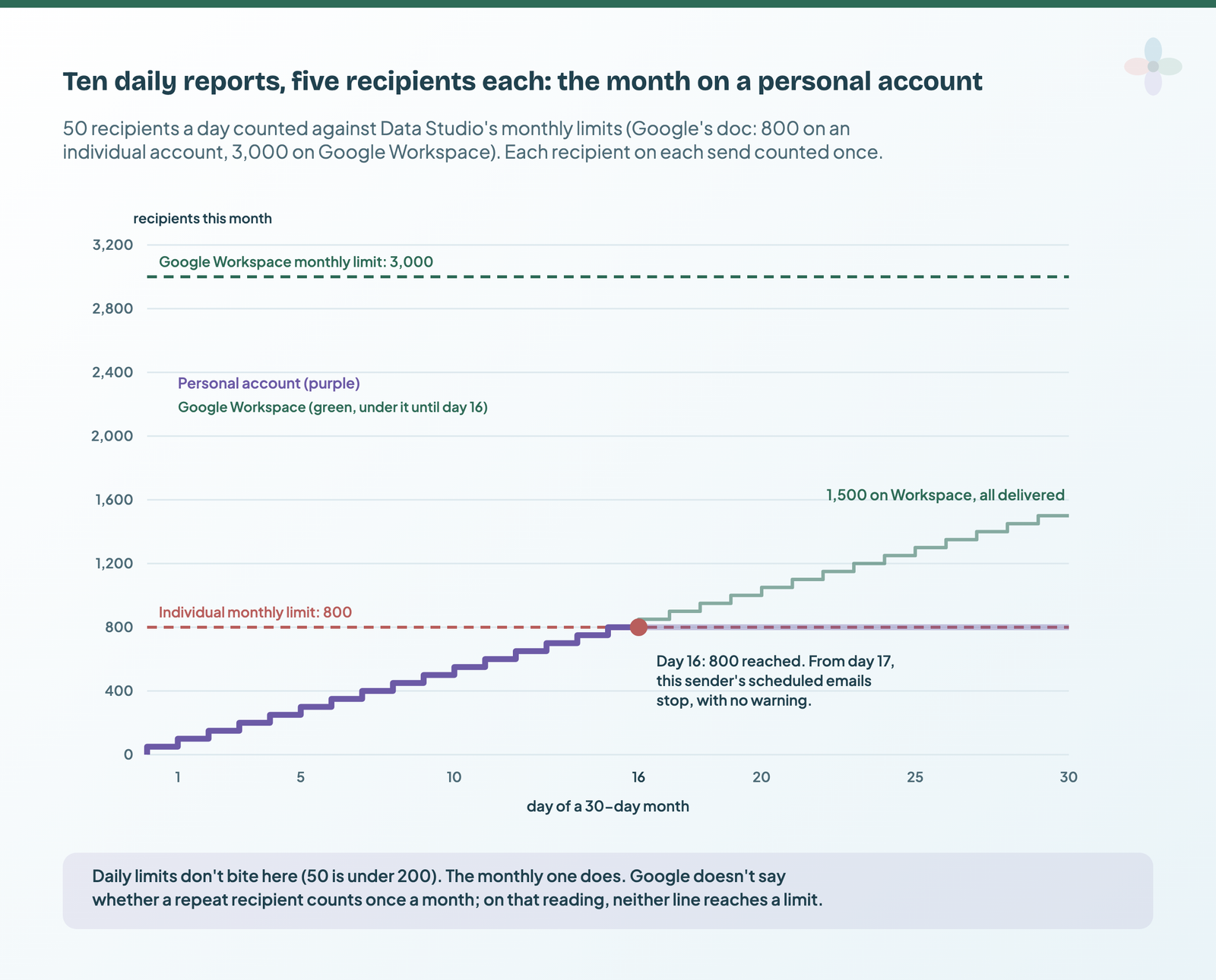
If every schedule from one sender stops partway through a month while other senders’ keep going, suspect the quota. The fixes are fewer recipients, spreading schedules across senders, a Google Workspace account, or Pro, whose price and trade-offs live in Data Studio free vs Pro.
Blocked before it left, or filtered when it landed
Some deliveries are stopped by a rule, and some by a filter on the way in. The sender often sees neither.
| Where it was stopped | Who controls it | What the sender sees |
|---|---|---|
| Workspace setting “Allow email delivery” switched off, so no email outside the organisation | Your Workspace admin (Admin console → Apps → Additional Google services → Data Studio → Content distribution settings) | Not documented; external recipients just don’t get it |
| Pro email domain allowlist (up to 100 domains; changes can take up to 24 hours) | Your Workspace admin, on Pro | Not documented |
| A restricted recipient on a Pro schedule: the whole schedule stops | Your Pro admin | An error in the View schedule dialog and a warning email to the last editor |
| Spam folder | The recipient’s mail provider | Nothing; your own copy may arrive fine |
| Corporate gateway or quarantine | The recipient’s IT team | Nothing |
| Unsubscribe link in the email footer | The recipient | Nothing |
One thing that doesn’t govern schedules: the report’s link-sharing setting. Google’s Workspace help says the admin setting for public or unlisted link sharing doesn’t prevent reports being shared externally through scheduled delivery. (More on link settings in my sharing guide.)
Spam is a real risk. In November 2024 scheduled delivery was abused to send spam, and from 8 November several teams in that thread saw legitimate scheduled reports land in spam, seemingly at random per recipient. The same thread quotes an unsubscribe link in the email footer. Google documents one only for Chat delivery, so treat it as user-reported; either way, a recipient may drop off without you being told.
When one person isn’t getting it: they search spam and quarantine for the subject; their IT allowlists the sender address on your last delivery; then check whether they unsubscribed.
It arrived, but it’s not the report you expected
A schedule keeps its own filter values. By default the PDF uses the report’s default filter settings and date range, but Google says changing a filter’s defaults on the report later won’t affect its schedules. Removing a filter from the report does remove it from every schedule. Because the emailed PDF carries only that default view, it has to make its point with nobody clicking; Chapter 23 of my ebook, Data Storytelling in Data Studio, covers designing the default view for exactly that.
Change what a schedule sends
- Share → Schedule delivery, then More → Edit on the schedule.
- Open the Filters tab and change the values of the filter and date range controls listed there.
- Save. You can’t add or delete controls here, and the tab doesn’t show data controls, buttons or filter properties, so a new breakdown has to exist as a control on the report first (see date range controls and filter controls).
Three more mismatches with documented causes:
- The same numbers every time. A fixed date range (“1–30 September”) never moves. Use a relative one, such as last 7 days or last month, for a recurring email.
- US formats. Google says scheduled reports always use US English formatting for numbers, currency and dates, even when your account is set to another language. A French agency on the forum found their scheduled PDF in English while the manual one was in French.
- Pages and time. Google’s doc lists page selection as an optional step and says the PDF includes all selected pages, so check which pages the schedule was saved with. And delivery follows your operating system’s time zone, so a schedule set from a laptop in another zone can land at an unexpected hour.
What free won’t do, and what Pro changes
Some “it’s not working” questions are really limits. From Google’s docs (I haven’t tested Pro):
| Scheduled delivery | Free | Data Studio Pro |
|---|---|---|
| Schedules per report | 1 | Up to 200, where the report owner has Pro |
| Most frequent | Once a day | Once an hour |
| Destinations | Email, Google Chat, Slack | |
| Send now (test send) | No | Yes |
| Custom subject and message | No | Yes |
| Inline preview in the email | No | Yes |
| Filter the report by each recipient’s email address | No | Yes, for email schedules (not Chat or Slack) |
| Recipient quota per sender | 200 a day, 800 a month (individual); 500 and 3,000 (Workspace) | None, except reports in “Owned by me” |
| Recipients per schedule | 50 | 50 |
| Pause a schedule | Not documented; delete it | Active / Inactive switch |
| Admin restrictions | Workspace admin can stop external email | Plus restricted recipients and a domain allowlist |
| Where the report must live | Anywhere | A Team Workspace or Sandbox, for Pro features |
From Google’s scheduling, Slack and Pro documentation, updated 9 October 2026. Pro features don’t apply to reports in “Owned by me”.
The first row catches agencies. “One report, a filtered version per client” needs several schedules, so on free it’s a copy of the report per client. Pro does it in one report, with many schedules or the recipient-email filter (which needs an email field set on each data source). Slack takes up to 5 channels or 10 users per report (not mixed), Chat up to 10 users and 10 spaces; Microsoft Teams isn’t in Google’s docs.
The fine print: self-service Pro is for Google Workspace or Cloud Identity organisations, and licences are billed monthly whether used or not. Multiple schedules need the report owner to have Pro. Licence changes can take up to 24 hours to apply. If you downgrade, the oldest email schedule on each report stays active and the rest become Inactive. And Pro doesn’t fix a leaver’s schedule, a report that errors, a spam filter or an outage. My free vs Pro comparison has the price and the rest of the trade-offs, and copying and reusing a template covers the copy-per-client route.
Make the next one boring: a checklist and a “did it arrive?” script
Six habits that remove most of the causes above:
- Save schedules from an account that will last, not a contractor’s.
- Download the PDF after every report change, as the sender.
- Keep a register of every schedule and its sender.
- Check the sender’s quota before adding recipients.
- Ask external recipients’ IT to allowlist the sender.
- Split long reports and stagger them by 30 minutes or more.
Then automate the noticing. Because whoever sets up a schedule is always on its recipient list, their inbox already records every delivery. A short Apps Script can search that inbox each morning for each expected email and tell you when one is missing. This one is written from Google’s Apps Script documentation (GmailApp.search, time-driven triggers, MailApp) and not tested here, so run it by hand once before you trust it:
// Written from Google's Apps Script docs, not tested here.
// Run it from the account that receives the scheduled emails.
var EXPECTED = [
  // name for the alert, part of the subject line, days to look back
  ['Client A weekly', 'Client A weekly report', 8],
  ['Client B daily', 'Client B daily report', 2]
];

function checkScheduledReports() {
  var missing = [];
  EXPECTED.forEach(function (r) {
    var query = 'subject:"' + r[1] + '" newer_than:' + r[2] + 'd';
    if (GmailApp.search(query, 0, 1).length === 0) missing.push(r[0]);
  });
  if (missing.length) {
    MailApp.sendEmail(Session.getEffectiveUser().getEmail(),
      'Scheduled report missing: ' + missing.join(', '),
      'Not in your inbox when expected: ' + missing.join(', '));
  }
}

// Run once: checks every morning between 8 and 9.
function installDailyCheck() {
  ScriptApp.newTrigger('checkScheduledReports')
    .timeBased().everyDays(1).atHour(8).create();
}
Paste it into a new Apps Script project, change the two example lines, run installDailyCheck once and accept the permissions. It sends at most one alert a day, far below Apps Script’s daily email quota (100 recipients on a personal account).
I’ve also built the register as a Google Sheet: schedules and senders, a quota calculator, both checklists, an offboarding tab, and a version of the script that reads the sheet and records each arrival.
Whether anyone opens it is the other half: see tracking report usage.
Where to go next
- How to share and schedule a Data Studio report: the setup this post troubleshoots
- Data Studio free vs Pro: the price and the rest of the trade-offs
- Automated client reporting in Data Studio: where scheduling fits in the whole workflow
- Data sources vs datasets: credentials, and why a sender’s access matters
- Report ownership: what happens to reports and schedules when people leave
- Data freshness in Data Studio: when the numbers in the email look stale
Frequently asked questions
Why can’t I add a subject line or message to a scheduled email any more?
Google removed custom subjects and messages, along with Send now and the preview image, for free accounts and for Pro reports in “Owned by me” on 21 March 2025. Existing custom messages were kept but can’t be edited.
Can a recipient unsubscribe from a scheduled report?
Forum users have quoted an unsubscribe link in the footer of scheduled emails, so a recipient may drop off without you knowing. Google documents an unsubscribe link only for Chat delivery.
Can I send scheduled reports to Slack or Microsoft Teams?
Slack and Google Chat delivery are Pro features. Teams isn’t mentioned in Google’s documentation.