

Never present by screen-sharing an unfiltered dashboard. It’s the most common way these meetings go wrong, and it happens because the report you built for exploring is the one you happen to have open.
This is about the meeting itself: the format, the first ninety seconds, telling the same story to two audiences at once, a bad month, and the question you’ll always be asked. Then the Data Studio side, step by step: the view you present, the link and PDF you send, the monthly schedule, and checking whether anyone opened it.
Choosing between a live report, a PDF and a deck
Decide before the meeting, because each does a different job. Most of the choice comes down to whether you’ll be there when it’s read, and whether the same people get the same report every month.
| Format | Use when | Watch for |
|---|---|---|
| Live report | They’ll want to dig, or you need to answer “what about…” in the room | Loading time, and the temptation to wander. Open on the summary page. |
| It’ll be forwarded, or read again later without you | A table exports the rows it shows; expanding tables to all rows (up to 2,000) is a Pro option. | |
| Deck | Senior audience, or the report is one item on a longer agenda | Screenshots go stale. Date them, and link to the live report. |
| Scheduled email | Same report, same people, every period | Unless you change its filters, it sends the report’s defaults, so the default view has to be the story. |
In every format, the first page has to make the point on its own. A live report is a tool for answering questions, not for delivering a narrative: if you present from one, stay on the summary page until you’ve said what you came to say. The settings behind each format are further down.
What to say in the first ninety seconds of a reporting call

Say the headline before anything else. Not the agenda, not the methodology, not a recap of what you did: the answer.
“Revenue’s up 14%, driven almost entirely by non-brand organic. The thing I want to talk about today is that two of our top pages are at risk, and there’s a decision for you in it.”
That does three jobs at once. It tells them whether to relax, it tells them what the meeting is about, and it puts the decision on the table early enough to discuss. Keep it that short: what moved and against what, why, and what you need them to decide.
The alternative, building to the finding, works when you’re in the room and controlling the pace. But a client meeting isn’t a keynote. People join late, get pulled out, and check their phones. Front-load it, then stop talking. The pause is where the conversation you actually want starts.
Telling the same story twice to two audiences in one meeting
Most client calls have two audiences, and they want opposite things.

The specialist: your day-to-day contact, in the detail daily. They need implementation detail, technical clarity, and to feel involved and respected. They’re who you work with every week, and undermining them in front of their boss is expensive in ways that don’t show up for months.
The senior person: doesn’t use the terminology, doesn’t care about position tracking. Cares about profitability, growth and user experience. Has the authority to unblock things, which is usually why you want them there.
Get it wrong in either direction and it costs you. Too technical and the senior person either checks out of the call or interrupts constantly with questions, hijacking it. Too high-level and the specialist feels talked over and starts asking detailed questions about projects to reassert themselves, which reads to their boss as you not having the answers, or not being prepared for the call.
The answer isn’t to average them. Tell the same story twice, adapted, in the same meeting. Headline and consequence for the senior person, then “and in detail, what that means for the work is…” for the specialist. Signposting the switch out loud helps both of them.
Make every ask that sits within the senior person’s control with the context, level of understanding and urgency they need to act on it, because they usually have the authority to move things around and unblock projects quickly. And give the specialist enough detail to feel involved and respected: when the call ends, they’re the one you’ll keep working with every day.
Translating specialist language for the person who signs things off
The commonest way a senior person disengages isn’t boredom; it’s one unexplained term in the first two minutes. After that they’re quietly working out whether to keep listening, and the rest of your findings are competing with that.
The fix isn’t to dumb the report down. It’s to pair every specialist term with the consequence it produces, once, and then use the term freely afterwards.
| What you would say to the specialist | What the senior person needs to hear |
|---|---|
| Crawl budget is being wasted on faceted URLs | Google is spending its time on pages we don’t sell from, so our commercial pages get looked at less often |
| We have index bloat from paginated archives | Thousands of near-duplicate pages are diluting the ones that matter |
| Average position improved from 8.4 to 6.1 | We moved from the bottom of page one to the top half, which is roughly where the clicks start |
| Core Web Vitals are failing on mobile | The site is slow enough on phones that Google has flagged it and some people leave before it loads |
| Non-brand organic is up 22% | More people are finding us who weren’t already looking for us by name |
The right-hand column isn’t a simplification; it is the finding. The left-hand column is how it was measured. Leading with the measurement rather than the finding is the single most common presentation error in technical marketing.
When a client challenges a number in the room
It happens in every long engagement: someone says the figure doesn’t match what they see in their own analytics, or what their previous agency reported, and the meeting stops.
The instinct is to defend the number. Don’t: defend the method instead, and do it briefly. “That’s measuring sessions in GA4 with the brand filter applied; the number in your platform excludes internal traffic differently. Both are right, they’re counting different things. I’ll send the definition.”
Three habits stop this becoming a recurring event:
- Write the definition of every headline metric down once, where the client can see it, so the discussion happens off the critical path.
- Never quietly change a definition between reports. Announce it in the month it changes.
- When you don’t know why two systems disagree, say so and put a date on finding out. A wrong guess is remembered every time you present a number afterwards.
Chapter 26 of my ebook, Data Storytelling in Data Studio, sorts a challenged number into check, concede or explain, with what to say in each case.
How to present a month where the numbers are bad
Lead with it. A bad number that surfaces on slide seven reads as something you were hoping to get past.
Then give it a shape: what happened, what caused it, what it means, what you’re doing. The cause matters most because it determines whose problem it is, and being straight about that early is what stops the conversation becoming about blame.
Two habits do most of the damage, and both are about you rather than the data. Being afraid of the conversation, softening a bad month or hoping nobody asks, buys one comfortable meeting and costs the next three. Shaping the story to the reaction you expect, combative or downplayed, produces a subjective account, and objectivity is the whole basis of being believed next time.
When the cause of the drop is on the client’s side
The hardest version: performance is down because recommendations weren’t implemented, or a migration shipped without you. How many times have you been in this situation? The client asks why the goals weren’t hit this quarter, and you give an imaginary camera an Office-style look, holding your composure and not blurting out that nothing has been implemented. You’re sitting on a pile of strategies, analyses and audits that would improve their performance, and watching it slowly deteriorate for lack of implementation.
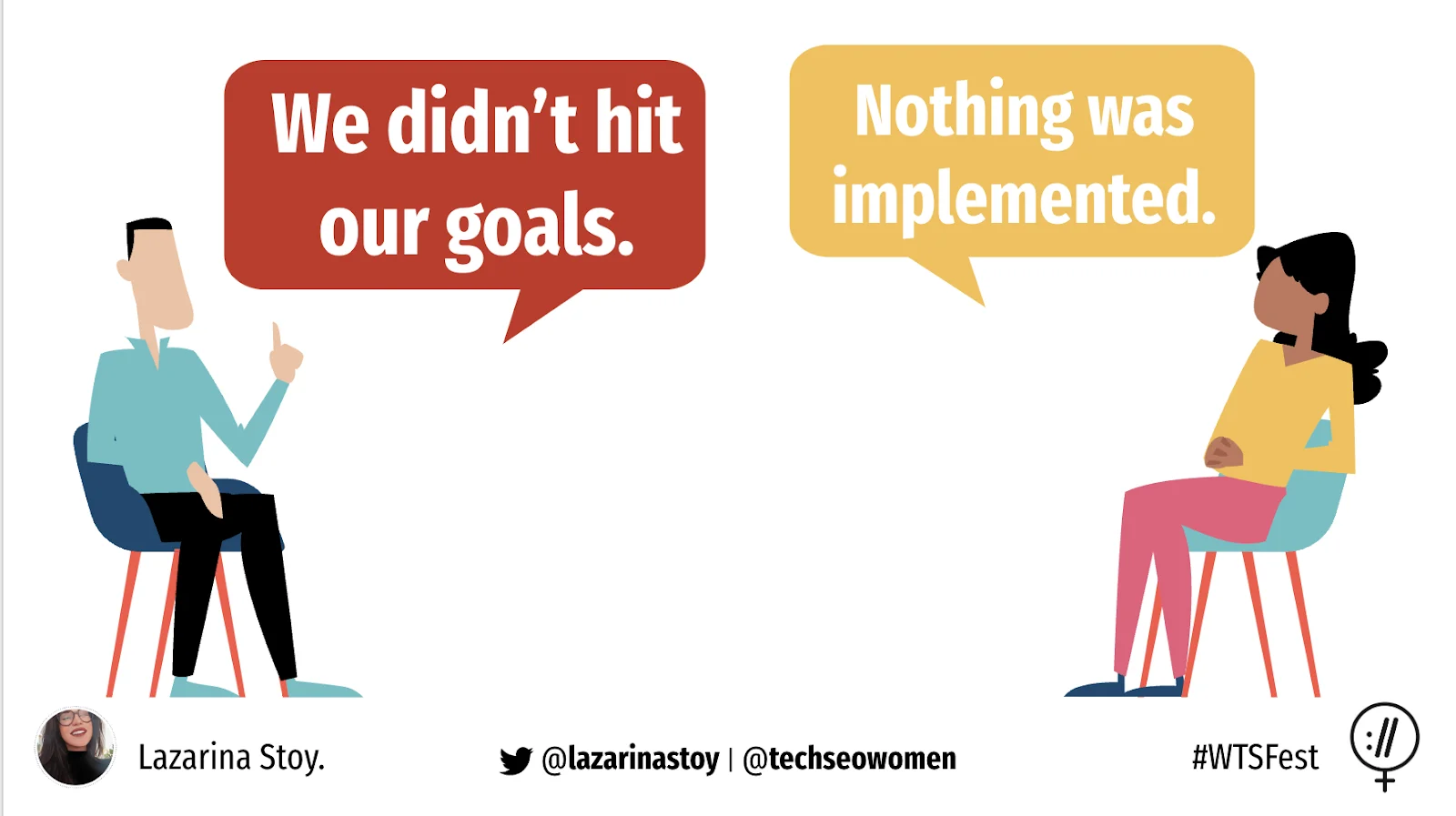
Aleyda Solis has a great example of performance reporting that uses this kind of storytelling: setup, conflict and resolution, showing where performance fell short and how to reach the expected goal, so the audience understands why they’re seeing the numbers on screen.
Report it as a fact with a consequence, not an accusation. The structure that does this best is a table (what was agreed, what was done, what resulted) because the empty cells make the point without you having to say it out loud. That structure is the STAR table in the guide to narrative frameworks for reports.
Two things make it land better. Keep a running record rather than raising it once a quarter, so it’s a standing item rather than an ambush: tie it to the weekly or monthly performance calls, and don’t wait for the client to ask. As a consultant, be proactive about flagging when goals are off their projected targets, with the actions you suggest to improve the outcome. And bring the numbers: opportunity lost, not just work not done. Finish on the one thing you need them to decide, and by when, rather than a list of everything still outstanding.
Bringing someone more senior on the client side into the conversation
Sometimes the work is blocked by something your contact can’t unblock: a dev resource, a budget line, a decision above them.
Getting someone senior into that conversation isn’t going over anyone’s head. Your contact has often already asked internally and been told no, and an external party raising the same point gets heard differently. Done openly, with your contact, it usually helps them rather than exposing them.
Do it with them, never around them. “Would it help if I put this in front of your director?” is a different conversation from your contact discovering you already did.
The question you’ll always be asked: so what should we do?
“So what should we do?”
Have the answer written down before the meeting. Two or three actions, each owned and dated, each tied to the number it’s meant to move. If you storyboarded the report first, take them straight from it.
Improvising this is where credibility leaks. You’ve done the analysis, so you have a view, but a view assembled live sounds like a view assembled live, and it’s the part they’ll remember.
The second most common: “why did that happen?” If you don’t know, say you don’t know and say when you will. “I don’t know yet, I’ll have an answer by Thursday” costs nothing. A confident guess that turns out wrong costs a great deal.
Six ways a client reporting meeting goes wrong
| What goes wrong | Do this instead |
|---|---|
| Screen-sharing the whole report. Every page is equally available, so nothing is being said. | Have the summary page up in view mode before anyone joins and share just that tab. The detail pages wait in another tab until someone asks. |
| Walking through it in build order: sources, channels, pages, conversions. | Run it in story order (answer, cause, consequence, next step) and open a channel page only when it explains one of those. |
| Reading the numbers out. They can see them. | Leave the figure on screen and add what it can’t say: what it means, and against what. |
| Filling the silence after the headline. | Close the opening with a question about the decision, and let them answer it. |
| Ending on a chart. | Finish on the actions, each with its owner and date, and tell them when they’ll have it in writing. |
| Waiting for the QBR to raise a problem. | Bring it up at the next monthly call or in the weekly note, with what it’s costing and what you suggest. |
Setting up Data Studio for the meeting and after it
A handful of settings decide whether the client sees your story or your workings, during the call and after it. Here they are in the order you’ll need them.
Share the view, never the editor
- Switch to view mode. If the report has opened for editing, click View (top right).
- Open the summary page, with every control left on its default.
- For full screen, use Present in the ⋮ menu at the top right of view mode. Google hasn’t documented what it does, so run through it once before a call that matters.
- Share just that tab or window on the call, so the editor never appears.
Try the page through a test screen share first: an axis label you can only just read on your monitor will be a blur for them.
Send an Unlisted link
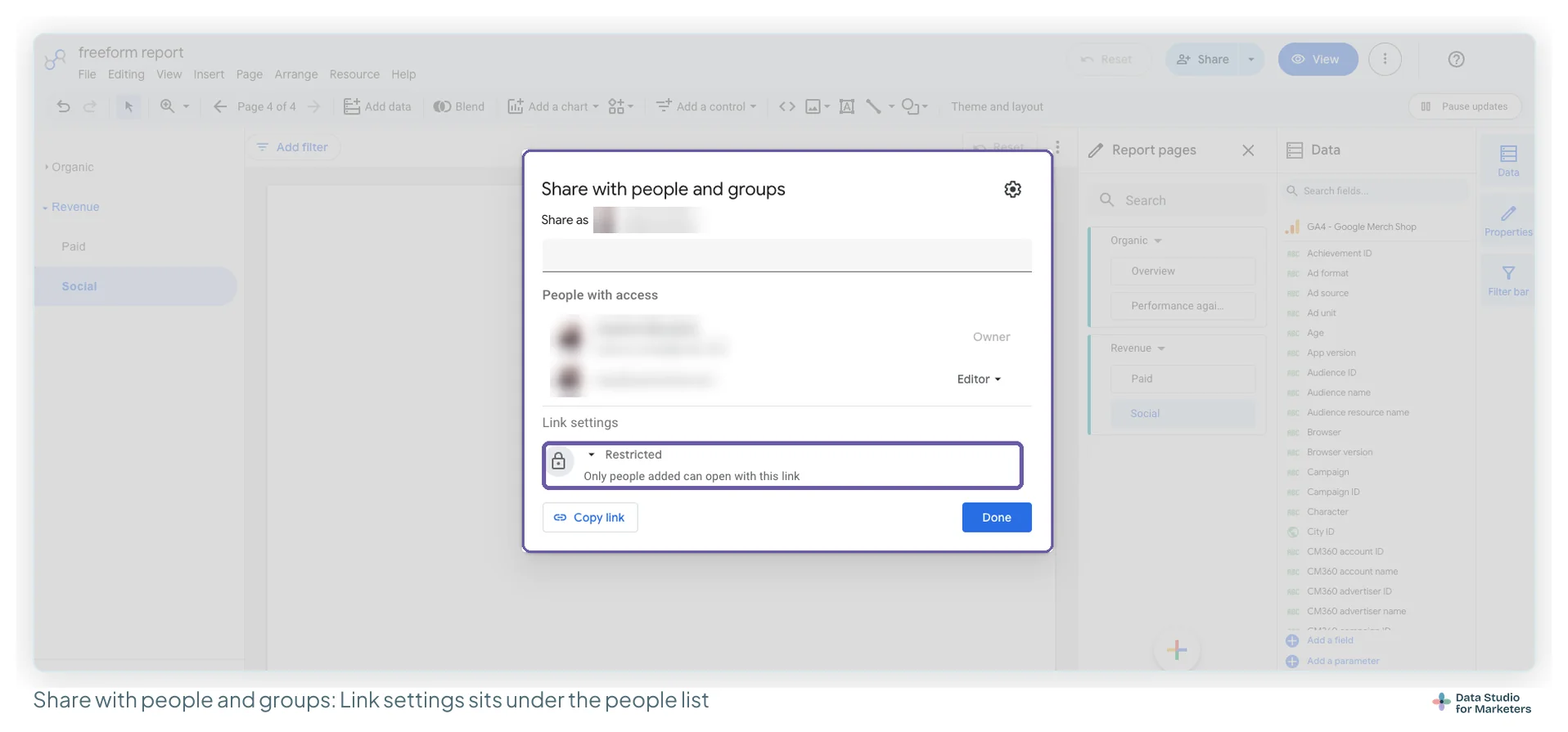
Link settings has three options. Restricted is the default, and only people you’ve invited can open it. Unlisted opens for anyone holding the link without listing it anywhere, which suits most client reports: no address list to maintain, and Google’s sharing guide says viewers of a link-shared report don’t need to sign in. Public makes it findable by anyone, which client data rarely wants. Treat an Unlisted link like a password: whoever it’s forwarded to gets in too.
- Click Share. The dialog that opens is Share with people and groups.
- Find Link settings, under the list of people with access.
- Open its drop-down and pick Unlisted.
- Click Copy link, then Done, and paste the link into your follow-up.

One thing an Unlisted link doesn’t change: a data source on viewer’s credentials still shows nothing to someone who can’t reach the underlying data. It’s the first thing to check when a client says the report is empty; the sharing guide covers it.
Send the exact view you were looking at
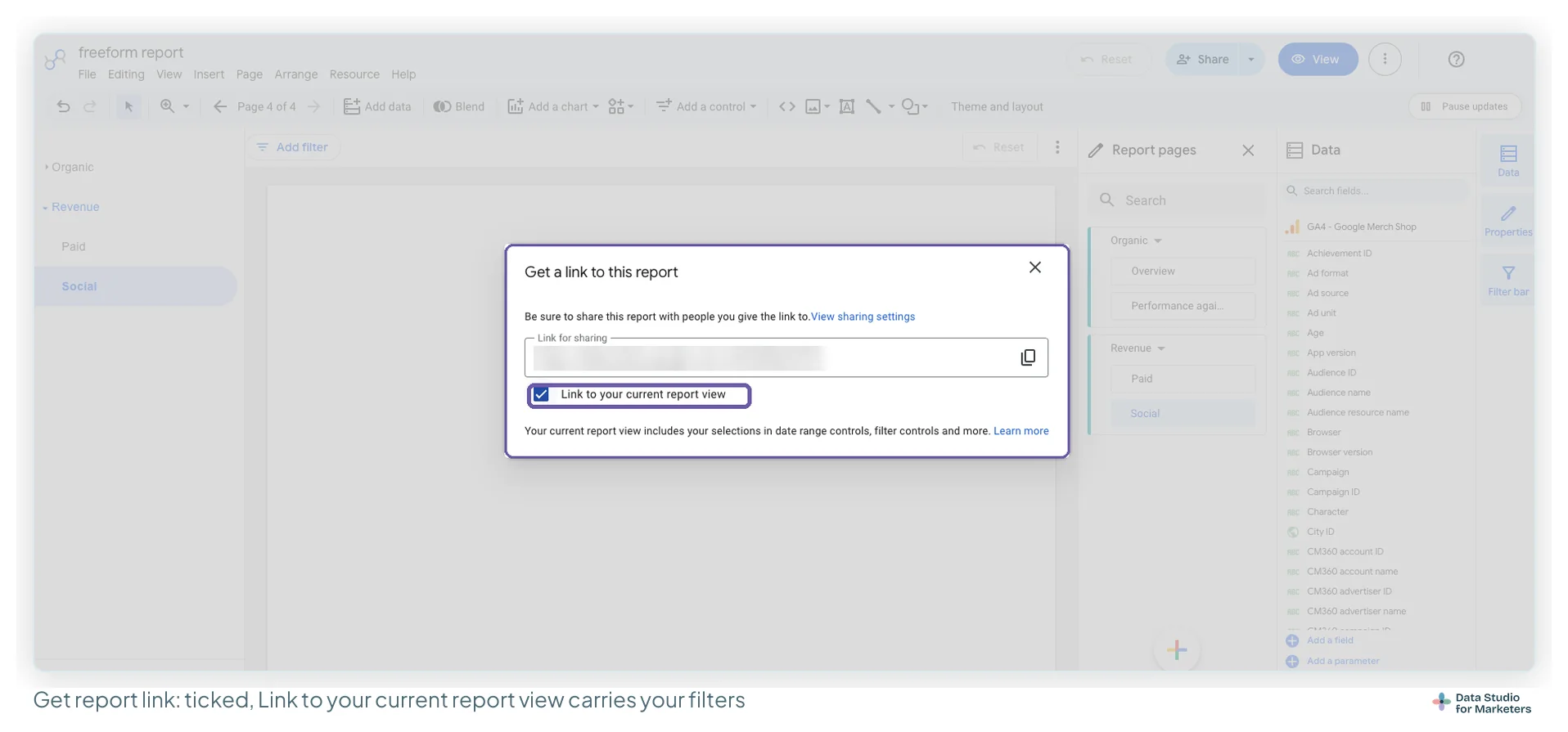
After a call, “open it and set it to last month, paid only” is a step too many. Get report link can carry your current filters and date range in the link.
- Set the controls the way you presented them.
- Click the down arrow next to Share, then Get report link.
- Leave Link to your current report view ticked. Google says that carries filters, the date range, data controls and chart interactions such as table pagination.
- Click the copy icon. As the dialog reminds you, the report still has to be shared with whoever gets the link.
Check the PDF before it’s forwarded
Assume the PDF will reach someone who wasn’t on the call, and set it up for them.
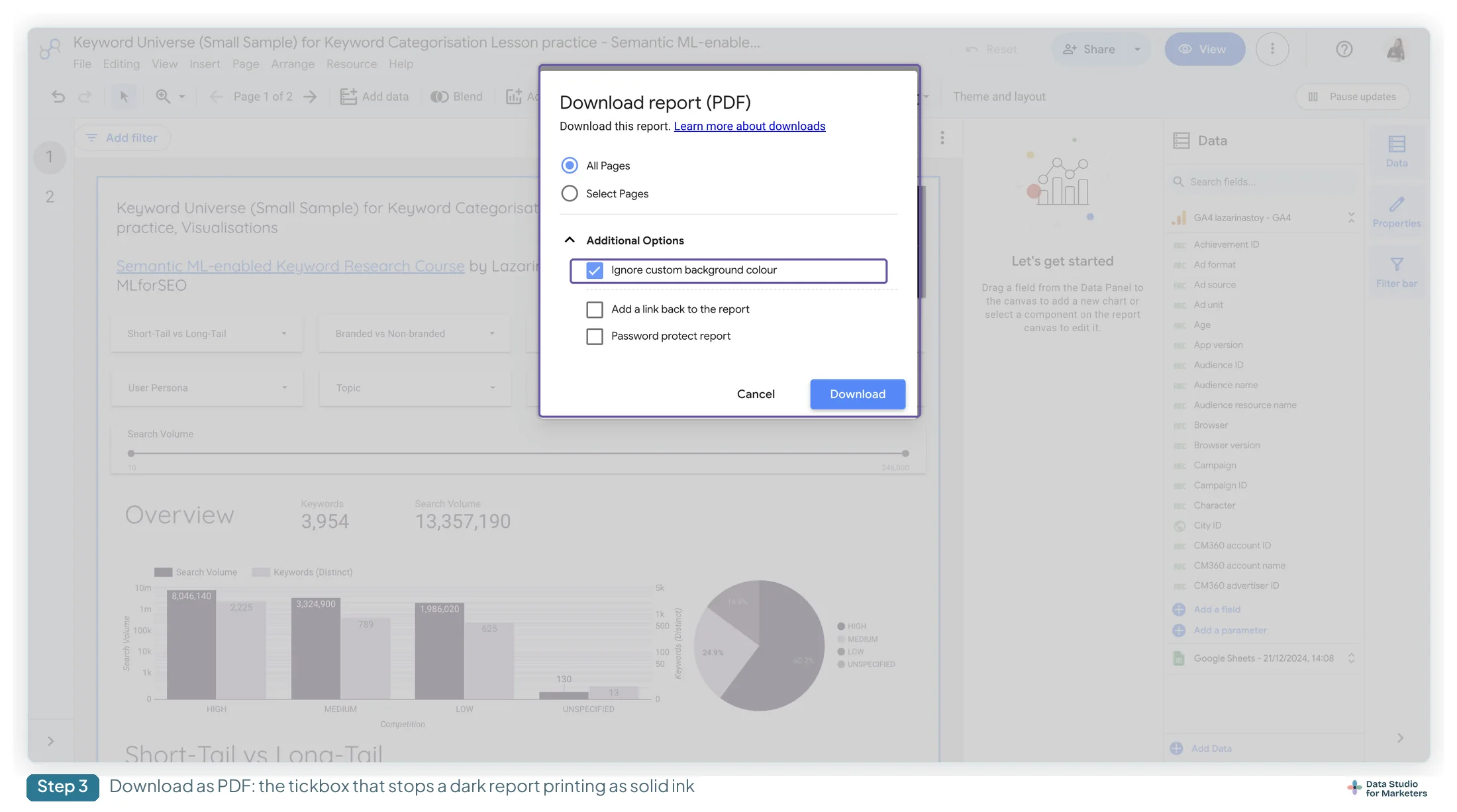
- Go to Share › Download report.
- Choose All Pages, or Select Pages and reorder them by dragging. Google notes the new order applies to the PDF only, not the report.
- Under Additional Options, tick Ignore custom background colour (the UK interface label; Google’s page uses the American spelling) so a dark theme doesn’t come out as solid ink, and Add a link back to the report. Password protect report is there if the client wants it.
- Click Download, then open the file and page through it before it goes anywhere.
Step 4 matters because, as Google’s PDF page notes, complex reports can time out and lose pages. The link back also sits in the PDF’s bookmarks (“Open in Data Studio”), which some viewers hide, so add a plain text link on page one too.
Schedule the monthly email
A scheduled email attaches the report as a PDF, with a link to the live version, and uses the report’s default filters and dates unless you change them.
- Go to Share › Schedule delivery. The dialog that opens is Email delivery.
- Under Settings, complete To, Pages, Start date, Repeat and Time.
- Under Filters, pick the value each control should send with this schedule, for example last month.
- Click Save while signed in to an account that won’t disappear when someone leaves.

Step 4 is the one that bites. According to Google’s troubleshooting notes, a schedule runs as the person who last saved it, so if that account is deactivated or loses access to the report or its data, the emails stop. The sharing and scheduling guide has the limits, and why a scheduled report didn’t arrive the fixes.
Check whether anyone opens the report
You can send a report’s usage to a GA4 property and see its views there. Each report takes one measurement ID, and Google allows up to 24 hours for data to show up.
- In edit mode, open File › Report settings.
- Paste the property’s measurement ID (GA4 IDs start with
G-) into Google Analytics Measurement IDs. - Come back a day later and check that property for the report’s page views.

Views won’t tell you whether the story landed, but no views at all tells you it didn’t. Tracking report usage covers reading the data.
What to send after the reporting meeting
Send the actions in writing the same day: owned, dated, tied to the metric. This isn’t admin. It’s what makes the next report easy to write, because you already know what you’re reporting against. The email itself can be short:
- A subject line with the month in it, so it can be found later.
- The headline and what it’s compared with.
- Anything decided in the meeting.
- Each action, its owner and its date.
- Questions still open, and when you’ll answer them.
- The Unlisted link, set to open on the summary page.
Keep the same list running month to month. A standing table of what was agreed, what was done and what resulted is the single most useful artefact in a long engagement: it shows progress while results lag, and makes an implementation gap a matter of record rather than an accusation (the STAR table from the narrative frameworks guide, kept as a running document).
And if the report is going to be read again without you, make sure the summary page carries the story on its own. That’s the job of the executive summary page.
Frequently asked questions
How should I present a Data Studio report to a client?
Pick the format first (live report, PDF, deck or scheduled email). Open on the summary page in view mode, state the headline in the first ninety seconds, and end on owned, dated actions rather than a chart.
How do I tell a client that performance is down?
Lead with it, then give the cause, the consequence and what you’re doing. Never let a bad number surface late in the meeting; it reads as something you hoped to get past.
How do I present to a technical contact and their boss at the same time?
Tell the same story twice, adapted, and signpost the switch. Headline and consequence for the senior person, then the implementation detail for the specialist. Averaging the two loses both: the senior person disengages and the specialist feels talked over.
Which link setting should I use to send a client a Data Studio report?
Unlisted, from Share › Link settings: anyone with the link can view it without signing in, and it isn’t listed publicly. To send the exact filters and dates you presented, use Get report link with Link to your current report view ticked.
Where to go next on presenting and reporting
- Data storytelling for marketers: the full guide
- How to build an executive summary page in Data Studio
- Narrative frameworks, and which one your report needs
- How to share and schedule a Data Studio report
- Who owns the dashboards: reporting operations for agencies
- Metrics that tell a story, and the ones that do not