
A number on its own is a fact. A number against a target is a verdict. A Data Studio reference line turns one into the other: a dashed line at a value you choose (a target, a break-even, an average), or on a time series, at a date. It takes about twenty seconds to add, and most client reports don’t use one.
This is how I add them, step by step:
- which charts take a line, and on which axis;
- a labelled target line, the three line types (constant value, metric and parameter) and a target the reader can try for themselves;
- marking a date on a time series, which works and prints in the PDF;
- reference bands for ranges, the two limits that produce wrong numbers, and when a line is the wrong tool.
The screenshots are mine, on Google’s GA4 demo account for the Merchandise Store. The worked examples use Harbour & Fern, the fictional garden and home retailer from my ebook, whose Generic search campaign runs at a £38 cost per acquisition (CPA) against a £30 target.
Reference lines, reference bands and trend lines are three different things
| What it draws | The question it answers | Where you add it | |
|---|---|---|---|
| Reference line | One value you choose: a target, a benchmark, a break-even point, or a date on a time series | “Is that good enough?” | Style › Add a reference line |
| Reference band | A shaded range between two values | “Is that inside the normal range?” | Style › Add a reference band |
| Trend line | A line fitted to the data itself (time series and scatter charts only) | “Which way is this heading?” | Style, on the series |
This post is about the first two. A trend line describes the data; a reference line judges it. Chapter 19 of my ebook, Data Storytelling in Data Studio, starts one step earlier, with when a reference line matters and which readers expect one.
Which Data Studio charts support reference lines
From Google’s documentation on reference lines and reference bands, plus what I checked in the editor in October 2026:
| Chart | Reference lines? | A date on the X axis? |
|---|---|---|
| Time series | Yes | Yes: a date picker appears (I tested it, and it prints) |
| Column and bar | Yes | No: even with a date dimension, the line axis offers the Y axis only (tested) |
| Line and combo | Yes | Not tested. Google’s page describes a date picker whenever the X axis is a date dimension |
| Area | Yes | Not tested (as line and combo) |
| Scatter | Yes | No date axis |
| Stacked column, bar and area | Constant value and parameter lines only | Column and bar: no, as above. Stacked area: not tested |
| 100% stacked | No | No |
| Scorecards, tables, pivot tables, pie | No | No |
A chart can carry up to ten. If you’re anywhere near that, the chart is doing too much: see choosing a chart from the shape of your data.
Two things Google documents that catch people out later. If you change the chart type, Data Studio deletes any reference lines the new type doesn’t support. And if you remove a metric from the chart, any line based on that metric goes with it. Check your lines after either change.
Stacked charts take a line; 100% stacked charts don’t
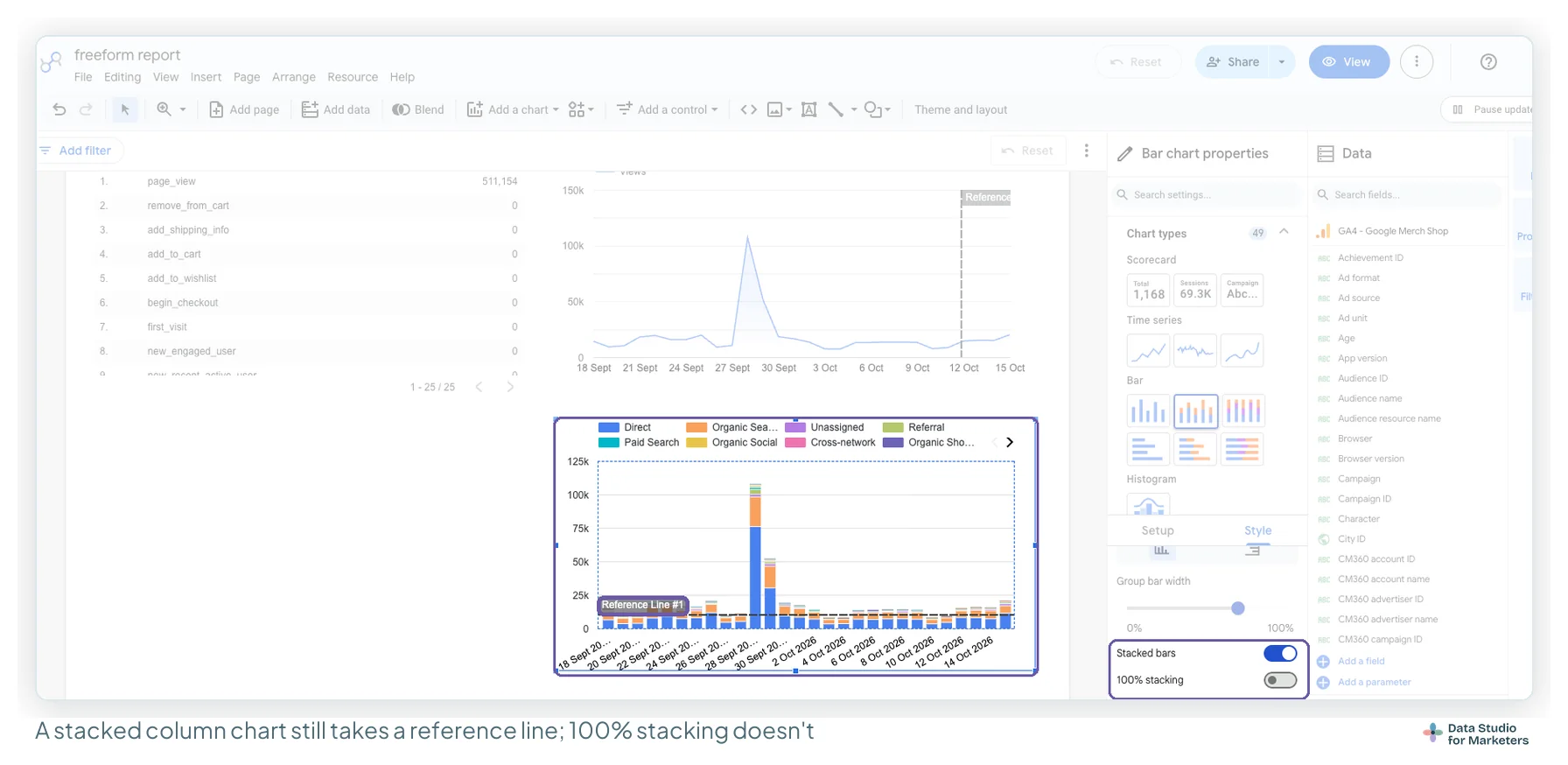
On a stacked chart the line is read against the top of each stack, the total, so it suits a target for the whole, not one segment. Use a typed constant. Google’s Limits section allows constant value and parameter lines on stacked charts (one sentence there says constant values only), and metric lines such as an average aren’t on either list.
How to add a labelled target line, step by step
The line most reports need: one target, labelled with where it came from.
- Select the chart and open the Style tab of the Properties panel. Reference lines live in Style, not Setup.
- Scroll down the Style tab and click Add a reference line.
- Set Line type to Constant value and type the number:
30for a £30 CPA. A percentage goes in as a decimal, so 2.5% is0.025. - Check that Line axis is on the Y axis (on a combo chart, pick the left or right Y axis the metric sits on).
- Write the reason into the label, not only the number: “Target CPA (agreed May)”. Keep Show label on, and switch on Show reference value in label, which appends the value to your label.
- Set Line style to Dashed, a light Line weight, and one accent colour.
If you leave the label blank, Data Studio names a constant line “Reference Line #1”, a metric line after its calculation, and a parameter line after the parameter. None of those tells a reader why the line is there.
Worked example. Harbour & Fern’s CPA by campaign, as a column chart with a dashed line at £30: Generic search sits at £38, above the line; PMax (£27) and Shopping (£25) sit under it. Nobody has to read a number to see which campaign needs attention.
The three types of reference line in Data Studio
Every line, and each end of a band, takes its value from one of three types:
| Line type | Where the value comes from | Use it for | Maintenance |
|---|---|---|---|
| Constant value | A number you type | An agreed target, a break-even CPA, an SLA | Someone edits the chart when it changes |
| Metric | A calculation on a metric in the chart: Average, Median, Percentile, Min, Max or Total | “Normal” for this chart: above or below the median | None, but see the displayed-rows limit |
| Parameter | A single-valued number parameter, which a control on the page can set | A target readers can try out, or one value shared by many charts | Change the default in one place |
Constant value: a fixed target you type in
Simple, and the right answer most of the time. The drawback is maintenance: when the target changes, someone edits the chart, and on fifteen client reports that’s fifteen edits.
Metric: a calculation on a metric in the chart
Set Line type to Metric, pick the metric, then the Calculation. For Percentile, type a whole number between 0 and 100: 75 draws the 75th percentile.
“The median of the months on this chart” as a line under a monthly bar chart is one of the most useful lines in reporting, because it turns every bar into above or below normal at a glance. I prefer the median to the average here, because one freak month (a sale, a migration) drags an average towards it. Read the displayed-rows limit before you rely on a metric line.
Parameter: a target the reader can try for themselves
A parameter is a named value stored in the data source, with a default. Point a reference line at it and put a control on the page, and the line moves with whatever value is in the control.
- With the chart selected, click Add a parameter at the bottom of the Data panel. Name it (“Target CPA”), set Data type to Number, and set the Default value to your target (30). Save.
- In the chart’s Style tab, add a reference line with Line type Parameter and choose “Target CPA”. Only single-valued number parameters are offered.
- Click Add a control › Input box (or a slider), and in its Setup tab put the parameter in Control field.
- Switch to View, type 28 in the box, and watch the line move.
Be clear about what this does and doesn’t do. I tested it in October 2026: when a viewer changes the value in the control in view mode, the line moves for them alone, and everyone else still sees the default. That’s the honest way to handle a target nobody has agreed yet: put the control on the page and let the conversation happen against real data. The value everyone sees comes from the parameter’s default, so when the target changes for good, an editor changes the default once and every chart using it follows. That’s the maintenance win over fifteen constant lines.
Marking a date: a time series takes one, a bar chart doesn’t
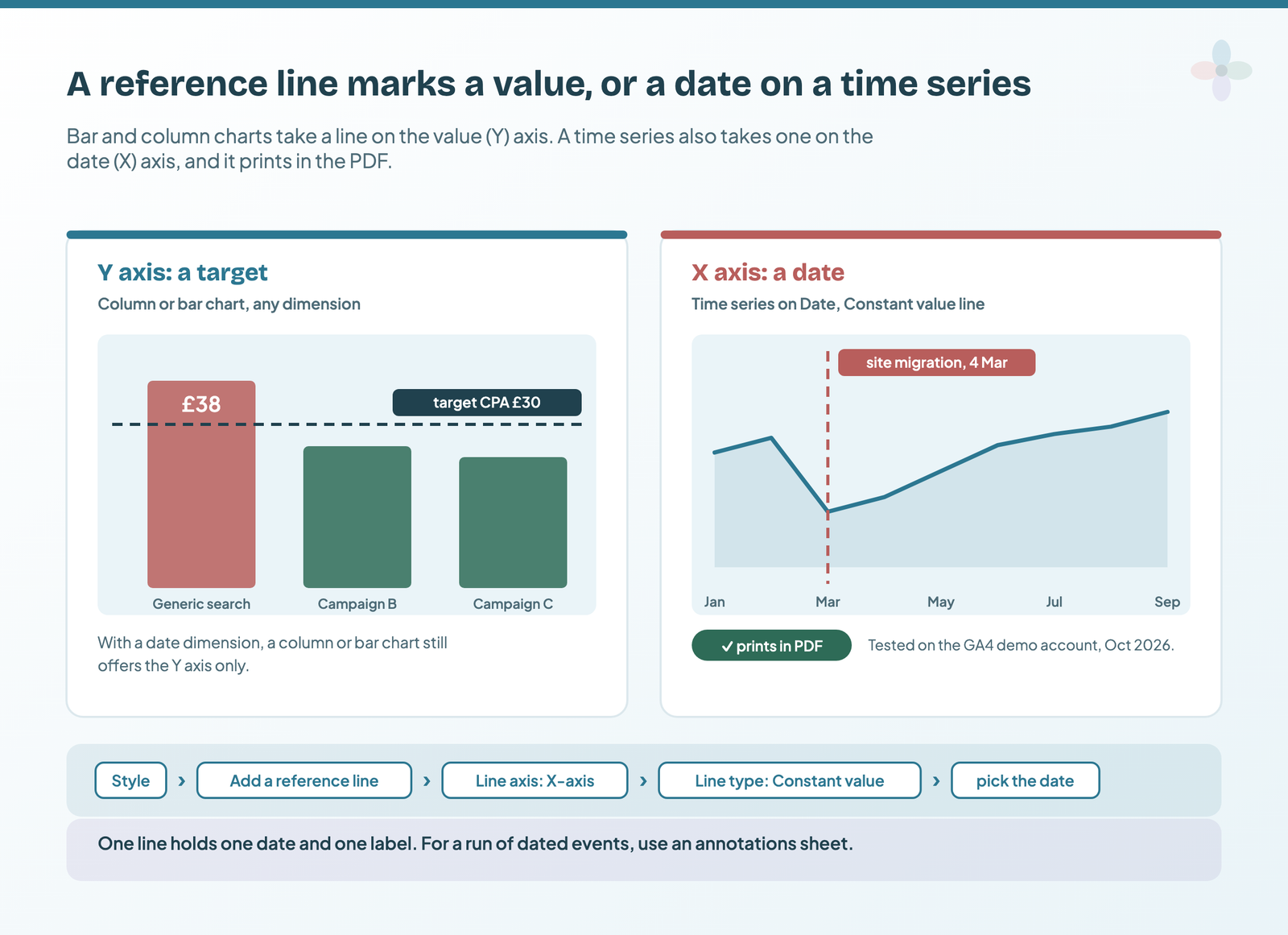
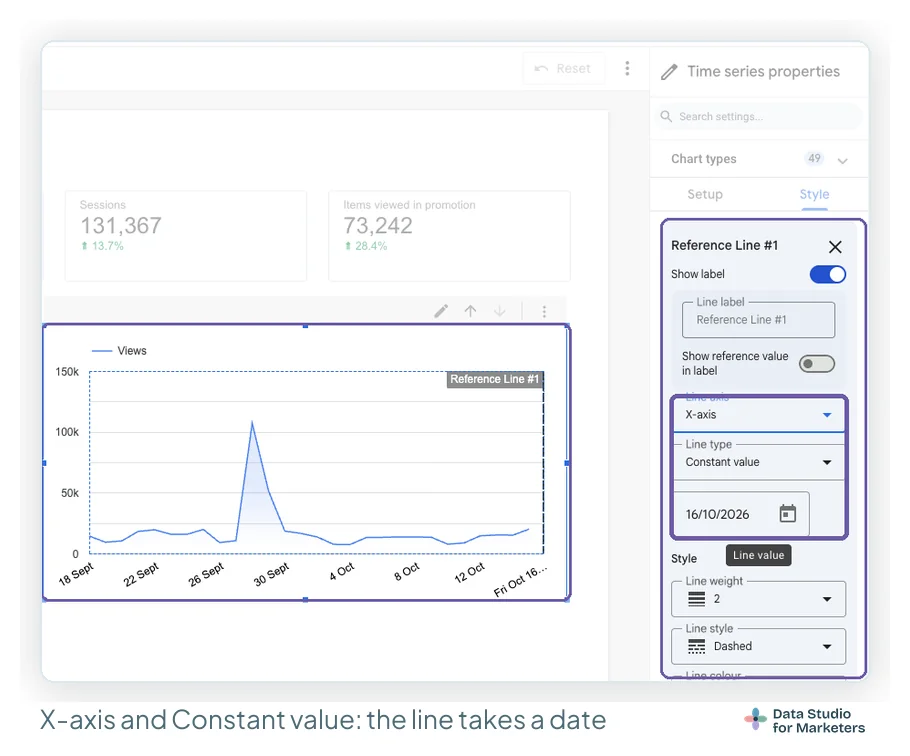
On a time series, a reference line can mark a date. I tested it on the GA4 demo account in October 2026: with Date on the X axis, a Constant value line set to the X axis shows a date picker, draws a vertical line on that day, and prints when you download the page as a PDF. Column and bar charts don’t, even with a date dimension: their Line axis menu offers the Y axis alone.
- Select a time series with a date dimension and open the Style tab.
- Click Add a reference line.
- Set Line axis to X-axis and Line type to Constant value. The value field turns into a date field.
- Choose the day in the date field and write the event into Line label, for example “Site migration, 4 Mar”.
- Make it Dashed, in an events colour that differs from your target colour, so nobody mistakes a launch for a goal.
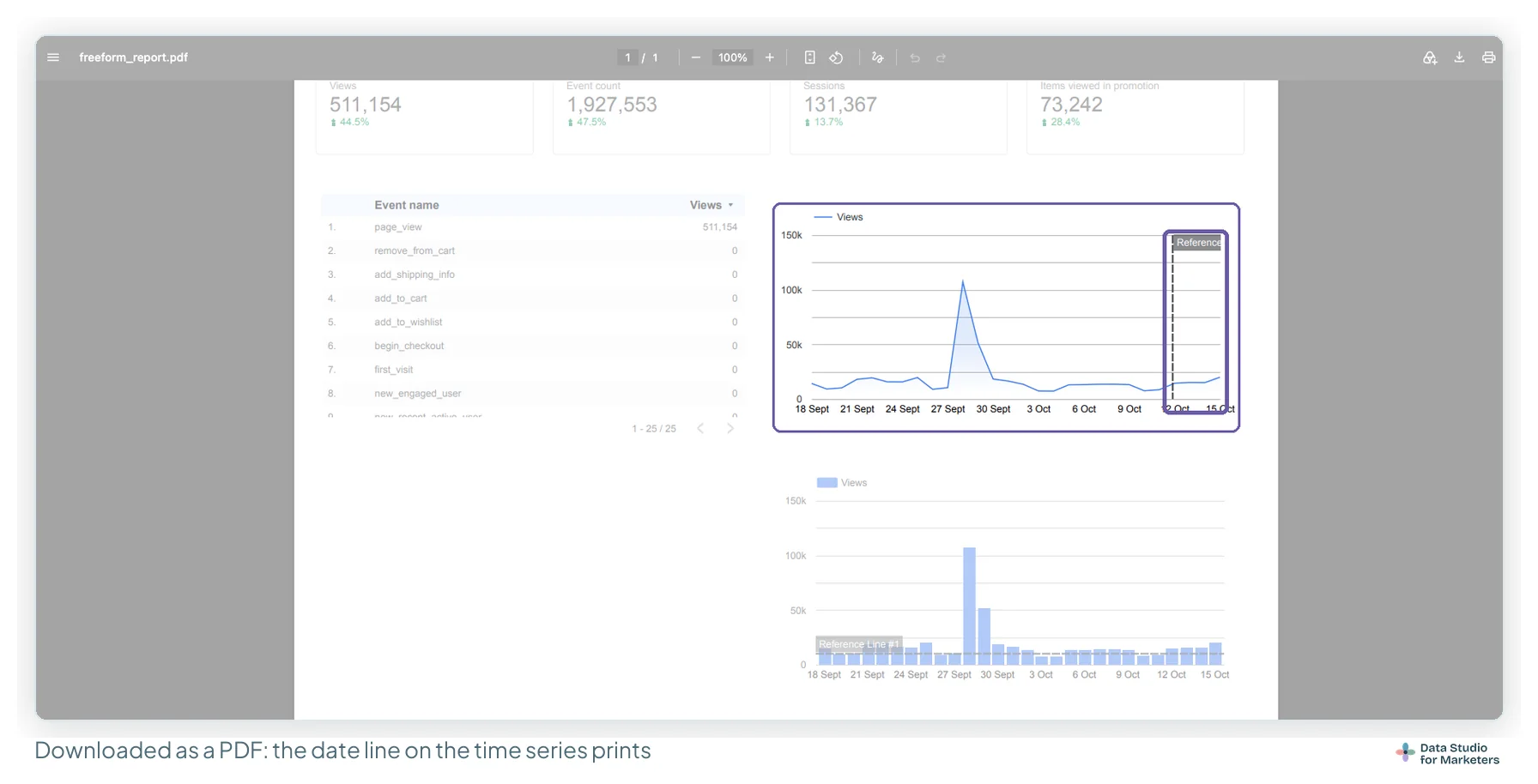
Google’s reference line page also describes a reference band across a date range, with a date field for each end; I haven’t tested that. The same page’s Limits section still says date axes aren’t supported, so trust what your Style tab offers.
Each line is one typed date with one label, added chart by chart. For a run of events, or the explanation behind one, the technique is different: a blended sheet of dated events, which is one row per event and shows on every chart you blend it into. That’s the four ways to get real annotations into a report.
The limitation to watch: a metric reference line only sees displayed rows
This one produces wrong numbers rather than missing features, and Google documents it: a metric-based line only considers the values the chart is currently displaying. So:
- A row limit changes where the line sits. Showing the top ten of four hundred campaigns? Your “average” is the average of the top ten.
- An Others bar counts as one value in the calculation, however many rows it folds together.
- A filter on the chart moves it too, which is usually what you want, but worth knowing when a control moves the line as well as the bars.
Worked example. A bar chart of CPA by campaign, limited to the top ten by spend, with an Average line. If the ten big campaigns are also the efficient ones, the line sits low, and every small campaign you can’t see would sit above it. Raise the bar count and the line moves. If the line is meant to be “the account’s average CPA”, type it as a constant from a scorecard that shows the account total, and label it as such.
If an average line sits somewhere unexpected, check the row limit before the data: how row limits and the “Others” row work.
The gotcha nobody mentions: a fixed target against a moving date range
A constant line has no idea which dates the chart is showing. Draw a monthly target, let a viewer stretch the date control to the whole quarter, and the line now compares three months of revenue with one month’s goal. Three fixes:
| Fix | How | Right for |
|---|---|---|
| Lock the chart’s date range | Setup › Default date range › Custom, set to the period the target covers. The chart then ignores the date control (locking a chart’s dates). | A summary page making one argument |
| Drive it with a parameter | As above: the reader sets the target for the period they picked | An exploratory page |
| Put the period in the label | “Monthly target £450,000”, not “Target £450,000” | Every line, whatever else you do |
One reference line holds one value, so a target that moves from month to month needs a different build. Harbour & Fern’s monthly targets climb from £350,000 in January to £625,000 in November. I use a constant line only where one month is on screen: the September summary chart, locked to September, with the line at £450,000. For the year-to-date trend, the targets go into a Google Sheet with a Month and a Target column, blended with revenue on month and plotted as a grey dashed series beneath this year’s line.
When a reference band beats a reference line
Most targets in marketing aren’t a single number, and drawing them as one implies a precision the business doesn’t have. Conversion rate between 2% and 3% is fine; 1.9% is worth a look; 3.4% usually means tracking broke. That’s a band.
- In the chart’s Style tab, click Add a reference band.
- Under Beginning value, choose the type and the value: Constant value,
0.02. Under Ending value:0.03. The two ends can use different types, so a band can run from the median to a typed ceiling. - Label it (“Healthy range”), and turn on Show reference value in label: Data Studio writes the range as low to high.
- Set a pale Background colour and an Opacity that keeps the line readable through it.
Three cases where a band is the honest choice:
- An acceptable operating range. Anything with a floor and a ceiling: conversion rate, CPA, page load time. The band says “inside this is fine” without inviting a conversation about a one-point movement.
- A forecast. Shown as a range, a projection reads as an estimate. A single projected line on a client report gets quoted back to you as a commitment.
- A seasonal envelope, with a caveat. A reference band runs between two fixed values, so it can’t follow last year’s low and high month by month. That shape needs two extra series from a sheet, coloured pale grey behind the main line.
Five reference lines worth adding to a marketing report this week
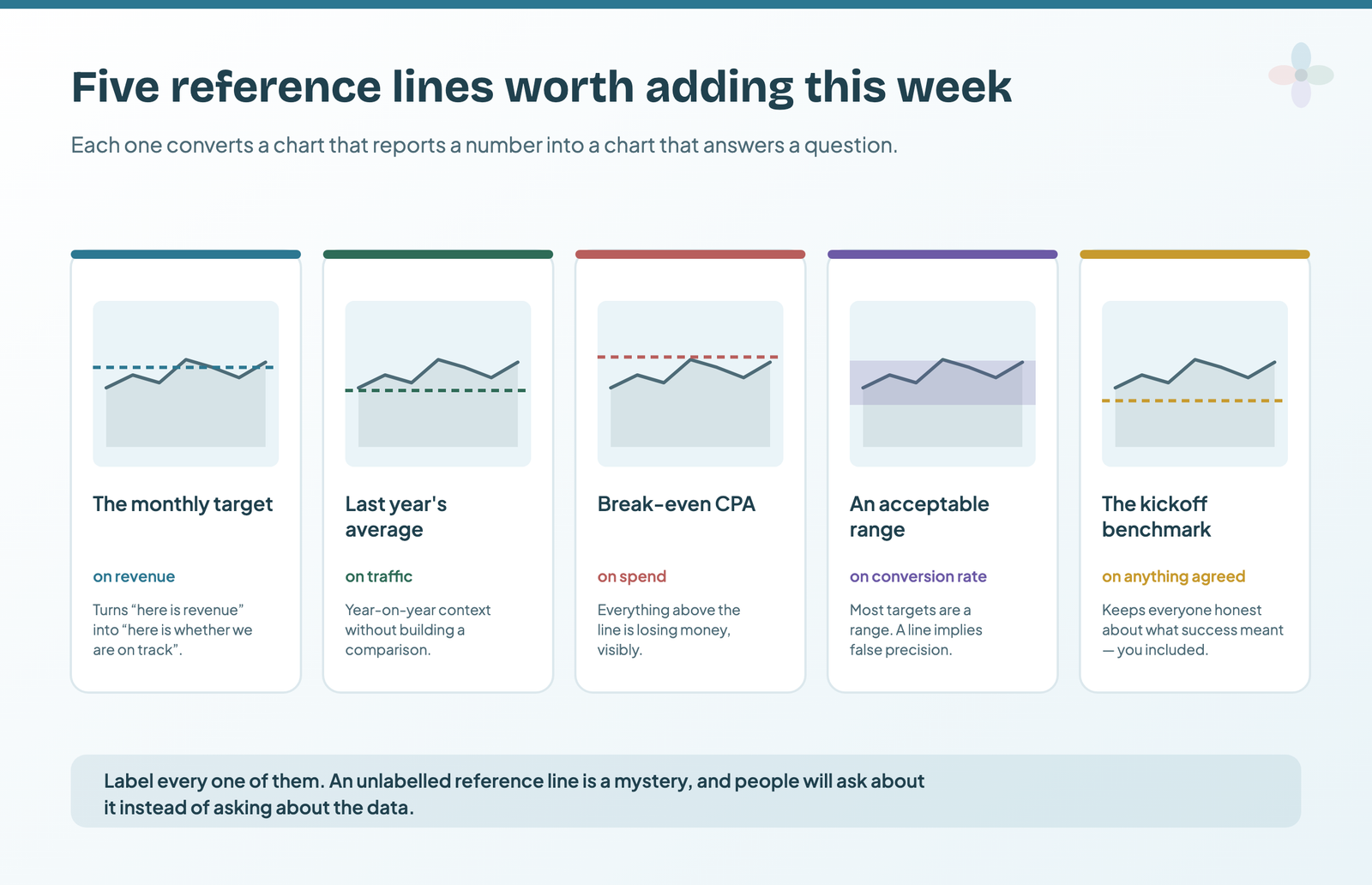
- The monthly target on the revenue time series. The single highest-value line in a client report: it turns “here’s revenue” into “here’s whether we’re on track”. Constant value, chart locked to the month.
- Last year’s average on a traffic chart. Cheap year-on-year context. Last year isn’t in the chart, so it’s a constant you take from a scorecard set to last year, labelled with the year.
- Break-even CPA, or the daily budget, on a spend chart. Harbour & Fern’s Google Ads budget for September is £60,000, so a constant line at £2,000 (£60,000 over 30 days) on spend-per-day bars shows every day that ran hot.
- A band, not a line, for the acceptable range. Conversion rate between 2% and 3%, as above.
- The benchmark you agreed at kickoff. Put it on the chart and leave it there. It keeps everyone honest about what success was supposed to look like, including you.
Choosing a target value you can defend for a whole year
The line is the easy part. A target on a chart looks like a fact and gets treated as one for the rest of the engagement, so the number needs a basis. Three sources, strongest first:
| Basis | Example label | How well it survives questions |
|---|---|---|
| A commercial requirement | “Q4 needs £3.7m (£12m year)” | Best: the arithmetic is checkable, and it moves when the business moves |
| Your own baseline | “Monthly target £450,000 (last year +20%)” | Good, as long as the growth assumption is on the page |
| A benchmark | “Industry conversion rate (source, year)” | Weakest: it describes somebody else’s business, so name the source on the chart |
Harbour & Fern’s September target is its own baseline: last September took £376,000, plus 20% is about £450,000, and the label says so. When a target stops being right, change it in the open, in the month you change it, with the reason. Silently moving a line after a bad quarter costs as much credibility as swapping a metric because it stopped flattering you. Chapter 6 of the ebook goes further into which comparison a number needs, and Chapter 19 into which readers expect which lines.
Styling a reference line so it reads as a target, not a series
- Label every one. An unlabelled line is a mystery, and people ask about it instead of about the data.
- Dash it. Data Studio offers six line styles (Dashed, Dotted, Solid, Dash-dot, Long dash, Long dash-dot). A dashed line reads as annotation; a solid one reads as another series.
- Keep it thin. A line weight of 1 or 2. If it’s heavier than the data, it competes with it.
- One accent colour for targets, another for events, and never red over green. Red/green pairs are a real problem for colour-blind readers, and a red line over green bars is the worst common case.
When a reference line is the wrong tool
| The situation | Use instead |
|---|---|
| One number against a target, on a tile | A scorecard with Comparison type Value and Show as progress: a target on a scorecard |
| A target plus poor / average / good ranges, in a small space | A bullet chart: Setup › Show target (450000), then range limits at 85% of target, the target and the axis maximum (382500, 450000, 517500) |
| Many rows, each against the same target | A table with the metric shown as bars and Show target on, sorted by the metric |
| A target that changes month to month | A target series from a sheet, blended on month (above) |
| A year of dated events | An annotations sheet: the methods compared |
| The size of the miss is the point | A column chart of actual minus target by month, with positive and negative bars in two colours |
Templates with targets already set up
If you’d rather start from a report that already has targets and comparisons in place, these are free to copy from the template library.
Frequently asked questions
How do I add a reference line in Data Studio?
Select the chart, open the Style tab of the Properties panel and click Add a reference line. Choose the line type (Constant value, Metric or Parameter), the value, the axis and a label. Reference lines work on time series, column and bar, line and combo, area and scatter charts, up to ten per chart.
Can I add a vertical reference line to mark a date?
Yes, on a time series. In the Style tab, add a reference line, set Line axis to X-axis and Line type to Constant value, then pick the date. The line prints in a PDF download. Column and bar charts with a date dimension take Y-axis lines only. For many dated events, a blended annotations sheet scales better.
Why is my average reference line in the wrong place?
A metric reference line only uses the rows the chart displays. A row limit, an Others bar or a filter all change it. Raise the row limit, or type the true average as a constant value and label it.
Why did my reference line disappear?
Data Studio deletes reference lines the chart no longer supports when you change the chart type, and deletes lines tied to a metric when you remove that metric from the chart. Switching a stacked chart to 100% stacking removes them too, because 100% stacked charts don’t take any.
Can a client change the target line themselves?
Drive the line from a number parameter and add an input box control for it. A viewer who types a different value in view mode changes the line only for themselves (I tested this); the value everyone sees is the parameter’s default, which an editor changes once for every chart that uses it.
Where to go next on targets and report context
- Annotations and expert commentary in Data Studio
- Scorecards with a target, a progress bar and two comparisons
- How to build an executive summary page in Data Studio
- Date range controls, and locking a chart’s own range
- Metrics that tell a story, and the ones that do not
- Data storytelling for marketers: the full guide