
Data Studio’s biggest limitations for advanced users are still the ones I wrote about in 2021: blends stop at five tables and are hard to check, big or blended reports get slow, GA4 quotas break charts, and third-party connectors add a layer you don’t control. Some of the rest has genuinely improved since, and a few new limits are worth knowing before you build.
As a seasoned user of Data Studio (psst, I even did a course on Data Studio for advanced users, check it out), I’ve explored its data visualisation features and capabilities extensively. As any sophisticated tool, Data Studio has its own set of limitations and challenges. Here are the lesser-discussed pitfalls, and more importantly, practical ways to work around each one.
I first wrote this in March 2021 and re-checked every limitation against Google’s documentation in October 2026, so each section says what’s still true, what has changed and what is fixed: blending, broken charts and quotas, third-party connectors, and the limits I’d add in 2026.
Data blending limitations
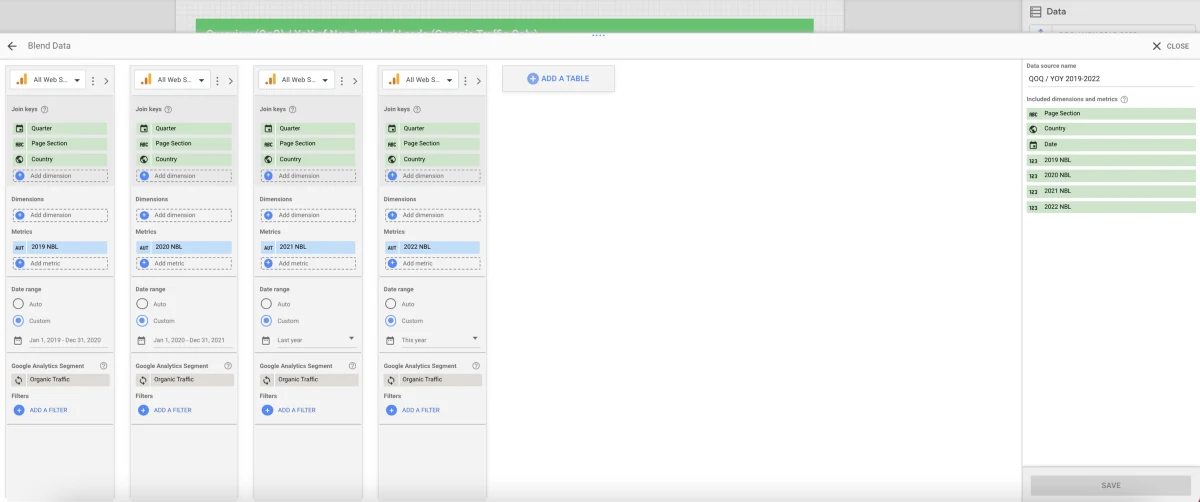
While data blending is a powerful feature of Data Studio, it also comes with limitations that can affect the performance and reliability of your reports. A blend joins up to five tables from your data sources on shared fields so one chart can use them together. Here are the ones to be aware of.
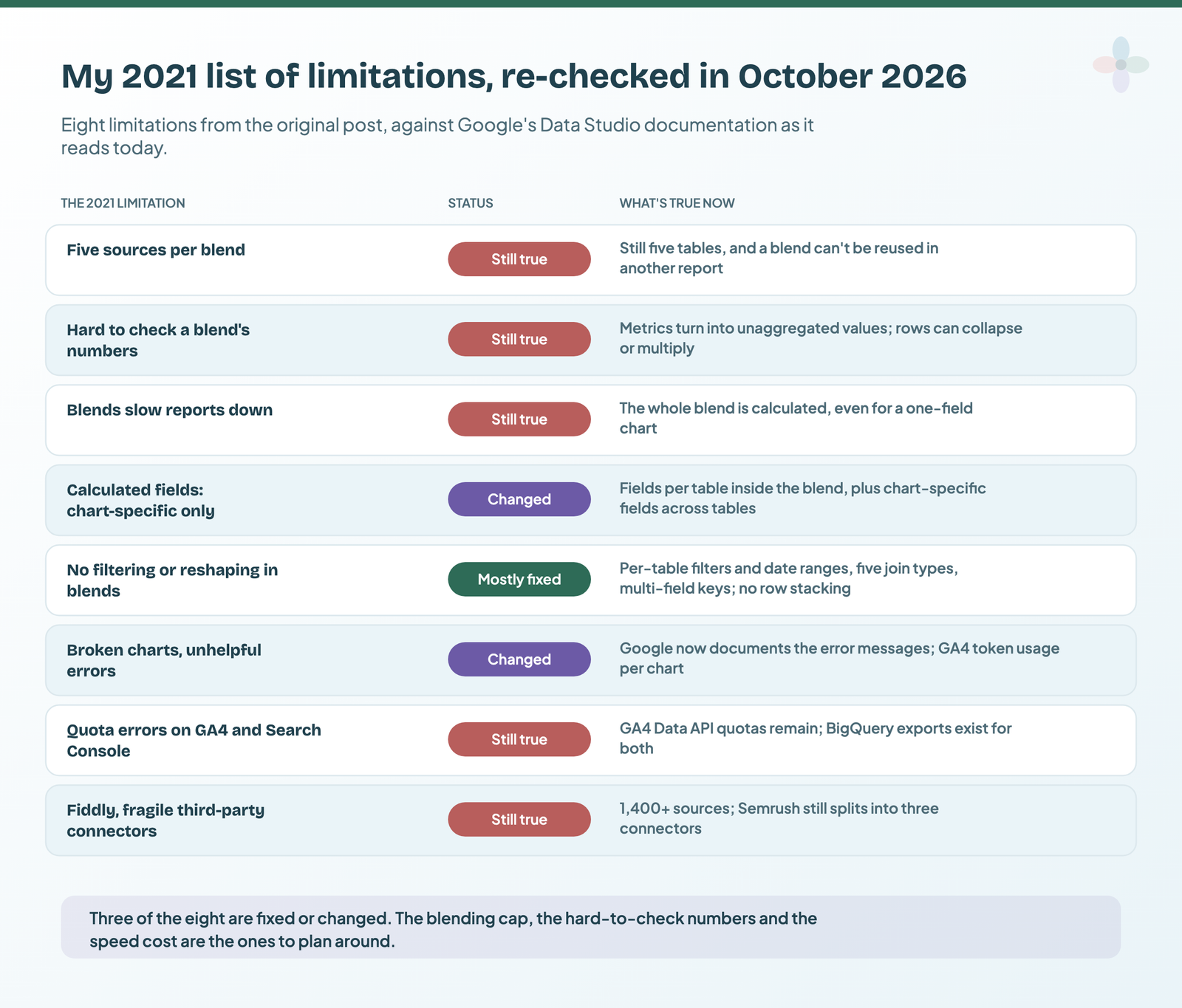
A blend stops at five tables (still true)
You can only blend a maximum of five data sources within a single blend, which is one of the most frustrating limitations I have encountered. Google’s documentation still says it in so many words: “A blend can have up to five tables.” If you need to combine data from more than five sources, you’ll need another data manipulation tool, or to aggregate the data into a single source beforehand.
While this may sound like a lot, trust me: it isn’t.
Looking at a couple of examples in the SEO realm: I use Data Studio to visualise custom extractions from Screaming Frog, which run monthly. Having a timestamp allows these to be imported and visualised as a trend line. Well, I mean, a trend line of five data points…
Imagine also having a separate sheet with the dates on which improvements to the client’s site were made. Combining these data sources would, in theory, let me measure the impact of specific recommendations I issue. Sadly, with this limit, any such blending has to happen before the data ever reaches Data Studio.
So, how would this affect you? If you are anything like me, you’d like to push the limits of the tool in terms of visualisation, and extract the most value out of the data for the report’s users. Being able to use up to five data sources, joined on fields they share, often limits what you can display and how.
Two things I’d add in 2026. A blend lives in the report where you made it: you “can’t make a blend reusable across reports”, says Google. And, according to the community forum (Google’s docs are silent), a blend can’t be a table inside another blend.
You can’t easily check a blend’s numbers (still true)
When you blend data sources, Data Studio handles the underlying data manipulation and joins automatically. This makes it harder to verify the accuracy of the blended data, as you can’t directly inspect the raw data from each source.
Google’s documentation now explains why the numbers move, which helps. Each table is grouped by its own dimensions before the join, metrics in a blend become “unaggregated numeric dimensions”, identical rows collapse (so a blend can hold fewer rows than the same SQL join), and a join that matches several rows can return more rows than the left table had. Every one of those can change a total without any error appearing.
This issue isn’t isolated to Data Studio, either. If you look at the community forums of other data visualisation tools, like Tableau, you’ll find numerous posts about data blending causing inaccuracies. It can be detrimental to using these tools for business reporting, especially when investment or planning decisions are made on the foundation of the data in your dashboard.
Blends slow reports down (still true)
Blending data can increase the processing and loading times of your reports, especially as you add more blended sources. This makes your dashboards less responsive and affects the user experience. Google’s own blending tips explain part of the reason: a chart that uses one field of a blend still makes Data Studio calculate the whole blend.
And the standard speed fix, an extracted data source, has its own ceiling: up to 100 MB (above that the extract fails) and 750,000 rows (above that it’s truncated).
Calculated fields in blends (changed)
In 2021 you could only create chart-specific calculated fields with a blend, which meant you couldn’t define fields that applied to the whole data set. That has partly changed. Today you can add calculated fields to each table inside the blend, but they “can only reference fields found in that table”. For a formula that uses fields from two different sources, you still create a chart-specific calculated field, and Google confirms these work with blended data. To reuse one, copy the chart.
Filtering and reshaping inside a blend (mostly fixed)
I wrote that blending lacked the ability to perform more complex manipulation, such as filtering, aggregating or transforming data. Most of that is now possible in the blend editor:
- Each table can have its own filters and its own date range (Auto, or a Custom range that overrides the chart’s), applied before the join.
- Five join types: left outer, right outer, inner, full outer and cross. When I first wrote this, blends were left joins only.
- Join conditions can use several fields, and the fields needn’t share a name, as long as the values match. Only equality is supported (no greater-than or not-equal joins).
Still missing: a blend adds columns side by side; it doesn’t stack rows from two sources.
How to work around Data Studio’s blending limits
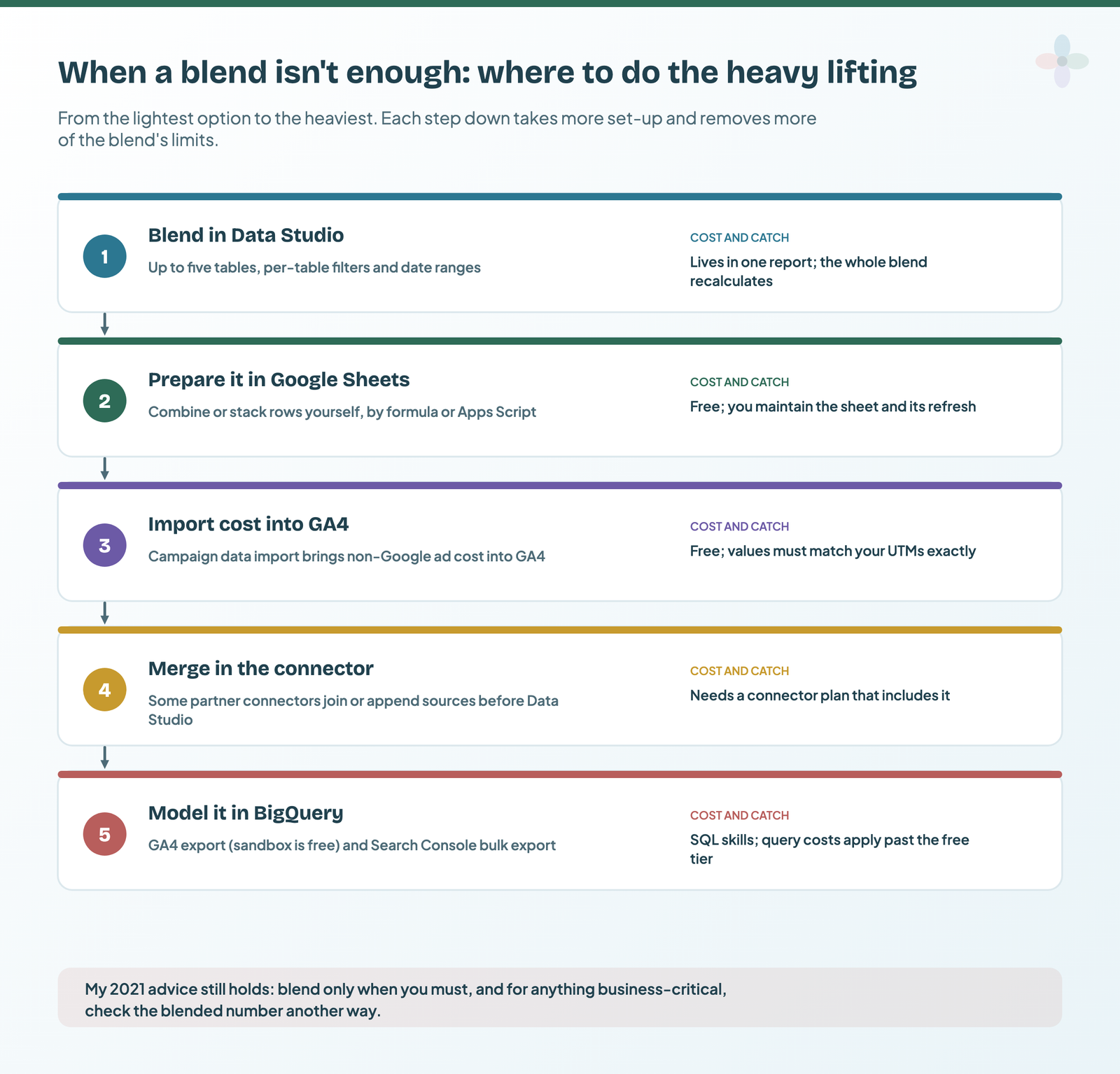
To mitigate data blending limitations in Data Studio, consider these strategies:
- Use data blending strategically. Only blend data when it’s absolutely necessary, and evaluate whether it’s the best approach for your analysis.
- Avoid overly complex blends. Keep blended data sets as concise and focused as possible to minimise performance issues and data integrity concerns.
- Consider alternative data preparation tools. For complex transformation, use dedicated preparation: Apps Script in Google Sheets, or a modelling layer such as LookML (that’s Looker, Google’s separate enterprise product). The easiest solution is to blend data offline, in Google Sheets or Excel. You can feed both with Zapier or other automation tools, even though that solution is quite wonky in its implementation. For ad cost, GA4’s campaign data import (formerly cost data import) brings non-Google spend into GA4 and removes a whole class of blends.
- Optimise your blending workflows. Choose the most efficient join types and keep the number of joins down.
- Monitor and audit your blends. Regularly check the performance and accuracy of blended data to catch issues early.
- For highly important data points that need blends, double-check the calculation by another method. This gives you insight into data integrity issues before important decisions are made on the basis of wrong data.
Broken dashboards and chart errors
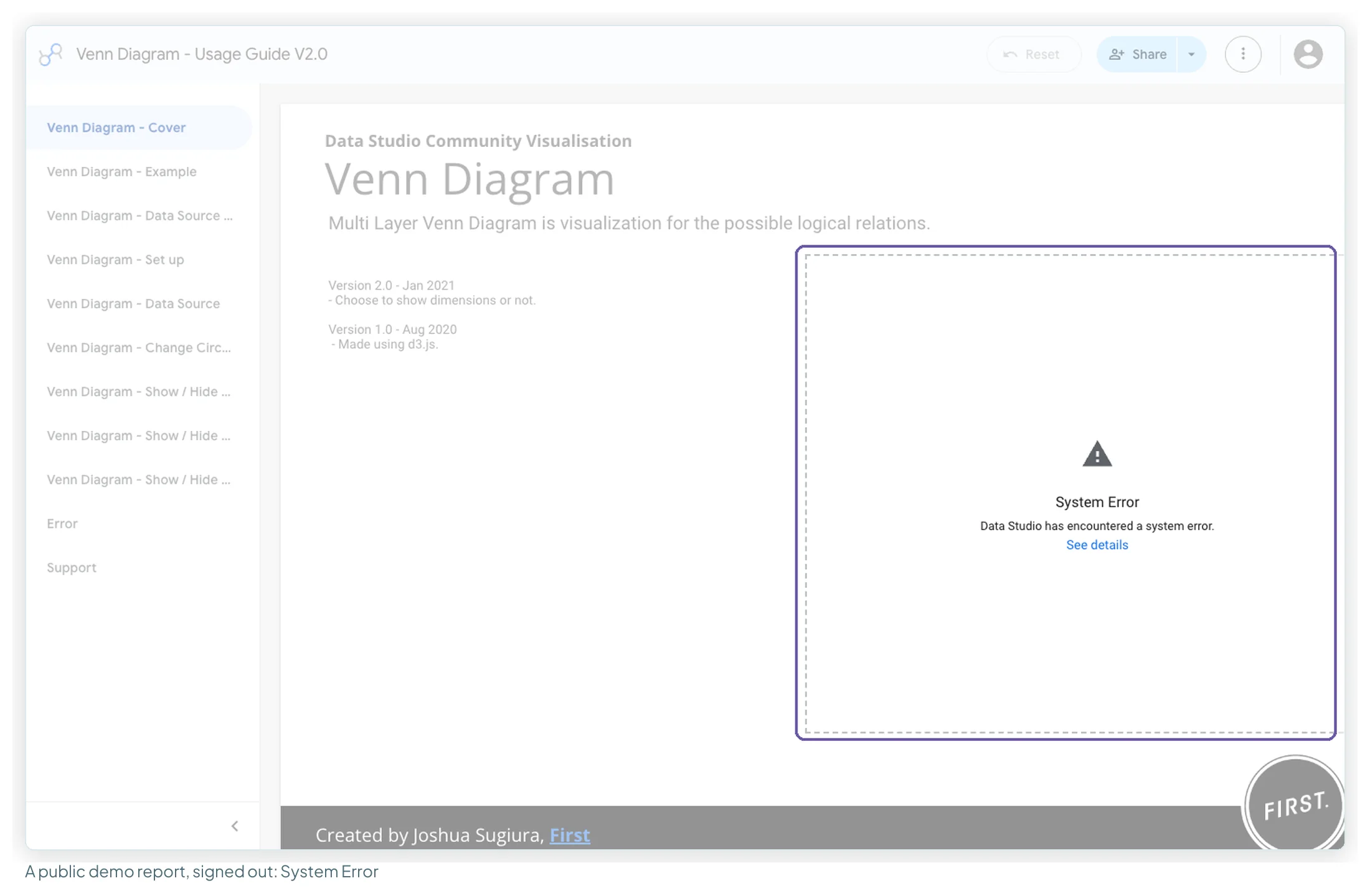
If you have ever built a Data Studio report, you’ll know about the “kiss of death”: breaking charts, unknown data sources, user configuration error, data set configuration error…. error, error, error.
Sadly, Data Studio doesn’t have a good reputation for being kind or helpful when your tables break; it’s like it doesn’t even care that this could repel users from ever visiting your report again.
The great article by Juan Bello (Porter Metrics) on common errors that I used to link is no longer online, but Google now publishes its own troubleshooting guide, which lists the actual messages (“Data set configuration error”, “Database connection error”, “System error”) with causes and fixes, and sorts blending errors into “misconfigured joins, missing data sources, and unexpected blend results”.
How to minimise errors in Data Studio dashboards
- Use the correct data source. Make sure the dashboard uses the right data source, so the data is accurate and up to date.
- Filter your data. Include only the data you need. Less data to load and render improves performance and helps you avoid quota issues. Planning the data story at this step is crucial.
- Use appropriate visualisations. Choose visualisations that suit the type of data you’re showing. Don’t just choose them because they look pretty.
- Label your visualisations. Use clear, descriptive labels, and include commentary and annotations wherever possible (I cover the methods in how to annotate charts in Data Studio). Then, even when a chart fails to load, the page is still useful to the people reading it.
- Get ownership of the connection. Do everything in your power to manage the added data sources and how they connect. Wherever possible, avoid over-reliance on third-party connectors. In 2026 Data Studio Pro also answers part of this: content belongs to the organisation’s Google Cloud project and keeps working if its creator leaves (report ownership covers the free version).
- Use BigQuery to avoid quota errors in Search Console and GA4. Don’t let your most important data disappear because of a quota issue, diminishing your integrity as a consultant in the process. Both exports exist now: GA4 to BigQuery (the sandbox is free; standard properties export up to 1 million events a day) and Search Console’s daily bulk data export.
GA4 quotas are the error I see most. Reports on GA4 are subject to the GA4 Data API’s quotas, and in edit mode you can right-click a chart and open Google Analytics token usage to see what each chart spends and whether it came from memory.
| GA4 Data API quota | Standard property | Analytics 360 |
|---|---|---|
| Core tokens per property per day | 200,000 | 2,000,000 |
| Core tokens per property per hour | 40,000 | 400,000 |
| Core tokens per project per property per hour | 14,000 | 140,000 |
| Concurrent requests per property | 10 | 50 |
Google’s GA4 Data API quotas page, read 13 October 2026. Google’s fixes: owner’s credentials, one reusable GA4 data source, fewer charts and viewers, an extract, the BigQuery export, Analytics 360 or a partner connector.
By reducing everything you don’t need and folding several dashboards into one, you keep a good user experience without compromising the quality of the report. A good rule of thumb: provide a good, stable holistic overview, which links to fancy, less-stable, granular data views.
Difficult or unreliable third-party connectors
There are hundreds of connectors you can use in your reports (Google now claims “more than 1,400 data sources” and “over 1,300 Community Connectors”), and you can bring your own data too. Third-party connectors play a crucial role in getting data from other platforms into Data Studio. However, they can present challenges through their complexity, limited capabilities or occasional unreliability. There’s a saying often credited to Emmert Wolf, that “a man is only as good as his tools”, and it remains true to this day.
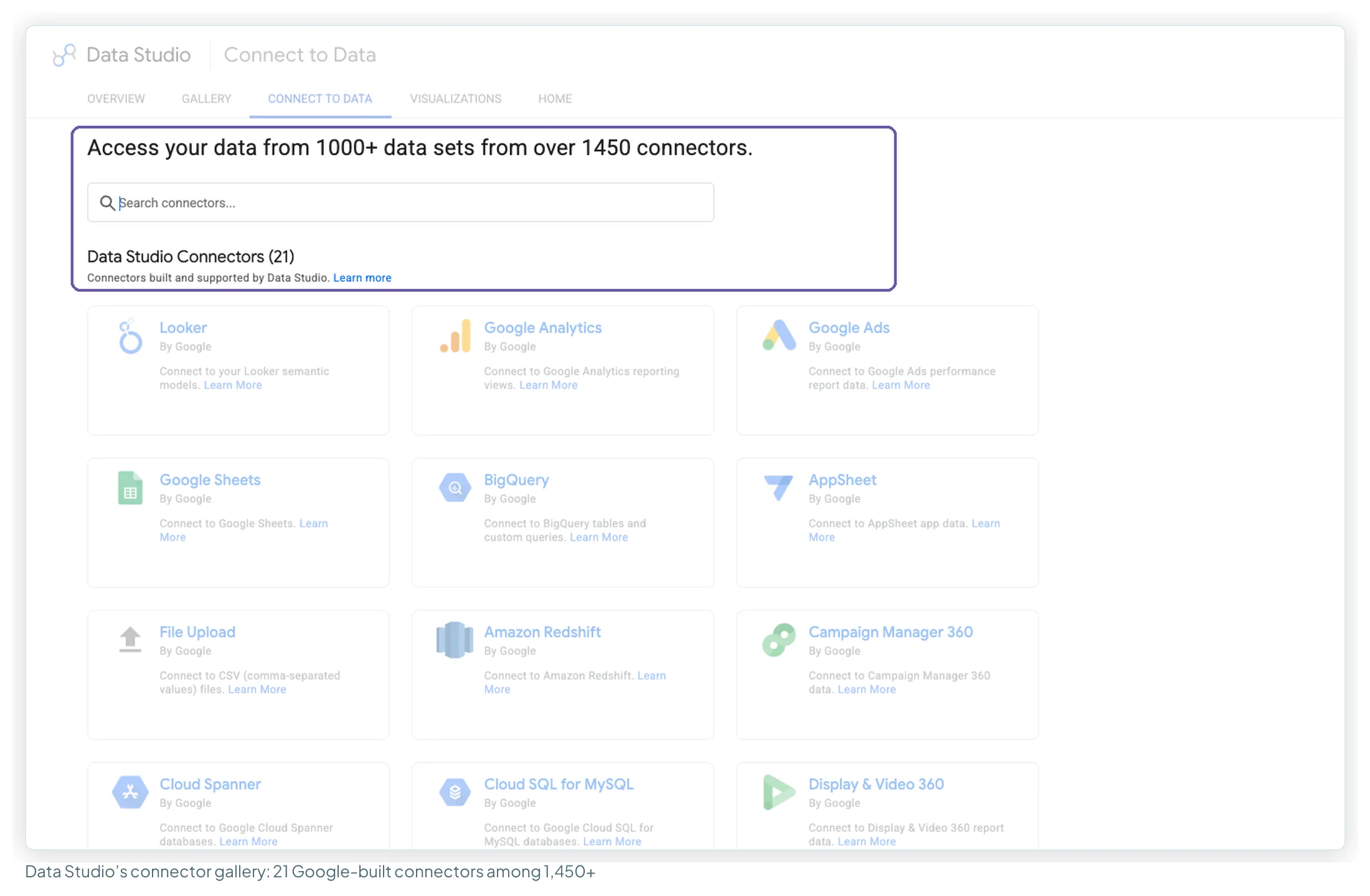
What I have noticed is that bulky, ugly-looking spreadsheets or a BigQuery-hosted dataset make the best data sources. For instance, the Google Analytics (and other Google-owned) connector has one connection per property, which includes all data fields.
For comparison, Semrush’s connectors (and other digital marketing tool connectors like them) involve choosing between three different menus, each connecting to a different segment of the Semrush data. Still the case in 2026: separate Domain Analytics, Position Tracking and Site Audit connectors, on Guru or Business plans. The result is a higher chance of hitting the blending limit above, a report with a hundred data sources if you report on an enterprise property or an agency portfolio of clients, and a literal headache when you connect the data sources. Oh, and later, when you try to copy the report.
On another note, third-party connectors may not be as reliable or consistent as native Data Studio connectors, which can lead to data errors, connectivity issues or performance bottlenecks that disrupt analysis and reporting.
Another hindrance is that such connectors may have limited or inconsistent documentation or support, or, even worse, suddenly change their pricing, making it difficult or downright impossible to resolve technical problems or compatibility issues. This can delay fixes, or worse, require you to rework your entire Data Studio dashboard portfolio around new data sources.
How to work around connector limitations
- Choose reputable, well-maintained connectors. Prioritise connectors from established providers with a proven track record of reliability and support. Check user reviews, community forums and documentation to assess quality before you commit. The connectors comparison is a good starting point.
- Implement data quality checks. Build checks into Data Studio to spot inconsistencies or anomalies that may come from the connector, and monitor them regularly. The data health page is my version of this.
- Provide alternative benchmarking sources wherever possible. Give yourself a second source to benchmark against, so third-party data issues show up.
- Integrate directly with the APIs instead of using connectors. Integrate directly with the API where you can. It’s the safest connection in terms of managing the data source, authentication and delays, and it lets you structure the data source the way you want it. The URL Inspection API dashboard is another worked example.
The limits I’d add in 2026
Five years on, these weren’t on my original list, and each one is cheaper to know before you build.
| Limit | What it means in practice | Work with it |
|---|---|---|
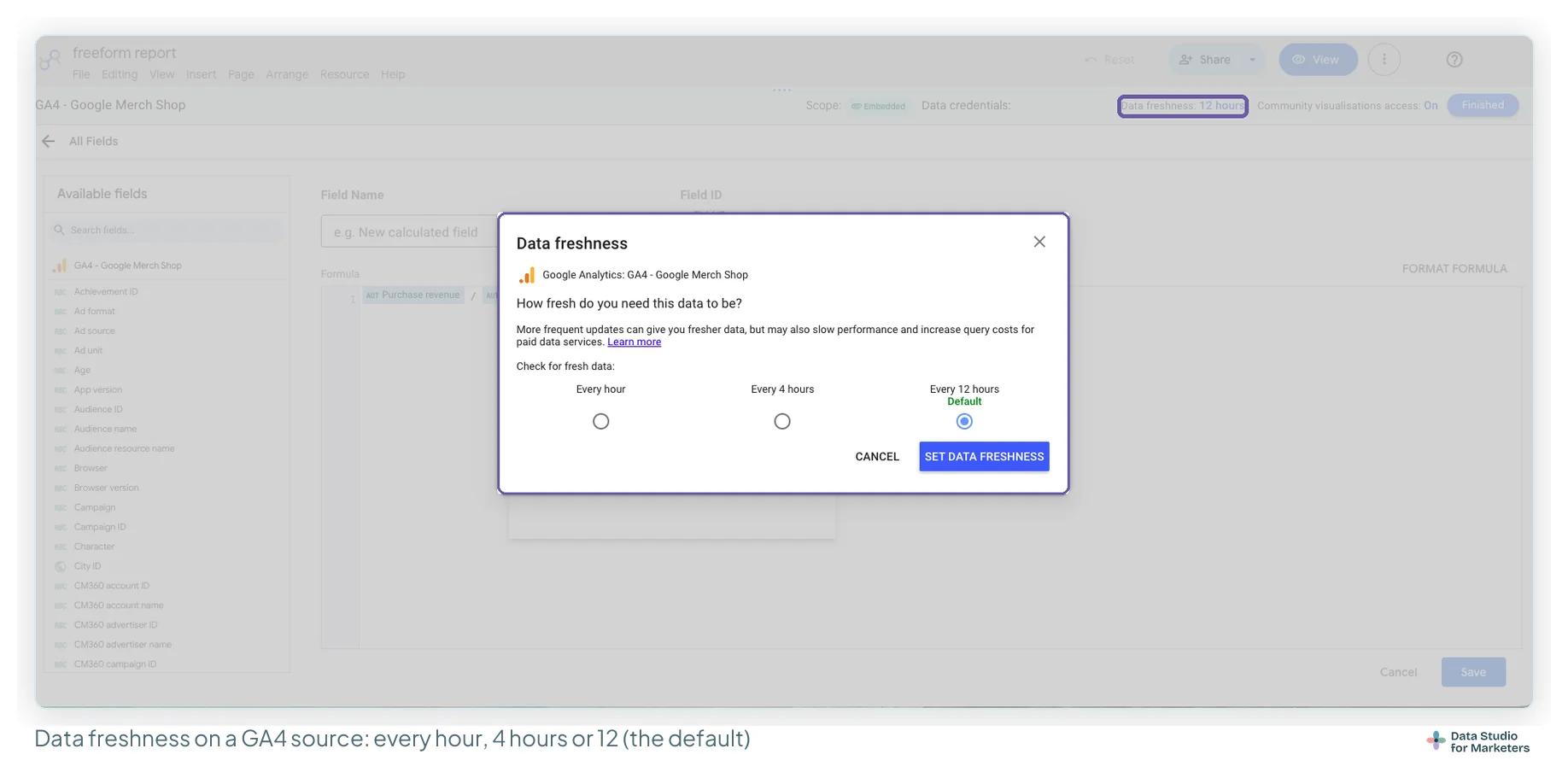
| Data freshness | Google Ads, Search Console and other Google marketing connectors refresh every 12 hours, unchangeable (Google’s page also lists 1–12 hours for Analytics). | Show a “data to” date; BigQuery and Sheets allow shorter intervals. Data freshness explained |
| Row limits and “Others” | “Group the rest as ‘Others'” is on by default on bar, pie, tree map and time series breakdowns; off, a chart may not show all the data. | Set the Top N on purpose and name it in the title. Row limits and the “Others” row |
| Calculated field functions | Google’s function list has nothing that reads another row (no LAG or window functions); a formula can’t mix dimensions and metrics; SUM(Sessions) on GA4 errors. | Use the chart’s running calculations, or compute upstream. Custom dimension formulas |
| GA4 through the connector | GA4 segments and comparisons aren’t available through the connector. | Rebuild the segment as a filter, or use the BigQuery export. |
| Pro-only features | Organisation ownership, team workspaces, hourly schedules and alerts need Pro, $9 per user per project per month (checked 13 October 2026). Alerts skip blends and calculated fields. | Decide early if a report belongs in Pro. Free vs Pro, alerts |
The takeaway
While this may be a lot to take in, before the takeaway I just want to emphasise: Data Studio is absolutely amazing and I use it every day for all sorts of reports.
I’ve built everything from small reports, like a personal finance dashboard to track income streams, to sturdy multi-page reports for SEO consultancy, as complex as dozens of different data sources in a single report.
I advocate with both hands for bringing data visualisation and reporting into all aspects of life, which is perhaps why I love Data Studio as much as I do. So it is perhaps, as the old saying goes:
We criticise the things we love the most.
On a serious note, I hope this list helps both beginner and advanced users understand what Data Studio can do, where its limits are, and how to work around them. If you’d like to go deeper, there’s the course I did for Traffic Think Tank for advanced users.
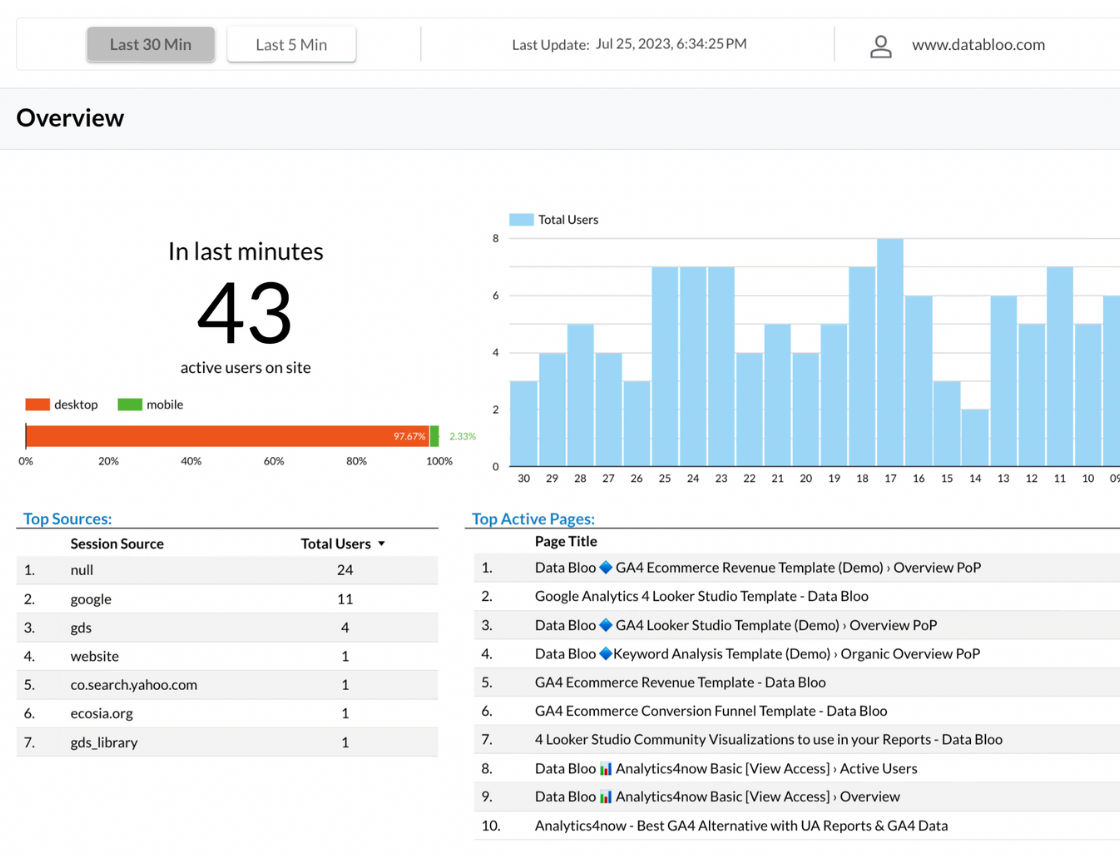
Templates built on BigQuery
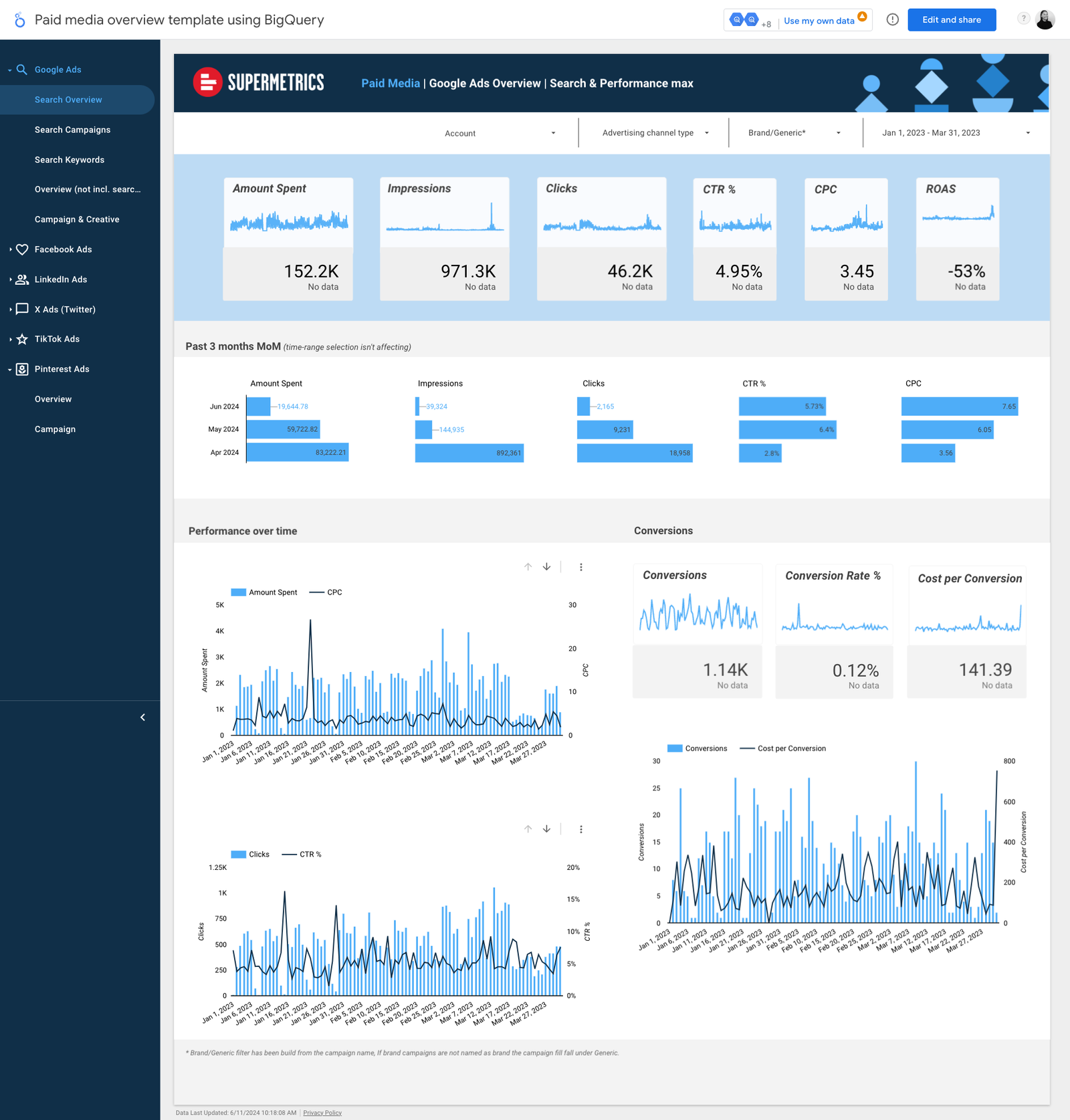
Two dashboards that read from BigQuery, where several workarounds above lead.
Where to go next
- What is Data Studio?
- Extract data for faster reports
- Data freshness: why your numbers are old
- Data Studio connectors compared
- Report ownership: what happens when someone leaves
- Data Studio free vs Pro
Frequently asked questions
How many data sources can you blend in Data Studio?
Five. Google’s documentation says “A blend can have up to five tables.” Beyond that, combine the data before it reaches Data Studio: in Google Sheets, in a connector that merges sources, or in BigQuery.
Why does my blended total differ from the source?
Each table is grouped by its own dimensions before the join, and joins can drop or repeat rows. Check any number a decision depends on by a second method.
Does Data Studio Pro remove these limits?
Mostly not. Pro adds ownership, workspaces, schedules and alerts; the blend cap, quotas and connector issues are the same.
Some links in this post are affiliate links: if you sign up through one, I may earn a commission at no extra cost to you. How I work with partners.