
What holds most agency dashboards in Data Studio back isn’t the charts: it’s that they report the client’s KPIs and nothing around them. They leave out the agency’s own work, the client’s part, the events outside the report and the targets, and they give the client no way to explore without asking. Each of those gaps has a build that closes it, and most of them take an afternoon.
I first drafted this list in January 2024, and every item on it still shows up in agency dashboards today. This post covers:
- the ten gaps, grouped under the four questions a client dashboard has to answer;
- for each one, what it looks like in a real report and what to add instead;
- which gaps to close first, depending on how your client actually uses the report;
- a ten-line checklist to run on the next dashboard before it goes out.
If you’re working on the people side (who builds what, who reviews), start with how agencies decentralise reporting; if it’s the delivery side, automated client reporting in Data Studio. This one is about what’s on the page.
The ten gaps, and the four questions they leave unanswered
A client dashboard has four jobs. It should say whose work moved the numbers, let the client use it without you on a call, explain what happened outside the report, and show whether things are on track. Here is how the ten gaps fall across those four.
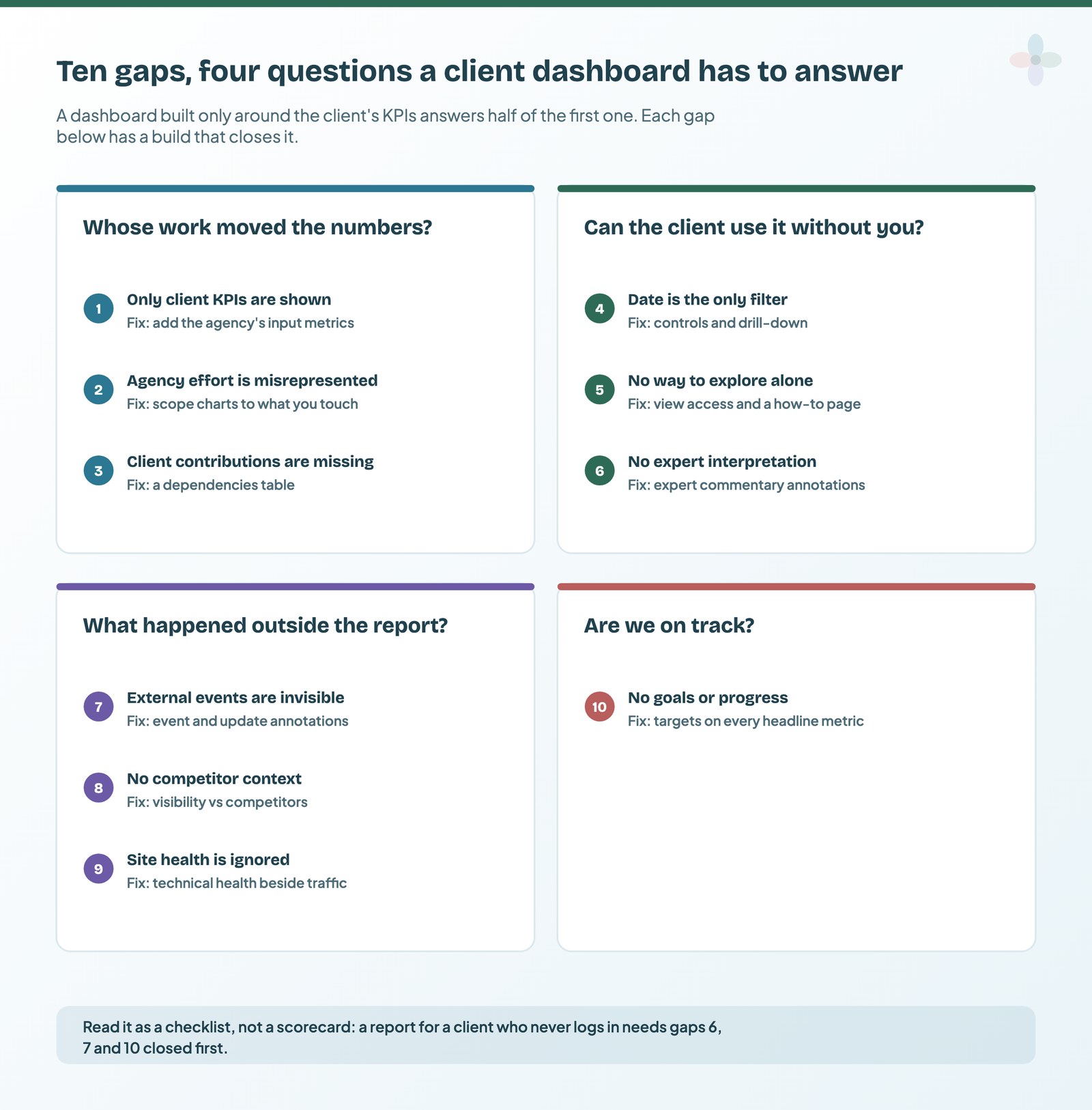
| # | The gap | What to add | The build |
|---|---|---|---|
| 1 | Designed only around client KPIs; the agency team’s contribution is missing | An inputs section: the work you delivered, next to the outcomes | leading and lagging metrics |
| 2 | Agency effort shown inaccurately | Charts scoped to the channels and pages you work on | custom dimension formulas |
| 3 | Client contributions (or the lack of them) not shown | A dependencies table: what’s waiting on whom, and for how long | a Google Sheet, below |
| 4 | No way to dig in, beyond the date range | Filter controls, cross-filtering and drill-down | filter controls |
| 5 | The client can’t use the data on their own | View access, a live link and a “how to read this” page | sharing and scheduling |
| 6 | No expert interpretation of the numbers | Dated commentary beside the charts | expert commentary annotations |
| 7 | The effect of outside events on traffic is invisible | Event and algorithm-update annotations on the time series | chart annotations |
| 8 | No comparison with competitors | A visibility or ranking view against named competitors | a rank tracker or SEO tool’s data |
| 9 | Unresolved site issues and site health left out | Technical health next to the traffic it holds back | URL Inspection API dashboard |
| 10 | No goals per metric, and no progress tracking | A target on every headline metric, and pacing | scorecards with targets |
Whose work moved the numbers?
1. Only the client’s KPIs are on the page
The most common design I see is a page of the client’s outcomes (sessions, leads, revenue) and nothing else. The agency team’s contributions, the actual work, don’t appear anywhere. That’s a problem twice over. In a good month the work is invisible, so the result looks like it happened by itself. In a bad month the only thing on the page is the drop.
The fix is an inputs section beside the outcomes: pages published or rewritten, technical tickets shipped, campaigns launched, tests run, links earned. These are the leading metrics: the things your team controls, which move the lagging outcomes weeks or months later. I’ve written up how leading and lagging KPIs pair up; the short version is that each output on the page should have the input that’s meant to move it right next to it.

The input data rarely lives in GA4. It’s in your project tool or a delivery log, so the simplest route is a Google Sheet with one row per piece of work (date, type, page or campaign, owner) connected to the report. Count rows by month and you have a “work delivered” scorecard; blend it on date with GA4 and the work sits on the same timeline as the traffic.
One caution, so this doesn’t swing too far the other way: showing your inputs isn’t a reason to shrink the client’s KPIs down to the bits you’re contracted for. The client owns the whole number, and scoping the dashboard to your contract just hides the context they need. Show both.
2. The agency’s effort is represented inaccurately
This is the subtler cousin of gap 1. The work is shown, but against the wrong numbers. An SEO retainer reported against total site sessions, so the paid campaign’s spike counts as “organic growth”. Branded search, which mostly reflects the client’s brand rather than your work, mixed in with the non-branded queries you were hired to grow. A CRO programme reported against site-wide conversion rate when it only touched three templates.
The charts that judge your work should be scoped to what you actually touch: the channel, the page group, the query set. In Data Studio that’s a chart filter or a CASE field. Splitting branded from non-branded queries, or grouping the pages you’ve worked on, are both formulas in my custom dimension formulas guide. Keep the site-wide view too, clearly labelled as context rather than as the scorecard for the retainer.
3. The client’s contributions (or the lack of them) aren’t shown
Outcomes are joint work. The client approves content, ships the developer tickets, sends the product feed, signs off the budget. When those things stall, the results stall, and a dashboard that only shows results makes the stall look like the agency’s.
I don’t mean a blame page. I mean a short dependencies table, from a Google Sheet, that both sides can see:
| Item | Waiting on | Requested | Days waiting | What it unblocks |
|---|---|---|---|---|
| Fix canonical tags on category pages | Client dev team | 3 March | calculated | Indexing of 40 category pages |
| Approve Q2 content calendar | Client marketing lead | 10 March | calculated | Six new guides |
| Product feed with sale prices | Agency paid team | 12 March | calculated | Shopping campaign relaunch |
“Days waiting” is a calculated field: DATETIME_DIFF(TODAY(), Requested, DAY) (the same pattern as the crawl-age field in my formulas guide). Add conditional formatting so anything over a fortnight turns red. Note the third row: the table holds the agency’s own open items as well, which is what keeps it honest and keeps the client reading it.
Can the client use it without you?
4. There’s nothing to explore except the date range
A lot of client dashboards are static pictures with one date control in the corner. The moment the client asks “is that drop mobile or desktop?” or “which country?”, they have to email you, and you have to make a new chart.
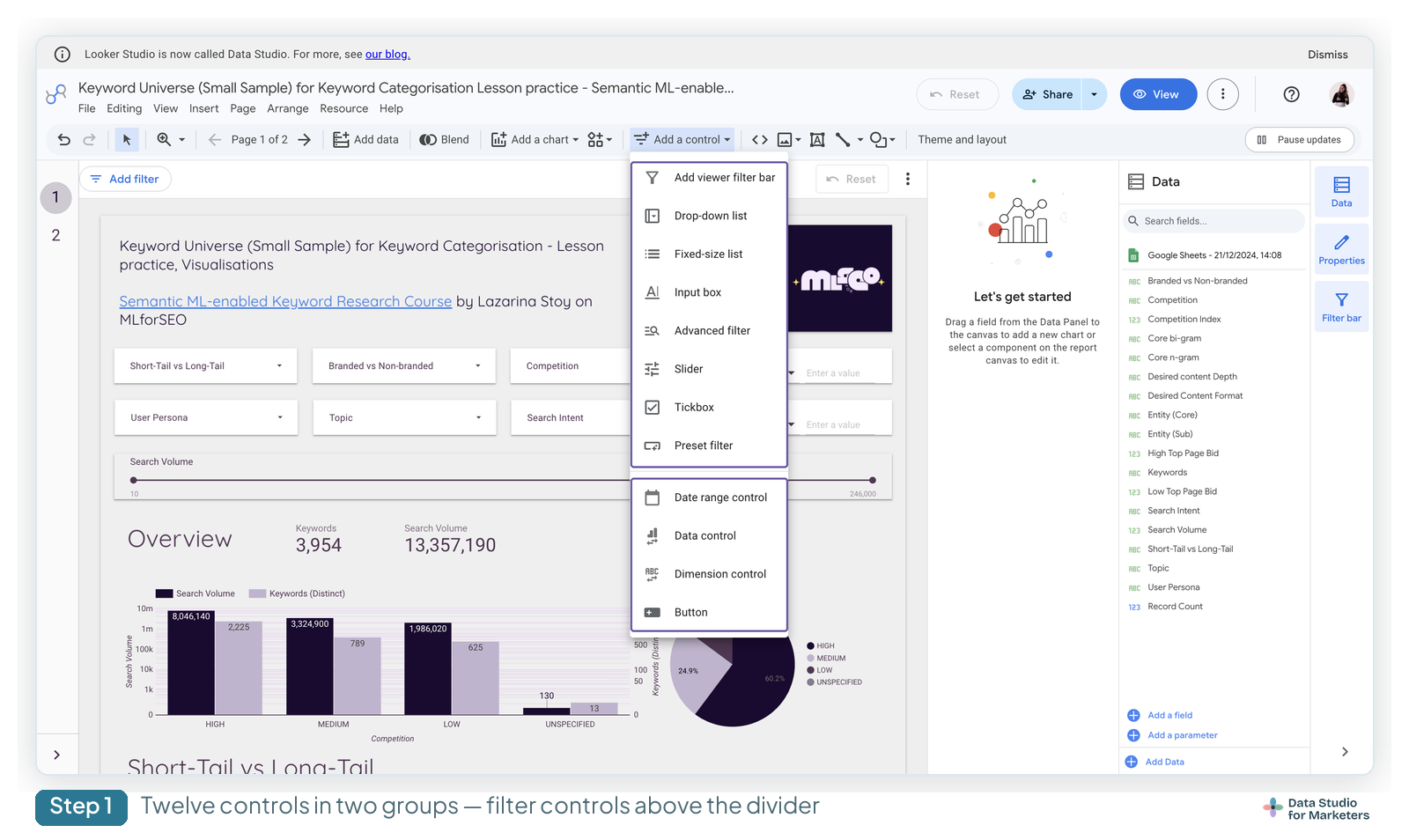
Filter controls on the dimensions clients actually ask about (channel, device, country, landing page or product category), cross-filtering so clicking a bar filters the page, and drill-down on the tables let them answer the second question themselves. Don’t add twelve controls; add the three that match the questions you got last quarter. Every control type, and where each one applies, is in my filter controls guide.
5. Clients can’t interact with the data on their own
Gap 4 is about the design; this one is about access. Plenty of clients only ever see the dashboard as a PDF attached to a monthly email, or as screenshots in a deck. However good the controls are, they can’t use them.
- Give view access to the live report, and send the link with every scheduled email so the PDF is the summary, not the only copy. How to share and schedule, and what needs Pro, is in sharing and scheduling Data Studio reports.
- Add a one-page “how to read this report” at the front: what each page answers, which controls do what, and who to ask. It takes twenty minutes and saves the same three questions every month.
- Check whether anyone opens it. If nobody does, that’s information too. Report usage tracking tells you which pages get read.
6. There’s no expert interpretation of the numbers
The client pays an agency for judgement, and most dashboards don’t contain any. The charts say what happened. Nothing says what it means, whether it was expected, or what you’re doing about it, so the client has to wait for the call (or guess).
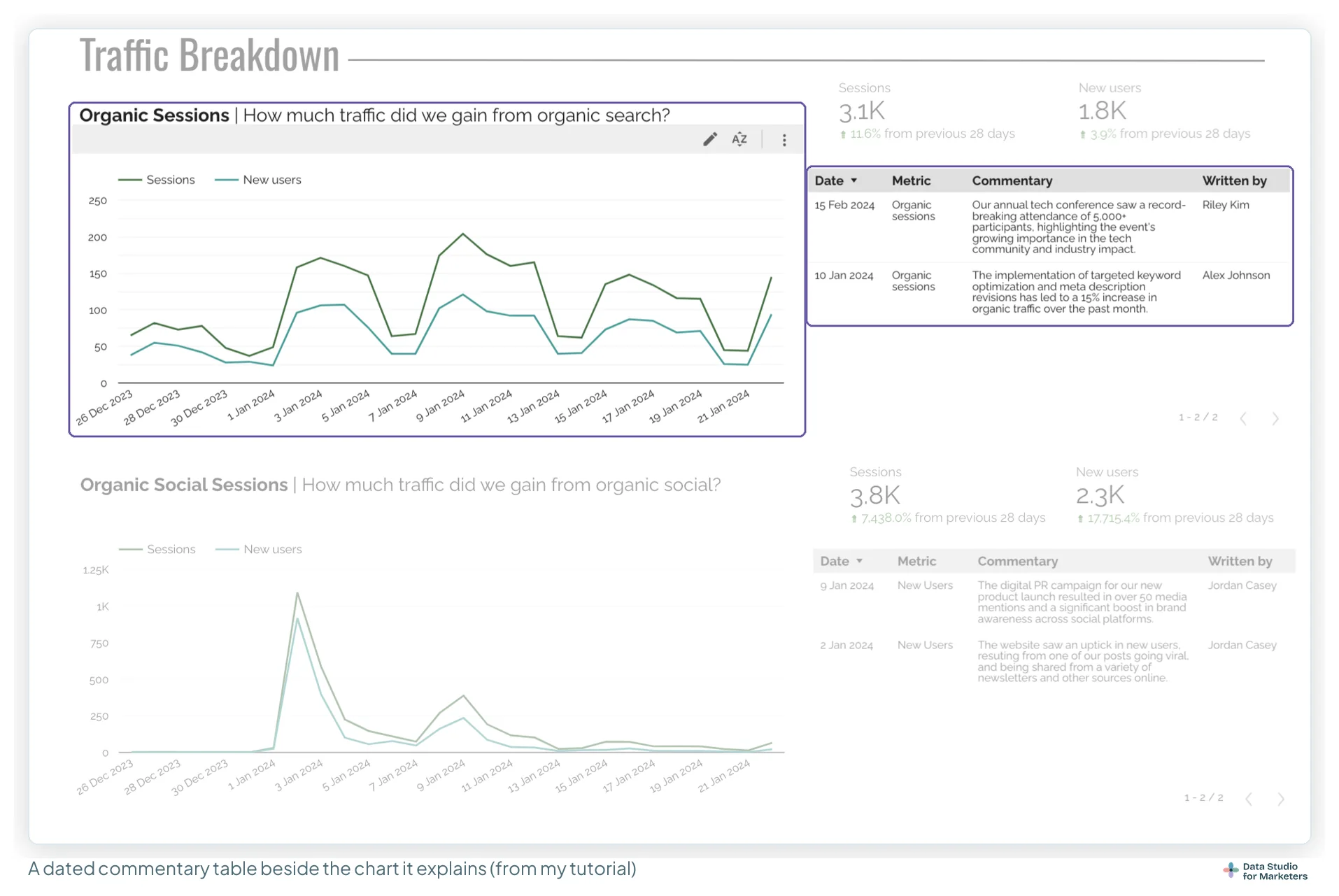
Expert commentary annotations fix this inside the report: a Google Sheet of dated comments by metric, blended with GA4, shown in a table beside the chart it explains. The expert commentary build walks through it, including how to write a comment short enough that people read it.
What happened outside the report?
7. The influence of external events on traffic isn’t displayed
A site migration, a sale, a PR spike, a Google core update, a competitor’s launch, a tracking change: half the movement on a traffic chart comes from things that aren’t in the data source. Without them on the chart, every spike gets explained from memory, and by month six nobody remembers.
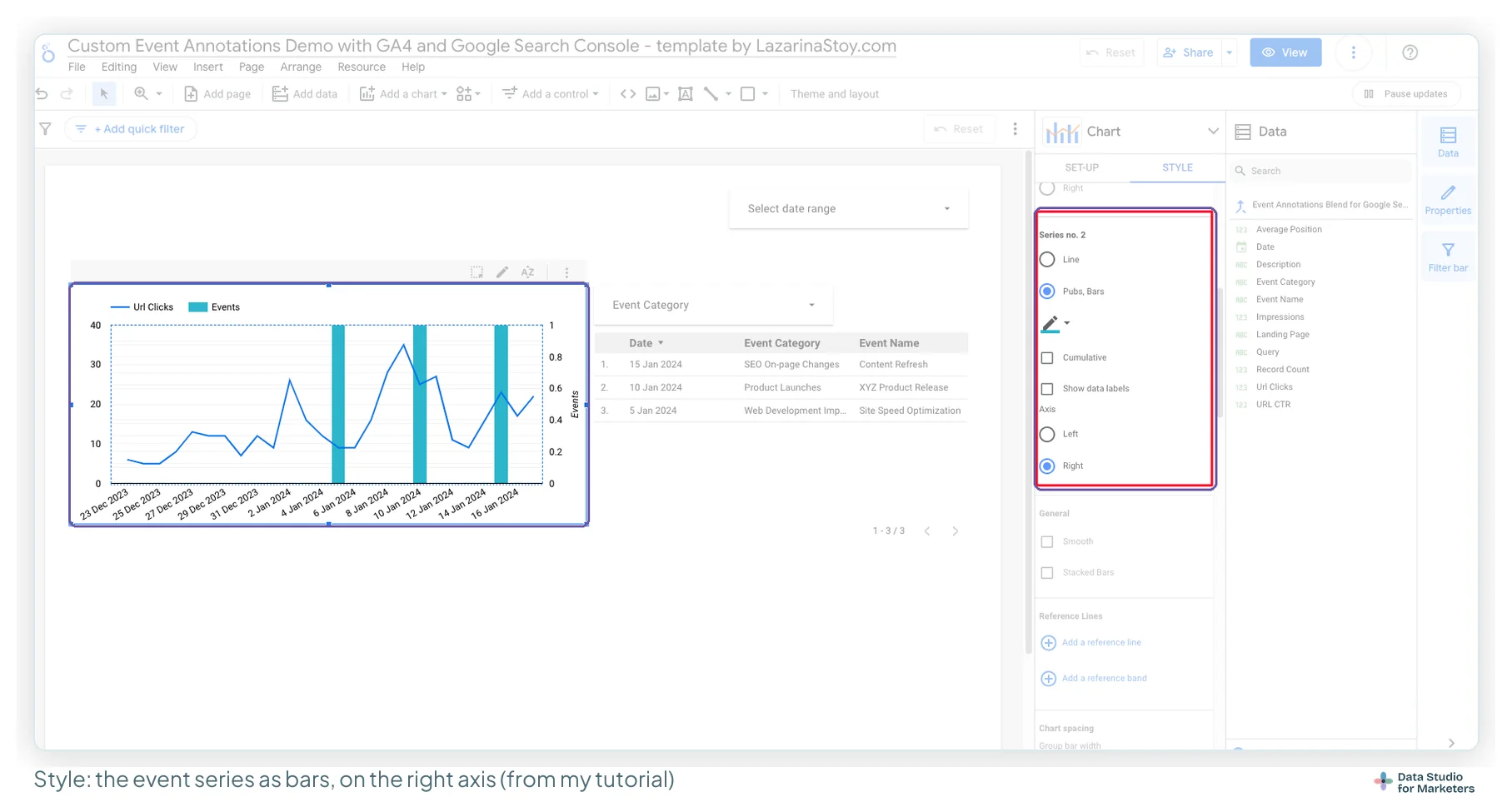
Annotations put them on the time series as bars, from a Google Sheet blended on date. I keep two kinds: custom event annotations for launches and changes, and algorithm update annotations for Google’s side. The annotations guide covers when to use which.
8. There’s no comparison with competitors
“Organic traffic is up 10%” reads very differently if the three main competitors are up 40%. Clients think in terms of their market, and a dashboard that only looks inward can’t answer “are we winning?”
Your own analytics can’t see competitors, so this data comes from a rank tracker or an SEO tool: visibility or share of voice for a fixed keyword set, average position against two or three named competitors, or shared keyword counts. Most of these tools have a Data Studio connector or export to a Google Sheet. Keep it to one chart and one table. The point is context, not a second dashboard. My Nightwatch rank tracking build is one way to get ranking data into a sheet on a schedule.
9. Site issues and site health are left out
Unresolved technical issues cap what the rest of the work can achieve: pages not indexed, canonical mismatches, slow templates, broken internal links. If they aren’t on the dashboard, the client can’t see what traffic they’re holding back, and the tickets in gap 3 never get prioritised.
A small technical health section, next to the traffic it affects, does the job. The URL Inspection API dashboard shows index coverage and canonical status per URL from a crawl, and the Core Web Vitals dashboard covers speed. Show the trend, and the count of open issues by severity, not the whole crawl.
Are we on track?
10. No goals per metric, and no progress tracking
A number without a target is a number without a verdict. Is 4,200 leads good? It depends entirely on whether the plan said 3,000 or 6,000, and most client dashboards don’t say.
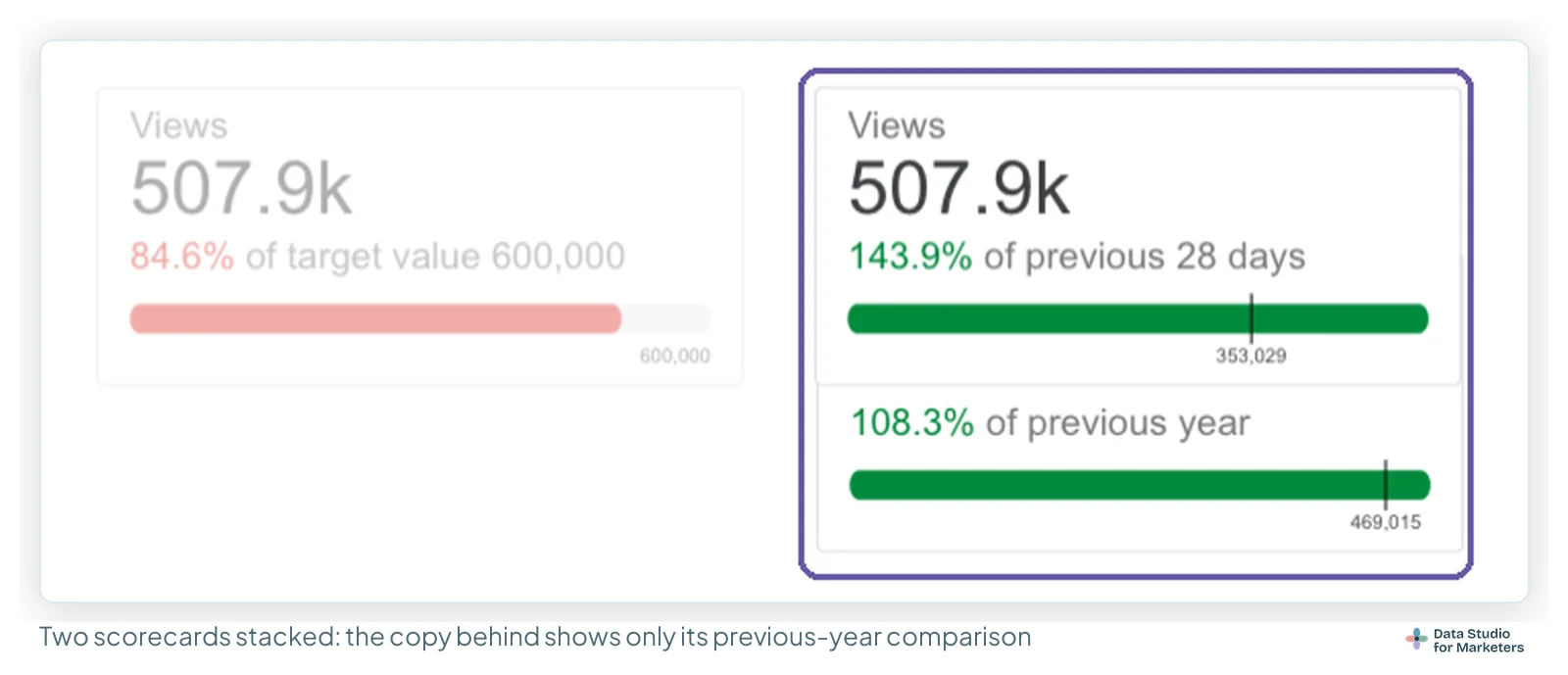
Agree a target for each headline metric at the start of the quarter, then put it on the page. A scorecard can compare against a target value directly, and a monthly target can be paced against daily actuals so you see mid-month whether you’ll land. The scorecard setup is in my scorecards guide, and the page it usually sits on is the executive summary page.
Which gaps to close first
You won’t fix all ten in one go, and you don’t need to. Start from how the client actually uses the report:
| How the client uses the report | Close first | Why |
|---|---|---|
| Only sees it as a PDF or in the monthly call | 6, 7, 10 | Interpretation, context and a verdict travel in a static copy; controls don’t |
| Logs in and pokes around | 4, 5, 7 | They’ll ask the second question themselves if the controls let them |
| Questions the value of the retainer | 1, 2, 3 | Show the work, scope it fairly, and make shared dependencies visible |
| Reports upwards to their own leadership | 10, 8, 6 | Leadership asks “on track?” and “against whom?” before anything else |
A ten-line checklist for the next dashboard
Run this before the next report goes out. Each “no” is a gap from the list above.
- Does the page show the work we delivered, next to the outcomes it was meant to move?
- Is each chart that judges our work scoped to the channels, pages or queries we work on?
- Can both sides see what’s waiting on whom, and for how long?
- Can the client filter by the three dimensions they asked about last quarter?
- Does the client have view access to the live report, and a page explaining how to read it?
- Is there a line of interpretation beside every headline chart?
- Are launches, changes and algorithm updates marked on the time series?
- Is there one view of how we compare with named competitors?
- Is open technical work, and its trend, on the page?
- Does every headline metric have a target, and can you see the pace towards it?
For a check that goes chart by chart rather than gap by gap, pair this with the “so what?” test.
Templates to build these into
If you’re starting a client report from scratch rather than fixing one, these are built for client reporting. Copy one, then work down the checklist.
Frequently asked questions
What should an agency client dashboard in Data Studio include?
The client’s KPIs, plus what explains them: the agency’s own work (inputs), the client’s open dependencies, annotations for outside events, expert commentary, a competitor view, technical health, and a target for every headline metric.
How do I show agency work in a client report?
Log delivered work in a Google Sheet (date, type, page or campaign, owner), connect it to the report, and show it as a count by month or as annotations on the traffic chart, next to the outcome each piece of work was meant to move.
How do I add targets to a Data Studio dashboard?
Set the scorecard’s comparison to a target value for a fixed goal, or keep monthly targets in a Google Sheet and blend them with daily actuals to pace the month.
Should clients have edit access to their dashboard?
Usually view access is enough: with filter controls and a how-to page they can explore without changing the report. Keep edit rights with the people who maintain it.